Radio CHEVROLET AVALANCHE 2007 2.G Repair Manual
[x] Cancel search | Manufacturer: CHEVROLET, Model Year: 2007, Model line: AVALANCHE, Model: CHEVROLET AVALANCHE 2007 2.GPages: 618, PDF Size: 3.25 MB
Page 339 of 618
Video Screen
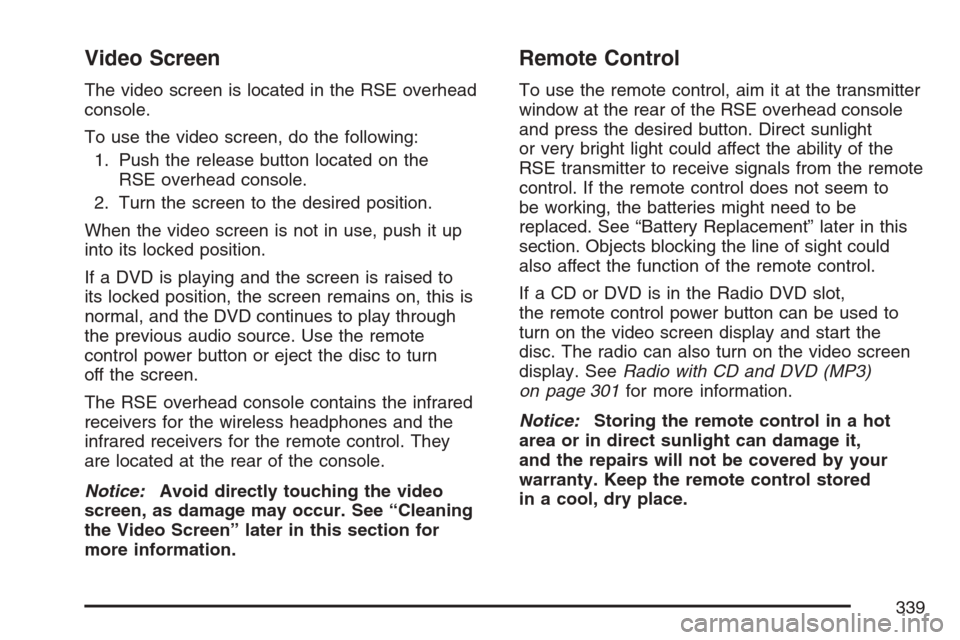
The video screen is located in the RSE overhead
console.
To use the video screen, do the following:
1. Push the release button located on the
RSE overhead console.
2. Turn the screen to the desired position.
When the video screen is not in use, push it up
into its locked position.
If a DVD is playing and the screen is raised to
its locked position, the screen remains on, this is
normal, and the DVD continues to play through
the previous audio source. Use the remote
control power button or eject the disc to turn
off the screen.
The RSE overhead console contains the infrared
receivers for the wireless headphones and the
infrared receivers for the remote control. They
are located at the rear of the console.
Notice:Avoid directly touching the video
screen, as damage may occur. See “Cleaning
the Video Screen” later in this section for
more information.
Remote Control
To use the remote control, aim it at the transmitter
window at the rear of the RSE overhead console
and press the desired button. Direct sunlight
or very bright light could affect the ability of the
RSE transmitter to receive signals from the remote
control. If the remote control does not seem to
be working, the batteries might need to be
replaced. See “Battery Replacement” later in this
section. Objects blocking the line of sight could
also affect the function of the remote control.
If a CD or DVD is in the Radio DVD slot,
the remote control power button can be used to
turn on the video screen display and start the
disc. The radio can also turn on the video screen
display. SeeRadio with CD and DVD (MP3)
on page 301for more information.
Notice:Storing the remote control in a hot
area or in direct sunlight can damage it,
and the repairs will not be covered by your
warranty. Keep the remote control stored
in a cool, dry place.
339
Page 341 of 618
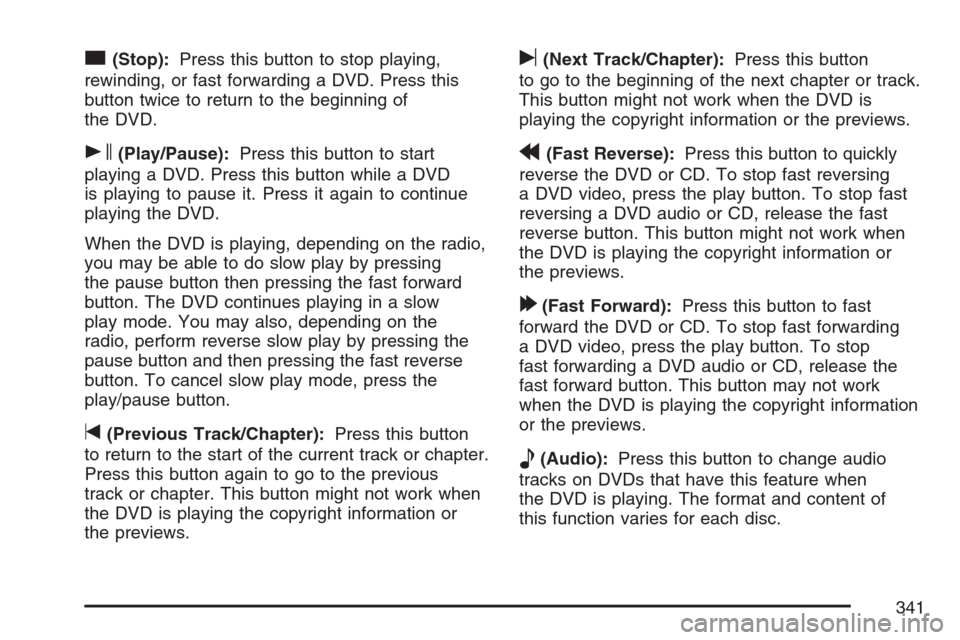
c(Stop):Press this button to stop playing,
rewinding, or fast forwarding a DVD. Press this
button twice to return to the beginning of
the DVD.
s(Play/Pause):Press this button to start
playing a DVD. Press this button while a DVD
is playing to pause it. Press it again to continue
playing the DVD.
When the DVD is playing, depending on the radio,
you may be able to do slow play by pressing
the pause button then pressing the fast forward
button. The DVD continues playing in a slow
play mode. You may also, depending on the
radio, perform reverse slow play by pressing the
pause button and then pressing the fast reverse
button. To cancel slow play mode, press the
play/pause button.
t(Previous Track/Chapter):Press this button
to return to the start of the current track or chapter.
Press this button again to go to the previous
track or chapter. This button might not work when
the DVD is playing the copyright information or
the previews.
u(Next Track/Chapter):Press this button
to go to the beginning of the next chapter or track.
This button might not work when the DVD is
playing the copyright information or the previews.
r(Fast Reverse):Press this button to quickly
reverse the DVD or CD. To stop fast reversing
a DVD video, press the play button. To stop fast
reversing a DVD audio or CD, release the fast
reverse button. This button might not work when
the DVD is playing the copyright information or
the previews.
[(Fast Forward):Press this button to fast
forward the DVD or CD. To stop fast forwarding
a DVD video, press the play button. To stop
fast forwarding a DVD audio or CD, release the
fast forward button. This button may not work
when the DVD is playing the copyright information
or the previews.
e(Audio):Press this button to change audio
tracks on DVDs that have this feature when
the DVD is playing. The format and content of
this function varies for each disc.
341
Page 344 of 618
DVD Display Error Messages
The DVD display error message depends on
which radio you have. The video screen may
display one of the following:
Disc Load/Eject Error:This message is
displayed when there are disc load or eject
problems.
Disc Format Error:This message is displayed,
if the disc is inserted with the disc label wrong
side up, or if the disc is damaged.
Disc Region Error:This message is displayed,
if the disc is not from a correct region.
No Disc Inserted:This message is displayed,
if no disc is present when the EJECT button
is pressed on the radio.
DVD Distortion
Video distortion may occur when operating cellular
phones, scanners, CB radios, Global Position
Systems (GPS)*, two-way radios, mobile fax,
or walkie talkies.
It might be necessary to turn off the DVD player
when operating one of these devices in or near
the vehicle.
*Excludes the OnStar
®System.
Cleaning the RSE Overhead Console
When cleaning the RSE overhead console
surface, use only a clean cloth dampened with
clean water.
Cleaning the Video Screen
When cleaning the video screen, use only a
clean cloth dampened with clean water.
Use care when directly touching or cleaning
the screen, as damage may result.
344
Page 345 of 618
Rear Seat Audio (RSA)
This feature allows rear seat passengers to listen
to and control any of the music sources: radio,
CDs, DVDs, or other auxiliary sources. However,
the rear seat passengers can only control the
music sources the front seat passengers are
not listening to, except on some radios where
dual control is allowed. For example, rear
seat passengers can listen to and control a CD
through the headphones, while the driver listens
to the radio through the front speakers. The
rear seat passengers have control of the volume
for each set of headphones.
You can operate the RSA functions even when
the main radio is off.
Audio can be heard through wired headphones
(not included) plugged into the jacks on the
RSA. If your vehicle has this feature, audio can
also be heard on Channel 2 of the wireless
headphones.
The audio system mutes the rear speakers
when the RSA audio is active through the
headphones.
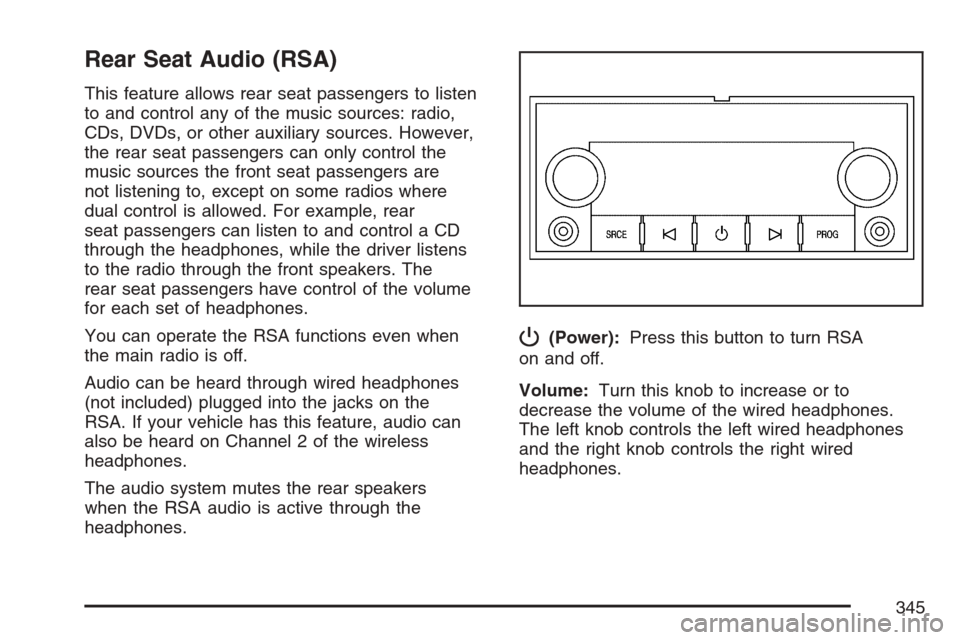
P(Power):Press this button to turn RSA
on and off.
Volume:Turn this knob to increase or to
decrease the volume of the wired headphones.
The left knob controls the left wired headphones
and the right knob controls the right wired
headphones.
345
Page 346 of 618
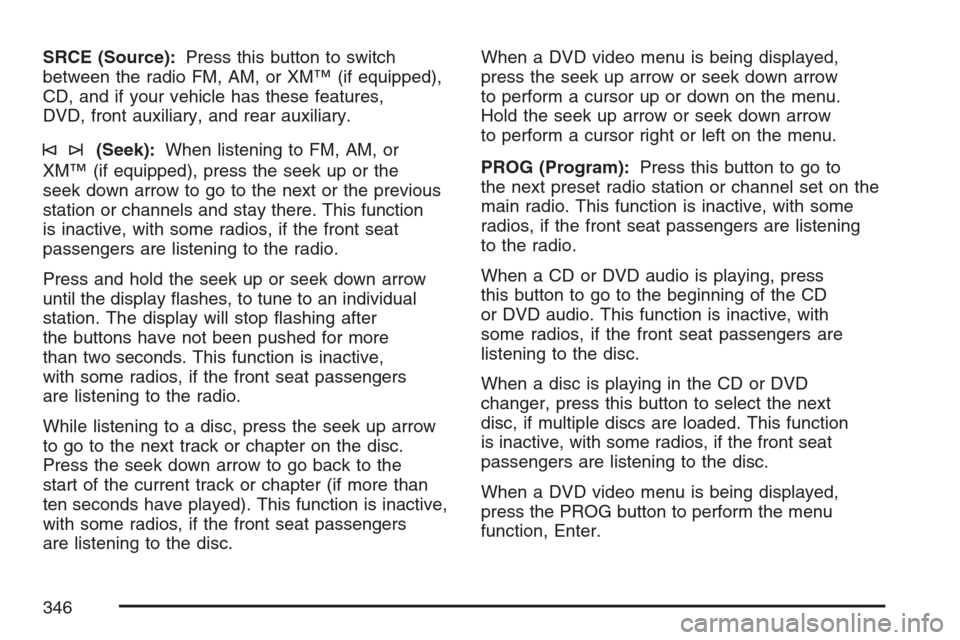
SRCE (Source):Press this button to switch
between the radio FM, AM, or XM™ (if equipped),
CD, and if your vehicle has these features,
DVD, front auxiliary, and rear auxiliary.
©¨(Seek):When listening to FM, AM, or
XM™ (if equipped), press the seek up or the
seek down arrow to go to the next or the previous
station or channels and stay there. This function
is inactive, with some radios, if the front seat
passengers are listening to the radio.
Press and hold the seek up or seek down arrow
until the display ashes, to tune to an individual
station. The display will stop ashing after
the buttons have not been pushed for more
than two seconds. This function is inactive,
with some radios, if the front seat passengers
are listening to the radio.
While listening to a disc, press the seek up arrow
to go to the next track or chapter on the disc.
Press the seek down arrow to go back to the
start of the current track or chapter (if more than
ten seconds have played). This function is inactive,
with some radios, if the front seat passengers
are listening to the disc.When a DVD video menu is being displayed,
press the seek up arrow or seek down arrow
to perform a cursor up or down on the menu.
Hold the seek up arrow or seek down arrow
to perform a cursor right or left on the menu.
PROG (Program):Press this button to go to
the next preset radio station or channel set on the
main radio. This function is inactive, with some
radios, if the front seat passengers are listening
to the radio.
When a CD or DVD audio is playing, press
this button to go to the beginning of the CD
or DVD audio. This function is inactive, with
some radios, if the front seat passengers are
listening to the disc.
When a disc is playing in the CD or DVD
changer, press this button to select the next
disc, if multiple discs are loaded. This function
is inactive, with some radios, if the front seat
passengers are listening to the disc.
When a DVD video menu is being displayed,
press the PROG button to perform the menu
function, Enter.
346
Page 347 of 618
Theft-Deterrent Feature
THEFTLOCK®is designed to discourage theft
of your vehicle’s radio. The feature works
automatically by learning a portion of the
Vehicle Identication Number (VIN). If the radio
is moved to a different vehicle, it does not operate
and LOCKED displays.
Audio Steering Wheel Controls
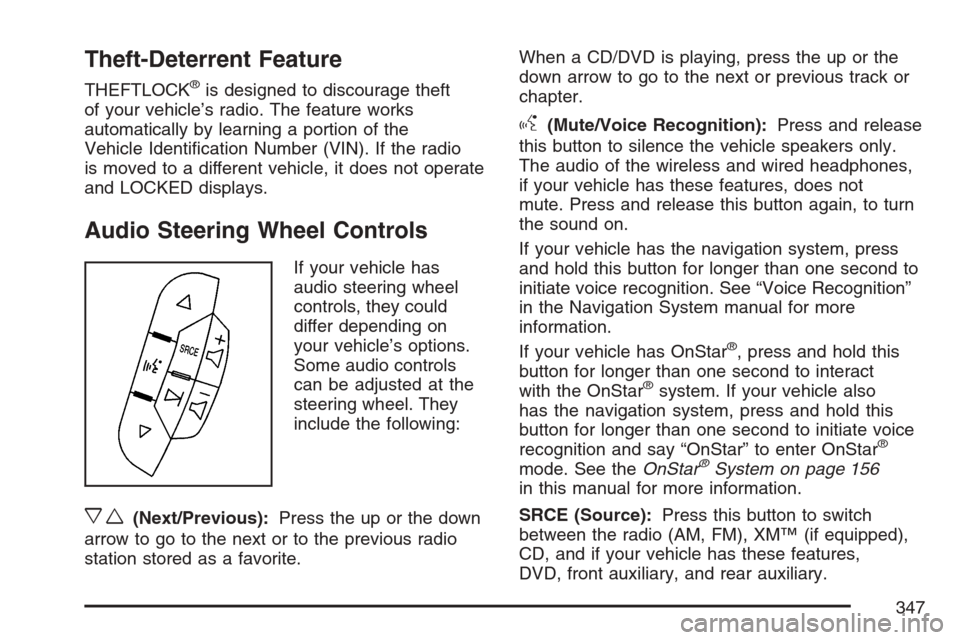
If your vehicle has
audio steering wheel
controls, they could
differ depending on
your vehicle’s options.
Some audio controls
can be adjusted at the
steering wheel. They
include the following:
xw(Next/Previous):Press the up or the down
arrow to go to the next or to the previous radio
station stored as a favorite.When a CD/DVD is playing, press the up or the
down arrow to go to the next or previous track or
chapter.
g(Mute/Voice Recognition):Press and release
this button to silence the vehicle speakers only.
The audio of the wireless and wired headphones,
if your vehicle has these features, does not
mute. Press and release this button again, to turn
the sound on.
If your vehicle has the navigation system, press
and hold this button for longer than one second to
initiate voice recognition. See “Voice Recognition”
in the Navigation System manual for more
information.
If your vehicle has OnStar
®, press and hold this
button for longer than one second to interact
with the OnStar
®system. If your vehicle also
has the navigation system, press and hold this
button for longer than one second to initiate voice
recognition and say “OnStar” to enter OnStar
®
mode. See theOnStar®System on page 156
in this manual for more information.
SRCE (Source):Press this button to switch
between the radio (AM, FM), XM™ (if equipped),
CD, and if your vehicle has these features,
DVD, front auxiliary, and rear auxiliary.
347
Page 348 of 618
+e−e(Volume):Press the plus or minus
button to increase or to decrease the radio volume.
¨(Seek):Press the seek arrow to go to the
next radio station while in AM, FM, or XM™
(if equipped). Press this button to go to the
next track or chapter while sourced to the CD
or DVD slot. Press the button to go to the next
disc while sourced to a CD or DVD changer,
if multiple discs are loaded.
Radio Reception
You may experience frequency interference and
static during normal radio reception if items
such as cellphone chargers, vehicle convenience
accessories, and external electronic devices
are plugged into the accessory power outlet.
If there is interference or static, unplug the item
from the accessory power outlet.
AM
The range for most AM stations is greater than for
FM, especially at night. The longer range can cause
station frequencies to interfere with each other.For better radio reception, most AM radio stations
will boost the power levels during the day, and
then reduce these levels during the night. Static can
also occur when things like storms and power lines
interfere with radio reception. When this happens,
try reducing the treble on your radio.
FM Stereo
FM stereo will give the best sound, but FM signals
will reach only about 10 to 40 miles (16 to 65 km).
Tall buildings or hills can interfere with FM
signals, causing the sound to fade in and out.
XM™ Satellite Radio Service
XM™ Satellite Radio Service gives digital radio
reception from coast-to-coast in the 48 contiguous
United States, and in Canada. Just as with FM,
tall buildings or hills can interfere with satellite
radio signals, causing the sound to fade in and out.
In addition, traveling or standing under heavy
foliage, bridges, garages, or tunnels may cause
loss of the XM™ signal for a period of time.
The radio may display NO XM SIGNAL to indicate
interference.
348
Page 349 of 618
Care of Your CDs and DVDs
Handle CDs carefully. Store them in their original
cases or other protective cases and away from
direct sunlight and dust. The CD player scans
the bottom surface of the disc. If the surface of a
CD is damaged, such as cracked, broken, or
scratched, the CD does not play properly or not
at all. If the surface of a CD is soiled, take a soft,
lint free cloth or dampen a clean, soft cloth in
a mild, neutral detergent solution mixed with
water, and clean it. Make sure the wiping process
starts from the center to the edge.
Do not touch the bottom side of a CD while
handling it; this could damage the surface.
Pick up CDs by grasping the outer edges or
the edge of the hole and the outer edge.
Care of the CD and DVD Player
The use of CD lens cleaners for CDs is not
advised, due to the risk of contaminating the
lens of the CD optics with lubricants internal to
the CD mechanism.
Fixed Mast Antenna
The xed mast antenna can withstand most car
washes without being damaged. If the mast should
ever become slightly bent, straighten it out by
hand. If the mast is badly bent, replace it.
Check occasionally to make sure the mast
is still tightened to its base. If tightening is
required, tighten by hand, then with a wrench
one quarter turn.
XM™ Satellite Radio Antenna
System
The XM™ Satellite Radio antenna is located on
the roof of your vehicle. Keep this antenna clear
of snow and ice build up for clear radio reception.
A vehicle with a sunroof might not get the best
performance from the XM™ system if the sunroof
is open.
Loading items onto the roof of your vehicle can
interfere with the performance of the XM™ system.
Make sure the XM™ Satellite Radio antenna is
not obstructed.
349
Page 477 of 618
2. Get the vehicles close enough so the jumper
cables can reach, but be sure the vehicles are
not touching each other. If they are, it could
cause a ground connection you do not
want. You would not be able to start your
vehicle, and the bad grounding could damage
the electrical systems.
To avoid the possibility of the vehicles rolling,
set the parking brake rmly on both vehicles
involved in the jump start procedure. Put
the automatic transmission in PARK (P) or a
manual transmission in NEUTRAL before
setting the parking brake. If you have a
four-wheel-drive vehicle, be sure the transfer
case is in a drive gear, not in NEUTRAL.
Notice:If you leave your radio or other
accessories on during the jump starting
procedure, they could be damaged.
The repairs would not be covered by
your warranty. Always turn off your radio
and other accessories when jump starting
your vehicle.3. Turn off the ignition on both vehicles.
Unplug unnecessary accessories plugged
into the cigarette lighter or the accessory
power outlets. Turn off the radio and all the
lamps that are not needed. This will avoid
sparks and help save both batteries.
And it could save the radio!
4. Open the hood on the other vehicle and locate
the positive (+) and negative (−) terminal
locations on that vehicle.
Your vehicle has a remote positive (+) jump
starting terminal and a remote negative (−)
jump starting terminal. You should always use
these remote terminals instead of the terminals
on the battery.
The remote positive (+) terminal, if equipped, is
located under a red plastic cover at the positive
battery post. To uncover the remote positive (+)
terminal, open the red plastic cover.
477
Page 501 of 618

How to Check
Use a good quality pocket-type gage to check
tire pressure. You cannot tell if your tires are
properly inated simply by looking at them.
Radial tires may look properly inated even when
they’re underinated. Check the tire’s ination
pressure when the tires are cold. Cold means your
vehicle has been sitting for at least three hours
or driven no more than 1 mile (1.6 km).
Remove the valve cap from the tire valve stem.
Press the tire gage rmly onto the valve to
get a pressure measurement. If the cold tire
ination pressure matches the recommended
pressure on the Tire and Loading Information
label, no further adjustment is necessary. If the
ination pressure is low, add air until you reach
the recommended amount.
If you overll the tire, release air by pushing on
the metal stem in the center of the tire valve.
Recheck the tire pressure with the tire gage.
Be sure to put the valve caps back on the valve
stems. They help prevent leaks by keeping out
dirt and moisture.
Tire Pressure Monitor System
The Tire Pressure Monitor System (TPMS) uses
radio and sensor technology to check tire pressure
levels. If your vehicle has this feature, sensors
are mounted on each tire and wheel assembly,
except the spare tire. The TPMS sensors monitor
the air pressure in your vehicle’s tires and
transmit tire pressure readings to a receiver
located in the vehicle.
The TPMS is designed to alert the driver, if a low
tire pressure condition exists. If your vehicle has the
Driver Information Center (DIC), the driver may also
check tire pressure levels using the DIC.
501