change time CHEVROLET AVALANCHE 2008 2.G User Guide
[x] Cancel search | Manufacturer: CHEVROLET, Model Year: 2008, Model line: AVALANCHE, Model: CHEVROLET AVALANCHE 2008 2.GPages: 528, PDF Size: 3.05 MB
Page 239 of 528
DIC Warnings and Messages
Messages are displayed on the DIC to notify the driver
that the status of the vehicle has changed and that some
action may be needed by the driver to correct the
condition. Multiple messages may appear one after
another.
Some messages may not require immediate action, but
you can press any of the DIC buttons on the instrument
panel or the trip odometer reset stem on the instrument
panel cluster to acknowledge that you received the
messages and to clear them from the display.
Some messages cannot be cleared from the DIC
display because they are more urgent. These messages
require action before they can be cleared. You should
take any messages that appear on the display seriously
and remember that clearing the messages will only
make the messages disappear, not correct the problem.
The following are the possible messages that can be
displayed and some information about them.
CHANGE ENGINE OIL SOON
This message displays when the engine oil needs to
be changed. When you change the engine oil, be sure to
reset the CHANGE ENGINE OIL SOON message. See
Engine Oil Life System on page 5-18for information on
how to reset the message. SeeEngine Oil on page 5-15
andScheduled Maintenance on page 6-4for more
information.
CHECK TIRE PRESSURE
This message displays when the pressure in one or
more of the vehicle’s tires needs to be checked. This
message also displays LEFT FRONT, RIGHT FRONT,
LEFT REAR, or RIGHT REAR to indicate which tire
needs to be checked. You can receive more than one tire
pressure message at a time. To read the other messages
that may have been sent at the same time, press the
set/reset button or the trip odometer reset stem. If a tire
pressure message appears on the DIC, stop as soon as
you can. Have the tire pressures checked and set to
those shown on the Tire Loading Information label. See
Tires on page 5-56,Loading Your Vehicle on page 4-36,
andInation - Tire Pressure on page 5-64. The DIC also
shows the tire pressure values. See “DIC Operation and
Displays (With DIC Buttons)” earlier in this section. If the
tire pressure is low, the low tire pressure warning light
comes on. SeeTire Pressure Light on page 3-42.
3-59
Page 250 of 528
DELAY DOOR LOCK
This feature allows you to select whether or not the
locking of the vehicle’s doors and tailgate will be delayed.
When locking the doors and tailgate with the power door
lock switch and a door or the tailgate is open, this feature
will delay locking the doors and tailgate until ve seconds
after the last door is closed. You will hear three chimes to
signal that the delayed locking feature is in use. The key
must be out of the ignition for this feature to work. You
can temporarily override delayed locking by pressing the
power door lock switch twice or the lock button on the
RKE transmitter twice. SeeDelayed Locking on
page 2-10for more information.
Press the customization button until DELAY DOOR
LOCK appears on the DIC display. Press the set/reset
button once to access the settings for this feature.
Then press the customization button to scroll through
the following settings:
OFF:There will be no delayed locking of the vehicle’s
doors.
ON (default):The doors will not lock until ve seconds
after the last door or the tailgate is closed.
NO CHANGE:No change will be made to this feature.
The current setting will remain.
To select a setting, press the set/reset button while the
desired setting is displayed on the DIC.
EXIT LIGHTING
This feature allows you to select the amount of time you
want the exterior lamps to remain on when it is dark
enough outside. This happens after the key is turned
from ON/RUN to LOCK/OFF.
Press the customization button until EXIT LIGHTING
appears on the DIC display. Press the set/reset button
once to access the settings for this feature. Then
press the customization button to scroll through the
following settings:
OFF:The exterior lamps will not turn on.
30 SECONDS (default):The exterior lamps will stay on
for 30 seconds.
1 MINUTE:The exterior lamps will stay on for
one minute.
2 MINUTES:The exterior lamps will stay on for
two minutes.
NO CHANGE:No change will be made to this feature.
The current setting will remain.
To select a setting, press the set/reset button while the
desired setting is displayed on the DIC.
3-70
Page 252 of 528
PARK TILT MIRRORS
If your vehicle has this feature, it allows you to select
whether or not the outside mirror(s) will automatically tilt
down when the vehicle is shifted into REVERSE (R).
SeeOutside Power Foldaway Mirrors on page 2-56for
more information.
Press the customization button until PARK TILT
MIRRORS appears on the DIC display. Press the
set/reset button once to access the settings for
this feature. Then press the customization button
to scroll through the following settings:
OFF (default):Neither outside mirror will be tilted down
when the vehicle is shifted into REVERSE (R).
DRIVER MIRROR:The driver’s outside mirror
will be tilted down when the vehicle is shifted into
REVERSE (R).
PASSENGER MIRROR:The passenger’s outside
mirror will be tilted down when the vehicle is shifted into
REVERSE (R).
BOTH MIRRORS:The driver’s and passenger’s outside
mirrors will be tilted down when the vehicle is shifted
into REVERSE (R).
NO CHANGE:No change will be made to this feature.
The current setting will remain.
To select a setting, press the set/reset button while the
desired setting is displayed on the DIC.
EASY EXIT SEAT
If your vehicle has this feature, it allows you to select
your preference for the automatic easy exit seat feature.
SeeMemory Seat, Mirrors, and Pedals on page 1-6
for more information.
Press the customization button until EASY EXIT SEAT
appears on the DIC display. Press the set/reset button
once to access the settings for this feature. Then press
the customization button to scroll through the following
settings:
OFF (default):No automatic seat exit recall will occur.
ON:The driver’s seat will move back when the key
is removed from the ignition.
The automatic easy exit seat movement will only occur
one time after the key is removed from the ignition. If the
automatic movement has already occurred, and you put
the key back in the ignition and remove it again, the seat
will stay in the original exit position, unless a memory
recall took place prior to removing the key again.
NO CHANGE:No change will be made to this feature.
The current setting will remain.
To select a setting, press the set/reset button while the
desired setting is displayed on the DIC.
3-72
Page 256 of 528
Setting the Clock
MP3 Radios with a Single CD or a
Single CD and DVD Player
If the vehicle has a radio with a single CD or a CD and
DVD player, it has a
H(clock) button for setting the
time and date.
To set the time and date, follow the instructions:
1. Press the
Hbutton and the HR, MIN, MM, DD,
YYYY (hour, minute, month, day, and year)
displays.
2. Press the pushbutton located under any one of the
labels to change it. Every time the pushbutton is
pressed again, the time or the date if selected,
increases by one.
Another way to increase the time or date,
is to press the right
¨SEEK arrow or
the
\FWD (forward) button.
To decrease the time or date, press the
left
©SEEK arrow or thesREV (reverse)
button, or turn the
f(tune) knob, located on
the upper right side of the radio, to adjust
the selected setting.
Changing the Time and Date Default
Settings
To change the time default setting from 12 hour to
24 hour or to change the date default setting from
month/day/year to day/month/year, follow these
instructions:
1. Press the
Hbutton and then the pushbutton
located under the forward arrow that is currently
displayed on the radio screen until the time 12H
and 24H, and the date MM/DD/YYYY (month, day,
and year) and DD/MM/YYYY (day, month, and
year) displays.
2. Press the pushbutton located under the desired
option.
3. Press the
Hbutton again to apply the selected
default, or let the screen time out.
3-76
Page 257 of 528
MP3 Radio with a Six-Disc CD Player
If the vehicle has a radio with a six-disc CD player, the
radio has a MENU button instead of the
H(clock)
button to set the time and date.
To set the time and date, follow these instructions:
1. Press the MENU button.
2. Once the
H(clock) option displays, press the
pushbutton located under that label. The HR,
MIN, MM, DD, YYYY (hour, minute, month, day,
and year) displays.
3. Press the pushbutton located under any one of the
labels to change it. Every time the pushbutton is
pressed again, the time or the date if selected,
increases by one.
Another way to increase the time or date,
is to press the right
¨SEEK arrow or
the
\FWD (forward) button.
To decrease the time or date, press the
left
©SEEK arrow or thesREV (reverse)
button, or turn the
f(tune) knob, located on
the upper right side of the radio, to adjust
the selected setting.
Changing the Time and Date Default
Settings
To change the time default setting from 12 hour to
24 hour or to change the date default setting from
month/day/year to day/month/year, follow these
instructions:
1. Press the MENU button. Once the
Hoption
displays, press the pushbutton located under
the forward arrow that is currently displayed on the
radio screen until the 12H (hour) and 24H (hour),
and the date MM/DD (month and day) and DD/MM
(day and month) displays.
2. Press the pushbutton located under the desired
option.
3. Press the MENU button again to apply the selected
default, or let the screen time out.
3-77
Page 271 of 528
O(Power):Press to turn the radio on or off. Turn
clockwise or counterclockwise to increase or decrease
the volume. Press and hold for more than two seconds
to turn off the radio and Rear Seat Entertainment (RSE)
system, and to start the parental control feature.
Parental control prevents the rear seat occupant from
operating the Rear Seat Audio (RSA) system or remote
control.
A lock symbol displays next to the clock display.
The parental control feature remains on until this knob
is pressed and held for more than two seconds again,
or until the driver turns the ignition off and exits the
vehicle.
f(Tune):Turn to change tracks on a CD or DVD, to
manually tune a radio station, or to change clock or date
settings, while in the clock or date setting mode. See
the information given earlier in this section specic to the
radio, CD, and the DVD. Also, see “Setting the Clock”
in the index, for setting the clock and date.
©SEEK (Previous Track/Chapter):Press the left
arrow to return to the start of the current track or
chapter. Press the left arrow again to go to the previous
track or chapter. This button might not work when the
DVD is playing the copyright information or the previews.SEEK
¨(Next Track/Chapter):Press the right arrow
to go to the next track or chapter. This button might
not work when the DVD is playing the copyright
information or the previews.
sREV (Fast Reverse):Press to quickly reverse
the CD or DVD at ve times the normal speed. The radio
displays the elapsed time while in fast reverse. To stop
fast reversing, press again. This button might not work
when the DVD is playing the copyright information or the
previews.
\FWD (Fast Forward):Press to fast forward the
CD or DVD. The radio displays the elapsed time and
fast forwards ve times the normal speed. To stop fast
forwarding, press again. This button might not work
when the DVD is playing the copyright information or
the previews.
Z(Eject):Press this button to eject a CD or DVD.
If a CD or DVD is ejected, but not removed, the
player automatically pulls it back in after 15 seconds.
If loading and reading of a CD cannot be completed,
because of an unknown format, etc., and the disc fails
to eject, press and hold this button for more than
ve seconds to force the disc to eject.
3-91
Page 289 of 528
Notice:Do not store the headphones in heat or
direct sunlight. This could damage the headphones
and repairs will not be covered by your warranty.
Storage in extreme cold can weaken the batteries.
Keep the headphones stored in a cool, dry place.
If the foam ear pads attached to the headphones
become worn or damaged, the pads can be replaced
separately from the headphone set. See your
dealer/retailer for more information.
Battery Replacement
To change the batteries on the headphones, do the
following:
1. Turn the screw to loosen the battery door located
on the left side of the headphones. Slide the
battery door open.
2. Replace the two batteries in the compartment.
Make sure that they are installed correctly, using the
diagram on the inside of the battery compartment.
3. Replace the battery door and tighten the
door screw.
If the headphones are to be stored for a long period of
time, remove the batteries and keep them in a cool,
dry place.
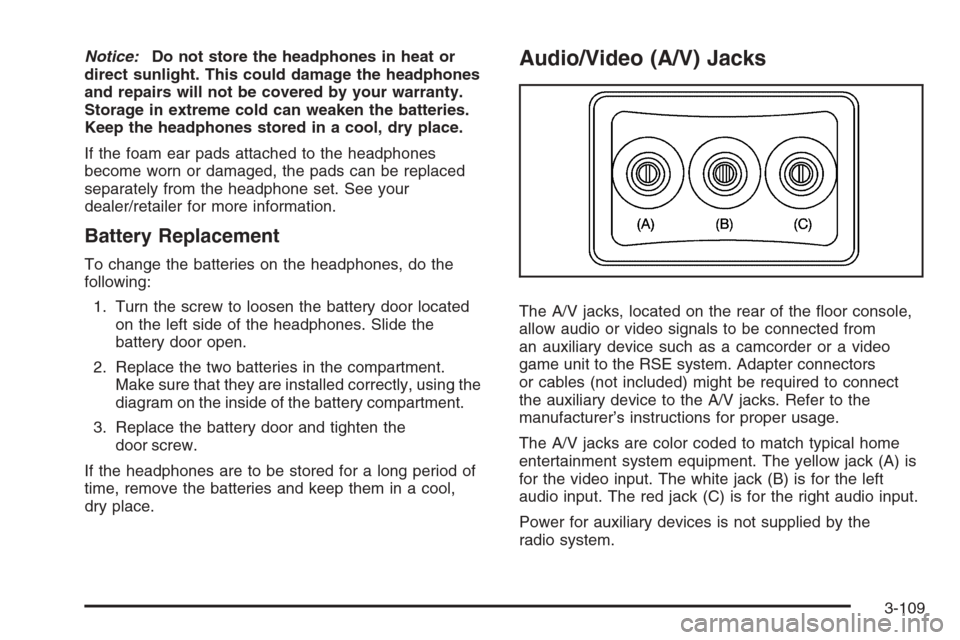
Audio/Video (A/V) Jacks
The A/V jacks, located on the rear of the oor console,
allow audio or video signals to be connected from
an auxiliary device such as a camcorder or a video
game unit to the RSE system. Adapter connectors
or cables (not included) might be required to connect
the auxiliary device to the A/V jacks. Refer to the
manufacturer’s instructions for proper usage.
The A/V jacks are color coded to match typical home
entertainment system equipment. The yellow jack (A) is
for the video input. The white jack (B) is for the left
audio input. The red jack (C) is for the right audio input.
Power for auxiliary devices is not supplied by the
radio system.
3-109
Page 294 of 528
\(Clear):Press this button within three seconds after
entering a numeric selection, to clear all numerical inputs.
}10 (Double Digit Entries):Press this button to
select chapter or track numbers greater than nine.
Press this button before entering the number.
If the remote control becomes lost or damaged, a new
universal remote control can be purchased. If this
happens, make sure the universal remote control
uses a code set of Toshiba
®.
Battery Replacement
To change the remote control batteries, do the following:
1. Slide the rear cover back on to the remote control.
2. Replace the two batteries in the compartment.
Make sure that they are installed correctly, using
the diagram on the inside of the battery
compartment.
3. Replace the battery cover.
If the remote control is to be stored for a long period of
time, remove the batteries and keep them in a cool,
dry place.
Problem Recommended Action
No power. The ignition might not be
turned ON/RUN or in
ACC/ACCESSORY.
The picture does not ll
the screen. There are
black borders on the
top and bottom or on
both sides or it looks
stretched out.Check the display mode
settings in the setup menu
by pressing the display
menu button on the remote
control.
In auxiliary mode, the
picture moves or scrolls.Check the auxiliary input
connections at both
devices.
The remote control does
not work.Check to make sure there
is no obstruction between
the remote control and
the transmitter window.
Check the batteries to
make sure they are not
dead or installed
incorrectly.
After stopping the player,
I push Play but sometimes
the DVD starts where I left
off and sometimes at the
beginning.If the stop button was
pressed one time, the DVD
player resumes playing
where the DVD was
stopped. If the stop button
was pressed two times the
DVD player begins to play
from the beginning of
the DVD.
3-114
Page 305 of 528
Let us say the road is wet and you are driving safely.
Suddenly, an animal jumps out in front of you. You slam
on the brakes and continue braking. Here is what
happens with ABS:
A computer senses that wheels are slowing down.
If one of the wheels is about to stop rolling, the computer
will separately work the brakes at each front wheel
and at both rear wheels.
ABS can change the brake pressure faster than any
driver could. The computer is programmed to make the
most of available tire and road conditions. This can
help you steer around the obstacle while braking hard.
As you brake, the computer keeps receiving updates
on wheel speed and controls braking pressure
accordingly.
Remember: ABS does not change the time you need to
get your foot up to the brake pedal or always decrease
stopping distance. If you get too close to the vehicle in
front of you, you will not have time to apply the brakes
if that vehicle suddenly slows or stops. Always leave
enough room up ahead to stop, even though you
have ABS.Using ABS
Do not pump the brakes. Just hold the brake pedal
down rmly and let antilock work for you. You might
feel the brakes vibrate or notice some noise, but this is
normal.
Braking in Emergencies
With ABS, you can steer and brake at the same time.
In many emergencies, steering can help you more than
even the very best braking.
Locking Rear Axle
If your vehicle has this feature, it can give you additional
traction on snow, mud, ice, sand or gravel. It works like a
standard axle most of the time, but when one of the rear
wheels has no traction and the other does, this feature
will allow the wheel with traction to move the vehicle.
4-5
Page 316 of 528
Getting Familiar with Off-Road Driving
It is a good idea to practice in an area that is safe
and close to home before you go into the wilderness.
Off-road driving does require some new and different
skills. Here is what we mean.
Tune your senses to different kinds of signals. Your
eyes, for example, need to constantly sweep the terrain
for unexpected obstacles. Your ears need to listen
for unusual tire or engine sounds. With your arms,
hands, feet, and body, you will need to respond to
vibrations and vehicle bounce.
Controlling your vehicle is the key to successful off-road
driving. One of the best ways to control your vehicle
is to control your speed. Here are some things to keep
in mind. At higher speeds:
You approach things faster and you have less time
to scan the terrain for obstacles.
You have less time to react.
You have more vehicle bounce when you drive over
obstacles.
You will need more distance for braking, especially
since you are on an unpaved surface.
{CAUTION:
When you are driving off-road, bouncing and
quick changes in direction can easily throw
you out of position. This could cause you to
lose control and crash. So, whether you are
driving on or off the road, you and your
passengers should wear safety belts.
Scanning the Terrain
Off-road driving can take you over many different kinds
of terrain. You need to be familiar with the terrain and
its many different features. Here are some things to
consider.
Surface Conditions:Off-roading can take you over
hard-packed dirt, gravel, rocks, grass, sand, mud, snow,
or ice. Each of these surfaces affects the steering,
acceleration, and braking of your vehicle in different
ways. Depending upon the kind of surface you are on,
you may experience slipping, sliding, wheel spinning,
delayed acceleration, poor traction, and longer braking
distances.
4-16