audio CHEVROLET AVALANCHE 2008 2.G Owner's Guide
[x] Cancel search | Manufacturer: CHEVROLET, Model Year: 2008, Model line: AVALANCHE, Model: CHEVROLET AVALANCHE 2008 2.GPages: 528, PDF Size: 3.05 MB
Page 290 of 528
To use the auxiliary inputs of the RSE system, connect
an external auxiliary device to the color-coded A/V jacks
and turn both the auxiliary device and the video screen
power on. If the video screen is in the DVD player mode,
pressing the AUX (auxiliary) button on the remote control
switches the video screen from the DVD player mode to
the auxiliary device. The radio can listen to the audio of
the connected auxiliary device by sourcing to auxiliary.
SeeRadio(s) (MP3) on page 3-78for more information.
How to Change the RSE Video Screen
Settings
The screen display mode (normal, full, and zoom),
screen brightness, and setup menu language can be
changed from the on screen setup menu. To change any
feature, do the following:
1. Press the
z(display menu) button on the remote
control.
2. Use the remote control
n,q,p,o(navigation)
arrows and the
r(enter) button to use the
setup menu.
3. Press the
zbutton again to remove the setup
menu from the screen.
Audio Output
Audio from the DVD player or auxiliary inputs can be
heard through the following possible sources:
Wireless Headphones
Vehicle Speakers
Vehicle wired headphone jacks on the rear seat
audio system, if the vehicle has this feature.
The RSE system always transmits the audio signal to
the wireless headphones, if there is audio available.
See “Headphones” earlier in this section for more
information.
The DVD player is capable of outputting audio to the
wired headphone jacks on the RSA system, if the
vehicle has this feature. The DVD player can be
selected as an audio source on the RSA system.
SeeRear Seat Audio (RSA) on page 3-116for more
information.
When a device is connected to the A/V jacks, or the
radio’s auxiliary input jack, if the vehicle has this feature,
the rear seat passengers are able to hear audio from
the auxiliary device through the wireless or wired
headphones. The front seat passengers are able to
listen to playback from this device through the vehicle
speakers by selecting AUX as the source on the radio.
3-110
Page 291 of 528
Video Screen
The video screen is located in the overhead console.
To use the video screen, do the following:
1. Push the release button located on the overhead
console.
2. Move the screen to the desired position.
When the video screen is not in use, push it up into its
locked position.
If a DVD is playing and the screen is raised to its locked
position, the screen remains on, this is normal, and
the DVD continues to play through the previous audio
source. Use the remote control power button or eject the
disc to turn off the screen.
The overhead console contains the infrared transmitters
for the wireless headphones and the infrared receivers
for the remote control. They are located at the rear
of the console.
Notice:Avoid directly touching the video screen,
as damage may occur. See “Cleaning the Video
Screen” later in this section for more information.
Remote Control
To use the remote control, aim it at the transmitter
window at the rear of the overhead console and press
the desired button. Direct sunlight or very bright light
could affect the ability of the RSE transmitter to receive
signals from the remote control. If the remote control
does not seem to be working, the batteries might need
to be replaced. See “Battery Replacement” later in
this section. Objects blocking the line of sight could
also affect the function of the remote control.
If a CD or DVD is in the Radio DVD slot, the remote
control power button can be used to turn on the video
screen display and start the disc. The radio can also
turn on the video screen display. SeeRadio(s) (MP3)
on page 3-78for more information.
Notice:Storing the remote control in a hot area or
in direct sunlight can damage it, and the repairs
will not be covered by your warranty. Storage
in extreme cold can weaken the batteries. Keep
the remote control stored in a cool, dry place.
3-111
Page 293 of 528
s(Play/Pause):Press this button to start playing a
DVD. Press this button while a DVD is playing to pause
it. Press it again to continue playing the DVD.
When the DVD is playing, depending on the radio, play
may be slowed down by pressing the play/pause button
then pressing the fast forward button. The DVD continues
playing in a slow play mode. Depending on the radio,
perform reverse slow play by pressing the play/pause
button and then pressing the fast reverse button. To
cancel slow play mode, press the play/pause button.
t(Previous Track/Chapter):Press this button to
return to the start of the current track or chapter.
Press this button again to go to the previous track or
chapter. This button might not work when the DVD
is playing the copyright information or the previews.
u(Next Track/Chapter):Press this button to go to
the beginning of the next chapter or track. This button
might not work when the DVD is playing the copyright
information or the previews.
r(Fast Reverse):Press this button to fast reverse
the DVD or CD. To stop fast reversing a DVD video,
press the play button. To stop fast reversing a DVD audio
or CD, release this button. This button might not work
when the DVD is playing the copyright information or the
previews.
[(Fast Forward):Press this button to fast forward
the DVD or CD. To stop fast forwarding a DVD video,
press the play/pause button. To stop fast forwarding
a DVD audio or CD, release this button. This button
might not work when the DVD is playing the copyright
information or the previews.
e(Audio):Press this button to change audio tracks
on DVDs that have this feature when the DVD is playing.
The format and content of this function vary for each disc.
{(Subtitles):Press this button to turn ON/OFF
subtitles and to move through subtitle options when a
DVD is playing. The format and content of this function
vary for each disc.
AUX (Auxiliary):Press this button to switch the system
between the DVD player and an auxiliary source.
d(Camera):Press this button to change camera
angles on DVDs that have this feature when a DVD is
playing. The format and content of this function vary
for each disc.
1 through 0 (Numeric Keypad):The numeric keypad
provides the capability of direct chapter or track
number selection.
3-113
Page 295 of 528
Problem Recommended Action
The auxiliary source is
running but there is no
picture or sound.Check that the RSE video
screen is in the auxiliary
source mode.
Check the auxiliary input
connections at both
devices.
Sometimes the wireless
headphone audio cuts out
or buzzes.Check for obstructions,
low batteries, reception
range, and interference
from cellular telephone
towers or by using a
cellular telephone in
the vehicle.
Check that the
headphones are on
correctly using the L (left)
and R (right) on the
headphones.
I lost the remote and/or
the headphones.See your dealer/retailer
for assistance.
The DVD is playing, but
there is no picture or
sound.Check that the RSE video
screen is sourced to the
DVD player.DVD Display Error Messages
The DVD display error message depends on which
radio is in the vehicle. The video screen can display one
of the following:
Disc Load/Eject Error:Displays when there are disc
load or eject problems.
Disc Format Error:Displays if the disc is inserted with
the disc label wrong side up, or if the disc is damaged.
Disc Region Error:Displays if the disc is not from
a correct region.
No Disc Inserted:Displays if no disc is present when
EJECT or DVD AUX is pressed on the radio.
DVD Distortion
Video distortion can occur when operating cellular
phones, scanners, CB radios, Global Position Systems
(GPS)*, two-way radios, mobile fax, or walkie talkies.
It might be necessary to turn off the DVD player when
operating one of these devices in or near the vehicle.
*Excludes the OnStar
®System.
3-115
Page 296 of 528
Cleaning the RSE Overhead Console
When cleaning the RSE overhead console surface, use
only a clean cloth dampened with clean water.
Cleaning the Video Screen
When cleaning the video screen, use only a clean cloth
dampened with clean water. Use care when directly
touching or cleaning the screen, as damage could result.
Rear Seat Audio (RSA)
This feature allows rear seat passengers to listen to
and control any of the music sources: radio, CDs, DVDs,
or other auxiliary sources. However, the rear seat
passengers can only control the music sources the front
seat passengers are not listening to, except on some
radios where dual control is allowed. For example, rear
seat passengers can control and listen to a CD through
the headphones, while the driver listens to the radio
through the front speakers. The rear seat passengers
have control of the volume for each set of headphones.The RSA functions operate even when the main radio is
off. The front audio system will display the headphone
icon when the RSA is on, and will disappear from
the display when it is off.
Audio can be heard through wired headphones (not
included) plugged into the jacks on the RSA. If the
vehicle has this feature, audio can also be heard on
Channel 2 of the wireless headphones.
The audio system mutes the rear speakers when the
RSA audio is active through the headphones.
To listen to an iPod or portable audio device through
the RSA, attach the iPod or portable audio device to the
front auxiliary input (if available), located on the front
audio system. Turn the iPod on, then choose the
front auxiliary input with the RSA SRCE button.
3-116
Page 298 of 528
PROG (Program):Press this button to go to the
next preset radio station or channel set on the main
radio. This function is inactive, with some radios, if the
front seat passengers are listening to the radio.
When a CD or DVD audio disc is playing, press this
button to go to the beginning of the CD or DVD audio.
This function is inactive, with some radios, if the
front seat passengers are listening to the disc.
When a disc is playing in the CD or DVD changer,
press this button to select the next disc, if multiple discs
are loaded. This function is inactive, with some radios,
if the front seat passengers are listening to the disc.
When a DVD video menu is being displayed, press the
PROG button to perform the menu function, Enter.
Theft-Deterrent Feature
THEFTLOCK®is designed to discourage theft of the
vehicle’s radio. The feature works automatically by
learning a portion of the Vehicle Identication Number
(VIN). If the radio is moved to a different vehicle, it does
not operate and LOC, LOCK, or LOCKED could display.
With THEFTLOCK
®activated, the radio does not
operate if stolen.
Audio Steering Wheel Controls
Vehicles with audio
steering wheel controls
could differ depending on
your vehicle’s options.
Some audio controls can
be adjusted at the steering
wheel. They include the
following:
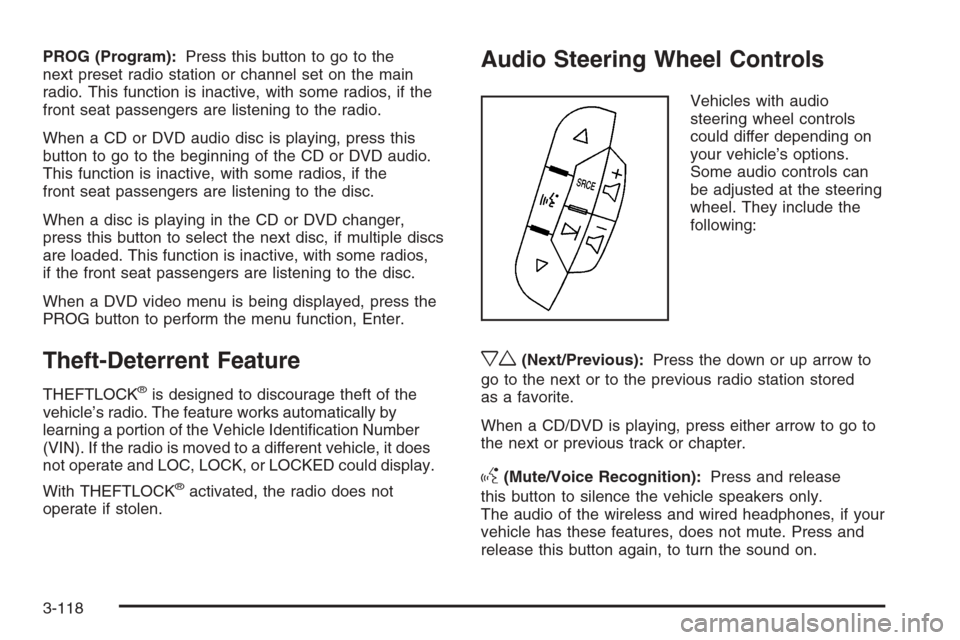
xw(Next/Previous):Press the down or up arrow to
go to the next or to the previous radio station stored
as a favorite.
When a CD/DVD is playing, press either arrow to go to
the next or previous track or chapter.
g(Mute/Voice Recognition):Press and release
this button to silence the vehicle speakers only.
The audio of the wireless and wired headphones, if your
vehicle has these features, does not mute. Press and
release this button again, to turn the sound on.
3-118
Page 473 of 528
Fuses Usage
24Fuel Injectors, Ignition Coils
(Left Side)
25 Trailer Park Lamps
26 Driver Side Park Lamps
27 Passenger Side Park Lamps
28 Fog Lamps
29 Horn
30Passenger Side High-Beam
Headlamp
31 Daytime Running Lamps
32 Driver Side High-Beam Headlamp
33 Daytime Running Lights 2
34 Sunroof
35Key Ignition System, Theft Deterrent
System
36 Windshield Wiper
37 SEO B2 Uptter Usage (Battery)
38 Electric Adjustable Pedals
39 Climate Controls (Battery)
40 Airbag System (Ignition)
41 AmplierFuses Usage
42 Audio System
43Miscellaneous (Ignition),
Cruise Control
44 Liftgate Release
45 Airbag System (Battery)
46 Instrument Panel Cluster
47 Power Take-Off
48Auxiliary Climate Control (Ignition),
Compass-Temperature Mirror
49 Center High-Mounted Stoplamp
50 Rear Defogger
51 Heated Mirrors
52 SEO B1 Uptter Usage (Battery)
53Cigarette Lighter, Auxiliary Power
Outlet
54Automatic Level Control Compressor
Relay, SEO Uptter Usage
55 Climate Controls (Ignition)
56Engine Control Module, Secondary
Fuel Pump (Ignition)
5-113
Page 515 of 528
A
Accessories and Modications............................ 5-3
Accessory Power Outlets.................................3-20
Adding Equipment to Your Airbag-Equipped
Vehicle.......................................................1-74
Additives, Fuel................................................. 5-6
Add-On Electrical Equipment...........................5-108
Adjustable Throttle and Brake Pedal..................2-33
Air Cleaner/Filter, Engine.................................5-20
Air Conditioning......................................3-21, 3-24
Airbag
Passenger Status Indicator...........................3-36
Readiness Light..........................................3-35
Airbag System................................................1-60
Adding Equipment to Your Airbag-Equipped
Vehicle...................................................1-74
How Does an Airbag Restrain?......................1-67
Passenger Sensing System...........................1-69
Servicing Your Airbag-Equipped Vehicle..........1-74
What Makes an Airbag Inate?......................1-67
What Will You See After an Airbag Inates?....1-68
When Should an Airbag Inate?....................1-65
Where Are the Airbags?...............................1-63
Antenna, Fixed Mast......................................3-120
Antenna, XM™ Satellite Radio Antenna
System.....................................................3-120
Antilock Brake System (ABS)............................. 4-4
Anti-lock Brake, System Warning Light...............3-41Appearance Care
Aluminum or Chrome-Plated Wheels.............5-104
Care of Safety Belts...................................5-102
Chemical Paint Spotting..............................5-106
Cleaning Exterior Lamps/Lenses..................5-103
Fabric/Carpet............................................5-100
Finish Care...............................................5-103
Finish Damage..........................................5-105
Instrument Panel, Vinyl, and Other
Plastic Surfaces.....................................5-101
Interior Cleaning..........................................5-99
Leather....................................................5-101
Sheet Metal Damage..................................5-105
Tires........................................................5-105
Underbody Maintenance.............................5-105
Vehicle Care/Appearance Materials...............5-106
Washing Your Vehicle.................................5-102
Weatherstrips............................................5-102
Windshield and Wiper Blades......................5-104
Appointments, Scheduling Service....................... 7-9
Ashtray.........................................................3-20
Audio System.................................................3-75
Audio Steering Wheel Controls....................3-118
Fixed Mast Antenna...................................3-120
Navigation/Radio System,
see Navigation Manual............................3-107
Radio Reception........................................3-119
Rear Seat Audio (RSA)...............................3-116
Setting the Clock.........................................3-76
1
Page 516 of 528
Audio System (cont.)
Theft-Deterrent Feature...............................3-118
XM™ Satellite Radio Antenna System...........3-120
Audio System(s).............................................3-78
Automatic Headlamp System............................3-16
Automatic Transmission
Fluid..........................................................5-22
Operation...................................................2-35
B
Battery..........................................................5-41
Electric Power Management..........................3-19
Run-Down Protection...................................3-19
Brake
Emergencies................................................ 4-5
Brakes..........................................................5-38
System Warning Light..................................3-39
Braking........................................................... 4-3
Braking in Emergencies..................................... 4-5
Break-In, New Vehicle.....................................2-30
Bulb Replacement...........................................5-53
Halogen Bulbs............................................5-53
Headlamp Aiming........................................5-50
License Plate Lamps....................................5-54
Replacement Bulbs......................................5-55
Taillamps, Turn Signal, Sidemarker,
Stoplamps, and Back-Up Lamps.................5-53
Buying New Tires...........................................5-72
C
Calibration.............................................2-49, 2-52
California Fuel.................................................. 5-6
California Perchlorate Materials Requirements....... 5-4
California Proposition 65 Warning....................... 5-4
Canadian Owners................................................ ii
Capacities and Specications..........................5-115
Carbon Monoxide...................2-12, 2-22, 2-48, 4-31
Care of
Safety Belts..............................................5-102
Cargo Area, All-Weather..................................2-85
Cargo Cover Panels........................................2-73
CD, MP3 .............................................3-96, 3-101
Center Console Storage Area...........................2-71
Center Overhead Console................................2-71
Center Seat...................................................1-11
Chains, Tire...................................................5-78
Charging System Light....................................3-38
Check
Engine Light...............................................3-43
Checking Things Under the Hood......................5-12
Chemical Paint Spotting.................................5-106
Child Restraints
Child Restraint Systems...............................1-42
Infants and Young Children...........................1-38
Lower Anchors and Tethers for Children..........1-46
Older Children.............................................1-35
2
Page 524 of 528
Privacy..........................................................7-16
Event Data Recorders..................................7-16
Navigation System.......................................7-17
OnStar .......................................................7-17
Radio Frequency Identication.......................7-17
Programmable Automatic Door Locks.................2-11
R
Radio Frequency Identication (RFID), Privacy....7-17
Radio(s)........................................................3-78
Radios
Navigation/Radio System, see Navigation
Manual.................................................3-107
Rear Seat Audio........................................3-116
Reception.................................................3-119
Setting the Clock.........................................3-76
Theft-Deterrent..........................................3-118
Rainsense™ II Wipers.....................................3-10
Reading Lamps..............................................3-18
Rear Axle......................................................5-47
Locking........................................................ 4-5
Rear Door Security Locks................................2-11
Rear Seat Audio (RSA)..................................3-116
Rear Seat Entertainment System.....................3-107
Rear Seat Operation.......................................1-12
Rear Storage Area..........................................2-73
Rearview Mirror, Automatic Dimming with
Compass and Temperature Display................2-52Rearview Mirror, Automatic Dimming with
OnStar
®, Compass and Temperature Display . . . 2-49
Reclining Seatbacks.......................................... 1-8
Recommended Fluids and Lubricants.................6-13
Recovery Hooks.............................................4-35
Recreational Vehicle Towing.............................4-42
Remote Keyless Entry (RKE) System.................. 2-4
Remote Keyless Entry (RKE) System, Operation . . . 2-5
Remote Vehicle Start........................................ 2-7
Removing the Flat Tire and Installing the
Spare Tire..................................................5-85
Removing the Spare Tire and Tools...................5-81
Replacement Bulbs.........................................5-55
Replacement Parts, Maintenance......................6-15
Reporting Safety Defects
Canadian Government..................................7-14
General Motors...........................................7-14
United States Government............................7-14
Restraint System Check
Checking the Restraint Systems....................1-76
Replacing Restraint System Parts
After a Crash..........................................1-77
Retained Accessory Power (RAP)......................2-32
Roadside
Assistance Program....................................... 7-6
Rocking Your Vehicle to Get it Out....................4-34
Routing, Engine Drive Belt...............................6-16
Running Boards, Power...................................2-22
Running Out of Fuel........................................2-48
10