light CHEVROLET AVALANCHE 2008 2.G Owner's Guide
[x] Cancel search | Manufacturer: CHEVROLET, Model Year: 2008, Model line: AVALANCHE, Model: CHEVROLET AVALANCHE 2008 2.GPages: 528, PDF Size: 3.05 MB
Page 142 of 528
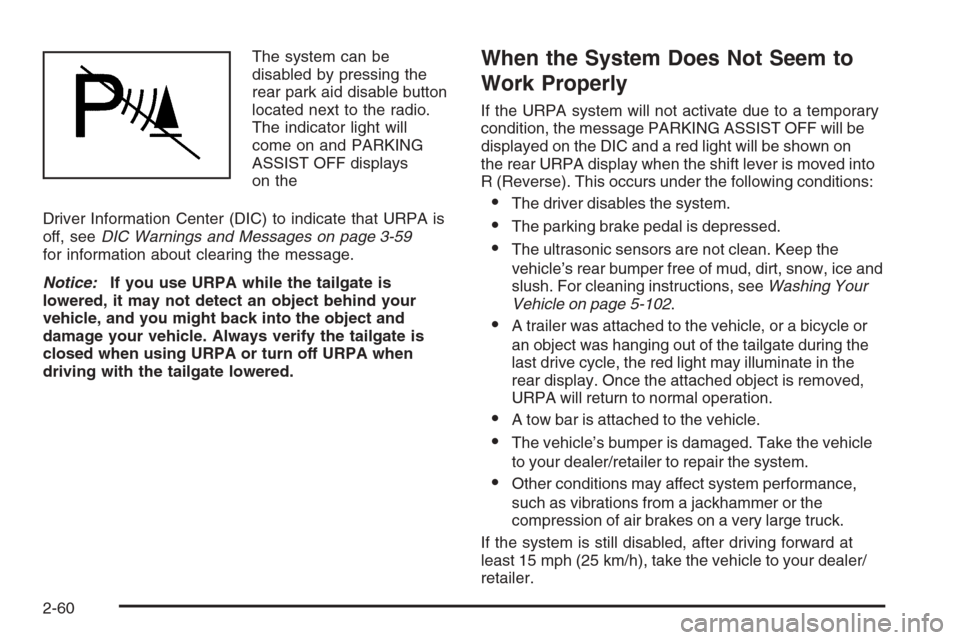
The system can be
disabled by pressing the
rear park aid disable button
located next to the radio.
The indicator light will
come on and PARKING
ASSIST OFF displays
on the
Driver Information Center (DIC) to indicate that URPA is
off, seeDIC Warnings and Messages on page 3-59
for information about clearing the message.
Notice:If you use URPA while the tailgate is
lowered, it may not detect an object behind your
vehicle, and you might back into the object and
damage your vehicle. Always verify the tailgate is
closed when using URPA or turn off URPA when
driving with the tailgate lowered.When the System Does Not Seem to
Work Properly
If the URPA system will not activate due to a temporary
condition, the message PARKING ASSIST OFF will be
displayed on the DIC and a red light will be shown on
the rear URPA display when the shift lever is moved into
R (Reverse). This occurs under the following conditions:
The driver disables the system.
The parking brake pedal is depressed.
The ultrasonic sensors are not clean. Keep the
vehicle’s rear bumper free of mud, dirt, snow, ice and
slush. For cleaning instructions, seeWashing Your
Vehicle on page 5-102.
A trailer was attached to the vehicle, or a bicycle or
an object was hanging out of the tailgate during the
last drive cycle, the red light may illuminate in the
rear display. Once the attached object is removed,
URPA will return to normal operation.
A tow bar is attached to the vehicle.
The vehicle’s bumper is damaged. Take the vehicle
to your dealer/retailer to repair the system.
Other conditions may affect system performance,
such as vibrations from a jackhammer or the
compression of air brakes on a very large truck.
If the system is still disabled, after driving forward at
least 15 mph (25 km/h), take the vehicle to your dealer/
retailer.
2-60
Page 145 of 528
OnStar Steering Wheel Controls
Your vehicle may have a Talk/Mute button that can
be used to interact with OnStar Hands-Free Calling.
SeeAudio Steering Wheel Controls on page 3-118for
more information.
On some vehicles, you may have to hold the button for
a few seconds and give the command “ONSTAR” to
activate the OnStar Hands-Free Calling.
On some vehicles, the mute button can be used to
dial numbers into voicemail systems, or to dial phone
extensions. See the OnStar Owner’s Guide for more
information.
How OnStar Service Works
Your vehicle’s OnStar system has the capability
of recording and transmitting vehicle information.
This information is automatically sent to an OnStar Call
Center at the time of an OnStar button press, Emergency
button press or if your airbags or AACN system deploys.
The vehicle information usually includes your GPS
location and, in the event of a crash, additional
information regarding the accident that your vehicle
has been involved in (e.g. the direction from which your
vehicle was hit). When you use the Virtual Advisor feature
of OnStar Hands-Free Calling, your vehicle also sends
OnStar your GPS location so that we can provide you
with location-based services.OnStar service cannot work unless your vehicle is in a
place where OnStar has an agreement with a wireless
service provider for service in that area. OnStar service
also cannot work unless you are in a place where the
wireless service provider OnStar has hired for that area
has coverage, network capacity and reception when the
service is needed, and technology that is compatible
with the OnStar service. Not all services are available
everywhere, particularly in remote or enclosed areas,
or at all times.
Location information about your vehicle is only available
if the GPS satellite signals are unobstructed and
available.
Your vehicle must have a working electrical system
(including adequate battery power) for the OnStar
equipment to operate. There are other problems OnStar
cannot control that may prevent OnStar from providing
OnStar service to you at any particular time or place.
Some examples are damage to important parts of your
vehicle in an accident, hills, tall buildings, tunnels,
weather or wireless phone network congestion.
Your Responsibility
Increase the radio volume if you cannot hear the OnStar
advisor. If the light next to the OnStar buttons is red,
this means that your system is not functioning properly
and should be checked by your dealer/retailer. If the
light appears clear (no light is appearing), your OnStar
subscription has expired. You can always press the
OnStar button to conrm that your OnStar equipment
is active.
2-63
Page 146 of 528
Universal Home Remote
System
The Universal Home Remote System provides a way to
replace up to three hand-held Radio-Frequency (RF)
transmitters used to activate devices such as garage
door openers, security systems, and home lighting.
This device complies with Part 15 of the FCC Rules.
Operation is subject to the following two conditions:
1. This device may not cause harmful interference.
2. This device must accept any interference received,
including interference that may cause undesired
operation.
This device complies with RSS-210 of Industry Canada.
Operation is subject to the following two conditions:
1. This device may not cause interference.
2. This device must accept any interference received,
including interference that may cause undesired
operation of the device.
Changes or modications to this system by other than
an authorized service facility could void authorization to
use this equipment.
Universal Home Remote System
Operation (With Three Round LED)
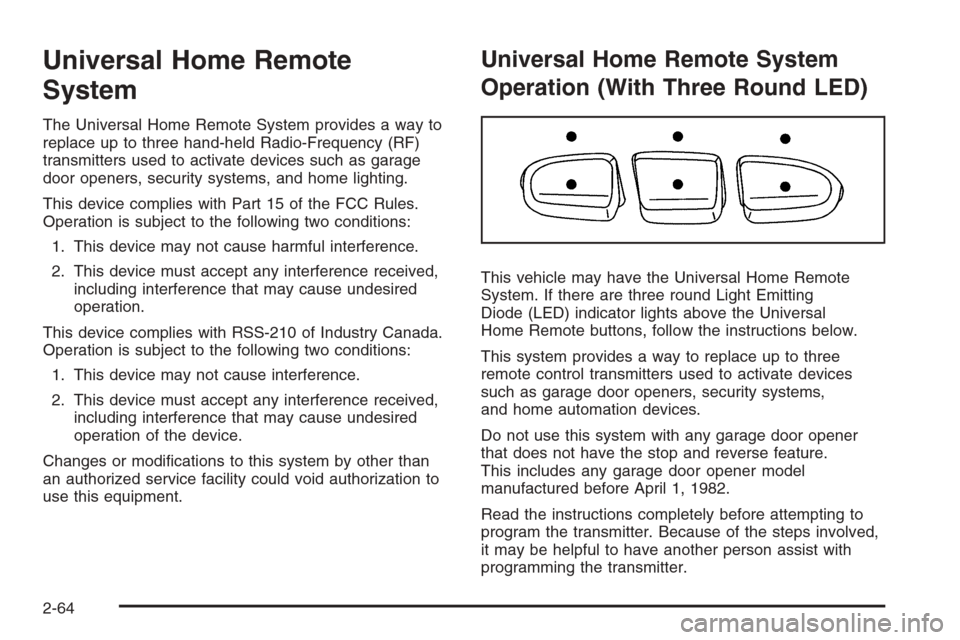
This vehicle may have the Universal Home Remote
System. If there are three round Light Emitting
Diode (LED) indicator lights above the Universal
Home Remote buttons, follow the instructions below.
This system provides a way to replace up to three
remote control transmitters used to activate devices
such as garage door openers, security systems,
and home automation devices.
Do not use this system with any garage door opener
that does not have the stop and reverse feature.
This includes any garage door opener model
manufactured before April 1, 1982.
Read the instructions completely before attempting to
program the transmitter. Because of the steps involved,
it may be helpful to have another person assist with
programming the transmitter.
2-64
Page 148 of 528
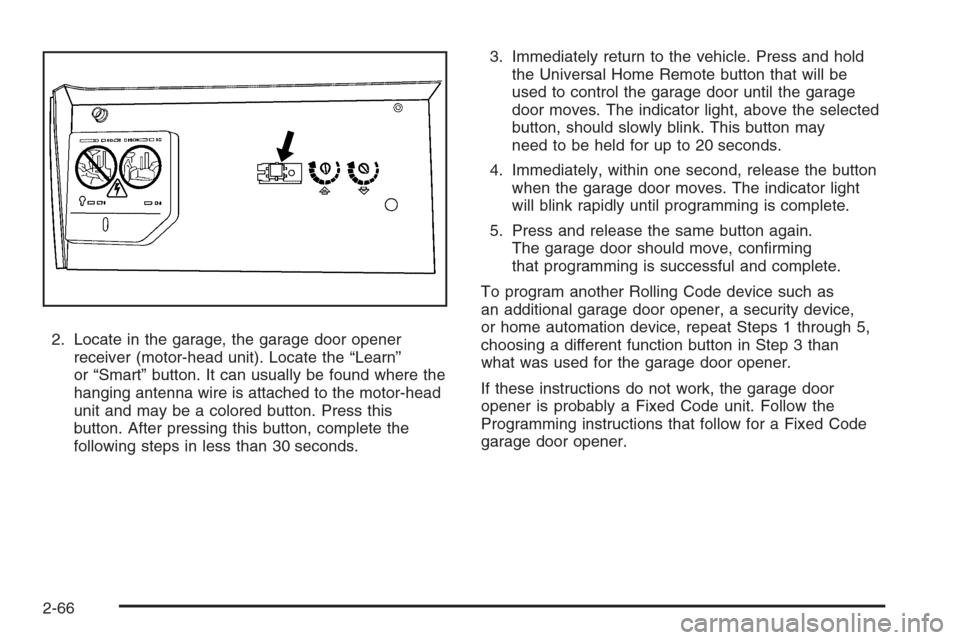
2. Locate in the garage, the garage door opener
receiver (motor-head unit). Locate the “Learn”
or “Smart” button. It can usually be found where the
hanging antenna wire is attached to the motor-head
unit and may be a colored button. Press this
button. After pressing this button, complete the
following steps in less than 30 seconds.3. Immediately return to the vehicle. Press and hold
the Universal Home Remote button that will be
used to control the garage door until the garage
door moves. The indicator light, above the selected
button, should slowly blink. This button may
need to be held for up to 20 seconds.
4. Immediately, within one second, release the button
when the garage door moves. The indicator light
will blink rapidly until programming is complete.
5. Press and release the same button again.
The garage door should move, conrming
that programming is successful and complete.
To program another Rolling Code device such as
an additional garage door opener, a security device,
or home automation device, repeat Steps 1 through 5,
choosing a different function button in Step 3 than
what was used for the garage door opener.
If these instructions do not work, the garage door
opener is probably a Fixed Code unit. Follow the
Programming instructions that follow for a Fixed Code
garage door opener.
2-66
Page 151 of 528
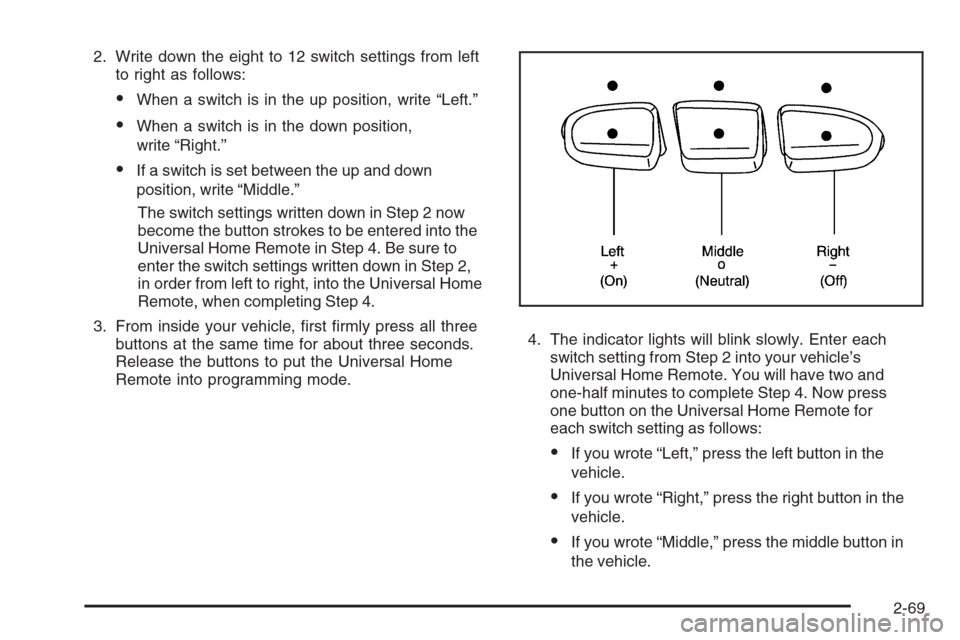
2. Write down the eight to 12 switch settings from left
to right as follows:
When a switch is in the up position, write “Left.”
When a switch is in the down position,
write “Right.”
If a switch is set between the up and down
position, write “Middle.”
The switch settings written down in Step 2 now
become the button strokes to be entered into the
Universal Home Remote in Step 4. Be sure to
enter the switch settings written down in Step 2,
in order from left to right, into the Universal Home
Remote, when completing Step 4.
3. From inside your vehicle, rst rmly press all three
buttons at the same time for about three seconds.
Release the buttons to put the Universal Home
Remote into programming mode.4. The indicator lights will blink slowly. Enter each
switch setting from Step 2 into your vehicle’s
Universal Home Remote. You will have two and
one-half minutes to complete Step 4. Now press
one button on the Universal Home Remote for
each switch setting as follows:
If you wrote “Left,” press the left button in the
vehicle.
If you wrote “Right,” press the right button in the
vehicle.
If you wrote “Middle,” press the middle button in
the vehicle.
2-69
Page 152 of 528
5. After entering all of the switch positions, again,
rmly press and release all three buttons at the
same time. The indicator lights will turn on.
6. Press and hold the button that will be used to
control the garage door until the garage door
moves. The indicator light above the selected button
should slowly blink. This button may need to be
held for up to 55 seconds.
7. Immediately release the button when the garage
door moves. The indicator light will blink rapidly
until programming is complete.
8. Press and release the same button again.
The garage door should move, conrming
that programming is successful and complete.
To program another Fixed Code device such as an
additional garage door opener, a security device,
or home automation device, repeat Steps 1-8, choosing
a different button in Step 6 than what was used for
the garage door opener.
Using Universal Home Remote
Press and hold the appropriate button for at least
half of a second. The indicator light will come on
while the signal is being transmitted.
Reprogramming Universal Home
Remote Buttons
Any of the three buttons can be reprogrammed by
repeating the instructions.
Erasing Universal Home Remote
Buttons
The programmed buttons should be erased when the
vehicle is sold or the lease ends.
To erase either Rolling Code or Fixed Code on the
Universal Home Remote device:
1. Press and hold the two outside buttons at the
same time for approximately 20 seconds, until
the indicator lights, located directly above the
buttons, begin to blink rapidly.
2. Once the indicator lights begin to blink, release both
buttons. The codes from all buttons will be erased.
For help or information on the Universal Home Remote
System, call the customer assistance phone number
underCustomer Assistance Offices on page 7-5.
2-70
Page 153 of 528
Storage Areas
Glove Box
To open the glove box, lift up on the lever.
Cupholders
Your vehicle may have cupholders for the front and rear
passengers.
The cupholders are located in the center console for the
front passengers and on the rear of the center console
for the rear passengers.
The front cupholder may be removed for cleaning by
pushing down and then back on the cupholder.
To use the front cupholders, press down on the access
door and release. The door will then open. Push the
door back down to close it.
To use the rear cupholders, pull down on the door
located on the back of the console.
Center Overhead Console
Your vehicle may have an overhead console with
reading lights and a small storage area.
Press the button next to the light to turn it on and off.
Front Armrest Storage Area
Your vehicle may have a center armrest storage
compartment in the front bench seat.
To open it, fold down the armrest and press the latch
handle located at the front of the armrest. Then, let the
cover pop up and swing open.
Center Console Storage
Your vehicle may have a console compartment with
cupholders between the bucket seats.
To open it, press the button and lift the console
cover open.
The rear of the console has a cupholder that folds down
for the rear seat passenger to use.
2-71
Page 154 of 528
Luggage Carrier
The vehicle may have a luggage carrier that can be
used to load things on top of the vehicle.
The luggage carrier has siderails attached to the roof.
It may also have crossrails which can be moved
back and forth to help secure cargo. Tie the load
to the siderails or siderail supports.
Notice:Loading cargo on the luggage carrier that
weighs more than 200 lbs (91 kg) or hangs over
the rear or sides of the vehicle may damage your
vehicle. Load cargo so that it rests on the slats
as far forward as possible and against the side rails,
making sure to fasten it securely.
Do not exceed the maximum vehicle capacity when
loading your vehicle. For more information on vehicle
capacity and loading, seeLoading Your Vehicle on
page 4-36.
To prevent damage or loss of cargo while you are
driving, check to make sure the luggage and cargo are
still securely fastened.Be sure the cargo is properly loaded.If small heavy objects are placed on the roof, cut a
piece of 3/8 inch plywood to t inside the crossrails
and siderails to spread the load. Tie the plywood
to the siderail supports.
Tie the load to the crossrails or the siderail
supports. Use the crossrails only to keep the load
from sliding. To move a crossrail, lift the release
lever, on both sides of the rail, up to loosen it. Slide
the crossrail to the desired position balancing the
force side to side. Press the release lever on both
sides of the rail, down to tighten it. Try to slide the
crossrail back and forth slightly to be sure it is tight.
If you need to carry long items, move the crossrails
as far apart as they will go. Tie the load to the
crossrails and the siderails or siderail supports. Also
tie the load to the bumpers. Do not tie the load so
tightly that the crossrails or siderails are damaged.
After moving a crossrail, be sure it is securely locked
into the siderail.
Your vehicle has a Center High-Mounted Stoplamp
(CHMSL) located above the rear glass.
If items are loaded on the roof of the vehicle, care
should be taken not to block or damage the CHMSL unit.
2-72
Page 171 of 528
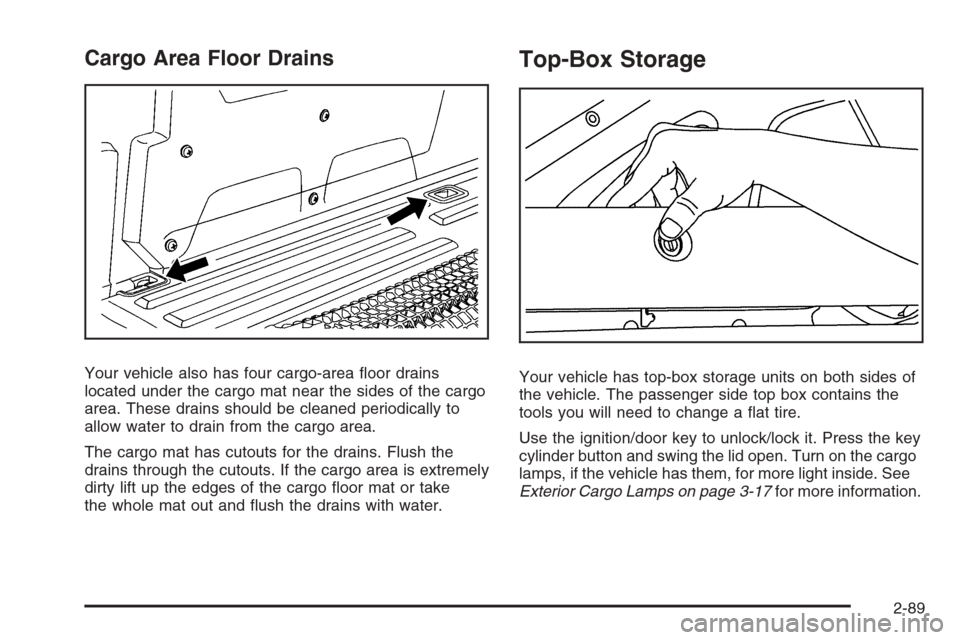
Cargo Area Floor Drains
Your vehicle also has four cargo-area oor drains
located under the cargo mat near the sides of the cargo
area. These drains should be cleaned periodically to
allow water to drain from the cargo area.
The cargo mat has cutouts for the drains. Flush the
drains through the cutouts. If the cargo area is extremely
dirty lift up the edges of the cargo oor mat or take
the whole mat out and ush the drains with water.
Top-Box Storage
Your vehicle has top-box storage units on both sides of
the vehicle. The passenger side top box contains the
tools you will need to change a at tire.
Use the ignition/door key to unlock/lock it. Press the key
cylinder button and swing the lid open. Turn on the cargo
lamps, if the vehicle has them, for more light inside. See
Exterior Cargo Lamps on page 3-17for more information.
2-89
Page 181 of 528
Instrument Panel Overview...............................3-4
Hazard Warning Flashers................................3-6
Other Warning Devices...................................3-6
Horn .............................................................3-6
Tilt Wheel.....................................................3-7
Turn Signal/Multifunction Lever.........................3-7
Turn and Lane-Change Signals........................3-8
Headlamp High/Low-Beam Changer..................3-9
Flash-to-Pass.................................................3-9
Windshield Wipers..........................................3-9
Rainsense™ II Wipers...................................3-10
Windshield Washer.......................................3-11
Cruise Control..............................................3-12
Exterior Lamps.............................................3-14
Headlamps on Reminder................................3-15
Daytime Running Lamps (DRL).......................3-16
Automatic Headlamp System..........................3-16
Fog Lamps ..................................................3-17
Exterior Cargo Lamps....................................3-17
Instrument Panel Brightness...........................3-18
Dome Lamps ...............................................3-18
Dome Lamp Override....................................3-18
Entry/Exit Lighting.........................................3-18
Reading Lamps............................................3-18
Electric Power Management...........................3-19
Battery Run-Down Protection..........................3-19Accessory Power Outlet(s).............................3-20
Ashtray(s) and Cigarette Lighter......................3-20
Climate Controls............................................3-21
Climate Control System.................................3-21
Dual Automatic Climate Control System...........3-24
Outlet Adjustment.........................................3-31
Warning Lights, Gages, and Indicators............3-32
Instrument Panel Cluster................................3-33
Speedometer and Odometer...........................3-34
Trip Odometer..............................................3-34
Tachometer.................................................3-34
Safety Belt Reminders...................................3-34
Airbag Readiness Light..................................3-35
Passenger Airbag Status Indicator...................3-36
Charging System Light..................................3-38
Voltmeter Gage............................................3-39
Brake System Warning Light..........................3-39
Anti-lock Brake System (ABS) Warning Light. . . .3-41
StabiliTrak
®Indicator Light.............................3-41
Engine Coolant Temperature Gage..................3-42
Tire Pressure Light.......................................3-42
Malfunction Indicator Lamp.............................3-43
Oil Pressure Gage........................................3-46
Oil Pressure Light.........................................3-47
Security Light...............................................3-47
Section 3 Instrument Panel
3-1