navigation CHEVROLET AVALANCHE 2009 2.G User Guide
[x] Cancel search | Manufacturer: CHEVROLET, Model Year: 2009, Model line: AVALANCHE, Model: CHEVROLET AVALANCHE 2009 2.GPages: 550, PDF Size: 3.06 MB
Page 302 of 550
Power for auxiliary devices is not supplied by the radio
system.
To use the auxiliary inputs of the RSE system, connect
an external auxiliary device to the color-coded A/V
jacks and turn both the auxiliary device and the video
screen power on. If the video screen is in the DVD
player mode, pressing the AUX (auxiliary) button on the
remote control switches the video screen from the
DVD player mode to the auxiliary device. The radio can
listen to the audio of the connected auxiliary device
by sourcing to auxiliary. SeeRadio(s) on page 3-79for
more information.
How to Change the RSE Video Screen
Settings
The screen display mode (normal, full, and zoom),
screen brightness, and setup menu language can be
changed from the on screen setup menu. To change any
feature, do the following:
1. Press the
z(display menu) button on the remote
control.
2. Use the remote control
n,q,p,o(navigation)
arrows and the
r(enter) button to use the
setup menu.
3. Press the
zbutton again to remove the setup
menu from the screen.
Audio Output
Audio from the DVD player or auxiliary inputs can be
heard through the following possible sources:
Wireless Headphones
Vehicle Speakers
Vehicle wired headphone jacks on the rear seat
audio system, if the vehicle has this feature.
The RSE system always transmits the audio signal to
the wireless headphones, if there is audio available. See
“Headphones” earlier in this section for more
information.
The DVD player is capable of outputting audio to the
wired headphone jacks on the RSA system, if the
vehicle has this feature. The DVD player can be
selected as an audio source on the RSA system. See
Rear Seat Audio (RSA) on page 3-128for more
information.
When a device is connected to the A/V jacks, or the
radio’s auxiliary input jack, if the vehicle has this feature,
the rear seat passengers are able to hear audio from
the auxiliary device through the wireless or wired
headphones. The front seat passengers are able to
listen to playback from this device through the vehicle
speakers by selecting AUX as the source on the radio.
3-122
Page 304 of 550
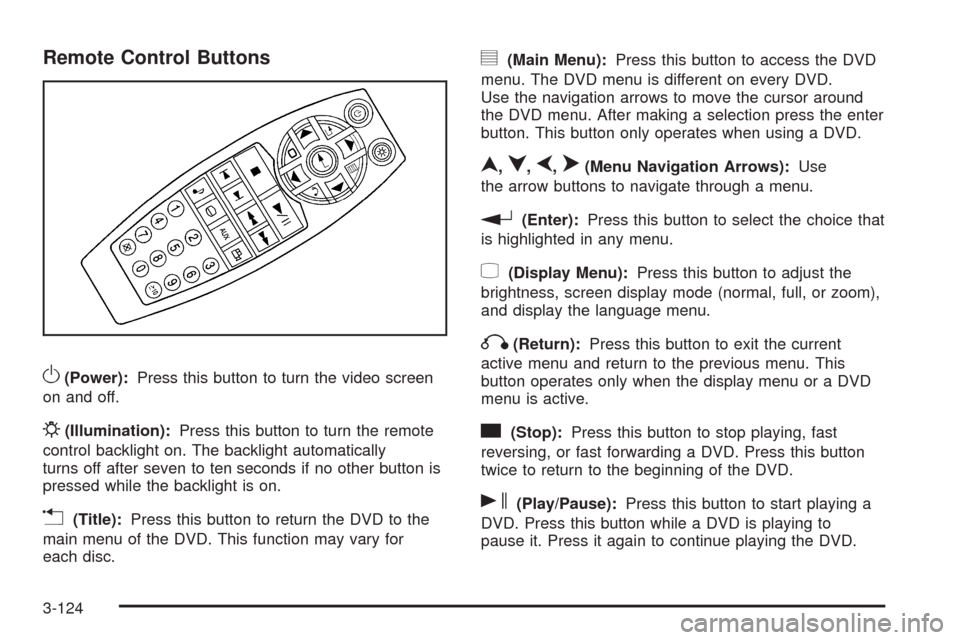
Remote Control Buttons
O(Power):Press this button to turn the video screen
on and off.
P(Illumination):Press this button to turn the remote
control backlight on. The backlight automatically
turns off after seven to ten seconds if no other button is
pressed while the backlight is on.
v(Title):Press this button to return the DVD to the
main menu of the DVD. This function may vary for
each disc.
y(Main Menu):Press this button to access the DVD
menu. The DVD menu is different on every DVD.
Use the navigation arrows to move the cursor around
the DVD menu. After making a selection press the enter
button. This button only operates when using a DVD.
n,q,p,o(Menu Navigation Arrows):Use
the arrow buttons to navigate through a menu.
r(Enter):Press this button to select the choice that
is highlighted in any menu.
z(Display Menu):Press this button to adjust the
brightness, screen display mode (normal, full, or zoom),
and display the language menu.
q(Return):Press this button to exit the current
active menu and return to the previous menu. This
button operates only when the display menu or a DVD
menu is active.
c(Stop):Press this button to stop playing, fast
reversing, or fast forwarding a DVD. Press this button
twice to return to the beginning of the DVD.
s(Play/Pause):Press this button to start playing a
DVD. Press this button while a DVD is playing to
pause it. Press it again to continue playing the DVD.
3-124
Page 310 of 550
Theft-Deterrent Feature
THEFTLOCK®is designed to discourage theft of the
vehicle’s radio by learning a portion of the Vehicle
Identication Number (VIN). The radio does not operate
if it is stolen or moved to a different vehicle.
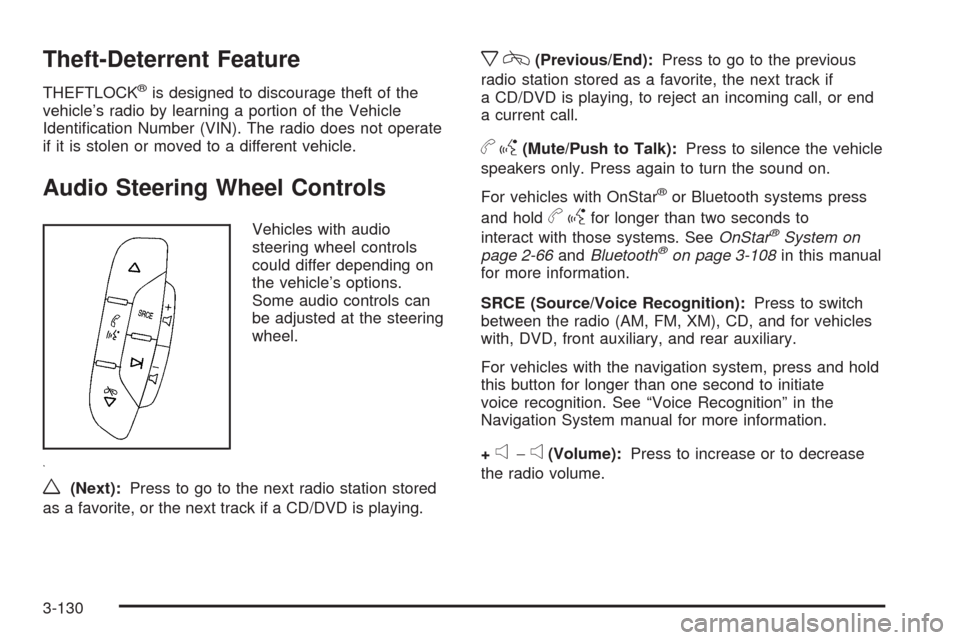
Audio Steering Wheel Controls
Vehicles with audio
steering wheel controls
could differ depending on
the vehicle’s options.
Some audio controls can
be adjusted at the steering
wheel.
w(Next):Press to go to the next radio station stored
as a favorite, or the next track if a CD/DVD is playing.
xc(Previous/End):Press to go to the previous
radio station stored as a favorite, the next track if
a CD/DVD is playing, to reject an incoming call, or end
a current call.
bg(Mute/Push to Talk):Press to silence the vehicle
speakers only. Press again to turn the sound on.
For vehicles with OnStar
®or Bluetooth systems press
and hold
bgfor longer than two seconds to
interact with those systems. SeeOnStar®System on
page 2-66andBluetooth®on page 3-108in this manual
for more information.
SRCE (Source/Voice Recognition):Press to switch
between the radio (AM, FM, XM), CD, and for vehicles
with, DVD, front auxiliary, and rear auxiliary.
For vehicles with the navigation system, press and hold
this button for longer than one second to initiate
voice recognition. See “Voice Recognition” in the
Navigation System manual for more information.
+
e−e(Volume):Press to increase or to decrease
the radio volume.
3-130
Page 519 of 550
Customer Assistance and Information...............7-2
Customer Satisfaction Procedure......................7-2
Online Owner Center......................................7-5
Customer Assistance for Text Telephone (TTY)
Users........................................................7-6
Customer Assistance Offices............................7-6
GM Mobility Reimbursement Program................7-7
Roadside Assistance Program..........................7-7
Scheduling Service Appointments....................7-10
Courtesy Transportation.................................7-10
Collision Damage Repair................................7-11Reporting Safety Defects................................7-14
Reporting Safety Defects to the United
States Government....................................7-14
Reporting Safety Defects to the Canadian
Government..............................................7-15
Reporting Safety Defects to General Motors.....7-15
Service Publications Ordering Information.........7-15
Vehicle Data Recording and Privacy................7-16
Event Data Recorders...................................7-17
OnStar
®......................................................7-18
Navigation System........................................7-18
Radio Frequency
Identication (RFID)...................................7-18
Section 7 Customer Assistance Information
7-1
Page 536 of 550
OnStar®
If your vehicle has OnStar and you subscribe to the
OnStar services, please refer to the OnStar Terms and
Conditions for information on data collection and
use. See alsoOnStar
®System on page 2-66in this
manual for more information.
Navigation System
If your vehicle has a navigation system, use of the
system may result in the storage of destinations,
addresses, telephone numbers, and other trip
information. Refer to the navigation system operating
manual for information on stored data and for deletion
instructions.
Radio Frequency
Identication (RFID)
RFID technology is used in some vehicles for functions
such as tire pressure monitoring and ignition system
security, as well as in connection with conveniences
such as key fobs for remote door locking/unlocking and
starting, and in-vehicle transmitters for garage door
openers. RFID technology in GM vehicles does not use
or record personal information or link with any other
GM system containing personal information.
7-18
Page 537 of 550
A
Accessories and Modications............................ 5-3
Accessory Power Outlets.................................3-19
Adding Equipment to Your Airbag-Equipped
Vehicle.......................................................1-77
Additives, Fuel................................................. 5-7
Add-On Electrical Equipment...........................5-107
Adjustable Throttle and Brake Pedal..................2-35
Air Cleaner/Filter, Engine.................................5-19
Air Conditioning......................................3-20, 3-23
Airbag
Passenger Status Indicator...........................3-33
Readiness Light..........................................3-32
Airbag System................................................1-62
Adding Equipment to Your Airbag-Equipped
Vehicle...................................................1-77
How Does an Airbag Restrain?......................1-68
Passenger Sensing System...........................1-70
Servicing Your Airbag-Equipped Vehicle..........1-76
What Makes an Airbag Inate?......................1-68
What Will You See After an Airbag Inates?....1-69
When Should an Airbag Inate?....................1-67
Where Are the Airbags?...............................1-65
Antenna, Fixed Mast......................................3-132
Antenna, XM™ Satellite Radio Antenna System . . . 3-132
Antilock Brake System (ABS)............................. 4-5
Antilock Brake, System Warning Light................3-37Appearance Care
Aluminum or Chrome-Plated Wheels.............5-105
Care of Safety Belts...................................5-102
Chemical Paint Spotting..............................5-106
Cleaning Exterior Lamps/Lenses..................5-103
Fabric/Carpet............................................5-101
Finish Care...............................................5-104
Finish Damage..........................................5-106
Instrument Panel, Vinyl, and Other Plastic
Surfaces...............................................5-102
Interior Cleaning........................................5-100
Leather....................................................5-102
Sheet Metal Damage..................................5-106
Tires........................................................5-105
Underbody Maintenance.............................5-106
Washing Your Vehicle.................................5-103
Weatherstrips............................................5-103
Windshield and Wiper Blades......................5-104
Appointments, Scheduling Service.....................7-10
Ashtray.........................................................3-20
Audio System.................................................3-76
Audio Steering Wheel Controls....................3-130
Fixed Mast Antenna...................................3-132
Navigation/Radio System, see Navigation
Manual.................................................3-108
Radio Reception........................................3-131
Rear Seat Audio (RSA)...............................3-128
1
Page 545 of 550
Manual Seats................................................... 1-3
Memory Seat, Mirrors, and Pedals...................... 1-8
Message
DIC Warnings and Messages........................3-58
Midgate
®.......................................................2-13
Mirrors
Automatic Dimming Rearview........................2-55
Manual Rearview Mirror................................2-55
Outside Convex Mirror.................................2-57
Outside Heated Mirrors................................2-58
Outside Power Foldaway Mirrors....................2-56
Outside Power Mirrors..................................2-56
Park Tilt .....................................................2-57
MP3 ....................................................3-96, 3-101
MyGMLink.com................................................ 7-5
N
Navigation System, Privacy..............................7-18
Navigation/Radio System, see Navigation
Manual.....................................................3-108
New Vehicle Break-In......................................2-32
O
Odometer......................................................3-31
Odometer, Trip...............................................3-31
Off-Road Driving.............................................4-12
Off-Road Recovery..........................................4-11Oil
Engine.......................................................5-15
Pressure Gage............................................3-41
Pressure Light.............................................3-42
Oil, Engine Oil Life System..............................5-18
Older Children, Restraints................................1-37
Online Owner Center........................................ 7-5
OnStar, Privacy..............................................7-18
OnStar
®System, see OnStar®Manual...............2-66
Operation, Universal Home Remote System........2-70
Outlet Adjustment............................................3-29
Outlets
Accessory Power.........................................3-19
Outside
Convex Mirror.............................................2-57
Heated Mirrors............................................2-58
Power Foldaway Mirrors...............................2-56
Power Mirrors.............................................2-56
Overheated Engine Protection Operating Mode . . . 5-33
Owner Checks and Services.............................6-10
Owners, Canadian.............................................. iii
P
Paint, Damage..............................................5-106
Park
Shifting Into................................................2-50
Shifting Out of............................................2-52
Park Aid................................................2-58, 2-61
9
Page 546 of 550
Park Brake....................................................2-48
Park Tilt Mirrors..............................................2-57
Parking
Assist........................................................2-58
Over Things That Burn.................................2-52
Passenger Airbag Status Indicator.....................3-33
Passenger Sensing System..............................1-70
Passing.........................................................4-11
PASS-Key
®III+ Electronic Immobilizer...............2-30
PASS-Key®III+ Electronic Immobilizer Operation . . . 2-30
Perchlorate Materials Requirements, California...... 5-4
Phone
Bluetooth
®................................................3-108
Power
Door Locks.................................................2-10
Electrical System.......................................5-108
Lumbar Controls........................................... 1-6
Retained Accessory.....................................2-34
Seat ............................................................ 1-4
Steering Fluid.............................................5-34
Windows....................................................2-26
Power Assist Steps.........................................2-24
Privacy..........................................................7-16
Event Data Recorders..................................7-17
Navigation System.......................................7-18
OnStar .......................................................7-18
Radio Frequency Identication.......................7-18
Programmable Automatic Door Locks.................2-11
R
Radio Frequency Identication (RFID), Privacy....7-18
Radio(s)........................................................3-79
Radios
Navigation/Radio System, see Navigation
Manual.................................................3-108
Rear Seat Audio........................................3-128
Reception.................................................3-131
Setting the Clock.........................................3-77
Theft-Deterrent..........................................3-130
Rainsense™ II Wipers....................................... 3-9
Reading Lamps..............................................3-18
Rear Axle......................................................5-45
Locking........................................................ 4-9
Rear Door Security Locks................................2-12
Rear Seat Audio (RSA)..................................3-128
Rear Seat Entertainment System.....................3-119
Rear Seat Operation.......................................1-13
Rear Vision Camera........................................2-61
Rearview Mirror, Automatic Dimming..................2-55
Rearview Mirrors.............................................2-55
Reclining Seatbacks........................................1-10
Recommended Fluids and Lubricants.................6-13
Recovery Hooks.............................................4-33
Recreational Vehicle Towing.............................4-40
Remote Keyless Entry (RKE) System.................. 2-4
Remote Keyless Entry (RKE) System, Operation . . . 2-5
Remote Vehicle Start........................................ 2-7
10