start stop button CHEVROLET AVALANCHE 2009 2.G User Guide
[x] Cancel search | Manufacturer: CHEVROLET, Model Year: 2009, Model line: AVALANCHE, Model: CHEVROLET AVALANCHE 2009 2.GPages: 550, PDF Size: 3.06 MB
Page 304 of 550
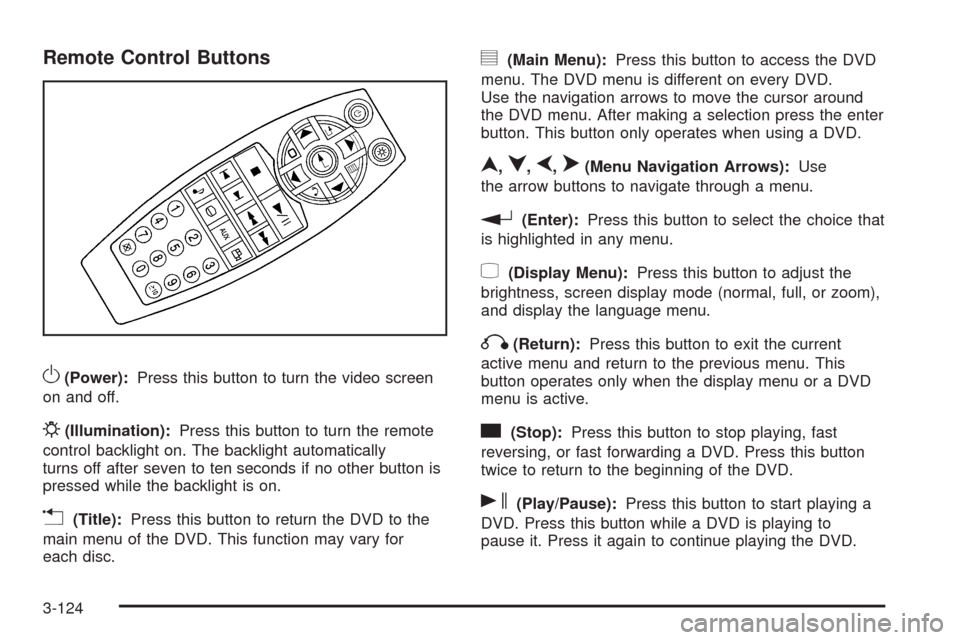
Remote Control Buttons
O(Power):Press this button to turn the video screen
on and off.
P(Illumination):Press this button to turn the remote
control backlight on. The backlight automatically
turns off after seven to ten seconds if no other button is
pressed while the backlight is on.
v(Title):Press this button to return the DVD to the
main menu of the DVD. This function may vary for
each disc.
y(Main Menu):Press this button to access the DVD
menu. The DVD menu is different on every DVD.
Use the navigation arrows to move the cursor around
the DVD menu. After making a selection press the enter
button. This button only operates when using a DVD.
n,q,p,o(Menu Navigation Arrows):Use
the arrow buttons to navigate through a menu.
r(Enter):Press this button to select the choice that
is highlighted in any menu.
z(Display Menu):Press this button to adjust the
brightness, screen display mode (normal, full, or zoom),
and display the language menu.
q(Return):Press this button to exit the current
active menu and return to the previous menu. This
button operates only when the display menu or a DVD
menu is active.
c(Stop):Press this button to stop playing, fast
reversing, or fast forwarding a DVD. Press this button
twice to return to the beginning of the DVD.
s(Play/Pause):Press this button to start playing a
DVD. Press this button while a DVD is playing to
pause it. Press it again to continue playing the DVD.
3-124
Page 305 of 550
On some radios, play may be slowed down by pressing
the play/pause button then pressing the fast forward
button when the DVD is playing. The DVD continues
playing in a slow play mode. Some radios may perform
reverse slow play by pressing the play/pause button
and then pressing the fast reverse button. To cancel
slow play mode, press the play/pause button.
t(Previous Track/Chapter):Press this button to
return to the start of the current track or chapter. Press
this button again to go to the previous track or
chapter. This button might not work when the DVD is
playing the copyright information or the previews.
u(Next Track/Chapter):Press this button to go to
the beginning of the next chapter or track. This
button might not work when the DVD is playing the
copyright information or the previews.
r(Fast Reverse):Press this button to fast reverse
the DVD or CD. To stop fast reversing a DVD video,
press the play button. To stop fast reversing a
DVD audio or CD, release this button. This button might
not work when the DVD is playing the copyright
information or the previews.
[(Fast Forward):Press this button to fast forward
the DVD or CD. To stop fast forwarding a DVD
video, press the play/pause button. To stop fast
forwarding a DVD audio or CD, release this button. This
button might not work when the DVD is playing the
copyright information or the previews.
e(Audio):Press this button to change audio
tracks on DVDs that have this feature when the DVD is
playing. The format and content of this function vary
for each disc.
{(Subtitles):Press this button to turn ON/OFF
subtitles and to move through subtitle options when a
DVD is playing. The format and content of this function
vary for each disc.
AUX (Auxiliary):Press this button to switch the system
between the DVD player and an auxiliary source.
d(Camera):Press this button to change camera
angles on DVDs that have this feature when a DVD is
playing. The format and content of this function vary
for each disc.
1 through 0 (Numeric Keypad):The numeric keypad
provides the capability of direct chapter or track
number selection.
3-125
Page 306 of 550
\(Clear):Press this button within three seconds after
entering a numeric selection, to clear all numerical
inputs.
}10 (Double Digit Entries):Press this button to
select chapter or track numbers greater than nine. Press
this button before entering the number.
If the remote control becomes lost or damaged, a new
universal remote control can be purchased. If this
happens, make sure the universal remote control uses a
code set of Toshiba
®.
Battery Replacement
To change the remote control batteries, do the following:
1. Slide the rear cover back on to the remote control.
2. Replace the two batteries in the compartment.
Make sure that they are installed correctly, using
the diagram on the inside of the battery
compartment.
3. Replace the battery cover.
If the remote control is to be stored for a long period of
time, remove the batteries and keep them in a cool,
dry place.
Problem Recommended Action
No power. The ignition might not be
turned ON/RUN or in
ACC/ACCESSORY.
The picture does not ll the
screen. There are black
borders on the top and
bottom or on both sides or
it looks stretched out.Check the display mode
settings in the setup menu
by pressing the display
menu button on the remote
control.
In auxiliary mode, the
picture moves or scrolls.Check the auxiliary input
connections at both
devices.
The remote control does
not work.Check to make sure there
is no obstruction between
the remote control and the
transmitter window.
Check the batteries to
make sure they are not
dead or installed
incorrectly.
After stopping the player,
I push Play but sometimes
the DVD starts where I left
off and sometimes at the
beginning.If the stop button was
pressed one time, the DVD
player resumes playing
where the DVD was
stopped. If the stop button
was pressed two times
the DVD player begins to
play from the beginning of
the DVD.
3-126
Page 309 of 550
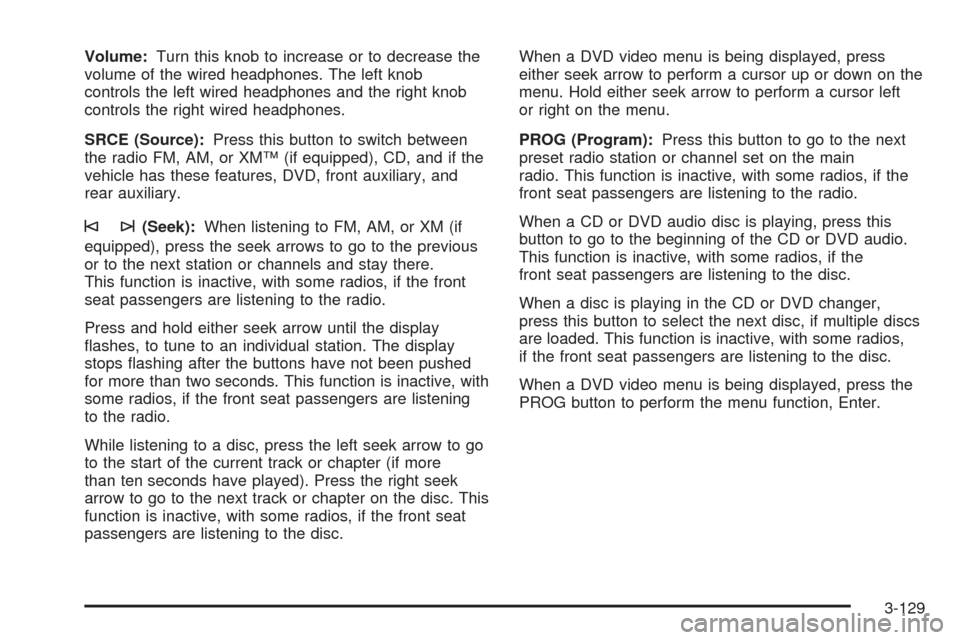
Volume:Turn this knob to increase or to decrease the
volume of the wired headphones. The left knob
controls the left wired headphones and the right knob
controls the right wired headphones.
SRCE (Source):Press this button to switch between
the radio FM, AM, or XM™ (if equipped), CD, and if the
vehicle has these features, DVD, front auxiliary, and
rear auxiliary.
©¨(Seek):When listening to FM, AM, or XM (if
equipped), press the seek arrows to go to the previous
or to the next station or channels and stay there.
This function is inactive, with some radios, if the front
seat passengers are listening to the radio.
Press and hold either seek arrow until the display
ashes, to tune to an individual station. The display
stops ashing after the buttons have not been pushed
for more than two seconds. This function is inactive, with
some radios, if the front seat passengers are listening
to the radio.
While listening to a disc, press the left seek arrow to go
to the start of the current track or chapter (if more
than ten seconds have played). Press the right seek
arrow to go to the next track or chapter on the disc. This
function is inactive, with some radios, if the front seat
passengers are listening to the disc.When a DVD video menu is being displayed, press
either seek arrow to perform a cursor up or down on the
menu. Hold either seek arrow to perform a cursor left
or right on the menu.
PROG (Program):Press this button to go to the next
preset radio station or channel set on the main
radio. This function is inactive, with some radios, if the
front seat passengers are listening to the radio.
When a CD or DVD audio disc is playing, press this
button to go to the beginning of the CD or DVD audio.
This function is inactive, with some radios, if the
front seat passengers are listening to the disc.
When a disc is playing in the CD or DVD changer,
press this button to select the next disc, if multiple discs
are loaded. This function is inactive, with some radios,
if the front seat passengers are listening to the disc.
When a DVD video menu is being displayed, press the
PROG button to perform the menu function, Enter.
3-129
Page 448 of 550
TPMS Sensor Matching Process
Each TPMS sensor has a unique identication code.
Any time you rotate your vehicle’s tires or replace one or
more of the TPMS sensors, the identication codes
will need to be matched to the new tire/wheel position.
The sensors are matched to the tire/wheel positions
in the following order: driver side front tire, passenger
side front tire, passenger side rear tire, and driver
side rear tire using a TPMS diagnostic tool. See your
dealer/retailer for service.
The TPMS sensors can also be matched to each
tire/wheel position by increasing or decreasing the tire’s
air pressure. If increasing the tire’s air pressure, do
not exceed the maximum ination pressure indicated on
the tire’s sidewall.
To decrease air-pressure out of a tire you can use the
pointed end of the valve cap, a pencil-style air pressure
gage, or a key.
You have two minutes to match the rst tire/wheel
position, and ve minutes overall to match all four
tire/wheel positions. If it takes longer than two minutes, to
match the rst tire and wheel, or more than ve minutes
to match all four tire and wheel positions the matching
process stops and you need to start over.The TPMS sensor matching process is outlined below:
1. Set the parking brake.
2. Turn the ignition switch to ON/RUN with the
engine off.
3. Press the Remote Keyless Entry (RKE) transmitter’s
lock and unlock buttons at the same time for
approximately ve seconds. The horn sounds
twice to signal the receiver is in relearn mode and
TIRE LEARNING ACTIVE message displays on
the DIC screen.
4. Start with the driver side front tire.
5. Remove the valve cap from the valve cap stem.
Activate the TPMS sensor by increasing or
decreasing the tire’s air pressure for ve seconds,
or until a horn chirp sounds. The horn chirp,
which may take up to 30 seconds to sound,
conrms that the sensor identication code has
been matched to this tire and wheel position.
6. Proceed to the passenger side front tire, and repeat
the procedure in Step 5.
7. Proceed to the passenger side rear tire, and repeat
the procedure in Step 5.
5-68