radio controls CHEVROLET AVALANCHE 2011 2.G User Guide
[x] Cancel search | Manufacturer: CHEVROLET, Model Year: 2011, Model line: AVALANCHE, Model: CHEVROLET AVALANCHE 2011 2.GPages: 528, PDF Size: 7.65 MB
Page 154 of 528
Black plate (8,1)Chevrolet Avalanche Owner Manual - 2011
5-8 Instruments and Controls
3. Press the set/reset button tostart the compass calibration.
Or, if the vehicle does not have
DIC buttons, press and hold the
trip odometer reset stem for
two seconds to start the
compass calibration.
4. The DIC will display CALIBRATING: DRIVE IN
CIRCLES. Drive the vehicle in
tight circles at less than
8 km/h (5 mph) to complete the
calibration. The DIC will display
CALIBRATION COMPLETE for
a few seconds when the
calibration is complete.
The DIC display will then
return to the previous menu.Clock
To set the time and date:
1. Turn the ignition key to ACC/ACCESSORY or ON/RUN, then
press the
Obutton to turn the
radio on.
2. Press the
Hbutton to display
HR, MIN, MM, DD, YYYY (hour,
minute, month, day, and year).
3. Press the softkey located under any one of the tabs to change
that setting.
4. To increase the time or date, do one of the following:
.Press the softkey below the
selected tab.
.Press the¨SEEK button.
.Press the\FWD button.
.Turn thefknob clockwise. 5. To decrease the time or date, do
one of the following:
.Press the©SEEK button.
.Press thesREV button.
.Turn thefknob
counterclockwise.
To change the time default setting
from 12 hour to 24 hour or to change
the date default setting from
month/day/year to day/month/year:
1. Press the
Hbutton and then
the softkey located below the
forward arrow tab. 12H, 24H, the
date MM/DD (month and day),
and DD/MM/ (day and month)
displays.
2. Press the softkey located below the desired option.
3. Press the
Hbutton again to
apply the desired option, or let
the screen time out.
Page 166 of 528
Black plate (20,1)Chevrolet Avalanche Owner Manual - 2011
5-20 Instruments and Controls
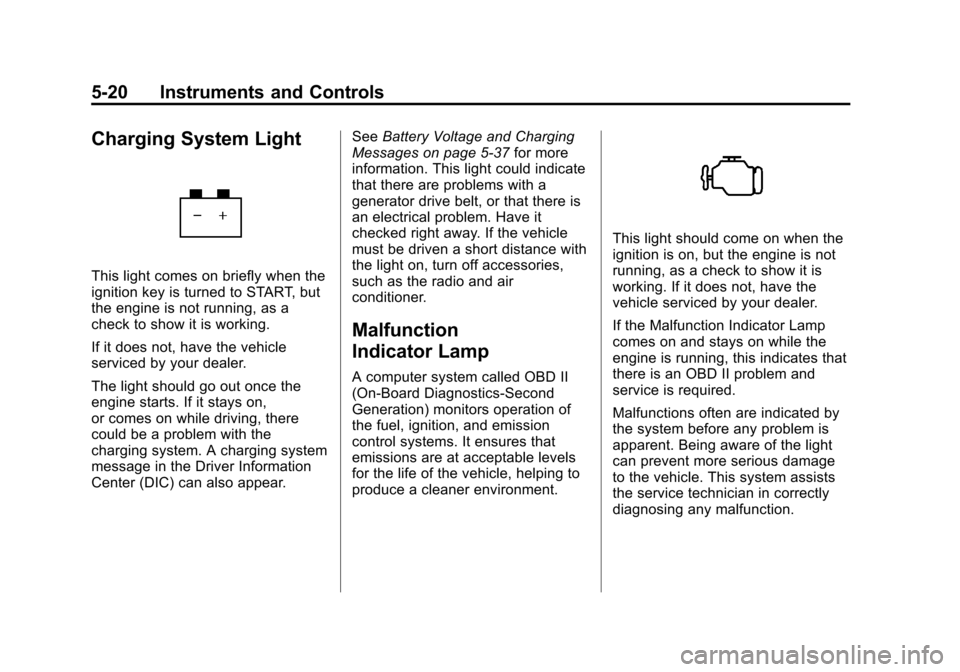
Charging System Light
This light comes on briefly when the
ignition key is turned to START, but
the engine is not running, as a
check to show it is working.
If it does not, have the vehicle
serviced by your dealer.
The light should go out once the
engine starts. If it stays on,
or comes on while driving, there
could be a problem with the
charging system. A charging system
message in the Driver Information
Center (DIC) can also appear.See
Battery Voltage and Charging
Messages on page 5‑37 for more
information. This light could indicate
that there are problems with a
generator drive belt, or that there is
an electrical problem. Have it
checked right away. If the vehicle
must be driven a short distance with
the light on, turn off accessories,
such as the radio and air
conditioner.
Malfunction
Indicator Lamp
A computer system called OBD II
(On-Board Diagnostics-Second
Generation) monitors operation of
the fuel, ignition, and emission
control systems. It ensures that
emissions are at acceptable levels
for the life of the vehicle, helping to
produce a cleaner environment.
This light should come on when the
ignition is on, but the engine is not
running, as a check to show it is
working. If it does not, have the
vehicle serviced by your dealer.
If the Malfunction Indicator Lamp
comes on and stays on while the
engine is running, this indicates that
there is an OBD II problem and
service is required.
Malfunctions often are indicated by
the system before any problem is
apparent. Being aware of the light
can prevent more serious damage
to the vehicle. This system assists
the service technician in correctly
diagnosing any malfunction.
Page 202 of 528
Black plate (56,1)Chevrolet Avalanche Owner Manual - 2011
5-56 Instruments and Controls
EXIT FEATURE SETTINGS
This feature allows you to exit the
feature settings menu.
Press the customization button until
PRESS
VTO EXIT FEATURE
SETTINGS appears in the DIC
display. Press the set/reset button
once to exit the menu.
If you do not exit, pressing the
customization button again will
return you to the beginning of the
feature settings menu.
Exiting the Feature
Settings Menu
The feature settings menu will be
exited when any of the following
occurs:
.The vehicle is no longer in
ON/RUN.
.The trip/fuel or vehicle
information DIC buttons are
pressed.
.The end of the feature settings
menu is reached and exited.
.A 40 second time period has
elapsed with no selection made.
Universal Remote
System
See Radio Frequency Statement on
page 13‑19 for information
regarding Part 15 of the Federal
Communications Commission (FCC)
rules and Industry Canada
Standards RSS-210/220/310.
Universal Remote System
Programming
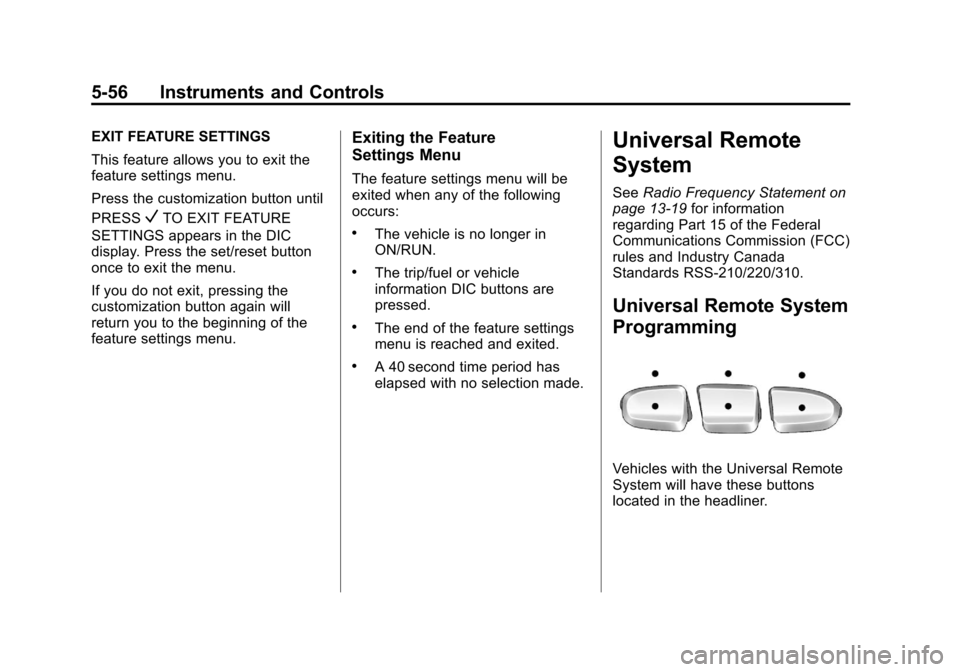
Vehicles with the Universal Remote
System will have these buttons
located in the headliner.
Page 218 of 528
Black plate (2,1)Chevrolet Avalanche Owner Manual - 2011
7-2 Infotainment System
Introduction
Determine which radio the vehicle
has and read the following pages to
become familiar with its features.
{WARNING
Taking your eyes off the road for
extended periods could cause a
crash resulting in injury or
death to you or others. Do not
give extended attention to
entertainment tasks while driving.
This system provides access to
many audio and non‐audio listings. To minimize taking your eyes off the
road while driving, do the following
while the vehicle is parked:
.Become familiar with the
operation and controls of the
audio system.
.Set up the tone, speaker
adjustments, and preset
radio stations.
For more information, see Defensive
Driving on page 9‑2.
Notice: Contact your dealer
before adding any equipment.
Adding audio or communication
equipment could interfere with
the operation of the vehicle's
engine, radio, or other systems,
and could damage them. Follow
federal rules covering mobile
radio and telephone equipment. The vehicle has Retained
Accessory Power (RAP). With RAP,
the audio system can be played
even after the ignition is turned off.
See
Retained Accessory Power
(RAP) on page 9‑34 for more
information.Navigation/Radio System
For vehicles with a navigation radio
system, see the separate Navigation
System Manual.
Theft-Deterrent Feature
TheftLock®is designed to
discourage theft of the vehicle's
radio by learning a portion of the
Vehicle Identification Number (VIN).
The radio does not operate if it is
stolen or moved to a different
vehicle.
Page 222 of 528
Black plate (6,1)Chevrolet Avalanche Owner Manual - 2011
7-6 Infotainment System
Setting the Tone
(Bass/Midrange/Treble)
BASS/MID/TREB (Bass, Midrange,
or Treble):To adjust the bass,
midrange, or treble:
1. Press the
fknob until the
tone control tabs display.
2. Highlight the desired tone control tab by doing one of
the following:
.Pressing thefknob.
.Press the softkey under the
desired tab.
3. Adjust the setting by doing one of the following:
.Turn thefknob clockwise
or counterclockwise.
.Press the¨SEEK, or
©SEEK button.
.Press the\FWD, or
sREV button. If a station's frequency is weak or if
there is static, decrease the treble.
To quickly adjust bass, midrange,
or treble to the middle position,
press the softkey positioned under
the BASS, MID, or TREB tab for
more than 2 seconds. A beep
sounds and the level adjusts to the
middle position.
To quickly adjust all tone and
speaker controls to the middle
position, press the
fknob for more
than 2 seconds until a beep sounds.
EQ (Equalization): Press this
button to choose bass and treble
equalization settings designed for
different types of music. Selecting
MANUAL or changing bass or
treble, returns the EQ to the manual
bass and treble settings.
Unique EQ settings can be saved
for each source.
If the radio has a Bose audio
system, the EQ settings are
either MANUAL or TALK. Digital Signal Processing (DSP):
Press the EQ button to change the
DSP settings (only available on
Bose systems with the LTZ option
package). DSP settings provide a
choice of different listening
experiences.
The following DSP settings are
available:
.Normal
—Select this setting to
adjust the audio for normal
mode. This provides the best
sound quality for all seating
positions.
.Driver —Select this setting to
adjust the audio for the driver to
receive the best possible sound
quality.
.Rear —Select this setting to
adjust the audio for the rear seat
passengers to receive the best
possible sound quality.
Page 223 of 528
Black plate (7,1)Chevrolet Avalanche Owner Manual - 2011
Infotainment System 7-7
.Surround (Centerpoint®)—
Select this setting to enable
Bose Centerpoint. Centerpoint
signal processing produces a
surround sound listening
experience from a CD or XM
stereo digital audio source.
Centerpoint delivers five
independent audio channels
from conventional two channel
stereo recordings. (Not available
for AM or FM.)
Adjusting the Speakers
(Balance/Fade)
BAL/FADE (Balance/Fade): To
adjust the balance or fade:
1. Press the
fknob until the
speaker control tabs display.
2. Highlight the desired speaker control tab by doing one of
the following:
.Pressing thefknob.
.Press the softkey under the
desired tab. 3. Adjust the setting by doing one
of the following:
.Turn thefknob clockwise
or counterclockwise.
.Press the¨SEEK, or
©SEEK button.
.Press the\FWD, or
sREV button.
To quickly adjust all speaker and
tone controls to the middle position,
press the
fknob for more than
2 seconds.
If the Rear Seat Audio (RSA) is
turned on, the radio disables
FADE and mutes the rear speakers.
Radio Messages
Calibration Error: The audio
system has been calibrated for
the vehicle from the factory.
If Calibration Error displays, it
means that the radio has not been
configured properly for the vehicle
and it must be returned to your
dealer for service.
Locked or Loc : One of these
messages will display when the
TheftLock
®system has locked up
the radio. Take the vehicle to your
dealer for service.
If any error occurs repeatedly or if
an error cannot be corrected,
contact your dealer.
Page 224 of 528
Black plate (8,1)Chevrolet Avalanche Owner Manual - 2011
7-8 Infotainment System
Radio
AM-FM Radio
Radio Data System (RDS)
For radios with the Radio Data
System (RDS) feature, it only works
with FM stations that broadcast
RDS information. This system relies
upon receiving specific information
from these stations and only works
when the information is available.
While the radio is tuned to an
FM-RDS station, the station name
or call letters displays. In rare
cases, a radio station could
broadcast incorrect information that
causes the radio features to work
improperly. If this happens, contact
the radio station.
4(Information) (RDS Features):
For vehicles with RDS features,
press
4to display additional text
information related to the current
FM-RDS station. If information is
available, the song title information displays on the top line of the
display and artist information
displays on the bottom line.
When information is not available,
“NO INFO”
displays.
Finding a Station
BAND:Press to switch between
AM, FM, or XM™, if equipped.
f(Tune): Turn to manually select
radio stations.
©SEEK: Press to seek the
previous radio station. Press and
hold for a few seconds until a beep
sounds to scan for radio stations in
descending order, press the
©SEEK button again to stop
scanning radio stations. The radio
only seeks and scans stations with
a strong signal that are in the
selected band.
¨SEEK: Press to seek the next
radio station. Press and hold for a
few seconds until a beep sounds to
scan for radio stations in ascending
order, press the
©SEEK button
again to stop scanning radio stations. The radio only seeks and
scans stations with a strong signal
that are in the selected band.
sREV:
Press to manually tune to
a radio station in descending order.
\FWD: Press to manually tune to
a radio station in ascending order.
FAV (Favorites): Press to select
different favorite pages for stored
radio stations.
Storing Radio Stations
Drivers are encouraged to store
radio station while the vehicle is
parked, see Defensive Driving on
page 9‑2. Tune to stored radio
stations using the presets, favorites
button, and steering wheel controls,
if the vehicle has this feature.
Up to 36 stations can be
programmed as favorites using the
6 softkeys below the radio station
frequency tabs and by using the
FAV button. Press the FAV button to
go through up to 6 pages of
favorites, each having 6 favorite
stations available per page.
Page 226 of 528
Black plate (10,1)Chevrolet Avalanche Owner Manual - 2011
7-10 Infotainment System
sREV:Press to go to the
previous XM category.
\FWD: Press to go to the
next XM category.
FAV (Favorites): Press to select
different favorites pages for stored
radio stations.
CAT (Category): The CAT button is
used to find XM channels when the
radio is in the XM mode.
Finding a Category (CAT)
Station
To find XM channels in a category:
1. Press the CAT button to display the category tabs. Continue
pressing the CAT button until the
desired category name displays.
.Radios with CD and DVD
can also navigate the
category list by pressing the
\FWD or thesREV
buttons. 2. Press either of the two softkeys
below the desired category tab
to immediately tune to the first
XM station in that category.
To go to the previous or next XM
station in the selected category,
do one of the following:
.Turn thefknob.
.Press the softkey below the
right or left arrows in the
category tab.
.Press©SEEK or¨SEEK.
3. To exit the category search mode, press the FAV button or
BAND button to display the
favorites again.
Adding and Removing Categories
Categories cannot be added or
removed while the vehicle is moving
faster than 8 km/h (5 mph).
To add or remove a category:
1. Press the MENU button.
2. Press the softkey located below the XM CAT tab. 3. Turn the
fknob to display the
category to add or remove.
4. Press the softkey located under the Add or Remove tab.
To restore all removed
categories, press the softkey
under the Restore All tab.
5. Repeat the steps to remove more categories.
Storing XM Channels
Drivers are encouraged to store
XM channels while the vehicle is
parked; see Defensive Driving on
page 9‑2. Tune to stored radio
stations using the presets, favorites
button, and steering wheel controls,
if the vehicle has this feature.
Up to 36 stations can be
programmed as favorites using the
six softkeys below the radio station
frequency tabs and by using the
FAV button. Press the FAV button to
go through up to six pages of
favorites, each having six favorite
stations available per page.
Page 244 of 528
Black plate (28,1)Chevrolet Avalanche Owner Manual - 2011
7-28 Infotainment System
After making a selection press this
button. This button only operates
when using a DVD.
Nav (Navigate):Press to display
directional arrows for navigating
through the menus.
q(Return): Press to exit the
current active menu and return to
the previous menu. This button
operates only when a DVD is
playing and a menu is active.
The rear seat passenger can
navigate the DVD-V and DVD-A
menus and controls through the
remote control. See “Remote
Control” underRear Seat
Entertainment (RSE) System on
page 7‑34 for more information.
The video screen automatically
turns on when the DVD-V is
inserted into the DVD slot, and does
not automatically power on when
the DVD-A is inserted into the
DVD slot. It must be manually
turned on by the rear seat
occupant through the remote
control power button. Using Softkeys to Play a
DVD-A (Audio)
Once a DVD-A is inserted, the radio
display menu shows several tab
options for playback. Press the
softkey located under any tab option
during DVD-A playback.r/j(Play/Pause):
Press either
the play or pause icon displayed on
the radio, to toggle between pausing
or restarting playback of a DVD.
If the forward arrow is showing on
the display, the system is in pause
mode. If the pause tab is showing
on the display, the system is in
playback mode.
qGroupr: Press to cycle
through musical groupings on the
DVD-A disc.
Nav (Navigate): Press to display
directional arrows for navigating
through the menus.
e(Audio Stream): Press to cycle
through audio stream formats
located on the DVD-A disc. The
video screen shows the audio
stream changing.
The rear seat passenger can
navigate the DVD-V and DVD-A
menus and controls through the
remote control. See “Remote
Control” underRear Seat
Entertainment (RSE) System on
page 7‑34 for more information.
The video screen automatically
turns on when the DVD-V is
inserted into the DVD slot, and does
not automatically power on when
the DVD-A is inserted into the
DVD slot. It must be manually
turned on by the rear seat occupant
through the remote control power
button.
Page 261 of 528
Black plate (45,1)Chevrolet Avalanche Owner Manual - 2011
Infotainment System 7-45
audio system. Turn the iPod on,
then choose the front auxiliary input
with the RSA SRCE button.
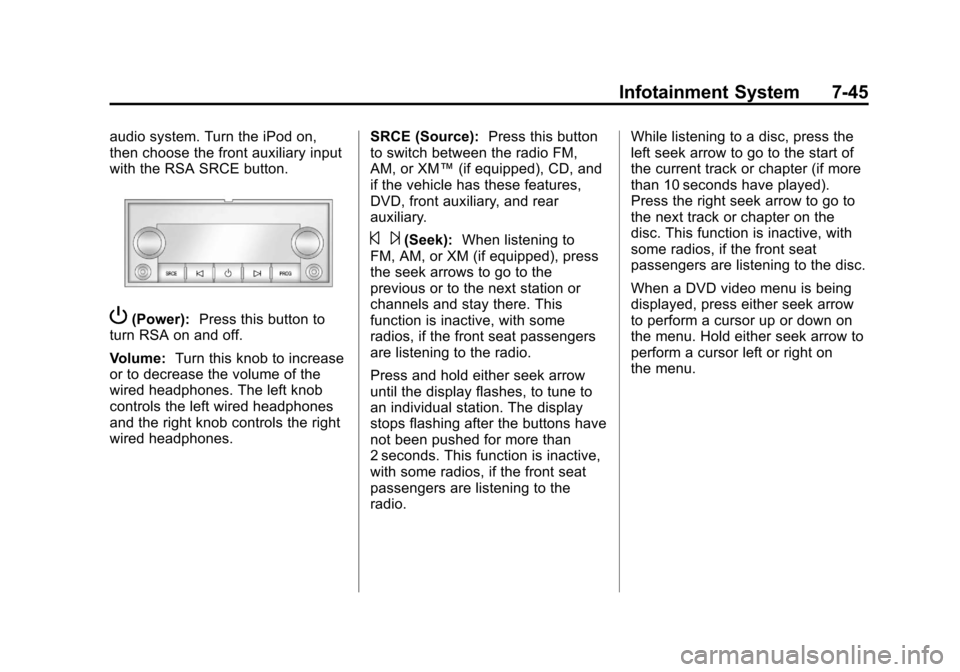
P(Power):Press this button to
turn RSA on and off.
Volume: Turn this knob to increase
or to decrease the volume of the
wired headphones. The left knob
controls the left wired headphones
and the right knob controls the right
wired headphones. SRCE (Source):
Press this button
to switch between the radio FM,
AM, or XM™ (if equipped), CD, and
if the vehicle has these features,
DVD, front auxiliary, and rear
auxiliary.
© ¨(Seek): When listening to
FM, AM, or XM (if equipped), press
the seek arrows to go to the
previous or to the next station or
channels and stay there. This
function is inactive, with some
radios, if the front seat passengers
are listening to the radio.
Press and hold either seek arrow
until the display flashes, to tune to
an individual station. The display
stops flashing after the buttons have
not been pushed for more than
2 seconds. This function is inactive,
with some radios, if the front seat
passengers are listening to the
radio. While listening to a disc, press the
left seek arrow to go to the start of
the current track or chapter (if more
than 10 seconds have played).
Press the right seek arrow to go to
the next track or chapter on the
disc. This function is inactive, with
some radios, if the front seat
passengers are listening to the disc.
When a DVD video menu is being
displayed, press either seek arrow
to perform a cursor up or down on
the menu. Hold either seek arrow to
perform a cursor left or right on
the menu.