remote control CHEVROLET AVALANCHE 2011 2.G Owner's Manual
[x] Cancel search | Manufacturer: CHEVROLET, Model Year: 2011, Model line: AVALANCHE, Model: CHEVROLET AVALANCHE 2011 2.GPages: 528, PDF Size: 7.65 MB
Page 201 of 528
Black plate (55,1)Chevrolet Avalanche Owner Manual - 2011
Instruments and Controls 5-55
On some vehicles with the
adjustable throttle and brake pedal
feature, the pedals will also
automatically move.
NO CHANGE:No change will be
made to this feature. The current
setting will remain.
To select a setting, press the
set/reset button while the desired
setting is displayed on the DIC.
REMOTE START
If your vehicle has this feature, it
allows you to turn the remote start
off or on. The remote start feature
allows you to start the engine from
outside of the vehicle using the
Remote Keyless Entry (RKE)
transmitter. See Remote Vehicle
Start on page 2‑5 for more
information. Press the customization button until
REMOTE START appears on the
DIC display. Press the set/reset
button once to access the settings
for this feature. Then press the
customization button to scroll
through the following settings:
OFF :
The remote start feature will
be disabled.
ON (default): The remote start
feature will be enabled.
NO CHANGE: No change will be
made to this feature. The current
setting will remain.
To select a setting, press the
set/reset button while the desired
setting is displayed on the DIC. FACTORY SETTINGS
This feature allows you to set all of
the customization features back to
their factory default settings.
Press the customization button until
FACTORY SETTINGS appears on
the DIC display. Press the set/reset
button once to access the settings
for this feature. Then press the
customization button to scroll
through the following settings:
RESTORE ALL (default):
The
customization features will be set to
their factory default settings.
DO NOT RESTORE: The
customization features will not be
set to their factory default settings.
To select a setting, press the
set/reset button while the desired
setting is displayed on the DIC.
Page 202 of 528
Black plate (56,1)Chevrolet Avalanche Owner Manual - 2011
5-56 Instruments and Controls
EXIT FEATURE SETTINGS
This feature allows you to exit the
feature settings menu.
Press the customization button until
PRESS
VTO EXIT FEATURE
SETTINGS appears in the DIC
display. Press the set/reset button
once to exit the menu.
If you do not exit, pressing the
customization button again will
return you to the beginning of the
feature settings menu.
Exiting the Feature
Settings Menu
The feature settings menu will be
exited when any of the following
occurs:
.The vehicle is no longer in
ON/RUN.
.The trip/fuel or vehicle
information DIC buttons are
pressed.
.The end of the feature settings
menu is reached and exited.
.A 40 second time period has
elapsed with no selection made.
Universal Remote
System
See Radio Frequency Statement on
page 13‑19 for information
regarding Part 15 of the Federal
Communications Commission (FCC)
rules and Industry Canada
Standards RSS-210/220/310.
Universal Remote System
Programming
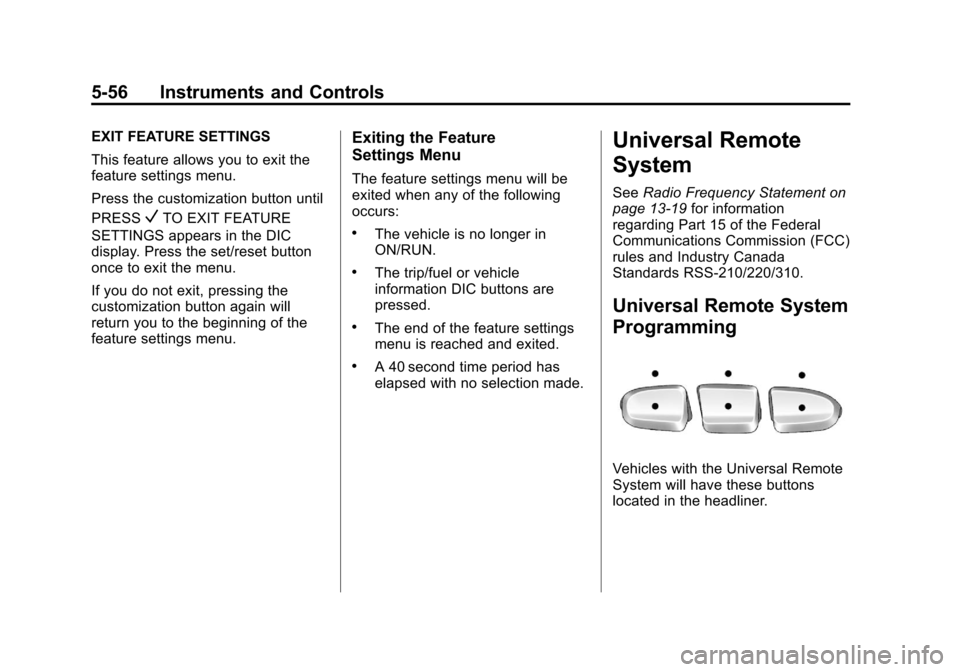
Vehicles with the Universal Remote
System will have these buttons
located in the headliner.
Page 203 of 528
Black plate (57,1)Chevrolet Avalanche Owner Manual - 2011
Instruments and Controls 5-57
This system provides a way to
replace up to three remote control
transmitters used to activate
devices such as garage door
openers, security systems, and
home automation devices.
Do not use this system with any
garage door opener that does not
have the stop and reverse feature.
This includes any garage door
opener model manufactured before
April 1, 1982.
Read the instructions completely
before attempting to program the
transmitter. Because of the steps
involved, it may be helpful to have
another person assist with
programming the transmitter.
Be sure to keep the original remote
control transmitter for use in other
vehicles, as well as for future
programming. Only the original
remote control transmitter is needed
for Fixed Code programming. The
programmed buttons should be
erased when the vehicle is sold orthe lease ends. See
“Erasing
Universal Home Remote Buttons”
in this section.
Park the vehicle outside of the
garage when programming a garage
door. Be sure that people and
objects are clear of the garage door
or gate that is being programmed.
Programming Universal Home
Remote —Rolling Code
For questions or help programming
the Universal Home Remote
System, call 1-866-572-2728 or go
to www.learcar2u.com.
Most garage door openers sold
after 1996 are Rolling Code units.
Programming a garage door opener
involves time-sensitive actions, so
read the entire procedure before
starting. Otherwise, the device will
time out and the procedure will have
to be repeated.To program up to three devices:
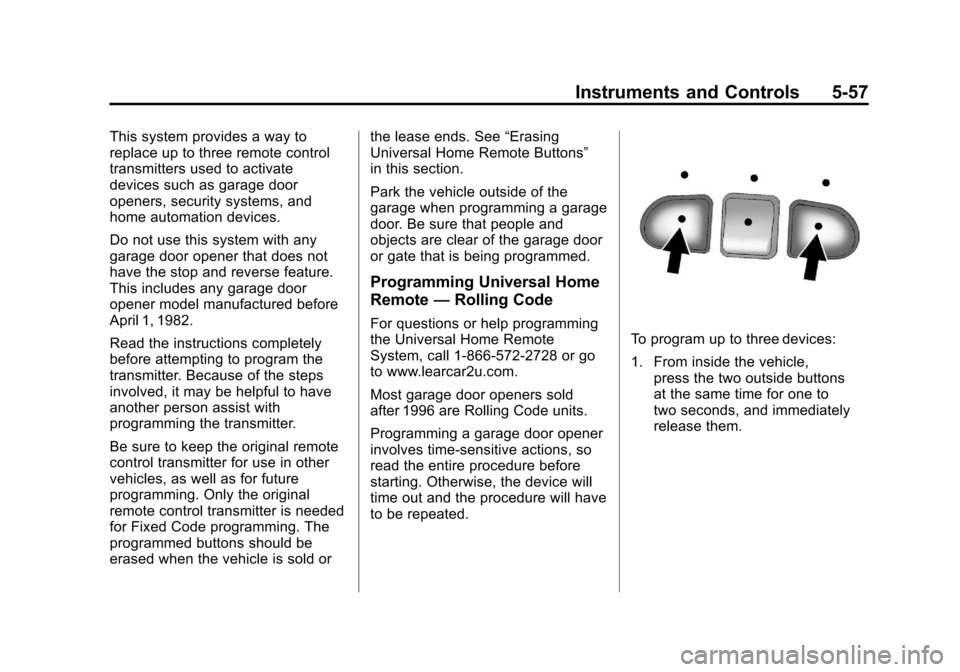
1. From inside the vehicle,
press the two outside buttons
at the same time for one to
two seconds, and immediately
release them.
Page 204 of 528
Black plate (58,1)Chevrolet Avalanche Owner Manual - 2011
5-58 Instruments and Controls
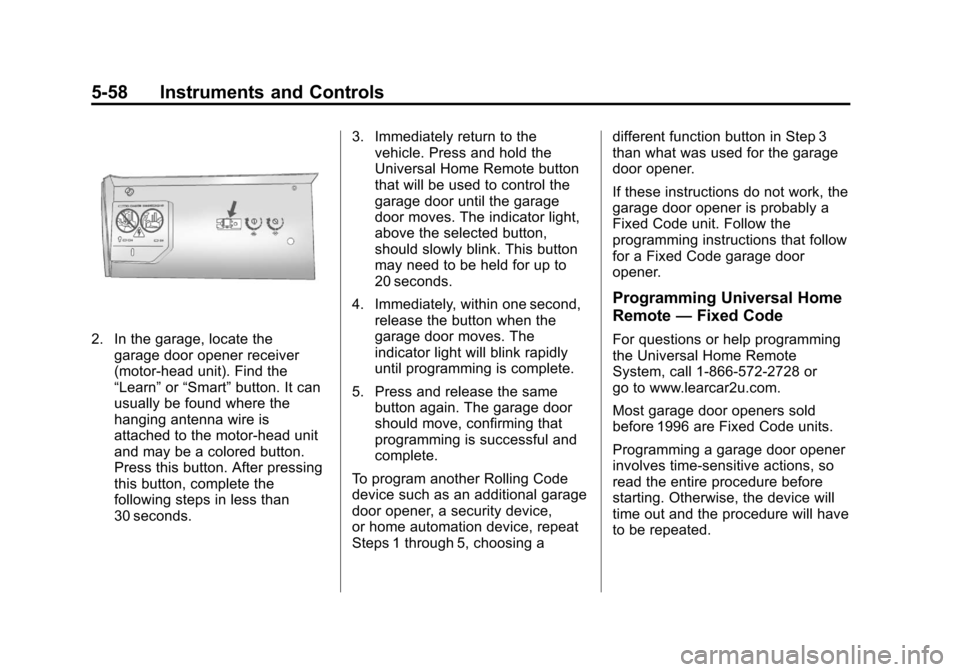
2. In the garage, locate thegarage door opener receiver
(motor-head unit). Find the
“Learn” or“Smart” button. It can
usually be found where the
hanging antenna wire is
attached to the motor-head unit
and may be a colored button.
Press this button. After pressing
this button, complete the
following steps in less than
30 seconds. 3. Immediately return to the
vehicle. Press and hold the
Universal Home Remote button
that will be used to control the
garage door until the garage
door moves. The indicator light,
above the selected button,
should slowly blink. This button
may need to be held for up to
20 seconds.
4. Immediately, within one second, release the button when the
garage door moves. The
indicator light will blink rapidly
until programming is complete.
5. Press and release the same button again. The garage door
should move, confirming that
programming is successful and
complete.
To program another Rolling Code
device such as an additional garage
door opener, a security device,
or home automation device, repeat
Steps 1 through 5, choosing a different function button in Step 3
than what was used for the garage
door opener.
If these instructions do not work, the
garage door opener is probably a
Fixed Code unit. Follow the
programming instructions that follow
for a Fixed Code garage door
opener.
Programming Universal Home
Remote
—Fixed Code
For questions or help programming
the Universal Home Remote
System, call 1-866-572-2728 or
go to www.learcar2u.com.
Most garage door openers sold
before 1996 are Fixed Code units.
Programming a garage door opener
involves time-sensitive actions, so
read the entire procedure before
starting. Otherwise, the device will
time out and the procedure will have
to be repeated.
Page 205 of 528
Black plate (59,1)Chevrolet Avalanche Owner Manual - 2011
Instruments and Controls 5-59
To program up to three devices:
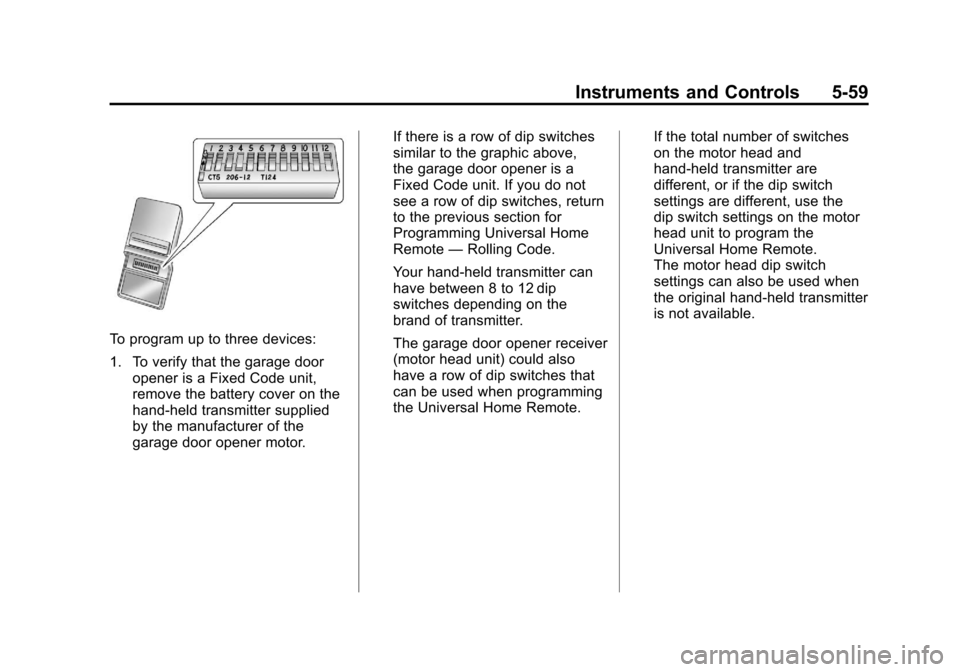
1. To verify that the garage dooropener is a Fixed Code unit,
remove the battery cover on the
hand-held transmitter supplied
by the manufacturer of the
garage door opener motor. If there is a row of dip switches
similar to the graphic above,
the garage door opener is a
Fixed Code unit. If you do not
see a row of dip switches, return
to the previous section for
Programming Universal Home
Remote
—Rolling Code.
Your hand-held transmitter can
have between 8 to 12 dip
switches depending on the
brand of transmitter.
The garage door opener receiver
(motor head unit) could also
have a row of dip switches that
can be used when programming
the Universal Home Remote. If the total number of switches
on the motor head and
hand-held transmitter are
different, or if the dip switch
settings are different, use the
dip switch settings on the motor
head unit to program the
Universal Home Remote.
The motor head dip switch
settings can also be used when
the original hand-held transmitter
is not available.
Page 206 of 528
Black plate (60,1)Chevrolet Avalanche Owner Manual - 2011
5-60 Instruments and Controls
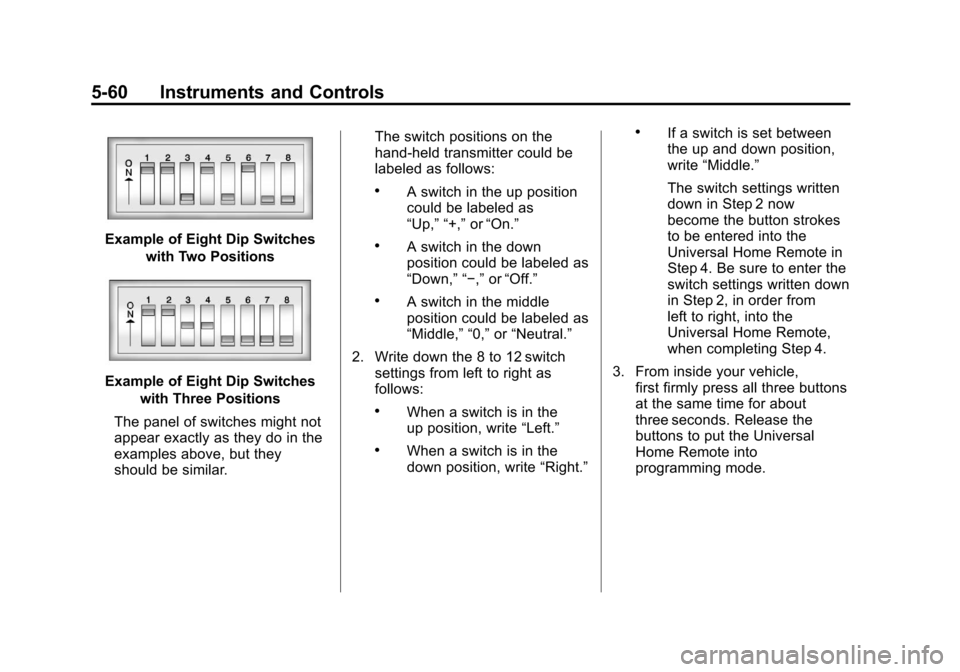
Example of Eight Dip Switcheswith Two Positions
Example of Eight Dip Switcheswith Three Positions
The panel of switches might not
appear exactly as they do in the
examples above, but they
should be similar. The switch positions on the
hand-held transmitter could be
labeled as follows:
.A switch in the up position
could be labeled as
“Up,” “+,”
or“On.”
.A switch in the down
position could be labeled as
“Down,” “−,” or“Off.”
.A switch in the middle
position could be labeled as
“Middle,” “0,” or“Neutral.”
2. Write down the 8 to 12 switch settings from left to right as
follows:
.When a switch is in the
up position, write “Left.”
.When a switch is in the
down position, write “Right.”
.If a switch is set between
the up and down position,
write“Middle.”
The switch settings written
down in Step 2 now
become the button strokes
to be entered into the
Universal Home Remote in
Step 4. Be sure to enter the
switch settings written down
in Step 2, in order from
left to right, into the
Universal Home Remote,
when completing Step 4.
3. From inside your vehicle, first firmly press all three buttons
at the same time for about
three seconds. Release the
buttons to put the Universal
Home Remote into
programming mode.
Page 207 of 528
Black plate (61,1)Chevrolet Avalanche Owner Manual - 2011
Instruments and Controls 5-61
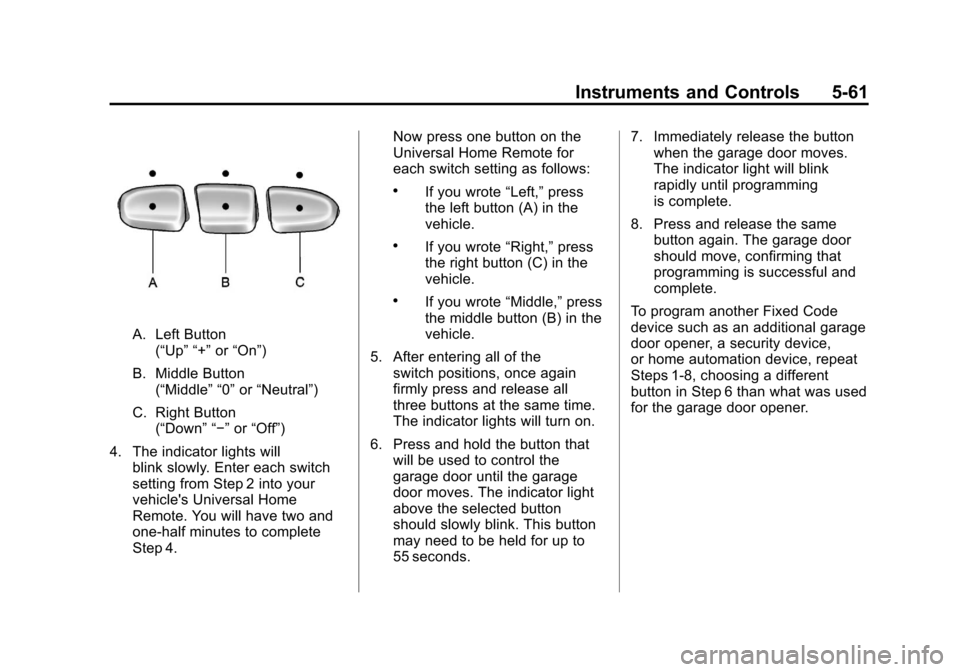
A. Left Button(“Up” “+” or“On”)
B. Middle Button (“Middle” “0” or“Neutral”)
C. Right Button (“Down” “−” or“Off”)
4. The indicator lights will blink slowly. Enter each switch
setting from Step 2 into your
vehicle's Universal Home
Remote. You will have two and
one-half minutes to complete
Step 4. Now press one button on the
Universal Home Remote for
each switch setting as follows:
.If you wrote
“Left,”press
the left button (A) in the
vehicle.
.If you wrote “Right,”press
the right button (C) in the
vehicle.
.If you wrote “Middle,”press
the middle button (B) in the
vehicle.
5. After entering all of the switch positions, once again
firmly press and release all
three buttons at the same time.
The indicator lights will turn on.
6. Press and hold the button that will be used to control the
garage door until the garage
door moves. The indicator light
above the selected button
should slowly blink. This button
may need to be held for up to
55 seconds. 7. Immediately release the button
when the garage door moves.
The indicator light will blink
rapidly until programming
is complete.
8. Press and release the same button again. The garage door
should move, confirming that
programming is successful and
complete.
To program another Fixed Code
device such as an additional garage
door opener, a security device,
or home automation device, repeat
Steps 1-8, choosing a different
button in Step 6 than what was used
for the garage door opener.
Page 208 of 528
Black plate (62,1)Chevrolet Avalanche Owner Manual - 2011
5-62 Instruments and Controls
Universal Remote System
Operation
Press and hold the appropriate
button for at least half of a second.
The indicator light will come on
while the signal is being transmitted.
Reprogramming Universal
Home Remote Buttons
Any of the three buttons can be
reprogrammed by repeating the
instructions.
Erasing Universal Home
Remote Buttons
The programmed buttons should be
erased when the vehicle is sold or
the lease ends.
To erase either Rolling Code or
Fixed Code settings on the
Universal Home Remote device:
1. Press and hold the two outsidebuttons at the same time for
approximately 20 seconds, until
the indicator lights, located
directly above the buttons,
begin to blink rapidly.
2. Once the indicator lights begin to blink, release both buttons.
The codes from all buttons will
be erased. For help or information on the
Universal Home Remote System,
call the customer assistance phone
number under
Customer Assistance
Offices (U.S. and Canada) on
page 13‑4 orCustomer Assistance
Offices (Mexico) on page 13‑5.
Page 237 of 528
Black plate (21,1)Chevrolet Avalanche Owner Manual - 2011
Infotainment System 7-21
Playing a CD (in Either the
DVD or CD Slot)
If the ignition or radio is turned off
with a CD in the player, it stays in
the player. When the ignition or
radio is turned on, the CD starts
playing where it stopped, if it was
the last selected audio source. The
CD is controlled by the buttons on
the radio faceplate or by the RSA
unit. SeeRear Seat Audio (RSA)
System on page 7‑44 for more
information. The DVD/CD decks
(the upper slot is the DVD deck and
the lower slot is the CD deck) of the
radio are compatible with most
audio CDs, CD-Rs, CD-RWs,
and MP3s.
When a CD is inserted, the text tab
DVD or CD symbol displays on the
left side of the radio display. As
each new track starts to play, the
track number displays. The CD player can play the smaller
8 cm (3 in) single CDs with an
adapter ring. Full-size CDs and the
smaller CDs are loaded in the same
manner.
DVD/CD AUX (Auxiliary):
Press to
cycle through DVD, CD, or Auxiliary
when listening to the radio. The
DVD/CD text tab and a message
showing the track or chapter
number will display when a disc is in
either slot. Press the DVD/CD AUX
button again and the system
automatically searches for an
auxiliary input device; see Auxiliary
Devices on page 7‑30 for more
information. If a portable audio
player is not connected, “No Aux
Input Device” displays. If a disc is in
both the DVD slot and the CD slot,
the DVD/CD AUX button cycles
between the two sources and does
not indicate “No Aux Input Device.”
If a front auxiliary device is
connected, the DVD/CD AUX button
cycles through all available options,
such as: DVD slot, CD slot,
Front Auxiliary, and Rear Auxiliary (if available). See
“Using the Auxiliary Input Jack”
in
Auxiliary Devices on page 7‑30 or
“Audio/Video (A/V) Jacks” under
Rear Seat Entertainment (RSE)
System on page 7‑34 for more
information.
If a disc is inserted into the top
DVD slot, the rear seat operator can
turn on the video screen and use
the remote control to navigate
the CD (tracks only) through the
remote control.
4(Information): Press to display
additional text information related to
the current song. If information is
available, the song title information
displays on the top line of the
display and artist information
displays on the bottom line.
When information is not available,
“NO INFO” displays.
f(Tune):Turn to select tracks on
the disc that is currently playing.
Page 240 of 528
Black plate (24,1)Chevrolet Avalanche Owner Manual - 2011
7-24 Infotainment System
File System and Naming
The song name that displays is the
song name that is contained in the
ID3 tag. If the song name is not
present in the ID3 tag, then the
radio displays the file name without
the extension (such as .mp3) as the
track name.
Track names longer than
32 characters or 4 pages are
shortened. Parts of words on the
last page of text and the extension
of the file name do not display.
Preprogrammed Playlists
Preprogrammed playlists that
were created using WinAmp™,
MusicMatch™, or Real Jukebox™
software can be accessed; however,
they cannot be edited using the
radio. These playlists are treated
as special folders containing
compressed audio song files.
Playlists that have an .m3u or .pls
file extension and are stored on a
USB device may be supported by
the radio with a USB port.Playing an MP3 or WMA
(in Either the DVD or CD Slot)
If a disc is inserted into the top DVD
slot, the rear seat operator can turn
on the video screen and use the
remote control to navigate the
CD (tracks only).
f(Tune):Turn to select MP3/
WMA files.
©SEEK: Press to go to the start of
the track, if more than five seconds
have played. Press and hold or
press multiple times, if less than
five seconds have played, to
continue moving backward through
tracks.
¨SEEK: Press to go to the
next track.
Press and hold, or press multiple
times, to continue moving forward
through tracks.
sREV (Reverse): Press and hold
to reverse playback quickly.
\FWD (Fast Forward): Press
and hold to advance playback
quickly.
S c(Previous Folder): Press
the softkey below the
S ctab to
go to the first track in the previous
folder.
c T(Next Folder): Press the
softkey below the
c Ttab to go to
the first track in the next folder.
RDM (Random): Press to listen to
tracks in random, rather than
sequential order.
To use random:
1. Press the softkey under the RDM tab until Random Current
Disc displays
2. Press the same softkey again to turn off random play.
h(Music Navigator): Press the
softkey below the
htab to play
files in order by artist or album.