remote control CHEVROLET AVALANCHE 2013 2.G Owner's Manual
[x] Cancel search | Manufacturer: CHEVROLET, Model Year: 2013, Model line: AVALANCHE, Model: CHEVROLET AVALANCHE 2013 2.GPages: 494, PDF Size: 7.72 MB
Page 180 of 494
Black plate (54,1)Chevrolet Avalanche Owner Manual - 2013 - CRC - 8/27/12
5-54 Instruments and Controls
Programming a garage door opener
involves time-sensitive actions, so
read the entire procedure before
starting. Otherwise, the device will
time out and the procedure will have
to be repeated.To program up to three devices:
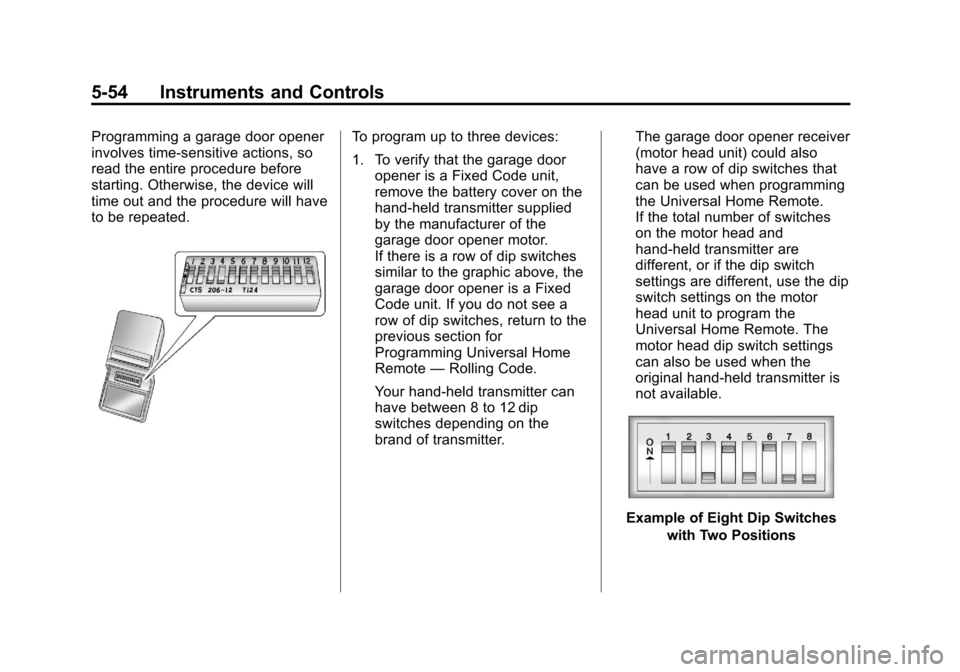
1. To verify that the garage dooropener is a Fixed Code unit,
remove the battery cover on the
hand-held transmitter supplied
by the manufacturer of the
garage door opener motor.
If there is a row of dip switches
similar to the graphic above, the
garage door opener is a Fixed
Code unit. If you do not see a
row of dip switches, return to the
previous section for
Programming Universal Home
Remote —Rolling Code.
Your hand-held transmitter can
have between 8 to 12 dip
switches depending on the
brand of transmitter. The garage door opener receiver
(motor head unit) could also
have a row of dip switches that
can be used when programming
the Universal Home Remote.
If the total number of switches
on the motor head and
hand-held transmitter are
different, or if the dip switch
settings are different, use the dip
switch settings on the motor
head unit to program the
Universal Home Remote. The
motor head dip switch settings
can also be used when the
original hand-held transmitter is
not available.
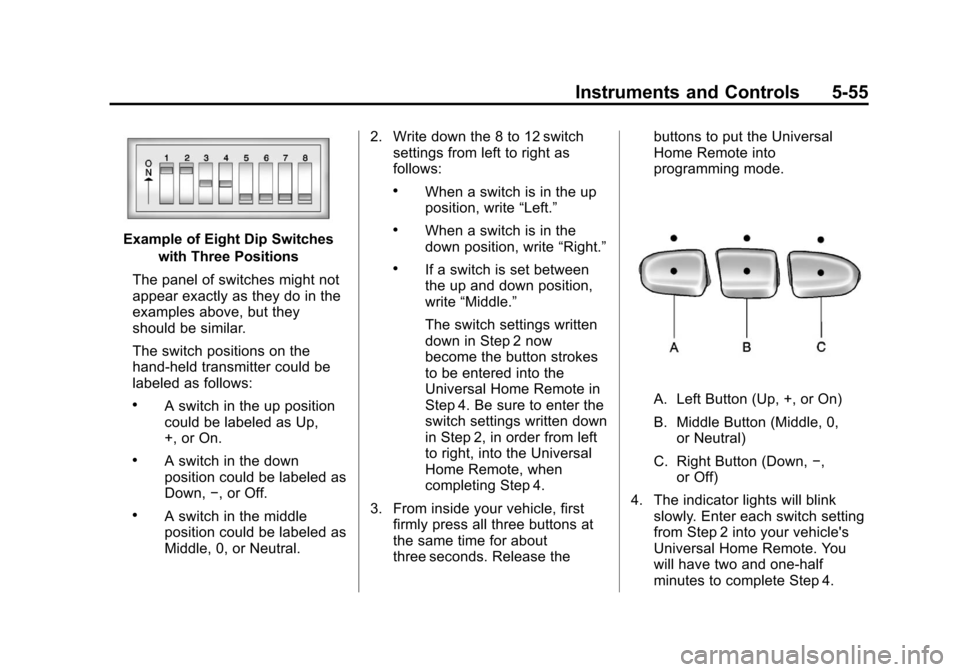
Example of Eight Dip Switches
with Two Positions
Page 181 of 494
Black plate (55,1)Chevrolet Avalanche Owner Manual - 2013 - CRC - 8/27/12
Instruments and Controls 5-55
Example of Eight Dip Switcheswith Three Positions
The panel of switches might not
appear exactly as they do in the
examples above, but they
should be similar.
The switch positions on the
hand-held transmitter could be
labeled as follows:
.A switch in the up position
could be labeled as Up,
+, or On.
.A switch in the down
position could be labeled as
Down, −, or Off.
.A switch in the middle
position could be labeled as
Middle, 0, or Neutral. 2. Write down the 8 to 12 switch
settings from left to right as
follows:
.When a switch is in the up
position, write “Left.”
.When a switch is in the
down position, write “Right.”
.If a switch is set between
the up and down position,
write“Middle.”
The switch settings written
down in Step 2 now
become the button strokes
to be entered into the
Universal Home Remote in
Step 4. Be sure to enter the
switch settings written down
in Step 2, in order from left
to right, into the Universal
Home Remote, when
completing Step 4.
3. From inside your vehicle, first firmly press all three buttons at
the same time for about
three seconds. Release the buttons to put the Universal
Home Remote into
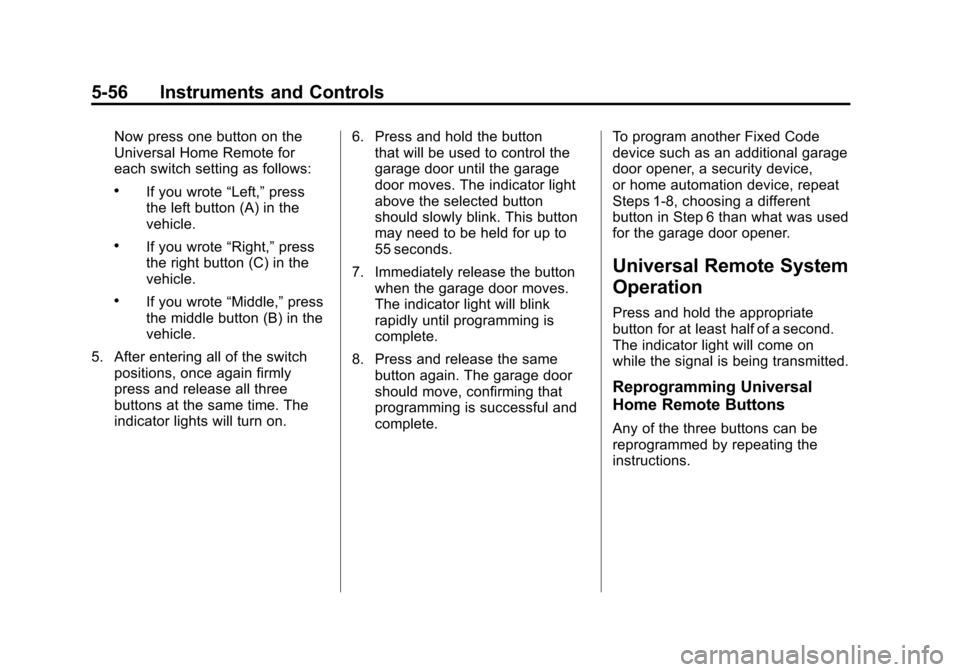
programming mode.
A. Left Button (Up, +, or On)
B. Middle Button (Middle, 0,
or Neutral)
C. Right Button (Down, −,
or Off)
4. The indicator lights will blink slowly. Enter each switch setting
from Step 2 into your vehicle's
Universal Home Remote. You
will have two and one-half
minutes to complete Step 4.
Page 182 of 494
Black plate (56,1)Chevrolet Avalanche Owner Manual - 2013 - CRC - 8/27/12
5-56 Instruments and Controls
Now press one button on the
Universal Home Remote for
each switch setting as follows:
.If you wrote“Left,”press
the left button (A) in the
vehicle.
.If you wrote “Right,”press
the right button (C) in the
vehicle.
.If you wrote “Middle,”press
the middle button (B) in the
vehicle.
5. After entering all of the switch positions, once again firmly
press and release all three
buttons at the same time. The
indicator lights will turn on. 6. Press and hold the button
that will be used to control the
garage door until the garage
door moves. The indicator light
above the selected button
should slowly blink. This button
may need to be held for up to
55 seconds.
7. Immediately release the button when the garage door moves.
The indicator light will blink
rapidly until programming is
complete.
8. Press and release the same button again. The garage door
should move, confirming that
programming is successful and
complete. To program another Fixed Code
device such as an additional garage
door opener, a security device,
or home automation device, repeat
Steps 1-8, choosing a different
button in Step 6 than what was used
for the garage door opener.
Universal Remote System
Operation
Press and hold the appropriate
button for at least half of a second.
The indicator light will come on
while the signal is being transmitted.
Reprogramming Universal
Home Remote Buttons
Any of the three buttons can be
reprogrammed by repeating the
instructions.
Page 183 of 494
Black plate (57,1)Chevrolet Avalanche Owner Manual - 2013 - CRC - 8/27/12
Instruments and Controls 5-57
Erasing Universal Home
Remote Buttons
The programmed buttons should be
erased when the vehicle is sold or
the lease ends.
To erase either Rolling Code
or Fixed Code settings on the
Universal Home Remote device:
1. Press and hold the two outsidebuttons at the same time for
approximately 20 seconds, until
the indicator lights, located
directly above the buttons, begin
to blink rapidly.
2. Once the indicator lights begin to blink, release both buttons. The
codes from all buttons will be
erased. For help or information on the
Universal Home Remote System,
call the customer assistance phone
number under
Customer Assistance
Offices (U.S. and Canada) on
page 13‑5 orCustomer Assistance
Offices (Mexico) on page 13‑5.
Page 215 of 494
Black plate (23,1)Chevrolet Avalanche Owner Manual - 2013 - CRC - 8/27/12
Infotainment System 7-23
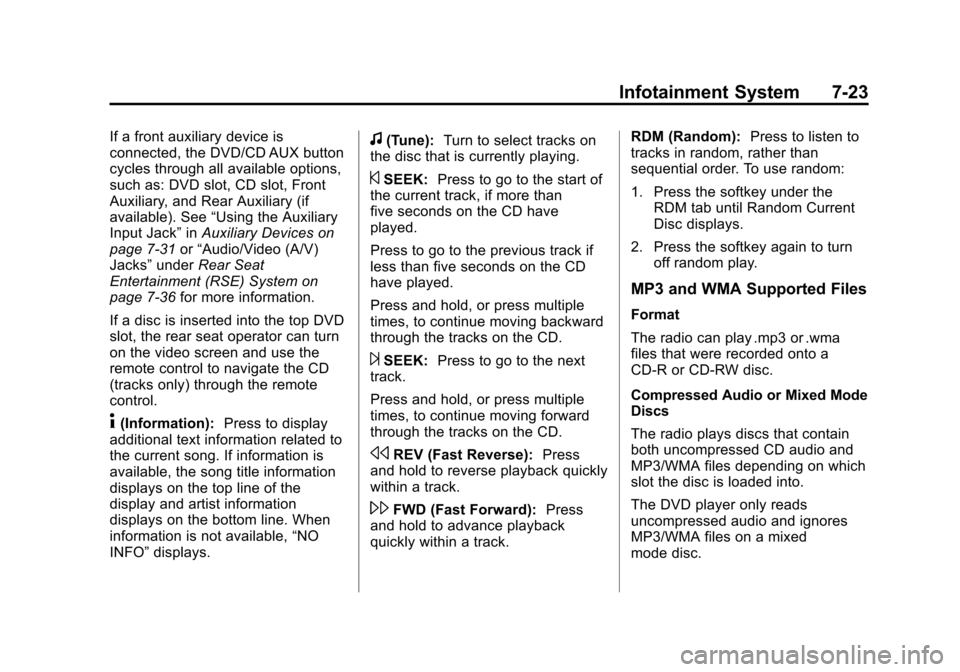
If a front auxiliary device is
connected, the DVD/CD AUX button
cycles through all available options,
such as: DVD slot, CD slot, Front
Auxiliary, and Rear Auxiliary (if
available). See“Using the Auxiliary
Input Jack” inAuxiliary Devices on
page 7‑31 or“Audio/Video (A/V)
Jacks” underRear Seat
Entertainment (RSE) System on
page 7‑36 for more information.
If a disc is inserted into the top DVD
slot, the rear seat operator can turn
on the video screen and use the
remote control to navigate the CD
(tracks only) through the remote
control.
4(Information): Press to display
additional text information related to
the current song. If information is
available, the song title information
displays on the top line of the
display and artist information
displays on the bottom line. When
information is not available, “NO
INFO” displays.
f(Tune): Turn to select tracks on
the disc that is currently playing.
©SEEK: Press to go to the start of
the current track, if more than
five seconds on the CD have
played.
Press to go to the previous track if
less than five seconds on the CD
have played.
Press and hold, or press multiple
times, to continue moving backward
through the tracks on the CD.
¨SEEK: Press to go to the next
track.
Press and hold, or press multiple
times, to continue moving forward
through the tracks on the CD.
sREV (Fast Reverse): Press
and hold to reverse playback quickly
within a track.
\FWD (Fast Forward): Press
and hold to advance playback
quickly within a track. RDM (Random):
Press to listen to
tracks in random, rather than
sequential order. To use random:
1. Press the softkey under the
RDM tab until Random Current
Disc displays.
2. Press the softkey again to turn off random play.
MP3 and WMA Supported Files
Format
The radio can play .mp3 or .wma
files that were recorded onto a
CD-R or CD-RW disc.
Compressed Audio or Mixed Mode
Discs
The radio plays discs that contain
both uncompressed CD audio and
MP3/WMA files depending on which
slot the disc is loaded into.
The DVD player only reads
uncompressed audio and ignores
MP3/WMA files on a mixed
mode disc.
Page 217 of 494
Black plate (25,1)Chevrolet Avalanche Owner Manual - 2013 - CRC - 8/27/12
Infotainment System 7-25
each playlist. When the last
track of the last playlist has
played, play continues from the
first track of the first playlist.
.Play begins from the first track in
the first folder and continues
sequentially through all tracks in
each folder. When the last track
of the last folder has played,
play continues from the first
track of the first folder.
When play enters a new folder, the
display does not automatically show
the new folder name unless the
folder mode has been chosen as
the default display. The new track
name displays.
File System and Naming
The song name that displays is the
song name that is contained in the
ID3 tag. If the song name is not
present in the ID3 tag, then the
radio displays the file name without
the extension (such as .mp3) as the
track name. Track names longer than
32 characters or 4 pages are
shortened. Parts of words on the
last page of text and the extension
of the file name do not display.
Preprogrammed Playlists
Preprogrammed playlists that
were created using WinAmp™,
MusicMatch™, or Real Jukebox™
software can be accessed; however,
they cannot be edited using the
radio. These playlists are treated
as special folders containing
compressed audio song files.
Playlists that have an .m3u or .pls
file extension and are stored on a
USB device may be supported by
the radio with a USB port.
Playing an MP3 or WMA (in
Either the DVD or CD Slot)
If a disc is inserted into the top DVD
slot, the rear seat operator can turn
on the video screen and use the
remote control to navigate the CD
(tracks only).
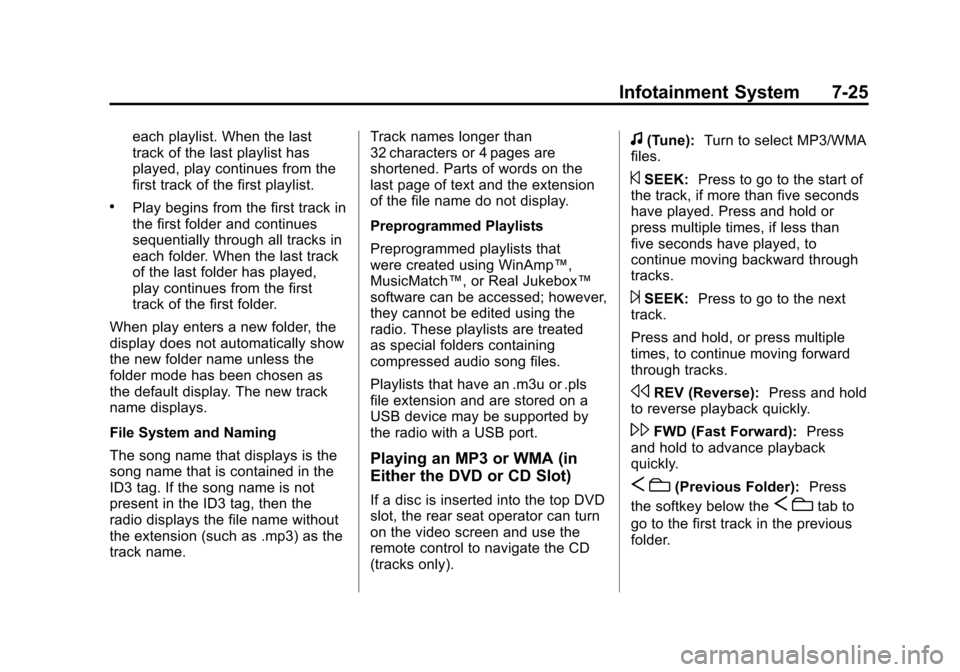
f(Tune):
Turn to select MP3/WMA
files.
©SEEK: Press to go to the start of
the track, if more than five seconds
have played. Press and hold or
press multiple times, if less than
five seconds have played, to
continue moving backward through
tracks.
¨SEEK: Press to go to the next
track.
Press and hold, or press multiple
times, to continue moving forward
through tracks.
sREV (Reverse): Press and hold
to reverse playback quickly.
\FWD (Fast Forward): Press
and hold to advance playback
quickly.
S c(Previous Folder): Press
the softkey below the
S ctab to
go to the first track in the previous
folder.
Page 218 of 494
Black plate (26,1)Chevrolet Avalanche Owner Manual - 2013 - CRC - 8/27/12
7-26 Infotainment System
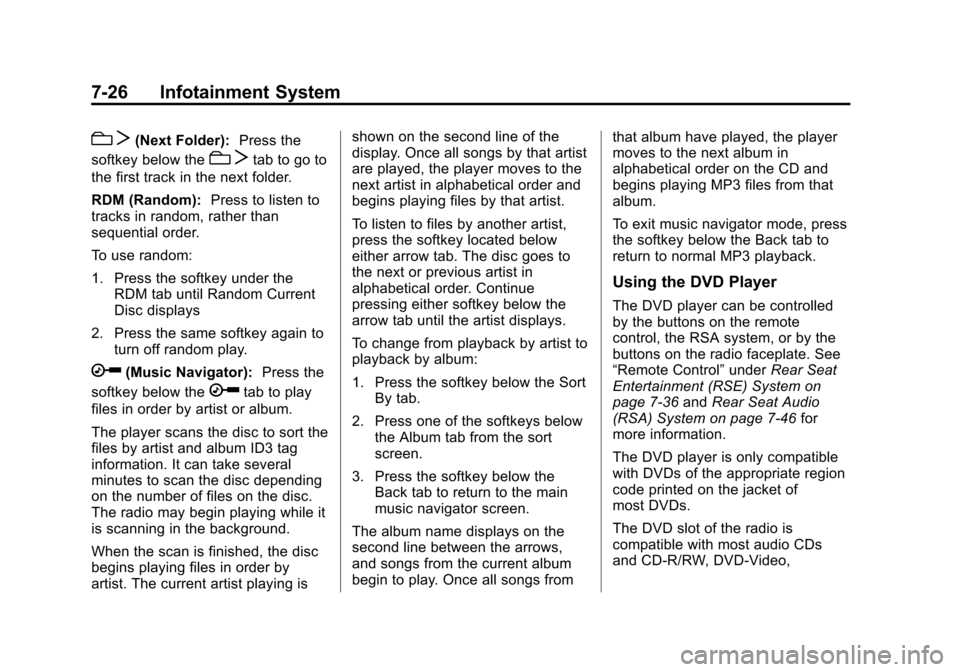
cT(Next Folder): Press the
softkey below the
c Ttab to go to
the first track in the next folder.
RDM (Random): Press to listen to
tracks in random, rather than
sequential order.
To use random:
1. Press the softkey under the RDM tab until Random Current
Disc displays
2. Press the same softkey again to turn off random play.
h(Music Navigator): Press the
softkey below the
htab to play
files in order by artist or album.
The player scans the disc to sort the
files by artist and album ID3 tag
information. It can take several
minutes to scan the disc depending
on the number of files on the disc.
The radio may begin playing while it
is scanning in the background.
When the scan is finished, the disc
begins playing files in order by
artist. The current artist playing is shown on the second line of the
display. Once all songs by that artist
are played, the player moves to the
next artist in alphabetical order and
begins playing files by that artist.
To listen to files by another artist,
press the softkey located below
either arrow tab. The disc goes to
the next or previous artist in
alphabetical order. Continue
pressing either softkey below the
arrow tab until the artist displays.
To change from playback by artist to
playback by album:
1. Press the softkey below the Sort
By tab.
2. Press one of the softkeys below the Album tab from the sort
screen.
3. Press the softkey below the Back tab to return to the main
music navigator screen.
The album name displays on the
second line between the arrows,
and songs from the current album
begin to play. Once all songs from that album have played, the player
moves to the next album in
alphabetical order on the CD and
begins playing MP3 files from that
album.
To exit music navigator mode, press
the softkey below the Back tab to
return to normal MP3 playback.
Using the DVD Player
The DVD player can be controlled
by the buttons on the remote
control, the RSA system, or by the
buttons on the radio faceplate. See
“Remote Control”
underRear Seat
Entertainment (RSE) System on
page 7‑36 andRear Seat Audio
(RSA) System on page 7‑46 for
more information.
The DVD player is only compatible
with DVDs of the appropriate region
code printed on the jacket of
most DVDs.
The DVD slot of the radio is
compatible with most audio CDs
and CD-R/RW, DVD-Video,
Page 219 of 494
Black plate (27,1)Chevrolet Avalanche Owner Manual - 2013 - CRC - 8/27/12
Infotainment System 7-27
DVD-Audio, DVD-R/RW, and
DVD+R/RW media, along with
MP3 and WMA formats.
If an error message displays on the
video screen or the radio, see“DVD
Display Error Messages” under
Rear Seat Entertainment (RSE)
System on page 7‑36, and “CD/DVD
Player Messages” later in this
section for more information.
Inserting a Disc
Insert a disc partway into the top
slot, label side up. The player pulls
it in and the disc should begin
playing. “Loading Disc” shows on
the radio display. At the same time,
the radio displays a softkey menu of
option(s). Some discs automatically
play the movie while others default
to the softkey menu display,
which requires the Play, Enter,
or Navigation softkeys to be
pressed, either by softkey or by the
rear seat passenger using the
remote control. Loading a disc into the system,
depending on media type and
format, ranges from 5 to 20 seconds
for a CD, and up to 30 seconds for
a DVD.
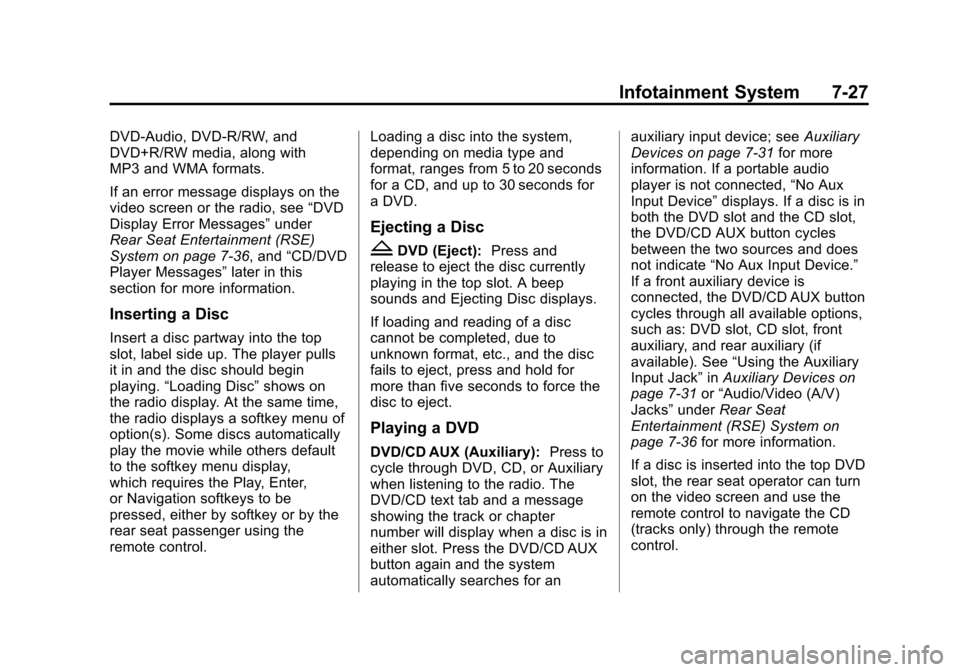
Ejecting a Disc
ZDVD (Eject):
Press and
release to eject the disc currently
playing in the top slot. A beep
sounds and Ejecting Disc displays.
If loading and reading of a disc
cannot be completed, due to
unknown format, etc., and the disc
fails to eject, press and hold for
more than five seconds to force the
disc to eject.
Playing a DVD
DVD/CD AUX (Auxiliary): Press to
cycle through DVD, CD, or Auxiliary
when listening to the radio. The
DVD/CD text tab and a message
showing the track or chapter
number will display when a disc is in
either slot. Press the DVD/CD AUX
button again and the system
automatically searches for an auxiliary input device; see
Auxiliary
Devices on page 7‑31 for more
information. If a portable audio
player is not connected, “No Aux
Input Device” displays. If a disc is in
both the DVD slot and the CD slot,
the DVD/CD AUX button cycles
between the two sources and does
not indicate “No Aux Input Device.”
If a front auxiliary device is
connected, the DVD/CD AUX button
cycles through all available options,
such as: DVD slot, CD slot, front
auxiliary, and rear auxiliary (if
available). See “Using the Auxiliary
Input Jack” inAuxiliary Devices on
page 7‑31 or“Audio/Video (A/V)
Jacks” underRear Seat
Entertainment (RSE) System on
page 7‑36 for more information.
If a disc is inserted into the top DVD
slot, the rear seat operator can turn
on the video screen and use the
remote control to navigate the CD
(tracks only) through the remote
control.
Page 220 of 494
Black plate (28,1)Chevrolet Avalanche Owner Manual - 2013 - CRC - 8/27/12
7-28 Infotainment System
O(Power):Press to turn the radio
on or off. Turn clockwise or
counterclockwise to increase or
decrease the volume. Press and
hold for more than two seconds to
turn off the entire radio and Rear
Seat Entertainment (RSE) system
and to start the Parental Control
feature. Parental Control prevents
the rear seat occupant from
operating the Rear Seat Audio
(RSA) system or remote control.
A lock symbol displays next to the
clock display. The Parental Control
feature remains on until the knob is
pressed and held for more than
two seconds again, or until the
driver turns the ignition off and exits
the vehicle.
f(Tune): Turn to select tracks on
a CD or DVD.
©SEEK: Press to return to the start
of the current track or chapter.
Press again to go to the previous
track or chapter. This button might not work when the DVD is playing
the copyright information or the
previews.
¨SEEK:
Press to go to the next
track or chapter. This button might
not work when the DVD is playing
the copyright information or the
previews.
sREV (Fast Reverse): Press to
quickly reverse the CD or DVD at
five times the normal speed. To stop
fast reversing, press again. This
button might not work when the
DVD is playing the copyright
information or the previews.
\FWD (Fast Forward): Press to
fast forward the CD or DVD at
five times the normal speed. To stop
fast forwarding, press again. This
button might not work when the
DVD is playing the copyright
information or the previews. Using Softkeys to Play a DVD-V
(Video)
Once a DVD-V is inserted, the radio
display menu shows several tab
options for playback. Press the
softkey located under any tab option
during DVD-V playback.
r/j(Play/Pause):
Press either
the Play or Pause tab displayed on
the radio, to toggle between pausing
or restarting playback of a DVD.
If the forward arrow is showing on
the display, the system is in pause
mode. If the Pause tab is showing
on the display, the system is in
playback mode. If the DVD screen
is off, press the play button to turn
the screen on.
Some DVDs begin playing after the
previews have finished, although
there could be a delay of up to
30 seconds. If the DVD does
not begin playing the movie
automatically, press the softkey
located under the play/pause
symbol tag displayed on the radio.
Page 221 of 494
Black plate (29,1)Chevrolet Avalanche Owner Manual - 2013 - CRC - 8/27/12
Infotainment System 7-29
If the DVD still does not play, refer
to the on-screen instructions,
if available.
c(Stop):Press to stop playing,
rewinding, or fast forwarding a DVD.
r(Enter): Press to select the
choices that are highlighted in
any menu.
y(Menu): Press to access the
DVD menu. The DVD menu is
different on every DVD. Use the
softkeys located under the
navigation arrows to navigate the
cursor through the DVD menu. After
making a selection press this
button. This button only operates
when using a DVD.
Nav (Navigate): Press to display
directional arrows for navigating
through the menus.
q(Return): Press to exit the
current active menu and return to
the previous menu. This button
operates only when a DVD is
playing and a menu is active. The rear seat passenger can
navigate the DVD-V and DVD-A
menus and controls through the
remote control. See
“Remote
Control” underRear Seat
Entertainment (RSE) System on
page 7‑36 for more information.
The video screen automatically
turns on when the DVD-V is
inserted into the DVD slot, and does
not automatically power on when
the DVD-A is inserted into the DVD
slot. It must be manually turned on
by the rear seat occupant through
the remote control power button.
Using Softkeys to Play a DVD-A
(Audio)
Once a DVD-A is inserted, the radio
display menu shows several tab
options for playback. Press the
softkey located under any tab option
during DVD-A playback.
r/j(Play/Pause): Press either
the play or pause icon displayed on
the radio, to toggle between pausing
or restarting playback of a DVD. If the forward arrow is showing on
the display, the system is in pause
mode. If the pause tab is showing
on the display, the system is in
playback mode.
qGroupr:
Press to cycle
through musical groupings on the
DVD-A disc.
Nav (Navigate): Press to display
directional arrows for navigating
through the menus.
e(Audio Stream): Press to cycle
through audio stream formats
located on the DVD-A disc. The
video screen shows the audio
stream changing.
The rear seat passenger can
navigate the DVD-V and DVD-A
menus and controls through the
remote control. See “Remote
Control” underRear Seat
Entertainment (RSE) System on
page 7‑36 for more information.