audio CHEVROLET AVEO 2008 1.G User Guide
[x] Cancel search | Manufacturer: CHEVROLET, Model Year: 2008, Model line: AVEO, Model: CHEVROLET AVEO 2008 1.GPages: 384, PDF Size: 6.67 MB
Page 185 of 384
If any error occurs repeatedly or if an error cannot be
corrected, contact your dealer/retailer. If the radio
displays an error message, write it down and provide it
to your dealer/retailer when reporting the problem.
Using the Auxiliary Input Jack
AUX IN (Auxiliary Input):The radio system has an
auxiliary input jack located on the lower right side of
the faceplate. This is not an audio output. Do not plug
the headphone set into the front auxiliary input jack.
An external audio device such as an iPod, laptop
computer, MP3 player, CD changer, or XM™ receiver,
etc. can be connected to the auxiliary input jack for
use as another source for audio listening.
The auxiliary input jack also accepts cell phone
connectors. Plug the cell phone connector into the
auxiliary input jack to hear a person speck on a
cell phone during a conversation through the vehicle
sound system.Drivers are encouraged to set up any auxiliary device
while the vehicle is in PARK (P). SeeDefensive Driving
on page 4-2for more information on driver distraction.
To use a portable audio player, connect a 3.5 mm
(1/8 inch) cable to the radio’s front auxiliary input jack.
While a device is connected, turn the portable audio
player on and press the radio CD/AUX button to
hear audio from the device over the vehicle speakers.
O(Power/Volume):Turn this knob clockwise or
counterclockwise to increase or decrease the volume of
the portable player. Additional adjustments on a portable
device might be needed to get the desired volume.
CD/AUX (CD/Auxiliary):Press this button once to play
a CD while a portable audio device is playing. Press
this button a second time for the system to begin playing
audio from the connected portable audio player. Once
in this mode, Auxinput displays. If the auxiliary jack does
not detect the presence of an output jack, the auxiliary
mode does not display.
3-71
Page 186 of 384
Using an MP3
(Radio with CD Player)
MP3/WMA CD-R Disc
MP3 Format
If you burn your own MP3/WMA disc on a personal
computer:
•Make sure the MP3/WMA files are recorded on a
CD-R disc.
•Do not mix standard audio and MP3/WMA files on
one disc.
•Make sure each MP3/WMA file has a .m3u or .wma
extension, other file extensions might not work.
•Files can be recorded with a variety of fixed or
variable bit rates. Song title, artist name, and album
are available for display by the radio when
recorded using ID3 tags version 1 and 2.
•Create a folder structure that makes it easy to find
songs while driving. Organize songs by albums
using one folder for each album. Each folder
or album should contain 18 songs or less.
•Make sure to finalize the disc when burning an
MP3/WMA disc, using multiple sessions. It is usually
better to burn the disc all at once.The player is able to read and play a maximum of
50 folders, five sessions, and 999 files. Long file names
and folder names can use more disc memory space
than necessary. To conserve space on the disc,
minimize the length of the file and folder names.
An MP3/WMA CD that was recorded using no file
folders can also be played. The system can support
up to eight folders in depth, though, keep the depth of
the folders to a minimum in order to keep down the
complexity and confusion in trying to locate a particular
folder during playback. If a CD contains more than
the maximum of 50 folders, five sessions, and 999 files,
the player lets you access and navigate up to the
maximum, but all items over the maximum are ignored.
Root Directory
The root directory is treated as a folder. If the root
directory has compressed audio files, the directory is
displayed as ROOT. All files contained directly under the
root directory are accessed prior to any other directory.
Empty Directory or Folder
If a root directory or a folder exists somewhere in the file
structure that contains only folders/subfolders and no
compressed files directly beneath them, the player
advances to the next folder in the file structure that
contains compressed audio files. The empty folder
does not display.
3-72
Page 187 of 384
No Folder
When a CD contains only compressed files, the files are
located under the root folder. The next and previous
folder function does not function on a CD that was
recorded without folders or playlists. When displaying
the name of the folder the radio displays ROOT.
When a CD contains only compressed audio files, but
no folders, all files are located under the root folder.
When the radio displays the name of the folder, the
radio displays ROOT.
Order of Play
Tracks are played in the following order:
•Playback begins from the first track under the root
directory.
•When all tracks from the root directory have played,
playback continues from files, according to their
numerical listing.
•After playing the last track from the last folder, the
player begins playing again at the first track of the
first folder or root directory.
File System and Naming
The song name in the ID3 tag is displayed. If the
song name is not present in the ID3 tag, then the
radio displays the file name without the extension
(such as MP3/WMA) instead.
Track names longer than 32 characters or four pages
are shortened. Parts of words on the last page of
text and the extension of the filename does not display.
Playing an MP3/WMA
While the ignition is on, insert a CD partway into the
slot, label side up. The player pulls it in, Loading, then
Filecheck, and then MP3 or WMA displays. The CD
should begin playing. A CD plays only while the ignition
is on or ACC (Accessory).
As each new track starts to play, the track number,
and the song name displays.
If the ignition or radio is turned off with a CD in the
player, it stays in the player. When a CD is in the player
and the ignition is turned on, the radio must be turned
on before the CD starts playback. When the ignition
and radio are turned on, the CD starts playing where
it stopped, if it was the last selected audio source.
The CD player can play the smaller 3 inch (8 cm) single
CDs with an adapter ring. Full-size CDs and the
smaller CDs are loaded in the same manner.
3-73
Page 189 of 384
When information is not available, No Info (information)
displays.
Press this button for longer than two seconds to change
display mode.
Using an MP3 (Radio with
Six-Disc Player)
MP3/WMA CD-R Disc
MP3 Format
If you burn your own MP3/WMA disc on a personal
computer:
•Make sure the MP3/WMA files are recorded on a
CD-R disc.
•Do not mix standard audio and MP3/WMA files on
one disc.
•Make sure each MP3/WMA file has a .m3u or .wma
extension, other file extensions might not work.
•Files can be recorded with a variety of fixed or
variable bit rates. Song title, artist name, and
album are available for display by the radio
when recorded using ID3 tags version 1 and 2.
•Create a folder structure that makes it easy to find
songs while driving. Organize songs by albums
using one folder for each album. Each folder
or album should contain 18 songs or less.
•Make sure to finalize the disc when burning an
MP3/WMA disc, using multiple sessions. It is usually
better to burn the disc all at once.
The player is able to read and play a maximum of
50 folders, five sessions, and 999 files. Long file
names and folder names might use more disc memory
space than necessary. To conserve space on the
disc, minimize the length of the file and folder names.
An MP3/WMA CD that was recorded using no file folders
can also be played. The system can support up to
eight folders in depth, though, keep the depth of the
folders to a minimum in order to keep down the difficulty
and confusion in trying to locate a particular folder
during playback. If a CD contains more than the
maximum of 50 folders, five sessions, and 999 files,
the player lets you access and navigate up to the
maximum, but all items over the maximum is ignored.
Root Directory
The root directory is treated as a folder. If the root
directory has compressed audio files, the directory is
displayed as ROOT. All files contained directly under the
root directory are accessed prior to any other directory.
3-75
Page 190 of 384
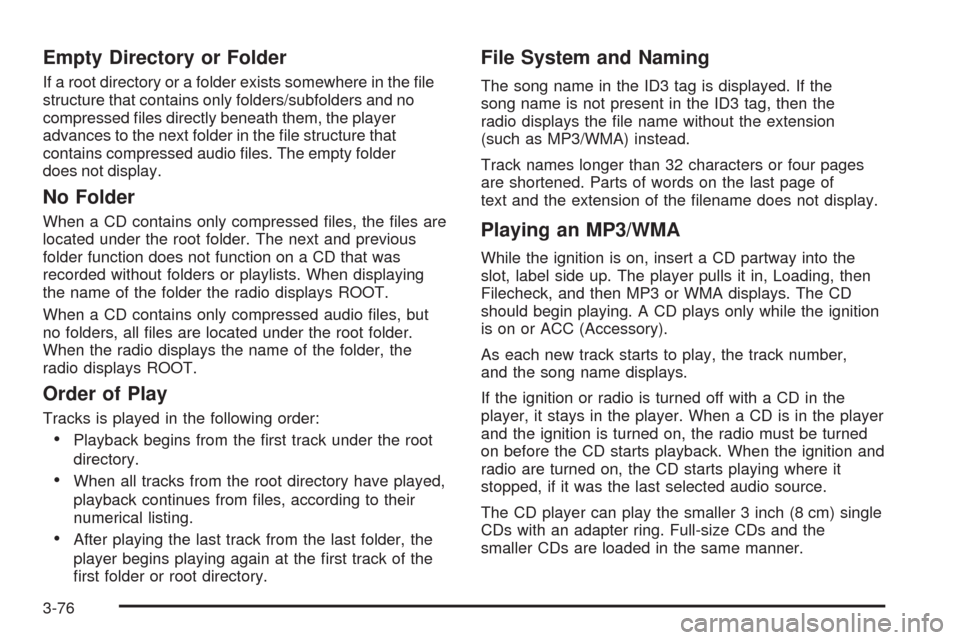
Empty Directory or Folder
If a root directory or a folder exists somewhere in the file
structure that contains only folders/subfolders and no
compressed files directly beneath them, the player
advances to the next folder in the file structure that
contains compressed audio files. The empty folder
does not display.
No Folder
When a CD contains only compressed files, the files are
located under the root folder. The next and previous
folder function does not function on a CD that was
recorded without folders or playlists. When displaying
the name of the folder the radio displays ROOT.
When a CD contains only compressed audio files, but
no folders, all files are located under the root folder.
When the radio displays the name of the folder, the
radio displays ROOT.
Order of Play
Tracks is played in the following order:
•Playback begins from the first track under the root
directory.
•When all tracks from the root directory have played,
playback continues from files, according to their
numerical listing.
•After playing the last track from the last folder, the
player begins playing again at the first track of the
first folder or root directory.
File System and Naming
The song name in the ID3 tag is displayed. If the
song name is not present in the ID3 tag, then the
radio displays the file name without the extension
(such as MP3/WMA) instead.
Track names longer than 32 characters or four pages
are shortened. Parts of words on the last page of
text and the extension of the filename does not display.
Playing an MP3/WMA
While the ignition is on, insert a CD partway into the
slot, label side up. The player pulls it in, Loading, then
Filecheck, and then MP3 or WMA displays. The CD
should begin playing. A CD plays only while the ignition
is on or ACC (Accessory).
As each new track starts to play, the track number,
and the song name displays.
If the ignition or radio is turned off with a CD in the
player, it stays in the player. When a CD is in the player
and the ignition is turned on, the radio must be turned
on before the CD starts playback. When the ignition and
radio are turned on, the CD starts playing where it
stopped, if it was the last selected audio source.
The CD player can play the smaller 3 inch (8 cm) single
CDs with an adapter ring. Full-size CDs and the
smaller CDs are loaded in the same manner.
3-76
Page 192 of 384
When information is not available, No Info (information)
displays.
Press this button for longer than two seconds to change
display mode.
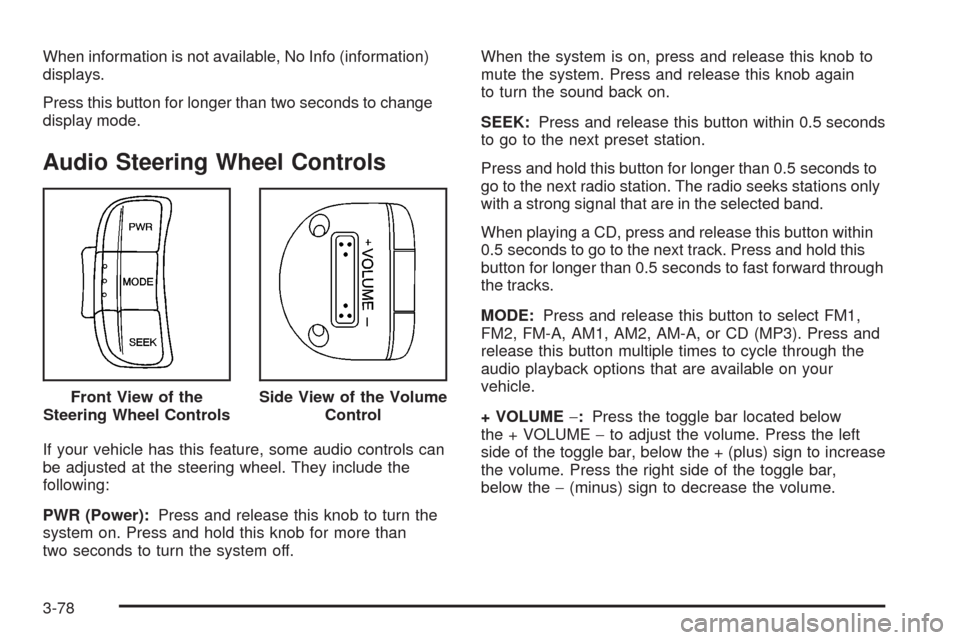
Audio Steering Wheel Controls
If your vehicle has this feature, some audio controls can
be adjusted at the steering wheel. They include the
following:
PWR (Power):Press and release this knob to turn the
system on. Press and hold this knob for more than
two seconds to turn the system off.When the system is on, press and release this knob to
mute the system. Press and release this knob again
to turn the sound back on.
SEEK:Press and release this button within 0.5 seconds
to go to the next preset station.
Press and hold this button for longer than 0.5 seconds to
go to the next radio station. The radio seeks stations only
with a strong signal that are in the selected band.
When playing a CD, press and release this button within
0.5 seconds to go to the next track. Press and hold this
button for longer than 0.5 seconds to fast forward through
the tracks.
MODE:Press and release this button to select FM1,
FM2, FM-A, AM1, AM2, AM-A, or CD (MP3). Press and
release this button multiple times to cycle through the
audio playback options that are available on your
vehicle.
+ VOLUME−:Press the toggle bar located below
the + VOLUME−to adjust the volume. Press the left
side of the toggle bar, below the + (plus) sign to increase
the volume. Press the right side of the toggle bar,
below the−(minus) sign to decrease the volume. Front View of the
Steering Wheel Controls
Side View of the Volume
Control
3-78
Page 313 of 384
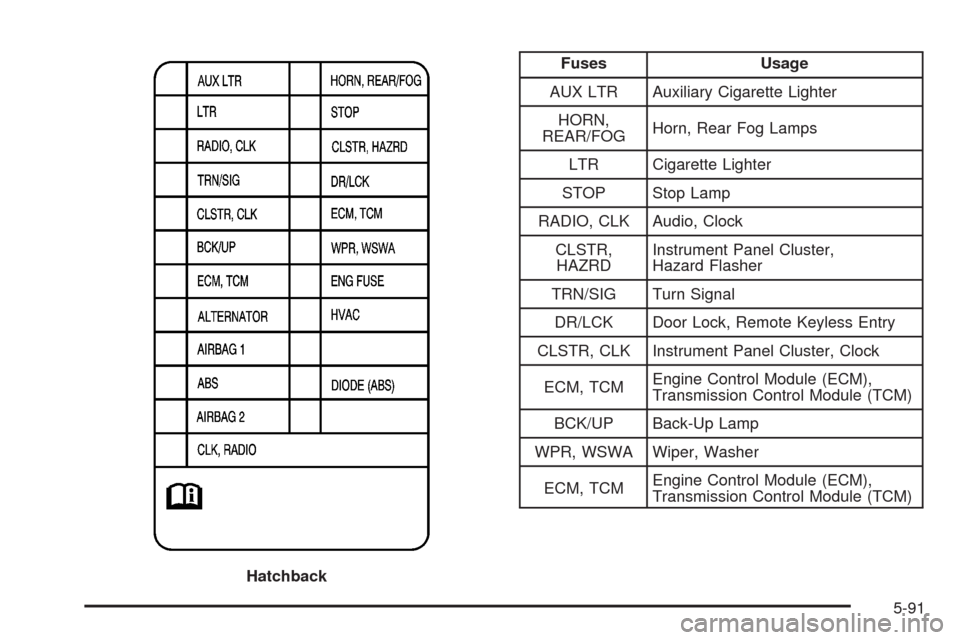
Fuses Usage
AUX LTR Auxiliary Cigarette Lighter
HORN,
REAR/FOGHorn, Rear Fog Lamps
LTR Cigarette Lighter
STOP Stop Lamp
RADIO, CLK Audio, Clock
CLSTR,
HAZRDInstrument Panel Cluster,
Hazard Flasher
TRN/SIG Turn Signal
DR/LCK Door Lock, Remote Keyless Entry
CLSTR, CLK Instrument Panel Cluster, Clock
ECM, TCMEngine Control Module (ECM),
Transmission Control Module (TCM)
BCK/UP Back-Up Lamp
WPR, WSWA Wiper, Washer
ECM, TCMEngine Control Module (ECM),
Transmission Control Module (TCM)
Hatchback
5-91
Page 314 of 384
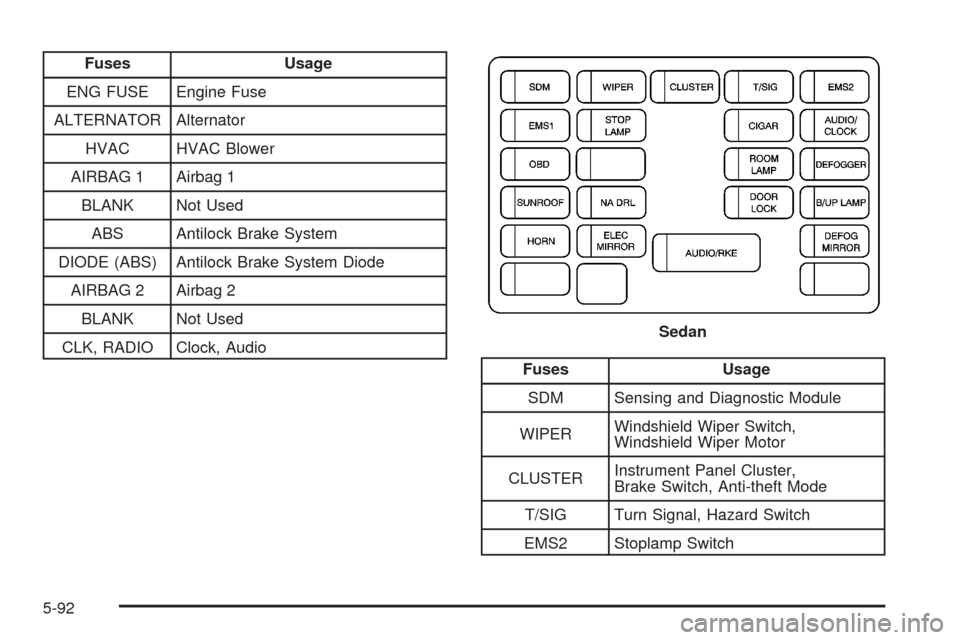
Fuses Usage
ENG FUSE Engine Fuse
ALTERNATOR Alternator
HVAC HVAC Blower
AIRBAG 1 Airbag 1
BLANK Not Used
ABS Antilock Brake System
DIODE (ABS) Antilock Brake System Diode
AIRBAG 2 Airbag 2
BLANK Not Used
CLK, RADIO Clock, Audio
Fuses Usage
SDM Sensing and Diagnostic Module
WIPERWindshield Wiper Switch,
Windshield Wiper Motor
CLUSTERInstrument Panel Cluster,
Brake Switch, Anti-theft Mode
T/SIG Turn Signal, Hazard Switch
EMS2 Stoplamp SwitchSedan
5-92
Page 315 of 384
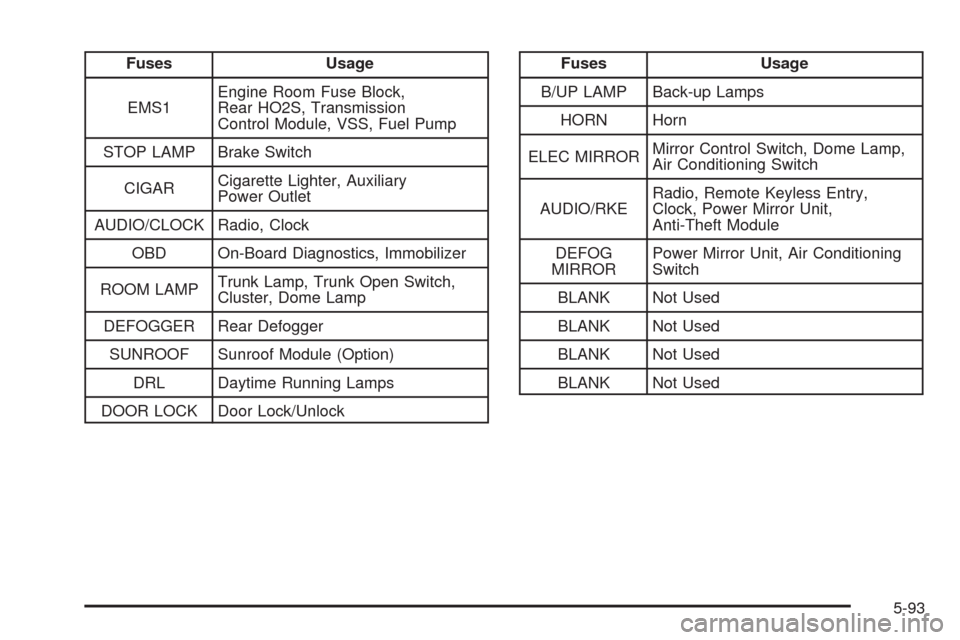
Fuses Usage
EMS1Engine Room Fuse Block,
Rear HO2S, Transmission
Control Module, VSS, Fuel Pump
STOP LAMP Brake Switch
CIGARCigarette Lighter, Auxiliary
Power Outlet
AUDIO/CLOCK Radio, Clock
OBD On-Board Diagnostics, Immobilizer
ROOM LAMPTrunk Lamp, Trunk Open Switch,
Cluster, Dome Lamp
DEFOGGER Rear Defogger
SUNROOF Sunroof Module (Option)
DRL Daytime Running Lamps
DOOR LOCK Door Lock/UnlockFuses Usage
B/UP LAMP Back-up Lamps
HORN Horn
ELEC MIRRORMirror Control Switch, Dome Lamp,
Air Conditioning Switch
AUDIO/RKERadio, Remote Keyless Entry,
Clock, Power Mirror Unit,
Anti-Theft Module
DEFOG
MIRRORPower Mirror Unit, Air Conditioning
Switch
BLANK Not Used
BLANK Not Used
BLANK Not Used
BLANK Not Used
5-93
Page 371 of 384
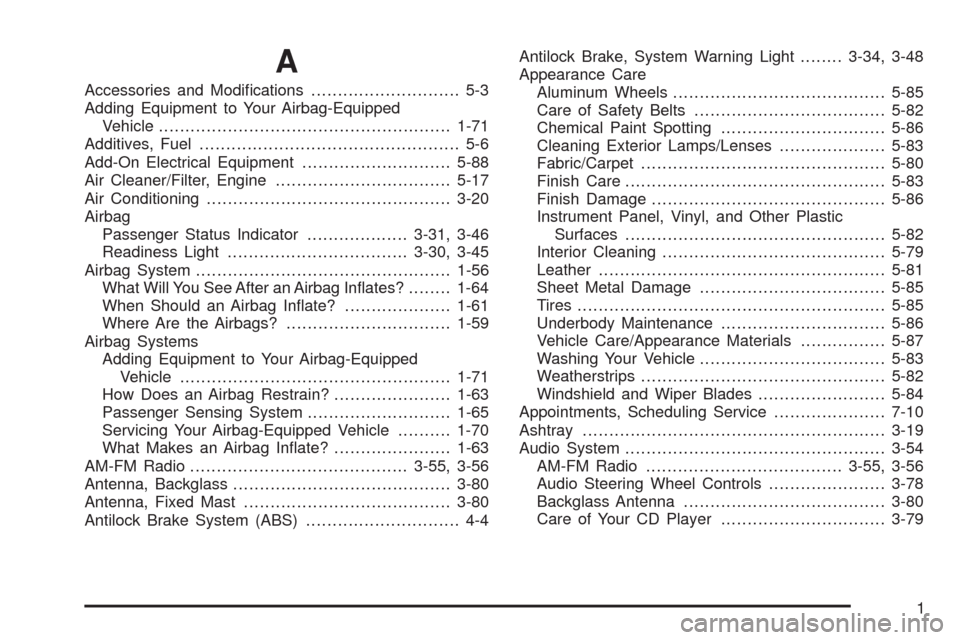
A
Accessories and Modifications............................ 5-3
Adding Equipment to Your Airbag-Equipped
Vehicle.......................................................1-71
Additives, Fuel................................................. 5-6
Add-On Electrical Equipment............................5-88
Air Cleaner/Filter, Engine.................................5-17
Air Conditioning..............................................3-20
Airbag
Passenger Status Indicator...................3-31, 3-46
Readiness Light..................................3-30, 3-45
Airbag System................................................1-56
What Will You See After an Airbag Inflates?........1-64
When Should an Airbag Inflate?....................1-61
Where Are the Airbags?...............................1-59
Airbag Systems
Adding Equipment to Your Airbag-Equipped
Vehicle...................................................1-71
How Does an Airbag Restrain?......................1-63
Passenger Sensing System...........................1-65
Servicing Your Airbag-Equipped Vehicle..........1-70
What Makes an Airbag Inflate?......................1-63
AM-FM Radio.........................................3-55, 3-56
Antenna, Backglass.........................................3-80
Antenna, Fixed Mast.......................................3-80
Antilock Brake System (ABS)............................. 4-4Antilock Brake, System Warning Light........3-34, 3-48
Appearance Care
Aluminum Wheels........................................5-85
Care of Safety Belts....................................5-82
Chemical Paint Spotting...............................5-86
Cleaning Exterior Lamps/Lenses....................5-83
Fabric/Carpet..............................................5-80
Finish Care.................................................5-83
Finish Damage............................................5-86
Instrument Panel, Vinyl, and Other Plastic
Surfaces.................................................5-82
Interior Cleaning..........................................5-79
Leather......................................................5-81
Sheet Metal Damage...................................
5-85
Tires..........................................................5-85
Underbody Maintenance...............................5-86
Vehicle Care/Appearance Materials................5-87
Washing Your Vehicle...................................5-83
Weatherstrips..............................................5-82
Windshield and Wiper Blades........................5-84
Appointments, Scheduling Service.....................7-10
Ashtray.........................................................3-19
Audio System.................................................3-54
AM-FM Radio.....................................3-55, 3-56
Audio Steering Wheel Controls......................3-78
Backglass Antenna......................................3-80
Care of Your CD Player...............................3-79
1