infotainment CHEVROLET AVEO 2011 1.G Owners Manual
[x] Cancel search | Manufacturer: CHEVROLET, Model Year: 2011, Model line: AVEO, Model: CHEVROLET AVEO 2011 1.GPages: 328, PDF Size: 5.37 MB
Page 1 of 328

Black plate (1,1)Chevrolet Aveo Owner Manual - 2011
2011 Chevrolet Aveo Owner ManualM
In Brief. . . . . . . . . . . . . . . . . . . . . . . . 1-1
Instrument Panel . . . . . . . . . . . . . . 1-2
Initial Drive Information . . . . . . . . 1-3
Vehicle Features . . . . . . . . . . . . . 1-16
Performance and Maintenance . . . . . . . . . . . . . . . . 1-21
Keys, Doors and Windows . . . 2-1
Keys and Locks . . . . . . . . . . . . . . . 2-2
Doors . . . . . . . . . . . . . . . . . . . . . . . . . . 2-7
Vehicle Security . . . . . . . . . . . . . . 2-10
Exterior Mirrors . . . . . . . . . . . . . . . 2-13
Interior Mirrors . . . . . . . . . . . . . . . . 2-14
Windows . . . . . . . . . . . . . . . . . . . . . 2-14
Roof . . . . . . . . . . . . . . . . . . . . . . . . . . 2-16
Seats and Restraints . . . . . . . . . 3-1
Head Restraints . . . . . . . . . . . . . . . 3-2
Front Seats . . . . . . . . . . . . . . . . . . . . 3-3
Rear Seats . . . . . . . . . . . . . . . . . . . . 3-6
Safety Belts . . . . . . . . . . . . . . . . . . 3-11
Airbag System . . . . . . . . . . . . . . . . 3-24
Child Restraints . . . . . . . . . . . . . . 3-38 Storage
. . . . . . . . . . . . . . . . . . . . . . . 4-1
Storage Compartments . . . . . . . . 4-1
Instruments and Controls . . . . 5-1
Controls . . . . . . . . . . . . . . . . . . . . . . . 5-1
Warning Lights, Gauges, and Indicators . . . . . . . . . . . . . . . . . . . . 5-7
Trip Computer . . . . . . . . . . . . . . . . 5-21
Lighting . . . . . . . . . . . . . . . . . . . . . . . 6-1
Exterior Lighting . . . . . . . . . . . . . . . 6-1
Interior Lighting . . . . . . . . . . . . . . . . 6-4
Lighting Features . . . . . . . . . . . . . . 6-5
Infotainment System . . . . . . . . . 7-1
Introduction . . . . . . . . . . . . . . . . . . . . 7-1
Radio . . . . . . . . . . . . . . . . . . . . . . . . . . 7-3
Audio Players . . . . . . . . . . . . . . . . 7-10
Climate Controls . . . . . . . . . . . . . 8-1
Climate Control Systems . . . . . . 8-1
Air Vents . . . . . . . . . . . . . . . . . . . . . . . 8-4
Maintenance . . . . . . . . . . . . . . . . . . . 8-5 Driving and Operating
. . . . . . . . 9-1
Driving Information . . . . . . . . . . . . . 9-2
Starting and Operating . . . . . . . 9-17
Engine Exhaust . . . . . . . . . . . . . . 9-24
Automatic Transmission . . . . . . 9-25
Manual Transmission . . . . . . . . . 9-29
Brakes . . . . . . . . . . . . . . . . . . . . . . . 9-30
Cruise Control . . . . . . . . . . . . . . . . 9-32
Fuel . . . . . . . . . . . . . . . . . . . . . . . . . . 9-34
Towing . . . . . . . . . . . . . . . . . . . . . . . 9-39
Conversions and Add-Ons . . . 9-40
Vehicle Care . . . . . . . . . . . . . . . . . 10-1
General Information . . . . . . . . . . 10-3
Vehicle Checks . . . . . . . . . . . . . . . 10-5
Headlamp Aiming . . . . . . . . . . . 10-30
Bulb Replacement . . . . . . . . . . 10-31
Electrical System . . . . . . . . . . . . 10-36
Wheels and Tires . . . . . . . . . . . 10-42
Jump Starting . . . . . . . . . . . . . . . 10-70
Towing . . . . . . . . . . . . . . . . . . . . . . 10-74
Appearance Care . . . . . . . . . . . 10-76
Page 9 of 328
Black plate (3,1)Chevrolet Aveo Owner Manual - 2011
In Brief 1-3
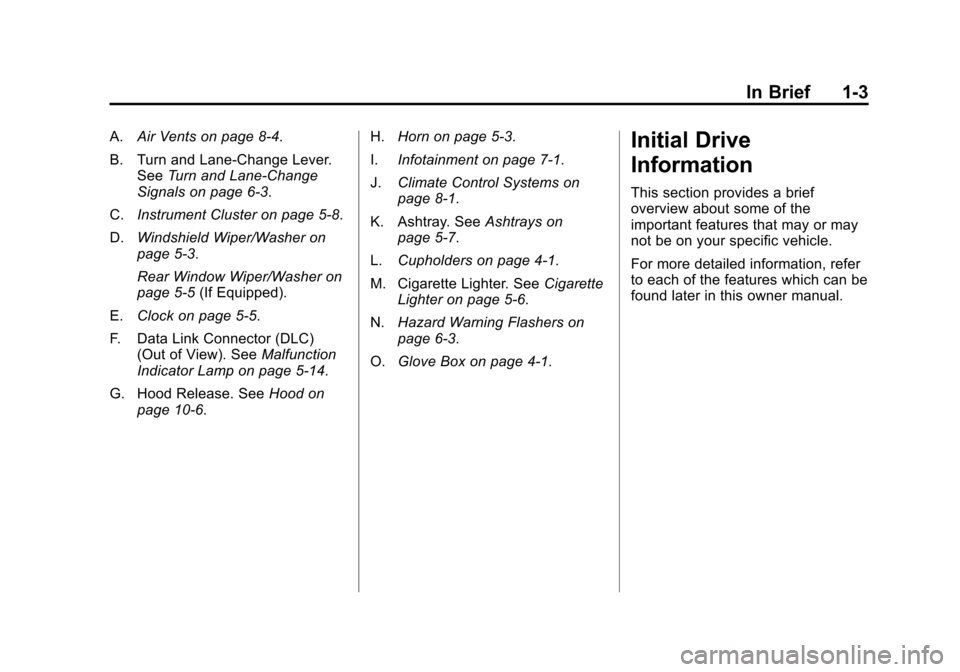
A.Air Vents on page 8‑4.
B. Turn and Lane‐Change Lever. See Turn and Lane-Change
Signals on page 6‑3.
C. Instrument Cluster on page 5‑8.
D. Windshield Wiper/Washer on
page 5‑3.
Rear Window Wiper/Washer on
page 5‑5 (If Equipped).
E. Clock on page 5‑5.
F. Data Link Connector (DLC) (Out of View). See Malfunction
Indicator Lamp on page 5‑14.
G. Hood Release. See Hood on
page 10‑6. H.
Horn on page 5‑3.
I. Infotainment on page 7‑1.
J. Climate Control Systems on
page 8‑1.
K. Ashtray. See Ashtrays on
page 5‑7.
L. Cupholders on page 4‑1.
M. Cigarette Lighter. See Cigarette
Lighter on page 5‑6.
N. Hazard Warning Flashers on
page 6‑3.
O. Glove Box on page 4‑1.Initial Drive
Information
This section provides a brief
overview about some of the
important features that may or may
not be on your specific vehicle.
For more detailed information, refer
to each of the features which can be
found later in this owner manual.
Page 141 of 328
Black plate (1,1)Chevrolet Aveo Owner Manual - 2011
Infotainment System 7-1
Infotainment
System
Introduction
Infotainment . . . . . . . . . . . . . . . . . . . 7-1
Operation . . . . . . . . . . . . . . . . . . . . . 7-2
Radio
AM-FM Radio . . . . . . . . . . . . . . . . . 7-3
Satellite Radio . . . . . . . . . . . . . . . . 7-6
Radio Reception . . . . . . . . . . . . . . 7-8
Fixed Mast Antenna(Hatchback) . . . . . . . . . . . . . . . . . 7-9
Backglass Antenna (Sedan) . . . . . . . . . . . . . . . . . . . . . . 7-9
Multi-Band Antenna . . . . . . . . . . 7-10
Audio Players
CD Player . . . . . . . . . . . . . . . . . . . 7-10
Auxiliary Devices . . . . . . . . . . . . 7-15
Introduction
Infotainment
Determine which radio the vehicle
has and read the following pages to
become familiar with its features.
{WARNING
Taking your eyes off the road for
extended periods could cause a
crash resulting in injury or death
to you or others. Do not give
extended attention to
entertainment tasks while driving.
This system provides access to
many audio and non‐audio listings. To minimize taking your eyes off the
road while driving, do the following
while the vehicle is parked:
.Become familiar with the
operation and controls of the
audio system.
.Set up the tone, speaker
adjustments, and preset radio
stations.
For more information, see Defensive
Driving on page 9‑2.
Notice: Contact your dealer
before adding any equipment.
Adding audio or communication
equipment could interfere with
the operation of the engine, radio,
or other systems, and could
damage them. Follow federal
rules covering mobile radio and
telephone equipment.
Page 142 of 328
Black plate (2,1)Chevrolet Aveo Owner Manual - 2011
7-2 Infotainment System
Operation
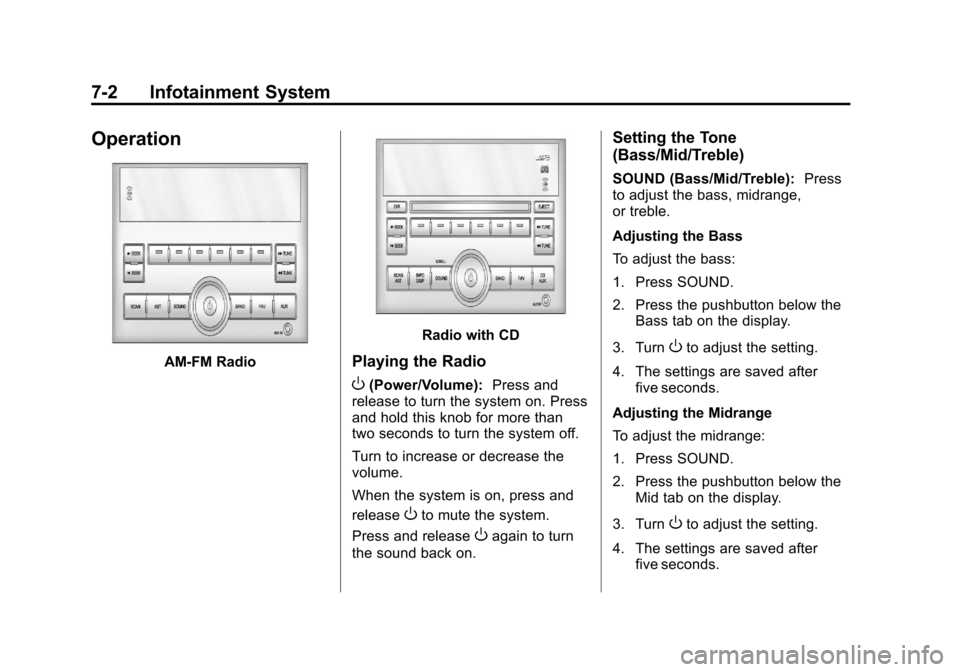
AM-FM Radio
Radio with CD
Playing the Radio
O(Power/Volume):Press and
release to turn the system on. Press
and hold this knob for more than
two seconds to turn the system off.
Turn to increase or decrease the
volume.
When the system is on, press and
release
Oto mute the system.
Press and release
Oagain to turn
the sound back on.
Setting the Tone
(Bass/Mid/Treble)
SOUND (Bass/Mid/Treble): Press
to adjust the bass, midrange,
or treble.
Adjusting the Bass
To adjust the bass:
1. Press SOUND.
2. Press the pushbutton below the Bass tab on the display.
3. Turn
Oto adjust the setting.
4. The settings are saved after five seconds.
Adjusting the Midrange
To adjust the midrange:
1. Press SOUND.
2. Press the pushbutton below the Mid tab on the display.
3. Turn
Oto adjust the setting.
4. The settings are saved after five seconds.
Page 143 of 328
Black plate (3,1)Chevrolet Aveo Owner Manual - 2011
Infotainment System 7-3
Adjusting the Treble
To adjust the treble:
1. Press SOUND.
2. Press the pushbutton below theTreb tab on the display.
3. Turn
Oto adjust the setting.
4. The settings are saved after five seconds.
Adjusting the Speakers
(Balance/Fade)
SOUND (Balance/Fade): Press to
adjust the balance or fade.
Adjusting the Balance
To adjust the balance:
1. Press SOUND.
2. Press the pushbutton below the Bal tab on the display.
3. Turn
Oto adjust the setting.
4. The settings are saved after five seconds. Adjusting the Fade
To adjust the fade:
1. Press SOUND.
2. Press the pushbutton below the
Fad tab on the display.
3. Turn
Oto adjust the setting.
4. The settings are saved after five seconds.
Setting the EQ
SOUND (Equalization): Press to
select an equalization setting.
Setting the EQ
1. Press SOUND.
2. Press the pushbutton below the P.E.Q. tab on the display. The
Pop, Rock, Ctry, Voice, Jazz,
Clas tabs appear on the display.
3. Press the pushbutton below the desired selection to set the EQ.
Pressing the same pushbutton
again cancels the EQ setting.
Radio
AM-FM Radio
Finding a Station
(AM‐FM Radio)
BAND: Press to choose FM, AM,
or XM™ (if equipped). The display
will show the selection.
uSEEK: Press to seek the next
radio station with a strong signal in
the selected band.
tSEEK: Press to seek the
previous radio station with a strong
signal in the selected band.
[TUNE: Press to go to the next
station manually.
rTUNE: Press to go to the
previous station manually.
Page 144 of 328
Black plate (4,1)Chevrolet Aveo Owner Manual - 2011
7-4 Infotainment System
SCAN:Press to scan radio
stations. The radio goes to a station,
plays for a few seconds, then goes
to the next station. Press this button
again to stop scanning.
The radio only scans stations with a
strong signal in the selected band.
AST (Automatic Store): Twelve
preset stations with the strongest
reception in the area can be
automatically stored. The radio will
only scan stations with a strong
signal that are in the selected AM or
FM band. If the Automatic Store
function is started in the FM band,
only FM stations are stored in
preset pages A1 and A2. If the
Automatic Store function is started
in the AM band, only AM stations
are stored in A1 and A2.
A combination of AM, FM and XM (if
equipped) stations can be stored
manually into the other four favorite
pages. To use Automatic Store:
1. Press and hold AST to use Auto
Store mode.
2. Press the pushbutton below the ON tab on the radio display.
3. Automatic Store searches for radio stations with a strong
signal and automatically set
presets A1 and A2 with new
stations.
4. After all stations are set, press the pushbutton below the arrow
tab on the radio display to return
to the main radio screen
To reset the automatically stored
radio stations, press and hold AST.
Then press the pushbutton below
the RESE tab on the radio display.
If no stations are stored on preset
pages A1 and A2, the RESE option
does not appear in the radio display.
When the Automatic Store function
is used, any stations that were
previously set will be deleted and
replaced with new stations.Finding a Station
(Radio with CD, and Radio
with Six‐Disc CD)
BAND: Press to choose FM, AM,
or XM (if equipped). The display will
show the selection.
uSEEK: Press to seek the next
radio station with a strong signal in
the selected band.
tSEEK: Press to seek the
previous radio station with a strong
signal in the selected band.
[TUNE: Press to go to the next
station manually.
rTUNE: Press to go to the
previous station manually.
SCAN/AST: Press to scan radio
stations. The radio goes to a station,
plays for a few seconds, then goes
to the next station. The radio only
scans stations with a strong signal
in the selected band. Press SCAN/
AST again to stop scanning.
Page 145 of 328
Black plate (5,1)Chevrolet Aveo Owner Manual - 2011
Infotainment System 7-5
Press and hold SCAN/AST to use
Automatic Store. The radio only
scans stations with a strong signal
in the selected band.
AST (Automatic Store):Twelve
preset stations with the strongest
reception in the area can be
automatically stored. The radio will
only scan stations with a strong
signal that are in the selected AM or
FM band. If the Automatic Store
function is started in the FM band,
only FM stations are stored in
preset pages A1 and A2. If the
Automatic Store function is started
in the AM band, only AM stations
are stored in A1 and A2.
A combination of AM, FM, and XM
(if equipped) stations can be stored
manually into the other four favorite
pages. To use Automatic Store:
1. Press and hold SCAN/AST to
use Automatic Store mode.
2. Press the pushbutton below the ON tab on the radio display.
3. Automatic Store searches for radio stations with a strong
signal and automatically sets
presets A1 and A2 with new
stations.
4. After all stations are set, press the pushbutton below the arrow
tab on the radio display to return
to the main radio screen.
To reset the automatically stored
radio stations, press and hold
SCAN/AST. Then press the
pushbutton below the RESE tab on
the radio display. If no stations are
stored on preset pages A1 and A2,
the RESE option does not appear
in the radio display. When the
Automatic Store function is used,
any stations that were previously set
will be deleted and replaced with
new stations.Storing a Radio Station
Drivers are encouraged to set up
radio station favorites while the
vehicle is in P (Park). Tune to
favorite stations using the
pushbuttons, favorites button, and
steering wheel controls. See
Defensive Driving on page 9‑2.
A maximum of 36 stations can be
programmed as favorites using the
6 pushbuttons positioned below the
radio station frequency labels and
by using the radio favorites page
button (FAV button). Press the FAV
button to go through up to six pages
of favorites, each having six favorite
stations available per page.
If Automatic Store is used, then four
pages of favorites are available.
Each page of favorites can contain
any combination of AM, FM, or XM
(if equipped) stations. To store a
station as a favorite:
1. Tune in the desired station.
2. Press and release the FAV button to display the page where
the station is to be stored.
Page 146 of 328
Black plate (6,1)Chevrolet Aveo Owner Manual - 2011
7-6 Infotainment System
3. Press and hold one of the sixnumbered pushbuttons until
a beep sounds. When the
pushbutton is pressed and
released, the station that was
set will return.
4. Repeat the Steps 1 through 3 for each radio station to be stored
as a favorite.
To set up the number of favorites
pages:
1. Press and hold FAV until the radio setup menu displays.
2. Select the desired number of favorites pages by pressing the
pushbutton located below the
displayed page numbers.
3. Press FAV to return to the original main radio screen
showing the radio station
frequency tabs and to begin
the process of programming
favorites for the chosen number
of numbered pages.Satellite Radio
XM™ Satelite Radio Service
XM is a satellite radio service based
in the 48 contiguous United States
and 10 Canadian provinces. XM
Satellite Radio has a wide variety of
programming and commercial-free
music, coast-to-coast, and in
digital-quality sound. A service fee
is required to receive the XM
service. For more information,
contact XM at www.xmradio.com or
call 1-800-929-2100 in the U.S. and
www.xmradio.ca or call
1-877-438-9677 in Canada.
Finding a Channel
BAND: Press to choose FM, AM,
or XM. The display will show the
selection.
uSEEK: Press to seek the next
XM channel.
tSEEK: Press to seek the
previous XM channel.
[TUNE: Press to go to the next
XM channel.
rTUNE: Press to go to the
previous XM channel.
SCAN/AST: Press to scan XM
channels. The radio goes to a
channel, plays for a few seconds,
then goes to the next channel.
Press SCAN/AST again to stop
scanning.
SCAN: Press to scan XM
channels. The radio goes to a
channel, plays for a few seconds,
then goes to the next channel.
Press this button again to stop
scanning.
Page 147 of 328
Black plate (7,1)Chevrolet Aveo Owner Manual - 2011
Infotainment System 7-7
Storing an XM Channel
Drivers are encouraged to set up
XM Channel favorites while the
vehicle is in P (Park). Tune to
favorite stations using the
pushbuttons, favorites button, and
steering wheel controls. See
Defensive Driving on page 9‑2.
A maximum of 36 stations can be
programmed as favorites using the
6 pushbuttons positioned below the
radio station frequency labels and
by using the radio favorites page
button (FAV button). Press the FAV
button to go through up to six pages
of favorites, each having six favorite
stations available per page.
If Automatic Store is used, then four
pages of favorites are available.
Each page of favorites can contain
any combination of AM, FM, or XM
channels. To store an XM channel
as a favorite:
1. Tune in the desired channel.
2. Press and release the FAVbutton to display the page where
the channel is to be stored. 3. Press and hold one of the six
numbered pushbuttons until
a beep sounds. When the
pushbutton is pressed and
released, the channel that was
set will return.
4. Repeat Steps 1 through 3 for each XM channel to be stored
as a favorite.
To set up the number of favorites
pages:
1. Press and hold FAV until the radio setup menu displays.
2. Select the desired number of favorites pages by pressing the
pushbutton located below the
displayed page numbers.
3. Press FAV to return to the original main radio screen
showing the radio frequency
tabs and to begin the process of
programming favorites for the
chosen number of numbered
pages.
XM Radio Messages
UPDATING: The encryption code
in the receiver is being updated, and
no action is required. This process
should take no longer than
30 seconds.
NO SIGNAL: The system is
functioning correctly, but the vehicle
is in a location that is blocking the
XM signal. When the vehicle is
moved into an open area, the signal
should return.
LOADING: The audio system is
acquiring and processing audio and
text data. No action is needed. This
message should disappear shortly.
OFF AIR: This channel is not
currently in service. Tune in to
another channel.
CH UNAVAILABLE: This
previously assigned channel is no
longer assigned. Tune to another
station. If this station was one of the
presets, choose another station for
that preset button.
Page 148 of 328
Black plate (8,1)Chevrolet Aveo Owner Manual - 2011
7-8 Infotainment System
RADIO ID:If tuned to channel 0,
this message alternates with the XM
Radio eight‐digit radio ID label. This
label is needed to activate the
service.
CHECK XM TUNER: If this
message does not clear within a
short period of time, the receiver
could have a fault. Consult with your
dealer.
Radio Reception
Frequency interference and static
can occur during normal radio
reception if items such as cell phone
chargers, vehicle convenience
accessories, and external electronic
devices are plugged into the
accessory power outlet. If there is
interference or static, unplug the
item from the accessory power
outlet.
AM
The range for most AM stations is
greater than for FM, especially at
night. The longer range can cause
station frequencies to interfere
with each other. For better radio
reception, most AM radio stations
boost the power levels during the
day, and then reduce these levels
during the night. Static can also
occur when things like storms and
power lines interfere with radio
reception. When this happens, try
reducing the treble on the radio.
FM Stereo
FM signals only reach about 16 to
65 km (10 to 40 miles). Although the
radio has a built-in electronic circuit
that automatically works to reduce
interference, some static can occur,
especially around tall buildings or
hills, causing the sound to fade in
and out.
XM™ Satellite Radio Service
XM Satellite Radio Service gives
digital radio reception from
coast-to-coast in the 48 contiguous
United States, and in Canada. Just
as with FM, tall buildings or hills can
interfere with satellite radio signals,
causing the sound to fade in and
out. In addition, traveling or standing
under heavy foliage, bridges,
garages, or tunnels may cause loss
of the XM signal for a period of time.
Cellular Phone Usage
Cellular phone usage may cause
interference with the vehicle's radio.
This interference may occur when
making or receiving phone calls,
charging the phone's battery,
or simply having the phone on. This
interference causes an increased
level of static while listening to the
radio. If static is received while
listening to the radio, unplug the
cellular phone and turn it off.