ECO mode CHEVROLET BLAZER 2005 2.G Owner's Manual
[x] Cancel search | Manufacturer: CHEVROLET, Model Year: 2005, Model line: BLAZER, Model: CHEVROLET BLAZER 2005 2.GPages: 436, PDF Size: 2.55 MB
Page 194 of 436
SCAN:Scan the stations within a PTY by performing
the following:
1. Press the TYPE button to activate program type
select mode. P-TYPE and the last selected PTY
will appear on the display.
2. Turn the TYPE knob or press and release the
TYPE button to select a PTY.
3. Once the desired PTY is displayed, press and hold
either the TYPE or the SCAN arrows for two
seconds, and the radio will begin scanning the
stations in the PTY.
4. Press either the TYPE or the SCAN arrows to stop
at a station.
BAND (Alternate Frequency):Alternate frequency
allows the radio to switch to a stronger station with the
same program type. To turn alternate frequency on,
press and hold BAND for two seconds. AF ON will
appear on the display. The radio may switch to stations
with a stronger frequency.
To turn alternate frequency off, press and hold BAND
again for two seconds. AF OFF will appear on the
display. The radio will not switch to other stations.Setting Preset PTYs (RDS Only)
These pushbuttons have factory PTY presets. Up to
12 PTYs (six FM1 and six FM2), can be programmed on
the six numbered pushbuttons, by performing the
following steps:
1. Press BAND to select FM1 or FM2.
2. Press the TYPE button to activate program type
select mode. P-TYPE and the last selected PTY
will appear on the display.
3. Turn the TYPE knob or press and release the
TYPE button to select a PTY.
4. Press and hold one of the six numbered
pushbuttons until you hear a beep. Whenever that
numbered pushbutton is pressed, the PTY that
was set will return.
5. Repeat the steps for each pushbutton.
3-68
Page 198 of 436
AUTO EQ (Automatic Equalization):Press AUTO EQ
to select the equalization setting while playing a CD.
The equalization will be stored whenever a CD is played.
For more information on AUTO EQ, see “AUTO EQ”
listed previously in this section.
©SEEK¨:Press the left arrow to go to the start of the
current track, if more than ten seconds have played.
Press the right arrow to go to the next track. If either
arrow is held or pressed more than once, the player will
continue moving backward or forward through the CD.
©SCAN¨:To scan one CD, press and hold either
SCAN arrow for more than two seconds until SCAN
appears on the display and you hear a beep. The radio
will go to the next track, play for 10 seconds, then go
on to the next track. Press either SCAN arrow again, to
stop scanning.
To scan all loaded CDs, press and hold either SCAN
arrow for more than four seconds until CD SCAN
appears on the display and you hear a beep. Use this
feature to listen to 10 seconds of the rst track of
each loaded CD. Press either SCAN arrow again, to
stop scanning.INFO (Information):Press this knob to see how long
the current track has been playing. To change the
default on the display, track or elapsed time, press the
knob until you see the display you want, then hold
the knob until the display ashes. The selected display
will now be the default.
BAND:Press this button to listen to the radio when a
CD is playing. The inactive CD(s) will remain safely
inside the radio for future listening.
Using Song List Mode
The six-disc CD changer has a feature called song list.
This feature is capable of saving 20 track selections.
To save tracks into the song list feature, perform
the following steps:
1. Turn the CD player on and load it with at least one
CD. See “LOAD CD” listed previously in this section
for more information.
2. Check to see that the CD changer is not in song list
mode. S-LIST should not appear on the display. If
S-LIST is present, press the SONG LIST button
to turn it off.
3. Select the desired CD by pressing the numbered
pushbutton and then use the SEEK or TYPE right
arrow to locate the track to be saved. The track will
begin to play.
3-72
Page 199 of 436
4. Press and hold the SONG LIST button to save the
track into memory. When SONG LIST is pressed,
one beep will be heard immediately. After two
seconds of continuously pressing the SONG LIST
button, two beeps will sound to conrm the
track has been saved.
5. Repeat Steps 3 and 4 for saving other selections.
S-LIST FULL will appear on the display if you try to save
more than 20 selections.
To play the song list, press the SONG LIST button. One
beep will be heard and S-LIST will appear on the
display. The recorded tracks will begin to play in the
order they were saved.
Seek through the song list by using the SEEK or TYPE
arrows. Seeking past the last saved track will return
to the rst saved track.
To delete tracks from the song list, perform the
following steps:
1. Turn the CD player on.
2. Press the SONG LIST button to turn song list on.
S-LIST will appear on the display.
3. Press either SEEK or TYPE arrow to select the
desired track to be deleted.4. Press and hold the SONG LIST button for two
seconds. When SONG LIST is pressed, one
beep will be heard immediately. After two seconds
of continuously pressing the SONG LIST button,
two beeps will be heard to conrm that the track has
been deleted.
After a track has been deleted, the remaining tracks are
moved up the list. When another track is added to the
song list, the track will be added to the end of the list.
To delete the entire song list, perform the following steps:
1. Turn the CD player on.
2. Press the SONG LIST button to turn song list on.
S-LIST will appear on the display.
3. Press and hold the SONG LIST button for more
than four seconds. One beep will be heard,
followed by two beeps after two seconds, and a
nal beep will be heard after four seconds. S-LIST
EMPTY will appear on the display indicating the
song list has been deleted.
If a CD is ejected, and the song list contains saved
tracks from that CD, those tracks are automatically
deleted from the song list. Any tracks saved to the song
list again are added to the bottom of the list.
To end song list mode, press the SONG LIST button.
One beep will be heard and S-LIST will be removed from
the display.
3-73
Page 263 of 436

Tow/Haul Mode
Your vehicle may be equipped with a tow/haul feature.
Tow/haul is designed to assist while your vehicle is
pulling a large or heavy load or trailer. Tow/haul is most
useful while pulling such a load in rolling terrain at
speeds less than 55 mph (88 km/h), in stop-and-go
traffic, or when you need improved low-speed control,
such as when parking. The purpose of the tow/haul
mode is to do the following:
Reduce the frequency and improve the predictability
or transmission shifts
provide the same solid shift feel while pulling a
heavy load as while the vehicle is unloaded, and
improve control of vehicle speed while requiring less
throttle pedal activity
Press the button on the end of the shift lever to turn
tow/haul mode on and off. While activated, the indicator
light on the instrument panel will be on. Tow/haul
mode will turn off automatically when the ignition is
turned off. SeeTow/Haul Mode Light on page 3-34.
Tow/haul mode is most effective when the vehicle and
load combined weight is at least 75 percent of the
vehicle’s Gross Vehicle Weight Rating (GVWR) and the
maximum trailer weight rating for the vehicle. See
“Weight of the Trailer” later in this section.Driving with tow/haul activated without a heavy load will
cause reduced fuel economy and unpleasant engine
and transmission driving characteristics, but will
not cause damage.
Weight of the Trailer
How heavy can a trailer safely be?
It depends on how you plan to use your rig. For
example, speed, altitude, road grades, outside
temperature and how much your vehicle is used to pull
a trailer are all important. And, it can also depend
on any special equipment that you have on your vehicle.
The following chart shows how much your trailer can
weigh, based upon your vehicle model and options.
Maximum trailer weight is calculated assuming the driver
and one passenger are in the tow vehicle and it has
all the required trailering equipment. The weight
of additional optional equipment, passengers and cargo
in the tow vehicle must be subtracted from the
maximum trailer weight. The weight of the trailer tongue
also affects the maximum trailer weight. See “ Weight
of the Trailer Tongue ” later in this section.
4-61
Page 333 of 436
Load Index:An assigned number ranging from 1 to 279
that corresponds to the load carrying capacity of a tire.
Maximum Ination Pressure:The maximum air
pressure to which a cold tire may be inated. The
maximum air pressure is molded onto the sidewall.
Maximum Load Rating:The load rating for a tire at the
maximum permissible ination pressure for that tire.
Maximum Loaded Vehicle Weight:The sum of curb
weight; accessory weight; vehicle capacity weight;
and production options weight.
Normal Occupant Weight:The number of occupants a
vehicle is designed to seat multiplied by 150 lbs (68 kg).
SeeLoading Your Vehicle on page 4-46.
Occupant Distribution:Designated seating positions.
Outward Facing Sidewall:The side of an
asymmetrical tire that has a particular side that faces
outward when mounted on a vehicle. The side of the tire
that contains a whitewall, bears white lettering or
bears manufacturer, brand, and/or model name molding
that is higher or deeper than the same moldings on
the other sidewall of the tire.
Passenger (P-Metric) Tire:A tire used on passenger
cars and some light duty trucks and multipurpose
vehicles.Recommended Ination Pressure:Vehicle
manufacturer’s recommended tire ination pressure and
shown on the tire placard. SeeInation - Tire Pressure
on page 5-62andLoading Your Vehicle on page 4-46.
Radial Ply Tire:A pneumatic tire in which the ply cords
that extend to the beads are laid at 90 degrees to the
centerline of the tread.
Rim:A metal support for a tire and upon which the tire
beads are seated.
Sidewall:The portion of a tire between the tread and
the bead.
Speed Rating:An alphanumeric code assigned to a
tire indicating the maximum speed at which a tire
can operate.
Traction:The friction between the tire and the road
surface. The amount of grip provided.
Tread:The portion of a tire that comes into contact
with the road.
Treadwear Indicators:Narrow bands, sometimes
called “wear bars,” that show across the tread of a tire
when only 1/16 inch (1.6 mm) of tread remains. See
When It Is Time for New Tires on page 5-65.
5-61
Page 374 of 436
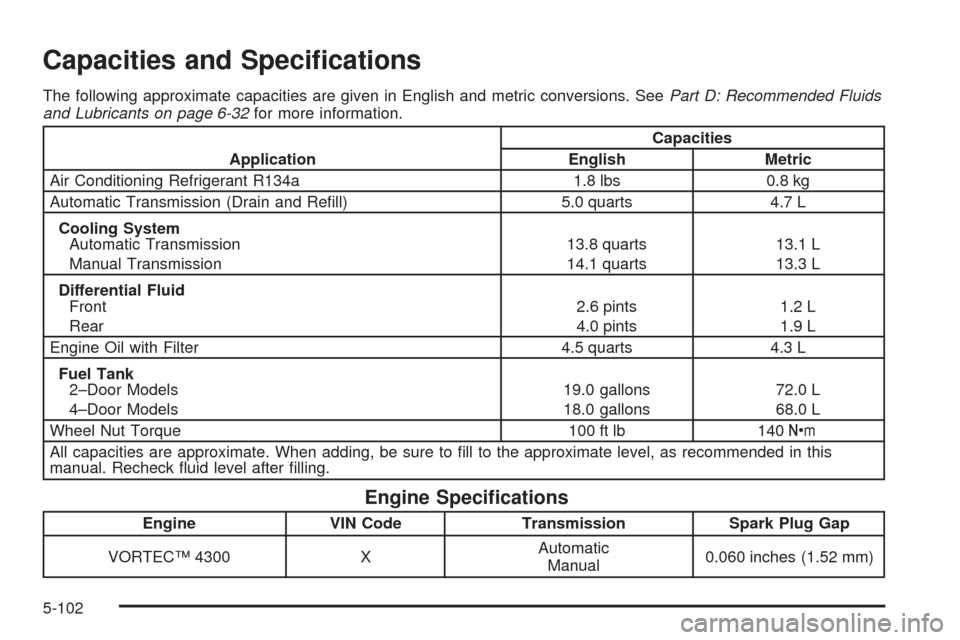
Capacities and Specications
The following approximate capacities are given in English and metric conversions. SeePart D: Recommended Fluids
and Lubricants on page 6-32for more information.
ApplicationCapacities
English Metric
Air Conditioning Refrigerant R134a 1.8 lbs 0.8 kg
Automatic Transmission (Drain and Rell) 5.0 quarts 4.7 L
Cooling System
Automatic Transmission
Manual Transmission13.8 quarts
14.1 quarts13.1 L
13.3 L
Differential Fluid
Front
Rear2.6 pints
4.0 pints1.2 L
1.9 L
Engine Oil with Filter 4.5 quarts 4.3 L
Fuel Tank
2–Door Models
4–Door Models19.0 gallons
18.0 gallons72.0 L
68.0 L
Wheel Nut Torque 100 ft lb 140Y
All capacities are approximate. When adding, be sure to ll to the approximate level, as recommended in this
manual. Recheck uid level after lling.
Engine Specications
Engine VIN Code Transmission Spark Plug Gap
VORTEC™ 4300 XAutomatic
Manual0.060 inches (1.52 mm)
5-102
Page 419 of 436
Additional Program Information
Courtesy Transportation is available during the
Bumper-to-Bumper warranty coverage period, but it is
not part of the New Vehicle Limited Warranty. A
separate booklet entitled “Warranty and Owner
Assistance Information” furnished with each new vehicle
provides detailed warranty coverage information.
Courtesy Transportation is available only at participating
GM dealers and all program options, such as shuttle
service, may not be available at every dealer. Please
contact your GM dealer for specic information
about availability. All Courtesy Transportation
arrangements will be administered by appropriate dealer
personnel.
Canadian Vehicles:For warranty repairs during the
Complete Vehicle Coverage period of the General
Motors of Canada New Vehicle Limited Warranty,
alternative transportation may be available under the
Courtesy Transportation Program. Please consult
your dealer for details.
General Motors reserves the right to unilaterally modify,
change or discontinue Courtesy Transportation at
any time and to resolve all questions of claim eligibility
pursuant to the terms and conditions described
herein at its sole discretion.
Vehicle Data Collection and Event
Data Recorders
Your vehicle, like other modern motor vehicles, has a
number of sophisticated computer systems that monitor
and control several aspects of the vehicle’s performance.
Your vehicle uses on-board vehicle computers to monitor
emission control components to optimize fuel economy,
to monitor conditions for airbag deployment and, if so
equipped, to provide anti-lock braking and to help the
driver control the vehicle in difficult driving situations.
Some information may be stored during regular
operations to facilitate repair of detected malfunctions;
other information is stored only in a crash event by
computer systems, such as those commonly called event
data recorders (EDR).
In a crash event, computer systems, such as the Airbag
Sensing and Diagnostic Module (SDM) in your vehicle
may record information about the condition of the vehicle
and how it was operated, such as data related to
engine speed, brake application, throttle position, vehicle
speed, safety belt usage, airbag readiness, airbag
performance, and the severity of a collision. This
information has been used to improve vehicle crash
performance and may be used to improve crash
performance of future vehicles and driving safety. Unlike
the data recorders on many airplanes, these on-board
systems do not record sounds, such as conversation of
vehicle occupants.
7-9
Page 435 of 436
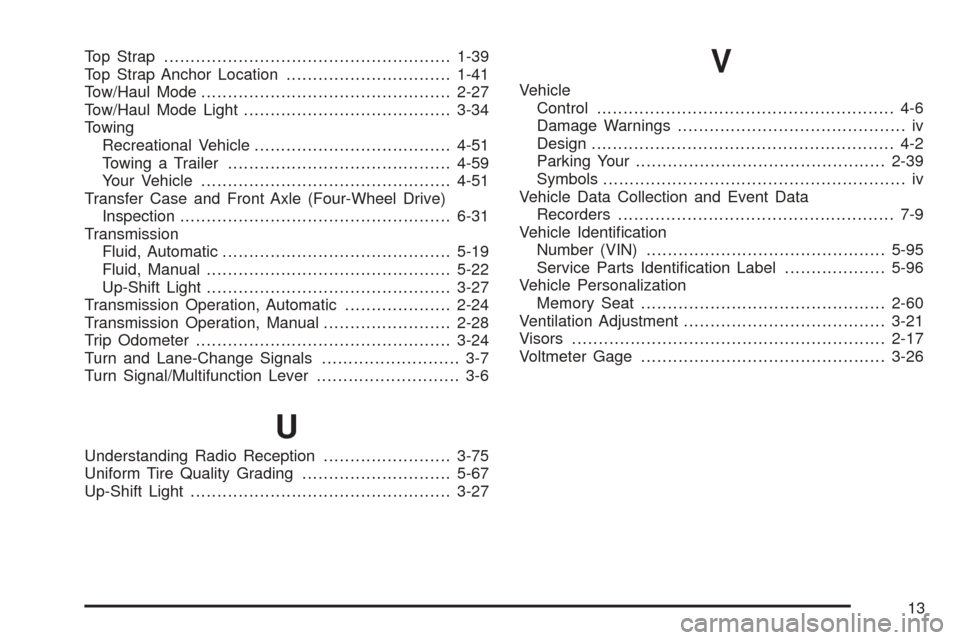
Top Strap......................................................1-39
Top Strap Anchor Location...............................1-41
Tow/Haul Mode...............................................2-27
Tow/Haul Mode Light.......................................3-34
Towing
Recreational Vehicle.....................................4-51
Towing a Trailer..........................................4-59
Your Vehicle...............................................4-51
Transfer Case and Front Axle (Four-Wheel Drive)
Inspection...................................................6-31
Transmission
Fluid, Automatic...........................................5-19
Fluid, Manual..............................................5-22
Up-Shift Light..............................................3-27
Transmission Operation, Automatic....................2-24
Transmission Operation, Manual........................2-28
Trip Odometer................................................3-24
Turn and Lane-Change Signals.......................... 3-7
Turn Signal/Multifunction Lever........................... 3-6
U
Understanding Radio Reception........................3-75
Uniform Tire Quality Grading............................5-67
Up-Shift Light.................................................3-27
V
Vehicle
Control........................................................ 4-6
Damage Warnings........................................... iv
Design......................................................... 4-2
Parking Your...............................................2-39
Symbols......................................................... iv
Vehicle Data Collection and Event Data
Recorders.................................................... 7-9
Vehicle Identication
Number (VIN).............................................5-95
Service Parts Identication Label...................5-96
Vehicle Personalization
Memory Seat..............................................2-60
Ventilation Adjustment......................................3-21
Visors...........................................................2-17
Voltmeter Gage..............................................3-26
13