buttons CHEVROLET BLAZER 2019 User Guide
[x] Cancel search | Manufacturer: CHEVROLET, Model Year: 2019, Model line: BLAZER, Model: CHEVROLET BLAZER 2019Pages: 404, PDF Size: 7.59 MB
Page 157 of 404
Chevrolet Blazer (GMNA-Localizing-U.S./Canada/Mexico-12461541) - 2019 -
CRC - 3/11/19
156 Instruments and Controls
Remote Left in Vehicle Alert
This feature sounds an alert when
the RKE transmitter is left in the
vehicle. This menu also enables the
Remote No Longer in Vehicle Alert.
Touch Off or On.
Seating Position
Touch and the following may
display:
.Seat Entry Memory
. Seat Exit Memory
Seat Entry Memory
This feature automatically recalls
the current driver ’s previously stored
1 or 2 button positions when the
ignition is changed from off to on or
ACC/ACCESSORY. See Memory
Seats 064.
Touch Off or On.
Seat Exit Memory
This feature automatically recalls
the previously stored exit button
position when exiting the vehicle.
See Memory Seats 064. Touch Off or On.
Teen Driver
See
“Teen Driver” under“Settings”
in the infotainment manual.
Valet Mode
This will lock the infotainment
system and steering wheel controls.
It may also limit access to vehicle
storage locations, if equipped.
To enable valet mode:
1. Enter a four-digit code on the keypad.
2. Select Enter to go to the confirmation screen.
3. Re-enter the four-digit code.
Touch Lock or Unlock to lock or
unlock the system. Touch Back to
go back to the previous menu.
Universal Remote
System
See Radio Frequency Statement
0 376.
Universal Remote System
Programming
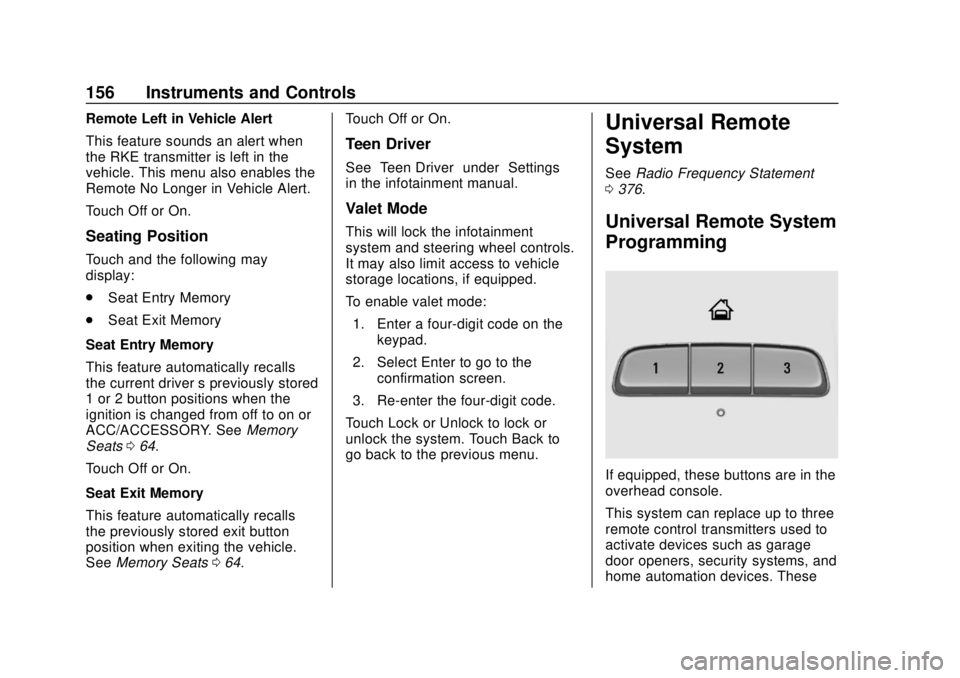
If equipped, these buttons are in the
overhead console.
This system can replace up to three
remote control transmitters used to
activate devices such as garage
door openers, security systems, and
home automation devices. These
Page 158 of 404
Chevrolet Blazer (GMNA-Localizing-U.S./Canada/Mexico-12461541) - 2019 -
CRC - 3/11/19
Instruments and Controls 157
instructions refer to a garage door
opener, but can be used for other
devices.
Do not use the Universal Remote
system with any garage door opener
that does not have the stop and
reverse feature. This includes any
garage door opener model
manufactured before April 1, 1982.
Read these instructions completely
before programming the Universal
Remote system. It may help to have
another person assist with the
programming process.
Keep the original hand-held
transmitter for use in other vehicles
as well as for future programming.
Erase the programming when
vehicle ownership is terminated.
See“Erasing Universal Remote
System Buttons” later in this
section.
To program a garage door opener,
park outside directly in line with and
facing the garage door opener
receiver. Clear all people and
objects near the garage door. Make sure the hand-held transmitter
has a new battery for quicker and
more accurate transmission of the
radio-frequency signal.
Programming the Universal
Remote System
For questions or programming help,
see www.homelink.com/gm or call
1-800-355-3515. For calls placed
outside the U.S., Canada, or Puerto
Rico, international rates will apply
and may differ based on landline or
mobile phone.
Programming involves
time-sensitive actions, and may time
out causing the procedure to be
repeated.
To program up to three devices:
1. Hold the end of the hand-held transmitter about 3 to 8 cm
(1 to 3 in) away from the
Universal Remote system
buttons with the indicator light
in view. The hand-held
transmitter was supplied by the
manufacturer of the garage
door opener receiver. 2. At the same time, press and
hold both the hand-held
transmitter button and one of
the three Universal Remote
system buttons to be used to
operate the garage door. Do
not release either button until
the indicator light changes from
a slow to a rapid flash. Then
release both buttons.
Some garage door openers
may require substitution of
Step 2 with the procedure
under “Radio Signals for Some
Gate Operators” later in this
section.
3. Press and hold the newly programmed Universal Remote
system button for five seconds
while watching the indicator
light and garage door
activation.
.If the indicator light stays on
continuously or the garage
door moves when the
button is pressed, then
programming is complete.
There is no need to
complete Steps 4–6.
Page 159 of 404
Chevrolet Blazer (GMNA-Localizing-U.S./Canada/Mexico-12461541) - 2019 -
CRC - 3/11/19
158 Instruments and Controls
.If the indicator light does
not come on or the garage
door does not move, a
second button press may
be required. For a second
time, press and hold the
newly programmed button
for five seconds. If the light
stays on or the garage door
moves, programming is
complete.
. If the indicator light blinks
rapidly for two seconds,
then changes to a solid light
and the garage door does
not move, continue with
programming Steps 4–6.
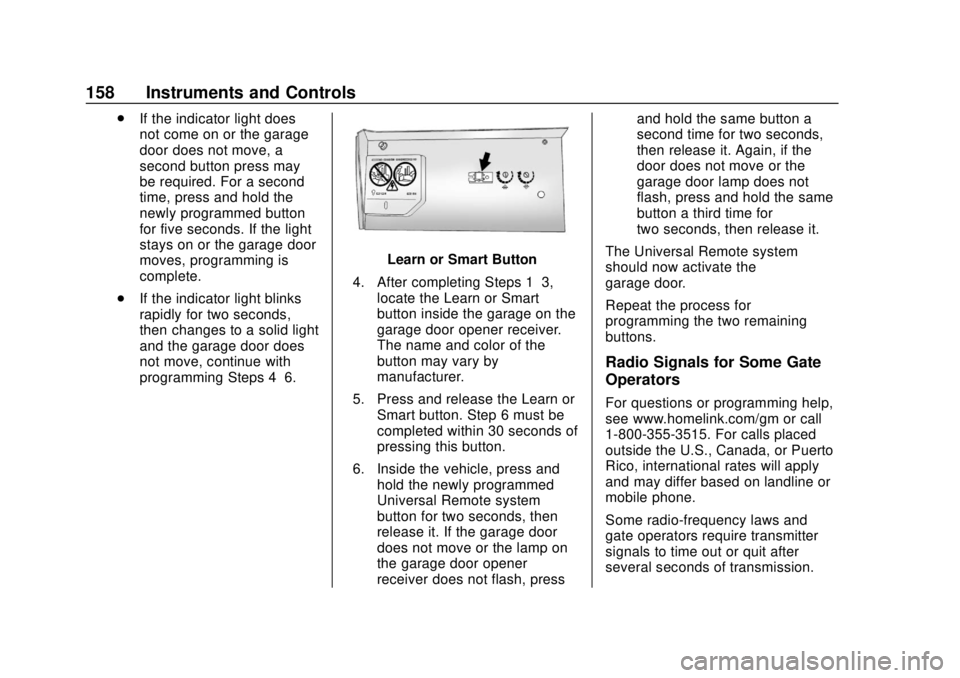
Learn or Smart Button
4. After completing Steps 1–3, locate the Learn or Smart
button inside the garage on the
garage door opener receiver.
The name and color of the
button may vary by
manufacturer.
5. Press and release the Learn or Smart button. Step 6 must be
completed within 30 seconds of
pressing this button.
6. Inside the vehicle, press and hold the newly programmed
Universal Remote system
button for two seconds, then
release it. If the garage door
does not move or the lamp on
the garage door opener
receiver does not flash, press and hold the same button a
second time for two seconds,
then release it. Again, if the
door does not move or the
garage door lamp does not
flash, press and hold the same
button a third time for
two seconds, then release it.
The Universal Remote system
should now activate the
garage door.
Repeat the process for
programming the two remaining
buttons.
Radio Signals for Some Gate
Operators
For questions or programming help,
see www.homelink.com/gm or call
1-800-355-3515. For calls placed
outside the U.S., Canada, or Puerto
Rico, international rates will apply
and may differ based on landline or
mobile phone.
Some radio-frequency laws and
gate operators require transmitter
signals to time out or quit after
several seconds of transmission.
Page 160 of 404
Chevrolet Blazer (GMNA-Localizing-U.S./Canada/Mexico-12461541) - 2019 -
CRC - 3/11/19
Instruments and Controls 159
This may not be long enough for the
Universal Remote system to pick up
the signal during programming.
If the programming did not work,
replace Step 2 under“Programming
the Universal Remote System” with
the following:
Press and hold the Universal
Remote system button while
pressing and releasing the
hand-held transmitter button every
two seconds until the signal has
been successfully accepted by the
Universal Remote system. The
Universal Remote system indicator
light will flash slowly at first and then
rapidly. Proceed with Step 3 under
“Programming the Universal Remote
System” to complete.Universal Remote System
Operation
Using the Universal Remote
System
Press and hold the appropriate
Universal Remote system button for
at least one-half second. The
indicator light will come on while the
signal is being transmitted.
Erasing Universal Remote
System Buttons
Erase all programmed buttons when
vehicle ownership is terminated.
To erase:
1. Press and hold the two outside buttons until the indicator light
begins to flash. This should
take about 10 seconds.
2. Release both buttons.
Reprogramming a Single
Universal Remote System
Button
To reprogram any of the system
buttons: 1. Press and hold any one of the buttons. Do not release the
button.
2. The indicator light will begin to flash after 20 seconds. Without
releasing the button, proceed
with Step 1 under
“Programming the Universal
Remote System.”
Page 166 of 404
Chevrolet Blazer (GMNA-Localizing-U.S./Canada/Mexico-12461541) - 2019 -
CRC - 3/11/19
Lighting 165
Interior Lighting
Instrument Panel
Illumination Control
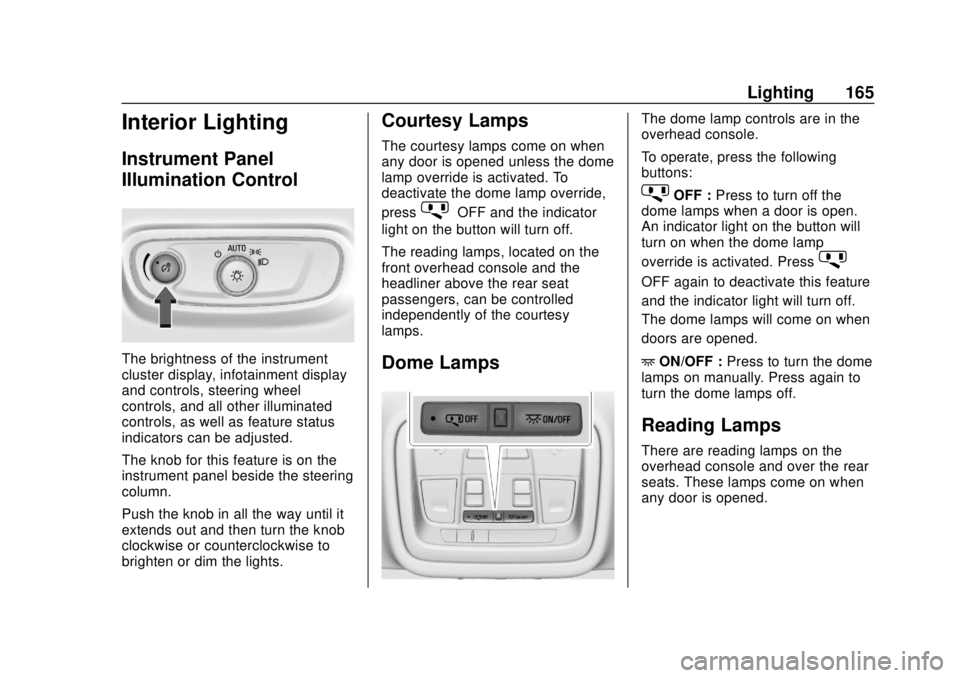
The brightness of the instrument
cluster display, infotainment display
and controls, steering wheel
controls, and all other illuminated
controls, as well as feature status
indicators can be adjusted.
The knob for this feature is on the
instrument panel beside the steering
column.
Push the knob in all the way until it
extends out and then turn the knob
clockwise or counterclockwise to
brighten or dim the lights.
Courtesy Lamps
The courtesy lamps come on when
any door is opened unless the dome
lamp override is activated. To
deactivate the dome lamp override,
press
jOFF and the indicator
light on the button will turn off.
The reading lamps, located on the
front overhead console and the
headliner above the rear seat
passengers, can be controlled
independently of the courtesy
lamps.
Dome Lamps
The dome lamp controls are in the
overhead console.
To operate, press the following
buttons:
jOFF : Press to turn off the
dome lamps when a door is open.
An indicator light on the button will
turn on when the dome lamp
override is activated. Press
j
OFF again to deactivate this feature
and the indicator light will turn off.
The dome lamps will come on when
doors are opened.
+ ON/OFF : Press to turn the dome
lamps on manually. Press again to
turn the dome lamps off.
Reading Lamps
There are reading lamps on the
overhead console and over the rear
seats. These lamps come on when
any door is opened.
Page 173 of 404
Chevrolet Blazer (GMNA-Localizing-U.S./Canada/Mexico-12461541) - 2019 -
CRC - 3/11/19
172 Climate Controls
selected in warm weather. Press@to select recirculation; press it
again to select outside air.
Driver and Passenger
Temperature Controls : The
temperature can be adjusted
separately for the driver and the
passenger. Turn the knob clockwise
or counterclockwise to increase or
decrease the driver or passenger
temperature setting.
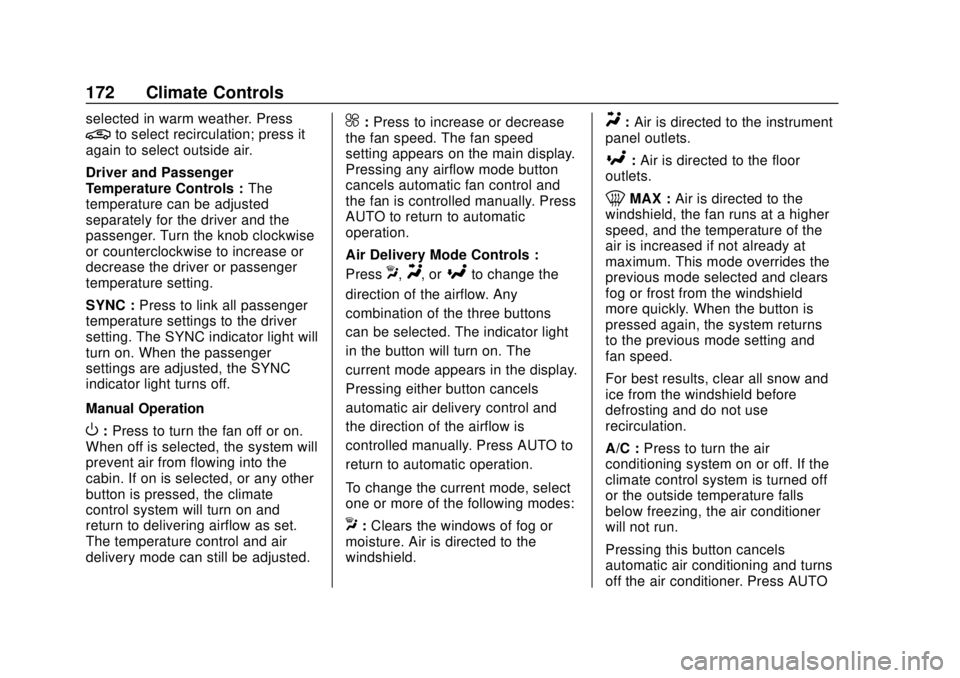
SYNC : Press to link all passenger
temperature settings to the driver
setting. The SYNC indicator light will
turn on. When the passenger
settings are adjusted, the SYNC
indicator light turns off.
Manual Operation
O: Press to turn the fan off or on.
When off is selected, the system will
prevent air from flowing into the
cabin. If on is selected, or any other
button is pressed, the climate
control system will turn on and
return to delivering airflow as set.
The temperature control and air
delivery mode can still be adjusted.
^: Press to increase or decrease
the fan speed. The fan speed
setting appears on the main display.
Pressing any airflow mode button
cancels automatic fan control and
the fan is controlled manually. Press
AUTO to return to automatic
operation.
Air Delivery Mode Controls :
Press
X,Y, or[to change the
direction of the airflow. Any
combination of the three buttons
can be selected. The indicator light
in the button will turn on. The
current mode appears in the display.
Pressing either button cancels
automatic air delivery control and
the direction of the airflow is
controlled manually. Press AUTO to
return to automatic operation.
To change the current mode, select
one or more of the following modes:
X: Clears the windows of fog or
moisture. Air is directed to the
windshield.
Y: Air is directed to the instrument
panel outlets.
[: Air is directed to the floor
outlets.
0MAX : Air is directed to the
windshield, the fan runs at a higher
speed, and the temperature of the
air is increased if not already at
maximum. This mode overrides the
previous mode selected and clears
fog or frost from the windshield
more quickly. When the button is
pressed again, the system returns
to the previous mode setting and
fan speed.
For best results, clear all snow and
ice from the windshield before
defrosting and do not use
recirculation.
A/C : Press to turn the air
conditioning system on or off. If the
climate control system is turned off
or the outside temperature falls
below freezing, the air conditioner
will not run.
Pressing this button cancels
automatic air conditioning and turns
off the air conditioner. Press AUTO
Page 228 of 404
Chevrolet Blazer (GMNA-Localizing-U.S./Canada/Mexico-12461541) - 2019 -
CRC - 3/11/19
Driving and Operating 227
{Warning
The camera(s) do not display
children, pedestrians, bicyclists,
crossing traffic, animals, or any
other object outside of the
cameras’field of view, below the
bumper, or under the vehicle.
Shown distances may be different
from actual distances. Do not
drive or park the vehicle using
only these camera(s). Always
check behind and around the
vehicle before driving. Failure to
use proper care may result in
injury, death, or vehicle damage. Camera Views
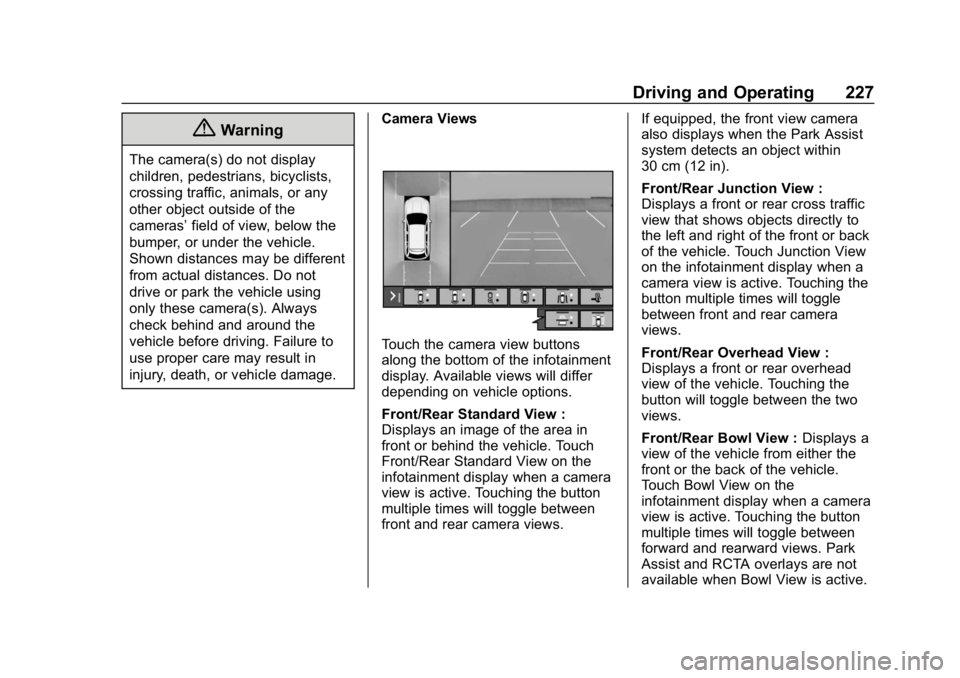
Touch the camera view buttons
along the bottom of the infotainment
display. Available views will differ
depending on vehicle options.
Front/Rear Standard View :
Displays an image of the area in
front or behind the vehicle. Touch
Front/Rear Standard View on the
infotainment display when a camera
view is active. Touching the button
multiple times will toggle between
front and rear camera views. If equipped, the front view camera
also displays when the Park Assist
system detects an object within
30 cm (12 in).
Front/Rear Junction View :
Displays a front or rear cross traffic
view that shows objects directly to
the left and right of the front or back
of the vehicle. Touch Junction View
on the infotainment display when a
camera view is active. Touching the
button multiple times will toggle
between front and rear camera
views.
Front/Rear Overhead View :
Displays a front or rear overhead
view of the vehicle. Touching the
button will toggle between the two
views.
Front/Rear Bowl View :
Displays a
view of the vehicle from either the
front or the back of the vehicle.
Touch Bowl View on the
infotainment display when a camera
view is active. Touching the button
multiple times will toggle between
forward and rearward views. Park
Assist and RCTA overlays are not
available when Bowl View is active.
Page 381 of 404
Chevrolet Blazer (GMNA-Localizing-U.S./Canada/Mexico-12461541) - 2019 -
CRC - 3/11/19
380 OnStar
OnStar
OnStar Overview
OnStar Overview . . . . . . . . . . . . . 380
OnStar Services
Emergency . . . . . . . . . . . . . . . . . . . 381
Security . . . . . . . . . . . . . . . . . . . . . . 382
OnStar Additional Information
OnStar AdditionalInformation . . . . . . . . . . . . . . . . . . 382
OnStar Overview
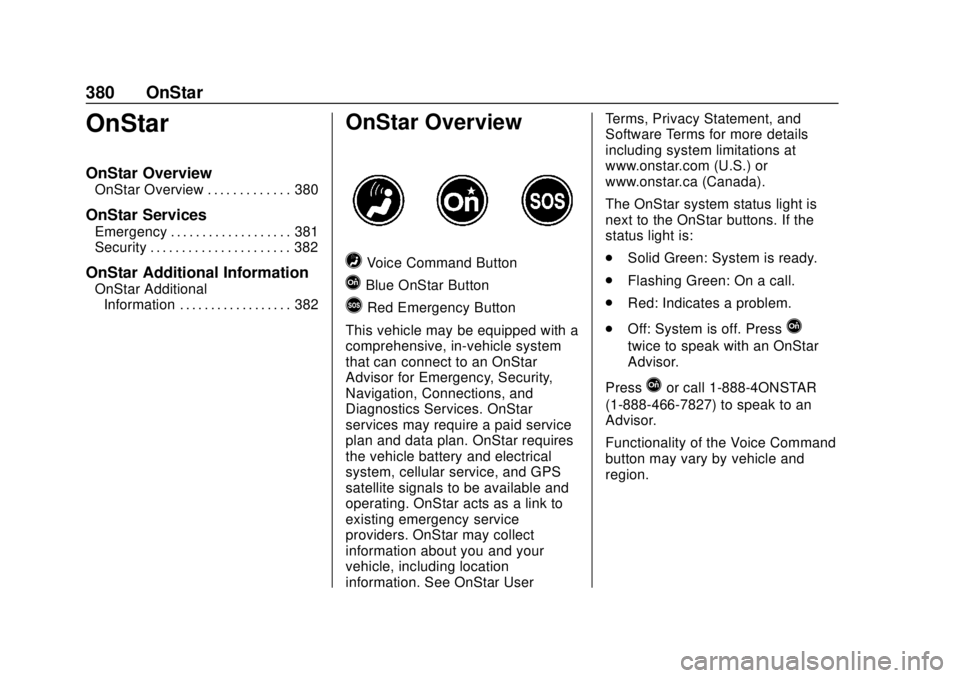
=Voice Command Button
QBlue OnStar Button
>Red Emergency Button
This vehicle may be equipped with a
comprehensive, in-vehicle system
that can connect to an OnStar
Advisor for Emergency, Security,
Navigation, Connections, and
Diagnostics Services. OnStar
services may require a paid service
plan and data plan. OnStar requires
the vehicle battery and electrical
system, cellular service, and GPS
satellite signals to be available and
operating. OnStar acts as a link to
existing emergency service
providers. OnStar may collect
information about you and your
vehicle, including location
information. See OnStar User Terms, Privacy Statement, and
Software Terms for more details
including system limitations at
www.onstar.com (U.S.) or
www.onstar.ca (Canada).
The OnStar system status light is
next to the OnStar buttons. If the
status light is:
.
Solid Green: System is ready.
. Flashing Green: On a call.
. Red: Indicates a problem.
. Off: System is off. Press
Q
twice to speak with an OnStar
Advisor.
Press
Qor call 1-888-4ONSTAR
(1-888-466-7827) to speak to an
Advisor.
Functionality of the Voice Command
button may vary by vehicle and
region.