bluetooth CHEVROLET BLAZER 2021 User Guide
[x] Cancel search | Manufacturer: CHEVROLET, Model Year: 2021, Model line: BLAZER, Model: CHEVROLET BLAZER 2021Pages: 380, PDF Size: 9.1 MB
Page 162 of 380
Chevrolet Blazer Owner Manual (GMNA-Localizing-U.S./Canada/Mexico-
14608203) - 2021 - CRC - 10/29/20
Infotainment System 161
2. Touch Settings, then touch System.
3. Touch Phones to access all paired and allconnected cell phones and mobile
devices.
4. Touch the information icon to the right of the cell phone to open the cell
phone’s settings menu.
5. Touch the First to Connect option, to enable the setting for that device.
Cell phones and mobile devices can be
added, removed, connected, and
disconnected. A sub-menu will display
whenever a request is made to add or
manage cell phones and mobile devices.
Secondary Phone
A cell phone can be enabled as a Secondary
Phone by touching the information icon to
the right of the paired cell phone name to
open the phone settings menu. If a cell
phone is enabled as a Secondary Phone, it
can connect simultaneously alongside
another Bluetooth mobile device. In doing
so, the Secondary Phone will be labeled as
Incoming Calls. This means the mobile
device can only receive calls. The Address
Book of a Secondary Phone will not be
available and hands-free outgoing calls
cannot be placed using this cell phone. If needed, touch the Secondary Phone while
in the Phones list to swap it into the
Outgoing and Incoming role. This role makes
it possible to place outgoing calls from the
Contacts and Recents list.
Listing All Paired and Connected Phones
1. Touch the Phone icon on the Home Page or the phone icon on the shortcut tray
near the bottom of the display.
2. Touch Phones.
Disconnecting a Connected Phone 1. Touch the Phone icon on the Home Page.
2. Touch Phones.
3. Touch the information icon next to the connected cell phone or mobile device to
show the cell phone’s or mobile device’s
information display.
4. Touch Disconnect.
Deleting a Paired Phone 1. Touch the Phone icon on the Home Page or the phone icon on the shortcut tray
near the bottom of the display.
2. Touch Phones. 3. Touch the information icon next to the
connected cell phone to display the cell
phone’s or mobile device’s information
display.
4. Touch Forget Device.
Linking to a Different Phone
To link to a different cell phone, the new
cell phone must be in the vehicle and paired
to the Bluetooth system. 1. Touch the Phone icon on the Home Page or the phone icon on the shortcut tray
near the bottom of the display.
2. Touch Phones.
3. Touch the new cell phone to link to from the not connected phone list. See “First
to Connect Paired Phones” and
“Secondary Phone” previously in this
section.
Switching to Handset or
Handsfree Mode
To switch between handset or
handsfree mode:
.While the active call is hands-free, touch
the Handset option to switch to the
handset mode.
The mute icon will not be available or
functional while Handset mode is active.
Page 163 of 380
Chevrolet Blazer Owner Manual (GMNA-Localizing-U.S./Canada/Mexico-
14608203) - 2021 - CRC - 10/29/20
162 Infotainment System
.While the active call is on the handset,
touch the Handset option to switch to the
hands-free mode.
Making a Call Using Contacts and Recent
Calls
Calls can be made through the Bluetooth
system using personal cell phone contact
information for all cell phones that support
the Phone Book feature. Become familiar
with the cell phone settings and operation.
Verify the cell phone supports this feature.
The Contacts menu accesses the phone book
stored in the cell phone.
The Recents menu accesses the recents call
list from your cell phone.
To make a call using the Contacts menu:1. Touch the Phone icon on the Home Page.
2. Touch Contacts.
3. The Contacts list can be searched by using the first character. Touch A-Z on
the infotainment display to scroll
through the list of names.
Touch the name to call.
4. Touch the desired contact number to call.
To make a call using the Recents menu: 1. Touch Phone on the Home Page. 2. Touch Recents.
3. Touch the name or number to call.
Making a Call Using the Keypad
To make a call by dialing the numbers:
1. Touch the Phone icon on the Home Page.
2. Touch Keypad and enter a phone number.
3. Touch
#on the infotainment display to
start dialing the number.
Searching Contacts Using the Keypad
To search for contacts using the keypad:
1. Touch the Phone icon on the Home Page.
2. Touch Keypad and enter partial phone numbers or contact names using the
digits on the keypad to search.
Results will show on the right side of the
display. Touch one to place a call.
Accepting or Declining a Call
When an incoming call is received, the
infotainment system mutes and a ring tone
is heard in the vehicle.
Accepting a Call
There are two ways to accept a call:
.Pressgon the steering wheel controls.
.Touch Answer on the infotainment
display.
Declining a Call
There are two ways to decline a call:
.Pression the steering wheel controls.
.Touch Ignore on the infotainment display.
Call Waiting
Call waiting must be supported on the
Bluetooth cell phone and enabled by the
wireless service carrier to work.
Accepting a Call
Press
gto answer, then touch Switch on
the infotainment display.
Declining a Call
Press
ito decline, then touch Ignore on
the infotainment display
Switching Between Calls (Call Waiting
Calls Only)
To switch between calls, touch Phone on the
Home Page to display Call View. While in
Call View, touch the call information of the
call on hold to change calls.
Page 164 of 380
Chevrolet Blazer Owner Manual (GMNA-Localizing-U.S./Canada/Mexico-
14608203) - 2021 - CRC - 10/29/20
Infotainment System 163
Three-Way Calling
Three-way calling must be supported on the
Bluetooth cell phone and enabled by the
wireless service carrier to work.
To start a three-way call while in a
current call:1. In the Call View, touch Add Call to add another call.
2. Initiate the second call by selecting from Recents, Contacts, or Keypad.
3. When the second call is active, touch the merge icon to conference the three-way
call together.
Ending a Call
.Pression the steering wheel controls.
.Touch#on the infotainment display,
next to a call, to end only that call.
Dual Tone Multi-Frequency (DTMF) Tones
The in-vehicle Bluetooth system can send
numbers during a call. This is used when
calling a menu-driven phone system. Use the
Keypad to enter the number.
Apple CarPlay and Android Auto
If equipped, Android Auto and/or Apple
CarPlay capability may be available through
a compatible smartphone. If available, the
Android Auto and Apple CarPlay icons will
change from gray to color on the Home
Page of the infotainment display.
To use Android Auto and/or Apple CarPlay:
For Wired Phone Projection
1. Download the Android Auto app to your smartphone from the Google Play store.
There is no app required for Apple
CarPlay.
2. Connect your Android phone or Apple iPhone by using the factory-provided
phone USB cable and plugging into a
USB data port. For best performance, it is
highly recommended to use the device’s
factory-provided USB cable, which should
be replaced after significant wear to
maintain connection quality. Aftermarket
or third-party cables may not work.
3. When the phone is first connected to activate Apple CarPlay or Android Auto,
accept the terms and conditions on both
the infotainment system and the phone.
4. Follow the instructions on the phone. The Android Auto and Apple CarPlay icons
on the Home Page will illuminate depending
on the smartphone. Android Auto and/or
Apple CarPlay may automatically launch
upon USB connection. If not, touch the
Android Auto or Apple CarPlay icon on the
Home Page to launch.
Press
{on the center stack to return to the
Home Page.
For Wireless Phone Projection
Verify your phone is wireless compatible by
visiting the Google Android Auto or Apple
CarPlay support page.
1. Download the Android Auto app to your smartphone from the Google Play store.
There is no app required for Apple
CarPlay.
2. For first time connection, there are two ways to set up wireless projection:
.Connect your Android phone or Apple
iPhone by using the factory-provided
phone USB cable and plugging into a
USB data port. For best performance,
it is highly recommended to use the
device’s factory-provided USB cable,
which should be replaced after
Page 165 of 380
Chevrolet Blazer Owner Manual (GMNA-Localizing-U.S./Canada/Mexico-
14608203) - 2021 - CRC - 10/29/20
164 Infotainment System
significant wear to maintain
connection quality. Aftermarket or
third-party cables may not work.
.Connecting the phone over Bluetooth.
SeeBluetooth (Overview) 0159 or
Bluetooth (Pairing and Using a Phone)
0 159.
3. Make sure wireless is turned on the phone for wireless projection to work.
4. When the phone is first connected to activate Apple CarPlay or Android Auto,
agree to the terms and conditions on
both the infotainment system and the
phone.
5. Follow the instructions on the phone.
The Android Auto and Apple CarPlay icons
on the Home Page will illuminate depending
on the smartphone. Android Auto and/or
Apple CarPlay may automatically launch
upon wireless connection. If not, touch the
Android Auto or Apple CarPlay icon on the
Home Page to launch.
Wireless Carplay and/or Wireless Android
Auto may experience occasional service
disruption due to outside Wi-Fi interference.
To disconnect the phones wireless
projection: 1. Select Settings from the Home Page. 2. Select Phones
3. Touch
4next to the phone to be
disconnected.
4. Turn off Apple CarPlay or Android Auto.
Press
{on the center stack to return to the
Home Page.
Features are subject to change. For further
information on how to set up Android Auto
and Apple CarPlay in the vehicle, see
my.chevrolet.com.
Android Auto is provided by Google and is
subject to Google’s terms and privacy policy.
Apple CarPlay is provided by Apple and is
subject to Apple’s terms and privacy policy.
Data plan rates apply. For Android Auto
support and to see if your phone is
compatible, see https://support.google.com/
androidauto. For Apple CarPlay support and
to see if your phone is compatible, see
www.apple.com/ios/carplay/. Apple or
Google may change or suspend availability
at any time. Android Auto, Android, Google,
Google Play, and other marks are
trademarks of Google Inc.; Apple CarPlay is a
trademark of Apple Inc. Press
{on the center stack to exit Android
Auto or Apple CarPlay. To enter back into
Android Auto or Apple CarPlay, press and
hold
{on the center stack.
Apple CarPlay and Android Auto can be
disabled from the infotainment system. To
do this, touch Home, Settings, and then
touch the Apps tab along the top of the
display. Use the On/Off toggled to turn off
Apple CarPlay or Android Auto.
Settings
Certain settings can be managed in the
Owner Center sites when an account is
established, and may be modified if other
users have accessed the vehicle or created
accounts. This may result in changes to the
security or functionality of the infotainment
system. Some settings may also be
transferred to a new vehicle, if equipped. For
instructions, in the U.S. see
my.chevrolet.com or in Canada see
mychevrolet.ca or monchevrolet.ca.
Refer to the User Terms and Privacy
Statement for important details. To view,
touch the Settings icon on the Home Page
of the infotainment display.
Page 171 of 380
Chevrolet Blazer Owner Manual (GMNA-Localizing-U.S./Canada/Mexico-
14608203) - 2021 - CRC - 10/29/20
170 Infotainment System
.Destination Card Preferences
.Map Preferences
.Route Preferences
.Navigation Voice Control
.Traffic Preferences
.Alert Preferences
.Fuel Grade Preferences
.Manage History
.Predictive Navigation
.About
See Using the Navigation System 0142.
Phone
Touch and the following may display:
.My Number: Displays the cell phone
number of the Bluetooth connected
device.
.Active Call View: Shows active call display
when answering a call.
Touch the controls on the infotainment
display to disable or enable.
.Privacy: Only show call alerts in the
instrument cluster.
Touch Off or On.
.Sort Contacts: Touch to sort by first or
last name.
.Re-sync Device Contacts: This allows the device contacts to re-sync
if you are having difficulty accessing all of
the contacts on your cell phone.
.Delete All Vehicle Contacts: Touch to
delete all vehicle stored contacts.
.OnStar Phone TTY Mode: This enables
OnStar cell phone TTY mode.
Touch Disable or Enable.
Vehicle
This menu allows adjustment of different
vehicle features. See
Vehicle Personalization
0 113.
Personal
If equipped, this menu allows adjustment of
different user profile settings. See “Users”in
Using the System 0131 for information on
setting up user profiles.
The menu may contain the following:
Name
Touch to edit your user name that will be
displayed in the vehicle.
Vehicle Account Information
Touch to view the vehicle account
information and to change the account
password. An
“unverified user account” pop-up will
display until the account information
verification process has been completed on
the Internet. Check your registered e-mail
account for an activation e-mail to complete
the verification process.
Profile Picture
Touch to choose or change your profile
picture.
Profile Identifiers
Touch to have the vehicle recognize the
identifier you choose.
Touch Vehicle Key 1 and/or Vehicle Key 2.
If the Remote Key is lost or stolen, see your
dealer.
Security
Touch to have your profile secured with a
Personal Identification Number (PIN).
Touch No or Yes.
Vehicle Name
Touch to edit your vehicle name.
Vehicle Account
Touch to view the vehicle account
information and to change the account
password.
Page 176 of 380
Chevrolet Blazer Owner Manual (GMNA-Localizing-U.S./Canada/Mexico-
14608203) - 2021 - CRC - 10/29/20
Infotainment System 175
TouchSense Technology and TouchSense
System 1000 Series Licensed from
Immersion Corporation. TouchSense System
1000 protected under one or more of the
U.S. Patents at the following address
www.immersion.com/patent-marking.html
and other patents pending.
Bose
Bose AudioPilot and Bose Centerpoint
surround are registered trademarks of Bose
Corporation in the U.S. and other countries.
HD Radio Technology
HD Radio Technology manufactured under
license from iBiquity Digital Corporation. U.S.
and Foreign Patents. For patents see http://dts.com/patents. HD Radio and the HD, HD
Radio, and
“ARC”logos are registered
trademarks or trademarks of iBiquity Digital
Corporation in the United States and/or
other countries.
Bluetooth
The Bluetooth word mark and logos are
owned by the Bluetooth SIG, Inc. and any
use of such marks by General Motors is
under license. Other trademarks and trade
names are those of their respective owners.
Java
Java is a registered trademark of Oracle
and/or its affiliates.
Schedule I: Gracenote EULA
Music recognition technology and related
data are provided by Gracenote. Gracenote
is the industry standard in music recognition
technology and related content delivery. For
more information see www.gracenote.com. Music-related data from Gracenote, Inc.,
copyright © 2000 to present Gracenote.
Gracenote Software, copyright © 2000 to
present Gracenote. One or more patents
owned by Gracenote may apply to this
product and service. See the Gracenote
website for a non-exhaustive list of
applicable Gracenote patents. Gracenote,
CDDB, MusicID, MediaVOCS, the Gracenote
logo and logotype, and the "Powered by
Gracenote" logo are either registered
trademarks or trademarks of Gracenote in
the United States and/or other countries.
Gracenote Terms of Use
This application or device contains software
from Gracenote, Inc. of Emeryville, California
("Gracenote"). The software from Gracenote
(the "Gracenote Software") enables this
application to do disc or file identification
and obtain music-related information,
including name, artist, track, and title
information ("Gracenote Data") from online
servers or embedded databases (collectively,
"Gracenote Servers") and to perform other
functions. You may use Gracenote Data only
by means of the intended End-User
functions of this application or device.
Page 359 of 380
Chevrolet Blazer Owner Manual (GMNA-Localizing-U.S./Canada/Mexico-
14608203) - 2021 - CRC - 10/29/20
358 Customer Information
and notify General Motors of Canada
Company. Call Transport Canada at
1-800-333-0510; go to:
www.tc.gc.ca/recalls (English)
www.tc.gc.ca/rappels (French)
or write to:
Transport Canada
Motor Vehicle Safety Directorate
Defect Investigations and Recalls
Division
80 Noel Street
Gatineau
,QC J8Z 0A1
Reporting Safety Defects to
General Motors
In addition to notifying NHTSA (or Transport
Canada) in a situation like this, notify
General Motors.
In the U.S., call 1-800-222-1020, or write:
Chevrolet Motor Division
Chevrolet Customer Assistance Center
P.O. Box 33170
Detroit, MI 48232-5170
In Canada, call 1-800-263-3777 (English) or
1-800-263-7854 (French), or write:General Motors of Canada Company
Customer Care Centre, Mail Code:
CA1-163-005
1908 Colonel Sam Drive
Oshawa, Ontario L1H 8P7
In Mexico, call 800-466-0811 or
800-508-0000.
In other Central America and Caribbean
Countries, call 52-555-901-2369.
Vehicle Data Recording and
Privacy
The vehicle has a number of computers that
record information about the vehicle’s
performance and how it is driven or used.
For example, the vehicle uses computer
modules to monitor and control engine and
transmission performance, to monitor the
conditions for airbag deployment and
deploy them in a crash, and, if equipped, to
provide antilock braking to help the driver
control the vehicle. These modules may
store data to help the dealer technician
service the vehicle or to help GM improve
safety or features. Some modules may also
store data about how the vehicle is
operated, such as rate of fuel consumption
or average speed. These modules may retain
personal preferences, such as radio presets,
seat positions, and temperature settings.
Cybersecurity
GM collects information about the use of
your vehicle including operational and safety
related information. We collect this
information to provide, evaluate, improve,
and troubleshoot our products and services
and to develop new products and services.
The protection of vehicle electronics systems
and customer data from unauthorized
outside electronic access or control is
important to GM. GM maintains appropriate
security standards, practices, guidelines and
controls aimed at defending the vehicle and
the vehicle service ecosystem against
unauthorized electronic access, detecting
possible malicious activity in related
networks, and responding to suspected
cybersecurity incidents in a timely,
coordinated and effective manner. Security
incidents could impact your safety or
compromise your private data. To minimize
security risks, please do not connect your
vehicle electronic systems to unauthorized
devices or connect your vehicle to any
unknown or untrusted networks (such as
Bluetooth, WIFI or similar technology). In
Page 370 of 380
Chevrolet Blazer Owner Manual (GMNA-Localizing-U.S./Canada/Mexico-
14608203) - 2021 - CRC - 10/29/20
Index 369
AudioBluetooth . . . . . . . . . . . . . . . . . . . . . . . . . . . . . . 140
Auto Stop Stop/Start System . . . . . . . . . . . . . . . . . . . . . 203
Automatic Dimming Mirrors . . . . . . . . . . . . . . . . . . . . . . . 26
Door Locks . . . . . . . . . . . . . . . . . . . . . . . . . . . . . . . 17
Emergency Braking (AEB) . . . . . . . . . . . . . . 232
Headlamp System . . . . . . . . . . . . . . . . . . . . . 123
Transmission . . . . . . . . . . . . . . . . . . . . . . . . . . . 207
Transmission Fluid . . . . . . . . . . . . . . . . . . . . . 265
Automatic Transmission Manual Mode . . . . . . . . . . . . . . . . . . . . . . . . . 209
Shift Lock Control Function Check . . . . . . 275
Avoiding Untrusted Media Devices . . . . . . . . 137
B
Battery Exterior Lighting Battery Saver . . . . . . . . . 127
Load Management . . . . . . . . . . . . . . . . . . . . . 126
Power Protection . . . . . . . . . . . . . . . . . . . . . . . 127
Battery - North America . . . . . . . . . . . . . 274, 318
Blade Replacement, Wiper . . . . . . . . . . . . . . . 276
Bluetooth Overview . . . . . . . . . . . . . . . . . . . . . . . . . . . . . . 159
Bluetooth Audio . . . . . . . . . . . . . . . . . . . . . . . . . 140
Brake
Electric Boost . . . . . . . . . . . . . . . . . . . . . . . . . . 210 Brake (cont'd)
Parking, Electric . . . . . . . . . . . . . . . . . . . . . . . . . 211
System Warning Light . . . . . . . . . . . . . . . . . 101
Brakes . . . . . . . . . . . . . . . . . . . . . . . . . . . . . . . . . . . 273 Antilock . . . . . . . . . . . . . . . . . . . . . . . . . . . . . . . . 210
Assist . . . . . . . . . . . . . . . . . . . . . . . . . . . . . . . . . . 212
Fluid . . . . . . . . . . . . . . . . . . . . . . . . . . . . . . . . . . . 273
Braking . . . . . . . . . . . . . . . . . . . . . . . . . . . . . . . . . . 189 Automatic Emergency (AEB) . . . . . . . . . . . 232
Braking System Front Pedestrian (FPB) . . . . . . . . . . . . . . . . . 234
Break-In, New Vehicle . . . . . . . . . . . . . . . . . . . . 200
Bulb Replacement
Back-up Lamps . . . . . . . . . . . . . . . . . . . . . . . . . 278
Headlamp Aiming . . . . . . . . . . . . . . . . . . . . . . 278
Headlamps . . . . . . . . . . . . . . . . . . . . . . . . . . . . 278
High Intensity Discharge (HID)Lighting . . . . . . . . . . . . . . . . . . . . . . . . . . . . . . 278
Buying New Tires . . . . . . . . . . . . . . . . . . . . . . . . 302
C
Calibration . . . . . . . . . . . . . . . . . . . . . . . . . . . . . . . . 85
California Perchlorate Materials Requirements . . . 254
California Proposition 65 Warning . . . . . . . . . . . . . . . . . . .254, 274, 318,
Back Cover
Canadian Vehicle Owners . . . . . . . . . . . . . . . . . . . 1 Capacities and Specifications . . . . . . . . . . . . . 345
Carbon Monoxide
Engine Exhaust . . . . . . . . . . . . . . . . . . . . . . . . 207
Liftgate . . . . . . . . . . . . . . . . . . . . . . . . . . . . . . . . . 18
Winter Driving . . . . . . . . . . . . . . . . . . . . . . . . . 195
Cargo Management System . . . . . . . . . . . . . . . . . . . 79
Tie-Downs . . . . . . . . . . . . . . . . . . . . . . . . . . . . . . 78
Caution, Danger, and Warning . . . . . . . . . . . . . .2
Center Console Storage . . . . . . . . . . . . . . . . . . . .77
Chains, Tire . . . . . . . . . . . . . . . . . . . . . . . . . . . . . . 305
Charging Wireless . . . . . . . . . . . . . . . . . . . . . . . . . . . . . . . . 87
Charging System Light . . . . . . . . . . . . . . . . . . . 100
Check Engine Light (Malfunction
Indicator) . . . . . . . . . . . . . . . . . . . . . . . . . . . . 100
Child Restraints Infants and Young Children . . . . . . . . . . . . . 61
Lower Anchors and Tethers forChildren . . . . . . . . . . . . . . . . . . . . . . . . . . . . . . . 66
Older Children . . . . . . . . . . . . . . . . . . . . . . . . . . 60
Securing . . . . . . . . . . . . . . . . . . . . . . . . . . . . . 72, 73
Systems . . . . . . . . . . . . . . . . . . . . . . . . . . . . . . . . 63
Circuit Breakers . . . . . . . . . . . . . . . . . . . . . . . . . . 280
Cleaning
Exterior Care . . . . . . . . . . . . . . . . . . . . . . . . . . . 323
Interior Care . . . . . . . . . . . . . . . . . . . . . . . . . . . 327
Page 375 of 380
Chevrolet Blazer Owner Manual (GMNA-Localizing-U.S./Canada/Mexico-
14608203) - 2021 - CRC - 10/29/20
374 Index
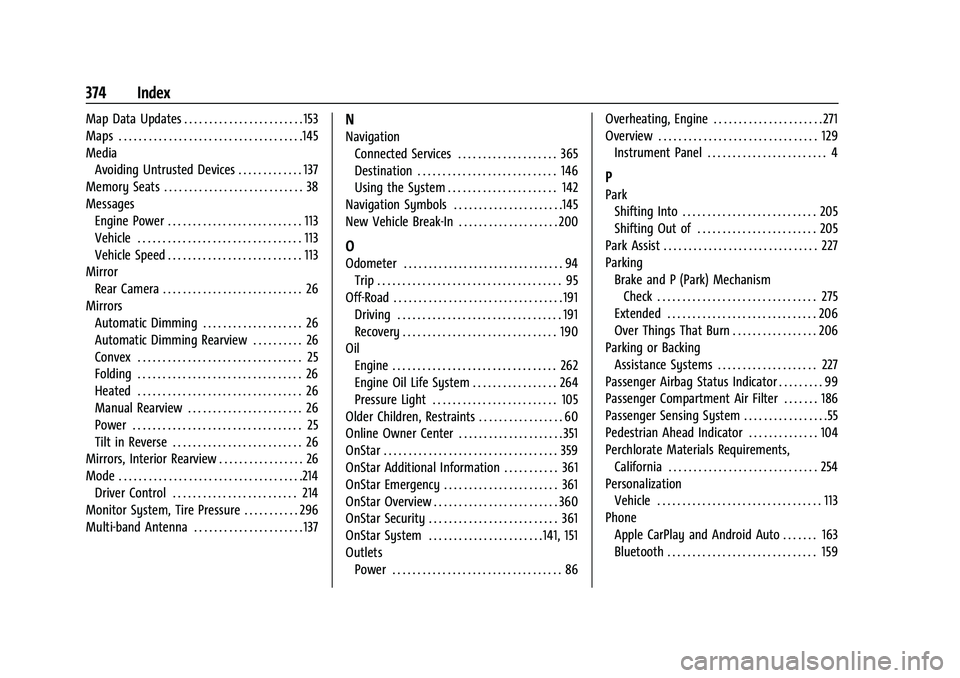
Map Data Updates . . . . . . . . . . . . . . . . . . . . . . . . 153
Maps . . . . . . . . . . . . . . . . . . . . . . . . . . . . . . . . . . . . .145
MediaAvoiding Untrusted Devices . . . . . . . . . . . . . 137
Memory Seats . . . . . . . . . . . . . . . . . . . . . . . . . . . . 38
Messages Engine Power . . . . . . . . . . . . . . . . . . . . . . . . . . . 113
Vehicle . . . . . . . . . . . . . . . . . . . . . . . . . . . . . . . . . 113
Vehicle Speed . . . . . . . . . . . . . . . . . . . . . . . . . . . 113
Mirror Rear Camera . . . . . . . . . . . . . . . . . . . . . . . . . . . . 26
Mirrors Automatic Dimming . . . . . . . . . . . . . . . . . . . . 26
Automatic Dimming Rearview . . . . . . . . . . 26
Convex . . . . . . . . . . . . . . . . . . . . . . . . . . . . . . . . . 25
Folding . . . . . . . . . . . . . . . . . . . . . . . . . . . . . . . . . 26
Heated . . . . . . . . . . . . . . . . . . . . . . . . . . . . . . . . . 26
Manual Rearview . . . . . . . . . . . . . . . . . . . . . . . 26
Power . . . . . . . . . . . . . . . . . . . . . . . . . . . . . . . . . . 25
Tilt in Reverse . . . . . . . . . . . . . . . . . . . . . . . . . . 26
Mirrors, Interior Rearview . . . . . . . . . . . . . . . . . 26
Mode . . . . . . . . . . . . . . . . . . . . . . . . . . . . . . . . . . . . .214
Driver Control . . . . . . . . . . . . . . . . . . . . . . . . . 214
Monitor System, Tire Pressure . . . . . . . . . . . 296
Multi-band Antenna . . . . . . . . . . . . . . . . . . . . . . 137N
Navigation Connected Services . . . . . . . . . . . . . . . . . . . . 365
Destination . . . . . . . . . . . . . . . . . . . . . . . . . . . . 146
Using the System . . . . . . . . . . . . . . . . . . . . . . 142
Navigation Symbols . . . . . . . . . . . . . . . . . . . . . .145
New Vehicle Break-In . . . . . . . . . . . . . . . . . . . . 200
O
Odometer . . . . . . . . . . . . . . . . . . . . . . . . . . . . . . . . 94 Trip . . . . . . . . . . . . . . . . . . . . . . . . . . . . . . . . . . . . . 95
Off-Road . . . . . . . . . . . . . . . . . . . . . . . . . . . . . . . . . . 191 Driving . . . . . . . . . . . . . . . . . . . . . . . . . . . . . . . . . 191
Recovery . . . . . . . . . . . . . . . . . . . . . . . . . . . . . . . 190
Oil
Engine . . . . . . . . . . . . . . . . . . . . . . . . . . . . . . . . . 262
Engine Oil Life System . . . . . . . . . . . . . . . . . 264
Pressure Light . . . . . . . . . . . . . . . . . . . . . . . . . 105
Older Children, Restraints . . . . . . . . . . . . . . . . . 60
Online Owner Center . . . . . . . . . . . . . . . . . . . . . 351
OnStar . . . . . . . . . . . . . . . . . . . . . . . . . . . . . . . . . . . 359
OnStar Additional Information . . . . . . . . . . . 361
OnStar Emergency . . . . . . . . . . . . . . . . . . . . . . . 361
OnStar Overview . . . . . . . . . . . . . . . . . . . . . . . . . 360
OnStar Security . . . . . . . . . . . . . . . . . . . . . . . . . . 361
OnStar System . . . . . . . . . . . . . . . . . . . . . . .141, 151
Outlets Power . . . . . . . . . . . . . . . . . . . . . . . . . . . . . . . . . . 86 Overheating, Engine . . . . . . . . . . . . . . . . . . . . . . 271
Overview . . . . . . . . . . . . . . . . . . . . . . . . . . . . . . . . 129
Instrument Panel . . . . . . . . . . . . . . . . . . . . . . . . 4
P
ParkShifting Into . . . . . . . . . . . . . . . . . . . . . . . . . . . 205
Shifting Out of . . . . . . . . . . . . . . . . . . . . . . . . 205
Park Assist . . . . . . . . . . . . . . . . . . . . . . . . . . . . . . . 227
Parking Brake and P (Park) MechanismCheck . . . . . . . . . . . . . . . . . . . . . . . . . . . . . . . . 275
Extended . . . . . . . . . . . . . . . . . . . . . . . . . . . . . . 206
Over Things That Burn . . . . . . . . . . . . . . . . . 206
Parking or Backing Assistance Systems . . . . . . . . . . . . . . . . . . . . 227
Passenger Airbag Status Indicator . . . . . . . . . 99
Passenger Compartment Air Filter . . . . . . . 186
Passenger Sensing System . . . . . . . . . . . . . . . . .55
Pedestrian Ahead Indicator . . . . . . . . . . . . . . 104
Perchlorate Materials Requirements,
California . . . . . . . . . . . . . . . . . . . . . . . . . . . . . . 254
Personalization Vehicle . . . . . . . . . . . . . . . . . . . . . . . . . . . . . . . . . 113
Phone Apple CarPlay and Android Auto . . . . . . . 163
Bluetooth . . . . . . . . . . . . . . . . . . . . . . . . . . . . . . 159