engine CHEVROLET BLAZER 2021 Owner's Guide
[x] Cancel search | Manufacturer: CHEVROLET, Model Year: 2021, Model line: BLAZER, Model: CHEVROLET BLAZER 2021Pages: 380, PDF Size: 9.1 MB
Page 124 of 380
Chevrolet Blazer Owner Manual (GMNA-Localizing-U.S./Canada/Mexico-
14608203) - 2021 - CRC - 10/29/20
Lighting 123
This indicator light turns on in the
instrument cluster when the high-beam
headlamps are on.
Flash-to-Pass
To flash the high beams, pull the turn signal
lever toward you, and release.
Daytime Running Lamps (DRL)
DRL can make it easier for others to see the
front of your vehicle during the day. Fully
functional DRL are required on all vehicles
first sold in Canada.
The dedicated DRL will come on when all of
the following conditions are met:
.The ignition is on.
.The exterior lamp control is in AUTO.
.The light sensor determines it is daytime.
.The parking brake is released or the
vehicle is not in P (Park).
The taillamps, instrument panel lights, and
other lamps will not be on. The DRL turn off when the headlamps are
turned to
Oor the ignition is off. For
vehicles sold in Canada, this control only
works when the vehicle is parked.
Automatic Headlamp System
When the exterior lamp control is set to
AUTO and it is dark enough outside, the
headlamps come on automatically.
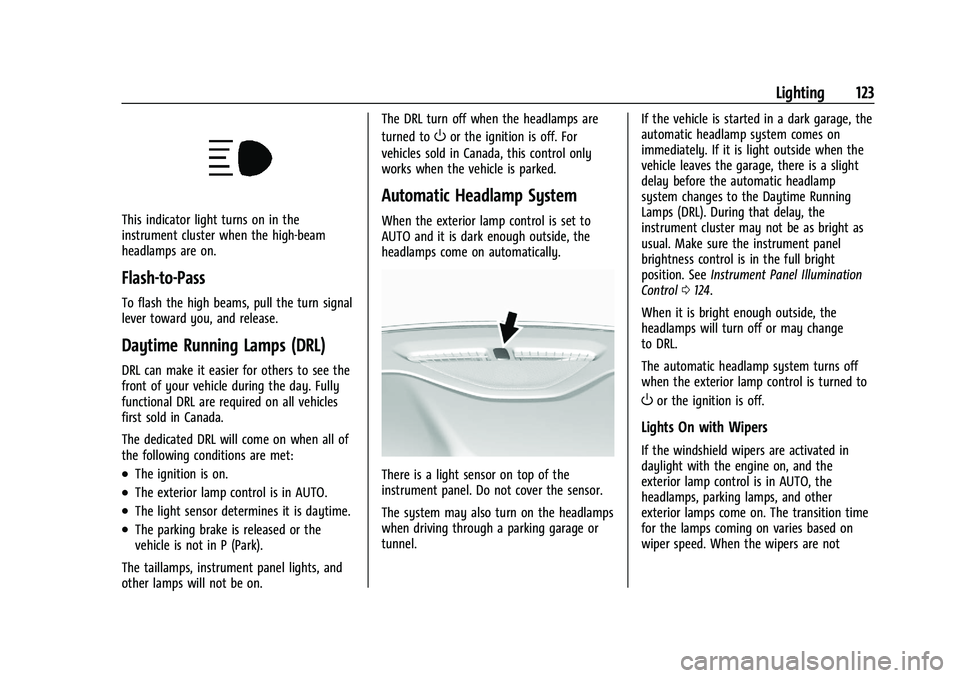
There is a light sensor on top of the
instrument panel. Do not cover the sensor.
The system may also turn on the headlamps
when driving through a parking garage or
tunnel. If the vehicle is started in a dark garage, the
automatic headlamp system comes on
immediately. If it is light outside when the
vehicle leaves the garage, there is a slight
delay before the automatic headlamp
system changes to the Daytime Running
Lamps (DRL). During that delay, the
instrument cluster may not be as bright as
usual. Make sure the instrument panel
brightness control is in the full bright
position. See
Instrument Panel Illumination
Control 0124.
When it is bright enough outside, the
headlamps will turn off or may change
to DRL.
The automatic headlamp system turns off
when the exterior lamp control is turned to
Oor the ignition is off.
Lights On with Wipers
If the windshield wipers are activated in
daylight with the engine on, and the
exterior lamp control is in AUTO, the
headlamps, parking lamps, and other
exterior lamps come on. The transition time
for the lamps coming on varies based on
wiper speed. When the wipers are not
Page 127 of 380
Chevrolet Blazer Owner Manual (GMNA-Localizing-U.S./Canada/Mexico-
14608203) - 2021 - CRC - 10/29/20
126 Lighting
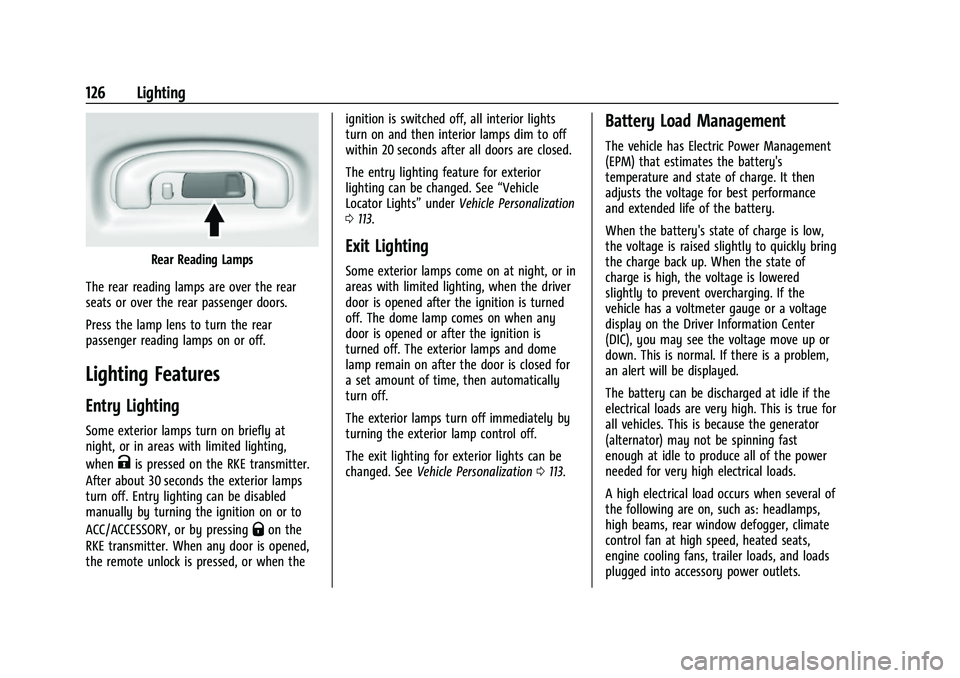
Rear Reading Lamps
The rear reading lamps are over the rear
seats or over the rear passenger doors.
Press the lamp lens to turn the rear
passenger reading lamps on or off.
Lighting Features
Entry Lighting
Some exterior lamps turn on briefly at
night, or in areas with limited lighting,
when
Kis pressed on the RKE transmitter.
After about 30 seconds the exterior lamps
turn off. Entry lighting can be disabled
manually by turning the ignition on or to
ACC/ACCESSORY, or by pressing
Qon the
RKE transmitter. When any door is opened,
the remote unlock is pressed, or when the ignition is switched off, all interior lights
turn on and then interior lamps dim to off
within 20 seconds after all doors are closed.
The entry lighting feature for exterior
lighting can be changed. See
“Vehicle
Locator Lights” underVehicle Personalization
0 113.
Exit Lighting
Some exterior lamps come on at night, or in
areas with limited lighting, when the driver
door is opened after the ignition is turned
off. The dome lamp comes on when any
door is opened or after the ignition is
turned off. The exterior lamps and dome
lamp remain on after the door is closed for
a set amount of time, then automatically
turn off.
The exterior lamps turn off immediately by
turning the exterior lamp control off.
The exit lighting for exterior lights can be
changed. See Vehicle Personalization 0113.
Battery Load Management
The vehicle has Electric Power Management
(EPM) that estimates the battery's
temperature and state of charge. It then
adjusts the voltage for best performance
and extended life of the battery.
When the battery's state of charge is low,
the voltage is raised slightly to quickly bring
the charge back up. When the state of
charge is high, the voltage is lowered
slightly to prevent overcharging. If the
vehicle has a voltmeter gauge or a voltage
display on the Driver Information Center
(DIC), you may see the voltage move up or
down. This is normal. If there is a problem,
an alert will be displayed.
The battery can be discharged at idle if the
electrical loads are very high. This is true for
all vehicles. This is because the generator
(alternator) may not be spinning fast
enough at idle to produce all of the power
needed for very high electrical loads.
A high electrical load occurs when several of
the following are on, such as: headlamps,
high beams, rear window defogger, climate
control fan at high speed, heated seats,
engine cooling fans, trailer loads, and loads
plugged into accessory power outlets.
Page 128 of 380
Chevrolet Blazer Owner Manual (GMNA-Localizing-U.S./Canada/Mexico-
14608203) - 2021 - CRC - 10/29/20
Lighting 127
EPM works to prevent excessive discharge of
the battery. It does this by balancing the
generator's output and the vehicle's
electrical needs. It can increase engine idle
speed to generate more power whenever
needed. It can temporarily reduce the power
demands of some accessories.
Normally, these actions occur in steps or
levels, without being noticeable. In rare
cases at the highest levels of corrective
action, this action may be noticeable to the
driver. If so, a DIC battery voltage and
charging message displays. It is
recommended that the driver reduce the
electrical loads as much as possible. See
Driver Information Center (DIC) (Base and
Midlevel)0107 or
Driver Information Center (DIC) (Uplevel)
0 110.
Battery Power Protection
This feature shuts off the interior lamps if
they are left on for more than 10 minutes
when the ignition is off. This will keep the
battery from draining.
Exterior Lighting Battery Saver
The exterior lamps turn off about 10 minutes
after the ignition is turned off, if the parking
lamps or headlamps have been manually
left on. This protects against draining the
battery. To restart the 10-minute timer, turn
the exterior lamp control to the off position
and then back to the parking lamp or
headlamp position.
To keep the lamps on for more than
10 minutes, the ignition must be on or in
ACC/ACCESSORY.
Page 130 of 380
Chevrolet Blazer Owner Manual (GMNA-Localizing-U.S./Canada/Mexico-
14608203) - 2021 - CRC - 10/29/20
Infotainment System 129
.Set up the audio by presetting favorite
stations, setting the tone, and adjusting
the speakers.
.Set up phone numbers in advance so they
can be called easily by pressing a single
control or by using a single voice
command.
See Distracted Driving 0188.
Active Noise Cancellation (ANC)
If equipped, ANC reduces engine noise in the
vehicle’s interior. ANC requires the
factory-installed audio system, radio,
speakers, amplifier (if equipped), induction
system, and exhaust system to work
properly. Deactivation is required by your
dealer if related aftermarket equipment is
installed.
Overview
Infotainment System
The infotainment system is controlled by
using the infotainment display, controls on
the center stack, steering wheel controls,
and voice recognition.
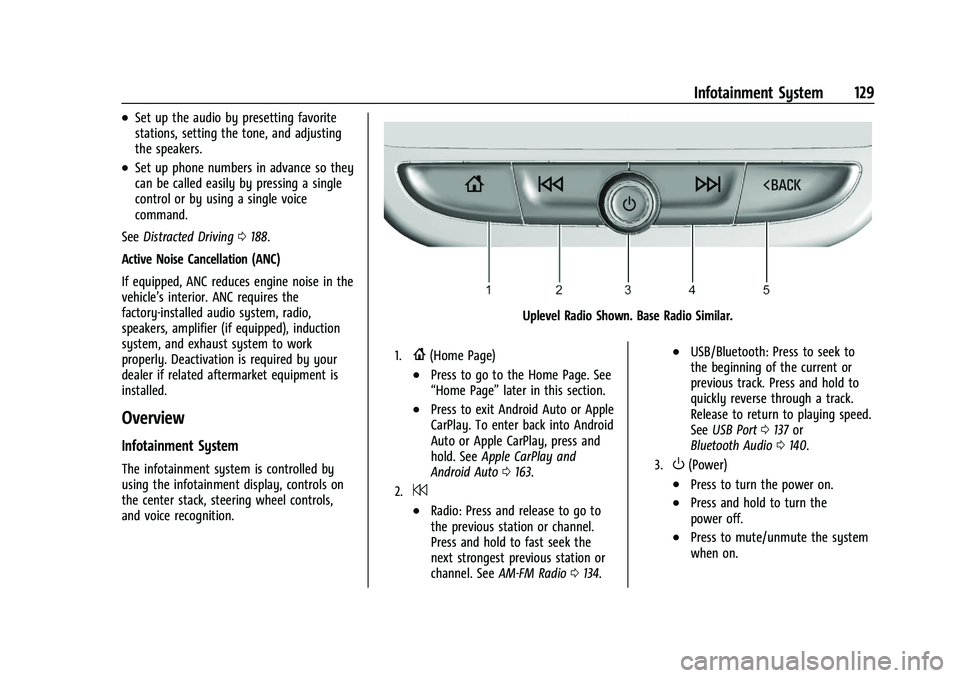
Uplevel Radio Shown. Base Radio Similar.
1.{(Home Page)
.Press to go to the Home Page. See
“Home Page” later in this section.
.Press to exit Android Auto or Apple
CarPlay. To enter back into Android
Auto or Apple CarPlay, press and
hold. SeeApple CarPlay and
Android Auto 0163.
2.7
.Radio: Press and release to go to
the previous station or channel.
Press and hold to fast seek the
next strongest previous station or
channel. See AM-FM Radio 0134.
.USB/Bluetooth: Press to seek to
the beginning of the current or
previous track. Press and hold to
quickly reverse through a track.
Release to return to playing speed.
See USB Port 0137 or
Bluetooth Audio 0140.
3.O(Power)
.Press to turn the power on.
.Press and hold to turn the
power off.
.Press to mute/unmute the system
when on.
Page 151 of 380
Chevrolet Blazer Owner Manual (GMNA-Localizing-U.S./Canada/Mexico-
14608203) - 2021 - CRC - 10/29/20
150 Infotainment System
Accessing Favorites
In the Nav application, view the Favorites
list by touching
Hin the search bar along
the top of the Nav map view. If the search
bar is closed, touch
}and selectH.
Saving Favorites
Favorites can be added from a number of
the system’s applications. Touch the
favorites icon to save content as a favorite.
Renaming Navigation Favorites 1. Touch the Settings icon on the Home Page and touch the System tab.
2. Touch Favorites to access the Manage Favorites option.
3. Touch a saved Navigation favorite to access the edit icon. Touch the edit icon
to rename the favorite.
4. Touch Save to store the renamed favorite.
Recents
TouchHto access a list of recent
destinations. Recenter Position Icon
Touch the Recenter Position arrow in the
middle of the map view to reset the map to
the current location.
Last Parked Location
The Last Parked Location is the last location
the vehicle engine was turned off. That
location is displayed in the first row of the
Recents list. Touching the last Parked
Location shows the Address Details view to
either save the address or drive to it. The
Last Parked Location can be deleted by
entering the Edit display. Once the Last
Parked Location is deleted, it no longer
appears in the Recents list, unless the
vehicle is started at that location again.
Show POI Icons
To see the POI categories, touch Options,
then touch Show on Map. Up to eight
categories of icons can be selected.
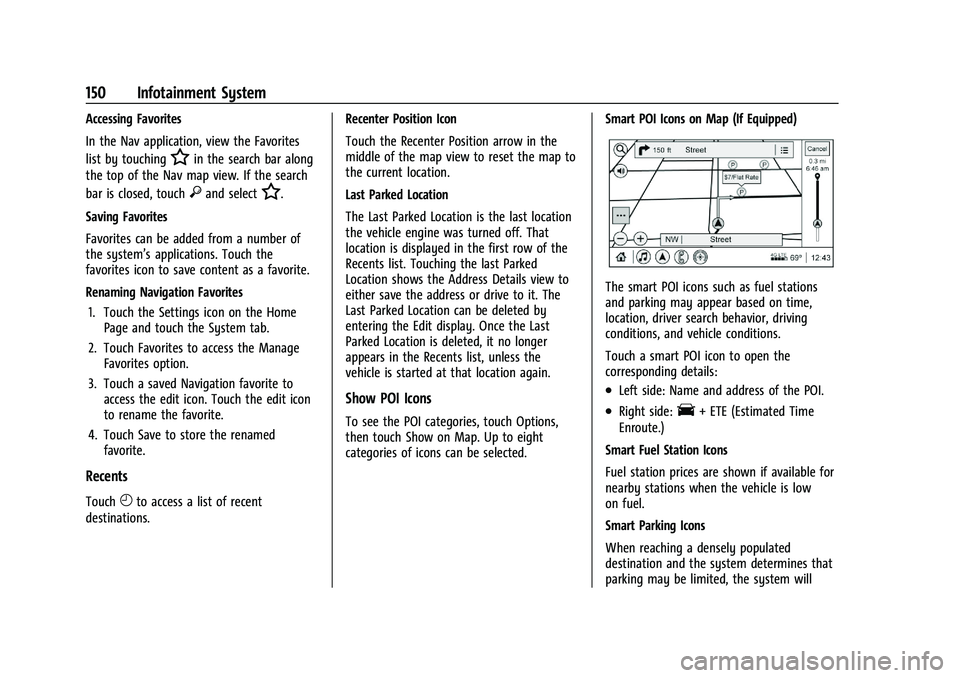
Smart POI Icons on Map (If Equipped)
The smart POI icons such as fuel stations
and parking may appear based on time,
location, driver search behavior, driving
conditions, and vehicle conditions.
Touch a smart POI icon to open the
corresponding details:
.Left side: Name and address of the POI.
.Right side:E+ ETE (Estimated Time
Enroute.)
Smart Fuel Station Icons
Fuel station prices are shown if available for
nearby stations when the vehicle is low
on fuel.
Smart Parking Icons
When reaching a densely populated
destination and the system determines that
parking may be limited, the system will
Page 170 of 380
Chevrolet Blazer Owner Manual (GMNA-Localizing-U.S./Canada/Mexico-
14608203) - 2021 - CRC - 10/29/20
Infotainment System 169
.Adaptive Volume: This feature adjusts the
volume based on the vehicle speed.
Touch Off, Low, Medium-Low, Medium,
Medium-High, or High.
.Bose AudioPilot Noise Compensation
Technology: If equipped, this feature
adjusts the volume based on the noise in
the vehicle and the speed.
Touch Off or On.
.Manage Favorites: Touch to display a list
of Audio, Mobile Devices, and Navigation
favorites.
Favorites can be moved, renamed,
or deleted.
To move, touch and hold the favorite, and
then drag up or down to rearrange the
position.
.Set Number of Audio Favorites: Touch to
select how many favorites pages can be
viewed from the audio application. The
Auto setting will automatically adjust this
number based on the number of favorites
you have saved. Touch Auto, 5, 10, 15, 20,
25, 30, 35, or 40.
.RDS: If equipped, this allows the Radio
Data System (RDS) to be turned on or off.
Touch the controls on the infotainment
display to disable or enable.
.HD Radio: This allows HD Radio reception
to be turned on or off.
Touch the controls on the infotainment
display to disable or enable.
.Explicit Content Filter: This setting allows
access to explicit content SiriusXM
channels.
Touch Off or On.
.Manage Phones: Select to connect to a
different phone source, disconnect a
phone, or delete a phone.
.Reset Music Index: This allows the music
index to be reset if you are having
difficulty accessing all of the media
content on your device.
Touch Yes or No.
Climate
Touch and the following may display:
.Auto Fan Speed: This setting specifies the
amount of airflow when the climate
control fan setting is Auto Fan.
Touch Low, Medium, or High.
.Air Quality Sensor: This setting switches
the system into Recirculation Mode based
on the quality of the outside air.
Touch Off, Low Sensitivity, or High
Sensitivity.
.Auto Cooled Seats: This setting
automatically turns on and regulates the
ventilated seats when the cabin
temperature is warm.
Touch the controls on the infotainment
display to disable or enable.
.Auto Heated Seats: This setting
automatically turns on and regulates the
heated seats when the cabin temperature
is cool. The auto heated seats can be
turned off by using the heated seat
controls on the center stack.
Touch the controls on the infotainment
display to disable or enable.
.Auto Defog: This setting automatically
turns the front defogger on when the
vehicle engine is started.
Touch the controls on the infotainment
display to disable or enable.
.Auto Rear Defog: This setting
automatically turns the rear window
defogger on when the vehicle engine is
started.
Touch the controls on the infotainment
display to disable or enable.
Navigation
Touch and the following may display:
Page 172 of 380
Chevrolet Blazer Owner Manual (GMNA-Localizing-U.S./Canada/Mexico-
14608203) - 2021 - CRC - 10/29/20
Infotainment System 171
Delete Profile
Touch to remove the profile from the
vehicle.
Touch Remove or Cancel.
Teen Driver
If equipped, this allows multiple keys to be
registered for beginner drivers to encourage
safe driving habits. When the vehicle is
started with a Teen Driver key, it will
automatically activate certain safety
systems, allow setting of some features, and
limit the use of others. The Report Card will
record vehicle data about driving behavior
that can be viewed later. When the vehicle
is started with a registered key, the Driver
Information Center (DIC) displays a message
that Teen Driver is active.
To access:1. Touch Settings on the Home Page, then touch Vehicle, and then Teen Driver.
2. Create a Personal Identification Number (PIN) by choosing a four-digit PIN.
Re-enter the PIN to confirm. To change
the PIN, touch Change PIN.
The PIN is required to:
.Register or unregister keys.
.Change Teen Driver settings.
.Change or clear the Teen Driver PIN.
.Access or delete Report Card data.
Register keys to activate Teen Driver and
assign restrictions to the key:
Any vehicle key can be registered, up to a
maximum of eight keys. Label the key to
tell it apart from the other keys.
For a pushbutton start system: 1. Start the engine.
2. For automatic transmissions, the vehicle must be in P (Park). For manual
transmissions, the vehicle must be
stopped with the parking brake set.
3. From the Settings menu, touch Vehicle and then Teen Driver.
4. Enter the PIN.
5. Place the Remote Keyless Entry (RKE) transmitter key you wish to register in
the transmitter pocket. The key does not
need to be the one that started the
vehicle. See Remote Keyless Entry (RKE)
System Operation 07for transmitter
pocket location. 6. From the Teen Driver menu, touch
Setup Keys..If the transmitter key has not
previously been registered, the option
to add the key displays. Touch Setup
and a confirmation message displays.
Teen Driver restrictions will be
applied whenever this key is used to
operate the vehicle.
.If the transmitter key has already
been registered, the option to
remove the key displays. If Remove is
touched, the transmitter key is no
longer registered. A confirmation
message displays, and Teen Driver
restrictions will not be applied if this
transmitter key is used to operate
the vehicle.
In vehicles with a pushbutton start system,
if a Teen Driver and a non-Teen Driver key
are both present at start up, the vehicle will
recognize the non-Teen Driver key to start
the vehicle. The Teen Driver settings will not
be active.
For a keyed ignition system: 1. Start the engine.
Page 175 of 380
Chevrolet Blazer Owner Manual (GMNA-Localizing-U.S./Canada/Mexico-
14608203) - 2021 - CRC - 10/29/20
174 Infotainment System
"Made for iPod," and "Made for iPhone,"
mean that an electronic accessory has been
designed to connect specifically to iPod or
iPhone, respectively, and has been certified
by the developer to meet Apple
performance standards. Apple is not
responsible for the operation of this device
or its compliance with safety and regulatory
standards. Please note that the use of this
accessory with iPod or iPhone may affect
wireless performance. iPhone, iPod, iPod
classic, iPod nano, iPod shuffle, and iPod
touch are trademarks of Apple Inc.,
registered in the U.S. and other countries.
If you decide to continue service after your
trial, your selected subscription plan will
automatically renew thereafter. You will be
charged at then-current rates. Fees and taxes
apply. Please see the SiriusXM Customer
Agreement at siriusxm.com for complete
terms and how to cancel, which includes
calling SiriusXM at 1-866-635-2349. All fees
and programming are subject to change.
Fees and Taxes: Subscription fee, taxes, one
time activation fee, and other fees may
apply. Subscription fee is consumer only. All
fees and programming subject to change.
Subscriptions subject to Customer
Agreement available at www.siriusxm.com.
SiriusXM service is only available in the
48 contiguous United States and Canada.
In Canada: Some deterioration of service
may occur in extreme northern latitudes.
This is beyond the control of SiriusXM
Satellite Radio.
Explicit Language Notice: Channels with
frequent explicit language are indicated with
an“XL” preceding the channel name.
Channel blocking is available for SiriusXM
Satellite Radio receivers by notifying
SiriusXM:
.USA Customers —See www.siriusxm.com
or call 1-888-601–6296.
.Canada Customers —See
www.siriusxm.ca or call 1-877-438-9677.
It is prohibited to copy, decompile,
disassemble, reverse engineer, hack,
manipulate, or otherwise make available any
technology or software incorporated in
receivers compatible with the SiriusXM
Satellite Radio System or that support the
SiriusXM website, the Online Service or any
of its content. Furthermore, the AMBER voice
compression software included in this
product is protected by intellectual property
rights including patent rights, copyrights,
and trade secrets of Digital Voice
Systems, Inc.
General Requirements: 1. A License Agreement from SiriusXM is required for any product that
incorporates SiriusXM Technology and/or
for use of any of the SiriusXM marks to
be manufactured, distributed,
or marketed in the SiriusXM
Service Area.
2. For products to be distributed, marketed, and/or sold in Canada, a separate
agreement is required with Canadian
Satellite Radio Inc. (operating as SiriusXM
Canada).
Page 178 of 380
Chevrolet Blazer Owner Manual (GMNA-Localizing-U.S./Canada/Mexico-
14608203) - 2021 - CRC - 10/29/20
Infotainment System 177
LICENSE IS GRANTED OR SHALL BE IMPLIED
FOR ANY OTHER USE. ADDITIONAL
INFORMATION MAY BE OBTAINED FROM
MPEG LA, LLC. SEE
HTTP://WWW.MPEGLA.COM.
VC-1
THIS PRODUCT IS LICENSED UNDER THE VC-1
PATENT PORTFOLIO LICENSE FOR THE
PERSONAL AND NON-COMMERCIAL USE OF A
CONSUMER TO (i) ENCODE VIDEO IN
COMPLIANCE WITH THE VC-1 STANDARD
(“VC-1 VIDEO”) AND/OR (ii) DECODE VC-1
VIDEO THAT WAS ENCODED BY A
CONSUMER ENGAGED IN A PERSONAL AND
NON-COMMERCIAL ACTIVITY AND/OR WAS
OBTAINED FROM A VIDEO PROVIDER
LICENSED TO PROVIDE VC-1 VIDEO. NO
LICENSE IS GRANTED OR SHALL BE IMPLIED
FOR ANY OTHER USE. ADDITIONAL
INFORMATION MAY BE OBTAINED FROM
MPEG LA, LLC. SEE
HTTP://WWW.MPEGLA.COM.
MPEG4–Visual
USE OF THIS PRODUCT IN ANY MANNER
THAT COMPLIES WITH THE MPEG-4 VISUAL
STANDARD IS PROHIBITED, EXCEPT FOR USE
BY A CONSUMER ENGAGING IN PERSONAL
AND NON-COMMERCIAL ACTIVITIES.MP3
MPEG Layer-3 audio coding technology
licensed from Fraunhofer IIS and Thomson.
WMV/WMA
This product includes technology owned by
Microsoft Corporation and under a license
from Microsoft Licensing, GP. Use or
distribution of such technology outside of
this product is prohibited without a license
from Microsoft Corporation and/or Microsoft
Licensing, GP as applicable.
Map End User License Agreement
END USER TERMS
The Map Data SD card (“Data”) is provided
for your personal, internal use only and not
for resale. It is protected by copyright, and
is subject to the following terms (this
“End
User License Agreement”) and conditions
which are agreed to by you, on the one
hand, and HERE North America, LLC (“HERE”)
and its licensors (including their licensors
and suppliers) on the other hand.
The Data for areas of Canada includes
information taken with permission from
Canadian authorities, including: © Her Majesty the Queen in Right of Canada, ©
Queen's Printer for Ontario, © Canada Post
Corporation, GeoBase
®.
HERE holds a nonexclusive license from the
United States Postal Service
®to publish and
sell ZIP+4®information.
© United States Postal Service 2013. Prices
are not established, controlled, or approved
by the United States Postal Service. The
following trademarks and registrations are
owned by the USPS: United States Postal
Service, USPS, and ZIP+4.
TERMS AND CONDITIONS
Personal Use Only: You agree to use this
Data for the solely personal, noncommercial
purposes for which you were licensed, and
not for service bureau, timesharing or other
similar purposes. Except as otherwise set
forth herein, you agree not to otherwise
reproduce, copy, modify, decompile,
disassemble or reverse engineer any portion
of this Data, and may not transfer or
distribute it in any form, for any purpose,
except to the extent permitted by
mandatory laws. You may transfer the Data
and all accompanying materials on a
permanent basis if you retain no copies and
the recipient agrees to the terms of this End
User License Agreement. Multi-disc sets may
Page 181 of 380
Chevrolet Blazer Owner Manual (GMNA-Localizing-U.S./Canada/Mexico-
14608203) - 2021 - CRC - 10/29/20
180 Infotainment System
Free Type Project
Portions of this software are copyright ©
2010 The FreeType Project
(http://www.freetype.org). All rights
reserved.
Open Source SW
Further information concerning the OSS
licenses is shown in the infotainment
display.
QNX
Portions of this software are copyright ©
2008-2011, QNX Software Systems. All rights
reserved.
Part C–EULA
Copyright © 2011, Software Systems GmbH
& Co. KG. All Rights Reserved.
The product you have purchased ("Product")
contains Software (Runtime Configuration
No. 505962; "Software") which is distributed
by or on behalf of the Product manufacturer
"Manufacturer") under license from Software
Systems Co. ("QSSC"). You may only use the
Software in the Product and in compliance
with the license terms below. Subject to the terms and conditions of this
License, QSSC hereby grants you a limited,
non-exclusive, non-transferable license to use
the Software in the Product for the purpose
intended by the Manufacturer. If permitted
by the Manufacturer, or by applicable law,
you may make one backup copy of the
Software as part of the Product software.
QSSC and its licensors reserve all license+C31
rights not expressly granted herein, and
retain all right, title and interest in and to
all copies of the Software, including all
intellectual property rights therein. Unless
required by applicable law you may not
reproduce, distribute or transfer,
or de-compile, disassemble or otherwise
attempt to unbundle, reverse engineer,
modify or create derivative works of, the
Software. You agree: (1) not to remove,
cover or alter any proprietary notices, labels
or marks in or on the Software, and to
ensure that all copies bear any notice
contained on the original; and (2) not to
export the Product or the Software in
contravention of applicable export
control laws.
EXCEPT TO THE EXTENT OTHERWISE
REQUIRED BY APPLICABLE LAW, QSSC AND
ITS LICENSORS PROVIDE THE SOFTWARE ON
AN "AS IS" BASIS, WITHOUT WARRANTIES ORCONDITIONS OF ANY KIND, EITHER EXPRESS
OR IMPLIED INCLUDING, WITHOUT
LIMITATION, ANY WARRANTIES OR
CONDITIONS OF TITLE, NON-INFRINGEMENT,
MERCHANTABILITY OR FITNESS FOR A
PARTICULAR PURPOSE. ANY WARRANTIES OR
OTHER PROVISIONS OFFERED BY THE
MANUFACTURER OR ITS DISTRIBUTOR(S)
THAT DIFFER FROM THIS LICENSE ARE
OFFERED BY THE MANUFACTURER OR ITS
DISTRIBUTOR(S) ALONE AND NOT BY QSSC,
ITS AFFILIATES OR THEIR LICENSORS. YOU
ASSUME ANY RISKS ASSOCIATED WITH YOUR
USE OF THE SOFTWARE UNDER THIS LICENSE.
EXCEPT TO THE EXTENT OTHERWISE
REQUIRED BY APPLICABLE LAW (SUCH AS IN
THE CASE OF DELIBERATE OR GROSSLY
NEGLIGENT ACTS), IN NO EVENT SHALL QSSC,
ITS AFFILIATES OR THEIR LICENSORS BE
LIABLE TO YOU UNDER ANY LEGAL THEORY,
WHETHER IN TORT (INCLUDING NEGLIGENCE),
CONTRACT OR OTHERWISE, FOR DAMAGES,
INCLUDING ANY DIRECT, INDIRECT, SPECIAL,
INCIDENTAL, OR CONSEQUENTIAL DAMAGES
OF ANY CHARACTER ARISING AS A RESULT OF
THIS LICENSE OR OUT OF THE USE OR
INABILITY TO USE THE PRODUCT (INCLUDING
BUT NOT LIMITED TO DAMAGES FOR LOSS
OF GOODWILL, WORK STOPPAGE, PRODUCT
FAILURE OR MALFUNCTION, OR ANY AND ALL