light CHEVROLET BLAZER 2021 Workshop Manual
[x] Cancel search | Manufacturer: CHEVROLET, Model Year: 2021, Model line: BLAZER, Model: CHEVROLET BLAZER 2021Pages: 380, PDF Size: 9.1 MB
Page 124 of 380
Chevrolet Blazer Owner Manual (GMNA-Localizing-U.S./Canada/Mexico-
14608203) - 2021 - CRC - 10/29/20
Lighting 123
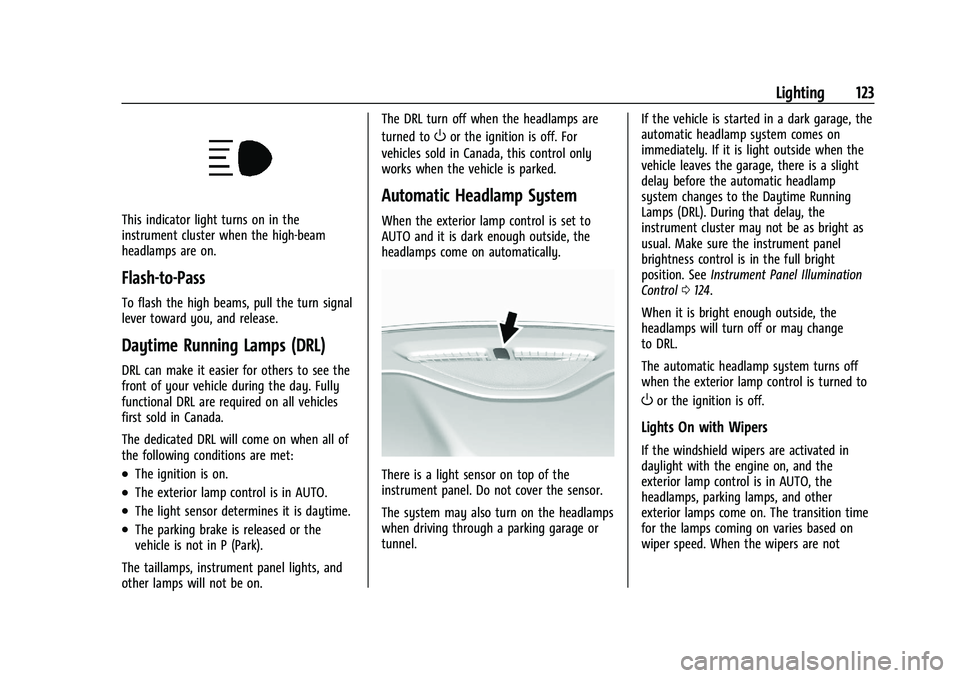
This indicator light turns on in the
instrument cluster when the high-beam
headlamps are on.
Flash-to-Pass
To flash the high beams, pull the turn signal
lever toward you, and release.
Daytime Running Lamps (DRL)
DRL can make it easier for others to see the
front of your vehicle during the day. Fully
functional DRL are required on all vehicles
first sold in Canada.
The dedicated DRL will come on when all of
the following conditions are met:
.The ignition is on.
.The exterior lamp control is in AUTO.
.The light sensor determines it is daytime.
.The parking brake is released or the
vehicle is not in P (Park).
The taillamps, instrument panel lights, and
other lamps will not be on. The DRL turn off when the headlamps are
turned to
Oor the ignition is off. For
vehicles sold in Canada, this control only
works when the vehicle is parked.
Automatic Headlamp System
When the exterior lamp control is set to
AUTO and it is dark enough outside, the
headlamps come on automatically.
There is a light sensor on top of the
instrument panel. Do not cover the sensor.
The system may also turn on the headlamps
when driving through a parking garage or
tunnel. If the vehicle is started in a dark garage, the
automatic headlamp system comes on
immediately. If it is light outside when the
vehicle leaves the garage, there is a slight
delay before the automatic headlamp
system changes to the Daytime Running
Lamps (DRL). During that delay, the
instrument cluster may not be as bright as
usual. Make sure the instrument panel
brightness control is in the full bright
position. See
Instrument Panel Illumination
Control 0124.
When it is bright enough outside, the
headlamps will turn off or may change
to DRL.
The automatic headlamp system turns off
when the exterior lamp control is turned to
Oor the ignition is off.
Lights On with Wipers
If the windshield wipers are activated in
daylight with the engine on, and the
exterior lamp control is in AUTO, the
headlamps, parking lamps, and other
exterior lamps come on. The transition time
for the lamps coming on varies based on
wiper speed. When the wipers are not
Page 125 of 380
Chevrolet Blazer Owner Manual (GMNA-Localizing-U.S./Canada/Mexico-
14608203) - 2021 - CRC - 10/29/20
124 Lighting
operating, these lamps turn off. Move the
exterior lamp control to
Oor;to disable
this feature.
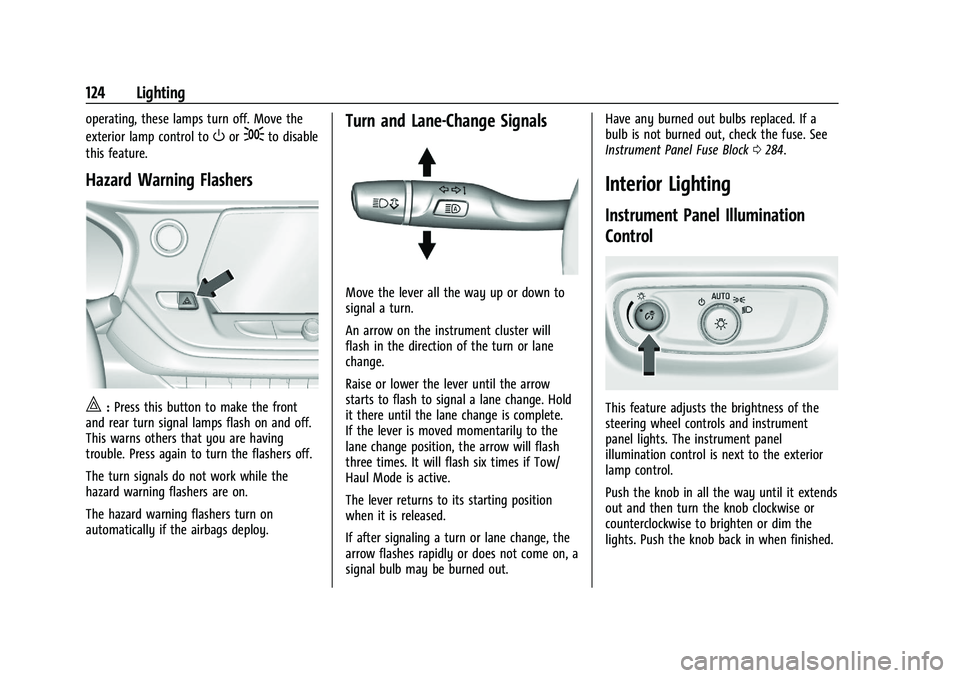
Hazard Warning Flashers
|: Press this button to make the front
and rear turn signal lamps flash on and off.
This warns others that you are having
trouble. Press again to turn the flashers off.
The turn signals do not work while the
hazard warning flashers are on.
The hazard warning flashers turn on
automatically if the airbags deploy.
Turn and Lane-Change Signals
Move the lever all the way up or down to
signal a turn.
An arrow on the instrument cluster will
flash in the direction of the turn or lane
change.
Raise or lower the lever until the arrow
starts to flash to signal a lane change. Hold
it there until the lane change is complete.
If the lever is moved momentarily to the
lane change position, the arrow will flash
three times. It will flash six times if Tow/
Haul Mode is active.
The lever returns to its starting position
when it is released.
If after signaling a turn or lane change, the
arrow flashes rapidly or does not come on, a
signal bulb may be burned out. Have any burned out bulbs replaced. If a
bulb is not burned out, check the fuse. See
Instrument Panel Fuse Block
0284.
Interior Lighting
Instrument Panel Illumination
Control
This feature adjusts the brightness of the
steering wheel controls and instrument
panel lights. The instrument panel
illumination control is next to the exterior
lamp control.
Push the knob in all the way until it extends
out and then turn the knob clockwise or
counterclockwise to brighten or dim the
lights. Push the knob back in when finished.
Page 126 of 380
Chevrolet Blazer Owner Manual (GMNA-Localizing-U.S./Canada/Mexico-
14608203) - 2021 - CRC - 10/29/20
Lighting 125
Courtesy Lamps
The courtesy lamps come on when any door
is opened,
Kon the RKE transmitter is
pressed, or when the ignition is switched
off. See Dome Lamps 0125.
Dome Lamps
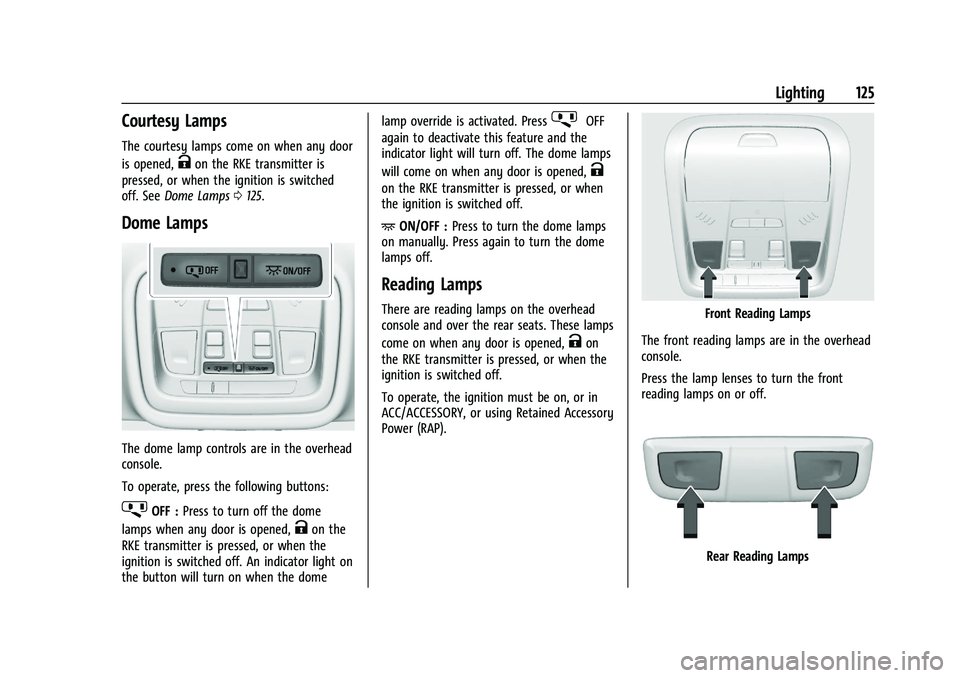
The dome lamp controls are in the overhead
console.
To operate, press the following buttons:
jOFF : Press to turn off the dome
lamps when any door is opened,
Kon the
RKE transmitter is pressed, or when the
ignition is switched off. An indicator light on
the button will turn on when the dome lamp override is activated. Press
jOFF
again to deactivate this feature and the
indicator light will turn off. The dome lamps
will come on when any door is opened,
K
on the RKE transmitter is pressed, or when
the ignition is switched off.
+ ON/OFF : Press to turn the dome lamps
on manually. Press again to turn the dome
lamps off.
Reading Lamps
There are reading lamps on the overhead
console and over the rear seats. These lamps
come on when any door is opened,
Kon
the RKE transmitter is pressed, or when the
ignition is switched off.
To operate, the ignition must be on, or in
ACC/ACCESSORY, or using Retained Accessory
Power (RAP).
Front Reading Lamps
The front reading lamps are in the overhead
console.
Press the lamp lenses to turn the front
reading lamps on or off.
Rear Reading Lamps
Page 127 of 380
Chevrolet Blazer Owner Manual (GMNA-Localizing-U.S./Canada/Mexico-
14608203) - 2021 - CRC - 10/29/20
126 Lighting
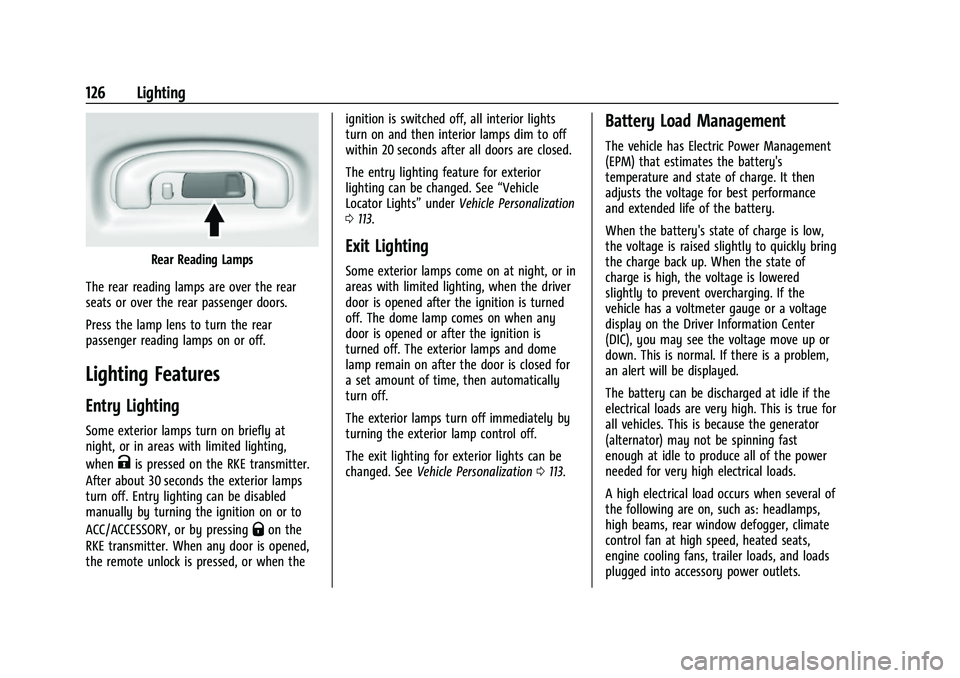
Rear Reading Lamps
The rear reading lamps are over the rear
seats or over the rear passenger doors.
Press the lamp lens to turn the rear
passenger reading lamps on or off.
Lighting Features
Entry Lighting
Some exterior lamps turn on briefly at
night, or in areas with limited lighting,
when
Kis pressed on the RKE transmitter.
After about 30 seconds the exterior lamps
turn off. Entry lighting can be disabled
manually by turning the ignition on or to
ACC/ACCESSORY, or by pressing
Qon the
RKE transmitter. When any door is opened,
the remote unlock is pressed, or when the ignition is switched off, all interior lights
turn on and then interior lamps dim to off
within 20 seconds after all doors are closed.
The entry lighting feature for exterior
lighting can be changed. See
“Vehicle
Locator Lights” underVehicle Personalization
0 113.
Exit Lighting
Some exterior lamps come on at night, or in
areas with limited lighting, when the driver
door is opened after the ignition is turned
off. The dome lamp comes on when any
door is opened or after the ignition is
turned off. The exterior lamps and dome
lamp remain on after the door is closed for
a set amount of time, then automatically
turn off.
The exterior lamps turn off immediately by
turning the exterior lamp control off.
The exit lighting for exterior lights can be
changed. See Vehicle Personalization 0113.
Battery Load Management
The vehicle has Electric Power Management
(EPM) that estimates the battery's
temperature and state of charge. It then
adjusts the voltage for best performance
and extended life of the battery.
When the battery's state of charge is low,
the voltage is raised slightly to quickly bring
the charge back up. When the state of
charge is high, the voltage is lowered
slightly to prevent overcharging. If the
vehicle has a voltmeter gauge or a voltage
display on the Driver Information Center
(DIC), you may see the voltage move up or
down. This is normal. If there is a problem,
an alert will be displayed.
The battery can be discharged at idle if the
electrical loads are very high. This is true for
all vehicles. This is because the generator
(alternator) may not be spinning fast
enough at idle to produce all of the power
needed for very high electrical loads.
A high electrical load occurs when several of
the following are on, such as: headlamps,
high beams, rear window defogger, climate
control fan at high speed, heated seats,
engine cooling fans, trailer loads, and loads
plugged into accessory power outlets.
Page 128 of 380
Chevrolet Blazer Owner Manual (GMNA-Localizing-U.S./Canada/Mexico-
14608203) - 2021 - CRC - 10/29/20
Lighting 127
EPM works to prevent excessive discharge of
the battery. It does this by balancing the
generator's output and the vehicle's
electrical needs. It can increase engine idle
speed to generate more power whenever
needed. It can temporarily reduce the power
demands of some accessories.
Normally, these actions occur in steps or
levels, without being noticeable. In rare
cases at the highest levels of corrective
action, this action may be noticeable to the
driver. If so, a DIC battery voltage and
charging message displays. It is
recommended that the driver reduce the
electrical loads as much as possible. See
Driver Information Center (DIC) (Base and
Midlevel)0107 or
Driver Information Center (DIC) (Uplevel)
0 110.
Battery Power Protection
This feature shuts off the interior lamps if
they are left on for more than 10 minutes
when the ignition is off. This will keep the
battery from draining.
Exterior Lighting Battery Saver
The exterior lamps turn off about 10 minutes
after the ignition is turned off, if the parking
lamps or headlamps have been manually
left on. This protects against draining the
battery. To restart the 10-minute timer, turn
the exterior lamp control to the off position
and then back to the parking lamp or
headlamp position.
To keep the lamps on for more than
10 minutes, the ignition must be on or in
ACC/ACCESSORY.
Page 133 of 380
Chevrolet Blazer Owner Manual (GMNA-Localizing-U.S./Canada/Mexico-
14608203) - 2021 - CRC - 10/29/20
132 Infotainment System
Apps
If equipped, in-vehicle apps are available for
download. Touch the Apps icon on the
Home Page to begin.
Downloading and using in-vehicle apps
requires Internet connectivity which can be
accessed with a data plan through the
vehicle’s built-in 4G LTE Wi-Fi hotspot,
if equipped, or a compatible mobile device
hotspot. On most mobile devices, activation
of the Wi-Fi hotspot is in the device’s
Settings menu under Mobile Network
Sharing, Personal Hotspot, Mobile Hotspot,
or similar.
Availability of apps and connectivity varies
by vehicle, conditions, and location. Data
plan rates apply. Features are subject to
change. For more information, see
www.my.chevrolet.com/learn.
OnStar Services
If equipped, touch the OnStar Services icon
to display the OnStar Services and Account
pages. SeeOnStar Overview 0360 and
OnStar System 0141.
Camera
If equipped, touch the Camera icon to access
the camera application. See Assistance
Systems for Parking or Backing 0227.
Shortcut Tray
The shortcut tray is near the bottom of the
display. It shows up to four applications.
Infotainment Display Features
Infotainment display features show on the
display when available. When a feature is
unavailable, it may gray out. When a
feature is touched, it may highlight.
Haptic Feedback
If equipped, haptic feedback is a pulse that
occurs when an icon or option is touched on
the display or when controls on the center
stack are pressed.
Infotainment Gestures
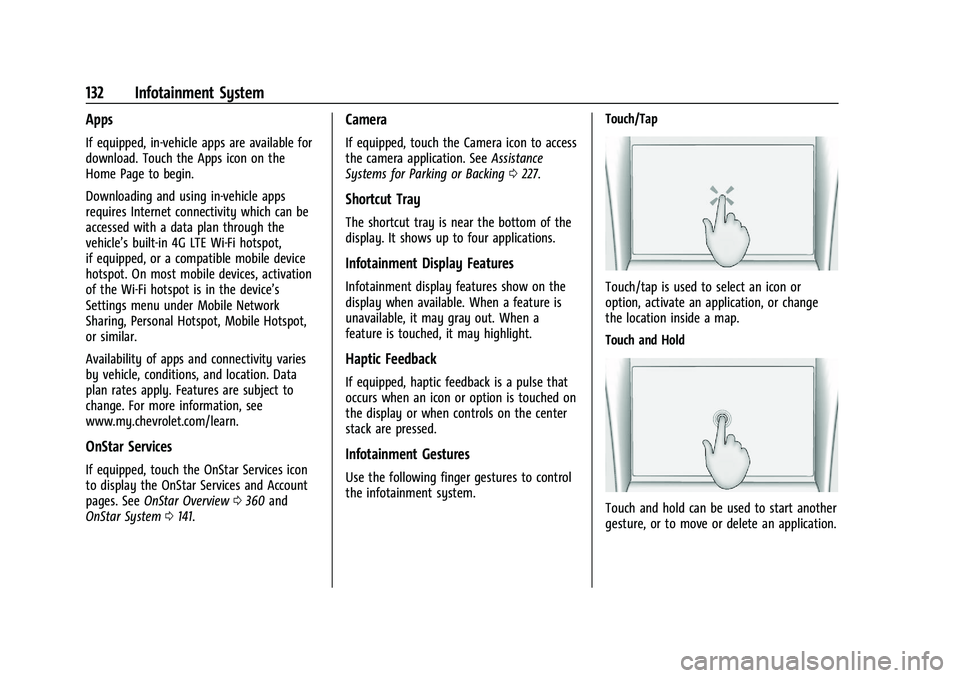
Use the following finger gestures to control
the infotainment system. Touch/Tap
Touch/tap is used to select an icon or
option, activate an application, or change
the location inside a map.
Touch and Hold
Touch and hold can be used to start another
gesture, or to move or delete an application.
Page 136 of 380
Chevrolet Blazer Owner Manual (GMNA-Localizing-U.S./Canada/Mexico-
14608203) - 2021 - CRC - 10/29/20
Infotainment System 135
Direct Tune display. Directly enter a station
or channel using the keypad. When a new
station or channel is entered, the
information about that station or channel
displays on the right side. This information
will update with each new valid frequency.
Touch
Hto save the station or channel as
a favorite.
The keypad will gray out entries that do not
contribute to a valid frequency and will
automatically place a decimal point within
the frequency number.
Touch (X) to delete one number at a time.
Touch and hold (X) to delete all numbers.
A valid AM or FM station will automatically
tune to the new frequency but not close the
Direct Tune display. When listening to SXM
(if equipped), touch Go after entering the
channel. Touch the Back icon on the
infotainment display or touch
zto exit out
of Direct Tune.
The tune arrows on the right side of the
Direct Tune display will tune through the
complete station or channel list one station
step at a time per touch. A touch and hold
advances through stations or channels
quickly. If equipped, HD Radio multicast stations
cannot be tuned directly through the Direct
Tune feature. Only the analog or
HD1 station can use that feature. Use the
display arrows to adjust to the multicast
stations.
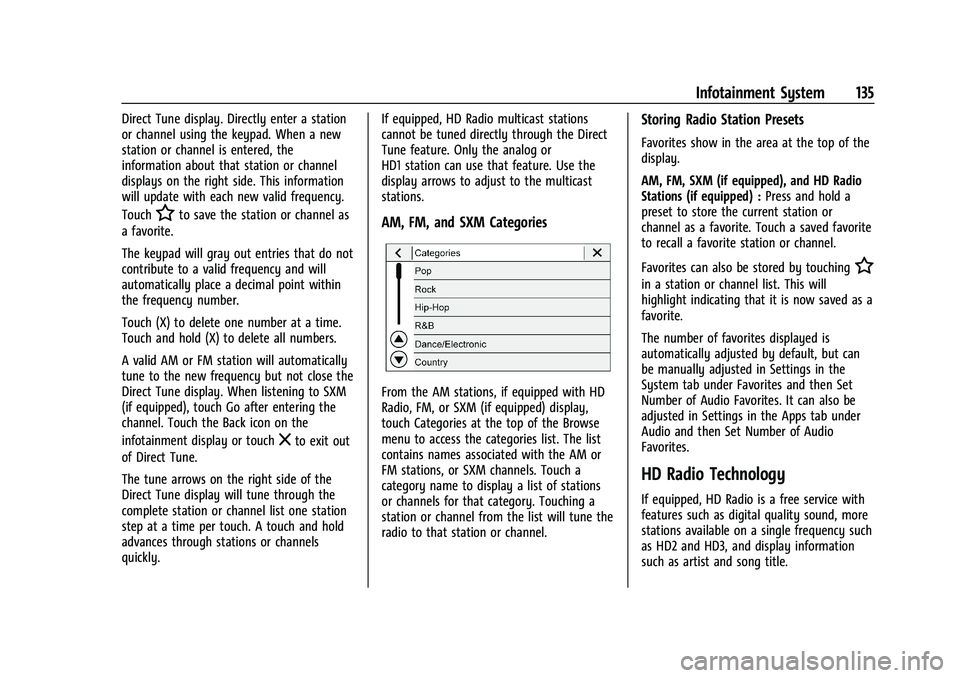
AM, FM, and SXM Categories
From the AM stations, if equipped with HD
Radio, FM, or SXM (if equipped) display,
touch Categories at the top of the Browse
menu to access the categories list. The list
contains names associated with the AM or
FM stations, or SXM channels. Touch a
category name to display a list of stations
or channels for that category. Touching a
station or channel from the list will tune the
radio to that station or channel.
Storing Radio Station Presets
Favorites show in the area at the top of the
display.
AM, FM, SXM (if equipped), and HD Radio
Stations (if equipped) :
Press and hold a
preset to store the current station or
channel as a favorite. Touch a saved favorite
to recall a favorite station or channel.
Favorites can also be stored by touching
H
in a station or channel list. This will
highlight indicating that it is now saved as a
favorite.
The number of favorites displayed is
automatically adjusted by default, but can
be manually adjusted in Settings in the
System tab under Favorites and then Set
Number of Audio Favorites. It can also be
adjusted in Settings in the Apps tab under
Audio and then Set Number of Audio
Favorites.
HD Radio Technology
If equipped, HD Radio is a free service with
features such as digital quality sound, more
stations available on a single frequency such
as HD2 and HD3, and display information
such as artist and song title.
Page 144 of 380
Chevrolet Blazer Owner Manual (GMNA-Localizing-U.S./Canada/Mexico-
14608203) - 2021 - CRC - 10/29/20
Infotainment System 143
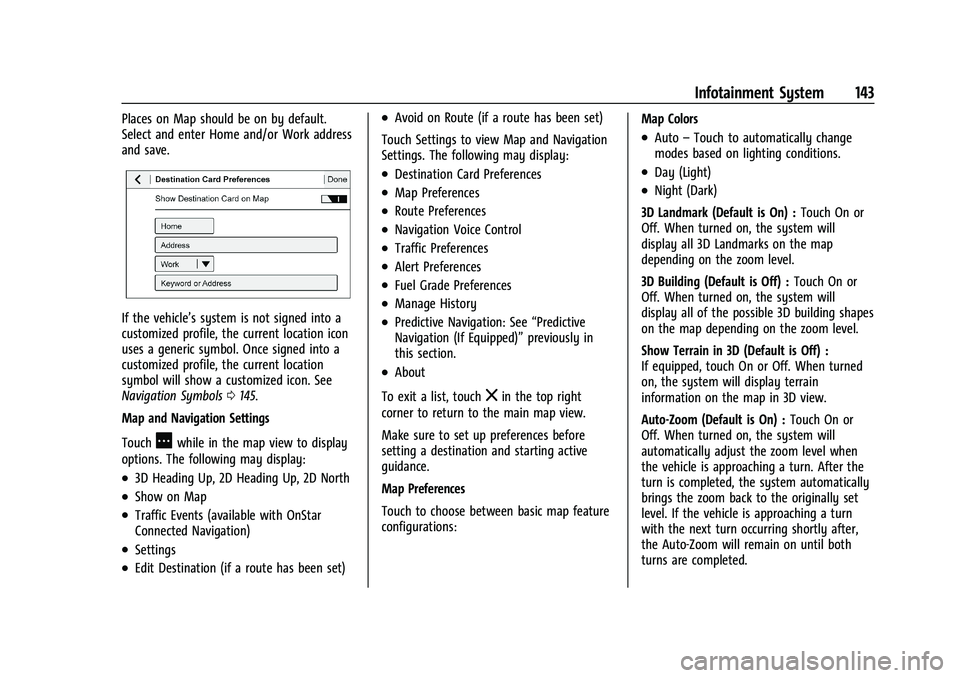
Places on Map should be on by default.
Select and enter Home and/or Work address
and save.
If the vehicle’s system is not signed into a
customized profile, the current location icon
uses a generic symbol. Once signed into a
customized profile, the current location
symbol will show a customized icon. See
Navigation Symbols0145.
Map and Navigation Settings
Touch
Awhile in the map view to display
options. The following may display:
.3D Heading Up, 2D Heading Up, 2D North
.Show on Map
.Traffic Events (available with OnStar
Connected Navigation)
.Settings
.Edit Destination (if a route has been set)
.Avoid on Route (if a route has been set)
Touch Settings to view Map and Navigation
Settings. The following may display:
.Destination Card Preferences
.Map Preferences
.Route Preferences
.Navigation Voice Control
.Traffic Preferences
.Alert Preferences
.Fuel Grade Preferences
.Manage History
.Predictive Navigation: See “Predictive
Navigation (If Equipped)” previously in
this section.
.About
To exit a list, touch
zin the top right
corner to return to the main map view.
Make sure to set up preferences before
setting a destination and starting active
guidance.
Map Preferences
Touch to choose between basic map feature
configurations: Map Colors
.Auto
–Touch to automatically change
modes based on lighting conditions.
.Day (Light)
.Night (Dark)
3D Landmark (Default is On) : Touch On or
Off. When turned on, the system will
display all 3D Landmarks on the map
depending on the zoom level.
3D Building (Default is Off) : Touch On or
Off. When turned on, the system will
display all of the possible 3D building shapes
on the map depending on the zoom level.
Show Terrain in 3D (Default is Off) :
If equipped, touch On or Off. When turned
on, the system will display terrain
information on the map in 3D view.
Auto-Zoom (Default is On) : Touch On or
Off. When turned on, the system will
automatically adjust the zoom level when
the vehicle is approaching a turn. After the
turn is completed, the system automatically
brings the zoom back to the originally set
level. If the vehicle is approaching a turn
with the next turn occurring shortly after,
the Auto-Zoom will remain on until both
turns are completed.
Page 147 of 380
Chevrolet Blazer Owner Manual (GMNA-Localizing-U.S./Canada/Mexico-
14608203) - 2021 - CRC - 10/29/20
146 Infotainment System
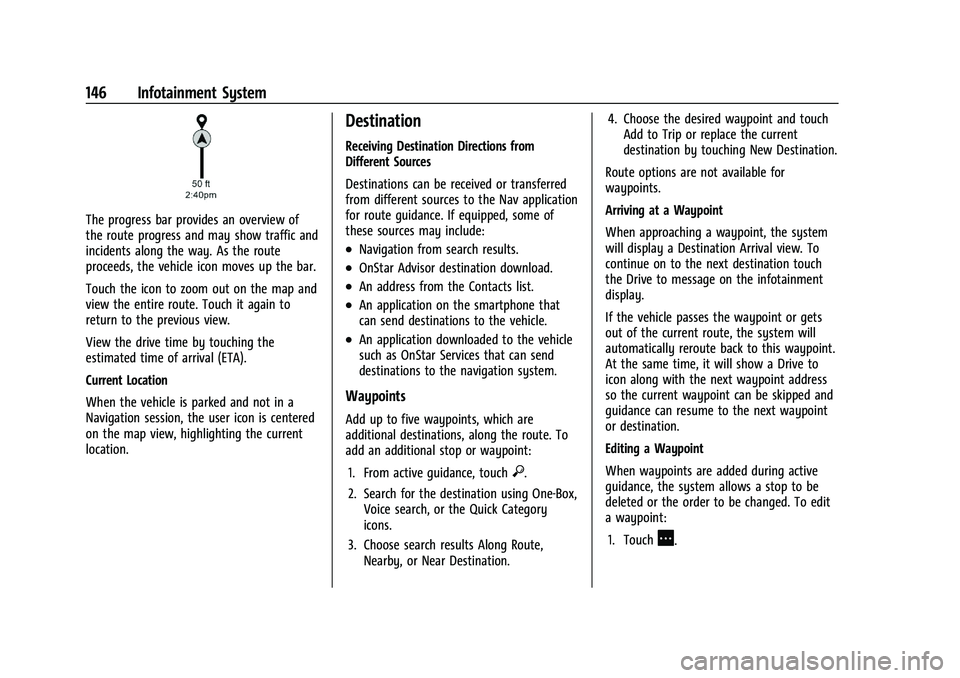
The progress bar provides an overview of
the route progress and may show traffic and
incidents along the way. As the route
proceeds, the vehicle icon moves up the bar.
Touch the icon to zoom out on the map and
view the entire route. Touch it again to
return to the previous view.
View the drive time by touching the
estimated time of arrival (ETA).
Current Location
When the vehicle is parked and not in a
Navigation session, the user icon is centered
on the map view, highlighting the current
location.
Destination
Receiving Destination Directions from
Different Sources
Destinations can be received or transferred
from different sources to the Nav application
for route guidance. If equipped, some of
these sources may include:
.Navigation from search results.
.OnStar Advisor destination download.
.An address from the Contacts list.
.An application on the smartphone that
can send destinations to the vehicle.
.An application downloaded to the vehicle
such as OnStar Services that can send
destinations to the navigation system.
Waypoints
Add up to five waypoints, which are
additional destinations, along the route. To
add an additional stop or waypoint:1. From active guidance, touch
}.
2. Search for the destination using One-Box, Voice search, or the Quick Category
icons.
3. Choose search results Along Route, Nearby, or Near Destination. 4. Choose the desired waypoint and touch
Add to Trip or replace the current
destination by touching New Destination.
Route options are not available for
waypoints.
Arriving at a Waypoint
When approaching a waypoint, the system
will display a Destination Arrival view. To
continue on to the next destination touch
the Drive to message on the infotainment
display.
If the vehicle passes the waypoint or gets
out of the current route, the system will
automatically reroute back to this waypoint.
At the same time, it will show a Drive to
icon along with the next waypoint address
so the current waypoint can be skipped and
guidance can resume to the next waypoint
or destination.
Editing a Waypoint
When waypoints are added during active
guidance, the system allows a stop to be
deleted or the order to be changed. To edit
a waypoint:
1. Touch
A.
Page 148 of 380
Chevrolet Blazer Owner Manual (GMNA-Localizing-U.S./Canada/Mexico-
14608203) - 2021 - CRC - 10/29/20
Infotainment System 147
2. Touch Edit Destinations.
.Modify destination order by touching
and holding the arrow until it is
highlighted. Drag to move the
waypoint up or down the list.
.Delete a waypoint by touchingY.
A pop-up will appear to confirm
waypoint removal. Once the request
is confirmed, the system will remove
the address from the destinations list.
Touch
zon the top right corner so
the system can recalculate the route.
If there is only one address in the
destinations list, the system will
disable the move and delete
functions. The system will not allow
the final destination to be deleted.
Map Information
Road network attributes are contained in the
map database for map information.
Attributes include information such as street
names, street addresses, and turn
restrictions. A detailed area includes all
major highways, service roads, and
residential roads. The detailed areas include
Places of Interest (POIs) such as restaurants, airports, banks, hospitals, police stations, gas
stations, tourist attractions, and historical
monuments.
If the vehicle does not have an applicable
service plan, the map database may not
include data for newly constructed areas or
map database corrections that are
completed after production. The navigation
system provides full route guidance in the
detailed map areas.
Zoom Control
The zoom control display is shown on the
map view. A few ways to zoom in or
out are:
.Touch + or
–to zoom in or out on
the map.
.Double tap with one finger to zoom in or
single tap with two fingers to zoom out
on the map.
.Use the index finger and thumb to zoom
out by pinching and then zoom in by
spreading those two fingers on the map.
Map Gestures and Map Scale
Use the following gestures on the
infotainment display to adjust the map scale
and display options.
.Pinch to zoom in or out.
.Pan the map.
.Use two fingers to tilt down and change
from 2D to 3D. Tilt up to change back
to 2D.
.Rotate the map.
See Using the System 0131.
Mute
When in active guidance, the audio prompts
while using navigation can be muted. Touch
the speaker icon on the right side of the
upper bar. A slash will appear on the
speaker to indicate voice guidance is muted.
Active Guidance View
When a destination is chosen and a
navigation session is active, the navigation
system enters into an Active Guidance
View (AGV).
Map Orientation
Touch
Aon the map to access map
orientation settings. Map orientation is 3D
Heading Up by default.
Available settings are:
.3D Heading Up (Default): 3D map with
the vehicle pointing up. In this mode, the
current location icon will always head up
and the map will rotate around it.