scr CHEVROLET BLAZER 2021 Owner's Manual
[x] Cancel search | Manufacturer: CHEVROLET, Model Year: 2021, Model line: BLAZER, Model: CHEVROLET BLAZER 2021Pages: 380, PDF Size: 9.1 MB
Page 2 of 380
Chevrolet Blazer Owner Manual (GMNA-Localizing-U.S./Canada/Mexico-
14608203) - 2021 - CRC - 4/14/21
Contents
Introduction . . . . . . . . . . . . . . . . . . . . . . . . . . . . . . 1
Keys, Doors, and Windows . . . . . . . . . . . . . . . 6
Seats and Restraints . . . . . . . . . . . . . . . . . . . . . 33
Storage . . . . . . . . . . . . . . . . . . . . . . . . . . . . . . . . . . 76
Instruments and Controls . . . . . . . . . . . . . . . 82
Lighting . . . . . . . . . . . . . . . . . . . . . . . . . . . . . . . . . 121
Infotainment System . . . . . . . . . . . . . . . . . . . 128
Climate Controls . . . . . . . . . . . . . . . . . . . . . . . . 182
Driving and Operating . . . . . . . . . . . . . . . . . . 187
Vehicle Care . . . . . . . . . . . . . . . . . . . . . . . . . . . . 253
Service and Maintenance . . . . . . . . . . . . . . . 331
Technical Data . . . . . . . . . . . . . . . . . . . . . . . . . 344
Customer Information . . . . . . . . . . . . . . . . . . 349
Reporting Safety Defects . . . . . . . . . . . . . . . 357
OnStar . . . . . . . . . . . . . . . . . . . . . . . . . . . . . . . . . 360
Connected Services . . . . . . . . . . . . . . . . . . . . . 365
Index . . . . . . . . . . . . . . . . . . . . . . . . . . 368
Introduction
The names, logos, emblems, slogans, vehicle
model names, and vehicle body designs
appearing in this manual including, but not
limited to, GM, the GM logo, CHEVROLET,
the CHEVROLET Emblem, and BLAZER are
trademarks and/or service marks of General
Motors LLC, its subsidiaries, affiliates,
or licensors.
For vehicles first sold in Canada, substitute
the name“General Motors of Canada
Company” for Chevrolet Motor Division
wherever it appears in this manual.
This manual describes features that may or
may not be on the vehicle because of
optional equipment that was not purchased
on the vehicle, model variants, country
specifications, features/applications that may not be available in your region, or changes
subsequent to the printing of this owner’s
manual.
Refer to the purchase documentation
relating to your specific vehicle to confirm
the features.
Keep this manual in the vehicle for quick
reference.Canadian Vehicle Owners
A French language manual can be obtained
from your dealer, at www.helminc.com,
or from:
Propriétaires Canadiens
On peut obtenir un exemplaire de ce guide
en français auprès du concessionnaire ou à
l'adresse suivante:
Helm, Incorporated
Attention: Customer Service
47911 Halyard Drive
Plymouth, MI 48170
USA
Litho in U.S.A.
Part No. 84580873 C Third Printing©2021 General Motors LLC. All Rights Reserved.
Page 3 of 380
Chevrolet Blazer Owner Manual (GMNA-Localizing-U.S./Canada/Mexico-
14608203) - 2021 - CRC - 10/29/20
2 Introduction
Using this Manual
To quickly locate information about the
vehicle, use the Index in the back of the
manual. It is an alphabetical list of what is
in the manual and the page number where
it can be found.
Danger, Warning, and Caution
Warning messages found on vehicle labels
and in this manual describe hazards and
what to do to avoid or reduce them.
{Danger
Danger indicates a hazard with a high
level of risk which will result in serious
injury or death.
{Warning
Warning indicates a hazard that could
result in injury or death.
Caution
Caution indicates a hazard that could
result in property or vehicle damage.
A circle with a slash through it is a safety
symbol which means“Do not,” “Do not do
this,” or“Do not let this happen.”
Symbols
The vehicle has components and labels that
use symbols instead of text. Symbols are
shown along with the text describing the
operation or information relating to a
specific component, control, message, gauge,
or indicator.
M:Shown when the owner’s manual has
additional instructions or information.
*: Shown when the service manual has
additional instructions or information.
0: Shown when there is more information
on another page — “see page.” Vehicle Symbol Chart
Here are some additional symbols that may
be found on the vehicle and what they
mean. See the features in this manual for
information.
u:
Air Conditioning System
G:Air Conditioning Refrigerant Oil
9:Airbag Readiness Light
!:Antilock Brake System (ABS)
$:Brake System Warning Light
9:Dispose of Used Components Properly
P:Do Not Apply High Pressure Water
B:Engine Coolant Temperature
_:Flame/Fire Prohibited
H: Flammable
[:Forward Collision Alert
R:Fuse Block Cover Lock Location
+:Fuses
j:ISOFIX/LATCH System Child Restraints
Page 28 of 380
Chevrolet Blazer Owner Manual (GMNA-Localizing-U.S./Canada/Mexico-
14608203) - 2021 - CRC - 10/29/20
Keys, Doors, and Windows 27
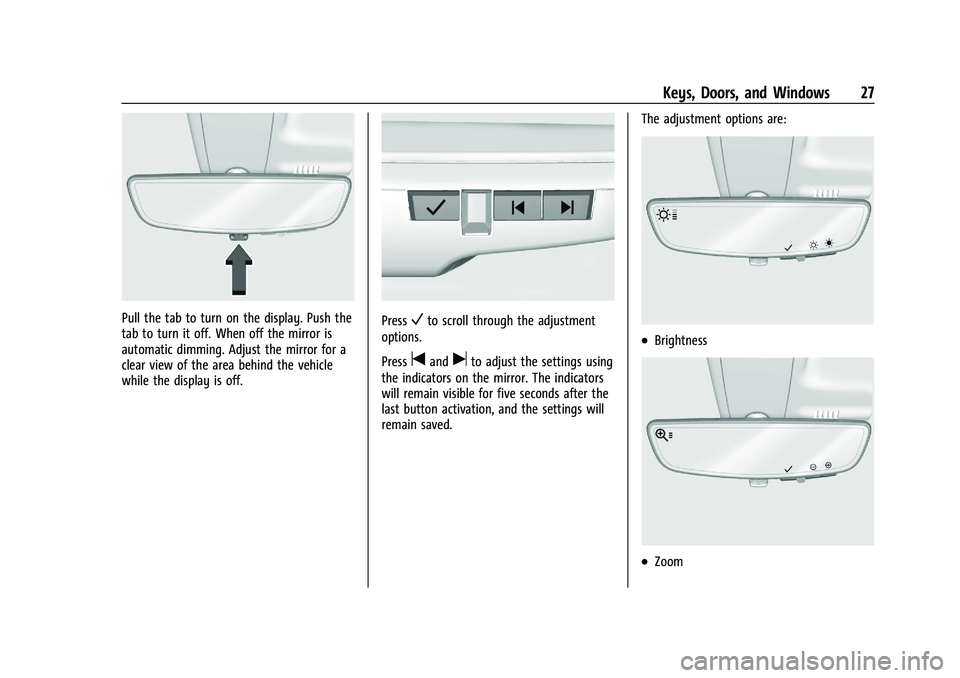
Pull the tab to turn on the display. Push the
tab to turn it off. When off the mirror is
automatic dimming. Adjust the mirror for a
clear view of the area behind the vehicle
while the display is off.PressVto scroll through the adjustment
options.
Press
tanduto adjust the settings using
the indicators on the mirror. The indicators
will remain visible for five seconds after the
last button activation, and the settings will
remain saved. The adjustment options are:
.Brightness
.Zoom
Page 29 of 380
Chevrolet Blazer Owner Manual (GMNA-Localizing-U.S./Canada/Mexico-
14608203) - 2021 - CRC - 10/29/20
28 Keys, Doors, and Windows
.Tilt
{Warning
The Rear Camera Mirror (RCM) has a
limited view. Portions of the road,
vehicles, and other objects may not be
seen. Do not drive or park the vehicle
using only this camera. Objects may
appear closer than they are. Check the
outside mirrors or glance over your
shoulder when making lane changes or
merging. Failure to use proper care may
result in injury, death, or vehicle damage.
Troubleshooting
See your dealer for service if a blue screen
and
3are displayed in the mirror, and
the display shuts off. Also, push the tab as
indicated to return to the automatic
dimming mode.
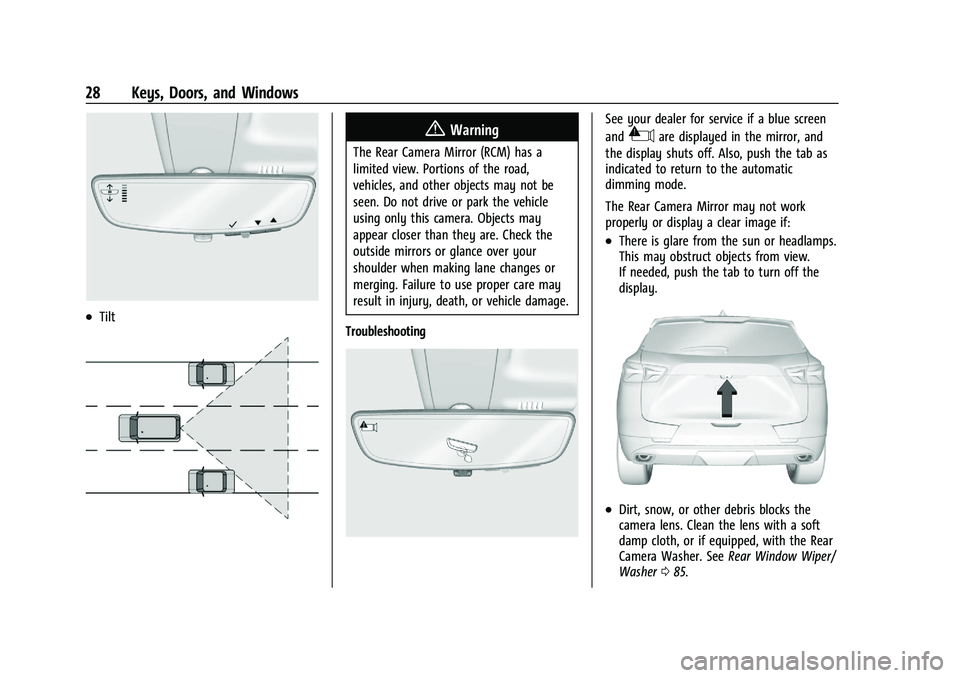
The Rear Camera Mirror may not work
properly or display a clear image if:
.There is glare from the sun or headlamps.
This may obstruct objects from view.
If needed, push the tab to turn off the
display.
.Dirt, snow, or other debris blocks the
camera lens. Clean the lens with a soft
damp cloth, or if equipped, with the Rear
Camera Washer. See Rear Window Wiper/
Washer 085.
Page 45 of 380
Chevrolet Blazer Owner Manual (GMNA-Localizing-U.S./Canada/Mexico-
14608203) - 2021 - CRC - 10/29/20
44 Seats and Restraints
Heated Rear Seats
{Warning
If temperature change or pain to the skin
cannot be felt, the seat heater may cause
burns. See the Warning underHeated
and Ventilated Front Seats 040.
If equipped, the buttons are on the rear
doors.
With the engine running, press
LorMto
heat the left or right outboard seat cushion.
An indicator light on the button will turn on
when the heated seat is on. Press the
button again to turn this feature off. The
indicator will turn off.
Seat Belts
This section describes how to use seat belts
properly, and some things not to do.
{Warning
Do not let anyone ride where a seat belt
cannot be worn properly. In a crash,
if you or your passenger(s) are not
wearing seat belts, injuries can be much
worse than if you are wearing seat belts.
You can be seriously injured or killed by
hitting things inside the vehicle harder or
by being ejected from the vehicle. In
addition, anyone who is not buckled up
can strike other passengers in the vehicle.
It is extremely dangerous to ride in a
cargo area, inside or outside of a vehicle.
In a collision, passengers riding in these
areas are more likely to be seriously
injured or killed. Do not allow passengers
to ride in any area of the vehicle that is
not equipped with seats and seat belts.
Always wear a seat belt, and check that
all passenger(s) are restrained
properly too. This vehicle has indicators as a reminder to
buckle the seat belts. See
Seat Belt
Reminders 098.
Why Seat Belts Work
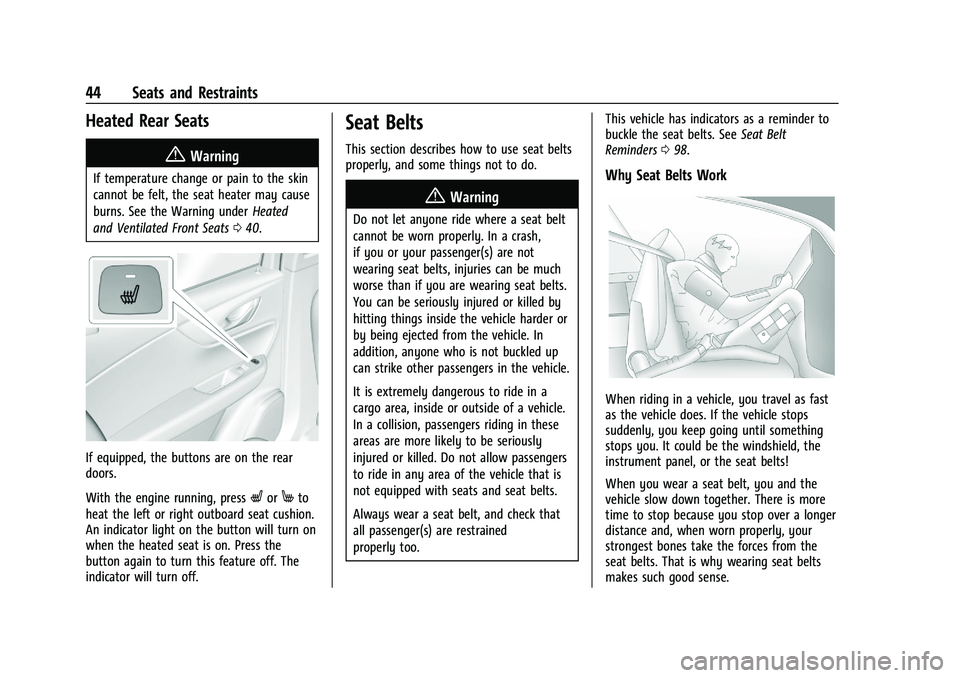
When riding in a vehicle, you travel as fast
as the vehicle does. If the vehicle stops
suddenly, you keep going until something
stops you. It could be the windshield, the
instrument panel, or the seat belts!
When you wear a seat belt, you and the
vehicle slow down together. There is more
time to stop because you stop over a longer
distance and, when worn properly, your
strongest bones take the forces from the
seat belts. That is why wearing seat belts
makes such good sense.
Page 91 of 380
Chevrolet Blazer Owner Manual (GMNA-Localizing-U.S./Canada/Mexico-
14608203) - 2021 - CRC - 10/29/20
90 Instruments and Controls
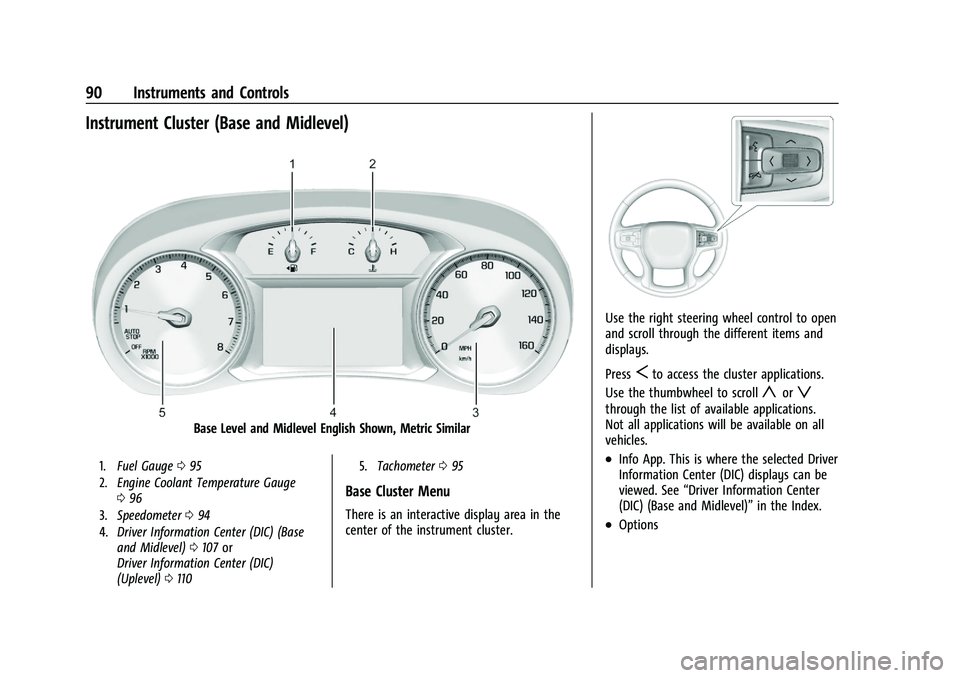
Instrument Cluster (Base and Midlevel)
Base Level and Midlevel English Shown, Metric Similar
1.Fuel Gauge 095
2. Engine Coolant Temperature Gauge
096
3. Speedometer 094
4. Driver Information Center (DIC) (Base
and Midlevel) 0107 or
Driver Information Center (DIC)
(Uplevel) 0110 5.
Tachometer 095
Base Cluster Menu
There is an interactive display area in the
center of the instrument cluster.
Use the right steering wheel control to open
and scroll through the different items and
displays.
Press
Sto access the cluster applications.
Use the thumbwheel to scroll
yorz
through the list of available applications.
Not all applications will be available on all
vehicles.
.Info App. This is where the selected Driver
Information Center (DIC) displays can be
viewed. See “Driver Information Center
(DIC) (Base and Midlevel)” in the Index.
.Options
Page 92 of 380
Chevrolet Blazer Owner Manual (GMNA-Localizing-U.S./Canada/Mexico-
14608203) - 2021 - CRC - 10/29/20
Instruments and Controls 91
Options
Press the thumbwheel to select the Options
app, then press
Tto enter the Options
menu. Use
yorzto scroll through items
in the Options menu.
Units : Press
Twhile Units is displayed to
enter the Units menu. Choose English or
Metric units by pressing the thumbwheel
while the desired item is highlighted.
Info Pages : Press
Twhile Info Pages is
displayed to enter the Info Pages menu and
select the items to be displayed in the
Info app.
Speed Warning : The Speed Warning display
allows you to set a speed not to be
exceeded. To set, press
Twhen Speed
Warning is displayed.
Scroll
yorzto adjust the value. Press
the thumbwheel to set the speed.
Once the speed is set, this feature can be
turned off by pressing the thumbwheel
while viewing this page. If the selected
speed limit is exceeded, a pop-up warning is
displayed with a chime.
Midlevel Cluster Menu
There is an interactive display area in the
center of the instrument cluster.
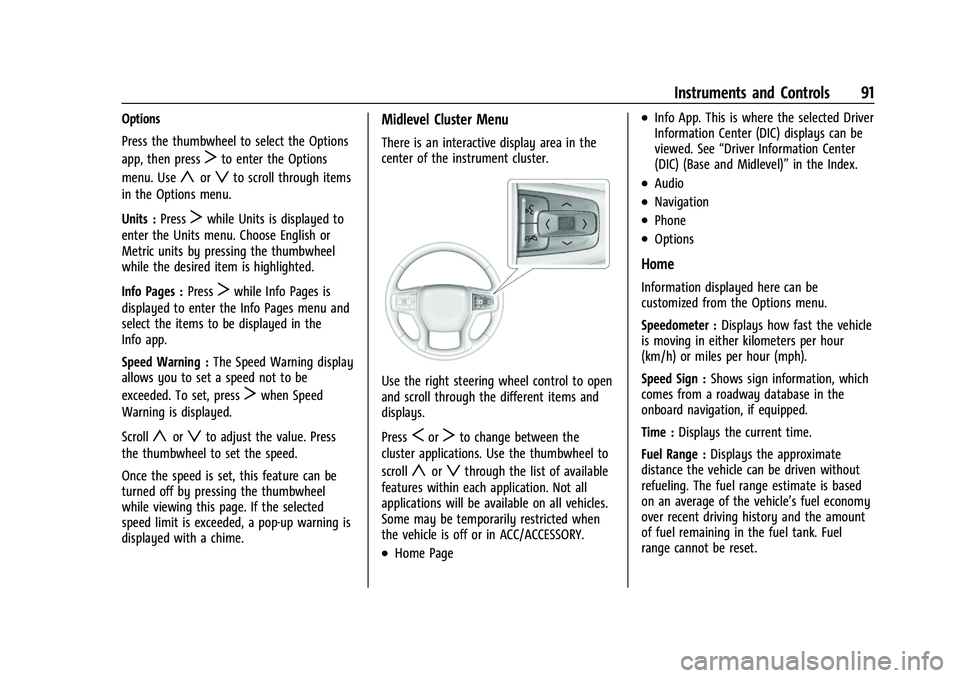
Use the right steering wheel control to open
and scroll through the different items and
displays.
Press
SorTto change between the
cluster applications. Use the thumbwheel to
scroll
yorzthrough the list of available
features within each application. Not all
applications will be available on all vehicles.
Some may be temporarily restricted when
the vehicle is off or in ACC/ACCESSORY.
.Home Page
.Info App. This is where the selected Driver
Information Center (DIC) displays can be
viewed. See “Driver Information Center
(DIC) (Base and Midlevel)” in the Index.
.Audio
.Navigation
.Phone
.Options
Home
Information displayed here can be
customized from the Options menu.
Speedometer :Displays how fast the vehicle
is moving in either kilometers per hour
(km/h) or miles per hour (mph).
Speed Sign : Shows sign information, which
comes from a roadway database in the
onboard navigation, if equipped.
Time : Displays the current time.
Fuel Range : Displays the approximate
distance the vehicle can be driven without
refueling. The fuel range estimate is based
on an average of the vehicle’s fuel economy
over recent driving history and the amount
of fuel remaining in the fuel tank. Fuel
range cannot be reset.
Page 93 of 380
Chevrolet Blazer Owner Manual (GMNA-Localizing-U.S./Canada/Mexico-
14608203) - 2021 - CRC - 10/29/20
92 Instruments and Controls
Audio
Use the thumbwheel to scrollyorz
through options, browse for music, select
from favorites, or change the audio source.
In the main view, scroll to change the
station or go to the next or previous track.
Navigation
In the Navigation menu, if there is no active
route, press the thumbwheel to access
Recents or Favorites. If there is an active
route, press the thumbwheel to cancel or
resume route guidance, mute or unmute
voice guidance, or access Recents or
Favorites.
Phone
In the Phone menu, if there is no active
phone call, view recent calls, scroll through
contacts, select from the favorites, or change
the phone source. If there is an active call,
mute the phone or switch to handset
operation.
Options
Use the thumbwheel to scrollyorz
through items in the Options menu. Press
the thumbwheel to select the item. Press
S
to exit the item.
Units :Choose US or Metric units. A selected
mark will be displayed next to the
selected item.
Info Page Options : Select the items to be
displayed in the Info app. A selected mark
will be displayed next to the selected item. Home Page Options :
Select the available
elements to display. Not all elements will be
available on all vehicles: Speedometer,
Active Safety, Speed Sign, Time, and Fuel
Range.
Speed Warning : Allows you to set a speed
not to be exceeded. To set, press the
thumbwheel when Speed Warning is
displayed. Use
yorzto adjust the value.
Press the thumbwheel to set the speed.
Once the speed is set, this feature can be
turned off by pressing the thumbwheel
while viewing this page. If the selected
speed limit is exceeded, a pop-up warning is
displayed with a chime.
Software Information : Displays open source
software information.
Page 94 of 380
Chevrolet Blazer Owner Manual (GMNA-Localizing-U.S./Canada/Mexico-
14608203) - 2021 - CRC - 10/29/20
Instruments and Controls 93
Instrument Cluster (Uplevel)
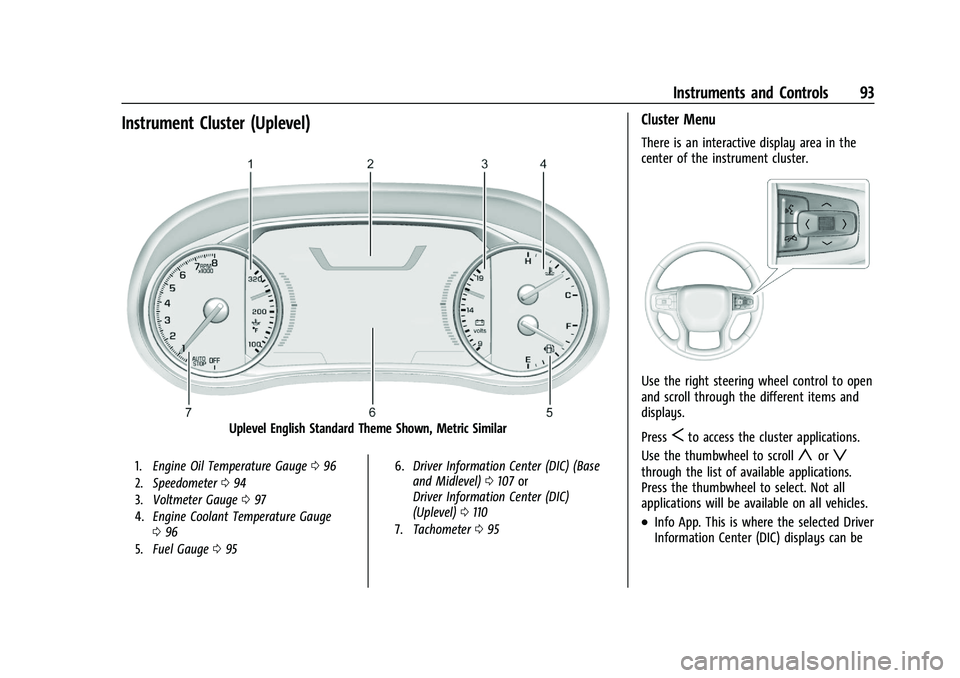
Uplevel English Standard Theme Shown, Metric Similar
1.Engine Oil Temperature Gauge 096
2. Speedometer 094
3. Voltmeter Gauge 097
4. Engine Coolant Temperature Gauge
096
5. Fuel Gauge 095 6.
Driver Information Center (DIC) (Base
and Midlevel) 0107 or
Driver Information Center (DIC)
(Uplevel) 0110
7. Tachometer 095
Cluster Menu
There is an interactive display area in the
center of the instrument cluster.
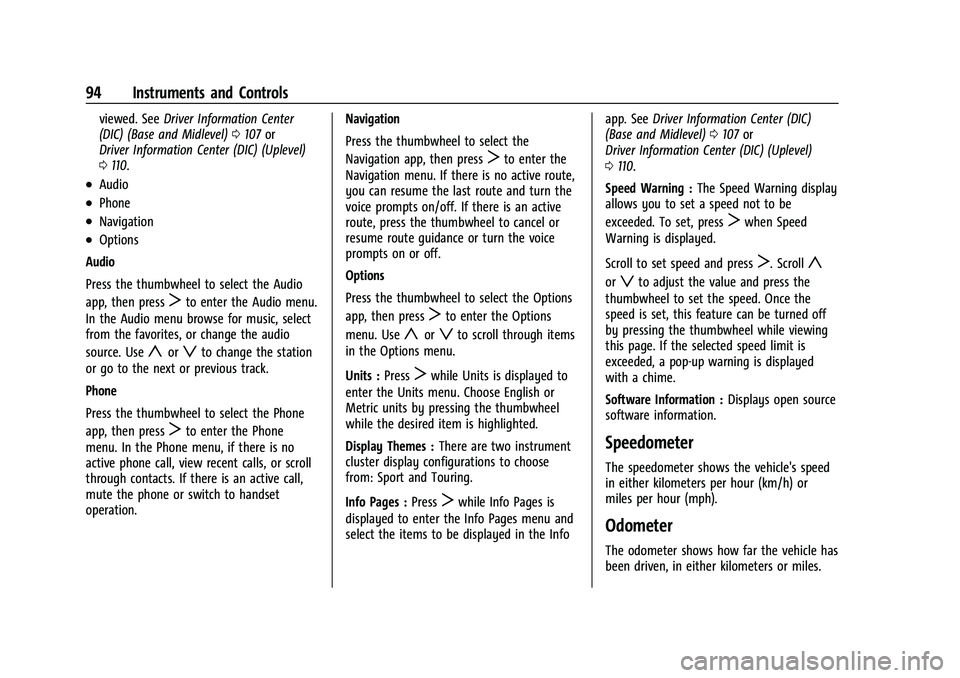
Use the right steering wheel control to open
and scroll through the different items and
displays.
Press
Sto access the cluster applications.
Use the thumbwheel to scroll
yorz
through the list of available applications.
Press the thumbwheel to select. Not all
applications will be available on all vehicles.
.Info App. This is where the selected Driver
Information Center (DIC) displays can be
Page 95 of 380
Chevrolet Blazer Owner Manual (GMNA-Localizing-U.S./Canada/Mexico-
14608203) - 2021 - CRC - 10/29/20
94 Instruments and Controls
viewed. SeeDriver Information Center
(DIC) (Base and Midlevel) 0107 or
Driver Information Center (DIC) (Uplevel)
0 110.
.Audio
.Phone
.Navigation
.Options
Audio
Press the thumbwheel to select the Audio
app, then press
Tto enter the Audio menu.
In the Audio menu browse for music, select
from the favorites, or change the audio
source. Use
yorzto change the station
or go to the next or previous track.
Phone
Press the thumbwheel to select the Phone
app, then press
Tto enter the Phone
menu. In the Phone menu, if there is no
active phone call, view recent calls, or scroll
through contacts. If there is an active call,
mute the phone or switch to handset
operation. Navigation
Press the thumbwheel to select the
Navigation app, then press
Tto enter the
Navigation menu. If there is no active route,
you can resume the last route and turn the
voice prompts on/off. If there is an active
route, press the thumbwheel to cancel or
resume route guidance or turn the voice
prompts on or off.
Options
Press the thumbwheel to select the Options
app, then press
Tto enter the Options
menu. Use
yorzto scroll through items
in the Options menu.
Units : Press
Twhile Units is displayed to
enter the Units menu. Choose English or
Metric units by pressing the thumbwheel
while the desired item is highlighted.
Display Themes : There are two instrument
cluster display configurations to choose
from: Sport and Touring.
Info Pages : Press
Twhile Info Pages is
displayed to enter the Info Pages menu and
select the items to be displayed in the Info app. See
Driver Information Center (DIC)
(Base and Midlevel) 0107 or
Driver Information Center (DIC) (Uplevel)
0 110.
Speed Warning : The Speed Warning display
allows you to set a speed not to be
exceeded. To set, press
Twhen Speed
Warning is displayed.
Scroll to set speed and press
T. Scrolly
orzto adjust the value and press the
thumbwheel to set the speed. Once the
speed is set, this feature can be turned off
by pressing the thumbwheel while viewing
this page. If the selected speed limit is
exceeded, a pop-up warning is displayed
with a chime.
Software Information : Displays open source
software information.
Speedometer
The speedometer shows the vehicle's speed
in either kilometers per hour (km/h) or
miles per hour (mph).
Odometer
The odometer shows how far the vehicle has
been driven, in either kilometers or miles.