radio controls CHEVROLET BLAZER 2022 User Guide
[x] Cancel search | Manufacturer: CHEVROLET, Model Year: 2022, Model line: BLAZER, Model: CHEVROLET BLAZER 2022Pages: 386, PDF Size: 13.37 MB
Page 144 of 386
Chevrolet Blazer Owner Manual (GMNA-Localizing-U.S./Canada/Mexico-
15165663) - 2022 - CRC - 4/27/21
Infotainment System 143
The songs, artists, albums, and genres are
taken from the file’s song information and
are only displayed if present. The radio
displays the file name as the track name if
the song information is not available.
Supported Apple Devices
To view supported devices, see
my.chevrolet.com/learn.
Storing and Recalling Media Favorites
To store media favorites, touch Browse to
display a list of media types.
Touch one of the following Browse options
to save a favorite:
Playlists :Touch
Hnext to any playlist to
store the playlist as a favorite. Touch a
saved favorite to recall a favorite playlist.
The first song in the playlist begins to play.
Artists : Touch
Hnext to any artist to
store the artist as a favorite. Touch a saved
favorite to recall a favorite artist. The first
song in the artist list begins to play.
Songs : Touch
Hnext to any song to store
the song as a favorite. Touch a saved
favorite to recall a favorite song. Albums :
Touch
Hnext to any album to
store the album as a favorite. Touch a saved
favorite to recall a favorite album. The first
song in the album list begins to play.
Genres : Touch
Hnext to any genre to
store the genre as a favorite. Touch a saved
favorite to recall a favorite genre. The first
song of the genre begins to play.
Podcasts : Touch
Hnext to any podcast to
store the podcast as a favorite. Touch a
saved favorite to recall a favorite podcast.
The podcast begins to play.
Audiobooks : Touch
Hnext to any
audiobook to store the audiobook as a
favorite. Touch a saved favorite to recall a
favorite audiobook. The first chapter in the
audiobook begins to play.
Media Playback and Mute
USB playback will be paused if the system is
muted. If the steering wheel mute control is
pressed again, playback will resume.
If the source is changed while in mute,
playback resumes and audio will unmute.
Bluetooth Audio
Music may be played from a paired
Bluetooth device. See Bluetooth (Overview)
0 160 or
Bluetooth (Pairing and Using a Phone) 0161
for help pairing a device.
Volume and song selection may be
controlled by using the infotainment
controls or the mobile device. If Bluetooth is
selected and no volume is present, check the
volume setting on the infotainment system.
Music can be launched by touching
Bluetooth from the recent sources list on
the left of the display or by touching the
More option and then touching the
Bluetooth device.
To play music via Bluetooth:
1. Power on the device, and pair to connect the device.
2. Once paired, touch Audio from the Home Page, then touch Bluetooth from the
recent sources list on the left of the
display.
Bluetooth Sound Menu
See “Infotainment System Sound Menu”
under AM-FM Radio 0137.
Page 157 of 386
Chevrolet Blazer Owner Manual (GMNA-Localizing-U.S./Canada/Mexico-
15165663) - 2022 - CRC - 4/27/21
156 Infotainment System
3. Clearly speak one of the commandsdescribed in this section.
A voice recognition system prompt can
be interrupted while it is playing by
pressing
gagain.
Once voice recognition is started, both the
infotainment display and instrument cluster
show the selections and visual dialog
content. These displays can be turned on or
off in the Tutorial Mode under Settings
0 166.
There are three voice prompt modes
supported:
.Informative verbal prompts: This type of
prompt will provide more information
regarding the supported actions.
.Short prompts: This type of prompt will
provide simple instructions about what
can be stated.
.Auto informative prompts: This type of
prompt plays during the first few speech
sessions, then automatically switches to
the short prompt after some experience
has been gained through using the
system.
If a command is not spoken, the voice
recognition system says a help prompt. Prompts and Infotainment Displays
While a voice recognition session is active,
there may be corresponding options
showing on the displays. A selection can be
made by manually touching the option,
or by speaking the number for the option to
select. Manual interaction in the voice
recognition session is permitted. Interaction
during a voice session may be completed
entirely using voice commands while some
manual commands may expedite a task. If a
selection is made using a manual control,
the voice recognition dialog will progress in
the same way as if the selection were made
using a voice command. Once the system
completes the task, or the session is
terminated, the voice recognition dialog
stops.
An example of this type of manual
intervention is touching an entry of a
displayed number list instead of speaking
the number associated with the entry
desired.
Canceling Voice Recognition
.Touch or say
“Cancel”or“Exit” to
terminate the voice recognition session
and show the display where voice
recognition was initiated.
.Pression the steering wheel controls
to terminate the voice recognition session
and show the display where voice
recognition was initiated.
Natural Language Commands
Most languages do not support natural
language commands in sentence form. For
those languages, use direct commands like
the examples shown on the display.
Helpful Hints for Speaking Commands
Voice recognition can understand commands
that are naturally stated in sentence form or
direct commands that state the application
and the task.
For best results:
.Listen for the prompt before saying a
command or reply.
.Speak the command naturally, not too
fast, not too slow.
.Use direct commands without a lot of
extra words. For example, “Call
at work,” “Play” followed by the artist or
song name, or “Tune”followed by the
radio station number.
Page 161 of 386
Chevrolet Blazer Owner Manual (GMNA-Localizing-U.S./Canada/Mexico-
15165663) - 2022 - CRC - 4/27/21
160 Infotainment System
Voice Recognition for the Phone
“Call
stored contact. The command may include
location if the contact has location numbers
stored.
“Call
Mobile,” or“On Other” :Initiate a call to a
stored contact and location at home, at
work, on mobile device, or on another
phone.
“Call
to a cell phone number of seven digits, 10
digits, or three digit emergency numbers.
“Pair Phone” :Begin the Bluetooth pairing
process. Follow the instructions on the
infotainment display.
“Redial” :Initiate a call to the last dialed
number.
“Switch Phone” :Select a different
connected cell phone for outgoing calls.
“Voice Keypad” :Begin a dialog to enter
special numbers like international numbers.
The numbers can be entered in groups of
digits with each group of digits being
repeated back by the system. If the group
of digits is not correct, the command
“Delete” will remove the last group of digits and allow them to be re-entered. Once the
entire number has been entered, the
command
“Call”will start dialing the
number.
Phone Assistant Voice Recognition
Press and holdgon the steering wheel
controls to pass through and launch Google
phone assistant or Siri.
For the low radio, whether connected by
Bluetooth or phone projection, the only
available voice recognition is either Siri
(iPhone) or the Google Assistant (Android).
Phone
Bluetooth (Overview)
The Bluetooth-capable system can interact
with many mobile devices, allowing:
.Placement and receipt of calls in a
hands-free mode.
.Sharing of the device’s address book or
contact list with the vehicle.
To minimize driver distraction, before
driving, and with the vehicle parked:
.Become familiar with the features of the
mobile device. Organize the phone book
and contact lists clearly and delete duplicate or rarely used entries.
If possible, program speed dial or other
shortcuts.
.Review the controls and operation of the
infotainment system.
.Pair mobile device(s) to the vehicle. The
system may not work with all mobile
devices. See
“Pairing”later in this section.
Vehicles with a Bluetooth system can use a
Bluetooth-capable mobile device with a
Hands-Free Profile to make and receive
phone calls. The infotainment system and
voice recognition are used to control the
system. The system can be used while the
ignition is on or in ACC/ACCESSORY. The
range of the Bluetooth system can be up to
9.1 m (30 ft). Not all mobile devices support
all functions and not all mobile devices work
with the Bluetooth system. See
my.chevrolet.com for more information
about compatible mobile devices.
Controls
Use the controls on the center stack and the
steering wheel to operate the Bluetooth
system.
Page 169 of 386
Chevrolet Blazer Owner Manual (GMNA-Localizing-U.S./Canada/Mexico-
15165663) - 2022 - CRC - 4/27/21
168 Infotainment System
.Calibrate Touchscreen: Touch to calibrate
the infotainment display and follow the
prompts.
.Turn Display Off: Touch to turn the
display off. Touch anywhere on the
infotainment display or press any
infotainment control on the center stack
again to turn the display on.
Sounds
Touch and the following may display:
.Maximum Startup Volume: This feature
adjusts the maximum volume of the
infotainment system when you start your
vehicle. To set the maximum startup
volume, touch the controls on the
infotainment display to increase or
decrease.
.Audio Cues: This feature determines if
sounds play when the infotainment
system starts up and shuts down. This
feature can be turned off or on.
.Set Audio Cue Volume: This setting
controls the volume of Audio Cues played
on startup and shut down. Touch the
controls on the infotainment display to
increase or decrease.
.Audible Touch Feedback: This setting
determines if a sound plays when
touching the infotainment display or
radio controls. This feature can be turned
off or on.
Voice
Touch and the following may display:
.Confirm More/Less: This setting specifies
how often the voice recognition system
confirms commands. Touch Confirm More
to have the system check with you more
often before acting on your commands.
.Prompt Length: This setting specifies the
amount of detail the voice recognition
system provides when giving you
feedback. Touch Auto to have the system
automatically adjust to your speech
habits. Touch Informative, Short, or Auto.
.Audio Feedback Speed: Touch Slow,
Medium, or Fast to adjust how quickly
the voice recognition system speaks.
.Friendly Prompts: This setting adjusts the
formality of voice prompts. Touch Off for
shorter prompts. Touch On to hear
prompts with more personality. Touch
Auto to have the prompt match your
command style.
.Tutorial Mode: Touch Off or On to
provide tutorial feedback on the display.
.Allow Prompt Interruptions: This setting
controls whether voice commands can be
spoken before voice prompts finish. Turn
this on to speak commands without
hearing the full prompt. Speaking while
the prompt is still playing will
immediately stop playing the current
prompt and recognize your command.
Background noise may cause accidental
interruptions. Touch Off or On.
Favorites
Touch and the following may display:
.Manage Favorites: Touch to display a list
of Audio, Phone, and Navigation favorites.
Favorites can be moved, renamed,
or deleted.
To move, touch and hold the favorite, and
then drag up or down to rearrange the
position.
.Set Number of Audio Favorites: Touch to
select how many favorites pages can be
viewed from the audio application. The
Auto setting will automatically adjust this
number based on the number of favorites
you have saved. Touch Auto, 5, 10, 15, 20,
25, 30, 35, or 40.
Page 171 of 386
Chevrolet Blazer Owner Manual (GMNA-Localizing-U.S./Canada/Mexico-
15165663) - 2022 - CRC - 4/27/21
170 Infotainment System
Apps
The menu may contain the following:
Android Auto
This feature allows you to interact directly
with your mobile device on the infotainment
display. SeeApple CarPlay and Android Auto
0 164.
Touch the controls on the infotainment
display to disable or enable.
Apple CarPlay
This feature allows you to interact directly
with your mobile device on the infotainment
display. See Apple CarPlay and Android Auto
0 164.
Touch the controls on the infotainment
display to disable or enable.
Apps
Touch and the following may display:
.Update Apps Automatically: This allows
downloaded applications to be updated
automatically.
Touch the controls on the infotainment
display to disable or enable.
.About Apps: Touch to view the versions
of the shop software. Audio
Depending on the current audio source,
different options will be available.
Touch and the following may display:
.Tone Settings: Touch to adjust Equalizer,
Fade/Balance, or Sound Mode. See
“Infotainment System Sound Menu”
in
AM-FM Radio 0137.
.Adaptive Volume: This feature adjusts the
volume based on the vehicle speed.
Touch Off, Low, Medium-Low, Medium,
Medium-High, or High.
.Bose AudioPilot Noise Compensation
Technology: If equipped, this feature
adjusts the volume based on the noise in
the vehicle and the speed.
Touch Off or On.
.Manage Favorites: Touch to display a list
of Audio, Mobile Devices, and Navigation
favorites.
Favorites can be moved, renamed,
or deleted.
To move, touch and hold the favorite, and
then drag up or down to rearrange the
position.
.Set Number of Audio Favorites: Touch to
select how many favorites pages can be
viewed from the audio application. The
Auto setting will automatically adjust this
number based on the number of favorites
you have saved. Touch Auto, 5, 10, 15, 20,
25, 30, 35, or 40.
.RDS: If equipped, this allows the Radio
Data System (RDS) to be turned on or off.
Touch the controls on the infotainment
display to disable or enable.
.HD Radio: This allows HD Radio reception
to be turned on or off.
Touch the controls on the infotainment
display to disable or enable.
.Explicit Content Filter: This setting allows
access to explicit content SiriusXM
channels.
Touch Off or On.
.Manage Phones: Select to connect to a
different phone source, disconnect a
phone, or delete a phone.
.Reset Music Index: This allows the music
index to be reset if you are having
difficulty accessing all of the media
content on your device.
Touch Yes or No.
Page 190 of 386
Chevrolet Blazer Owner Manual (GMNA-Localizing-U.S./Canada/Mexico-
15165663) - 2022 - CRC - 4/27/21
Climate Controls 189
To turn Auto Defog off or on, see“Climate
and Air Quality” underVehicle
Personalization 0117.
Rear Window Defogger
=:Press to turn the rear window
defogger on or off. An indicator light on the
button comes on to show that the rear
window defogger is on. The rear window
defogger only works when the ignition is
on. The defogger turns off when the ignition
is off or in ACC/ACCESSORY.
The rear window defogger can be set to
automatic operation. See “Climate and Air
Quality” underVehicle Personalization 0117.
When Auto Rear Defog is selected, the rear
window defogger turns on automatically
when the interior temperature is cold and
the outside temperature is about 7 °C (44 °F)
and below. The auto rear defogger turns off
automatically.
If the vehicle is equipped with heated
outside mirrors, they turn on when the rear
window defogger button is on and help to
clear fog or frost from the surface of the
mirror. See Heated Mirrors 026.
Caution
Do not try to clear frost or other material
from the inside of the front windshield
and rear window with a razor blade or
anything else that is sharp. This may
damage the rear window defogger grid
and affect the radio's ability to pick up
stations clearly. The repairs would not be
covered by the vehicle warranty.
LorM:If equipped, pressLorMto
heat the driver or passenger seat. See
Heated and Ventilated Front Seats 041.
{orC:If equipped, press{orCto
ventilate the driver or passenger seat. See
Heated and Ventilated Front Seats 041.
Remote Start Climate Control Operation :
If equipped with remote start, the climate
control system may run when the vehicle is
started remotely. The system will use the
defrost setting if it is cold outside or turn
on using the coldest settings if it is hot
outside. The rear defog may come on during
remote start based on cold ambient
conditions. The rear defog indicator light
does not come on during a remote start. If equipped, the heated seats will turn on if
it is cold outside or the ventilated seats will
turn on if it is hot outside. The heated and
ventilated seat indicator lights may not
come on during a remote start. If equipped,
the heated steering wheel will come on in a
remote start if it is cold outside. The heated
steering wheel indicator light may not come
on. See
Remote Vehicle Start 013 and
Heated and Ventilated Front Seats 041.
Sensor
The solar sensor, on top of the instrument
panel near the windshield, monitors the
solar heat.
The climate control system uses the sensor
information to adjust the temperature, fan
speed, recirculation, and air delivery mode
for best comfort.
Do not cover the sensor; otherwise the
automatic climate control system may not
work properly.
Afterblow Feature
Under certain conditions, the fan may stay
on or may turn on and off several times
after you turn off and lock the vehicle. This
is normal.
Page 193 of 386
Chevrolet Blazer Owner Manual (GMNA-Localizing-U.S./Canada/Mexico-
15165663) - 2022 - CRC - 4/27/21
192 Driving and Operating
Trailer Towing
General Towing Information . . . . . . . . . . . 247
Driving Characteristics andTowing Tips . . . . . . . . . . . . . . . . . . . . . . . . . 247
Trailer Towing . . . . . . . . . . . . . . . . . . . . . . . . . 250
Towing Equipment . . . . . . . . . . . . . . . . . . . . 254
Trailer Sway Control (TSC) . . . . . . . . . . . . . 256
Conversions and Add-Ons
Add-On Electrical Equipment . . . . . . . . . . . 257
Driving Information
Driving for Better Fuel Economy
Driving habits can affect fuel mileage. Here
are some driving tips to get the best fuel
economy possible.
.Set the climate controls to the desired
temperature after the engine is started,
or turn them off when not required.
.On AWD vehicles, see Driver Mode Control
0 219.
.Avoid fast starts and accelerate smoothly.
.Brake gradually and avoid abrupt stops.
.Avoid idling the engine for long periods
of time.
.When road and weather conditions are
appropriate, use cruise control.
.Always follow posted speed limits or
drive more slowly when conditions
require.
.Keep vehicle tires properly inflated.
.Combine several trips into a single trip.
.Replace the vehicle's tires with the same
TPC Spec number molded into the tire's
sidewall near the size.
.Follow recommended scheduled
maintenance.
Distracted Driving
Distraction comes in many forms and can
take your focus from the task of driving.
Exercise good judgment and do not let other
activities divert your attention away from
the road. Many local governments have
enacted laws regarding driver distraction.
Become familiar with the local laws in
your area.
To avoid distracted driving, keep your eyes
on the road, keep your hands on the
steering wheel, and focus your attention on
driving.
.Do not use a phone in demanding driving
situations. Use a hands-free method to
place or receive necessary phone calls.
.Watch the road. Do not read, take notes,
or look up information on phones or
other electronic devices.
.Designate a front seat passenger to
handle potential distractions.
.Become familiar with vehicle features
before driving, such as programming
favorite radio stations and adjusting
climate control and seat settings. Program
all trip information into any navigation
device prior to driving.
Page 290 of 386
Chevrolet Blazer Owner Manual (GMNA-Localizing-U.S./Canada/Mexico-
15165663) - 2022 - CRC - 4/27/21
Vehicle Care 289
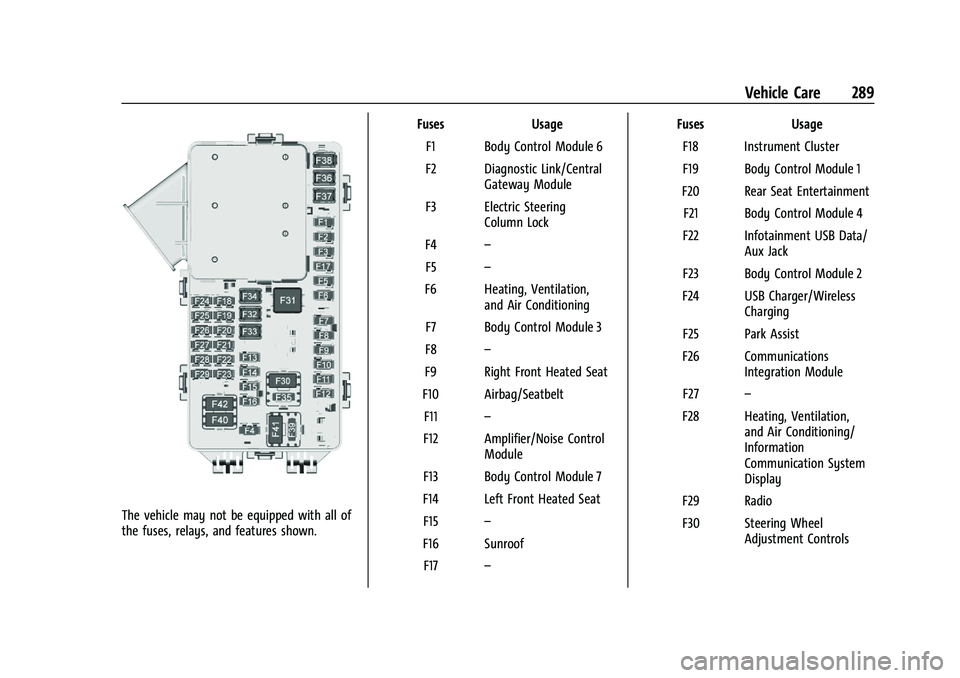
The vehicle may not be equipped with all of
the fuses, relays, and features shown.Fuses Usage
F1 Body Control Module 6
F2 Diagnostic Link/Central Gateway Module
F3 Electric Steering Column Lock
F4 –
F5 –
F6 Heating, Ventilation, and Air Conditioning
F7 Body Control Module 3
F8 –
F9 Right Front Heated Seat
F10 Airbag/Seatbelt F11 –
F12 Amplifier/Noise Control Module
F13 Body Control Module 7
F14 Left Front Heated Seat F15 –
F16 Sunroof F17 – Fuses Usage
F18 Instrument Cluster
F19 Body Control Module 1
F20 Rear Seat Entertainment F21 Body Control Module 4
F22 Infotainment USB Data/ Aux Jack
F23 Body Control Module 2
F24 USB Charger/Wireless Charging
F25 Park Assist
F26 Communications Integration Module
F27 –
F28 Heating, Ventilation, and Air Conditioning/
Information
Communication System
Display
F29 Radio
F30 Steering Wheel Adjustment Controls
Page 365 of 386
Chevrolet Blazer Owner Manual (GMNA-Localizing-U.S./Canada/Mexico-
15165663) - 2022 - CRC - 4/27/21
364 Customer Information
and notify General Motors of Canada
Company. Call Transport Canada at
1-800-333-0510; go to:
www.tc.gc.ca/recalls (English)
www.tc.gc.ca/rappels (French)
or write to:
Transport Canada
Motor Vehicle Safety Directorate
Defect Investigations and Recalls
Division
80 Noel Street
Gatineau
,QC J8Z 0A1
Reporting Safety Defects to
General Motors
In addition to notifying NHTSA (or Transport
Canada) in a situation like this, notify
General Motors.
In the U.S., call 1-800-222-1020, or write:
Chevrolet Motor Division
Chevrolet Customer Assistance Center
P.O. Box 33170
Detroit, MI 48232-5170In Canada, call 1-800-263-3777 (English) or
1-800-263-7854 (French), or write:
General Motors of Canada Company
Customer Care Centre, Mail Code:
CA1-163-005
1908 Colonel Sam Drive
Oshawa, Ontario L1H 8P7
In Mexico, call 800-466-0811 or
800-508-0000.
In other Central America and Caribbean
Countries, call 52-555-901-2369.
Vehicle Data Recording and
Privacy
The vehicle has a number of computers that
record information about the vehicle’s
performance and how it is driven or used.
For example, the vehicle uses computer
modules to monitor and control engine and
transmission performance, to monitor the
conditions for airbag deployment and
deploy them in a crash, and, if equipped, to
provide antilock braking to help the driver
control the vehicle. These modules may
store data to help the dealer technician
service the vehicle or to help GM improve
safety or features. Some modules may also
store data about how the vehicle isoperated, such as rate of fuel consumption
or average speed. These modules may retain
personal preferences, such as radio presets,
seat positions, and temperature settings.
Cybersecurity
GM collects information about the use of
your vehicle including operational and safety
related information. We collect this
information to provide, evaluate, improve,
and troubleshoot our products and services
and to develop new products and services.
The protection of vehicle electronics systems
and customer data from unauthorized
outside electronic access or control is
important to GM. GM maintains appropriate
security standards, practices, guidelines and
controls aimed at defending the vehicle and
the vehicle service ecosystem against
unauthorized electronic access, detecting
possible malicious activity in related
networks, and responding to suspected
cybersecurity incidents in a timely,
coordinated and effective manner. Security
incidents could impact your safety or
compromise your private data. To minimize
security risks, please do not connect your
vehicle electronic systems to unauthorized
devices or connect your vehicle to any
unknown or untrusted networks (such as
Page 378 of 386
Chevrolet Blazer Owner Manual (GMNA-Localizing-U.S./Canada/Mexico-
15165663) - 2022 - CRC - 4/27/21
Index 377
Driver Mode Control . . . . . . . . . . . . . . . . . . . . . 219
Driver Mode Control Light . . . . . . . . . . . . . . . 108
DrivingAssistance Systems . . . . . . . . . . . . . . . . . . . . 236
Better Fuel Economy . . . . . . . . . . . . . . . . . . . 192
Characteristics and Towing Tips . . . . . . . . 247
Defensive . . . . . . . . . . . . . . . . . . . . . . . . . . . . . . 193
Hill and Mountain Roads . . . . . . . . . . . . . . 199
If the Vehicle is Stuck . . . . . . . . . . . . . . . . . 201
Impaired . . . . . . . . . . . . . . . . . . . . . . . . . . . . . . . 193
Loss of Control . . . . . . . . . . . . . . . . . . . . . . . . 195
Off-Road . . . . . . . . . . . . . . . . . . . . . . . . . . . . . . . 195
Off-Road Recovery . . . . . . . . . . . . . . . . . . . . . 195
Vehicle Load Limits . . . . . . . . . . . . . . . . . . . . 201
Wet Roads . . . . . . . . . . . . . . . . . . . . . . . . . . . . . 199
Winter . . . . . . . . . . . . . . . . . . . . . . . . . . . . . . . . . 200
Dual Automatic Climate Control System . . . . . . . . . . . . . . . . . . . . . . . . . . . . . . . . 186
E
Electric Brake Boost . . . . . . . . . . . . . . . . . . . . . . . 215
Electric Parking Brake . . . . . . . . . . . . . . . . . . . . . 215
Electric Parking Brake Light . . . . . . . . . . . . . . 105
Electrical Equipment, Add-On . . . . . . . . . . . . 257
Electrical SystemEngine Compartment Fuse Block . . . . . . . 285
Fuses and Circuit Breakers . . . . . . . . . . . . . 284
Instrument Panel Fuse Block . . . . . . . . . . . 288 Electrical System (cont'd)
Overload . . . . . . . . . . . . . . . . . . . . . . . . . . . . . . . 282
Rear Compartment Fuse Block . . . . . . . . . 290
Emergency OnStar . . . . . . . . . . . . . . . . . . . . . . . . . . . . . . . . . 367
Engine Air Cleaner/Filter . . . . . . . . . . . . . . . . . . . . . . 270
Check Light (Malfunction Indicator) . . . . 103
Compartment Overview . . . . . . . . . . . . . . . . 263
Coolant Temperature Gauge . . . . . . . . . . . . 99
Coolant Temperature WarningLight . . . . . . . . . . . . . . . . . . . . . . . . . . . . . . . . . 108
Cooling System . . . . . . . . . . . . . . . . . . . . . . . . . 271
Drive Belt Routing . . . . . . . . . . . . . . . . . . . . . 354
Exhaust . . . . . . . . . . . . . . . . . . . . . . . . . . . . . . . . . 211
Heater . . . . . . . . . . . . . . . . . . . . . . . . . . . . . . . . . 208
Oil Life System . . . . . . . . . . . . . . . . . . . . . . . . 268
Oil Pressure Light . . . . . . . . . . . . . . . . . . . . . . 109
Overheating . . . . . . . . . . . . . . . . . . . . . . . . . . . 274
Power Messages . . . . . . . . . . . . . . . . . . . . . . . . 116
Running While Parked . . . . . . . . . . . . . . . . . . 211
Starting . . . . . . . . . . . . . . . . . . . . . . . . . . . . . . . . 206
Engine Air Filter Life System . . . . . . . . . . . . . 269
Engine Oil Temperature Gauge . . . . . . . . . . . . . . . . . . . . . 99
Entry Lighting . . . . . . . . . . . . . . . . . . . . . . . . . . . 129
Equipment, Towing . . . . . . . . . . . . . . . . . . . . . . 254
Event Data Recorders . . . . . . . . . . . . . . . . . . . . 365 Exit Lighting . . . . . . . . . . . . . . . . . . . . . . . . . . . . . 129
Extended Parking . . . . . . . . . . . . . . . . . . . . . . . . . 211
Extender, Seat Belt . . . . . . . . . . . . . . . . . . . . . . . 50
Exterior Lamp Controls . . . . . . . . . . . . . . . . . . . .124
Exterior Lamps Off Reminder . . . . . . . . . . . . . 125
Exterior Lighting Battery Saver . . . . . . . . . . 130
F
Filter,
Engine Air Cleaner . . . . . . . . . . . . . . . . . . . . . 270
Flash-to-Pass . . . . . . . . . . . . . . . . . . . . . . . . . . . . . 126
Flashers, Hazard Warning . . . . . . . . . . . . . . . . . 127
Flat Tire . . . . . . . . . . . . . . . . . . . . . . . . . . . . . . . . . . 311 Changing . . . . . . . . . . . . . . . . . . . . . . . . . . . . . . 318
Floor Mats . . . . . . . . . . . . . . . . . . . . . . . . . . . . . . . 336
Fluid Automatic Transmission . . . . . . . . . . . . . . . 269
Brakes . . . . . . . . . . . . . . . . . . . . . . . . . . . . . . . . . 277
Washer . . . . . . . . . . . . . . . . . . . . . . . . . . . . . . . . 275
Folding Mirrors . . . . . . . . . . . . . . . . . . . . . . . . . . . 26
Forward Collision Alert (FCA) System . . . . 236
Frequency Statement Radio . . . . . . . . . . . . . . . . . . . . . . . . . . . . . . . . . . 363
Front Pedestrian Braking (FPB) System . . . . . . . . . . . . . . . . . . . . . . . . . . . . . . . . 239
Front Seats
Adjustment . . . . . . . . . . . . . . . . . . . . . . . . . . . . . 35
Heated and Ventilated . . . . . . . . . . . . . . . . . . 41