wheel CHEVROLET BLAZER 2022 Owner's Manual
[x] Cancel search | Manufacturer: CHEVROLET, Model Year: 2022, Model line: BLAZER, Model: CHEVROLET BLAZER 2022Pages: 386, PDF Size: 13.37 MB
Page 112 of 386
Chevrolet Blazer Owner Manual (GMNA-Localizing-U.S./Canada/Mexico-
15165663) - 2022 - CRC - 4/27/21
Instruments and Controls 111
Information Displays
Driver Information Center (DIC)
(Base and Midlevel)
The DIC displays are shown in the center of
the instrument cluster in the Info App. See
Instrument Cluster (Base and Midlevel)093
or
Instrument Cluster (Uplevel) 096. The
displays show the status of many vehicle
systems.
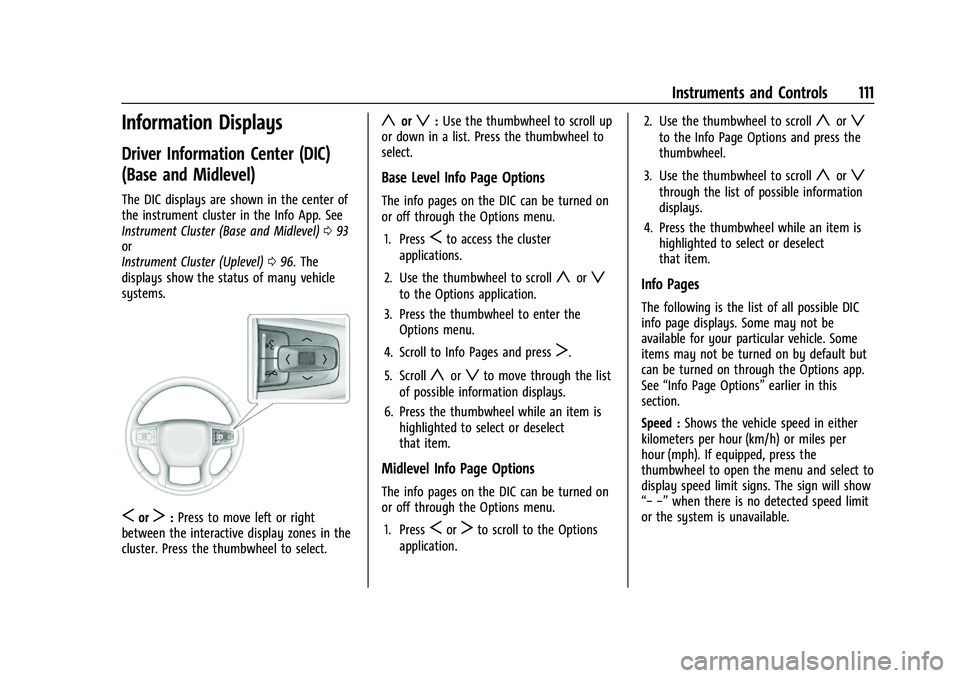
SorT: Press to move left or right
between the interactive display zones in the
cluster. Press the thumbwheel to select.
yorz: Use the thumbwheel to scroll up
or down in a list. Press the thumbwheel to
select.
Base Level Info Page Options
The info pages on the DIC can be turned on
or off through the Options menu.
1. Press
Sto access the cluster
applications.
2. Use the thumbwheel to scroll
yorz
to the Options application.
3. Press the thumbwheel to enter the Options menu.
4. Scroll to Info Pages and press
T.
5. Scroll
yorzto move through the list
of possible information displays.
6. Press the thumbwheel while an item is highlighted to select or deselect
that item.
Midlevel Info Page Options
The info pages on the DIC can be turned on
or off through the Options menu.
1. Press
SorTto scroll to the Options
application. 2. Use the thumbwheel to scroll
yorz
to the Info Page Options and press the
thumbwheel.
3. Use the thumbwheel to scroll
yorz
through the list of possible information
displays.
4. Press the thumbwheel while an item is highlighted to select or deselect
that item.
Info Pages
The following is the list of all possible DIC
info page displays. Some may not be
available for your particular vehicle. Some
items may not be turned on by default but
can be turned on through the Options app.
See “Info Page Options” earlier in this
section.
Speed : Shows the vehicle speed in either
kilometers per hour (km/h) or miles per
hour (mph). If equipped, press the
thumbwheel to open the menu and select to
display speed limit signs. The sign will show
“− −” when there is no detected speed limit
or the system is unavailable.
Page 113 of 386
Chevrolet Blazer Owner Manual (GMNA-Localizing-U.S./Canada/Mexico-
15165663) - 2022 - CRC - 4/27/21
112 Instruments and Controls
Trip 1 or Trip 2 :Shows the current distance
traveled, in either kilometers (km) or
miles (mi), since the trip odometer was last
reset.
If equipped, shows the average fuel
economy since the last reset. This number
reflects only the approximate average fuel
economy that the vehicle has right now,
and will change as driving conditions
change. The average fuel economy can be
displayed as mpg, km/L, or L/100km where
applicable.
If equipped, shows the average speed since
the last reset. This number reflects only the
approximate average speed that the vehicle
has, and will change as driving conditions
change. Average speed can be displayed
as mph or km/h where applicable.
Press the thumbwheel while this display is
active to show a confirmation window to
reset all values to zero. Use
SorTto
select yes or no and press the thumbwheel.
Fuel Information or Fuel Range : Shows the
approximate distance the vehicle can be
driven without refueling. LOW will be
displayed when the vehicle is low on fuel.
The fuel range estimate is based on an
average of the vehicle's fuel economy over recent driving history and the amount of
fuel remaining in the fuel tank. If equipped,
also shows the instantaneous fuel economy.
Oil Life :
Shows an estimate of the oil's
remaining useful life. If REMAINING OIL LIFE
99% is displayed, that means 99% of the
current oil life remains.
When the remaining oil life is low, the
CHANGE ENGINE OIL SOON message will
appear on the display. The oil should be
changed as soon as possible. See Engine Oil
0 266. In addition to the engine oil life
system monitoring the oil life, additional
maintenance is recommended. See
Maintenance Schedule 0339.
The Oil Life display must be reset after each
oil change. It will not reset itself. Do not
reset the Oil Life display at any time other
than when the oil has just been changed.
It cannot be reset accurately until the next
oil change. To reset, see Engine Oil Life
System 0268.
Air Filter Life : Shows an estimate of the
engine air filter’s remaining useful life and
the state of the system. Engine Air Filter Life
95% means 95% of the current air filter life
remains. Messages will display based on the
engine air filter life and the state of the
system. When the REPLACE AT NEXT OIL CHANGE message displays, the engine air
filter should be replaced at the time of the
next oil change. When the REPLACE SOON
message displays, the engine air filter
should be replaced at the earliest
convenience.
The Air Filter Life display must be reset after
the engine air filter replacement. To reset,
see
Engine Air Filter Life System 0269.
Tire Pressure : Shows the approximate
pressures of all four tires. Tire pressure is
displayed in either kilopascal (kPa) or in
pounds per square inch (psi). If the pressure
is low, the value for that tire is shown in
amber. See Tire Pressure Monitor System
0 301 and
Tire Pressure Monitor Operation 0302.
Average Speed : Displays the average
vehicle speed of the vehicle in kilometers
per hour (km/h) or miles per hour (mph).
This average is based on the various vehicle
speeds recorded since the last reset. Reset
the average speed by pressing the
thumbwheel while this display is active to
show a confirmation window to select yes
or no and press the thumbwheel.
Fuel Economy : The center displays the
approximate instantaneous fuel economy as
a number and bar graph. Displayed above
Page 114 of 386
Chevrolet Blazer Owner Manual (GMNA-Localizing-U.S./Canada/Mexico-
15165663) - 2022 - CRC - 4/27/21
Instruments and Controls 113
the bar graph is a running average of fuel
economy for the most recently traveled
selected distance. Displayed below the bar
graph is the best average fuel economy that
has been achieved for the selected distance.
The selected distance is displayed at the top
of the page as“last xxx mi/km.”
Press the thumbwheel to select the distance
or reset best value. Use
yorzto choose
the distance and press the thumbwheel.
Scroll
yorzto select Reset Best Score.
Press the thumbwheel to reset the best
average fuel economy. After reset, the best
value displays “-,-”until the selected
distance has been traveled.
The display provides information on how
current driving behavior affects the running
average and how well recent driving
compares to the best that has been
achieved for the selected distance.
Follow Distance/Gap Setting : If equipped,
the current follow time to the vehicle ahead
is displayed as a time value on this page.
When Adaptive Cruise Control (ACC) has
been engaged, the display switches to the
gap setting page. This page shows the
current gap setting along with the vehicle
ahead indicator. Driver Assistance :
If equipped, shows
information for Lane Keep Assist (LKA), Lane
Departure Warning (LDW), and Forward
Collision Alert (FCA).
Economy Trend : Shows history of the
Average Fuel Economy from the last 50 km
(30 mi). Each bar represents about 5 km
(3 mi) of driving. During driving the bars will
shift to always reflect the most recent
distance on the right side. Press the
thumbwheel to open the menu while this
display is active to clear the graph. Select
yes or no and press the thumbwheel.
Timer : This display can be used as a timer.
To start the timer, press the thumbwheel to
open the menu while this display is active.
Use
yorzto select Start Timer or Reset.
Press the thumbwheel. To stop the timer,
press the thumbwheel while this display is
active. The display will show the amount of
time that has passed since the timer was
last reset.
Speed Limit : Shows sign information, which
comes from a roadway database in the
onboard navigation, if equipped. The sign
will show “− −”when there is no detected
speed limit or the system is unavailable. Press the thumbwheel while this display is
active to toggle Speed Limit sign on or off.
Speed limit signs in your vehicle display
may vary from actual road speed depending
on the version of your current
navigation map.
Battery Voltage :
Displays the current
battery voltage, if equipped. Battery voltage
changes are normal while driving. See
Charging System Light 0103. If there is a
problem with the battery charging system, a
DIC will display a message.
Oil Pressure : Oil pressure is displayed in
either kilopascal (kPa) or in pounds per
square inch (psi). Oil pressure can vary with
engine speed, outside temperature, and oil
viscosity. On some models, the oil pump will
vary engine oil pressure according to engine
needs. Oil pressure may change quickly as
the engine speed or load varies. This is
normal. If the oil pressure warning light or
DIC message indicates oil pressure outside
the normal operating range, check the
vehicle's oil as soon as possible.
Coolant Temperature : Displays the coolant
temperature in degrees Celsius (°C) or
degrees Fahrenheit (°F).
Page 115 of 386
Chevrolet Blazer Owner Manual (GMNA-Localizing-U.S./Canada/Mexico-
15165663) - 2022 - CRC - 4/27/21
114 Instruments and Controls
Driver Information Center (DIC)
(Uplevel)
The DIC displays are shown in the center of
the instrument cluster in the Info app. See
Instrument Cluster (Base and Midlevel)093
or
Instrument Cluster (Uplevel) 096. The
displays show the status of many vehicle
systems.
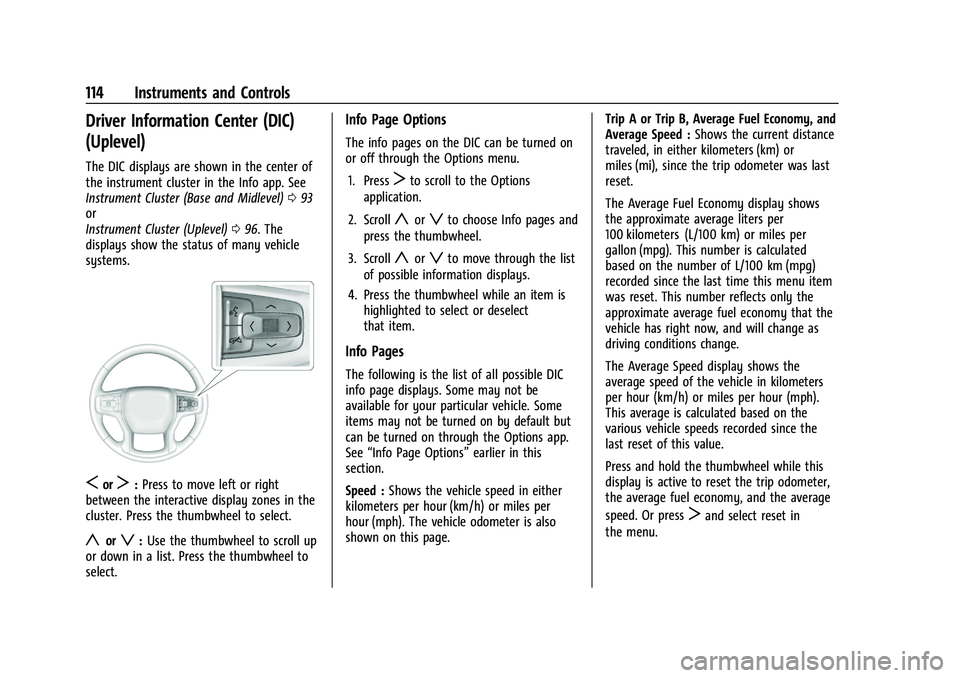
SorT: Press to move left or right
between the interactive display zones in the
cluster. Press the thumbwheel to select.
yorz: Use the thumbwheel to scroll up
or down in a list. Press the thumbwheel to
select.
Info Page Options
The info pages on the DIC can be turned on
or off through the Options menu.
1. Press
Tto scroll to the Options
application.
2. Scroll
yorzto choose Info pages and
press the thumbwheel.
3. Scroll
yorzto move through the list
of possible information displays.
4. Press the thumbwheel while an item is highlighted to select or deselect
that item.
Info Pages
The following is the list of all possible DIC
info page displays. Some may not be
available for your particular vehicle. Some
items may not be turned on by default but
can be turned on through the Options app.
See “Info Page Options” earlier in this
section.
Speed : Shows the vehicle speed in either
kilometers per hour (km/h) or miles per
hour (mph). The vehicle odometer is also
shown on this page. Trip A or Trip B, Average Fuel Economy, and
Average Speed :
Shows the current distance
traveled, in either kilometers (km) or
miles (mi), since the trip odometer was last
reset.
The Average Fuel Economy display shows
the approximate average liters per
100 kilometers (L/100 km) or miles per
gallon (mpg). This number is calculated
based on the number of L/100 km (mpg)
recorded since the last time this menu item
was reset. This number reflects only the
approximate average fuel economy that the
vehicle has right now, and will change as
driving conditions change.
The Average Speed display shows the
average speed of the vehicle in kilometers
per hour (km/h) or miles per hour (mph).
This average is calculated based on the
various vehicle speeds recorded since the
last reset of this value.
Press and hold the thumbwheel while this
display is active to reset the trip odometer,
the average fuel economy, and the average
speed. Or press
Tand select reset in
the menu.
Page 116 of 386
Chevrolet Blazer Owner Manual (GMNA-Localizing-U.S./Canada/Mexico-
15165663) - 2022 - CRC - 4/27/21
Instruments and Controls 115
Fuel Range and Instantaneous Fuel
Economy :Shows the approximate distance
the vehicle can be driven without refueling.
LOW will be displayed when the vehicle is
low on fuel. The fuel range estimate is
based on an average of the vehicle's fuel
economy over recent driving history and the
amount of fuel remaining in the fuel tank.
The Instantaneous Fuel Economy display
shows the current fuel economy in either
liters per 100 kilometers (L/100 km) or miles
per gallon (mpg). This number reflects only
the approximate fuel economy that the
vehicle has right now and changes
frequently as driving conditions change.
Timer and Fuel Used : Can be used as a
timer. To start the timer, press the
thumbwheel while this display is active. The
display will show the amount of time that
has passed since the timer was last reset. To
stop the timer, press the thumbwheel
briefly while this display is active and the
timer is running. To reset the timer to zero,
press and hold the thumbwheel while this
display is active.
This also shows the number of liters (L) or
gallons (gal) of fuel used since the last reset
of this menu item. Oil Life :
Shows an estimate of the oil's
remaining useful life. If REMAINING OIL LIFE
99% is displayed, that means 99% of the
current oil life remains.
When the remaining oil life is low, the
CHANGE ENGINE OIL SOON message will
appear on the display. The oil should be
changed as soon as possible. See Engine Oil
0 266. In addition to the engine oil life
system monitoring the oil life, additional
maintenance is recommended. See
Maintenance Schedule 0339.
The Oil Life display must be reset after each
oil change. It will not reset itself. Do not to
reset the Oil Life display at any time other
than when the oil has just been changed.
It cannot be reset accurately until the next
oil change. To reset, see Engine Oil Life
System 0268.
Air Filter Life : Shows an estimate of the
engine air filter’s remaining useful life and
the state of the system. Engine Air Filter Life
95% means 95% of the current air filter life
remains. Messages will display based on the
engine air filter life and the state of the
system. When the REPLACE AT NEXT OIL
CHANGE message displays, the engine air
filter should be replaced at the time of the
next oil change. When the REPLACE SOON message displays, the engine air filter
should be replaced at the earliest
convenience.
The Air Filter Life display must be reset after
the engine air filter replacement. To reset,
see
Engine Air Filter Life System 0269.
Tire Pressure : Shows the approximate
pressures of all four tires. Tire pressure is
displayed in either kilopascal (kPa) or in
pounds per square inch (psi). If the pressure
is low, the value for that tire is shown in
amber. See Tire Pressure Monitor System
0 301 and
Tire Pressure Monitor Operation 0302.
Best Fuel Economy : Displays average fuel
economy, the best fuel economy over the
selected distance, and a bar graph showing
instantaneous fuel economy.
Press
Tto change the selected distance.
Press and hold the thumbwheel while this
display is active to reset the best fuel
economy and average fuel economy. This
display can also be reset by selecting reset
in the menu.
Page 117 of 386
Chevrolet Blazer Owner Manual (GMNA-Localizing-U.S./Canada/Mexico-
15165663) - 2022 - CRC - 4/27/21
116 Instruments and Controls
Top Consumers :Shows a list of the features
that are currently impacting the fuel
economy, in order from highest to lowest.
If a feature is turned off, it will be removed
from the list.
Economy Trend : Shows history of the
Average Fuel Economy from the last 50 km
(30 mi). Each bar represents about 5 km
(3 mi) of driving. During driving the bars will
shift to always reflect the most recent
distance on the right side. Press and hold
the thumbwheel to clear the graph or press
Tto reset through the menu.
Speed Signs : Shows sign information, which
comes from a roadway database in the
onboard navigation.
Off Road : Displays vehicle pitch and roll
information, road wheel angle, and
four-wheel drive (4WD) status.
Following Distance : The following distance
to a moving vehicle ahead in your path is
indicated in following time in seconds. See
Forward Collision Alert (FCA) System 0236.
Transmission Fluid Temperature Gauge :
Shows the temperature of the automatic
transmission fluid in either degrees
Celsius (°C) or degrees Fahrenheit (°F).
Blank Page : Shows no information.
Vehicle Messages
Messages displayed on the Driver
Information Center (DIC) indicate the status
of the vehicle or some action that may be
needed to correct a condition. Multiple
messages may appear one after another.
The messages that do not require
immediate action can be acknowledged and
cleared by pressing the thumbwheel. The
messages that require immediate action
cannot be cleared until that action is
performed.
All messages should be taken seriously;
clearing the message does not correct the
problem.
If a SERVICE message appears, see your
dealer.
Follow the instructions given in the
messages. The system displays messages
regarding the following topics:
.Service Messages
.Fluid Levels
.Vehicle Security
.Brakes
.Steering
.Ride Control Systems
.Driver Assistance Systems
.Cruise Control
.Lighting and Bulb Replacement
.Wiper/Washer Systems
.Doors and Windows
.Seat Belts
.Airbag Systems
.Engine and Transmission
.Tire Pressure
.Battery
Engine Power Messages
ENGINE POWER IS REDUCED
This message displays when the vehicle's
propulsion power is reduced. A reduction in
propulsion power can affect the vehicle's
ability to accelerate. If this message is on,
but there is no observed reduction in
performance, proceed to your destination.
Under certain conditions the performance
may be reduced the next time the vehicle is
driven. The vehicle may be driven while this
message is on, but maximum acceleration
and speed may be reduced. Anytime this
message stays on, or displays repeatedly,
the vehicle should be taken to your dealer
for service as soon as possible.
Page 120 of 386
Chevrolet Blazer Owner Manual (GMNA-Localizing-U.S./Canada/Mexico-
15165663) - 2022 - CRC - 4/27/21
Instruments and Controls 119
Reverse Tilt Mirror
When on, the driver, passenger, or both
driver and passenger outside mirrors will tilt
downward when the vehicle is shifted into
R (Reverse) to improve visibility of the
ground near the rear wheels. They may
move from their tilted position when the
vehicle is shifted out of R (Reverse) or
turned off. SeeReverse Tilt Mirrors 026.
Touch Off, On - Driver and Passenger, On -
Driver, or On - Passenger.
Auto Wipe in Reverse Gear
When on and the front wiper is on, the rear
wiper will automatically activate when the
vehicle is shifted to R (Reverse).
Touch Off or On.
Lighting
Touch and the following may display:
.Vehicle Locator Lights
.Exit Lighting
Vehicle Locator Lights
This feature will flash the exterior lamps and
allows some of the exterior lamps and most
of the interior lamps to turn on briefly
when
Kon the Remote Keyless Entry (RKE)
transmitter is pressed to locate the vehicle. Touch Off or On.
Exit Lighting
This allows the selection of how long the
exterior lamps stay on when leaving the
vehicle when it is dark outside.
Touch Off, 30 Seconds, 60 Seconds,
or 120 Seconds.
Power Door Locks
Touch and the following may display:
.Open Door Anti Lockout
.Auto Door Unlock
.Delayed Door Lock
Open Door Anti Lock Out
When on, this feature will keep the driver
door from locking when the door is open.
If Off is selected, the Delayed Door Lock
menu will be available.
Touch Off or On.
Auto Door Unlock
This allows selection of which of the doors
will automatically unlock when the vehicle is
shifted into P (Park).
Touch Off, All Doors, or Driver Door. Delayed Door Lock
When on, this feature will delay the locking
of the doors. To override the delay, press
the power door lock switch on the door.
Touch Off or On.
Remote Lock, Unlock, and Start
Touch and the following may display:
.Remote Unlock Light Feedback
.Remote Lock Feedback
.Remote Door Unlock
.Remote Start Auto Cool Seats
.Remote Start Auto Heat Seats
.Remote Window Operation
.Passive Door Unlock
.Passive Door Lock
.Remote Left in Vehicle Alert
Remote Unlock Light Feedback
When on, the exterior lamps will flash when
unlocking the vehicle with the RKE
transmitter.
Touch Off or Flash Lights.
Page 122 of 386
Chevrolet Blazer Owner Manual (GMNA-Localizing-U.S./Canada/Mexico-
15165663) - 2022 - CRC - 4/27/21
Instruments and Controls 121
Valet Mode
This will lock the infotainment system and
steering wheel controls. It may also limit
access to vehicle storage locations,
if equipped.
To enable valet mode:1. Enter a four-digit code on the keypad.
2. Select Enter to go to the confirmation screen.
3. Re-enter the four-digit code.
Touch Lock or Unlock to lock or unlock the
system. Touch Back to go back to the
previous menu.
Universal Remote System
See Radio Frequency Statement 0363.
Universal Remote System
Programming
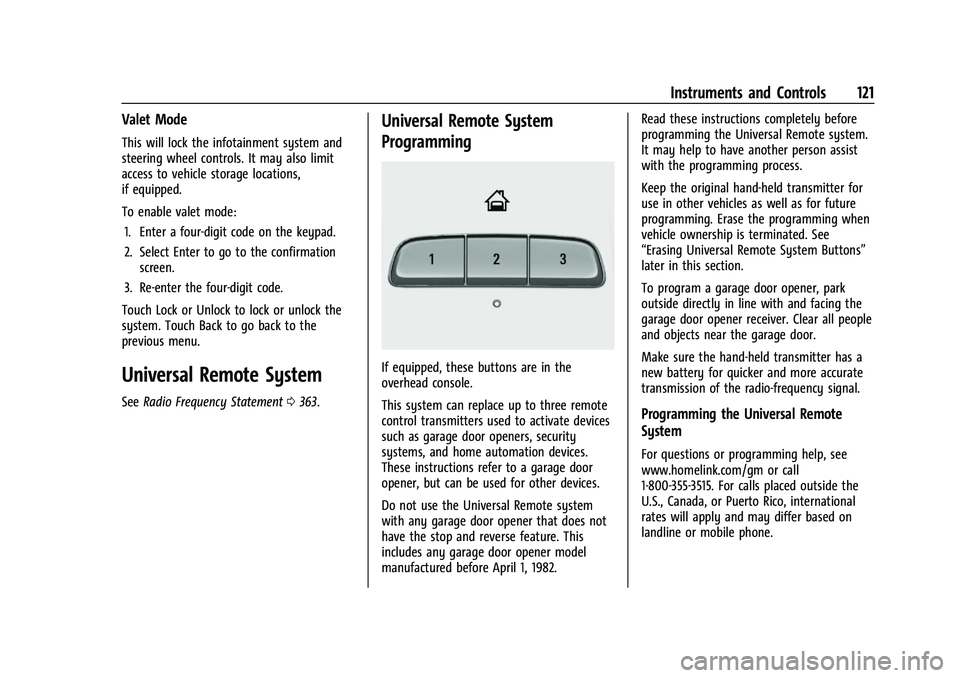
If equipped, these buttons are in the
overhead console.
This system can replace up to three remote
control transmitters used to activate devices
such as garage door openers, security
systems, and home automation devices.
These instructions refer to a garage door
opener, but can be used for other devices.
Do not use the Universal Remote system
with any garage door opener that does not
have the stop and reverse feature. This
includes any garage door opener model
manufactured before April 1, 1982. Read these instructions completely before
programming the Universal Remote system.
It may help to have another person assist
with the programming process.
Keep the original hand-held transmitter for
use in other vehicles as well as for future
programming. Erase the programming when
vehicle ownership is terminated. See
“Erasing Universal Remote System Buttons”
later in this section.
To program a garage door opener, park
outside directly in line with and facing the
garage door opener receiver. Clear all people
and objects near the garage door.
Make sure the hand-held transmitter has a
new battery for quicker and more accurate
transmission of the radio-frequency signal.
Programming the Universal Remote
System
For questions or programming help, see
www.homelink.com/gm or call
1-800-355-3515. For calls placed outside the
U.S., Canada, or Puerto Rico, international
rates will apply and may differ based on
landline or mobile phone.
Page 132 of 386
Chevrolet Blazer Owner Manual (GMNA-Localizing-U.S./Canada/Mexico-
15165663) - 2022 - CRC - 4/27/21
Infotainment System 131
Infotainment System
Introduction
Introduction . . . . . . . . . . . . . . . . . . . . . . . . . . . . 131
Overview . . . . . . . . . . . . . . . . . . . . . . . . . . . . . . 132
Steering Wheel Controls . . . . . . . . . . . . . . . 133
Using the System . . . . . . . . . . . . . . . . . . . . . 134
Software Updates . . . . . . . . . . . . . . . . . . . . . . 137
Radio
AM-FM Radio . . . . . . . . . . . . . . . . . . . . . . . . . . 137
HD Radio Technology . . . . . . . . . . . . . . . . . . 138
Radio Data System (RDS) . . . . . . . . . . . . . . 139
Satellite Radio . . . . . . . . . . . . . . . . . . . . . . . . . 139
Radio Reception . . . . . . . . . . . . . . . . . . . . . . . 140
Multi-Band Antenna . . . . . . . . . . . . . . . . . . . 140
Audio Players
Avoiding Untrusted Media Devices . . . . 140
USB Port . . . . . . . . . . . . . . . . . . . . . . . . . . . . . . 140
Bluetooth Audio . . . . . . . . . . . . . . . . . . . . . . . 143
Navigation
Using the Navigation System . . . . . . . . . . 144
Maps . . . . . . . . . . . . . . . . . . . . . . . . . . . . . . . . . . 147
Navigation Symbols . . . . . . . . . . . . . . . . . . . 147
Destination . . . . . . . . . . . . . . . . . . . . . . . . . . . . 148
Global Positioning System (GPS) . . . . . . . 153
Vehicle Positioning . . . . . . . . . . . . . . . . . . . . 154
Problems with Route Guidance . . . . . . . . 154
If the System Needs Service . . . . . . . . . . . 154Map Data Updates . . . . . . . . . . . . . . . . . . . . . 155
Database Coverage Explanations . . . . . . . 155
Voice Recognition
Voice Recognition . . . . . . . . . . . . . . . . . . . . . . 155
Phone
Bluetooth (Overview) . . . . . . . . . . . . . . . . . . 160
Bluetooth (Pairing and Using a
Phone) . . . . . . . . . . . . . . . . . . . . . . . . . . . . . . . 161
Apple CarPlay and Android Auto . . . . . . 164
Settings
Settings . . . . . . . . . . . . . . . . . . . . . . . . . . . . . . . 166
Teen Driver . . . . . . . . . . . . . . . . . . . . . . . . . . . . 172
Teen Driver . . . . . . . . . . . . . . . . . . . . . . . . . . . . 175
Trademarks and License Agreements
Trademarks and License Agreements . . . . . . . . . . . . . . . . . . . . . . . . . . 178
Introduction
Read the following pages to become familiar
with the features.
{Warning
Taking your eyes off the road for too
long or too often while using any
infotainment feature can cause a crash.
You or others could be injured or killed.
Do not give extended attention to
infotainment tasks while driving. Limit
your glances at the vehicle displays and
focus your attention on driving. Use voice
commands whenever possible.
The infotainment system has built-in
features intended to help avoid distraction
by disabling some features when driving.
These features may gray out when they are
unavailable. Many infotainment features are
also available through the instrument cluster
and steering wheel controls.
Before driving:
.Become familiar with the operation,
center stack controls, steering wheel
controls, and infotainment display.
Page 133 of 386
Chevrolet Blazer Owner Manual (GMNA-Localizing-U.S./Canada/Mexico-
15165663) - 2022 - CRC - 4/27/21
132 Infotainment System
.Set up the audio by presetting favorite
stations, setting the tone, and adjusting
the speakers.
.Set up phone numbers in advance so they
can be called easily by pressing a single
control or by using a single voice
command.
See Distracted Driving 0192.
Active Noise Cancellation (ANC)
If equipped, ANC reduces engine noise in the
vehicle’s interior. ANC requires the
factory-installed audio system, radio,
speakers, amplifier (if equipped), induction
system, and exhaust system to work
properly. Deactivation is required by your
dealer if related aftermarket equipment is
installed.
Overview
Infotainment System
The infotainment system is controlled by
using the infotainment display, controls on
the center stack, steering wheel controls,
and voice recognition.
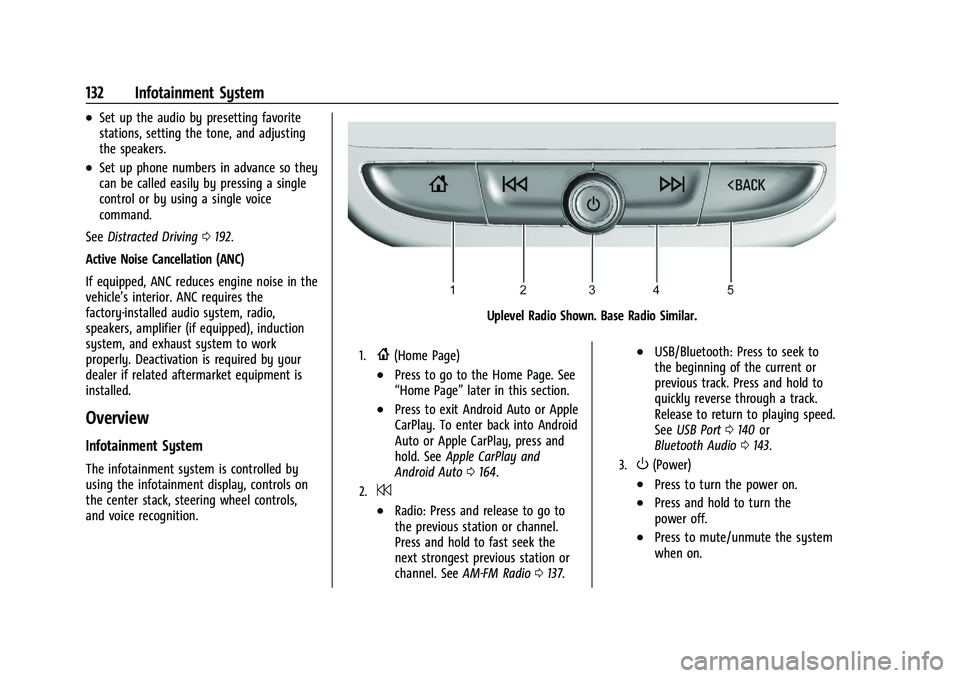
Uplevel Radio Shown. Base Radio Similar.
1.{(Home Page)
.Press to go to the Home Page. See
“Home Page” later in this section.
.Press to exit Android Auto or Apple
CarPlay. To enter back into Android
Auto or Apple CarPlay, press and
hold. SeeApple CarPlay and
Android Auto 0164.
2.7
.Radio: Press and release to go to
the previous station or channel.
Press and hold to fast seek the
next strongest previous station or
channel. See AM-FM Radio 0137.
.USB/Bluetooth: Press to seek to
the beginning of the current or
previous track. Press and hold to
quickly reverse through a track.
Release to return to playing speed.
See USB Port 0140 or
Bluetooth Audio 0143.
3.O(Power)
.Press to turn the power on.
.Press and hold to turn the
power off.
.Press to mute/unmute the system
when on.