p button CHEVROLET BLAZER 2022 Workshop Manual
[x] Cancel search | Manufacturer: CHEVROLET, Model Year: 2022, Model line: BLAZER, Model: CHEVROLET BLAZER 2022Pages: 386, PDF Size: 13.37 MB
Page 215 of 386
Chevrolet Blazer Owner Manual (GMNA-Localizing-U.S./Canada/Mexico-
15165663) - 2022 - CRC - 4/27/21
214 Driving and Operating
2. Press + (Plus) or−(Minus) on the shift
lever to increase or decrease the gear
range available.
When you shift from D (Drive) to L (Low),
the transmission will shift to a
pre-determined lower gear range. The
highest gear available for this
pre-determined range is displayed next to
the L in the DIC. See Driver Information
Center (DIC) (Base and Midlevel) 0111 or
Driver Information Center (DIC) (Uplevel)
0 114. The number displayed in the DIC is
the highest gear that the transmission will
be allowed to operate in. This means that
all gears below that number are available.
For example, when 4 (Fourth) is shown next
to the L, 1 (First) through 4 (Fourth) gears
are automatically shifted by the vehicle. The
transmission will not shift into 5 (Fifth) until
the + (Plus) button is used or you shift back
into D (Drive).
If the transmission is in 9 (ninth) gear when
L (low) is selected, a downshift to 7 (seventh)
will be commanded. If in 8 (eighth) through
2 (second), a single downshift will occur. While in L (Low), the transmission will
prevent shifting to a lower gear range if the
engine speed is too high. You have a brief
period of time to slow the vehicle. If vehicle
speed is not reduced within the time
allowed, the lower gear range shift will not
be completed. You must further slow the
vehicle, then press
−(Minus) to the desired
lower gear range.
Automatic Engine Grade Braking is not
available when the ERS is active. It is
available in D (Drive) for both normal driving
and Tow/Haul Mode. While using the ERS,
cruise control and the Tow/Haul Mode can
be used. See “Tow/Haul Mode” underDriver
Mode Control 0219.
Drive Systems
All-Wheel Drive
Vehicles with this feature can operate in
All-Wheel Drive (AWD) Mode.
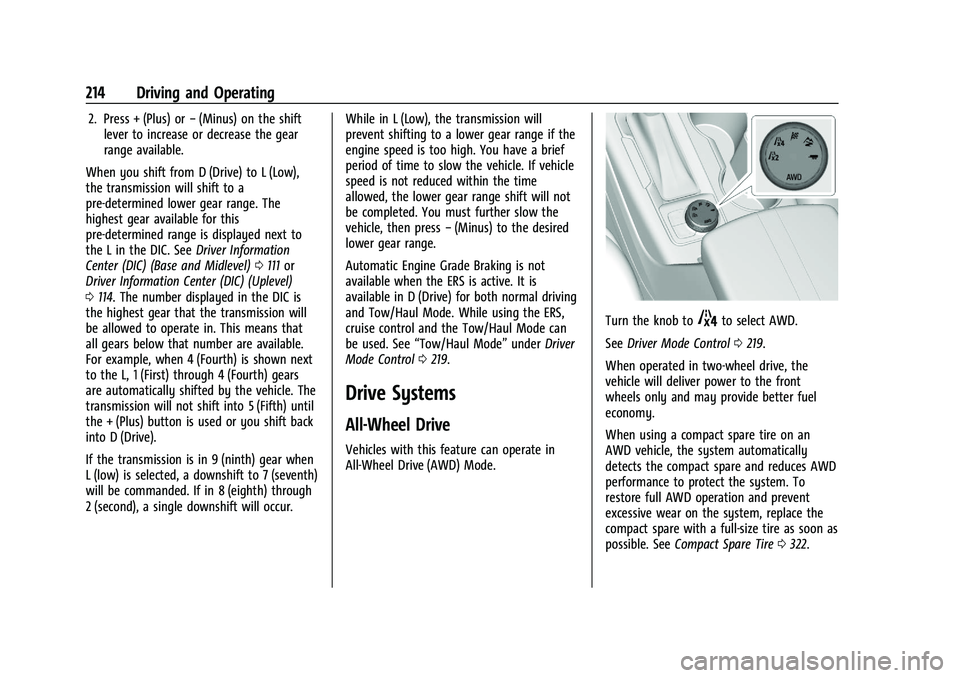
Turn the knob to4to select AWD.
See Driver Mode Control 0219.
When operated in two-wheel drive, the
vehicle will deliver power to the front
wheels only and may provide better fuel
economy.
When using a compact spare tire on an
AWD vehicle, the system automatically
detects the compact spare and reduces AWD
performance to protect the system. To
restore full AWD operation and prevent
excessive wear on the system, replace the
compact spare with a full-size tire as soon as
possible. See Compact Spare Tire 0322.
Page 226 of 386
Chevrolet Blazer Owner Manual (GMNA-Localizing-U.S./Canada/Mexico-
15165663) - 2022 - CRC - 4/27/21
Driving and Operating 225
The speedometer reading can be displayed
in either English or metric units. See
Instrument Cluster (Base and Midlevel)093
or
Instrument Cluster (Uplevel) 096. The
increment value used depends on the units
displayed.
Reducing Speed While ACC Is at a Set Speed
If ACC is already activated, do one of the
following:
.Use the brake to get to the desired lower
speed. Press SET– down and release the
accelerator pedal. The vehicle will now
cruise at the lower speed.
.Press and hold SET– down until the
desired lower speed is reached, then
release it.
.To decrease the vehicle speed in smaller
increments, press SET− down briefly. For
each press, the vehicle goes about 1 km/h
or (1 mph) slower.
.To decrease the vehicle speed in larger
increments, hold SET−. While holding
SET−, the vehicle speed decreases to the
next 5 km/h (5 mph) step, then continues
to decrease by 5 km/h (5 mph) at a time.
.If stopped with the brake applied, press
or hold SET− until the desired set speed is
displayed.
Selecting the Follow Distance Gap
When a slower moving vehicle is detected
ahead within the selected following gap,
ACC will adjust the vehicle's speed and
attempt to maintain the follow distance gap
selected.
Press
[on the steering wheel to adjust
the following gap. Each press cycles the gap
button through three settings: Far, Medium,
or Near.
When pressed, the current gap setting
displays briefly on the instrument cluster.
The gap setting will be maintained until it is
changed.
Since each gap setting corresponds to a
following time (Far, Medium, or Near), the
following distance will vary based on vehicle
speed. The faster the vehicle speed, the
further back your vehicle will follow a
vehicle detected ahead. Consider traffic and
weather conditions when selecting the
following gap. The range of selectable gaps
may not be appropriate for all drivers and
driving conditions. Changing the gap setting automatically
changes the alert timing sensitivity (Far,
Medium, or Near) for the Forward Collision
Alert (FCA) feature. See
Forward Collision
Alert (FCA) System 0236.
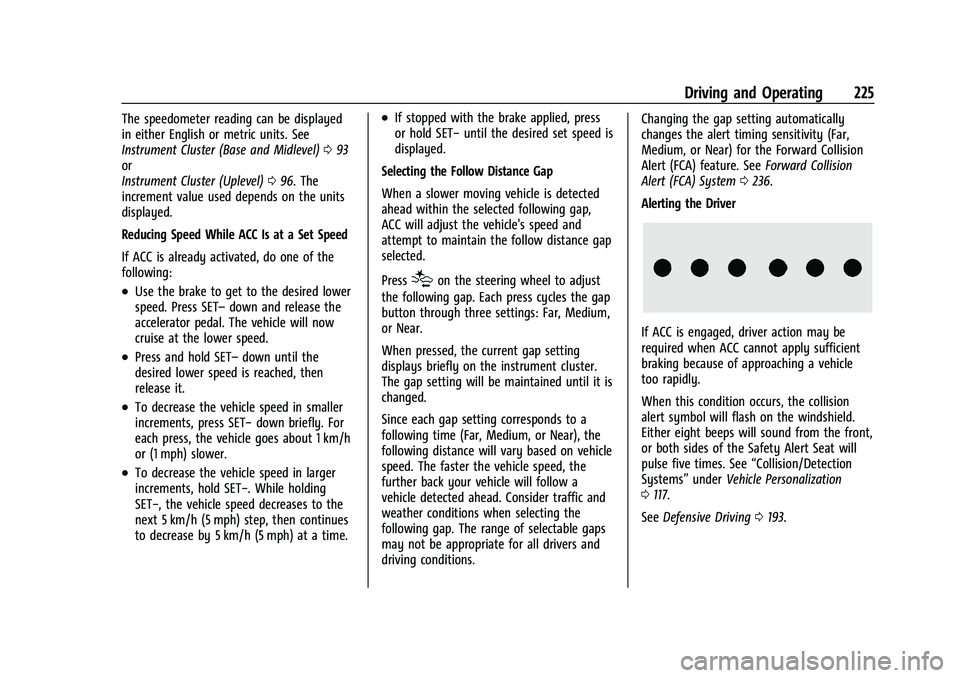
Alerting the Driver
If ACC is engaged, driver action may be
required when ACC cannot apply sufficient
braking because of approaching a vehicle
too rapidly.
When this condition occurs, the collision
alert symbol will flash on the windshield.
Either eight beeps will sound from the front,
or both sides of the Safety Alert Seat will
pulse five times. See “Collision/Detection
Systems” underVehicle Personalization
0 117.
See Defensive Driving 0193.
Page 234 of 386
Chevrolet Blazer Owner Manual (GMNA-Localizing-U.S./Canada/Mexico-
15165663) - 2022 - CRC - 4/27/21
Driving and Operating 233
Touch the camera view buttons along the
bottom of the infotainment display.
Available views will differ depending on
vehicle options.
Front/Rear Standard View :Displays an
image of the area in front or behind the
vehicle. Touch Front/Rear Standard View on
the infotainment display when a camera
view is active. Touching the button multiple
times will toggle between front and rear
camera views.
If equipped, the front view camera also
displays when the Park Assist system
detects an object within 30 cm (12 in).
Front/Rear Junction View : Displays a front
or rear cross traffic view that shows objects
directly to the left and right of the front or
back of the vehicle. Touch Junction View on
the infotainment display when a camera
view is active. Touching the button multiple
times will toggle between front and rear
camera views.
Front/Rear Overhead View : Displays a Front
or Rear Overhead View of the vehicle.
Touching the button will toggle between the
two views. Front/Rear Bowl View :
Displays a view of
the vehicle from either the front or the back
of the vehicle. Touch Bowl View on the
infotainment display when a camera view is
active. Touching the button multiple times
will toggle between forward and rearward
views. Park Assist and RCTA overlays are not
available when Bowl View is active.
Side Forward/Rearward View : Displays a
view that shows objects next to the front or
rear sides of the vehicle. Touch Side
Forward/Rearward View on the infotainment
display when a camera view is active.
Touching the button multiple times will
toggle between forward and rearward views.
Park Assist and RCTA overlays are not
available when Side Forward/Rearward View
is active.
Hitch View : Assists while connecting to a
trailer. Displays a zoomed-in view of the
hitch to help align the vehicle’s hitch ball
with the trailer coupler. Shifting into
P (Park) while in this view will automatically
engage the Electric Parking Brake (EPB).
Guidance Lines : Displays available
guidelines. The horizontal markings
represent distance from the vehicle. Top Down View :
Displays an image of the
area surrounding the vehicle, along with
other views in the infotainment display. Top
Down can be enabled or disabled by
touching the Top Down View button
multiple times.
Hitch Guidance
If equipped, this feature displays a single,
centered guideline on the camera display to
assist with aligning a vehicle’s hitch ball
with a trailer coupler. Select the trailer
guidance line button, then align the trailer
guidance line over the trailer coupler.
Continuously steer the vehicle to keep the
guidance line centered on the coupler when
backing. RVC Park Assist overlays will not
display when the trailer guidance line is
active. Hitch Guidance is only available in
Standard View.
To check the trailer when in a forward gear
above 12 km/h (8 mph), touch CAMERA on
the infotainment display to view the rear
camera. Touch X to exit the view or it will
be removed automatically after
eight seconds.
Page 235 of 386
Chevrolet Blazer Owner Manual (GMNA-Localizing-U.S./Canada/Mexico-
15165663) - 2022 - CRC - 4/27/21
234 Driving and Operating
{Warning
Use Hitch Guidance only to help back the
vehicle to a trailer hitch or, when
traveling above 12 km/h (8 mph), to
briefly check the status of your trailer. Do
not use for any other purpose, such as
making lane change decisions. Before
making a lane change, always check the
mirrors and glance over your shoulder.
Improper use could result in serious
injury to you or others.
Park Assist
The vehicle may be equipped with Rear Park
Assist (RPA). Under certain conditions, the
Park Assist system can assist the driver
during backing and reverse parking
maneuvers when the vehicle is driven at no
more than 9 km/h (6 mph). An illuminated
indicator in the Park Assist button indicates
the system is ready. An illuminated indicator
in the Park Assist button indicates the
system is ready.
Sensors located in the bumpers measure the
distance between the vehicle and objects
using sonar technology. These sensors aredesigned to detect certain objects up to
2.5 m (8 ft) behind your vehicle that are
taller than 25 cm (10 in).
Different environmental conditions may
affect whether and how far the Park Assist
system can detect objects. Keep the sensors
clean of mud, dirt, snow, ice, and slush; and
clean sensors after a car wash in freezing
temperatures. Sensors that are not clean
may not detect objects or may cause the
system to alert when not required.
{Warning
The Park Assist System is no substitute
for careful and attentive driving. The Park
Assist system does not detect children,
pedestrians, bicyclists, animals, or objects
located below the bumper or that are too
close or too far from the vehicle. It is not
available at speeds greater than 9 km/h
(6 mph). To prevent injury, death,
or vehicle damage, even with Park Assist,
always check the area around the vehicle
and check all mirrors before moving
forward or backing.
How the System Works
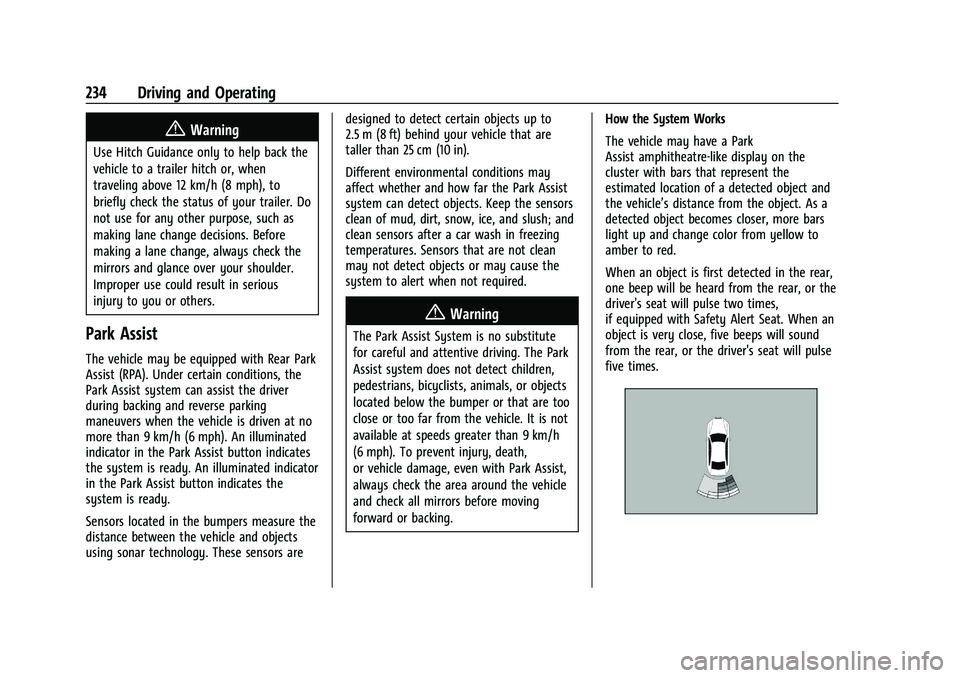
The vehicle may have a Park
Assist amphitheatre-like display on the
cluster with bars that represent the
estimated location of a detected object and
the vehicle’s distance from the object. As a
detected object becomes closer, more bars
light up and change color from yellow to
amber to red.
When an object is first detected in the rear,
one beep will be heard from the rear, or the
driver's seat will pulse two times,
if equipped with Safety Alert Seat. When an
object is very close, five beeps will sound
from the rear, or the driver's seat will pulse
five times.
Page 236 of 386
Chevrolet Blazer Owner Manual (GMNA-Localizing-U.S./Canada/Mexico-
15165663) - 2022 - CRC - 4/27/21
Driving and Operating 235
Turning the System On and Off
The Park Assist System can be turned on or
off using the infotainment system. See
Vehicle Personalization0117.
The
Xbutton is used to turn on or off
the Park Assist, which also turns on or off
the Backing Warning and Reverse Automatic
Braking (RAB) at the same time. When the
system is turned off, a system off message
is shown on the display. This message
disappears after a short period of time.
Turn off Park Assist when towing a trailer to
prevent unwanted beeps and when a bike
rack is attached to ensure proper operation.
When the System Does Not Seem to Work
Properly
If a service message displays, check the
following conditions:
.The sensors may not be clean. Keep the
vehicle's front and rear bumpers free of
mud, dirt, snow, ice, and slush. For
cleaning instructions, see Exterior Care
0 329.
.The Park Assist sensors may be covered
by frost or ice. Frost or ice can form
around and behind the sensors and may
not always be seen; this can occur after washing the vehicle in cold weather. The
message may not clear until the frost or
ice has melted.
If a service message displays and the above
conditions do not exist, take the vehicle to
your dealer for repairs.
If the Park Assist System does not activate
due to a temporary condition, a system off
message is shown on the display. This can
occur under the following conditions:
.The driver has disabled the system.
.An object is currently blocking the rear
sensors (for example, bike rack, tailgate,
trailer hitch, etc.). Once the object is
removed, Park Assist will return to normal
operation.
.The bumper is damaged. Take the vehicle
to your dealer for repairs.
.Other conditions, such as vibrations from
a jackhammer or the compression of air
brakes on a very large truck, are affecting
system performance.
Rear Cross Traffic Alert (RCTA)
System
If equipped, Rear Cross Traffic Alert (RCTA)
displays a red warning triangle with a left
or right pointing arrow on the infotainment display to warn of traffic coming from the
left or right. This system detects objects
coming from up to 20 m (65 ft) from the left
or right side of the vehicle. When an object
is detected, either three beeps sound from
the left or right or three Safety Alert Seat
pulses occur on the left or right side,
depending on the direction of the detected
vehicle.
Driving With a Trailer
Use caution while backing up when towing
a trailer. The RCTA feature is automatically
disabled when a trailer is attached to the
vehicle.
Turning the Features On or Off
The
Xbutton on the center console is
used to turn on or off Rear Park Assist (RPA)
and RCTA at the same time. The indicator
light in the button comes on when the
features are on and turns off when the
features have been disabled.
Turn off RPA and RCTA when towing a
trailer.
RCTA can be turned on or off using the
infotainment system. See “Collision/
Detection Systems” underVehicle
Personalization 0117.
Page 238 of 386
Chevrolet Blazer Owner Manual (GMNA-Localizing-U.S./Canada/Mexico-
15165663) - 2022 - CRC - 4/27/21
Driving and Operating 237
Collision Alert
When your vehicle approaches another
detected vehicle too rapidly, the red FCA
display will flash on the windshield. Also,
eight rapid high-pitched beeps will sound
from the front, or both sides of the Safety
Alert Seat will pulse five times. When this
Collision Alert occurs, the brake system may
prepare for driver braking to occur more
rapidly which can cause a brief, mild
deceleration. Continue to apply the brake
pedal as needed. Cruise control may be
disengaged when the Collision Alert occurs.
Tailgating Alert
The vehicle ahead indicator will display
amber when you are following a vehicle
ahead much too closely.
Selecting the Alert Timing
The Collision Alert control is on the steering
wheel. Press
[to set the FCA timing to
Far, Medium, or Near. The first button press
shows the current setting on the Driver
Information Center (DIC). Additional button
presses will change this setting. The chosen
setting will remain until it is changed and
will affect the timing of both the Collision
Alert and the Tailgating Alert features. The
timing of both alerts will vary based on
vehicle speed. The faster the vehicle speed,
the farther away the alert will occur. Consider traffic and weather conditions
when selecting the alert timing. The range
of selectable alert timings may not be
appropriate for all drivers and driving
conditions.
If your vehicle is equipped with Adaptive
Cruise Control (ACC), changing the FCA
timing setting automatically changes the
following gap setting (Far, Medium,
or Near).
Following Distance Indicator
The following distance to a moving vehicle
ahead in your path is indicated in following
time in seconds on the Driver Information
Center (DIC). See
Driver Information Center
(DIC) (Base and Midlevel) 0111 or
Driver Information Center (DIC) (Uplevel)
0 114. The minimum following time is
0.5 seconds away. If there is no vehicle
detected ahead, or the vehicle ahead is out
of sensor range, dashes will be displayed.
Unnecessary Alerts
FCA may provide unnecessary alerts for
turning vehicles, vehicles in other lanes,
objects that are not vehicles, or shadows.
These alerts are normal operation and the
vehicle does not need service.
Page 244 of 386
Chevrolet Blazer Owner Manual (GMNA-Localizing-U.S./Canada/Mexico-
15165663) - 2022 - CRC - 4/27/21
Driving and Operating 243
180 km/h (112 mph). It may assist by gently
turning the steering wheel if the vehicle
approaches a detected lane marking. It may
also provide a Lane Departure Warning
(LDW) alert if the vehicle crosses a detected
lane marking. LKA can be overridden by
turning the steering wheel. This system is
not intended to keep the vehicle centered in
the lane. LKA will not assist and alert if the
turn signal is active in the direction of lane
departure, or if it detects that you are
accelerating, braking or actively steering.
{Warning
The LKA system does not continuously
steer the vehicle. It may not keep the
vehicle in the lane or give a Lane
Departure Warning (LDW) alert, even if a
lane marking is detected.
The LKA and LDW systems may not:
.Provide an alert or enough steering
assist to avoid a lane departure or
crash.
.Detect lane markings under poor
weather or visibility conditions. This
can occur if the windshield or
headlamps are blocked by dirt, snow,(Continued)
Warning (Continued)
or ice; if they are not in proper
condition; or if the sun shines directly
into the camera.
.Detect road edges.
.Detect lanes on winding or hilly roads.
If LKA only detects lane markings on one
side of the road, it will only assist or
provide an LDW alert when approaching
the lane on the side where it has
detected a lane marking. Even with LKA
and LDW, you must steer the vehicle.
Always keep your attention on the road
and maintain proper vehicle position
within the lane, or vehicle damage,
injury, or death could occur. Always keep
the windshield, headlamps, and camera
sensors clean and in good repair. Do not
use LKA in bad weather conditions or on
roads with unclear lane markings, such as
construction zones.
{Warning
Using LKA while towing a trailer or on
slippery roads could cause loss of control
of the vehicle and a crash. Turn the
system off.
How the System Works
LKA uses a camera sensor installed on the
windshield ahead of the rearview mirror to
detect lane markings. It may provide brief
steering assist if it detects an unintended
lane departure. It may further provide an
audible alert or the driver seat may pulse
indicating that a lane marking has been
crossed.
To turn LKA on and off, press
Aon the
center console. If equipped, the indicator
light on the button comes on when LKA is
on and turns off when LKA is disabled.
When on,
Ais white, if equipped,
indicating that the system is not ready to
assist.
Ais green if LKA is ready to
assist. LKA may assist by gently turning the
steering wheel if the vehicle approaches a
detected lane marking.
Ais amber when
assisting. It may also provide a Lane
Departure Warning (LDW) alert by flashing
Page 306 of 386
Chevrolet Blazer Owner Manual (GMNA-Localizing-U.S./Canada/Mexico-
15165663) - 2022 - CRC - 4/27/21
Vehicle Care 305
4. Use the DIC controls on the right side ofthe steering wheel to scroll to the Tire
Pressure screen under the DIC info page.
5. Press and hold the thumbwheel in the center of the DIC controls.
The horn sounds twice to signal the
receiver is in relearn mode and the TIRE
LEARNING ACTIVE message displays on
the DIC display.
6. Start with the driver side front tire.
7. Place the relearn tool against the tire sidewall, near the valve stem. Then press
the button to activate the TPMS sensor.
A horn chirp confirms that the sensor
identification code has been matched to
this tire and wheel position.
8. Proceed to the passenger side front tire, and repeat the procedure in Step 7.
9. Proceed to the passenger side rear tire, and repeat the procedure in Step 7.
10. Proceed to the driver side rear tire, and repeat the procedure in Step 7. The horn
sounds two times to indicate the sensor
identification code has been matched to
the driver side rear tire, and the TPMS
sensor matching process is no longer
active. The TIRE LEARNING ACTIVE
message on the DIC display goes off. 11. Turn the vehicle off.
12. Set all four tires to the recommended air
pressure level as indicated on the Tire
and Loading Information label.
Tire Inspection
We recommend that the tires, including
the spare tire, if the vehicle has one, be
inspected for signs of wear or damage
at least once a month.
Replace the tire if:
.The indicators at three or more
places around the tire can be seen.
.There is cord or fabric showing
through the tire's rubber.
.The tread or sidewall is cracked, cut,
or snagged deep enough to show
cord or fabric.
.The tire has a bump, bulge, or split.
.The tire has a puncture, cut, or other
damage that cannot be repaired well
because of the size or location of the
damage.
Tire Rotation
Tires should be rotated every 12 000 km
(7,500 mi). See Maintenance Schedule
0 339.
Tires are rotated to achieve a more
uniform wear for all tires. The first
rotation is the most important.
Anytime unusual wear is noticed, rotate
the tires as soon as possible, check for
proper tire inflation pressure, and check
for damaged tires or wheels. If the
unusual wear continues after the
rotation, check the wheel alignment.
See When It Is Time for New Tires
0 306 and
Wheel Replacement 0310.
Page 314 of 386
Chevrolet Blazer Owner Manual (GMNA-Localizing-U.S./Canada/Mexico-
15165663) - 2022 - CRC - 4/27/21
Vehicle Care 313
If this vehicle has a tire sealant and
compressor kit, there may not be a spare
tire or tire changing equipment, and on
some vehicles there may not be a place to
store a tire.
The tire sealant and compressor can be used
to temporarily seal punctures up to 6 mm
(0.25 in) in the tread area of the tire. It can
also be used to inflate an underinflated tire.
If the tire has been separated from the
wheel, has damaged sidewalls, or has a
large puncture, the tire is too severely
damaged for the tire sealant and
compressor kit to be effective. SeeRoadside
Assistance Program 0358.
Read and follow all of the tire sealant and
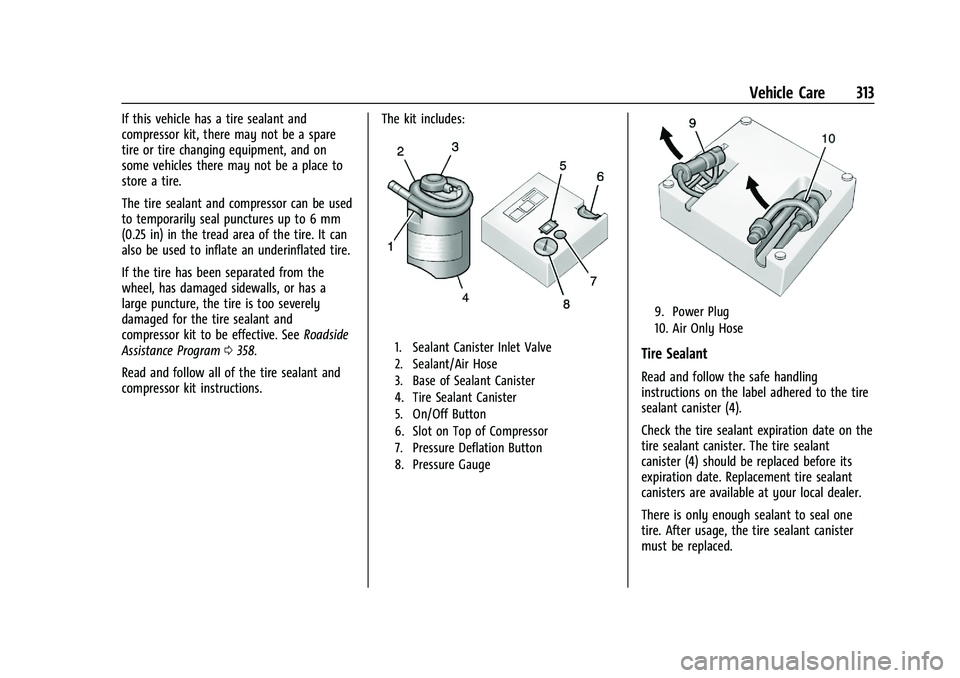
compressor kit instructions. The kit includes:
1. Sealant Canister Inlet Valve
2. Sealant/Air Hose
3. Base of Sealant Canister
4. Tire Sealant Canister
5. On/Off Button
6. Slot on Top of Compressor
7. Pressure Deflation Button
8. Pressure Gauge
9. Power Plug
10. Air Only Hose
Tire Sealant
Read and follow the safe handling
instructions on the label adhered to the tire
sealant canister (4).
Check the tire sealant expiration date on the
tire sealant canister. The tire sealant
canister (4) should be replaced before its
expiration date. Replacement tire sealant
canisters are available at your local dealer.
There is only enough sealant to seal one
tire. After usage, the tire sealant canister
must be replaced.
Page 316 of 386
Chevrolet Blazer Owner Manual (GMNA-Localizing-U.S./Canada/Mexico-
15165663) - 2022 - CRC - 4/27/21
Vehicle Care 315
If the vehicle has an accessory power
outlet, do not use the cigarette lighter.
If the vehicle only has a cigarette lighter,
use the cigarette lighter.
Do not pinch the power plug cord in the
door or window.
9. Start the vehicle. The vehicle must be running while using the air compressor.
10. Press the on/off button (5) to turn the tire sealant and compressor kit on.
The compressor will inject sealant and air
into the tire.
The pressure gauge (8) will initially show
a high pressure while the compressor
pushes the sealant into the tire. Once
the sealant is completely dispersed into
the tire, the pressure will quickly drop
and start to rise again as the tire inflates
with air only.
11. Inflate the tire to the recommended inflation pressure using the pressure
gauge (8). The recommended inflation
pressure can be found on the Tire and
Loading Information label. See Tire
Pressure 0299.
The pressure gauge (8) may read higher
than the actual tire pressure while the
compressor is on. Turn the compressor off to get an accurate pressure reading.
The compressor may be turned on/off
until the correct pressure is reached.
Caution
If the recommended pressure cannot be
reached after approximately 25 minutes,
the vehicle should not be driven farther.
The tire is too severely damaged and the
tire sealant and compressor kit cannot
inflate the tire. Remove the power plug
from the accessory power outlet and
unscrew the inflating hose from the tire
valve. See
Roadside Assistance Program
0 358.
12. Press the on/off button (5) to turn the tire sealant and compressor kit off.
The tire is not sealed and will continue
to leak air until the vehicle is driven and
the sealant is distributed in the tire.
Therefore, Steps 13–21 must be done
immediately after Step 12.
Be careful while handling the tire sealant
and compressor kit as it could be warm
after usage.
13. Unplug the power plug (9) from the accessory power outlet in the vehicle. 14. Turn the sealant/air hose (2)
counterclockwise to remove it from the
tire valve stem.
15. Replace the tire valve stem cap.
16. Remove the tire sealant canister (4) from the slot on top of the compressor (6).
17. Turn the air only hose (10) counterclockwise to remove it from the
tire sealant canister inlet valve (1).
18. Turn the sealant/air hose (2) clockwise onto the sealant canister inlet valve (1)
to prevent sealant leakage.
19. Return the air only hose (10) and power plug (9) back to their original storage
location.
20. If the flat tire was able to inflate to therecommended inflation pressure, remove
the maximum speed label from the
sealant canister and place it in a highly
visible location.