radio CHEVROLET BLAZER 2023 Owner's Manual
[x] Cancel search | Manufacturer: CHEVROLET, Model Year: 2023, Model line: BLAZER, Model: CHEVROLET BLAZER 2023Pages: 360, PDF Size: 17.34 MB
Page 152 of 360
Chevrolet Blazer Owner Manual (GMNA-Localizing-U.S./Canada/Mexico-
16401961) - 2023 - CRC - 5/17/22
Infotainment System 151
Natural Language Commands
Most languages do not support natural
language commands in sentence form. For
those languages, use direct commands like
the examples shown on the display.
Helpful Hints for Speaking Commands
Voice recognition can understand commands
that are naturally stated in sentence form or
direct commands that state the application
and the task.
For best results:
.Listen for the prompt before saying a
command or reply.
.Speak the command naturally, not too
fast, not too slow.
.Use direct commands without a lot of
extra words. For example,“Call
at work,” “Play” followed by the artist or
song name, or “Tune”followed by the
radio station number.
.Navigation destinations can be made in a
single command using keywords. A few
examples are: “I want directions to an
address,” “I need to find a place of
interest or (POI),” or“Find contact.” The system responds by requesting more
details. For other POIs, say the name of a
category like
“Restaurants,” “Shopping
Malls,” or“Hospitals.”
.Navigating to a destination outside of the
current country takes more than one
command. The first command is to tell
the system where the navigation will take
place, such as an Address, Intersection,
POI, or Contact. If Address or Intersection
is selected, the second command is to
say, “Change Country.” Once the system
responds, say the country before saying
the rest of the address and/or
intersection.
If POI is asked for, say “Change Location,”
then “Change Country.”
Direct commands might be more clearly
understood by the system. An example of a
direct command would be “Call
Examples of these direct commands are
displayed on most of the screens while a
voice session is active. If “Phone”or“Phone
Commands,” is spoken, the system
understands that a phone call is requested
and will respond with questions until
enough details are gathered to make a call. If a cell phone number has been saved with
a name and a place, the direct command
should include both, for example
“Call
When a list is displayed, a voice prompt will
ask to confirm or select an option from
that list.
When a display contains a list, there may be
options that are available but not displayed.
The list on a voice recognition screen
functions the same as a list on other
displays. Scrolling or flinging can be used to
help display other entries from the list.
Manually scrolling or paging the list on a
display during a voice recognition session
suspends the current voice recognition event
and plays the prompt “Please select
manually or touch the Back icon on the
infotainment display to try again.”
If manual selection takes more than
15 seconds, the session terminates and
prompts that it has timed out. The display
returns to the display where voice
recognition was initiated.
Page 153 of 360
Chevrolet Blazer Owner Manual (GMNA-Localizing-U.S./Canada/Mexico-
16401961) - 2023 - CRC - 5/17/22
152 Infotainment System
The Back Command
Say“Back” or touch the Back icon on the
infotainment display to go to the
previous menu.
If in voice recognition, and “Back”is spoken
all the way back to the starting display, and
then “Back” is spoken one more time, the
voice recognition session will cancel.
Help
Say “Help” on any voice recognition display
and the help prompt for the display is
played.
Voice Recognition for the Radio
If browsing the audio sources when voice is
touched, the voice recognition commands
for AM, FM, and SiriusXM (if equipped) are
available.
“Switch to AM” :Switch bands to AM and
tune to the last AM radio station.
“Switch to FM” :Switch bands to FM and
tune to the last FM radio station.
“Switch to SXM” :Switch bands to SiriusXM
and tune to the last SiriusXM channel.
“Tune to
the radio station whose frequency is
identified in the command (like “nine fifty”).“Tune to
:Tune to the
radio station whose frequency is identified
in the command (like “one oh one
point one”).
“Tune to
to the HD Radio station (if equipped) whose
frequency is identified in the command.
“Tune to
the HD Radio station (if equipped) whose
frequency is identified in the command.
“Tune to
station (if equipped) whose frequency and
HD channel are identified in the command.
“Tune to SXM
Tune to the SiriusXM radio station whose
channel number is identified in the
command.
“Tune to SXM
to the SiriusXM radio station whose channel
name is identified in the command.
Voice Recognition for Audio MyMedia
The available voice recognition commands
for [browsing] MyMedia are:
“Play Artist” :Begin a dialog to enter a
specific artist name. “Play Artist
:Begin playback
of a specific artist.
“Play Album” :Begin a dialog to enter a
specific album name.
“Play Album
playback of a specific album.
“Play Song” :Begin a dialog to enter a
specific song name.
“Play Song
of a specific song, if available.
“Play Genre” :Begin a dialog to enter a
specific genre.
“Play Genre
playback of a specific genre.
“Play Playlist” :Begin a dialog to enter a
specific playlist name.
“Play Playlist
playback of a specific playlist.
“Play
specific device identified by name. The
device name is the name displayed on the
display when the device is first selected as
an audio source.
“Play Chapter” :Begin a dialog to enter a
specific name.
Page 155 of 360
Chevrolet Blazer Owner Manual (GMNA-Localizing-U.S./Canada/Mexico-
16401961) - 2023 - CRC - 5/17/22
154 Infotainment System
“Address”:Begin a dialog to enter a
specific destination address, which includes
the entire address consisting of the house
number, street name, city, state/province,
and country. Do not include the ZIP code.
“Place of Interest” :Begin a dialog to enter
a destination Place of Interest category or
major brand name.
The name must be precisely spoken.
Nicknames or short names for the
businesses will not likely be found. Lesser
known businesses might have to be located
by category, such as fast food, hotels,
or banks.
“Navigate to Contact” :Begin a dialog to
enter a specific destination contact name.
“Cancel Route” :End route guidance.
“Take Me Home” :Create a route to a
stored home location.
Voice Recognition for the Phone
“Call
stored contact. The command may include
location if the contact has location numbers
stored. “Call
Mobile,”
or“On Other” :Initiate a call to a
stored contact and location at home, at
work, on mobile device, or on another
phone.
“Call
to a cell phone number of seven digits, 10
digits, or three digit emergency numbers.
“Pair Phone” :Begin the Bluetooth pairing
process. Follow the instructions on the
infotainment display.
“Redial” :Initiate a call to the last dialed
number.
“Switch Phone” :Select a different
connected cell phone for outgoing calls.
“Voice Keypad” :Begin a dialog to enter
special numbers like international numbers.
The numbers can be entered in groups of
digits with each group of digits being
repeated back by the system. If the group
of digits is not correct, the command
“Delete” will remove the last group of digits
and allow them to be re-entered. Once the
entire number has been entered, the
command “Call”will start dialing the
number.
Phone Assistant Voice Recognition
Press and holdgon the steering wheel
controls to pass through and launch Google
phone assistant or Siri.
For the low radio, whether connected by
Bluetooth or phone projection, the only
available voice recognition is either Siri
(iPhone) or the Google Assistant (Android).
Phone
Bluetooth (Overview)
The Bluetooth-capable system can be paired
with up to 10 Bluetooth devices and two
active Bluetooth devices, allowing:
.Placement and receipt of calls in a
hands-free mode.
.Sharing of the device’s address book or
contact list with the vehicle.
To minimize driver distraction, before
driving, and with the vehicle parked:
.Become familiar with the features of the
mobile device. Organize the phone book
and contact lists clearly and delete
duplicate or rarely used entries.
If possible, program speed dial or other
shortcuts.
Page 166 of 360
Chevrolet Blazer Owner Manual (GMNA-Localizing-U.S./Canada/Mexico-
16401961) - 2023 - CRC - 5/17/22
Infotainment System 165
On certain vehicles, when the Speed Limiter
is turned ON, the vehicle’s maximum
acceleration will be limited. The DIC will
display a message that the acceleration is
limited.
Teen Driver Speed Warning :Displays a
warning in the DIC when exceeding a
selectable speed. Turn the speed warning on
or off and choose the desired speed warning
level. The speed warning does not limit the
speed of the vehicle. On some infotainment
systems, touch Set Teen Driver Speed
Warning to set the warning speed.
Set Teen Driver Speed Warning : Choose the
desired speed warning level. The speed
warning does not limit the speed of the
vehicle.
SiriusXM Explicit Content Filter : Allows the
SiriusXM Explicit Content Filter to be turned
ON or OFF. When ON, the teen driver will
not be able to listen to SiriusXM stations
that contain explicit content, and the Explicit
Content Filter selection in the Audio Settings
will be unavailable for change. When Teen Driver is Active:
.If equipped, the radio will mute when the
driver seat belt, and in some vehicles the
front passenger seat belt, is not buckled.
The audio from any device paired to the
vehicle will also be muted.
.An object placed on the front passenger
seat, such as a briefcase, handbag,
grocery bag, laptop, or other electronic
device, could cause the passenger sensing
system to falsely sense an unbuckled
front passenger and mute the radio.
If this happens, remove the object from
the seat. See
Passenger Sensing System
0 57.
.Some safety systems, such as Automatic
Emergency Braking, if equipped, cannot
be turned off.
.The gap setting for Adaptive Cruise
Control and alert timing for Forward
Collision Alert, if equipped, cannot be
changed.
.When trying to change a safety feature
that is not configurable in Teen Driver,
the feature may be grayed out or
removed from the infotainment menu,
or the DIC will display a message
indicating that Teen Driver is active and
the action is not available.
.Super Cruise, if equipped, is not available.
.Enhanced Low Fuel Warning (if equipped)
–When the vehicle is low on fuel, the
low fuel light on the instrument cluster
flashes and the DIC low fuel warning
cannot be dismissed.
.Do not tow a trailer if equipped with
Automatic Emergency Braking.
Report Card
The vehicle owner must secure the driver’s
consent to record certain vehicle data when
the vehicle is driven with a registered Teen
Driver key. There is one Report Card per
vehicle. Data is only recorded when a
registered Teen Driver key is used to
operate the vehicle.
The Report Card data is collected from the
time Teen Driver is activated or the last
time the Report Card was reset. The
following items may be recorded:
.Distance Driven –the total distance
driven.
.Maximum Speed –the maximum vehicle
speed detected.
.Overspeed Warnings –the number of
times the speed warning setting was
exceeded.
Page 167 of 360
Chevrolet Blazer Owner Manual (GMNA-Localizing-U.S./Canada/Mexico-
16401961) - 2023 - CRC - 5/17/22
166 Infotainment System
.Wide Open Throttle–the number of
times the accelerator pedal was pressed
nearly all the way down.
.Forward Collision Alerts (if equipped) –
the number of times the driver was
notified when approaching a vehicle
ahead too quickly and at potential risk for
a crash.
.Forward Automatic Braking, also called
Automatic Emergency Braking (if
equipped) –the number of times the
vehicle detected that a forward collision
was imminent and applied the brakes.
.Reverse Automatic Braking (if equipped) –
the number of times the vehicle detected
that a rearward collision was imminent
and applied the brakes.
.Traction Control –the number of times
the Traction Control System activated to
reduce wheel spin or loss of traction.
.Stability Control –the number of events
which required the use of electronic
stability control.
.Antilock Braking System Active –The
number of Antilock Brake System
activations.
.Tailgating Alerts (if equipped)– the
number of times the driver was alerted
for following a vehicle ahead too closely. Report Card Data
Cumulative Data is saved for all trips until
the Report Card is reset or until the
maximum count is exceeded. If the
maximum count is exceeded for a Report
Card line item, that item will no longer be
updated in the Report Card until it is reset.
Each item will report a maximum of
1,000 counts. The distance driven will report
a maximum of 64 374 km (40,000 mi).
To delete Report Card data, do one of the
following:
.From the Report Card display, touch
Reset.
.Touch Clear PIN and All Teen Driver Keys
from the Teen Driver menu. This will also
unregister any Teen Driver keys and
delete the PIN.
Forgotten PIN
See your dealer to reset the PIN.
Trademarks and License
Agreements
FCC Information
See Radio Frequency Statement 0337.
"Made for iPhone," means that an electronic
accessory has been designed to connect
specifically to iPhone, and has been certified
by the developer to meet Apple
performance standards. Apple is not
responsible for the operation of this device
or its compliance with safety and regulatory
standards. Please note that the use of this
accessory with iPhone may affect wireless
performance. iPhone are trademarks of
Apple Inc., registered in the U.S. and other
countries.
Trial length and service availability may vary
by model, model year or trim. Service will
automatically stop at the end of your trial
subscription period unless you decide to
Page 168 of 360
Chevrolet Blazer Owner Manual (GMNA-Localizing-U.S./Canada/Mexico-
16401961) - 2023 - CRC - 5/17/22
Infotainment System 167
continue service. If you do not wish to enjoy
your trial, you can cancel by calling the
number below. All SiriusXM services require
a subscription, each sold separately by
SiriusXM after the trial period. Service
subject to the applicable SiriusXM Customer
Agreement and Privacy Policy, visit
www.siriusxm.com (USA) or www.siriusxm.ca
(Canada) to see complete terms and how to
cancel which includes calling 1-866-635-2349
(USA) or 1-888-539-7474 (Canada). Some
services and features are subject to device
capabilities and location availability. Content
varies by SiriusXM subscription package. All
fees, content and features are subject to
change.
SiriusXM with 360L: Some features,
including steaming content and listening
recommendations, require an active OnStar
Connected Access plan and may vary by
vehicle model. Content varies by SiriusXM
subscription plan. GM connected vehicle
services vary by vehicle model and require
active service plan, working electrical
system, cell reception and GPS signal. See
onstar.com for details and limitations.
SiriusXM, Pandora, Stitcher and all related
logos are trademarks of Sirius XM Radio Inc.
and its respective subsidiaries.SiriusXM satellite service is only available in
the 48 contiguous United States (and Puerto
Rico with limited availability) and Canada.
In Canada: Some deterioration of service
may occur in extreme northern latitudes.
This is beyond the control of SiriusXM.
Explicit Language Notice: Channels with
frequent explicit language are indicated with
an
“XL” preceding the channel name.
Family-friendly packages are available by
contacting SiriusXM:
.USA Customers —See www.siriusxm.com
or call 1-888-601-6296.
.Canada Customers —See
www.siriusxm.ca or call 1-877-438-9677.
It is prohibited to copy, decompile,
disassemble, reverse engineer, hack,
manipulate, or otherwise make available any
technology or software incorporated in
receivers compatible with the SiriusXM
Satellite Radio System or that support the
SiriusXM website, the Online Service or any
of its content.
General Requirements: 1. A License Agreement from SiriusXM is required for any product that
incorporates SiriusXM Technology and/or
for use of any of the SiriusXM marks to be manufactured, distributed,
or marketed in the SiriusXM
Service Area.
2. For products to be distributed, marketed, and/or sold in Canada, a separate
agreement is required with Sirius XM
Canada Inc.TouchSense Technology and TouchSense
System 1000 Series Licensed from
Immersion Corporation. TouchSense System
1000 protected under one or more of the
U.S. Patents at the following address
www.immersion.com/patent-marking.html
and other patents pending.
Bose
Bose AudioPilot and Bose Centerpoint
surround are registered trademarks of Bose
Corporation in the U.S. and other countries.
Page 177 of 360
Chevrolet Blazer Owner Manual (GMNA-Localizing-U.S./Canada/Mexico-
16401961) - 2023 - CRC - 5/17/22
176 Climate Controls
To turn Auto Defog off or on, select Settings
> Climate and Air Quality > Auto Defog >
Select ON or OFF.
Rear Window Defogger
=:Press to turn the rear window
defogger on or off. An indicator light on the
button comes on to show that the rear
window defogger is on. The rear window
defogger only works when the vehicle is on.
The defogger turns off when the vehicle is
off or in accessory mode.
The rear window defogger can be set to
automatic operation. To turn Auto Defog off
or on, select Settings > Climate and Air
Quality > Auto Rear Defog > Select ON or
OFF. When Auto Rear Defog is selected, the
rear window defogger turns on
automatically when the interior temperature
is cold and the outside temperature is about
7 °C (44 °F) and below. The auto rear
defogger turns off automatically.
If the vehicle is equipped with heated
outside mirrors, they turn on when the rear
window defogger button is on and help to
clear fog or frost from the surface of the
mirror. See Heated Mirrors 027.
Caution
Do not try to clear frost or other material
from the inside of the front windshield
and rear window with a razor blade or
anything else that is sharp. This may
damage the rear window defogger grid
and affect the radio's ability to pick up
stations clearly. The repairs would not be
covered by the vehicle warranty.
LorM:If equipped, pressLorMto
heat the driver or passenger seat. See
Heated and Ventilated Front Seats 041.
{orC:If equipped, press{orCto
ventilate the driver or passenger seat. See
Heated and Ventilated Front Seats 041.
Remote Start Climate Control Operation :
If equipped with remote start, the climate
control system may run when the vehicle is
started remotely. The system will use the
defrost setting if it is cold outside or turn
on using the coldest settings if it is hot
outside. The rear defog may come on during
remote start based on cold ambient
conditions. The rear defog indicator light
does not come on during a remote start. If equipped, the heated seats will turn on if
it is cold outside or the ventilated seats will
turn on if it is hot outside. The heated and
ventilated seat indicator lights may not
come on during a remote start. If equipped,
the heated steering wheel will come on in a
remote start if it is cold outside. The heated
steering wheel indicator light may not come
on. See
Remote Vehicle Start 014 and
Heated and Ventilated Front Seats 041.
Sensor
The solar sensor, on top of the instrument
panel near the windshield, monitors the
solar heat.
The climate control system uses the sensor
information to adjust the temperature, fan
speed, recirculation, and air delivery mode
for best comfort.
Do not cover the sensor; otherwise the
automatic climate control system may not
work properly.
Afterblow Feature
If equipped, under certain conditions, the
fan may stay on or may turn on and off
several times after you turn off and lock the
vehicle. This is normal.
Page 180 of 360
Chevrolet Blazer Owner Manual (GMNA-Localizing-U.S./Canada/Mexico-
16401961) - 2023 - CRC - 5/17/22
Driving and Operating 179
Towing Equipment . . . . . . . . . . . . . . . . . . . . . 241
Trailer Sway Control (TSC) . . . . . . . . . . . . . 244
Conversions and Add-Ons
Add-On Electrical Equipment . . . . . . . . . . . 245
Driving Information
Driving for Better Fuel Economy
Driving habits can affect fuel mileage. Here
are some driving tips to get the best fuel
economy possible.
.Set the climate controls to the desired
temperature after the engine is started,
or turn them off when not required.
.On AWD vehicles, seeDriver Mode Control
0 206.
.Avoid fast starts and accelerate smoothly.
.Brake gradually and avoid abrupt stops.
.Avoid idling the engine for long periods
of time.
.When road and weather conditions are
appropriate, use cruise control.
.Always follow posted speed limits or
drive more slowly when conditions
require.
.Keep vehicle tires properly inflated.
.Combine several trips into a single trip.
.Replace the vehicle's tires with the same
TPC Spec number molded into the tire's
sidewall near the size.
.Follow recommended scheduled
maintenance.
Distracted Driving
Distraction comes in many forms and can
take your focus from the task of driving.
Exercise good judgment and do not let other
activities divert your attention away from
the road. Many local governments have
enacted laws regarding driver distraction.
Become familiar with the local laws in
your area.
To avoid distracted driving, keep your eyes
on the road, keep your hands on the
steering wheel, and focus your attention on
driving.
.Do not use a phone in demanding driving
situations. Use a hands-free method to
place or receive necessary phone calls.
.Watch the road. Do not read, take notes,
or look up information on phones or
other electronic devices.
.Designate a front seat passenger to
handle potential distractions.
.Become familiar with vehicle features
before driving, such as programming
favorite radio stations and adjusting
climate control and seat settings. Program
all trip information into any navigation
device prior to driving.
Page 193 of 360
Chevrolet Blazer Owner Manual (GMNA-Localizing-U.S./Canada/Mexico-
16401961) - 2023 - CRC - 5/17/22
192 Driving and Operating
Caution (Continued)
.Avoid making hard stops for the first
300 km (200 mi) or so. During this
time the new brake linings are not yet
broken in. Hard stops with new linings
can mean premature wear and earlier
replacement. Follow this breaking-in
guideline every time you get new
brake linings.
.Do not tow a trailer during break-in.
SeeTrailer Towing 0238 for the trailer
towing capabilities of the vehicle and
more information.
Following break-in, engine speed and load
can be gradually increased.
On new vehicles, the various mechanical and
electrical systems experience a “break-in”
period during the first 6 400 km (4,000 mi)
of routine driving. As the vehicle is driven,
the mechanical systems adjust to provide
optimal fuel economy and transmission shift
performance.
Electrical systems will adapt and calibrate
during the break-in period. A one-time
occurrence of clicks and similar vehicle
noises is normal during this process. Normal driving charges the vehicle’s battery
to achieve the best operation of the vehicle,
including fuel economy and the Stop/Start
System. See
Stop/Start System 0194.
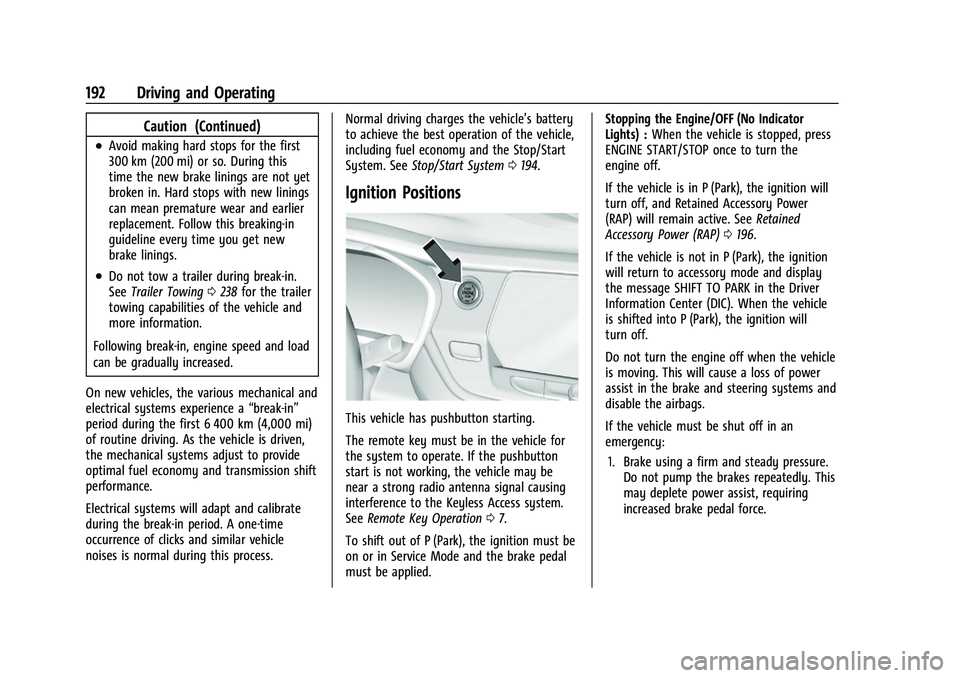
Ignition Positions
This vehicle has pushbutton starting.
The remote key must be in the vehicle for
the system to operate. If the pushbutton
start is not working, the vehicle may be
near a strong radio antenna signal causing
interference to the Keyless Access system.
See Remote Key Operation 07.
To shift out of P (Park), the ignition must be
on or in Service Mode and the brake pedal
must be applied. Stopping the Engine/OFF (No Indicator
Lights) :
When the vehicle is stopped, press
ENGINE START/STOP once to turn the
engine off.
If the vehicle is in P (Park), the ignition will
turn off, and Retained Accessory Power
(RAP) will remain active. See Retained
Accessory Power (RAP) 0196.
If the vehicle is not in P (Park), the ignition
will return to accessory mode and display
the message SHIFT TO PARK in the Driver
Information Center (DIC). When the vehicle
is shifted into P (Park), the ignition will
turn off.
Do not turn the engine off when the vehicle
is moving. This will cause a loss of power
assist in the brake and steering systems and
disable the airbags.
If the vehicle must be shut off in an
emergency: 1. Brake using a firm and steady pressure. Do not pump the brakes repeatedly. This
may deplete power assist, requiring
increased brake pedal force.
Page 210 of 360
Chevrolet Blazer Owner Manual (GMNA-Localizing-U.S./Canada/Mexico-
16401961) - 2023 - CRC - 5/17/22
Driving and Operating 209
The speedometer reading can be displayed
in either English or metric units. See
Instrument Cluster (Uplevel)094 or
Instrument Cluster (Base Level) 092. The
increment value used depends on the units
displayed.
Passing Another Vehicle While Using Cruise
Control
Use the accelerator pedal to increase the
vehicle speed. When you take your foot off
the pedal, the vehicle will slow down to the
previous set cruise speed.
While pressing the accelerator pedal or
shortly following the release to override
cruise, briefly moving the thumbwheel down
toward SET− will result in cruise set to the
current vehicle speed.
Using Cruise Control on Hills
How well the cruise control will work on
hills depends upon the vehicle speed, load,
and the steepness of the hills. When going
up steep hills, you might have to step on
the accelerator pedal to maintain your
speed. When going downhill, you might
have to brake or shift to a lower gear to
keep your speed down. If the brake pedal is
applied, cruise control disengages. Ending Cruise Control
There are four ways to end cruise control:
.Step lightly on the brake pedal.
.Press*.
.Shift the transmission to N (Neutral).
.PressJ.
Erasing Speed Memory
The cruise control set speed is erased from
memory if
Jis pressed or if the ignition is
turned off.
Adaptive Cruise Control
(Advanced)
If equipped, Adaptive Cruise Control (ACC)
allows the cruise control set speed and
following gap to be selected. Read this
entire section before using this system. The
following gap is the following time between
your vehicle and a vehicle detected directly
ahead in your path, moving in the same
direction. If no vehicle is detected in your
path, ACC works like regular cruise control.
ACC uses camera and radar sensors. See
Radio Frequency Statement 0337.
If a vehicle is detected in your path, ACC can
apply acceleration or limited, moderate
braking to maintain the selected following gap. To disengage ACC, apply the brake
pedal. If ACC is controlling your vehicle
speed when the Traction Control System
(TCS) or StabiliTrak/Electronic Stability
Control (ESC) system activates, the ACC may
automatically disengage. See
Traction
Control/Electronic Stability Control 0204.
When road conditions allow ACC to be
safely used, the ACC can be turned back on.
Turning off the TCS or StabiliTrak/ESC
system will disengage the cruise control.
ACC can reduce the need for you to
frequently brake and accelerate, especially
when used on expressways, freeways, and
interstate highways. When used on other
roads, you may need to take over the
control of braking or acceleration more
often.
{Warning
ACC has limited braking ability and may
not have time to slow the vehicle down
enough to avoid a collision with another
vehicle you are following. This can occur
when vehicles suddenly slow or stop
ahead, or enter your lane. Also see
“Alerting the Driver” in this section.
(Continued)