Jack CHEVROLET BLAZER 2023 Owners Manual
[x] Cancel search | Manufacturer: CHEVROLET, Model Year: 2023, Model line: BLAZER, Model: CHEVROLET BLAZER 2023Pages: 360, PDF Size: 17.34 MB
Page 126 of 360
Chevrolet Blazer Owner Manual (GMNA-Localizing-U.S./Canada/Mexico-
16401961) - 2023 - CRC - 5/17/22
Infotainment System 125
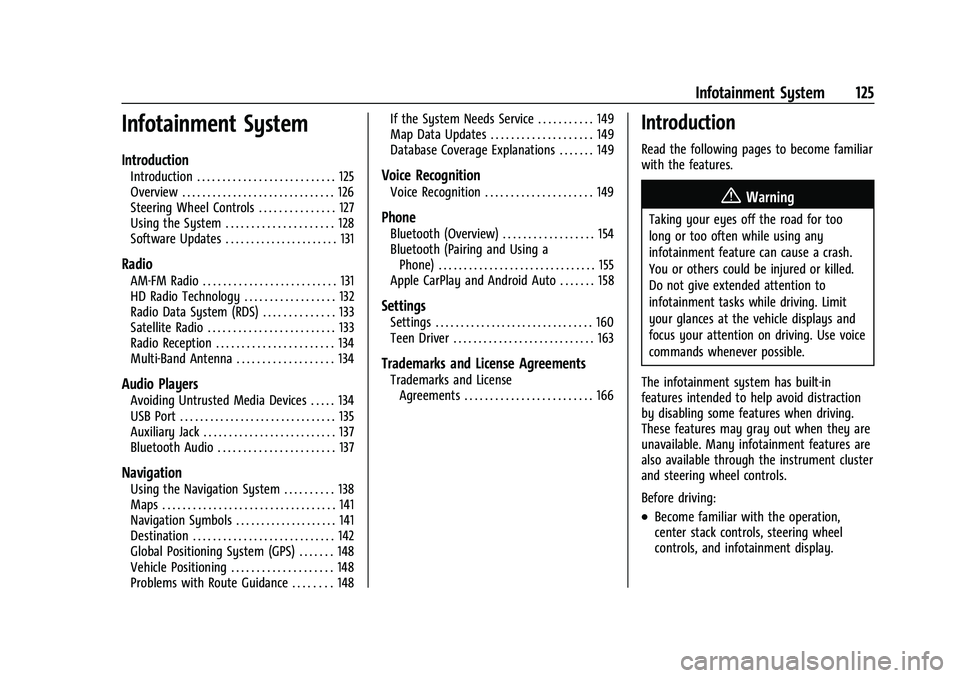
Infotainment System
Introduction
Introduction . . . . . . . . . . . . . . . . . . . . . . . . . . . 125
Overview . . . . . . . . . . . . . . . . . . . . . . . . . . . . . . 126
Steering Wheel Controls . . . . . . . . . . . . . . . 127
Using the System . . . . . . . . . . . . . . . . . . . . . 128
Software Updates . . . . . . . . . . . . . . . . . . . . . . 131
Radio
AM-FM Radio . . . . . . . . . . . . . . . . . . . . . . . . . . 131
HD Radio Technology . . . . . . . . . . . . . . . . . . 132
Radio Data System (RDS) . . . . . . . . . . . . . . 133
Satellite Radio . . . . . . . . . . . . . . . . . . . . . . . . . 133
Radio Reception . . . . . . . . . . . . . . . . . . . . . . . 134
Multi-Band Antenna . . . . . . . . . . . . . . . . . . . 134
Audio Players
Avoiding Untrusted Media Devices . . . . . 134
USB Port . . . . . . . . . . . . . . . . . . . . . . . . . . . . . . . 135
Auxiliary Jack . . . . . . . . . . . . . . . . . . . . . . . . . . 137
Bluetooth Audio . . . . . . . . . . . . . . . . . . . . . . . 137
Navigation
Using the Navigation System . . . . . . . . . . 138
Maps . . . . . . . . . . . . . . . . . . . . . . . . . . . . . . . . . . 141
Navigation Symbols . . . . . . . . . . . . . . . . . . . . 141
Destination . . . . . . . . . . . . . . . . . . . . . . . . . . . . 142
Global Positioning System (GPS) . . . . . . . 148
Vehicle Positioning . . . . . . . . . . . . . . . . . . . . 148
Problems with Route Guidance . . . . . . . . 148If the System Needs Service . . . . . . . . . . . 149
Map Data Updates . . . . . . . . . . . . . . . . . . . . 149
Database Coverage Explanations . . . . . . . 149
Voice Recognition
Voice Recognition . . . . . . . . . . . . . . . . . . . . . 149
Phone
Bluetooth (Overview) . . . . . . . . . . . . . . . . . . 154
Bluetooth (Pairing and Using a
Phone) . . . . . . . . . . . . . . . . . . . . . . . . . . . . . . . 155
Apple CarPlay and Android Auto . . . . . . . 158
Settings
Settings . . . . . . . . . . . . . . . . . . . . . . . . . . . . . . . 160
Teen Driver . . . . . . . . . . . . . . . . . . . . . . . . . . . . 163
Trademarks and License Agreements
Trademarks and License Agreements . . . . . . . . . . . . . . . . . . . . . . . . . 166
Introduction
Read the following pages to become familiar
with the features.
{Warning
Taking your eyes off the road for too
long or too often while using any
infotainment feature can cause a crash.
You or others could be injured or killed.
Do not give extended attention to
infotainment tasks while driving. Limit
your glances at the vehicle displays and
focus your attention on driving. Use voice
commands whenever possible.
The infotainment system has built-in
features intended to help avoid distraction
by disabling some features when driving.
These features may gray out when they are
unavailable. Many infotainment features are
also available through the instrument cluster
and steering wheel controls.
Before driving:
.Become familiar with the operation,
center stack controls, steering wheel
controls, and infotainment display.
Page 138 of 360
Chevrolet Blazer Owner Manual (GMNA-Localizing-U.S./Canada/Mexico-
16401961) - 2023 - CRC - 5/17/22
Infotainment System 137
Touch one of the following Browse options
to save a favorite:
Playlists :Touch
Hnext to any playlist to
store the playlist as a favorite. Touch a
saved favorite to recall a favorite playlist.
The first song in the playlist begins to play.
Artists : Touch
Hnext to any artist to
store the artist as a favorite. Touch a saved
favorite to recall a favorite artist. The first
song in the artist list begins to play.
Songs : Touch
Hnext to any song to store
the song as a favorite. Touch a saved
favorite to recall a favorite song.
Albums : Touch
Hnext to any album to
store the album as a favorite. Touch a saved
favorite to recall a favorite album. The first
song in the album list begins to play.
Genres : Touch
Hnext to any genre to
store the genre as a favorite. Touch a saved
favorite to recall a favorite genre. The first
song of the genre begins to play.
Podcasts : Touch
Hnext to any podcast to
store the podcast as a favorite. Touch a
saved favorite to recall a favorite podcast.
The podcast begins to play. Audiobooks :
Touch
Hnext to any
audiobook to store the audiobook as a
favorite. Touch a saved favorite to recall a
favorite audiobook. The first chapter in the
audiobook begins to play.
Media Playback and Mute
USB playback will be paused if the system is
muted. If the steering wheel mute control is
pressed again, playback will resume.
If the source is changed while in mute,
playback resumes and audio will unmute.
Auxiliary Jack
This vehicle may have an auxiliary input
jack. Possible auxiliary audio sources include:
.Laptop computer
.Audio music player
This jack is not an audio output. Do not
plug headphones into the auxiliary input
jack. Set up an auxiliary device while the
vehicle is in P (Park).
Connect a 3.5 mm (1/8 in) cable from the
auxiliary device to the auxiliary input jack.
When a device is connected, the system can
play audio from the device over the vehicle
speakers. If an auxiliary device has already been
connected, but a different source is currently
active, touch More and then touch AUX to
make the source active.
Shuffle and Browse are not available in the
AUX source menu.
Bluetooth Audio
Music may be played from a paired
Bluetooth device. See
Bluetooth (Pairing and
Using a Phone) 0155 or
Bluetooth (Overview) 0154 for help pairing a
device.
Volume and song selection may be
controlled by using the infotainment
controls or the mobile device. If Bluetooth is
selected and no volume is present, check the
volume setting on the infotainment system.
Music can be launched by touching
Bluetooth from the recent sources list on
the left of the display or by touching the
More option and then touching the
Bluetooth device.
To play music via Bluetooth:
1. Power on the device, and pair to connect the device.
Page 224 of 360
Chevrolet Blazer Owner Manual (GMNA-Localizing-U.S./Canada/Mexico-
16401961) - 2023 - CRC - 5/17/22
Driving and Operating 223
If the Park Assist System does not activate
due to a temporary condition, a system off
message is shown on the display. This can
occur under the following conditions:
.The driver has disabled the system.
.An object is currently blocking the rear
sensors (for example, bike rack, tailgate,
trailer hitch, etc.). Once the object is
removed, Park Assist will return to normal
operation.
.The bumper is damaged. Take the vehicle
to your dealer for repairs.
.Other conditions, such as vibrations from
a jackhammer or the compression of air
brakes on a very large truck, are affecting
system performance.
Rear Cross Traffic Alert (RCTA)
System
If equipped, Rear Cross Traffic Alert (RCTA)
displays a red warning triangle with a left
or right pointing arrow on the infotainment
display to warn of traffic coming from the
left or right. This system detects objects
coming from up to 20 m (65 ft) from the left
or right side of the vehicle. When an object
is detected, either three beeps sound from
the left or right or three Safety Alert Seatpulses occur on the left or right side,
depending on the direction of the detected
vehicle.
Driving With a Trailer
Use caution while backing up when towing
a trailer. The RCTA feature is automatically
disabled when a trailer is attached to the
vehicle.
Turning the Features On or Off
The
Xbutton on the center console is
used to turn on or off Rear Park Assist (RPA)
and RCTA at the same time. The indicator
light in the button comes on when the
features are on and turns off when the
features have been disabled.
RCTA can be turned on or off using the
infotainment system. To view available
settings for this feature, touch the Settings
icon on the infotainment home page. Select
“Vehicle” to display the list of available
options and select “Collision/Detection
Systems”.
Assistance Systems for Driving
If equipped, when driving the vehicle in a
forward gear, Forward Collision Alert (FCA),
Lane Departure Warning (LDW), Lane Keep
Assist (LKA), Side Blind Zone Alert (SBZA), Lane Change Alert (LCA), Automatic
Emergency Braking (AEB), and/or the Front
Pedestrian Braking (FPB) System can help to
avoid a crash or reduce crash damage.
Forward Collision Alert (FCA)
System
If equipped, the FCA system may help to
avoid or reduce the harm caused by
front-end crashes. When approaching a
vehicle ahead too quickly, FCA provides a
red flashing alert on the windshield and
rapidly beeps or pulses the driver seat. FCA
also lights an amber visual alert if following
another vehicle much too closely.
FCA detects vehicles within a distance of
approximately 60 m (197 ft) and operates at
speeds above 8 km/h (5 mph). If the vehicle
has Adaptive Cruise Control (ACC), it can
detect vehicles to distances of approximately
110 m (360 ft) and operates at all speeds.
See
Adaptive Cruise Control (Advanced)
0 209.
Page 275 of 360
Chevrolet Blazer Owner Manual (GMNA-Localizing-U.S./Canada/Mexico-
16401961) - 2023 - CRC - 5/17/22
274 Vehicle Care
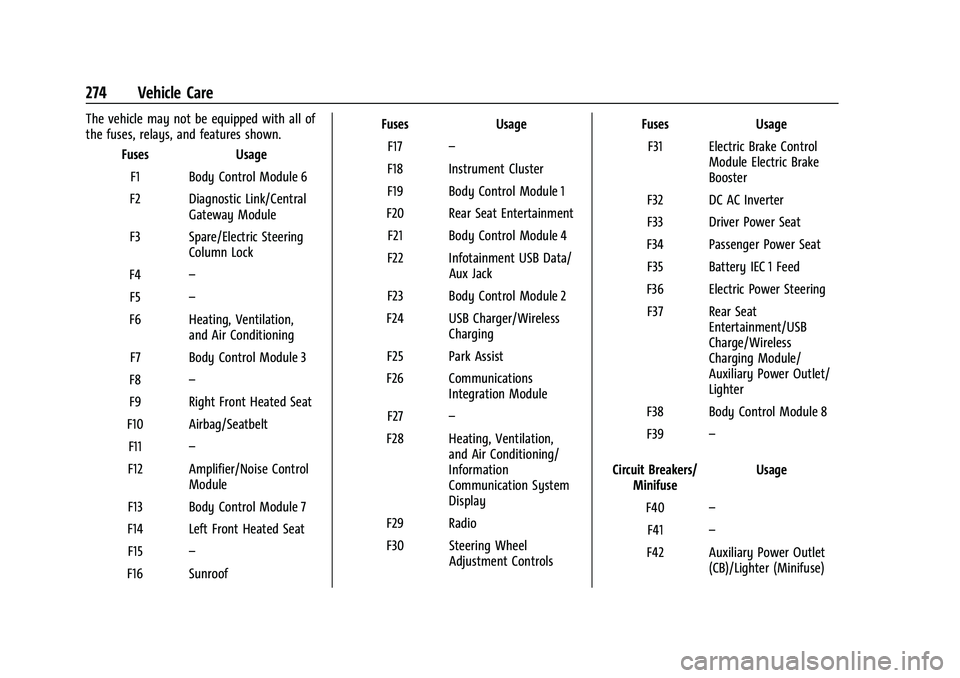
The vehicle may not be equipped with all of
the fuses, relays, and features shown.Fuses Usage
F1 Body Control Module 6
F2 Diagnostic Link/Central Gateway Module
F3 Spare/Electric Steering Column Lock
F4 –
F5 –
F6 Heating, Ventilation, and Air Conditioning
F7 Body Control Module 3
F8 –
F9 Right Front Heated Seat
F10 Airbag/Seatbelt F11 –
F12 Amplifier/Noise Control Module
F13 Body Control Module 7
F14 Left Front Heated Seat F15 –
F16 Sunroof Fuses Usage
F17 –
F18 Instrument Cluster
F19 Body Control Module 1
F20 Rear Seat Entertainment F21 Body Control Module 4
F22 Infotainment USB Data/ Aux Jack
F23 Body Control Module 2
F24 USB Charger/Wireless Charging
F25 Park Assist
F26 Communications Integration Module
F27 –
F28 Heating, Ventilation, and Air Conditioning/
Information
Communication System
Display
F29 Radio
F30 Steering Wheel Adjustment Controls Fuses Usage
F31 Electric Brake Control Module Electric Brake
Booster
F32 DC AC Inverter
F33 Driver Power Seat
F34 Passenger Power Seat F35 Battery IEC 1 Feed
F36 Electric Power Steering F37 Rear Seat Entertainment/USB
Charge/Wireless
Charging Module/
Auxiliary Power Outlet/
Lighter
F38 Body Control Module 8
F39 –
Circuit Breakers/ Minifuse Usage
F40 –
F41 –
F42 Auxiliary Power Outlet (CB)/Lighter (Minifuse)
Page 296 of 360
Chevrolet Blazer Owner Manual (GMNA-Localizing-U.S./Canada/Mexico-
16401961) - 2023 - CRC - 5/17/22
Vehicle Care 295
Caution (Continued)
when necessary. Use low profile chains
that add no more than 12 mm (0.5 in)
thickness to the tire tread and inner
sidewall. Use chains that are the proper
size for the tires. Install them on the tires
of the drive axle only. Tighten them as
tightly as possible with the ends securely
fastened. Drive slowly and follow the
chain manufacturer's instructions. If the
chains contact the vehicle, stop and
retighten them. If the contact continues,
slow down until it stops. Driving too fast
or spinning the wheels with chains on
will damage the vehicle.
If a Tire Goes Flat
It is unusual for a tire to blow out while
driving, especially if the tires are maintained
properly. SeeTires0277. If air goes out of a
tire, it is much more likely to leak out
slowly. But if there is ever a blowout, here
are a few tips about what to expect and
what to do:
If a front tire fails, the flat tire creates a
drag that pulls the vehicle toward that side.
Take your foot off the accelerator pedal and
grip the steering wheel firmly. Steer to maintain lane position, and then gently
brake to a stop, well off the road,
if possible.
A rear blowout, particularly on a curve, acts
much like a skid and may require the same
correction as used in a skid. Stop pressing
the accelerator pedal and steer to straighten
the vehicle. It may be very bumpy and
noisy. Gently brake to a stop, well off the
road, if possible.
{Warning
Driving on a flat tire will cause
permanent damage to the tire.
Re-inflating a tire after it has been driven
on while severely underinflated or flat
may cause a blowout and a serious crash.
Never attempt to re-inflate a tire that has
been driven on while severely
underinflated or flat. Have your dealer or
an authorized tire service center repair or
replace the flat tire as soon as possible.
{Warning
Lifting a vehicle and getting under it to
do maintenance or repairs is dangerous
without the appropriate safety equipment
and training. If a jack is provided with
the vehicle, it is designed only for
changing a flat tire. If it is used for
anything else, you or others could be
badly injured or killed if the vehicle slips
off the jack. If a jack is provided with the
vehicle, only use it for changing a
flat tire.
If a tire goes flat, avoid further tire and
wheel damage by driving slowly to a level
place, well off the road, if possible. Turn on
the hazard warning flashers. See Hazard
Warning Flashers 0121.
If your vehicle is loaded at or near
maximum cargo capacity, it may be difficult
to fit the jack under the vehicle due to the
environment (shoulder slope, road debris,
etc.). Removal of some weight may improve
the ability to fit the jack under the vehicle
at the correct jacking location.
Page 297 of 360
Chevrolet Blazer Owner Manual (GMNA-Localizing-U.S./Canada/Mexico-
16401961) - 2023 - CRC - 5/17/22
296 Vehicle Care
{Warning
Changing a tire can be dangerous. The
vehicle can slip off the jack and roll over
or fall causing injury or death. Find a
level place to change the tire. To help
prevent the vehicle from moving:1. Set the parking brake firmly.
2. Put the vehicle in P (Park).
3. Turn the vehicle off and do not restart the vehicle while it is raised.
4. Do not allow passengers to remain in the vehicle.
5. Place wheel blocks, if equipped, on both sides of the tire at the opposite
corner of the tire being changed.
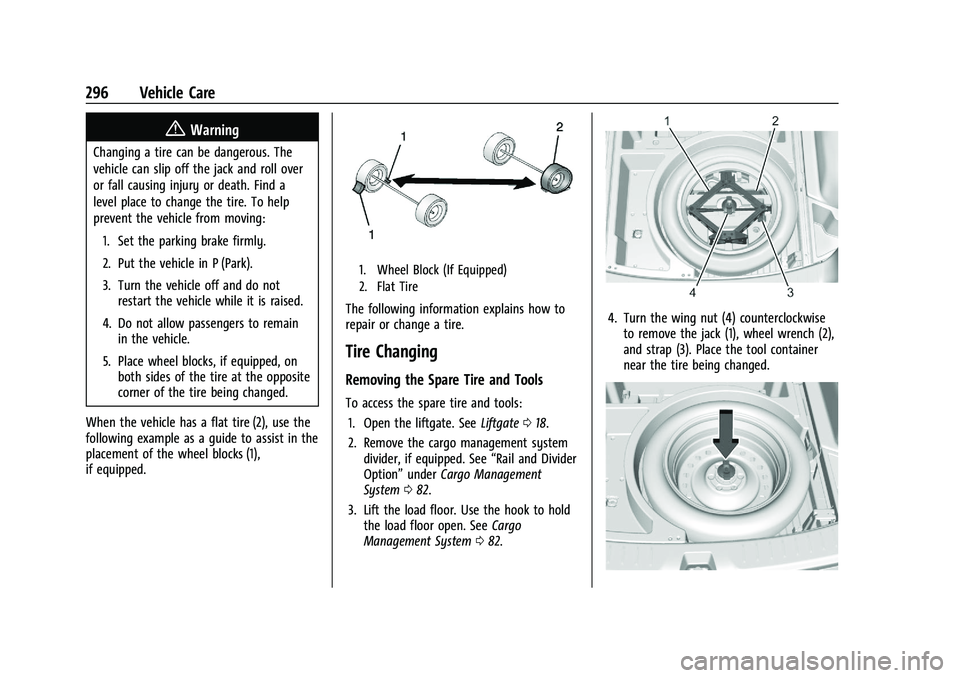
When the vehicle has a flat tire (2), use the
following example as a guide to assist in the
placement of the wheel blocks (1),
if equipped.
1. Wheel Block (If Equipped)
2. Flat Tire
The following information explains how to
repair or change a tire.
Tire Changing
Removing the Spare Tire and Tools
To access the spare tire and tools: 1. Open the liftgate. See Liftgate018.
2. Remove the cargo management system divider, if equipped. See “Rail and Divider
Option” underCargo Management
System 082.
3. Lift the load floor. Use the hook to hold the load floor open. See Cargo
Management System 082.
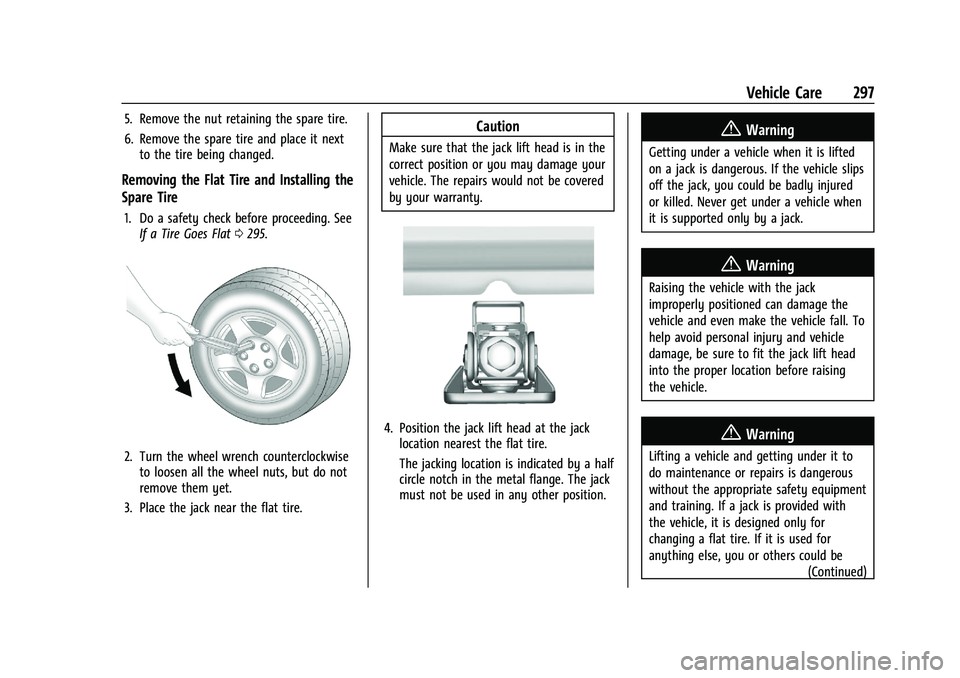
4. Turn the wing nut (4) counterclockwise
to remove the jack (1), wheel wrench (2),
and strap (3). Place the tool container
near the tire being changed.
Page 298 of 360
Chevrolet Blazer Owner Manual (GMNA-Localizing-U.S./Canada/Mexico-
16401961) - 2023 - CRC - 5/17/22
Vehicle Care 297
5. Remove the nut retaining the spare tire.
6. Remove the spare tire and place it nextto the tire being changed.
Removing the Flat Tire and Installing the
Spare Tire
1. Do a safety check before proceeding. SeeIf a Tire Goes Flat 0295.
2. Turn the wheel wrench counterclockwise
to loosen all the wheel nuts, but do not
remove them yet.
3. Place the jack near the flat tire.
Caution
Make sure that the jack lift head is in the
correct position or you may damage your
vehicle. The repairs would not be covered
by your warranty.
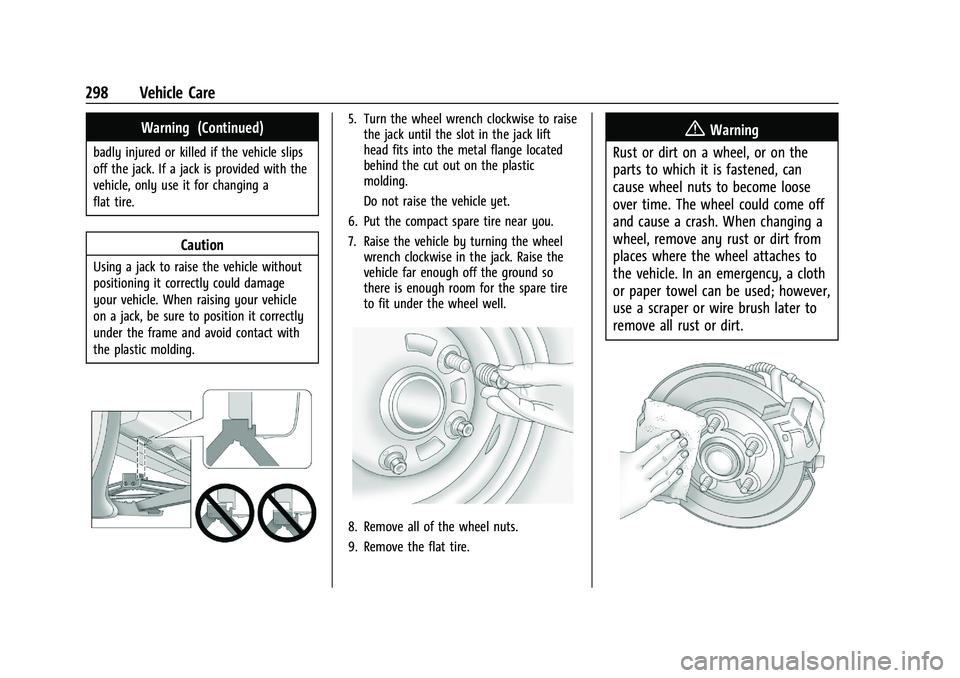
4. Position the jack lift head at the jack location nearest the flat tire.
The jacking location is indicated by a half
circle notch in the metal flange. The jack
must not be used in any other position.
{Warning
Getting under a vehicle when it is lifted
on a jack is dangerous. If the vehicle slips
off the jack, you could be badly injured
or killed. Never get under a vehicle when
it is supported only by a jack.
{Warning
Raising the vehicle with the jack
improperly positioned can damage the
vehicle and even make the vehicle fall. To
help avoid personal injury and vehicle
damage, be sure to fit the jack lift head
into the proper location before raising
the vehicle.
{Warning
Lifting a vehicle and getting under it to
do maintenance or repairs is dangerous
without the appropriate safety equipment
and training. If a jack is provided with
the vehicle, it is designed only for
changing a flat tire. If it is used for
anything else, you or others could be
(Continued)
Page 299 of 360
Chevrolet Blazer Owner Manual (GMNA-Localizing-U.S./Canada/Mexico-
16401961) - 2023 - CRC - 5/17/22
298 Vehicle Care
Warning (Continued)
badly injured or killed if the vehicle slips
off the jack. If a jack is provided with the
vehicle, only use it for changing a
flat tire.
Caution
Using a jack to raise the vehicle without
positioning it correctly could damage
your vehicle. When raising your vehicle
on a jack, be sure to position it correctly
under the frame and avoid contact with
the plastic molding.
5. Turn the wheel wrench clockwise to raisethe jack until the slot in the jack lift
head fits into the metal flange located
behind the cut out on the plastic
molding.
Do not raise the vehicle yet.
6. Put the compact spare tire near you.
7. Raise the vehicle by turning the wheel wrench clockwise in the jack. Raise the
vehicle far enough off the ground so
there is enough room for the spare tire
to fit under the wheel well.
8. Remove all of the wheel nuts.
9. Remove the flat tire.
{Warning
Rust or dirt on a wheel, or on the
parts to which it is fastened, can
cause wheel nuts to become loose
over time. The wheel could come off
and cause a crash. When changing a
wheel, remove any rust or dirt from
places where the wheel attaches to
the vehicle. In an emergency, a cloth
or paper towel can be used; however,
use a scraper or wire brush later to
remove all rust or dirt.
Page 300 of 360
Chevrolet Blazer Owner Manual (GMNA-Localizing-U.S./Canada/Mexico-
16401961) - 2023 - CRC - 5/17/22
Vehicle Care 299
10. Remove any rust or dirt from the wheelbolts, mounting surfaces, and spare
wheel.
11. Place the compact spare tire on the wheel-mounting surface.
{Warning
Never use oil or grease on bolts or nuts
because the nuts might come loose. The
vehicle's wheel could fall off, causing a
crash.
12. Reinstall the wheel nuts. Tighten each nut by hand until the wheel is held
against the hub.
13. Lower the vehicle by turning the jack handle counterclockwise.
{Warning
Wheel nuts that are improperly or
incorrectly tightened can cause the
wheels to become loose or come off. The
wheel nuts should be tightened with a
torque wrench to the proper torque
specification after replacing. Follow the
torque specification supplied by the
aftermarket manufacturer when using
(Continued)
Warning (Continued)
accessory locking wheel nuts. See
Capacities and Specifications0326 for
original equipment wheel nut torque
specifications.
Caution
Improperly tightened wheel nuts can lead
to brake pulsation and rotor damage. To
avoid expensive brake repairs, evenly
tighten the wheel nuts in the proper
sequence and to the proper torque
specification. See Capacities and
Specifications 0326 for the wheel nut
torque specification.
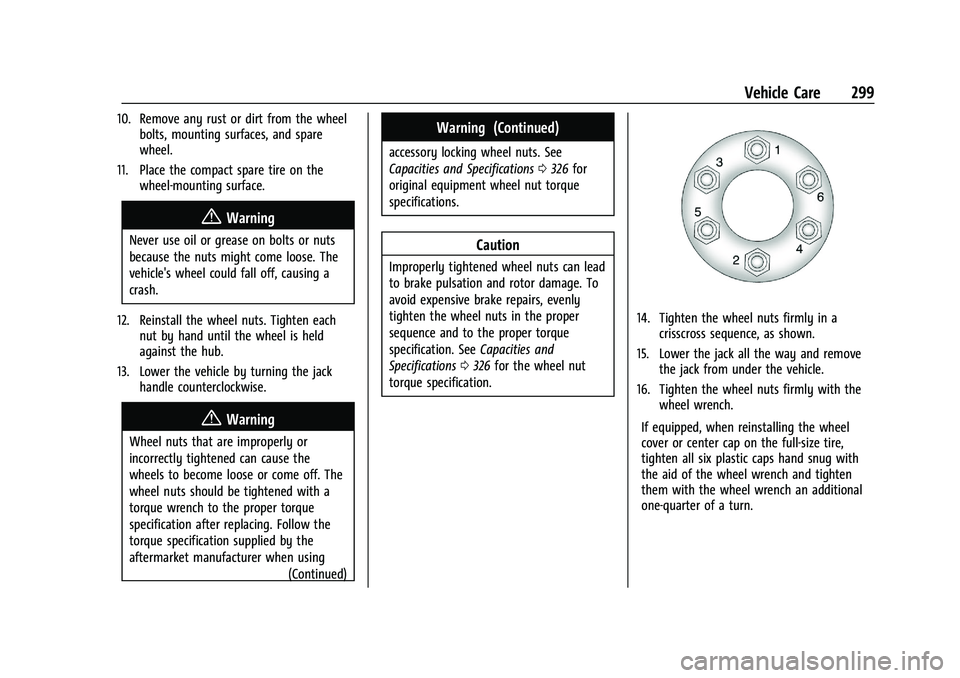
14. Tighten the wheel nuts firmly in a crisscross sequence, as shown.
15. Lower the jack all the way and remove the jack from under the vehicle.
16. Tighten the wheel nuts firmly with the wheel wrench.
If equipped, when reinstalling the wheel
cover or center cap on the full-size tire,
tighten all six plastic caps hand snug with
the aid of the wheel wrench and tighten
them with the wheel wrench an additional
one-quarter of a turn.
Page 301 of 360
Chevrolet Blazer Owner Manual (GMNA-Localizing-U.S./Canada/Mexico-
16401961) - 2023 - CRC - 5/17/22
300 Vehicle Care
Caution
Wheel covers will not fit on the vehicle's
compact spare. If you try to put a wheel
cover on the compact spare, the cover or
the spare could be damaged.
Storing a Flat or Spare Tire and Tools
{Warning
Storing a jack, a tire, or other equipment
in the passenger compartment of the
vehicle could cause injury. In a sudden
stop or collision, loose equipment could
strike someone. Store all these in the
proper place.
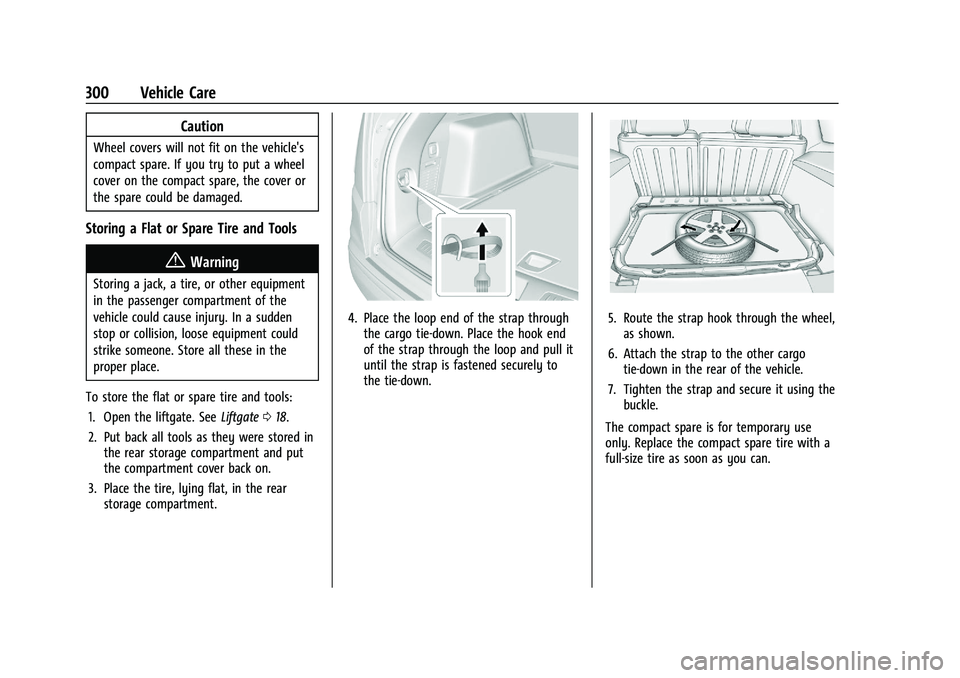
To store the flat or spare tire and tools: 1. Open the liftgate. See Liftgate018.
2. Put back all tools as they were stored in the rear storage compartment and put
the compartment cover back on.
3. Place the tire, lying flat, in the rear storage compartment.
4. Place the loop end of the strap throughthe cargo tie-down. Place the hook end
of the strap through the loop and pull it
until the strap is fastened securely to
the tie-down.5. Route the strap hook through the wheel,as shown.
6. Attach the strap to the other cargo tie-down in the rear of the vehicle.
7. Tighten the strap and secure it using the buckle.
The compact spare is for temporary use
only. Replace the compact spare tire with a
full-size tire as soon as you can.