reset CHEVROLET BLAZER 2023 Owners Manual
[x] Cancel search | Manufacturer: CHEVROLET, Model Year: 2023, Model line: BLAZER, Model: CHEVROLET BLAZER 2023Pages: 360, PDF Size: 17.34 MB
Page 17 of 360
Chevrolet Blazer Owner Manual (GMNA-Localizing-U.S./Canada/Mexico-
16401961) - 2023 - CRC - 5/17/22
16 Keys, Doors, and Windows
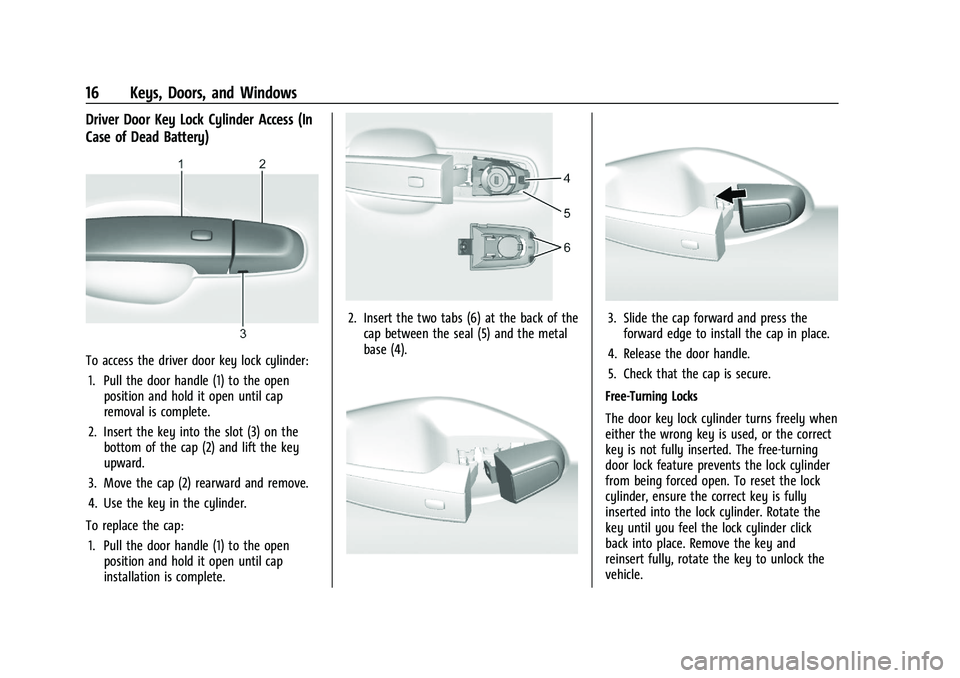
Driver Door Key Lock Cylinder Access (In
Case of Dead Battery)
To access the driver door key lock cylinder:1. Pull the door handle (1) to the open position and hold it open until cap
removal is complete.
2. Insert the key into the slot (3) on the bottom of the cap (2) and lift the key
upward.
3. Move the cap (2) rearward and remove.
4. Use the key in the cylinder.
To replace the cap: 1. Pull the door handle (1) to the open position and hold it open until cap
installation is complete.
2. Insert the two tabs (6) at the back of thecap between the seal (5) and the metal
base (4).3. Slide the cap forward and press theforward edge to install the cap in place.
4. Release the door handle.
5. Check that the cap is secure.
Free-Turning Locks
The door key lock cylinder turns freely when
either the wrong key is used, or the correct
key is not fully inserted. The free-turning
door lock feature prevents the lock cylinder
from being forced open. To reset the lock
cylinder, ensure the correct key is fully
inserted into the lock cylinder. Rotate the
key until you feel the lock cylinder click
back into place. Remove the key and
reinsert fully, rotate the key to unlock the
vehicle.
Page 18 of 360
Chevrolet Blazer Owner Manual (GMNA-Localizing-U.S./Canada/Mexico-
16401961) - 2023 - CRC - 5/17/22
Keys, Doors, and Windows 17
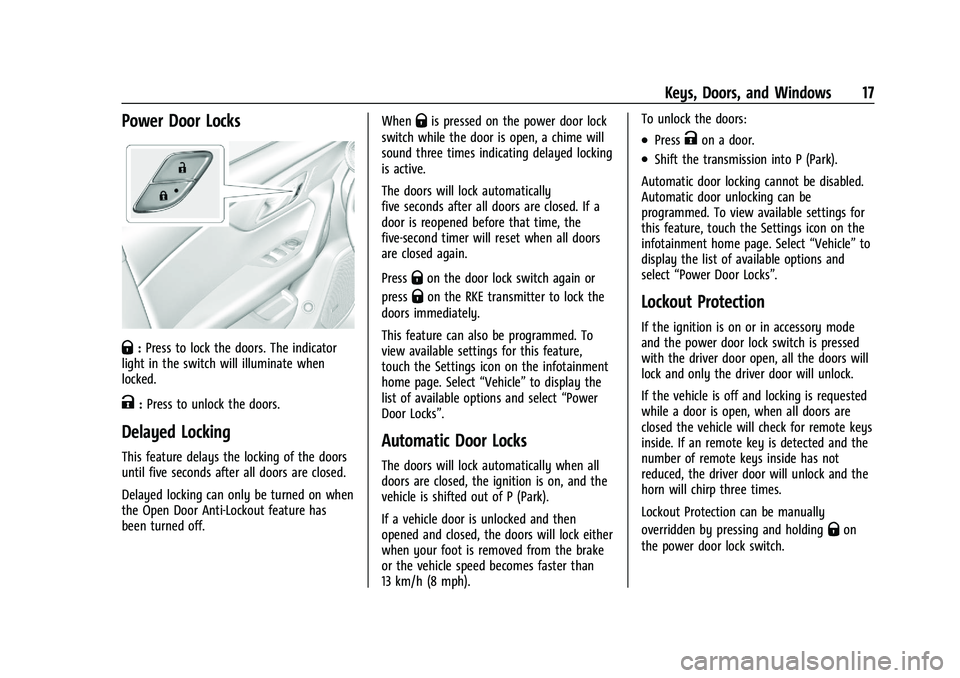
Power Door Locks
Q:Press to lock the doors. The indicator
light in the switch will illuminate when
locked.
K: Press to unlock the doors.
Delayed Locking
This feature delays the locking of the doors
until five seconds after all doors are closed.
Delayed locking can only be turned on when
the Open Door Anti-Lockout feature has
been turned off. When
Qis pressed on the power door lock
switch while the door is open, a chime will
sound three times indicating delayed locking
is active.
The doors will lock automatically
five seconds after all doors are closed. If a
door is reopened before that time, the
five-second timer will reset when all doors
are closed again.
Press
Qon the door lock switch again or
press
Qon the RKE transmitter to lock the
doors immediately.
This feature can also be programmed. To
view available settings for this feature,
touch the Settings icon on the infotainment
home page. Select “Vehicle”to display the
list of available options and select “Power
Door Locks”.
Automatic Door Locks
The doors will lock automatically when all
doors are closed, the ignition is on, and the
vehicle is shifted out of P (Park).
If a vehicle door is unlocked and then
opened and closed, the doors will lock either
when your foot is removed from the brake
or the vehicle speed becomes faster than
13 km/h (8 mph). To unlock the doors:
.PressKon a door.
.Shift the transmission into P (Park).
Automatic door locking cannot be disabled.
Automatic door unlocking can be
programmed. To view available settings for
this feature, touch the Settings icon on the
infotainment home page. Select “Vehicle”to
display the list of available options and
select “Power Door Locks”.
Lockout Protection
If the ignition is on or in accessory mode
and the power door lock switch is pressed
with the driver door open, all the doors will
lock and only the driver door will unlock.
If the vehicle is off and locking is requested
while a door is open, when all doors are
closed the vehicle will check for remote keys
inside. If an remote key is detected and the
number of remote keys inside has not
reduced, the driver door will unlock and the
horn will chirp three times.
Lockout Protection can be manually
overridden by pressing and holding
Qon
the power door lock switch.
Page 24 of 360
Chevrolet Blazer Owner Manual (GMNA-Localizing-U.S./Canada/Mexico-
16401961) - 2023 - CRC - 5/17/22
Keys, Doors, and Windows 23
The projected logo will only be available for
this remote key after it has been out of
range for at least 20 seconds.
If an remote key is again detected within
approximately 2 m (6 ft) of the liftgate,
or another hands-free operation has been
detected, the one-minute timer will be reset.
The projected logo will not work under
these conditions:
.The vehicle battery is low.
.The transmission is not in P (Park).
.Hands Free Liftgate Control is set to Off
in vehicle personalization. To view
available settings for this feature, touch
the Settings icon on the infotainment
home page. Select“Vehicle”to display
the list of available options and select
“Comfort and Convenience”.
.The power liftgate is turned off.
.The vehicle remains parked for 72 hours
or more, with no remote key use or
Keyless Access operation. To re-enable,
press any button on the remote key or
open and close a vehicle door.
The projected logo will not work for a single
remote key when a remote key:
.Has been left within approximately 2 m
(6 ft) of the liftgate for several minutes.
.Has been left inside the vehicle and all
vehicle doors are closed.
.Has approached the area outside of the
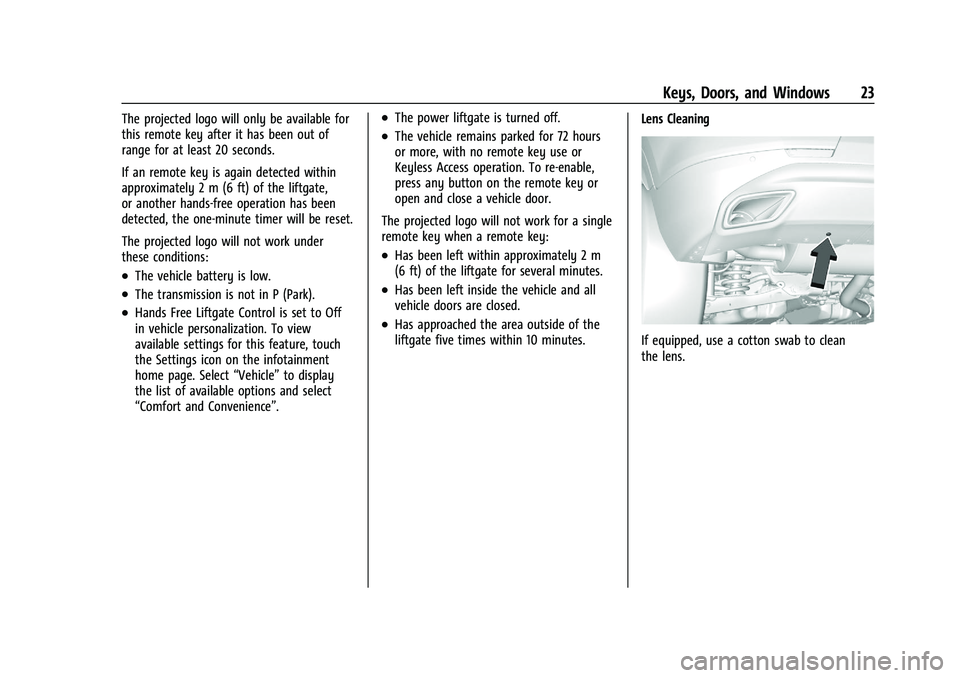
liftgate five times within 10 minutes. Lens Cleaning
If equipped, use a cotton swab to clean
the lens.
Page 88 of 360
Chevrolet Blazer Owner Manual (GMNA-Localizing-U.S./Canada/Mexico-
16401961) - 2023 - CRC - 5/17/22
Instruments and Controls 87
If the windshield wiper lever is then moved
to OFF before the driver door is opened or
within 10 minutes, the wipers will restart
and move to the base of the windshield.
If the ignition is turned off while the wipers
are performing wipes due to windshield
washing, the wipers continue to run until
they reach the base of the windshield.
Rear Window Wiper/Washer
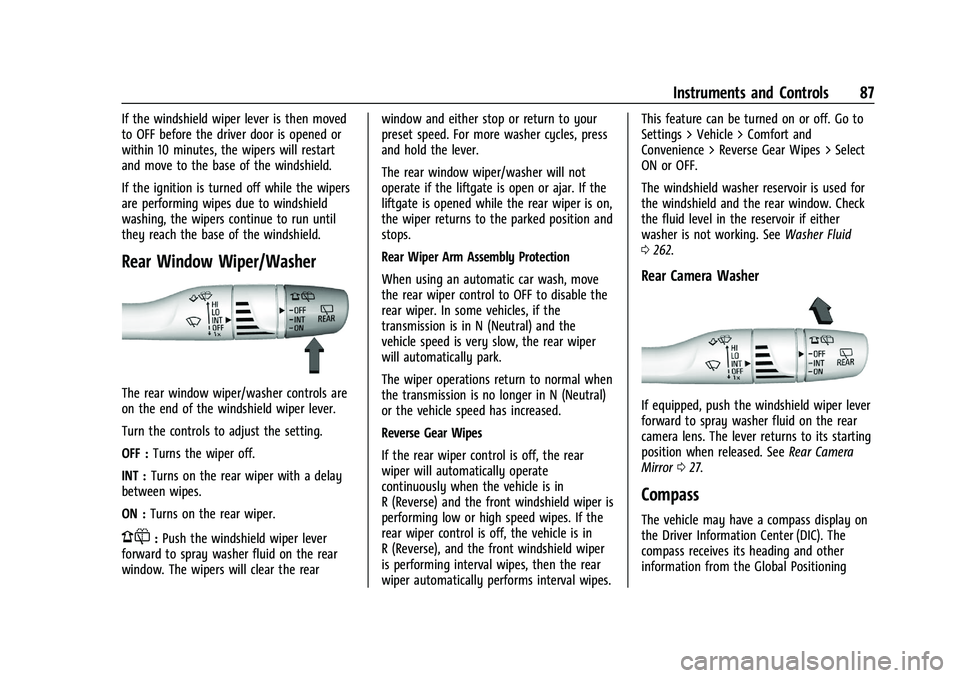
The rear window wiper/washer controls are
on the end of the windshield wiper lever.
Turn the controls to adjust the setting.
OFF :Turns the wiper off.
INT : Turns on the rear wiper with a delay
between wipes.
ON : Turns on the rear wiper.
1:Push the windshield wiper lever
forward to spray washer fluid on the rear
window. The wipers will clear the rear window and either stop or return to your
preset speed. For more washer cycles, press
and hold the lever.
The rear window wiper/washer will not
operate if the liftgate is open or ajar. If the
liftgate is opened while the rear wiper is on,
the wiper returns to the parked position and
stops.
Rear Wiper Arm Assembly Protection
When using an automatic car wash, move
the rear wiper control to OFF to disable the
rear wiper. In some vehicles, if the
transmission is in N (Neutral) and the
vehicle speed is very slow, the rear wiper
will automatically park.
The wiper operations return to normal when
the transmission is no longer in N (Neutral)
or the vehicle speed has increased.
Reverse Gear Wipes
If the rear wiper control is off, the rear
wiper will automatically operate
continuously when the vehicle is in
R (Reverse) and the front windshield wiper is
performing low or high speed wipes. If the
rear wiper control is off, the vehicle is in
R (Reverse), and the front windshield wiper
is performing interval wipes, then the rear
wiper automatically performs interval wipes.This feature can be turned on or off. Go to
Settings > Vehicle > Comfort and
Convenience > Reverse Gear Wipes > Select
ON or OFF.
The windshield washer reservoir is used for
the windshield and the rear window. Check
the fluid level in the reservoir if either
washer is not working. See
Washer Fluid
0 262.
Rear Camera Washer
If equipped, push the windshield wiper lever
forward to spray washer fluid on the rear
camera lens. The lever returns to its starting
position when released. See Rear Camera
Mirror 027.
Compass
The vehicle may have a compass display on
the Driver Information Center (DIC). The
compass receives its heading and other
information from the Global Positioning
Page 90 of 360
Chevrolet Blazer Owner Manual (GMNA-Localizing-U.S./Canada/Mexico-
16401961) - 2023 - CRC - 5/17/22
Instruments and Controls 89
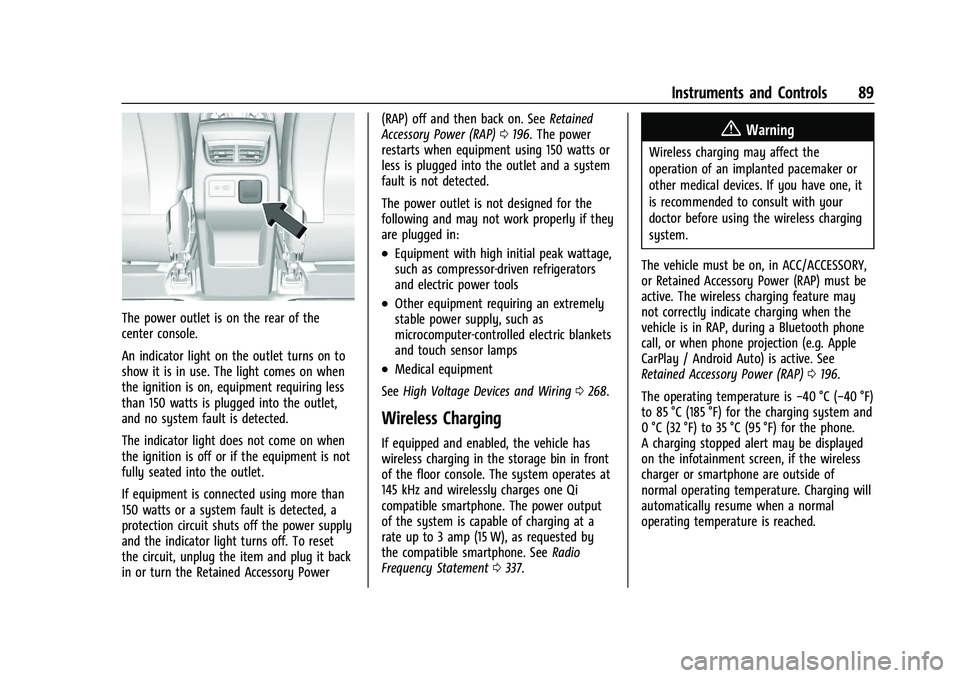
The power outlet is on the rear of the
center console.
An indicator light on the outlet turns on to
show it is in use. The light comes on when
the ignition is on, equipment requiring less
than 150 watts is plugged into the outlet,
and no system fault is detected.
The indicator light does not come on when
the ignition is off or if the equipment is not
fully seated into the outlet.
If equipment is connected using more than
150 watts or a system fault is detected, a
protection circuit shuts off the power supply
and the indicator light turns off. To reset
the circuit, unplug the item and plug it back
in or turn the Retained Accessory Power(RAP) off and then back on. See
Retained
Accessory Power (RAP) 0196. The power
restarts when equipment using 150 watts or
less is plugged into the outlet and a system
fault is not detected.
The power outlet is not designed for the
following and may not work properly if they
are plugged in:
.Equipment with high initial peak wattage,
such as compressor-driven refrigerators
and electric power tools
.Other equipment requiring an extremely
stable power supply, such as
microcomputer-controlled electric blankets
and touch sensor lamps
.Medical equipment
See High Voltage Devices and Wiring 0268.
Wireless Charging
If equipped and enabled, the vehicle has
wireless charging in the storage bin in front
of the floor console. The system operates at
145 kHz and wirelessly charges one Qi
compatible smartphone. The power output
of the system is capable of charging at a
rate up to 3 amp (15 W), as requested by
the compatible smartphone. See Radio
Frequency Statement 0337.
{Warning
Wireless charging may affect the
operation of an implanted pacemaker or
other medical devices. If you have one, it
is recommended to consult with your
doctor before using the wireless charging
system.
The vehicle must be on, in ACC/ACCESSORY,
or Retained Accessory Power (RAP) must be
active. The wireless charging feature may
not correctly indicate charging when the
vehicle is in RAP, during a Bluetooth phone
call, or when phone projection (e.g. Apple
CarPlay / Android Auto) is active. See
Retained Accessory Power (RAP) 0196.
The operating temperature is −40 °C (−40 °F)
to 85 °C (185 °F) for the charging system and
0 °C (32 °F) to 35 °C (95 °F) for the phone.
A charging stopped alert may be displayed
on the infotainment screen, if the wireless
charger or smartphone are outside of
normal operating temperature. Charging will
automatically resume when a normal
operating temperature is reached.
Page 94 of 360
Chevrolet Blazer Owner Manual (GMNA-Localizing-U.S./Canada/Mexico-
16401961) - 2023 - CRC - 5/17/22
Instruments and Controls 93
viewed. SeeDriver Information Center
(DIC) (Uplevel) 0112 or
Driver Information Center (DIC) (Base
Level) 0109.
.Audio
.Navigation
.Phone
.Options
Home
Information displayed here can be
customized from the Options menu.
Speedometer : Displays how fast the vehicle
is moving in either kilometers per hour
(km/h) or miles per hour (mph).
Speed Sign : Shows sign information, which
comes from a roadway database in the
onboard navigation, if equipped.
Time : Displays the current time.
Fuel Range : Displays the approximate
distance the vehicle can be driven without
refueling. The fuel range estimate is based
on an average of the vehicle’s fuel economy
over recent driving history and the amount
of fuel remaining in the fuel tank. Fuel
range cannot be reset.
Audio
Use the thumbwheel to scrollyorz
through options, browse for music, select
from favorites, or change the audio source.
In the main view, scroll to change the
station or go to the next or previous track.
Navigation
In the Navigation menu, if there is no active
route, press the thumbwheel to access
Recents or Favorites. If there is an active
route, press the thumbwheel to cancel or
resume route guidance, mute or unmute
voice guidance, or access Recents or
Favorites.
Phone
In the Phone menu, if there is no active
phone call, view recent calls, scroll through
contacts, select from the favorites, or change
the phone source. If there is an active call,
mute the phone or switch to handset
operation.
Options
Use the thumbwheel to scrollyorz
through items in the Options menu. Press
the thumbwheel to select the item. Press
S
to exit the item. Units :
Choose US or Metric units. A selected
mark will be displayed next to the
selected item.
Info Page Options : Select the items to be
displayed in the Info app. A selected mark
will be displayed next to the selected item.
Home Page Options : Select the available
elements to display. Not all elements will be
available on all vehicles: Speedometer,
Active Safety, Speed Sign, Time, and Fuel
Range.
Speed Warning : Allows you to set a speed
not to be exceeded. To set, press the
thumbwheel when Speed Warning is
displayed. Use
yorzto adjust the value.
Press the thumbwheel to set the speed.
Once the speed is set, this feature can be
turned off by pressing the thumbwheel
while viewing this page. If the selected
speed limit is exceeded, a pop-up warning is
displayed with a chime.
Software Information : Displays open source
software information.
Page 97 of 360
Chevrolet Blazer Owner Manual (GMNA-Localizing-U.S./Canada/Mexico-
16401961) - 2023 - CRC - 5/17/22
96 Instruments and Controls
Trip Odometer
The trip odometer shows how far the
vehicle has been driven since the trip
odometer was last reset.
The trip odometer is accessed and reset
through the Driver Information Center (DIC).
SeeDriver Information Center (DIC) (Uplevel)
0 112 orDriver Information Center (DIC)
(Base Level) 0109.
Tachometer
The tachometer displays the engine speed in
revolutions per minute (rpm).
With the Stop/Start system, when the
ignition is on, the tachometer indicates the
vehicle status. When pointing to AUTO
STOP, the engine is off but the vehicle is on
and can move. The engine could auto start
at any time. When the indicator points to
OFF, the vehicle is off.
When the engine is on, the tachometer will
indicate the engine’s revolutions per minute
(rpm). The tachometer may vary by several
hundred rpm, during Auto Stop mode, when
the engine is shutting off and restarting.
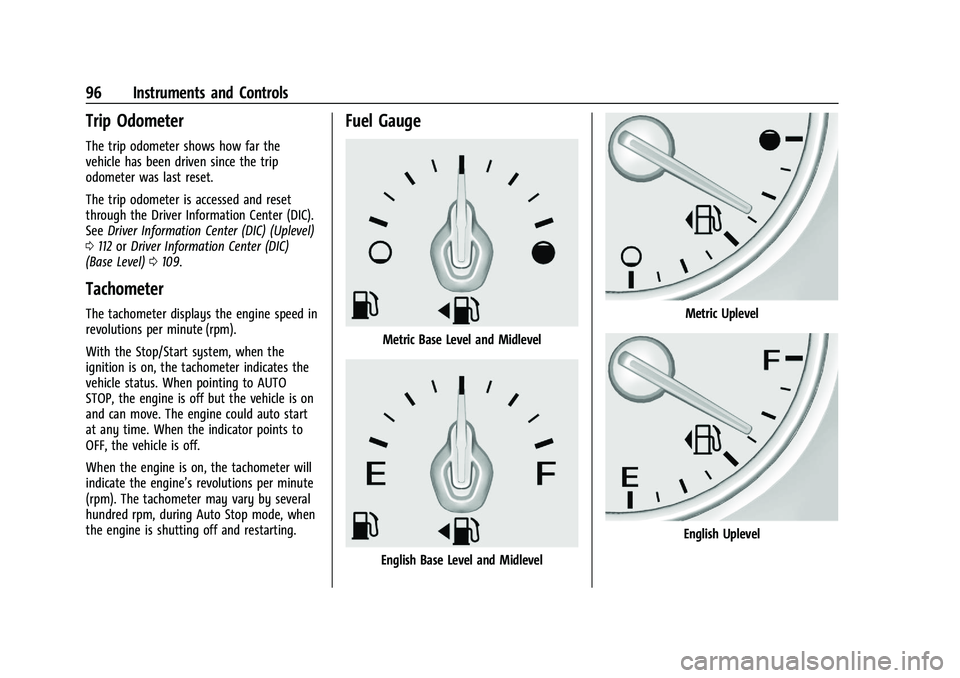
Fuel Gauge
Metric Base Level and Midlevel
English Base Level and Midlevel
Metric Uplevel
English Uplevel
Page 110 of 360
Chevrolet Blazer Owner Manual (GMNA-Localizing-U.S./Canada/Mexico-
16401961) - 2023 - CRC - 5/17/22
Instruments and Controls 109
Door Ajar Light
Base Level andMidlevelUplevel
This light comes on when a door is open or
not securely latched. Before driving, check
that all doors are properly closed.
Information Displays
Driver Information Center (DIC)
(Base Level)
The DIC displays are shown in the center of
the instrument cluster in the Info App. See
Instrument Cluster (Uplevel) 094 or
Instrument Cluster (Base Level) 092. The
displays show the status of many vehicle
systems.
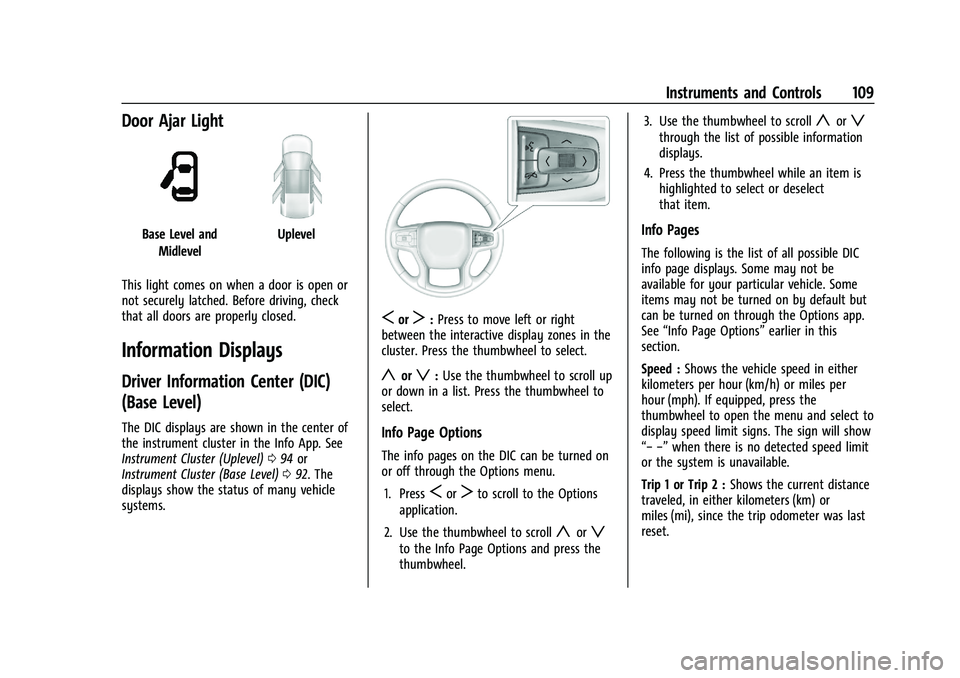
SorT: Press to move left or right
between the interactive display zones in the
cluster. Press the thumbwheel to select.
yorz: Use the thumbwheel to scroll up
or down in a list. Press the thumbwheel to
select.
Info Page Options
The info pages on the DIC can be turned on
or off through the Options menu.
1. Press
SorTto scroll to the Options
application.
2. Use the thumbwheel to scroll
yorz
to the Info Page Options and press the
thumbwheel. 3. Use the thumbwheel to scroll
yorz
through the list of possible information
displays.
4. Press the thumbwheel while an item is highlighted to select or deselect
that item.
Info Pages
The following is the list of all possible DIC
info page displays. Some may not be
available for your particular vehicle. Some
items may not be turned on by default but
can be turned on through the Options app.
See “Info Page Options” earlier in this
section.
Speed : Shows the vehicle speed in either
kilometers per hour (km/h) or miles per
hour (mph). If equipped, press the
thumbwheel to open the menu and select to
display speed limit signs. The sign will show
“− −” when there is no detected speed limit
or the system is unavailable.
Trip 1 or Trip 2 : Shows the current distance
traveled, in either kilometers (km) or
miles (mi), since the trip odometer was last
reset.
Page 111 of 360
Chevrolet Blazer Owner Manual (GMNA-Localizing-U.S./Canada/Mexico-
16401961) - 2023 - CRC - 5/17/22
110 Instruments and Controls
If equipped, shows the average fuel
economy since the last reset. This number
reflects only the approximate average fuel
economy that the vehicle has right now,
and will change as driving conditions
change. The average fuel economy can be
displayed as mpg, km/L, or L/100km where
applicable.
If equipped, shows the average speed since
the last reset. This number reflects only the
approximate average speed that the vehicle
has, and will change as driving conditions
change. Average speed can be displayed
as mph or km/h where applicable.
Press the thumbwheel while this display is
active to show a confirmation window to
reset all values to zero. Use
SorTto
select yes or no and press the thumbwheel.
Fuel Information or Fuel Range : Shows the
approximate distance the vehicle can be
driven without refueling. LOW will be
displayed when the vehicle is low on fuel.
The fuel range estimate is based on an
average of the vehicle's fuel economy over
recent driving history and the amount of
fuel remaining in the fuel tank. If equipped,
also shows the instantaneous fuel economy. Oil Life :
Shows an estimate of the oil's
remaining useful life. If REMAINING OIL LIFE
99% is displayed, that means 99% of the
current oil life remains.
When the remaining oil life is low, the
CHANGE ENGINE OIL SOON message will
appear on the display. The oil should be
changed as soon as possible. See Engine Oil
0 253. In addition to the engine oil life
system monitoring the oil life, additional
maintenance is recommended. See
Maintenance Schedule 0317.
The Oil Life display must be reset after each
oil change. It will not reset itself. Do not
reset the Oil Life display at any time other
than when the oil has just been changed.
It cannot be reset accurately until the next
oil change. To reset, see Engine Oil Life
System 0255.
Air Filter Life : Shows an estimate of the
engine air filter’s remaining useful life and
the state of the system. Engine Air Filter Life
95% means 95% of the current air filter life
remains. Messages will display based on the
engine air filter life and the state of the
system. When the REPLACE AT NEXT OIL
CHANGE message displays, the engine air
filter should be replaced at the time of the
next oil change. When the REPLACE SOON message displays, the engine air filter
should be replaced at the earliest
convenience.
The Air Filter Life display must be reset after
the engine air filter replacement. To reset,
see
Engine Air Filter Life System 0256.
Tire Pressure : Shows the approximate
pressures of all four tires. Tire pressure is
displayed in either kilopascal (kPa) or in
pounds per square inch (psi). If the pressure
is low, the value for that tire is shown in
amber. See Tire Pressure Monitor System
0 285 and
Tire Pressure Monitor Operation 0286.
Average Speed : Displays the average
vehicle speed of the vehicle in kilometers
per hour (km/h) or miles per hour (mph).
This average is based on the various vehicle
speeds recorded since the last reset. Reset
the average speed by pressing the
thumbwheel while this display is active to
show a confirmation window to select yes
or no and press the thumbwheel.
Fuel Economy : The center displays the
approximate instantaneous fuel economy as
a number and bar graph. Displayed above
the bar graph is a running average of fuel
economy for the most recently traveled
selected distance. Displayed below the bar
Page 112 of 360
Chevrolet Blazer Owner Manual (GMNA-Localizing-U.S./Canada/Mexico-
16401961) - 2023 - CRC - 5/17/22
Instruments and Controls 111
graph is the best average fuel economy that
has been achieved for the selected distance.
The selected distance is displayed at the top
of the page as“last xxx mi/km.”
Press the thumbwheel to select the distance
or reset best value. Use
yorzto choose
the distance and press the thumbwheel.
Scroll
yorzto select Reset Best Score.
Press the thumbwheel to reset the best
average fuel economy. After reset, the best
value displays “-,-”until the selected
distance has been traveled.
The display provides information on how
current driving behavior affects the running
average and how well recent driving
compares to the best that has been
achieved for the selected distance.
Follow Distance/Gap Setting : If equipped,
the current follow time to the vehicle ahead
is displayed as a time value on this page.
When Adaptive Cruise Control (ACC) has
been engaged, the display switches to the
gap setting page. This page shows the
current gap setting along with the vehicle
ahead indicator. Driver Assistance :
If equipped, shows
information for Lane Keep Assist (LKA), Lane
Departure Warning (LDW), and Forward
Collision Alert (FCA).
Economy Trend : Shows history of the
Average Fuel Economy from the last 50 km
(30 mi). Each bar represents about 5 km
(3 mi) of driving. During driving the bars will
shift to always reflect the most recent
distance on the right side. Press the
thumbwheel to open the menu while this
display is active to clear the graph. Select
yes or no and press the thumbwheel.
Timer : This display can be used as a timer.
To start the timer, press the thumbwheel to
open the menu while this display is active.
Use
yorzto select Start Timer or Reset.
Press the thumbwheel. To stop the timer,
press the thumbwheel while this display is
active. The display will show the amount of
time that has passed since the timer was
last reset.
Speed Limit : Shows sign information, which
comes from a roadway database in the
onboard navigation, if equipped. The sign
will show “− −”when there is no detected
speed limit or the system is unavailable. Press the thumbwheel while this display is
active to toggle Speed Limit sign on or off.
Speed limit signs in your vehicle display
may vary from actual road speed depending
on the version of your current
navigation map.
Battery Voltage :
Displays the current
battery voltage, if equipped. Battery voltage
changes are normal while driving. See
Charging System Light 0101. If there is a
problem with the battery charging system, a
DIC will display a message.
Oil Pressure : Oil pressure is displayed in
either kilopascal (kPa) or in pounds per
square inch (psi). Oil pressure can vary with
engine speed, outside temperature, and oil
viscosity. On some models, the oil pump will
vary engine oil pressure according to engine
needs. Oil pressure may change quickly as
the engine speed or load varies. This is
normal. If the oil pressure warning light or
DIC message indicates oil pressure outside
the normal operating range, check the
vehicle's oil as soon as possible.
Coolant Temperature : Displays the coolant
temperature in degrees Celsius (°C) or
degrees Fahrenheit (°F).