bluetooth CHEVROLET BOLT EV 2017 Owner's Manual
[x] Cancel search | Manufacturer: CHEVROLET, Model Year: 2017, Model line: BOLT EV, Model: CHEVROLET BOLT EV 2017Pages: 16, PDF Size: 2.5 MB
Page 10 of 16
10
Settings and Controls
Refer to your Owner Manual for important safety information about using the infotainment system while driving.
Vehicle Personalization
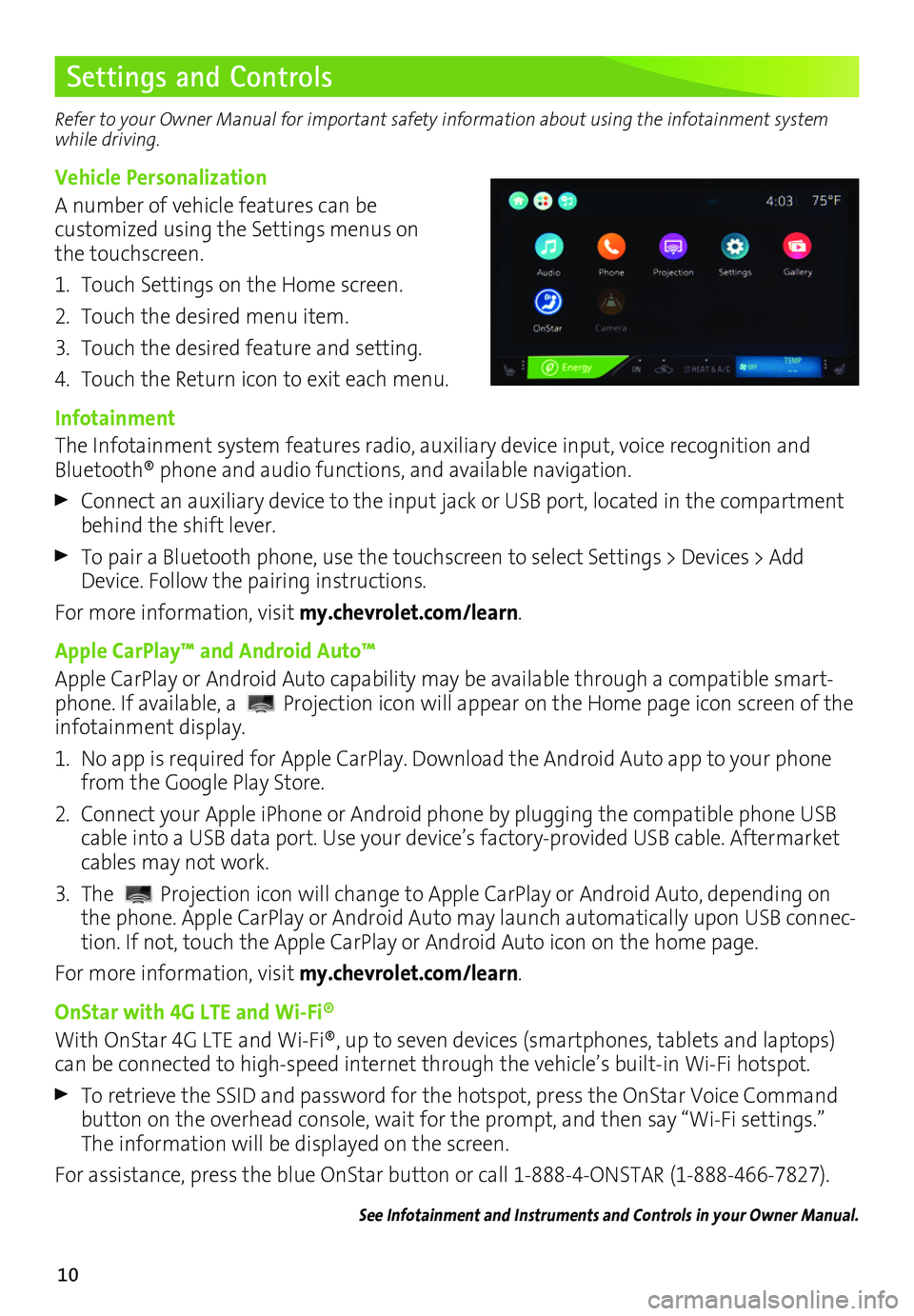
A number of vehicle features can be customized using the Settings menus on the touchscreen.
1. Touch Settings on the Home screen.
2. Touch the desired menu item.
3. Touch the desired feature and setting.
4. Touch the Return icon to exit each menu.
Infotainment
The Infotainment system features radio, auxiliary device input, voice recognition and Bluetooth® phone and audio functions, and available navigation.
Connect an auxiliary device to the input jack or USB port, located in the compartment behind the shift lever.
To pair a Bluetooth phone, use the touchscreen to select Settings > Devices > Add Device. Follow the pairing instructions.
For more information, visit my.chevrolet.com/learn.
Apple CarPlay™ and Android Auto™
Apple CarPlay or Android Auto capability may be available through a compatible smart-phone. If available, a Projection icon will appear on the Home page icon screen of the infotainment display.
1. No app is required for Apple CarPlay. Download the Android Auto app to your phone from the Google Play Store.
2. Connect your Apple iPhone or Android phone by plugging the compatible phone USB cable into a USB data port. Use your device’s factory-provided USB cable. Aftermarket cables may not work.
3. The Projection icon will change to Apple CarPlay or Android Auto, depending on the phone. Apple CarPlay or Android Auto may launch automatically upon USB connec-tion. If not, touch the Apple CarPlay or Android Auto icon on the home page.
For more information, visit my.chevrolet.com/learn.
OnStar with 4G LTE and Wi-Fi®
With OnStar 4G LTE and Wi-Fi®, up to seven devices (smartphones, tablets and laptops) can be connected to high-speed internet through the vehicle’s built-in Wi-Fi hotspot.
To retrieve the SSID and password for the hotspot, press the OnStar Voice Command button on the overhead console, wait for the prompt, and then say “Wi-Fi settings.” The information will be displayed on the screen.
For assistance, press the blue OnStar button or call 1-888-4-ONSTAR (1-888-466-7827).
See Infotainment and Instruments and Controls in your Owner Manual.
Page 11 of 16
11
Settings and Controls
Siri® Eyes Free
Siri Eyes Free allows hands-free access to the voice recognition commands on a compat-ible iPhone®. The cell phone must be paired to the in-vehicle Bluetooth system. For more information, visit my.chevrolet.com/learn.
To activate Siri Eyes Free, press and hold the Push to Talk button on the steering wheel until Siri speaks.
Wireless Charging for Mobile DevicesF
The Wireless Charging system, if available, is located in the center console. A compatible wireless charging adapter (not supplied) for the device may be needed. For more informa-tion and to check mobile device compatibility, visit my.chevrolet.com/learn.
1. The vehicle must be ON.
2. Remove all objects from the charging slot.
3. Place the mobile device upright, facing the driver, in the charging slot.
4. Move the device slowly until the battery charging symbol displays on the touch-screen, indicating the device is charging.
See Infotainment and Instruments and Controls in your Owner Manual.
Climate Controls
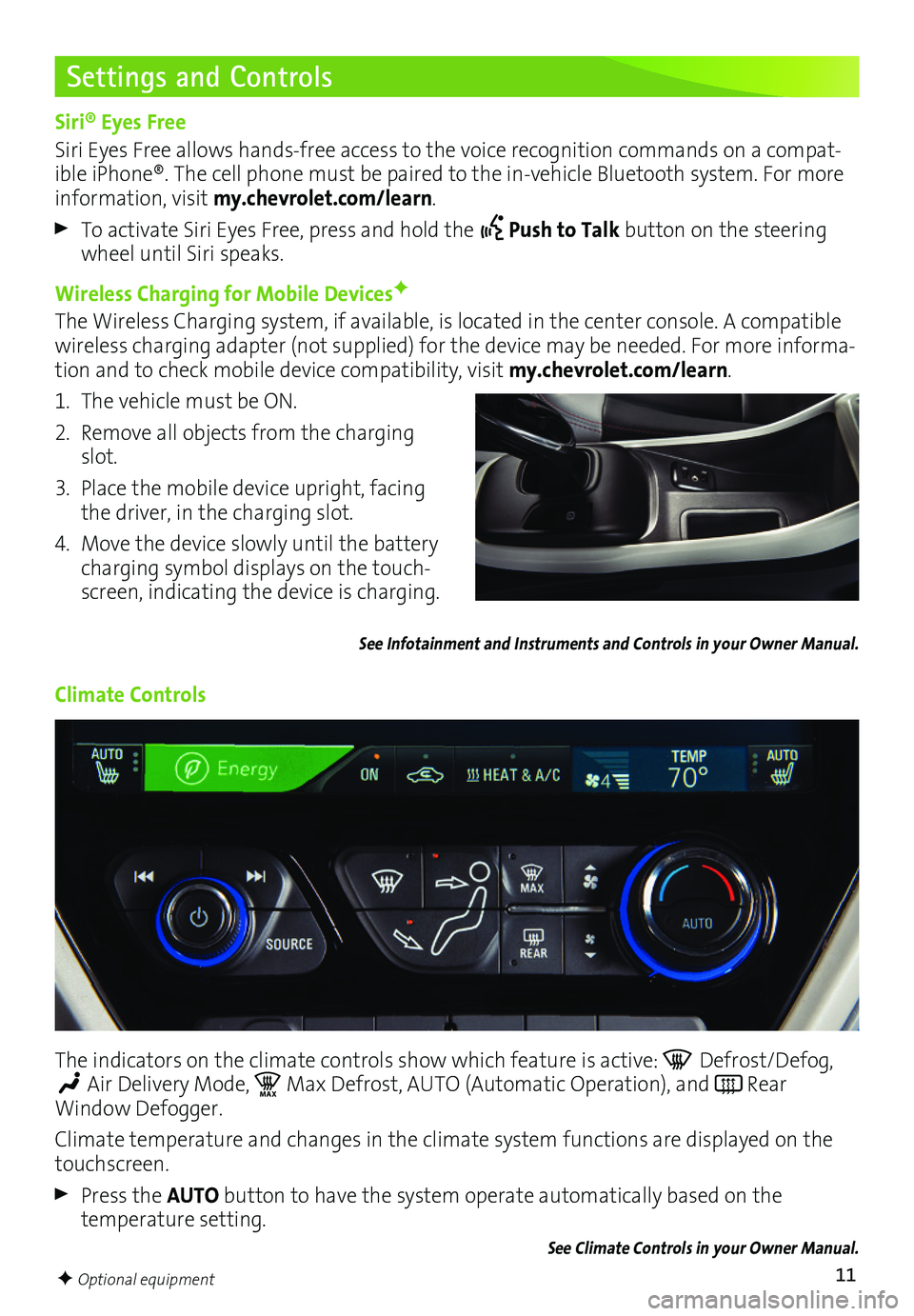
The indicators on the climate controls show which feature is active: Defrost/Defog,
Air Delivery Mode, MA XMax Defrost, AUTO (Automatic Operation), and Rear Window Defogger.
Climate temperature and changes in the climate system functions are displayed on the touchscreen.
Press the AUTO button to have the system operate automatically based on the temperature setting.
See Climate Controls in your Owner Manual.
F Optional equipment