wheel CHEVROLET BOLT EV 2017 Owner's Guide
[x] Cancel search | Manufacturer: CHEVROLET, Model Year: 2017, Model line: BOLT EV, Model: CHEVROLET BOLT EV 2017Pages: 361, PDF Size: 4.89 MB
Page 122 of 361
Chevrolet Bolt EV Owner Manual (GMNA-Localizing-U.S./Canada/Mexico-
10122739) - 2017 - CRC - 10/3/16
Instruments and Controls 121
Pedestrian Ahead
Indicator
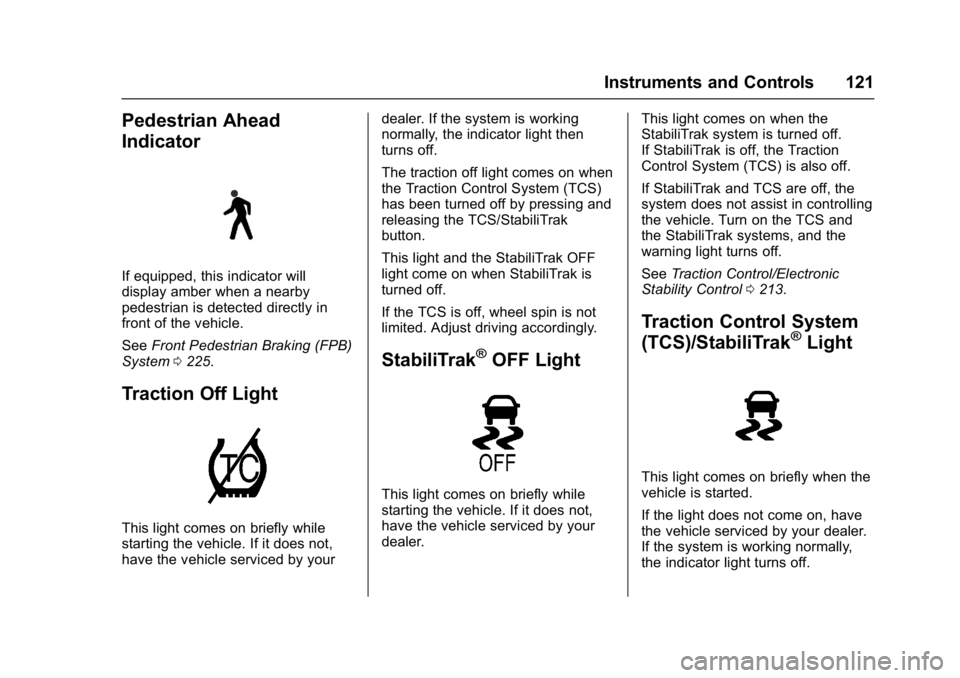
If equipped, this indicator will
display amber when a nearby
pedestrian is detected directly in
front of the vehicle.
SeeFront Pedestrian Braking (FPB)
System 0225.
Traction Off Light
This light comes on briefly while
starting the vehicle. If it does not,
have the vehicle serviced by your dealer. If the system is working
normally, the indicator light then
turns off.
The traction off light comes on when
the Traction Control System (TCS)
has been turned off by pressing and
releasing the TCS/StabiliTrak
button.
This light and the StabiliTrak OFF
light come on when StabiliTrak is
turned off.
If the TCS is off, wheel spin is not
limited. Adjust driving accordingly.
StabiliTrak®OFF Light
This light comes on briefly while
starting the vehicle. If it does not,
have the vehicle serviced by your
dealer.
This light comes on when the
StabiliTrak system is turned off.
If StabiliTrak is off, the Traction
Control System (TCS) is also off.
If StabiliTrak and TCS are off, the
system does not assist in controlling
the vehicle. Turn on the TCS and
the StabiliTrak systems, and the
warning light turns off.
See
Traction Control/Electronic
Stability Control 0213.
Traction Control System
(TCS)/StabiliTrak®Light
This light comes on briefly when the
vehicle is started.
If the light does not come on, have
the vehicle serviced by your dealer.
If the system is working normally,
the indicator light turns off.
Page 134 of 361
Chevrolet Bolt EV Owner Manual (GMNA-Localizing-U.S./Canada/Mexico-
10122739) - 2017 - CRC - 10/3/16
Instruments and Controls 133
.Radio Power Down : This
allows high voltage battery
power to be conserved.
Set the value for the reminder to
be displayed.
To set high voltage battery charge
level for Radio Power Down, touch
Energy, then Energy Settings, then
Radio Power Down. Select Off, 2%,
4%, 6%, 8%, or 10%.
Low Power Mode
This allows high voltage battery
power to be conserved.
1. Press and hold
O.
2. Touch Yes. The screen will turn off, and the audio is paused.
3. Press
Oagain to turn radio on.
Driver Information
Center (DIC)
The DIC is displayed in the
instrument cluster. It shows the
status of many vehicle systems. The
controls for the DIC are on the right
steering wheel control. See
Instrument Cluster 0111.
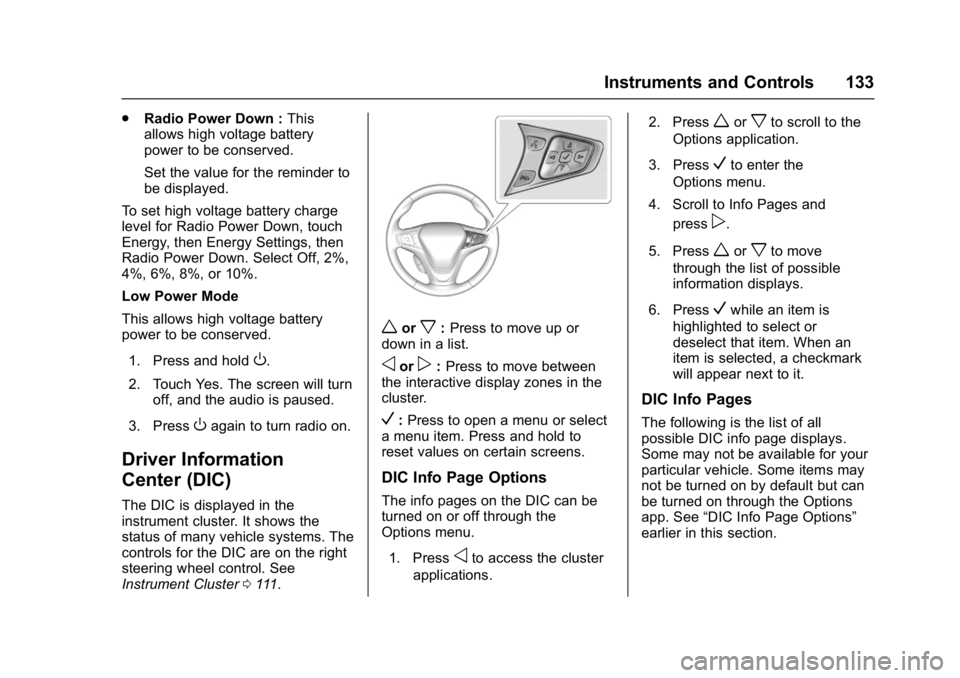
worx:Press to move up or
down in a list.
oorp: Press to move between
the interactive display zones in the
cluster.
V: Press to open a menu or select
a menu item. Press and hold to
reset values on certain screens.
DIC Info Page Options
The info pages on the DIC can be
turned on or off through the
Options menu.
1. Press
oto access the cluster
applications. 2. Press
worxto scroll to the
Options application.
3. Press
Vto enter the
Options menu.
4. Scroll to Info Pages and press
p.
5. Press
worxto move
through the list of possible
information displays.
6. Press
Vwhile an item is
highlighted to select or
deselect that item. When an
item is selected, a checkmark
will appear next to it.
DIC Info Pages
The following is the list of all
possible DIC info page displays.
Some may not be available for your
particular vehicle. Some items may
not be turned on by default but can
be turned on through the Options
app. See “DIC Info Page Options”
earlier in this section.
Page 140 of 361
Chevrolet Bolt EV Owner Manual (GMNA-Localizing-U.S./Canada/Mexico-
10122739) - 2017 - CRC - 10/3/16
Instruments and Controls 139
PARK ASSIST OFF
This message displays when the
Parking Assist system has been
turned off or when there is a
temporary condition causing the
system to be disabled.
SERVICE FORWARD
COLLISION SYSTEM
If this message displays, see your
dealer for service. Forward Collision
Alert (FCA) and/or Forward
Automatic Braking (FAB) may not
work. Do not use these systems
until the vehicle has been repaired.
SERVICE PARK ASSIST
SYSTEM
This message displays if there is a
problem with the Parking Assist
system. Do not use this system to
help you park. See your dealer for
service.
SERVICE FRONT CAMERA
If this message remains on after
continued driving, the vehicle needs
service. Take the vehicle to your
dealer. Do not use the Front
Pedestrian Braking (FPB), ForwardCollision Alert (FCA), Forward
Automatic Braking (FAB), Lane
Keep Assist (LKA), and Lane
Departure Warning (LDW) features.
SERVICE SIDE DETECTION
SYSTEM
If this message remains on after
continued driving, the vehicle needs
service. Side Blind Zone Alert
(SBZA), Lane Change Alert (LCA),
and Rear Cross Traffic Alert (RCTA)
features will not work. See your
dealer for service.
SIDE DETECTION
TEMPORARILY UNAVAILABLE
This message indicates that Lane
Change Alert (LCA), and Rear
Cross Traffic Alert (RCTA) are
disabled either because the sensor
is blocked and cannot detect
vehicles in the blind zone, or the
vehicle is passing through an open
area, such as the desert, where
there is insufficient data for
operation. This message may also
activate during heavy rain or due to
road spray. The vehicle does not
need service.
TAKE STEERING
If LKA does not detect active driver
steering, an alert and chime may be
provided. Move the steering wheel
to dismiss. See
Lane Keep Assist
(LKA) 0229.
Propulsion Power
Messages
PROPULSION POWER IS
REDUCED
This message displays when the
propulsion power is reduced and
can affect the ability to accelerate.
If this message is on, but there is no
reduction in performance, proceed
to your destination. The
performance may be reduced the
next time the vehicle is driven. The
vehicle may be driven at a reduced
speed while this message is on, but
maximum acceleration and speed
may be reduced.
This message is most commonly
displayed when the high voltage
battery charge level is low. The
vehicle is limiting power to maximize
range.
Page 153 of 361
Chevrolet Bolt EV Owner Manual (GMNA-Localizing-U.S./Canada/Mexico-
10122739) - 2017 - CRC - 10/3/16
152 Lighting
Raise or lower the lever until the
arrow starts to flash to signal a lane
change. Hold it there until the lane
change is completed.
If the lever is briefly pressed and
released, the turn signal flashes
three times.
The turn and lane-change signal
can be turned off manually by
moving the lever back to its original
position.
If after signaling a turn or lane
change, the arrow flashes rapidly or
does not come on, a signal bulb
may be burned out.
Replace any burned out bulbs. If a
bulb is not burned out, check the
fuse. SeeUnderhood Compartment
Fuse Block 0264.Interior Lighting
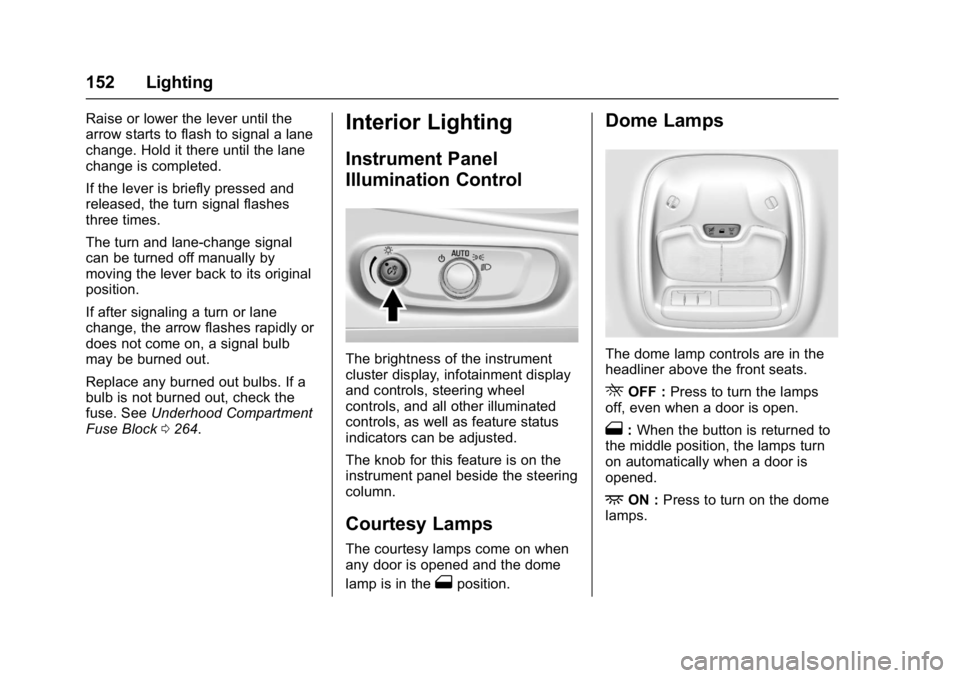
Instrument Panel
Illumination Control
The brightness of the instrument
cluster display, infotainment display
and controls, steering wheel
controls, and all other illuminated
controls, as well as feature status
indicators can be adjusted.
The knob for this feature is on the
instrument panel beside the steering
column.
Courtesy Lamps
The courtesy lamps come on when
any door is opened and the dome
lamp is in the
1position.
Dome Lamps
The dome lamp controls are in the
headliner above the front seats.
ROFF : Press to turn the lamps
off, even when a door is open.
1: When the button is returned to
the middle position, the lamps turn
on automatically when a door is
opened.
+ON : Press to turn on the dome
lamps.
Page 156 of 361
Chevrolet Bolt EV Owner Manual (GMNA-Localizing-U.S./Canada/Mexico-
10122739) - 2017 - CRC - 10/3/16
Infotainment System 155
Infotainment
System
Introduction
Introduction . . . . . . . . . . . . . . . . . . . 155
Theft-Deterrent Feature . . . . . . 156
Overview . . . . . . . . . . . . . . . . . . . . . 156
Operation . . . . . . . . . . . . . . . . . . . . . 156
Software Updates . . . . . . . . . . . . 159
Radio
AM-FM Radio . . . . . . . . . . . . . . . . 160
Satellite Radio . . . . . . . . . . . . . . . . 162
Multi-Band Antenna . . . . . . . . . . 163
Audio Players
USB Port . . . . . . . . . . . . . . . . . . . . . 164
Auxiliary Devices . . . . . . . . . . . . . 170
Bluetooth Audio . . . . . . . . . . . . . . 170
OnStar System
OnStar System . . . . . . . . . . . . . . . 173
Phone
Bluetooth . . . . . . . . . . . . . . . . . . . . . 173
Hands-Free Phone . . . . . . . . . . . 175
Settings
Settings . . . . . . . . . . . . . . . . . . . . . . 177
Teen Driver . . . . . . . . . . . . . . . . . . . 178
Downloadable Applications
Downloading Apps . . . . . . . . . . . 181
Trademarks and License
Agreements
Trademarks and LicenseAgreements . . . . . . . . . . . . . . . . . 182
Introduction
Read the following pages to
become familiar with the features.
{Warning
Taking your eyes off the road for
too long or too often while using
any infotainment feature can
cause a crash. You or others
could be injured or killed. Do not
give extended attention to
infotainment tasks while driving.
Limit your glances at the vehicle
displays and focus your attention
on driving. Use voice commands
whenever possible.
The infotainment system has built-in
features intended to help avoid
distraction by disabling some
functions when driving. These
functions may gray out when they
are unavailable. Many infotainment
features are also available through
the instrument cluster and steering
wheel controls.
Page 158 of 361
Chevrolet Bolt EV Owner Manual (GMNA-Localizing-U.S./Canada/Mexico-
10122739) - 2017 - CRC - 10/3/16
Infotainment System 157
When the vehicle is off and the
driver door of the vehicle is opened,
the infotainment system turns off
automatically.
If
Ois pressed and held when the
vehicle is off, the infotainment
system will turn on. The system will
turn off automatically after
approximately 10 minutes.
Full Screen Clock
. Touch the time display on the
screen to display a full screen of
the clock.
. Touch
0to return to the
previous screen.
Volume Control
Turn the volume knob to adjust the
volume. The current volume is
indicated.
. If equipped, use the volume
switches on the back of the
steering wheel to adjust the
volume. See Steering Wheel
Controls 0104. .
Turning on the infotainment
system power will set the
volume level to its previous
selection if it is lower than the
maximum starting volume level.
. If the volume level is louder than
the maximum starting volume
level when the infotainment
system is turned on, the
infotainment system is adjusted
automatically to the maximum
starting volume level.
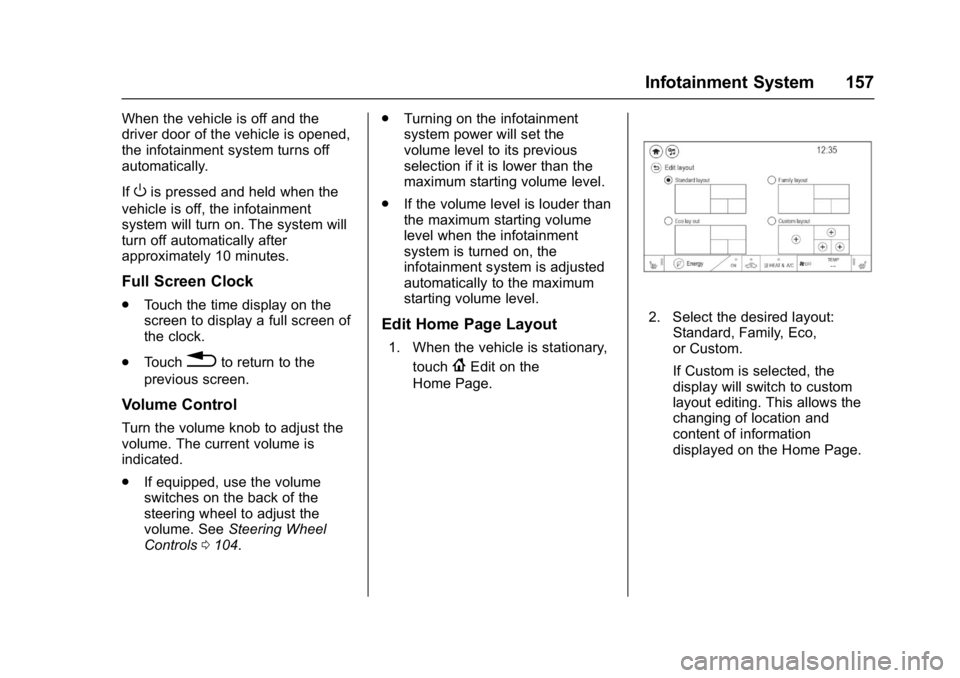
Edit Home Page Layout
1. When the vehicle is stationary,
touch
{Edit on the
Home Page.
2. Select the desired layout: Standard, Family, Eco,
or Custom.
If Custom is selected, the
display will switch to custom
layout editing. This allows the
changing of location and
content of information
displayed on the Home Page.
Page 160 of 361
Chevrolet Bolt EV Owner Manual (GMNA-Localizing-U.S./Canada/Mexico-
10122739) - 2017 - CRC - 10/3/16
Infotainment System 159
2. Touch Phone, then touch5on
the infotainment display,
or press
gon the steering
wheel controls.
Settings
1. Press
{, then touchT.
2. Touch Settings, then select an item from the menu and adjust
the settings by selecting from
the available options. See
Settings 0177.
Gallery
1. Press
{, then touchT.
2. Touch Gallery, then touch
'
menu to view picture files
contained in the USB storage
device.
Software Updates
Over-the-Air Software Updates
If equipped, the infotainment system
can download and install software
updates over a wireless connection.
The system will prompt high priority
updates to be downloaded and installed, while others can be
manually accessed. To manually
check for updates:
1. Press
{, then touchT.
2. Touch Settings, then Software Information.
3. Touch Software Update and follow the on-screen prompts.
Steps for downloading and
installing updates may vary by
vehicle.
Downloading Over-the-Air software
updates requires Internet
connectivity, which can be accessed
through the vehicle’ s OnStar Wi-Fi
hotspot, if equipped. Optionally, a
secured Wi-Fi hotspot such as a
mobile device hotspot, a home
hotspot, or a public hotspot can be
used. To connect the infotainment
system to a secured mobile device
hotspot, home hotspot, or public
hotspot:
1. Press
{, then touchT.
2. Touch Settings, then Wi-Fi. 3. Touch Manage Wi-Fi Networks,
then select the appropriate
Wi-Fi network and follow the
on-screen prompts.
Download speeds may vary.
On most mobile devices,
activation of the Wi-Fi hotspot
is in the Settings menu under
Mobile Network Sharing,
Personal Hotspot, Mobile
Hotspot, or similar.
Availability of Over-the-Air software
updates varies by vehicle and
country. In the U.S., see
my.chevrolet.com/learn. In Canada,
see my.chevrolet.ca. In Mexico see
your dealer.
Page 161 of 361
Chevrolet Bolt EV Owner Manual (GMNA-Localizing-U.S./Canada/Mexico-
10122739) - 2017 - CRC - 10/3/16
160 Infotainment System
Radio
AM-FM Radio
Listening to AM-FM Radio
1. Press{, then touchT.
2. Touch Audio, then Source.
3. Touch FM or AM. The most recently listened to AM or FM
radio station is displayed.
RDS (Radio Data System) function
is only available in countries that
support this function.
Searching for Stations
Automatically
Pressgordto automatically
search for an available station with
good reception.
If RDS is supported, it will tune to
the station and may include
additional information such as time,
station identification, and program
information.
Searching for Stations Directly
1. Touch Tune.
2. Using the keypad, enter the desired station number.
Touching the period between digits
is not necessary. The radio will add
it automatically at the correct
location.
Favorite Preset Operation
Saving Favorites 1. Select the band.
2. Select the desired station.
3. Touch
qor touch and hold the
favorite in the Favorites list to
overwrite.
4. To delete it from the Favorites list, touch
q, or swipe the
station from the list on the right.
Up to 15 radio stations can be
saved in the Favorites list.
Listening to Favorites Directly 1. Touch Favorites to see the list of favorites.
2. Touch the desired station. The steering wheel control can also
be used to select favorites. See
Steering Wheel Controls
0104.
Using the AM or FM
Radio Menu
General Operation of the Menu
1. Select the desired band.
2. Touch Menu.
3. Touch the desired menu to select the item or to display the
item’s detailed menu.
4. Touch
qNow Playing to return
to the previous menu.
Current Station Information 1. From the AM or FM Menu, touch Browse Audio.
2. Touch Current Station Information to display the
station information.
AM or FM Stations 1. From the AM or FM Menu, touch Browse Audio.
Page 177 of 361
Chevrolet Bolt EV Owner Manual (GMNA-Localizing-U.S./Canada/Mexico-
10122739) - 2017 - CRC - 10/3/16
176 Infotainment System
playing track will be cut off and
the phone will ring with the
relevant information displayed.
2. To talk on the phone, press
g
on the steering wheel control or
touch
5on the display.
To reject the call, press
con
the steering wheel control or
touch
Kon the display.
Using the Contacts Menu
1. Touch the contacts menu on the Phone screen.
2. Select the contact entry to call. .To call another phone
number in the same
contacts, touch More in the
Contacts screen and touch
the desired phone number.
. In the Contacts screen,
touch
qto add the contact
to favorites. Touch
qagain
to remove the contact from
favorites.
Making a Call from Favorites
1. Touch the favorites menu on the Phone screen.
2. Select the contact to call.
The Favorites list is not
synchronized with the mobile phone
and is stored separately.
Making a Call from Call History
1. TouchWRECENT on the
Phone screen.
2. Select the contact to call.
.
9: Incoming call
.
2: Outgoing call
.
4: Missed call
Making a Call with Speed Dial
Numbers
Touch and hold a speed dial number
using the keypad on the Phone
screen. Only speed dial numbers already
stored on the mobile phone can be
used for speed dial calls. Up to
two-digit speed dial numbers are
supported.
For two-digit speed dial numbers,
touch and hold the second digit to
make a call to the speed dial
number.
Voice Mail
The default voice mail number is the
phone number of the currently
connected mobile phone. The voice
mail number can be changed in
Bluetooth settings.
To dial a voice mail number:
1. Press
{, then touchT.
2. Touch Phone, then Voice Mail.
Page 181 of 361
Chevrolet Bolt EV Owner Manual (GMNA-Localizing-U.S./Canada/Mexico-
10122739) - 2017 - CRC - 10/3/16
180 Infotainment System
Report Card
The vehicle owner must secure the
driver’s consent to record certain
vehicle data when the vehicle is
driven with a registered Teen Driver
key. There is one Report Card per
vehicle. Data is not recorded when
Teen Driver is not active.
The Report Card data is collected
from the time Teen Driver is
activated or the last time the Report
Card was reset. The following items
may be recorded:
. Distance Driven –the total
distance driven.
. Maximum Speed –the maximum
vehicle speed recorded.
. Overspeed Warnings –the
number of times the speed
warning setting was exceeded.
. Forward Collision Alerts –the
number of times the driver was
notified when approaching a
vehicle ahead too quickly and at
potential risk for a crash. .
Forward Collision Avoidance
Braking –the number of times
the vehicle detected that a
forward collision was imminent
and applied the brakes. Also
referred to as Forward Automatic
Braking.
. Stability Control –the number of
events which required the use of
electronic stability control.
. ABS Active –the number of
Antilock Brake System
activations.
. Tailgating Alerts –the number of
times the driver was alerted for
following the vehicle ahead too
closely.
. Traction Control –the number of
times the Traction Control
System activated to reduce
wheel spin or loss of traction.
. Wide Open Throttle –the
number of times the accelerator
pedal was pressed nearly all the
way down. Delete Report Card Data
Data is saved for all trips until the
data is deleted using the PIN or until
the maximum count is exceeded.
Each item will report a maximum of
1,000 counts. The distance driven
will report a maximum of 64,374 km
(40,000 mi).
To delete Report Card data, do one
of the following:
.
From the Report Card display,
select Reset.
. Select Clear All Teen Keys/PIN
from the Teen Driver menu. This
will also unregister any Teen
Driver keys and delete the PIN.
Forgotten PIN
See your dealer to reset the PIN.