ECU CHEVROLET BOLT EV 2017 Owner's Guide
[x] Cancel search | Manufacturer: CHEVROLET, Model Year: 2017, Model line: BOLT EV, Model: CHEVROLET BOLT EV 2017Pages: 361, PDF Size: 4.89 MB
Page 102 of 361
Chevrolet Bolt EV Owner Manual (GMNA-Localizing-U.S./Canada/Mexico-
10122739) - 2017 - CRC - 10/3/16
Storage 101
Center Console Storage
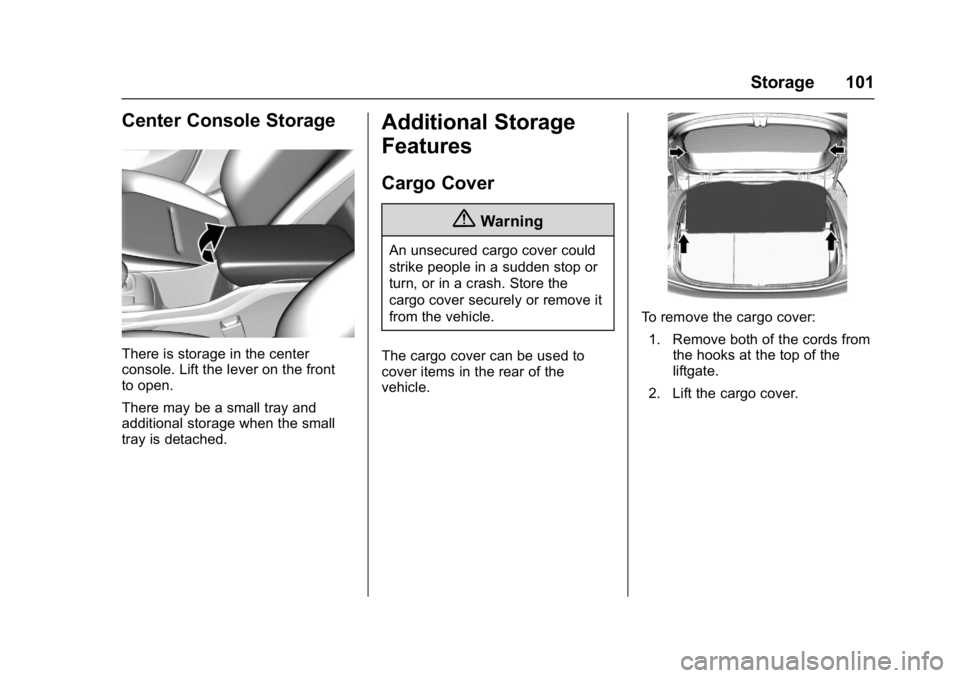
There is storage in the center
console. Lift the lever on the front
to open.
There may be a small tray and
additional storage when the small
tray is detached.
Additional Storage
Features
Cargo Cover
{Warning
An unsecured cargo cover could
strike people in a sudden stop or
turn, or in a crash. Store the
cargo cover securely or remove it
from the vehicle.
The cargo cover can be used to
cover items in the rear of the
vehicle.
To remove the cargo cover: 1. Remove both of the cords from the hooks at the top of the
liftgate.
2. Lift the cargo cover.
Page 104 of 361
Chevrolet Bolt EV Owner Manual (GMNA-Localizing-U.S./Canada/Mexico-
10122739) - 2017 - CRC - 10/3/16
Instruments and Controls 103
Instruments and
Controls
Controls
Steering Wheel Adjustment . . . 104
Steering Wheel Controls . . . . . . 104
Heated Steering Wheel . . . . . . . 105
Horn . . . . . . . . . . . . . . . . . . . . . . . . . . 105
Pedestrian Safety Signal . . . . . 105
Windshield Wiper/Washer . . . . 106
Rear Window Wiper/Washer . . . . . . . . . . . . . . . . . . . . . 107
Compass . . . . . . . . . . . . . . . . . . . . . 108
Clock . . . . . . . . . . . . . . . . . . . . . . . . . 108
Power Outlets . . . . . . . . . . . . . . . . 109
Wireless Charging . . . . . . . . . . . . 110
Warning Lights, Gauges, and
Indicators
Warning Lights, Gauges, and Indicators . . . . . . . . . . . . . . . . . . . . 111
Instrument Cluster . . . . . . . . . . . . 111
Speedometer . . . . . . . . . . . . . . . . . 114
Odometer . . . . . . . . . . . . . . . . . . . . . 114
Trip Odometer . . . . . . . . . . . . . . . . 114
Battery Gauge (High Voltage) . . . . . . . . . . . . . . . . . . . . . 115
Driver Efficiency Gauge . . . . . . . 115
Power Indicator Gauge . . . . . . . 116 Safety Belt Reminders . . . . . . . . 116
Airbag Readiness Light . . . . . . . 117
Passenger Airbag Status
Indicator . . . . . . . . . . . . . . . . . . . . . 117
Charging System Light (12-Volt
Battery) . . . . . . . . . . . . . . . . . . . . . 118
Service Vehicle Soon Light . . . 118
Brake System Warning Light . . . . . . . . . . . . . . . . . . . . . . . . 118
Electric Parking Brake Light . . . . . . . . . . . . . . . . . . . . . . . . 119
Service Electric Parking Brake Light . . . . . . . . . . . . . . . . . . . . . . . . 119
Antilock Brake System (ABS) Warning Light . . . . . . . . . . . . . . . 120
Sport Mode Light . . . . . . . . . . . . . 120
Lane Keep Assist (LKA) Light . . . . . . . . . . . . . . . . . . . . . . . . 120
Vehicle Ahead Indicator . . . . . . 120
Pedestrian Ahead Indicator . . . 121
Traction Off Light . . . . . . . . . . . . . 121
StabiliTrak®OFF Light . . . . . . . . 121
Traction Control System (TCS)/ StabiliTrak
®Light . . . . . . . . . . . 121
Tire Pressure Light . . . . . . . . . . . 122
Security Light . . . . . . . . . . . . . . . . . 122
Vehicle Ready Light . . . . . . . . . . 122
High-Beam On Light . . . . . . . . . . 123
Lamps On Reminder . . . . . . . . . 123
Cruise Control Light . . . . . . . . . . 123
Door Ajar Light . . . . . . . . . . . . . . . 123
Information Displays
Power Flows . . . . . . . . . . . . . . . . . 124
Programmable Charging . . . . . . 124
Energy Information . . . . . . . . . . . 131
Energy Settings . . . . . . . . . . . . . . 132
Driver Information Center (DIC) . . . . . . . . . . . . . . . . 133
Vehicle Messages
Vehicle Messages . . . . . . . . . . . . 135
Battery and ChargingMessages . . . . . . . . . . . . . . . . . . . 135
Brake System Messages . . . . . 136
Compass Messages . . . . . . . . . . 136
Cruise Control Messages . . . . . 136
Door Ajar Messages . . . . . . . . . . 136
Electric Drive Unit Messages . . . . . . . . . . . . . . . . . . . 137
Key and Lock Messages . . . . . 137
Lamp Messages . . . . . . . . . . . . . . 138
Object Detection System Messages . . . . . . . . . . . . . . . . . . . 138
Propulsion Power Messages . . . . . . . . . . . . . . . . . . . 139
Ride Control System Messages . . . . . . . . . . . . . . . . . . . 140
Airbag System Messages . . . . 140
Security Messages . . . . . . . . . . . 140
Service Vehicle Messages . . . . 140
Starting the Vehicle Messages . . . . . . . . . . . . . . . . . . . 141
Page 123 of 361
Chevrolet Bolt EV Owner Manual (GMNA-Localizing-U.S./Canada/Mexico-
10122739) - 2017 - CRC - 10/3/16
122 Instruments and Controls
If the light is on and not flashing, the
TCS, and potentially the StabiliTrak
system have been disabled. A DIC
message may display. Check the
DIC messages to determine which
feature(s) is no longer functioning
and whether the vehicle requires
service.
If the indicator/warning light is on
and flashing, the TCS and/or the
StabiliTrak system is actively
working.
Tire Pressure Light
For vehicles with the Tire Pressure
Monitor System (TPMS), this light
comes on briefly when the vehicle is
started. It provides information
about tire pressures and the TPMS.When the Light is On Steady
This indicates that one or more of
the tires are significantly
underinflated.
A message in the Driver Information
Center (DIC) may also display. Stop
as soon as possible, and inflate the
tires to the pressure value shown on
the Tire and Loading Information
label.
When the Light Flashes First and
Then Is On Steady
This indicates that there may be a
problem with the TPMS. The light
flashes for about one minute and
stays on steady until the vehicle is
off. This sequence repeats each
time the vehicle is started.
Security Light
The security light should come on
briefly as the vehicle is started. If it
does not come on, have the vehicle
serviced by your dealer. If the
system is working normally, the
indicator light turns off.
If the light stays on and the vehicle
does not start, there could be a
problem with the theft-deterrent
system.
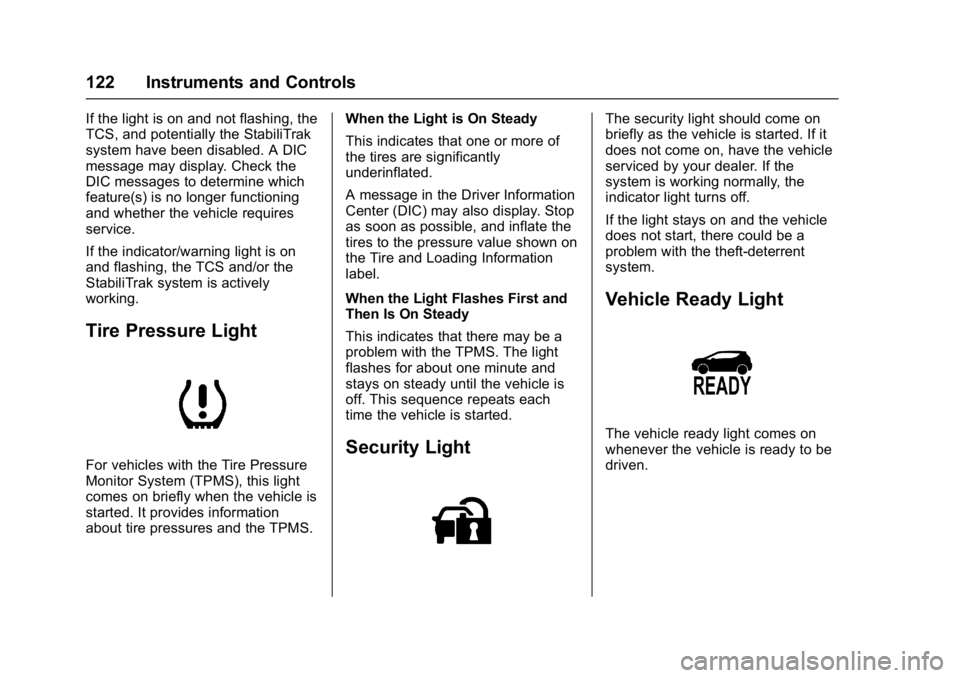
Vehicle Ready Light
The vehicle ready light comes on
whenever the vehicle is ready to be
driven.
Page 124 of 361
Chevrolet Bolt EV Owner Manual (GMNA-Localizing-U.S./Canada/Mexico-
10122739) - 2017 - CRC - 10/3/16
Instruments and Controls 123
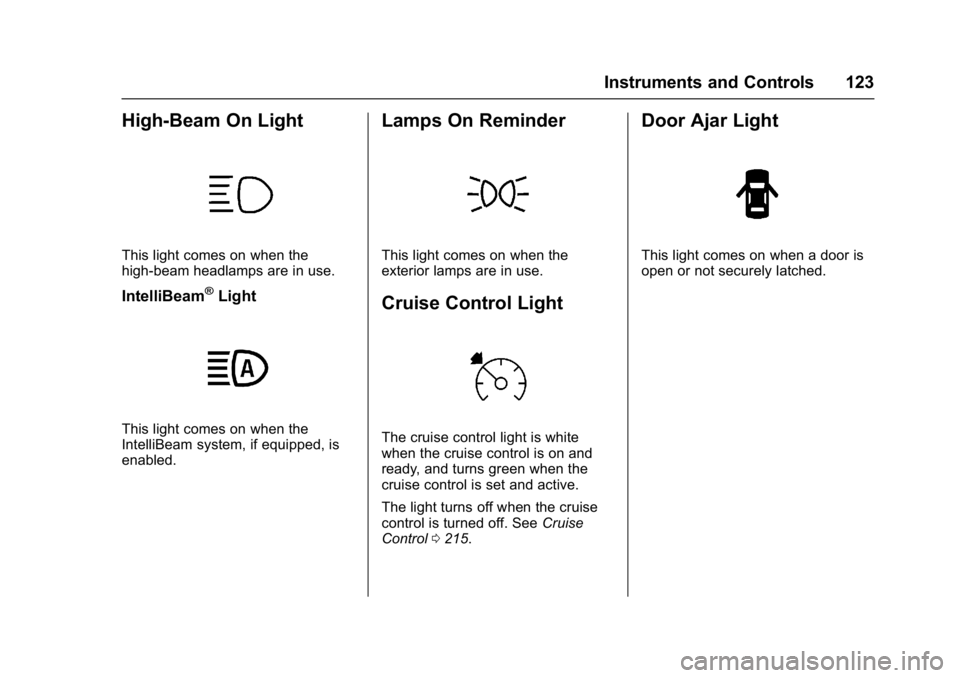
High-Beam On Light
This light comes on when the
high-beam headlamps are in use.
IntelliBeam®Light
This light comes on when the
IntelliBeam system, if equipped, is
enabled.
Lamps On Reminder
This light comes on when the
exterior lamps are in use.
Cruise Control Light
The cruise control light is white
when the cruise control is on and
ready, and turns green when the
cruise control is set and active.
The light turns off when the cruise
control is turned off. SeeCruise
Control 0215.
Door Ajar Light
This light comes on when a door is
open or not securely latched.
Page 130 of 361
Chevrolet Bolt EV Owner Manual (GMNA-Localizing-U.S./Canada/Mexico-
10122739) - 2017 - CRC - 10/3/16
Instruments and Controls 129
Select Weekday or
Weekend.
3. Touch Set next to the row to be edited.
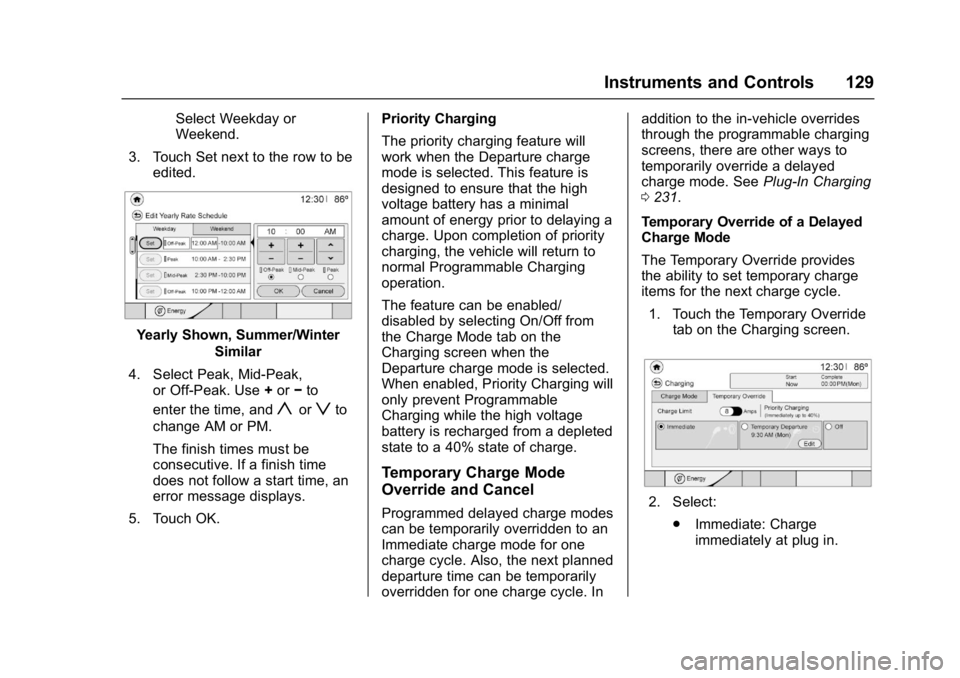
Yearly Shown, Summer/Winter
Similar
4. Select Peak, Mid-Peak, or Off-Peak. Use +or −to
enter the time, and
yorzto
change AM or PM.
The finish times must be
consecutive. If a finish time
does not follow a start time, an
error message displays.
5. Touch OK. Priority Charging
The priority charging feature will
work when the Departure charge
mode is selected. This feature is
designed to ensure that the high
voltage battery has a minimal
amount of energy prior to delaying a
charge. Upon completion of priority
charging, the vehicle will return to
normal Programmable Charging
operation.
The feature can be enabled/
disabled by selecting On/Off from
the Charge Mode tab on the
Charging screen when the
Departure charge mode is selected.
When enabled, Priority Charging will
only prevent Programmable
Charging while the high voltage
battery is recharged from a depleted
state to a 40% state of charge.
Temporary Charge Mode
Override and Cancel
Programmed delayed charge modes
can be temporarily overridden to an
Immediate charge mode for one
charge cycle. Also, the next planned
departure time can be temporarily
overridden for one charge cycle. In addition to the in-vehicle overrides
through the programmable charging
screens, there are other ways to
temporarily override a delayed
charge mode. See
Plug-In Charging
0 231.
Temporary Override of a Delayed
Charge Mode
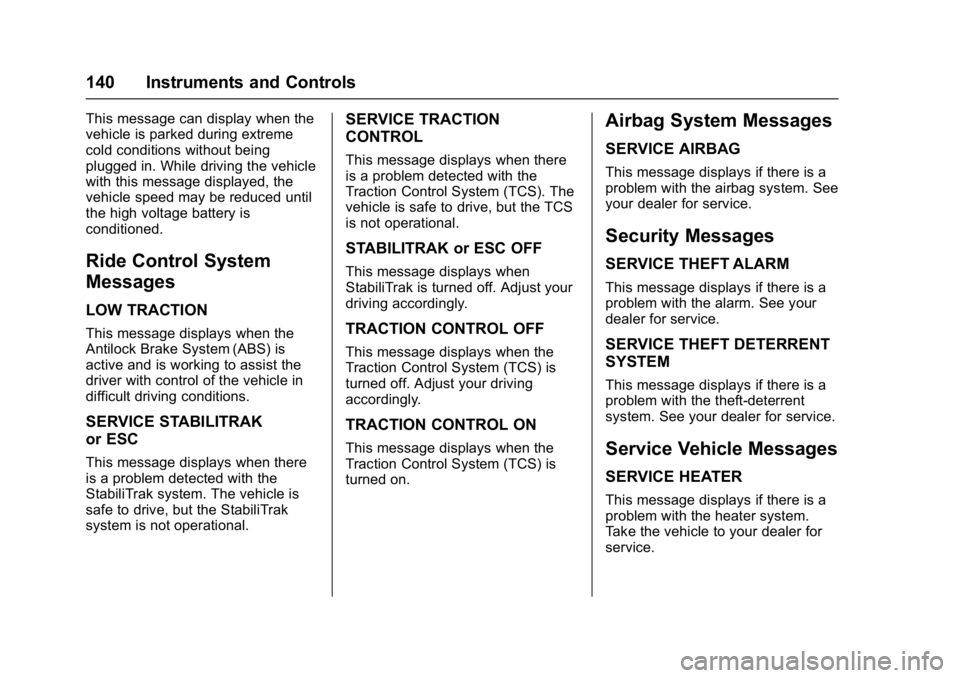
The Temporary Override provides
the ability to set temporary charge
items for the next charge cycle. 1. Touch the Temporary Override tab on the Charging screen.2. Select:
.Immediate: Charge
immediately at plug in.
Page 141 of 361
Chevrolet Bolt EV Owner Manual (GMNA-Localizing-U.S./Canada/Mexico-
10122739) - 2017 - CRC - 10/3/16
140 Instruments and Controls
This message can display when the
vehicle is parked during extreme
cold conditions without being
plugged in. While driving the vehicle
with this message displayed, the
vehicle speed may be reduced until
the high voltage battery is
conditioned.
Ride Control System
Messages
LOW TRACTION
This message displays when the
Antilock Brake System (ABS) is
active and is working to assist the
driver with control of the vehicle in
difficult driving conditions.
SERVICE STABILITRAK
or ESC
This message displays when there
is a problem detected with the
StabiliTrak system. The vehicle is
safe to drive, but the StabiliTrak
system is not operational.
SERVICE TRACTION
CONTROL
This message displays when there
is a problem detected with the
Traction Control System (TCS). The
vehicle is safe to drive, but the TCS
is not operational.
STABILITRAK or ESC OFF
This message displays when
StabiliTrak is turned off. Adjust your
driving accordingly.
TRACTION CONTROL OFF
This message displays when the
Traction Control System (TCS) is
turned off. Adjust your driving
accordingly.
TRACTION CONTROL ON
This message displays when the
Traction Control System (TCS) is
turned on.
Airbag System Messages
SERVICE AIRBAG
This message displays if there is a
problem with the airbag system. See
your dealer for service.
Security Messages
SERVICE THEFT ALARM
This message displays if there is a
problem with the alarm. See your
dealer for service.
SERVICE THEFT DETERRENT
SYSTEM
This message displays if there is a
problem with the theft-deterrent
system. See your dealer for service.
Service Vehicle Messages
SERVICE HEATER
This message displays if there is a
problem with the heater system.
Take the vehicle to your dealer for
service.
Page 157 of 361
Chevrolet Bolt EV Owner Manual (GMNA-Localizing-U.S./Canada/Mexico-
10122739) - 2017 - CRC - 10/3/16
156 Infotainment System
Before driving:
.Become familiar with the
operation of the center stack
controls and the infotainment
system.
. Set up the audio by presetting
favorite stations, setting the
tone, and adjusting the
speakers.
. Set up phone numbers in
advance so they can be called
easily by pressing a single
control or by using a single voice
command if equipped with
Bluetooth phone capability.
See Defensive Driving 0192.
To play the infotainment system with
the vehicle off, see Retained
Accessory Power (RAP) 0203.
Theft-Deterrent Feature
The infotainment system has an
electronic security system installed
to prevent theft. The infotainment system only works
in the vehicle in which it was first
installed, and cannot be used in
another vehicle.
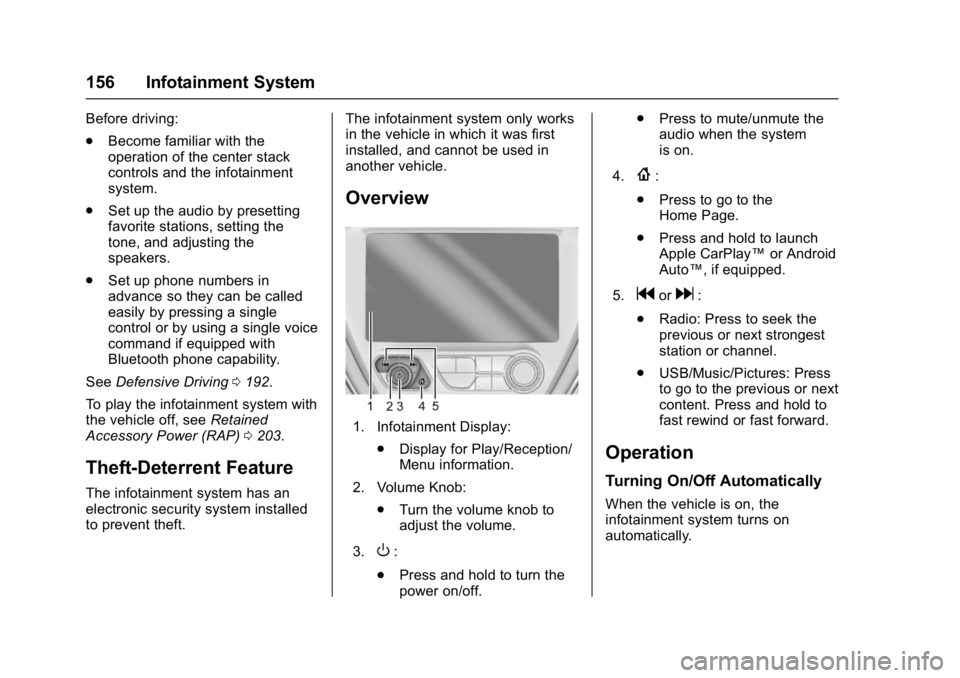
Overview
1. Infotainment Display:
.Display for Play/Reception/
Menu information.
2. Volume Knob: .Turn the volume knob to
adjust the volume.
3.
O:
. Press and hold to turn the
power on/off. .
Press to mute/unmute the
audio when the system
is on.
4.
{:
. Press to go to the
Home Page.
. Press and hold to launch
Apple CarPlay™ or Android
Auto™, if equipped.
5.
gord:
. Radio: Press to seek the
previous or next strongest
station or channel.
. USB/Music/Pictures: Press
to go to the previous or next
content. Press and hold to
fast rewind or fast forward.
Operation
Turning On/Off Automatically
When the vehicle is on, the
infotainment system turns on
automatically.
Page 160 of 361
Chevrolet Bolt EV Owner Manual (GMNA-Localizing-U.S./Canada/Mexico-
10122739) - 2017 - CRC - 10/3/16
Infotainment System 159
2. Touch Phone, then touch5on
the infotainment display,
or press
gon the steering
wheel controls.
Settings
1. Press
{, then touchT.
2. Touch Settings, then select an item from the menu and adjust
the settings by selecting from
the available options. See
Settings 0177.
Gallery
1. Press
{, then touchT.
2. Touch Gallery, then touch
'
menu to view picture files
contained in the USB storage
device.
Software Updates
Over-the-Air Software Updates
If equipped, the infotainment system
can download and install software
updates over a wireless connection.
The system will prompt high priority
updates to be downloaded and installed, while others can be
manually accessed. To manually
check for updates:
1. Press
{, then touchT.
2. Touch Settings, then Software Information.
3. Touch Software Update and follow the on-screen prompts.
Steps for downloading and
installing updates may vary by
vehicle.
Downloading Over-the-Air software
updates requires Internet
connectivity, which can be accessed
through the vehicle’ s OnStar Wi-Fi
hotspot, if equipped. Optionally, a
secured Wi-Fi hotspot such as a
mobile device hotspot, a home
hotspot, or a public hotspot can be
used. To connect the infotainment
system to a secured mobile device
hotspot, home hotspot, or public
hotspot:
1. Press
{, then touchT.
2. Touch Settings, then Wi-Fi. 3. Touch Manage Wi-Fi Networks,
then select the appropriate
Wi-Fi network and follow the
on-screen prompts.
Download speeds may vary.
On most mobile devices,
activation of the Wi-Fi hotspot
is in the Settings menu under
Mobile Network Sharing,
Personal Hotspot, Mobile
Hotspot, or similar.
Availability of Over-the-Air software
updates varies by vehicle and
country. In the U.S., see
my.chevrolet.com/learn. In Canada,
see my.chevrolet.ca. In Mexico see
your dealer.
Page 181 of 361
Chevrolet Bolt EV Owner Manual (GMNA-Localizing-U.S./Canada/Mexico-
10122739) - 2017 - CRC - 10/3/16
180 Infotainment System
Report Card
The vehicle owner must secure the
driver’s consent to record certain
vehicle data when the vehicle is
driven with a registered Teen Driver
key. There is one Report Card per
vehicle. Data is not recorded when
Teen Driver is not active.
The Report Card data is collected
from the time Teen Driver is
activated or the last time the Report
Card was reset. The following items
may be recorded:
. Distance Driven –the total
distance driven.
. Maximum Speed –the maximum
vehicle speed recorded.
. Overspeed Warnings –the
number of times the speed
warning setting was exceeded.
. Forward Collision Alerts –the
number of times the driver was
notified when approaching a
vehicle ahead too quickly and at
potential risk for a crash. .
Forward Collision Avoidance
Braking –the number of times
the vehicle detected that a
forward collision was imminent
and applied the brakes. Also
referred to as Forward Automatic
Braking.
. Stability Control –the number of
events which required the use of
electronic stability control.
. ABS Active –the number of
Antilock Brake System
activations.
. Tailgating Alerts –the number of
times the driver was alerted for
following the vehicle ahead too
closely.
. Traction Control –the number of
times the Traction Control
System activated to reduce
wheel spin or loss of traction.
. Wide Open Throttle –the
number of times the accelerator
pedal was pressed nearly all the
way down. Delete Report Card Data
Data is saved for all trips until the
data is deleted using the PIN or until
the maximum count is exceeded.
Each item will report a maximum of
1,000 counts. The distance driven
will report a maximum of 64,374 km
(40,000 mi).
To delete Report Card data, do one
of the following:
.
From the Report Card display,
select Reset.
. Select Clear All Teen Keys/PIN
from the Teen Driver menu. This
will also unregister any Teen
Driver keys and delete the PIN.
Forgotten PIN
See your dealer to reset the PIN.
Page 202 of 361
Chevrolet Bolt EV Owner Manual (GMNA-Localizing-U.S./Canada/Mexico-
10122739) - 2017 - CRC - 10/3/16
Driving and Operating 201
{Warning
Things inside the vehicle can
strike and injure people in a
sudden stop or turn, or in a
crash.
.Put things in the cargo
area of the vehicle. In the
cargo area, put them as
far forward as possible.
Try to spread the weight
evenly.
.Never stack heavier
things, like suitcases,
inside the vehicle so that
some of them are above
the tops of the seats.
.Do not leave an
unsecured child restraint
in the vehicle.
.Secure loose items in the
vehicle.
.Do not leave a seat
folded down unless
needed.
Starting and
Operating
New Vehicle Break-In
Caution
Avoid making hard stops for the
first 322 km (200 mi). During this
time the new brake linings are not
yet broken in. Hard stops with
new linings can mean premature
wear and earlier replacement.
Follow this breaking-in guideline
every time you get new brake
linings. Following break-in,
vehicle speed and load can be
gradually increased.
Power Button
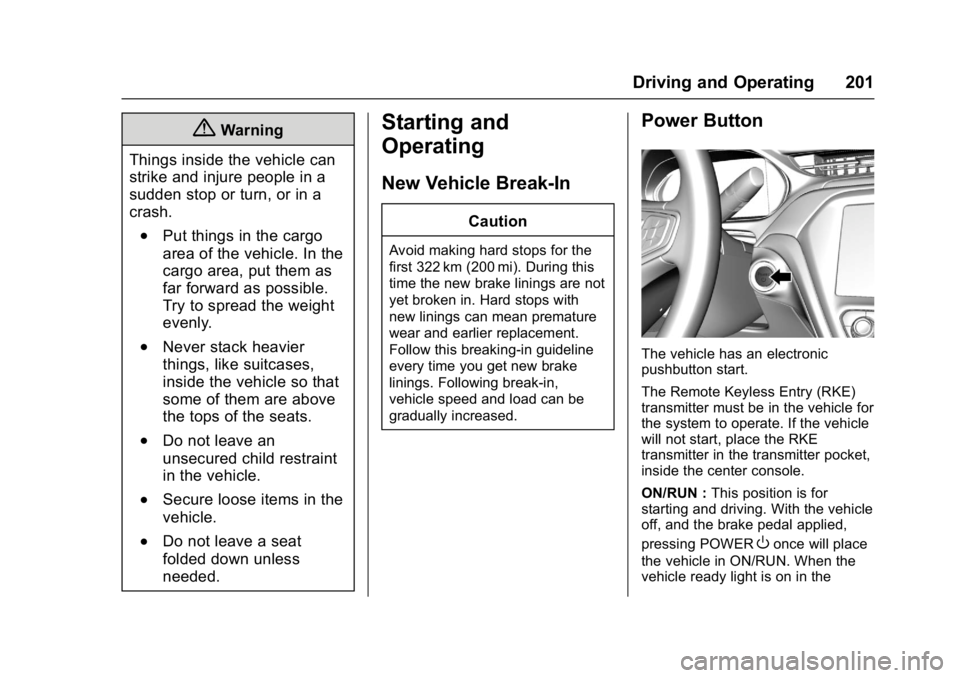
The vehicle has an electronic
pushbutton start.
The Remote Keyless Entry (RKE)
transmitter must be in the vehicle for
the system to operate. If the vehicle
will not start, place the RKE
transmitter in the transmitter pocket,
inside the center console.
ON/RUN : This position is for
starting and driving. With the vehicle
off, and the brake pedal applied,
pressing POWER
Oonce will place
the vehicle in ON/RUN. When the
vehicle ready light is on in the