change time CHEVROLET BOLT EV 2018 User Guide
[x] Cancel search | Manufacturer: CHEVROLET, Model Year: 2018, Model line: BOLT EV, Model: CHEVROLET BOLT EV 2018Pages: 370, PDF Size: 5.14 MB
Page 143 of 370
Chevrolet BOLT EV Owner Manual (GMNA-Localizing-U.S./Canada/Mexico-
11434431) - 2018 - crc - 2/14/18
142 Instruments and Controls
energy economy that the vehicle
has right now, and will change as
driving conditions change. The
Average Electrical Energy Economy
can be reset along with the trip
odometer by pressing and holding
Vwhile this display is active.
Tire Pressure : Shows the
approximate pressures of all four
tires. Tire pressure is displayed in
either kilopascal (kPa) or in pounds
per square inch (psi). If the pressure
is low, the value for that tire is
shown in amber.
Average Speed : Shows the
average speed of the vehicle in
kilometers per hour (km/h) or miles
per hour (mph). This average is
calculated based on the various
vehicle speeds recorded since the
last reset of this value. The average
speed can be reset by pressing and
holding
Vwhile this display is
active. Timer :
This display can be used as
a timer. To start the timer, press
V
while this display is active. The
display will show the amount of time
that has passed since the timer was
last reset. To stop the timer, press
V
briefly while this display is active
and the timer is running. To reset
the timer to zero, press and hold
V
while this display is active.
Follow Distance Indicator : The
current follow time to the vehicle
ahead is displayed as a time value
on this page.
Blank Page : The Blank Page
display allows for no information to
be displayed in the cluster info
display areas.
Vehicle Messages
Messages displayed on the DIC
indicate the status of the vehicle or
some action that may be needed to
correct a condition. Multiple
messages may appear one after
another.
The messages that do not require
immediate action can be
acknowledged and cleared by
pressing
V. The messages that
require immediate action cannot be
cleared until that action is
performed.
All messages should be taken
seriously; clearing the message
does not correct the problem.
If a SERVICE message appears,
see your dealer.
Follow the instructions given in the
messages. The system displays
messages regarding the following
topics:
. Service Messages
. Fluid Levels
. Vehicle Security
Page 151 of 370
Chevrolet BOLT EV Owner Manual (GMNA-Localizing-U.S./Canada/Mexico-
11434431) - 2018 - crc - 2/14/18
150 Lighting
Lighting
Exterior Lighting
Exterior Lamp Controls . . . . . . . 150
Exterior Lamps OffReminder . . . . . . . . . . . . . . . . . . . 152
Headlamp High/Low-Beam Changer . . . . . . . . . . . . . . . . . . . . 152
Flash-to-Pass . . . . . . . . . . . . . . . . 152
Daytime Running Lamps (DRL) . . . . . . . . . . . . . . . 152
Automatic Headlamp System . . . . . . . . . . . . . . . . . . . . . . 153
Hazard Warning Flashers . . . . . 153
Turn and Lane-Change Signals . . . . . . . . . . . . . . . . . . . . . . 154
Interior Lighting
Instrument Panel IlluminationControl . . . . . . . . . . . . . . . . . . . . . . 154
Courtesy Lamps . . . . . . . . . . . . . . 155
Dome Lamps . . . . . . . . . . . . . . . . . 155
Reading Lamps . . . . . . . . . . . . . . 155
Lighting Features
Entry Lighting . . . . . . . . . . . . . . . . 156
Exit Lighting . . . . . . . . . . . . . . . . . . 156
Battery Power Protection . . . . . 156
Exterior Lighting Battery Saver . . . . . . . . . . . . . . . . . . . . . . . 156Exterior Lighting
Exterior Lamp Controls
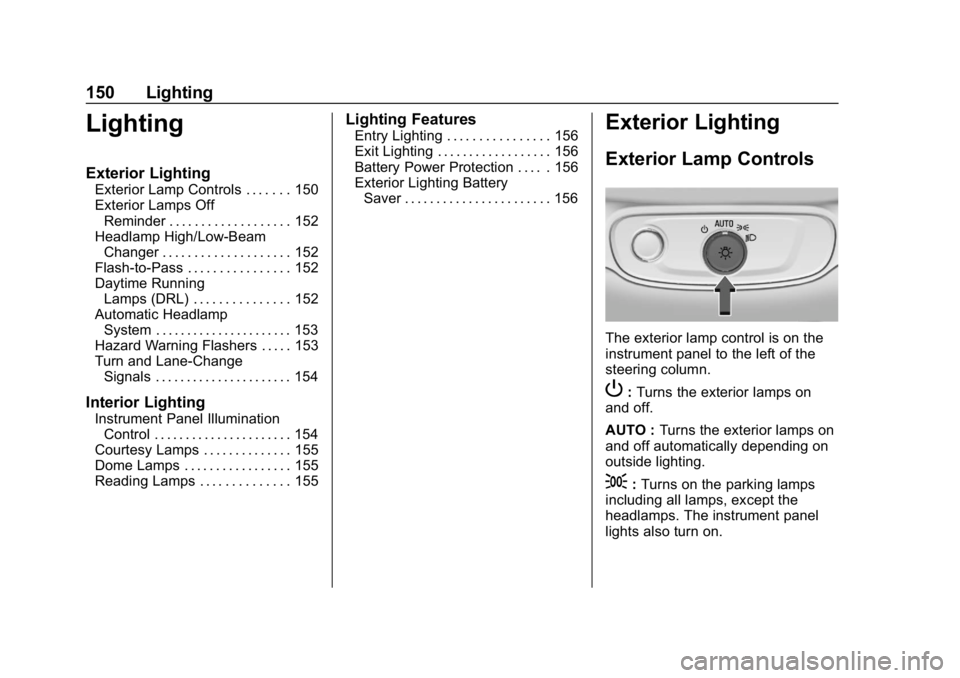
The exterior lamp control is on the
instrument panel to the left of the
steering column.
P: Turns the exterior lamps on
and off.
AUTO : Turns the exterior lamps on
and off automatically depending on
outside lighting.
;: Turns on the parking lamps
including all lamps, except the
headlamps. The instrument panel
lights also turn on.
Page 153 of 370
Chevrolet BOLT EV Owner Manual (GMNA-Localizing-U.S./Canada/Mexico-
11434431) - 2018 - crc - 2/14/18
152 Lighting
The instrument cluster light will
come on to indicate the
IntelliBeam system is
reactivated.
The high beams may not turn off
automatically if the system cannot
detect another vehicle's lamps
because of any of the following:
. The other vehicle’s lamps are
missing, damaged, obstructed
from view, or otherwise
undetected.
. The other vehicle‘s lamps are
covered with dirt, snow, and/or
road spray.
. The other vehicle’s lamps cannot
be detected due to dense
exhaust, smoke, fog, snow, road
spray, mist, or other airborne
obstructions.
. The vehicle's windshield is dirty,
cracked, or obstructed by
something that blocks the view
of the light sensor. .
The vehicle is loaded such that
the front end points upward,
causing the light sensor to aim
high and not detect headlamps
and taillamps.
. Driving on winding or hilly roads.
The IntelliBeam system may need to
be disabled if any of the above
conditions exist.
Exterior Lamps Off
Reminder
A warning chime sounds if the driver
door is opened while the vehicle is
off and the exterior lamps are on.
Headlamp High/
Low-Beam Changer
Push the turn signal lever away
from you and release, to turn the
high beams on. To return to low
beams, push the lever again or pull
it toward you and release.
This indicator light turns on in the
instrument cluster when the
high-beam headlamps are on.
Flash-to-Pass
To flash the high beams, pull the
turn signal lever toward you, and
release.
Daytime Running
Lamps (DRL)
DRL can make it easier for others to
see the front of your vehicle during
the day. Fully functional DRL are
required on all vehicles first sold in
Canada.
The DRL system comes on in
daylight when the following
conditions are met:
. The power button is on.
Page 154 of 370
Chevrolet BOLT EV Owner Manual (GMNA-Localizing-U.S./Canada/Mexico-
11434431) - 2018 - crc - 2/14/18
Lighting 153
.The exterior lamp control is
in AUTO.
. The light sensor determines it is
daytime.
. The vehicle is not in P (Park).
When the DRL are on, the taillamps,
sidemarker lamps, instrument panel
lights, and other lamps will not
be on.
The DRL turn off when the
headlamps are turned to
Por the
vehicle is off.
For vehicles first sold in Canada,
the DRL can only be turned off
when the vehicle is parked.
Automatic Headlamp
System
The headlamps come on
automatically when the exterior
lamp control is set to AUTO and it is
dark enough outside.
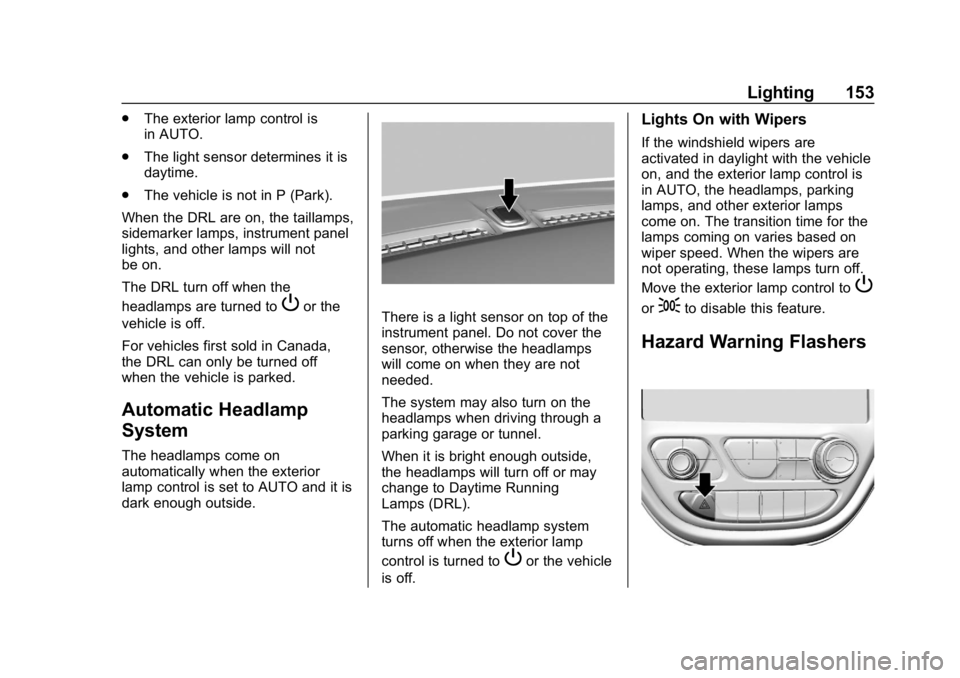
There is a light sensor on top of the
instrument panel. Do not cover the
sensor, otherwise the headlamps
will come on when they are not
needed.
The system may also turn on the
headlamps when driving through a
parking garage or tunnel.
When it is bright enough outside,
the headlamps will turn off or may
change to Daytime Running
Lamps (DRL).
The automatic headlamp system
turns off when the exterior lamp
control is turned to
Por the vehicle
is off.
Lights On with Wipers
If the windshield wipers are
activated in daylight with the vehicle
on, and the exterior lamp control is
in AUTO, the headlamps, parking
lamps, and other exterior lamps
come on. The transition time for the
lamps coming on varies based on
wiper speed. When the wipers are
not operating, these lamps turn off.
Move the exterior lamp control to
P
or;to disable this feature.
Hazard Warning Flashers
Page 155 of 370
Chevrolet BOLT EV Owner Manual (GMNA-Localizing-U.S./Canada/Mexico-
11434431) - 2018 - crc - 2/14/18
154 Lighting
The hazard warning flasher button
is on the center stack.
|:Press to make the front and
rear turn signal lamps flash on and
off. This warns others that you are
having trouble. Press the button
again to turn the flashers off.
When the hazard warning flashers
are on, the turn signals will
not work.
Turn and Lane-Change
Signals
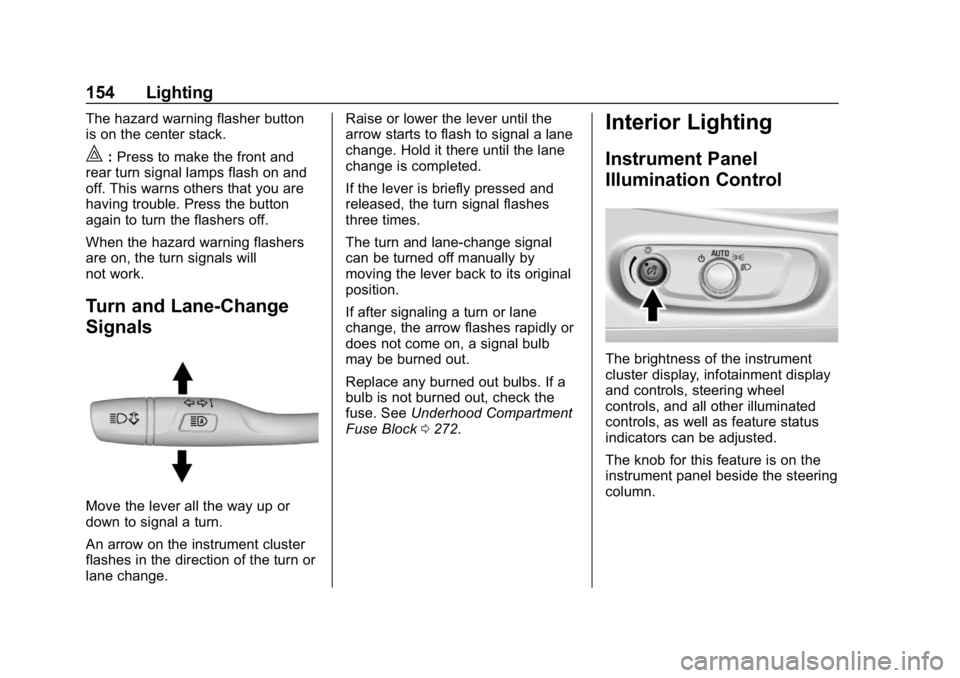
Move the lever all the way up or
down to signal a turn.
An arrow on the instrument cluster
flashes in the direction of the turn or
lane change. Raise or lower the lever until the
arrow starts to flash to signal a lane
change. Hold it there until the lane
change is completed.
If the lever is briefly pressed and
released, the turn signal flashes
three times.
The turn and lane-change signal
can be turned off manually by
moving the lever back to its original
position.
If after signaling a turn or lane
change, the arrow flashes rapidly or
does not come on, a signal bulb
may be burned out.
Replace any burned out bulbs. If a
bulb is not burned out, check the
fuse. See
Underhood Compartment
Fuse Block 0272.
Interior Lighting
Instrument Panel
Illumination Control
The brightness of the instrument
cluster display, infotainment display
and controls, steering wheel
controls, and all other illuminated
controls, as well as feature status
indicators can be adjusted.
The knob for this feature is on the
instrument panel beside the steering
column.
Page 167 of 370
Chevrolet BOLT EV Owner Manual (GMNA-Localizing-U.S./Canada/Mexico-
11434431) - 2018 - crc - 2/14/18
166 Infotainment System
Audio Players
USB Port
The USB ports are in the center
console and are for data and
charging. If equipped, there are two
USB charge ports in the rear of the
center console. The infotainment
system can play the music files
contained in the USB storage
device or a device that supports
MTP or iPod/iPhone devices.
Before Using the Audio
System
Supported Audio File Formats
.MP3 (MPEG-1 Layer 3,
MPEG-2 Layer 3)
Constant Bit Rate (CBR)
between 8 and 320 kbps
Variable Bit Rate (VBR)
Sampling frequencies of 8,
11.025, 12, 16, 22.05, 24, 32,
44.1, and 48 kHz
. Windows Media Audio
Windows Media Audio 10 CBR between 32 and 768 kbps
VBR (Standard), Professional,
Lossless, or higher according to
Microsoft specifications
Sampling frequencies of 8, 12,
16, 22, 32, 44.1, and 48 kHz
. AAC (MPEG-4 AAC, Low
Complexity Profile) and AAC+
CBR between 8 and 320 kbps
. OGG Vorbis
. Waveform (WAV –PCM
Windows format)
. Audio Interchange File
Format (AIFF)
. 3GPP (Generally used for
mobile devices)
. Audio Books (MP3, WMA,
AAC, AA)
Guidelines for Using a USB
Storage Device and iPod/iPhone
. Operation cannot be guaranteed
if the HDD built-in USB mass
storage device or CF or SD
memory card is connected by using a USB adaptor. Use a
USB or flash memory type
storage device.
. Avoid static electricity discharge
when connecting or
disconnecting the USB.
If connection and disconnection
are repeated many times in a
short time, this may cause a
problem in using the device.
. Operation is not guaranteed if
the connecting terminal of the
USB device is not metal.
. Connection with i-Stick Type
USB storage devices may be
faulty due to vehicle vibration.
. Do not touch the USB
connecting terminal with an
object or any part of your body.
. The USB storage device can
only be recognized when it is
formatted in FAT16/32, NTFS,
HFS+. exFAT and other file
systems cannot be recognized.
Page 171 of 370
Chevrolet BOLT EV Owner Manual (GMNA-Localizing-U.S./Canada/Mexico-
11434431) - 2018 - crc - 2/14/18
170 Infotainment System
.Once the infotainment system
finishes reading the information
on the device that supports MTP
(Media Transfer Protocol), it will
be automatically played. If USB
Auto Launch is set to Off in
Settings, it will not be
automatically played.
. If a non-readable device that
supports MTP is connected, then
an error message will appear
and the infotainment system will
automatically switch to the
previous audio function.
. Depending on the connected
device, some files may not play.
. File loading may take a few
minutes depending on the type
of MTP device or the number of
files/folders stored in the MTP
device.
. When connecting the MTP
device, the infotainment system
scans audio files first, and then
picture files. While scanning
picture files, these files may not
be available until the loading indicator on the audio screen
disappears even if the audio file
in the MTP device is playing.
. If connecting an MTP device that
has external memory, it may be
recognized as USB1/USB2.
. Other operations are the same
as the USB player. See “USB
Player” under“USB Port”
previously in this section.
. The USB connection setting on
the device may need to be
changed to MTP.
iPod/iPhone Player
This is limited to devices supporting
the iPod/iPhone connection.
Playing iPod/iPhone Music Files
Use an Apple certified cord to
connect the iPod/iPhone containing
the music files to the USB port.
.Once the infotainment system
finishes reading the information
on the iPod/iPhone, it will be
automatically played from the
previously played point. If Auto Launch in Settings is set to Off,
it will not be automatically
played.
If the iPod/iPhone is already
connected, touch
T, Audio, Source,
then iPod to play the iPod/iPhone.
Ending iPod/iPhone Playback
1. Touch Source.
2. Select another function by touching AM, FM, AUX,
or Bluetooth, or unplug the
iPod/iPhone.
To remove the iPod/iPhone, select
another function, and then remove
the iPod/iPhone.
Pause Touch
jduring playback.
Touch
rto resume playback.
Playing the Next Song Touch
dto play the next song.
Playing the Previous Song Touch
gwithin two seconds of
playback time to play the
previous song.
Page 175 of 370
Chevrolet BOLT EV Owner Manual (GMNA-Localizing-U.S./Canada/Mexico-
11434431) - 2018 - crc - 2/14/18
174 Infotainment System
.Repeat Off: Cancels repeat
function.
General Operation of the
Bluetooth Music Menu 1. Touch Menu on the Bluetooth music screen.
2. Touch the desired menu to select the item or to display the
item’s detailed menu.
3. Touch
qNow Playing to return
to the previous menu.
Browse Music
This function may not be supported
depending on the mobile phone. 1. From the Bluetooth music menu, touch Browse Music.
2. Touch the desired item. The number of relevant songs is
displayed.
3. Touch the desired music to listen. Tone Settings
From the Bluetooth music menu,
sound features can be set up. See
“Tone Settings”
under“AM-FM
Radio” previously in this section.
Auto Volume
Volume will be automatically
controlled. See “Auto Volume”under
“AM-FM Radio” previously in this
section.
Manage Bluetooth Devices
1. From the Bluetooth music menu, touch Audio Settings.
2. Touch Manage Bluetooth Devices.
3. Select the desired device and then connect/disconnect or
delete.
Playing Bluetooth Music
. Do not change the track too
quickly when playing Bluetooth
music.
. It takes some time to transmit
data from the mobile phone or
Bluetooth device to the infotainment system. The
infotainment system outputs the
audio from the mobile phone or
Bluetooth device as it is
transmitted.
. If the mobile phone or Bluetooth
device is not in the idle screen
mode, it may not automatically
play despite being carried out
from the Bluetooth music
play mode.
. The infotainment system
transmits the order to play from
the mobile phone in the
Bluetooth music play mode.
If this is done in a different
mode, then the device transmits
the order to stop. Depending on
the mobile phone’s options, this
order to play/stop may take time
to activate.
. If Bluetooth music playback is
not functioning, then check to
see if the mobile phone is in the
idle screen mode.
. Sometimes, sounds may be cut
off during Bluetooth music
playback.
Page 179 of 370
Chevrolet BOLT EV Owner Manual (GMNA-Localizing-U.S./Canada/Mexico-
11434431) - 2018 - crc - 2/14/18
178 Infotainment System
Projection on the Home Page will
change to Android Auto or Apple
CarPlay depending on the phone.
Android Auto and/or Apple CarPlay
may automatically launch upon USB
connection. If not, touch the Android
Auto and/or Apple CarPlay icon on
the Home Page to launch.
Press
{on the center stack to
return to the Home Page.
For further information on how to set
up Android Auto and Apple CarPlay
in the vehicle, see
www.my.chevrolet.com or see
Customer Assistance Offices 0334.
Android Auto is provided by Google
and is subject to Google’s terms
and privacy policy. Apple CarPlay is
provided by Apple and is subject to
Apple’ s terms and privacy policy.
Data plan rates apply. For Android
Auto support see https://
support.google.com/androidauto.
For Apple CarPlay support see
www.apple.com/ios/carplay/. Apple
or Google may change or suspend
availability at any time. Android
Auto, Android, Google, Google Play, and other marks are trademarks of
Google Inc.; Apple CarPlay is a
trademark of Apple Inc.
Hands-Free Phone
Making a Call by Entering the
Phone Number
1. TouchT.
2. Touch Phone.
3. Enter the phone number using the keypad on the Phone
screen.
4. Touch
5on the display to call
the phone number.
If the wrong number is entered,
touch
zto delete the entered
number one digit at a time. Or touch
and hold
zto delete all entered
numbers.
Switching a Call to the Mobile
Phone (Private Mode)
1. To switch the call to the mobile phone instead of the Bluetooth
hands-free, touch
0. 2. To switch the call back to the
Bluetooth hands-free, touch
0
again.
Switching the Microphone
On/Off
Switch the microphone on/off by
touching
3.
Calling by Re-Dial
Touch5on the display.
Taking Calls
1. When a phone call comesthrough the Bluetooth
connected mobile phone, the
playing track will be cut off and
the phone will ring with the
relevant information displayed.
2. To talk on the phone, press
g
on the steering wheel control or
touch
5on the display.
To reject the call, press
con
the steering wheel control or
touch
Kon the display.
Page 185 of 370
Chevrolet BOLT EV Owner Manual (GMNA-Localizing-U.S./Canada/Mexico-
11434431) - 2018 - crc - 2/14/18
184 Infotainment System
Trademarks and
License Agreements
FCC Information
SeeRadio Frequency Statement
0 342.
Bluetooth
®
The Bluetooth word mark and logos
are owned by the Bluetooth®SIG,
Inc. and any use of such marks by
General Motors is under license.
Other trademarks and trade names
are those of their respective owners.
“Made for iPod” and“Made for
iPhone” mean that an electronic
accessory has been designed to
connect specifically to iPod or
iPhone and has been certified by
the developer to meet Apple
performance standards. iPod and iPhone are trademarks of
Apple Computer, Inc., registered in
the U.S. and other countries.
Fees and Taxes: Subscription fee,
taxes, one time activation fee, and
other fees may apply. Subscription
fee is consumer only. All fees and
programming subject to change.
Subscriptions subject to Customer
Agreement available at
www.siriusxm.com or
www.siriusxm.ca. SiriusXM
®service
only available in the 48 contiguous
United States and Canada.
In Canada: Some deterioration of
service may occur in extreme
northern latitudes. This is beyond
the control of SiriusXM
®Satellite
Radio. It is prohibited to copy, decompile,
disassemble, reverse engineer,
hack, manipulate, or otherwise
make available any technology or
software incorporated in receivers
compatible with the SiriusXM
Satellite Radio System or that
support the SiriusXM website, the
Online Service or any of its content.
Furthermore, the AMBER voice
compression software included in
this product is protected by
intellectual property rights including
patent rights, copyrights, and trade
secrets of Digital Voice
Systems, Inc.
General Requirements:
1. A License Agreement from SiriusXM is required for any
product that incorporates
SiriusXM Technology and/or for
use of any of the SiriusXM
marks to be manufactured,
distributed, or marketed in the
SiriusXM Service Area.