buttons CHEVROLET BOLT EV 2020 User Guide
[x] Cancel search | Manufacturer: CHEVROLET, Model Year: 2020, Model line: BOLT EV, Model: CHEVROLET BOLT EV 2020Pages: 347, PDF Size: 5.7 MB
Page 203 of 347
Chevrolet BOLT EV Owner Manual (GMNA-Localizing-U.S./Canada/Mexico-
13556250) - 2020 - CRC - 2/11/20
202 Driving and Operating
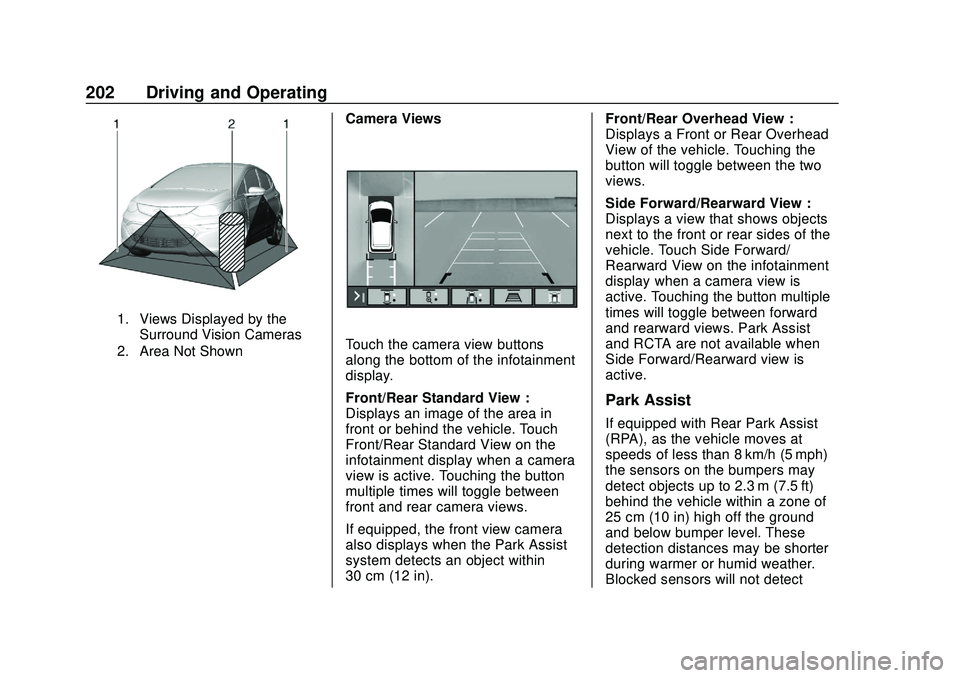
1. Views Displayed by theSurround Vision Cameras
2. Area Not Shown
Camera Views
Touch the camera view buttons
along the bottom of the infotainment
display.
Front/Rear Standard View :
Displays an image of the area in
front or behind the vehicle. Touch
Front/Rear Standard View on the
infotainment display when a camera
view is active. Touching the button
multiple times will toggle between
front and rear camera views.
If equipped, the front view camera
also displays when the Park Assist
system detects an object within
30 cm (12 in). Front/Rear Overhead View :
Displays a Front or Rear Overhead
View of the vehicle. Touching the
button will toggle between the two
views.
Side Forward/Rearward View :
Displays a view that shows objects
next to the front or rear sides of the
vehicle. Touch Side Forward/
Rearward View on the infotainment
display when a camera view is
active. Touching the button multiple
times will toggle between forward
and rearward views. Park Assist
and RCTA are not available when
Side Forward/Rearward view is
active.
Park Assist
If equipped with Rear Park Assist
(RPA), as the vehicle moves at
speeds of less than 8 km/h (5 mph)
the sensors on the bumpers may
detect objects up to 2.3 m (7.5 ft)
behind the vehicle within a zone of
25 cm (10 in) high off the ground
and below bumper level. These
detection distances may be shorter
during warmer or humid weather.
Blocked sensors will not detect
Page 327 of 347
Chevrolet BOLT EV Owner Manual (GMNA-Localizing-U.S./Canada/Mexico-
13556250) - 2020 - CRC - 2/11/20
326 OnStar
OnStar
OnStar Overview
OnStar Overview . . . . . . . . . . . . . 326
OnStar Services
Emergency . . . . . . . . . . . . . . . . . . . 327
Security . . . . . . . . . . . . . . . . . . . . . . 328
OnStar Additional Information
OnStar AdditionalInformation . . . . . . . . . . . . . . . . . . 328
OnStar Overview
=Voice Command Button
QBlue OnStar Button
>Red Emergency Button
This vehicle may be equipped with a
comprehensive, in-vehicle system
that can connect to an OnStar
Advisor for Emergency, Security,
Navigation, Connections, and
Diagnostics Services. OnStar
services may require a paid service
plan and data plan. OnStar requires
the vehicle battery and electrical
system, cellular service, and GPS
satellite signals to be available and
operating. OnStar acts as a link to
existing emergency service providers. OnStar may collect
information about you and your
vehicle, including location
information. See OnStar User
Terms, Privacy Statement, and
Software Terms for more details
including system limitations at
www.onstar.com (U.S.) or
www.onstar.ca (Canada).
The OnStar system status light is
next to the OnStar buttons. If the
status light is:
.
Solid Green: System is ready.
. Flashing Green: On a call.
. Red: Indicates a problem.
. Off: System is off. Press
Qtwice
to speak with an OnStar Advisor.
Press
Qor call 1-888-4ONSTAR
(1-888-466-7827) to speak to an
Advisor.
Functionality of the Voice Command
button may vary by vehicle and
region.