speed CHEVROLET BOLT EV 2020 Owner's Guide
[x] Cancel search | Manufacturer: CHEVROLET, Model Year: 2020, Model line: BOLT EV, Model: CHEVROLET BOLT EV 2020Pages: 347, PDF Size: 5.7 MB
Page 147 of 347
Chevrolet BOLT EV Owner Manual (GMNA-Localizing-U.S./Canada/Mexico-
13556250) - 2020 - CRC - 2/11/20
146 Infotainment System
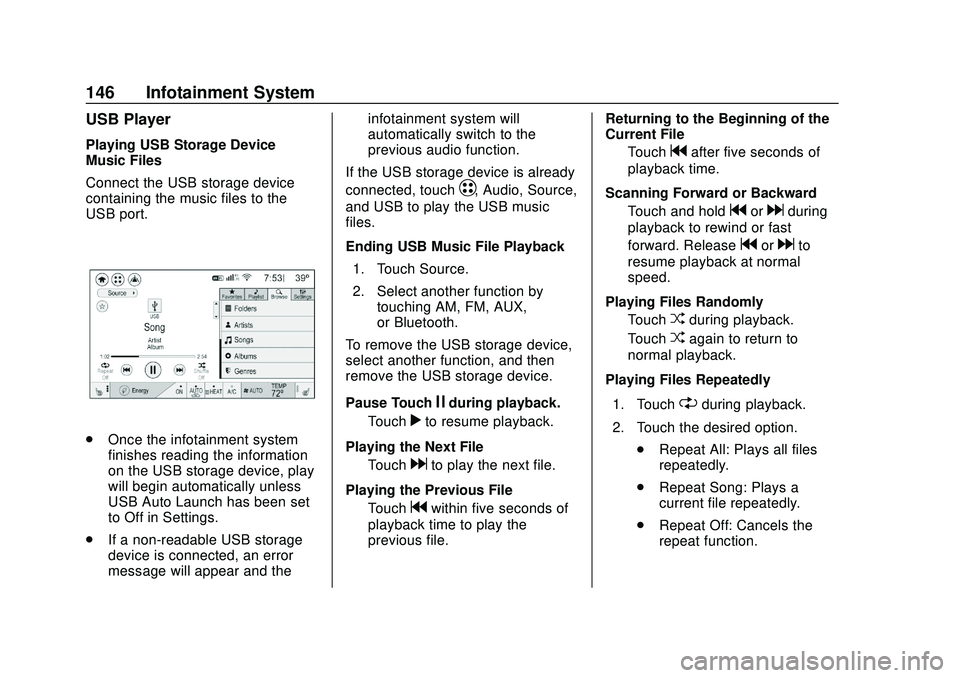
USB Player
Playing USB Storage Device
Music Files
Connect the USB storage device
containing the music files to the
USB port.
.Once the infotainment system
finishes reading the information
on the USB storage device, play
will begin automatically unless
USB Auto Launch has been set
to Off in Settings.
. If a non-readable USB storage
device is connected, an error
message will appear and the infotainment system will
automatically switch to the
previous audio function.
If the USB storage device is already
connected, touch
T, Audio, Source,
and USB to play the USB music
files.
Ending USB Music File Playback
1. Touch Source.
2. Select another function by touching AM, FM, AUX,
or Bluetooth.
To remove the USB storage device,
select another function, and then
remove the USB storage device.
Pause Touch
jduring playback.
Touch
rto resume playback.
Playing the Next File Touch
dto play the next file.
Playing the Previous File Touch
gwithin five seconds of
playback time to play the
previous file. Returning to the Beginning of the
Current File
Touch
gafter five seconds of
playback time.
Scanning Forward or Backward Touch and hold
gordduring
playback to rewind or fast
forward. Release
gordto
resume playback at normal
speed.
Playing Files Randomly Touch
Zduring playback.
Touch
Zagain to return to
normal playback.
Playing Files Repeatedly
1. Touch
"during playback.
2. Touch the desired option. .Repeat All: Plays all files
repeatedly.
. Repeat Song: Plays a
current file repeatedly.
. Repeat Off: Cancels the
repeat function.
Page 149 of 347
Chevrolet BOLT EV Owner Manual (GMNA-Localizing-U.S./Canada/Mexico-
13556250) - 2020 - CRC - 2/11/20
148 Infotainment System
.Other operations are the same
as the USB player. See “USB
Player” under“USB Port”
previously in this section.
. The USB connection setting on
the device may need to be
changed to MTP.
iPod/iPhone Player
This is limited to devices supporting
the iPod/iPhone connection.
Playing iPod/iPhone Music Files
Use an Apple certified cord to
connect the iPod/iPhone containing
the music files to the USB port.
.
Once the infotainment system
finishes reading the information
on the iPod/iPhone, it will be
automatically played from the
previously played point. If Auto
Launch in Settings is set to Off,
it will not be automatically
played.
If the iPod/iPhone is already
connected, touch
T, Audio, Source,
then iPod to play the iPod/iPhone. Ending iPod/iPhone Playback
1. Touch Source.
2. Select another function by touching AM, FM, AUX,
or Bluetooth, or unplug the
iPod/iPhone.
To remove the iPod/iPhone, select
another function, and then remove
the iPod/iPhone.
Pause Touch
jduring playback.
Touch
rto resume playback.
Playing the Next Song Touch
dto play the next song.
Playing the Previous Song Touch
gwithin two seconds of
playback time to play the
previous song.
Returning to the Beginning of the
Current Song Touch
gafter two seconds of
playback time. Scanning Forward or Backward
Hold
gordduring playback
to rewind or fast forward.
Release
gordto resume
playback at normal speed.
Playing Files Randomly Touch
Zduring playback.
Touch
Zagain to return to
normal playback.
Browse Music 1. Touch Browse Music.
2. Touch the desired music.
Tone Settings
Set up sound features from the
Tone Settings menu. See “Tone
Settings” under“AM-FM Radio”
previously in this section.
Auto Volume
Volume will be automatically
controlled. See “Auto Volume”under
“AM-FM Radio” previously in this
section.
Page 152 of 347
Chevrolet BOLT EV Owner Manual (GMNA-Localizing-U.S./Canada/Mexico-
13556250) - 2020 - CRC - 2/11/20
Infotainment System 151
PauseTouch
jduring playback.
Touch
ragain to resume
playback.
Playing the Next Music Touch
dto play the next music.
Playing the Previous Music Touch
gwithin two seconds of
playback time to play the
previous music.
Returning to the Beginning of the
Current Music Touch
gafter two seconds of
playback time.
Scanning Forward or Backward Hold
gordduring playback
to rewind or fast forward.
Release
gordto resume
playback at normal speed.
Playing Files Randomly Touch
Zduring playback.
Touch
Zagain to return to
normal playback. Playing Files Repeatedly
1. Touch
"during playback.
2. Touch the desired option. .Repeat All: Plays all files
repeatedly.
. Repeat Song: Plays a
current file repeatedly.
. Repeat Off: Cancels repeat
function.
Browse Music
This function may not be supported
depending on the mobile phone. 1. Touch Browse Music.
2. Touch the desired item. The number of relevant songs is
displayed.
3. Touch the desired music to listen.
Tone Settings
From the Bluetooth music menu,
sound features can be set up. See
“Tone Settings” under“AM-FM
Radio” previously in this section. Auto Volume
Volume will be automatically
controlled. See
“Auto Volume”under
“AM-FM Radio” previously in this
section.
Manage Bluetooth Devices
1. Touch Audio Settings.
2. Touch Manage Bluetooth Devices.
3. Select the desired device and then connect/disconnect or
delete.
Playing Bluetooth Music
. Do not change the track too
quickly when playing Bluetooth
music.
. It takes some time to transmit
data from the mobile phone or
Bluetooth device to the
infotainment system. The
infotainment system outputs the
audio from the mobile phone or
Bluetooth device as it is
transmitted.
Page 153 of 347
Chevrolet BOLT EV Owner Manual (GMNA-Localizing-U.S./Canada/Mexico-
13556250) - 2020 - CRC - 2/11/20
152 Infotainment System
.If the mobile phone or Bluetooth
device is not in the idle screen
mode, it may not automatically
play despite being carried out
from the Bluetooth music
play mode.
. The infotainment system
transmits the order to play from
the mobile phone in the
Bluetooth music play mode.
If this is done in a different
mode, then the device transmits
the order to stop. Depending on
the mobile phone’s options, this
order to play/stop may take time
to activate.
. If Bluetooth music playback is
not functioning, then check to
see if the mobile phone is in the
idle screen mode.
. Sometimes, sounds may be cut
off during Bluetooth music
playback.OnStar System
OnStar with 4G LTE
If equipped with OnStar 4G LTE, up
to seven devices, such as
smartphones, tablets, and laptops,
can be connected to high-speed
Internet through the vehicle’s built-in
Wi-Fi hotspot. Call 1-888-4-ONSTAR
(1-888-466-7827) to connect to an
OnStar Advisor for assistance. See
www.onstar.com for a detailed
instruction guide, vehicle availability,
details, and system limitations.
Services and apps vary by make,
model, year, carrier, availability, and
conditions. 4G LTE service is
available in select markets. 4G LTE
performance is based on industry
averages and vehicle systems
design. Some services require a
data plan.
Page 157 of 347
Chevrolet BOLT EV Owner Manual (GMNA-Localizing-U.S./Canada/Mexico-
13556250) - 2020 - CRC - 2/11/20
156 Infotainment System
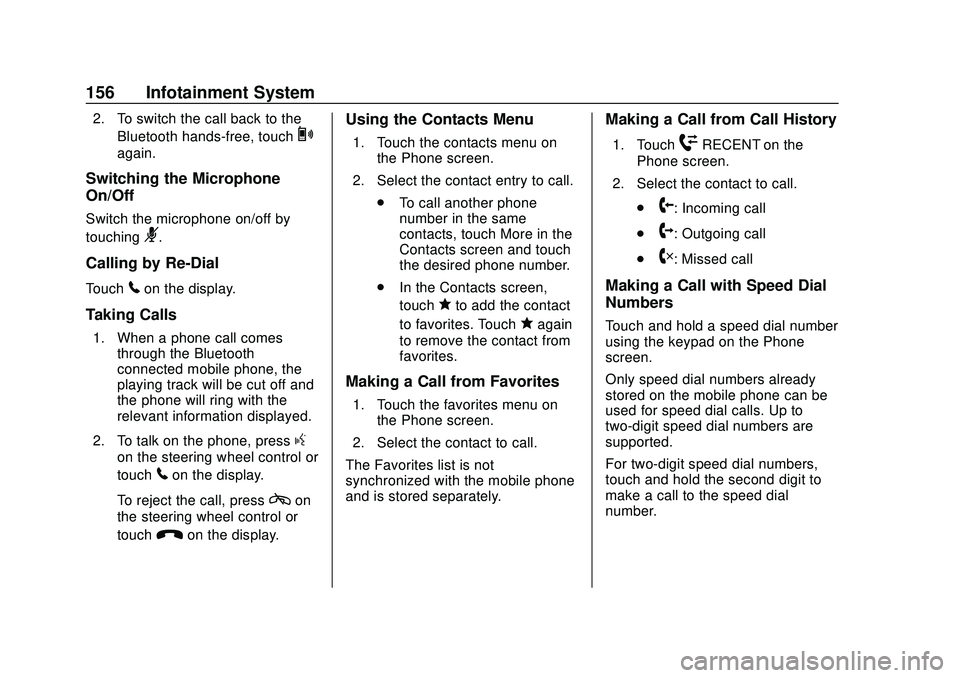
2. To switch the call back to theBluetooth hands-free, touch
0
again.
Switching the Microphone
On/Off
Switch the microphone on/off by
touching
3.
Calling by Re-Dial
Touch5on the display.
Taking Calls
1. When a phone call comesthrough the Bluetooth
connected mobile phone, the
playing track will be cut off and
the phone will ring with the
relevant information displayed.
2. To talk on the phone, press
g
on the steering wheel control or
touch
5on the display.
To reject the call, press
con
the steering wheel control or
touch
Kon the display.
Using the Contacts Menu
1. Touch the contacts menu on the Phone screen.
2. Select the contact entry to call. .To call another phone
number in the same
contacts, touch More in the
Contacts screen and touch
the desired phone number.
. In the Contacts screen,
touch
qto add the contact
to favorites. Touch
qagain
to remove the contact from
favorites.
Making a Call from Favorites
1. Touch the favorites menu on the Phone screen.
2. Select the contact to call.
The Favorites list is not
synchronized with the mobile phone
and is stored separately.
Making a Call from Call History
1. TouchWRECENT on the
Phone screen.
2. Select the contact to call.
.
9: Incoming call
.
2: Outgoing call
.
4: Missed call
Making a Call with Speed Dial
Numbers
Touch and hold a speed dial number
using the keypad on the Phone
screen.
Only speed dial numbers already
stored on the mobile phone can be
used for speed dial calls. Up to
two-digit speed dial numbers are
supported.
For two-digit speed dial numbers,
touch and hold the second digit to
make a call to the speed dial
number.
Page 160 of 347
Chevrolet BOLT EV Owner Manual (GMNA-Localizing-U.S./Canada/Mexico-
13556250) - 2020 - CRC - 2/11/20
Infotainment System 159
The PIN is required to:
.Register or unregister keys.
. Change Teen Driver settings.
. Change or clear the Teen
Driver PIN.
. Access or delete Report
Card data.
Register keys to activate:
Any vehicle key can be registered,
up to a maximum of eight keys.
Label the key to tell it apart from the
other keys. 1. Start the vehicle.
2. The vehicle must be in P (Park).
3. From the Settings menu, select Teen Driver.
4. Enter the PIN.
5. Place the Remote Keyless Entry (RKE) transmitter key in
the transmitter pocket. See
Remote Keyless Entry (RKE)
System Operation 08for the
transmitter pocket location. 6. From the Teen Driver Menu,
select Key Registration.
.If the transmitter key is in
the transmitter pocket, it will
identify whether the
transmitter key is registered
or unregistered.
. If the transmitter key is not
registered, the option to
register displays. Select
Register and a confirmation
message displays.
. If the transmitter key is
already registered, the
option to unregister
displays. If Unregister is
selected, the transmitter
key is no longer registered
and a confirmation
message displays.
If a Teen Driver transmitter key and
a non-Teen Driver transmitter key
are both present at start up, the
vehicle will recognize the non-Teen
Driver transmitter key to start the
vehicle. The Teen Driver settings
will not be active. Manage Settings
Use the PIN to change the following
settings:
Audio Volume Limit :
Allows a
maximum radio volume to be set.
Turn the audio volume limit On or
Off, and if equipped, choose the
maximum level for the audio
volume.
Teen Driver Speed Warning :
Allows for setting a visual and
audible warning when a certain
speed is exceeded. The speed
warning is selectable from 64 km/h
(40 mph) to 120 km/h (75 mph). The
speed warning does not limit the
speed of the vehicle.
Teen Driver Speed Limiter (If
Equipped) : Allows the maximum
speed of the vehicle to be limited to
137 km/h (85 mph). When the speed
limiter is turned On and the vehicle
is started with a Teen Driver key, the
DIC displays a message that the top
speed is limited to 137 km/h
(85 mph).
Page 161 of 347
Chevrolet BOLT EV Owner Manual (GMNA-Localizing-U.S./Canada/Mexico-
13556250) - 2020 - CRC - 2/11/20
160 Infotainment System
When Teen Driver is Active:
.The radio will mute when the
driver seat belt is not fastened,
and in some vehicles, when the
right front passenger seat belt is
not fastened. The audio from
any device paired to the vehicle
will also be muted.
. Certain electronic devices
placed on the front passenger
seat could cause the passenger
sensing system to falsely sense
an unbuckled front passenger
and mute the radio. See
Passenger Sensing System
053.
. Some safety systems, such as
Automatic Emergency Braking,
if equipped and supported,
cannot be turned off.
. The gap setting for the Forward
Collision Alert, if equipped,
cannot be changed. Report Card
The vehicle owner must secure the
driver
’s consent to record certain
vehicle data when the vehicle is
driven with a registered Teen Driver
key. There is one Report Card per
vehicle. Data is not recorded when
Teen Driver is not active.
The Report Card data is collected
from the time Teen Driver is
activated or the last time the Report
Card was reset. The following items
may be recorded:
. Distance Driven –the total
distance driven.
. Maximum Speed –the maximum
vehicle speed recorded.
. Overspeed Warnings –the
number of times the speed
warning setting was exceeded.
. Forward Collision Alerts –the
number of times the driver was
notified when approaching a
vehicle ahead too quickly and at
potential risk for a crash. .
Forward Collision Avoidance
Braking –the number of times
the vehicle detected that a
forward collision was imminent
and applied the brakes. Also
referred to as Automatic
Emergency Braking.
. Stability Control –the number of
events which required the use of
electronic stability control.
. ABS Active –the number of
Antilock Brake System
activations.
. Tailgating Alerts –the number of
times the driver was alerted for
following the vehicle ahead too
closely.
. Traction Control –the number of
times the Traction Control
System activated to reduce
wheel spin or loss of traction.
. Wide Open Throttle –the
number of times the accelerator
pedal was pressed nearly all the
way down.
Page 164 of 347
Chevrolet BOLT EV Owner Manual (GMNA-Localizing-U.S./Canada/Mexico-
13556250) - 2020 - CRC - 2/11/20
Climate Controls 163
Climate Controls
Climate Control Systems
Automatic Climate ControlSystem . . . . . . . . . . . . . . . . . . . . . . 163
Air Vents
Air Vents . . . . . . . . . . . . . . . . . . . . . 167
Maintenance
Air Intake . . . . . . . . . . . . . . . . . . . . . 168
Passenger Compartment AirFilter . . . . . . . . . . . . . . . . . . . . . . . . 168
Air Conditioning Regular Operation . . . . . . . . . . . . . . . . . . . 169
Service . . . . . . . . . . . . . . . . . . . . . . . 169
Climate Control
Systems
Automatic Climate
Control System
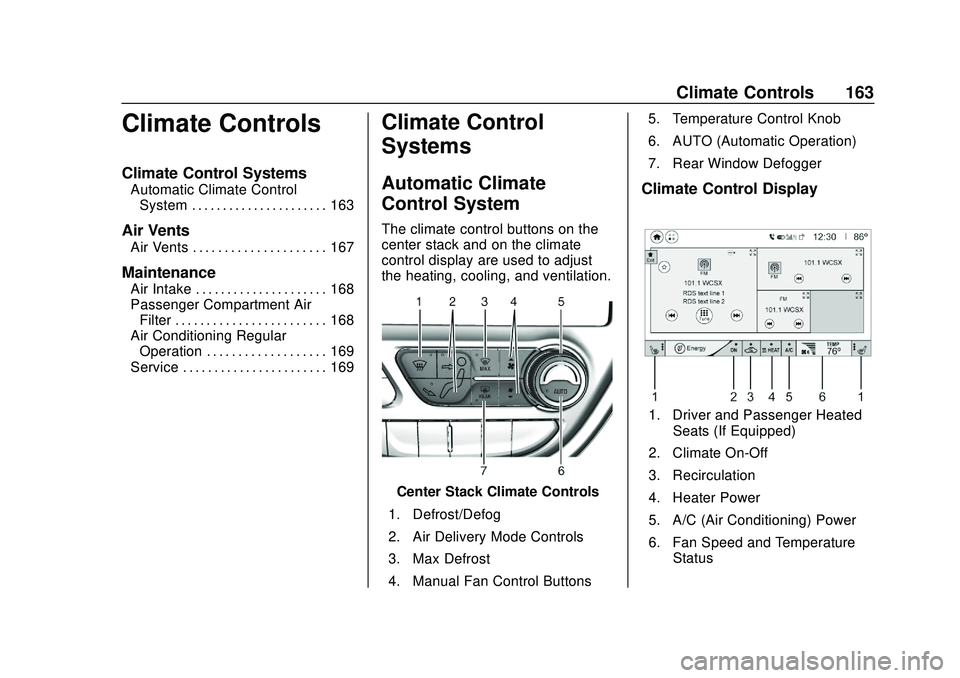
The climate control buttons on the
center stack and on the climate
control display are used to adjust
the heating, cooling, and ventilation.
Center Stack Climate Controls
1. Defrost/Defog
2. Air Delivery Mode Controls
3. Max Defrost
4. Manual Fan Control Buttons 5. Temperature Control Knob
6. AUTO (Automatic Operation)
7. Rear Window Defogger
Climate Control Display
1. Driver and Passenger Heated
Seats (If Equipped)
2. Climate On-Off
3. Recirculation
4. Heater Power
5. A/C (Air Conditioning) Power
6. Fan Speed and Temperature Status
Page 165 of 347
Chevrolet BOLT EV Owner Manual (GMNA-Localizing-U.S./Canada/Mexico-
13556250) - 2020 - CRC - 2/11/20
164 Climate Controls
The heated seats, if equipped,
climate on/off, recirculation, heat,
and air conditioning can be
controlled by touching Climate
Settings on the infotainment
Home Page.
A selection can then be made on
the climate settings page.
Automatic Operation
The system automatically controls
the fan speed, air delivery, air
conditioning, electric heating, and
recirculation to heat or cool the
vehicle to the selected temperature.
When AUTO is lit, all five functions
operate automatically. Each function
can also be manually set and the
selected setting is displayed or the
indicator is lit. Functions not
manually set will continue to be
automatically controlled, even if the
AUTO indicator is not lit.
For automatic operation:1. Press AUTO. 2. Set the temperature. An initial
setting of 22 °C (72 °F) is
recommended. Allow the
system time to stabilize. Adjust
the temperature as needed.
Manual Operation
ON : Touch to turn the climate
control system on and off.
The climate control system will turn
on when any climate control button
is pressed on the center stack or
touched on the climate control
display. To turn the system off,
touch ON again.
DorC: Press the buttons to
increase or decrease the fan speed.
The fan speed setting appears on
the climate control display. Manually
adjusting the fan speed cancels
automatic fan control. Press AUTO
to return to automatic operation.
Touch ON to turn off the fan and the
climate control system.
Temperature Control : Turn the
knob clockwise or counterclockwise
to increase or decrease the
temperature setting. Air Delivery Mode Control :
Press
c,d, or0on the center stack
to change the direction of airflow.
Any combination of the three
buttons can be selected. The
selected air delivery mode button
indicator is lit.
Pressing any button cancels
automatic air delivery control and
the direction of the airflow can be
controlled manually. Press AUTO to
return to automatic operation.
0: Air is directed to the
windshield.
d: Air is directed to the instrument
panel outlets.
c: Air is directed to the floor
outlets.
0MAX : Air is directed to the
windshield and the fan runs at a
higher speed. Fog or frost is cleared
from the windshield more quickly.
When the button is pressed again,
the system returns to the previous
mode setting.
Page 166 of 347
Chevrolet BOLT EV Owner Manual (GMNA-Localizing-U.S./Canada/Mexico-
13556250) - 2020 - CRC - 2/11/20
Climate Controls 165
For best results, clear all snow and
ice from the windshield before
defrosting.
L:Touch to turn on
recirculation.
An indicator light comes on. Air is
recirculated to quickly cool the
inside of the vehicle or to reduce the
entry of outside air and odors. Using
the recirculation mode for extended
periods may cause the windows to
fog. If this happens, select the
defrost mode.
Using air conditioning and
recirculation together for long
periods of time may cause the air
inside the vehicle to become too
dry. To prevent this from happening,
after the air in the vehicle has
cooled, turn the recirculation
mode off.
Touching this button cancels
automatic recirculation. Press AUTO
to return to automatic operation;
recirculation runs automatically as
needed.
vHEAT : Touch to turn the heater
on when the fan is on. A/C :
Touch to turn the air
conditioning on when the fan is on.
Auto Defog : The system will
monitor high humidity inside the
vehicle. When high humidity is
detected, the climate control system
may adjust to outside air supply and
turn on the air conditioner or the
heater. The fan speed may slightly
increase to help prevent fogging.
When high humidity is no longer
detected, the system will return to
its prior operation. To turn Auto
Defog off or on, see “Climate and
Air Quality” underVehicle
Personalization 0121.
Auto Heated Seats : If equipped,
when the vehicle is on, this feature
will automatically activate the
heated seats at the level required by
the vehicle’ s interior temperature. In
auto mode, the indicators
automatically show the level setting
required.
Use the manual heated seat buttons
on the infotainment display to turn
auto heated seats off. Once this feature is turned off, the auto heated
seats will be activated the next time
the vehicle is turned on.
In manual mode, the controls can
be accessed while the vehicle is on
by touching
(orMwith three level
indicators high, medium, low or off
on the climate control display. If the
passenger seat is unoccupied, the
auto heated seats feature will not
activate that seat. See Heated Front
Seats 035 and
Vehicle Personalization 0121.
Rear Window Defogger
K:Press to turn the rear window
defogger on or off. An indicator light
on the button comes on to show that
the rear window defogger is on.
The defogger only works when the
vehicle is on. The defogger will turn
off if the vehicle is turned off.