battery CHEVROLET BOLT EV 2021 Owner's Guide
[x] Cancel search | Manufacturer: CHEVROLET, Model Year: 2021, Model line: BOLT EV, Model: CHEVROLET BOLT EV 2021Pages: 293, PDF Size: 9.21 MB
Page 95 of 293
Chevrolet Bolt EV Owner Manual (GMNA-Localizing-U.S./Canada-
14637856) - 2021 - CRC - 10/2/20
94 Instruments and Controls
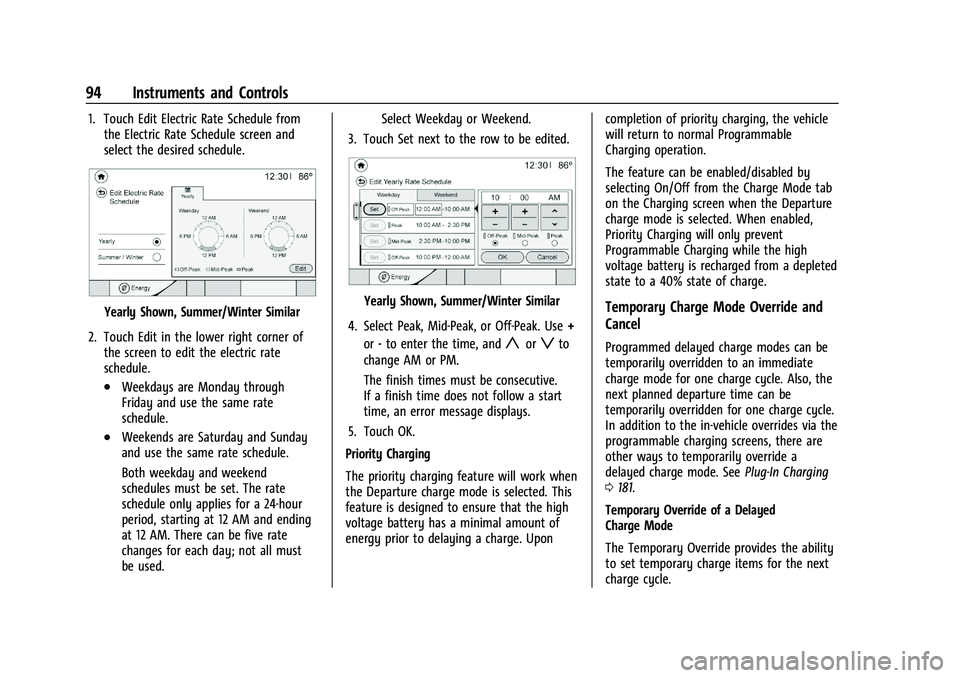
1. Touch Edit Electric Rate Schedule fromthe Electric Rate Schedule screen and
select the desired schedule.
Yearly Shown, Summer/Winter Similar
2. Touch Edit in the lower right corner of the screen to edit the electric rate
schedule.
.Weekdays are Monday through
Friday and use the same rate
schedule.
.Weekends are Saturday and Sunday
and use the same rate schedule.
Both weekday and weekend
schedules must be set. The rate
schedule only applies for a 24-hour
period, starting at 12 AM and ending
at 12 AM. There can be five rate
changes for each day; not all must
be used. Select Weekday or Weekend.
3. Touch Set next to the row to be edited.
Yearly Shown, Summer/Winter Similar
4. Select Peak, Mid-Peak, or Off-Peak. Use +
or -to enter the time, and
yorzto
change AM or PM.
The finish times must be consecutive.
If a finish time does not follow a start
time, an error message displays.
5. Touch OK.
Priority Charging
The priority charging feature will work when
the Departure charge mode is selected. This
feature is designed to ensure that the high
voltage battery has a minimal amount of
energy prior to delaying a charge. Upon completion of priority charging, the vehicle
will return to normal Programmable
Charging operation.
The feature can be enabled/disabled by
selecting On/Off from the Charge Mode tab
on the Charging screen when the Departure
charge mode is selected. When enabled,
Priority Charging will only prevent
Programmable Charging while the high
voltage battery is recharged from a depleted
state to a 40% state of charge.
Temporary Charge Mode Override and
Cancel
Programmed delayed charge modes can be
temporarily overridden to an immediate
charge mode for one charge cycle. Also, the
next planned departure time can be
temporarily overridden for one charge cycle.
In addition to the in-vehicle overrides via the
programmable charging screens, there are
other ways to temporarily override a
delayed charge mode. See
Plug-In Charging
0 181.
Temporary Override of a Delayed
Charge Mode
The Temporary Override provides the ability
to set temporary charge items for the next
charge cycle.
Page 96 of 293
Chevrolet Bolt EV Owner Manual (GMNA-Localizing-U.S./Canada-
14637856) - 2021 - CRC - 10/2/20
Instruments and Controls 95
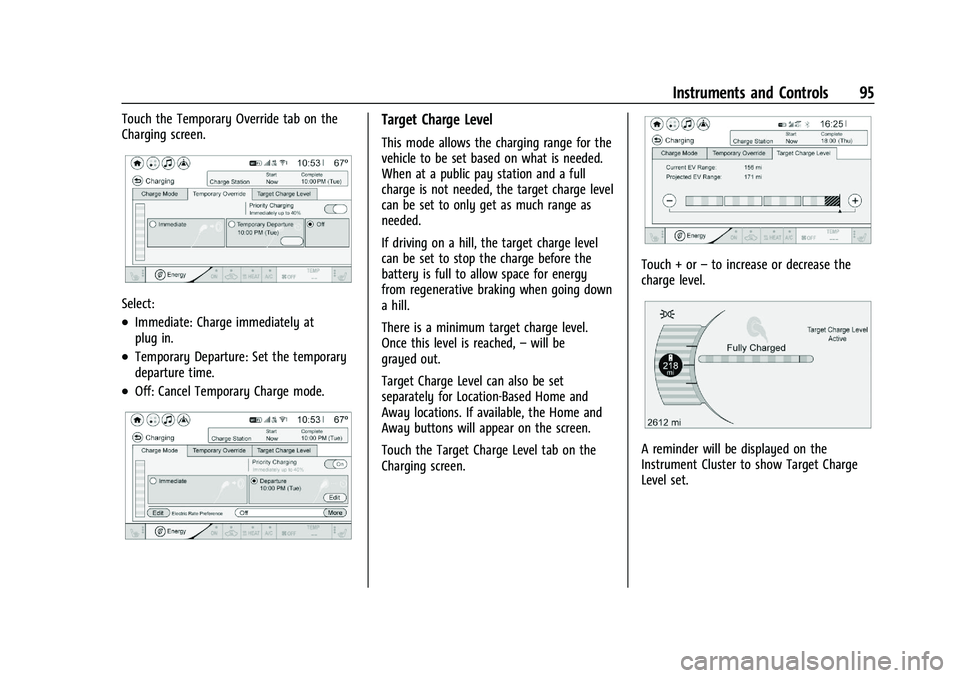
Touch the Temporary Override tab on the
Charging screen.
Select:
.Immediate: Charge immediately at
plug in.
.Temporary Departure: Set the temporary
departure time.
.Off: Cancel Temporary Charge mode.
Target Charge Level
This mode allows the charging range for the
vehicle to be set based on what is needed.
When at a public pay station and a full
charge is not needed, the target charge level
can be set to only get as much range as
needed.
If driving on a hill, the target charge level
can be set to stop the charge before the
battery is full to allow space for energy
from regenerative braking when going down
a hill.
There is a minimum target charge level.
Once this level is reached,–will be
grayed out.
Target Charge Level can also be set
separately for Location-Based Home and
Away locations. If available, the Home and
Away buttons will appear on the screen.
Touch the Target Charge Level tab on the
Charging screen.
Touch + or –to increase or decrease the
charge level.
A reminder will be displayed on the
Instrument Cluster to show Target Charge
Level set.
Page 97 of 293
Chevrolet Bolt EV Owner Manual (GMNA-Localizing-U.S./Canada-
14637856) - 2021 - CRC - 10/2/20
96 Instruments and Controls
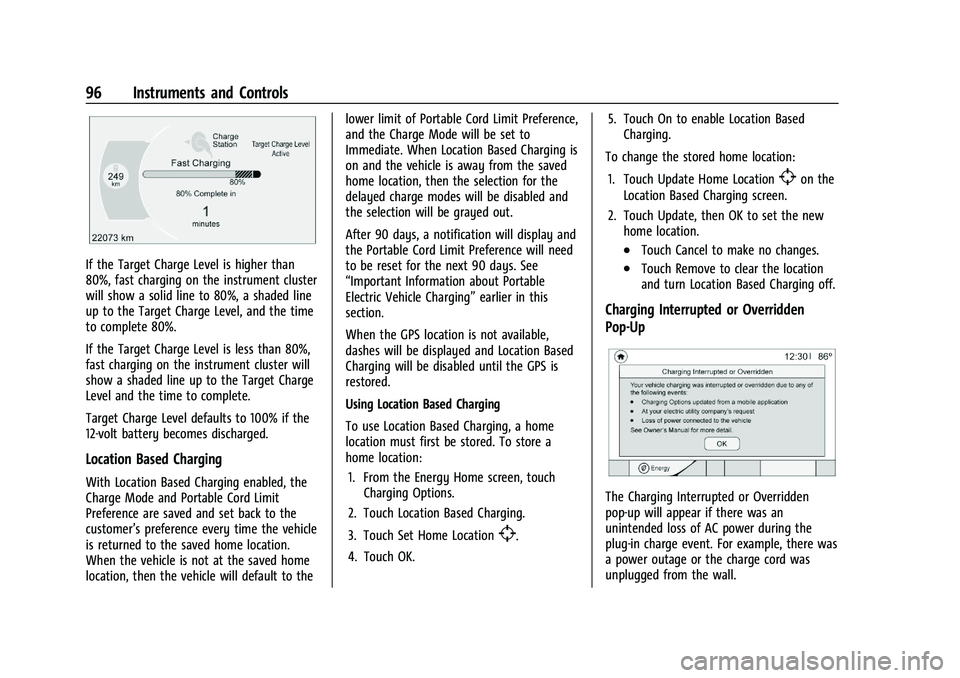
If the Target Charge Level is higher than
80%, fast charging on the instrument cluster
will show a solid line to 80%, a shaded line
up to the Target Charge Level, and the time
to complete 80%.
If the Target Charge Level is less than 80%,
fast charging on the instrument cluster will
show a shaded line up to the Target Charge
Level and the time to complete.
Target Charge Level defaults to 100% if the
12-volt battery becomes discharged.
Location Based Charging
With Location Based Charging enabled, the
Charge Mode and Portable Cord Limit
Preference are saved and set back to the
customer’s preference every time the vehicle
is returned to the saved home location.
When the vehicle is not at the saved home
location, then the vehicle will default to thelower limit of Portable Cord Limit Preference,
and the Charge Mode will be set to
Immediate. When Location Based Charging is
on and the vehicle is away from the saved
home location, then the selection for the
delayed charge modes will be disabled and
the selection will be grayed out.
After 90 days, a notification will display and
the Portable Cord Limit Preference will need
to be reset for the next 90 days. See
“Important Information about Portable
Electric Vehicle Charging”
earlier in this
section.
When the GPS location is not available,
dashes will be displayed and Location Based
Charging will be disabled until the GPS is
restored.
Using Location Based Charging
To use Location Based Charging, a home
location must first be stored. To store a
home location:
1. From the Energy Home screen, touch Charging Options.
2. Touch Location Based Charging.
3. Touch Set Home Location
[.
4. Touch OK. 5. Touch On to enable Location Based
Charging.
To change the stored home location:
1. Touch Update Home Location
[on the
Location Based Charging screen.
2. Touch Update, then OK to set the new home location.
.Touch Cancel to make no changes.
.Touch Remove to clear the location
and turn Location Based Charging off.
Charging Interrupted or Overridden
Pop-Up
The Charging Interrupted or Overridden
pop-up will appear if there was an
unintended loss of AC power during the
plug-in charge event. For example, there was
a power outage or the charge cord was
unplugged from the wall.
Page 98 of 293
Chevrolet Bolt EV Owner Manual (GMNA-Localizing-U.S./Canada-
14637856) - 2021 - CRC - 10/2/20
Instruments and Controls 97
SeeUtility Interruption of Charging 0194.
Programmable Charging Disabled
When the Programmable Charging system is
disabled, the Unable to Charge screen will
display.
If the Programmable Charging system is
consistently disabled, see your dealer.
Energy Information
To view Energy Detail, Range Impacts, and
Efficiency History, touch Energy on the
infotainment display, and then touch
Information. Touch
horkto go to the next
screen.
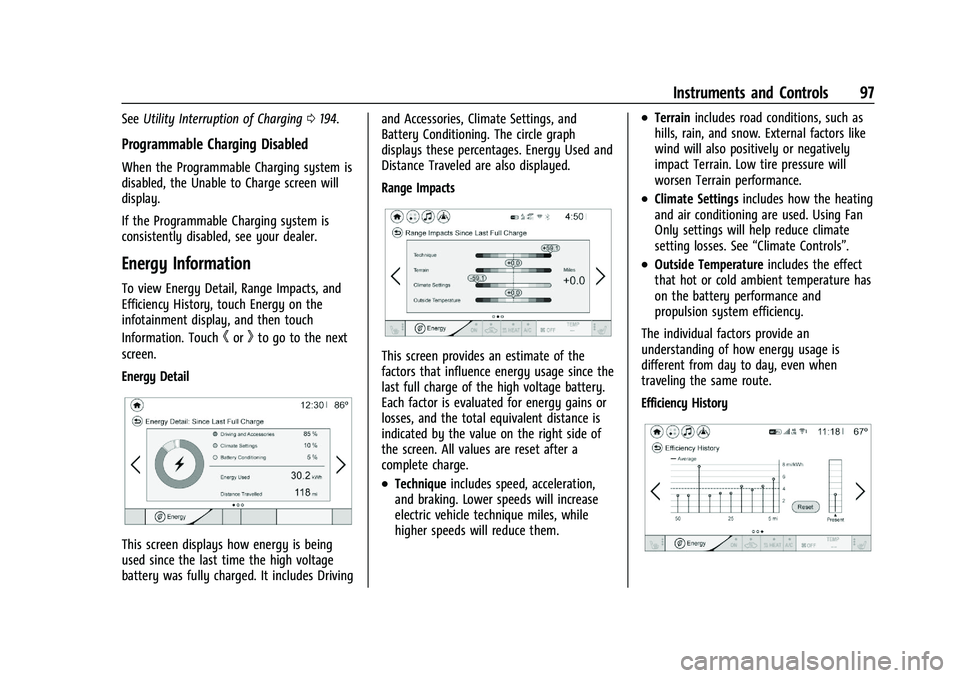
Energy Detail
This screen displays how energy is being
used since the last time the high voltage
battery was fully charged. It includes Driving and Accessories, Climate Settings, and
Battery Conditioning. The circle graph
displays these percentages. Energy Used and
Distance Traveled are also displayed.
Range Impacts
This screen provides an estimate of the
factors that influence energy usage since the
last full charge of the high voltage battery.
Each factor is evaluated for energy gains or
losses, and the total equivalent distance is
indicated by the value on the right side of
the screen. All values are reset after a
complete charge.
.Technique
includes speed, acceleration,
and braking. Lower speeds will increase
electric vehicle technique miles, while
higher speeds will reduce them.
.Terrain includes road conditions, such as
hills, rain, and snow. External factors like
wind will also positively or negatively
impact Terrain. Low tire pressure will
worsen Terrain performance.
.Climate Settings includes how the heating
and air conditioning are used. Using Fan
Only settings will help reduce climate
setting losses. See “Climate Controls”.
.Outside Temperature includes the effect
that hot or cold ambient temperature has
on the battery performance and
propulsion system efficiency.
The individual factors provide an
understanding of how energy usage is
different from day to day, even when
traveling the same route.
Efficiency History
Page 99 of 293
Chevrolet Bolt EV Owner Manual (GMNA-Localizing-U.S./Canada-
14637856) - 2021 - CRC - 10/2/20
98 Instruments and Controls
This screen displays a graph showing the
energy efficiency that has been used over
the last 50 km (50 mi). The Present point
provides the average energy efficiency for
the current 5 km (5 mi).
Touch Reset to clear the history data.
Charging Options
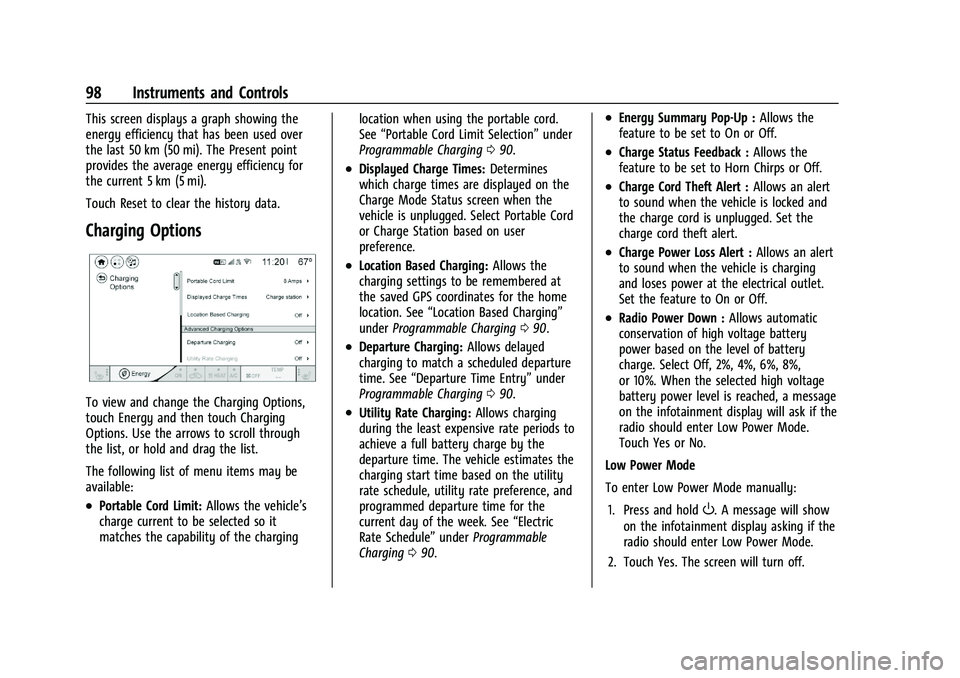
To view and change the Charging Options,
touch Energy and then touch Charging
Options. Use the arrows to scroll through
the list, or hold and drag the list.
The following list of menu items may be
available:
.Portable Cord Limit:Allows the vehicle’s
charge current to be selected so it
matches the capability of the charging location when using the portable cord.
See
“Portable Cord Limit Selection” under
Programmable Charging 090.
.Displayed Charge Times: Determines
which charge times are displayed on the
Charge Mode Status screen when the
vehicle is unplugged. Select Portable Cord
or Charge Station based on user
preference.
.Location Based Charging: Allows the
charging settings to be remembered at
the saved GPS coordinates for the home
location. See “Location Based Charging”
under Programmable Charging 090.
.Departure Charging: Allows delayed
charging to match a scheduled departure
time. See “Departure Time Entry” under
Programmable Charging 090.
.Utility Rate Charging: Allows charging
during the least expensive rate periods to
achieve a full battery charge by the
departure time. The vehicle estimates the
charging start time based on the utility
rate schedule, utility rate preference, and
programmed departure time for the
current day of the week. See “Electric
Rate Schedule” underProgrammable
Charging 090.
.Energy Summary Pop-Up : Allows the
feature to be set to On or Off.
.Charge Status Feedback : Allows the
feature to be set to Horn Chirps or Off.
.Charge Cord Theft Alert : Allows an alert
to sound when the vehicle is locked and
the charge cord is unplugged. Set the
charge cord theft alert.
.Charge Power Loss Alert : Allows an alert
to sound when the vehicle is charging
and loses power at the electrical outlet.
Set the feature to On or Off.
.Radio Power Down : Allows automatic
conservation of high voltage battery
power based on the level of battery
charge. Select Off, 2%, 4%, 6%, 8%,
or 10%. When the selected high voltage
battery power level is reached, a message
on the infotainment display will ask if the
radio should enter Low Power Mode.
Touch Yes or No.
Low Power Mode
To enter Low Power Mode manually:
1. Press and hold
O. A message will show
on the infotainment display asking if the
radio should enter Low Power Mode.
2. Touch Yes. The screen will turn off.
Page 101 of 293
Chevrolet Bolt EV Owner Manual (GMNA-Localizing-U.S./Canada-
14637856) - 2021 - CRC - 10/2/20
100 Instruments and Controls
calculated based on the various vehicle
speeds recorded since the last reset of this
value. The average speed can be reset by
pressing and holding
Vwhile this display is
active.
Timer : This display can be used as a timer.
To start the timer, press
Vwhile this
display is active. The display will show the
amount of time that has passed since the
timer was last reset. To stop the timer,
press
Vbriefly while this display is active
and the timer is running. To reset the timer
to zero, press and hold
Vwhile this display
is active.
Follow Distance Indicator : The current
follow time to the vehicle ahead is displayed
as a time value on this page.
Blank Page : The Blank Page display allows
for no information to be displayed in the
cluster info display areas.
Vehicle Messages
Messages displayed on the DIC indicate the
status of the vehicle or some action that
may be needed to correct a condition.
Multiple messages may appear one after
another. The messages that do not require
immediate action can be acknowledged and
cleared by pressing
V. The messages that
require immediate action cannot be cleared
until that action is performed.
All messages should be taken seriously;
clearing the message does not correct the
problem.
If a SERVICE message appears, see your
dealer.
Follow the instructions given in the
messages. The system displays messages
regarding the following topics:
.Service Messages
.Fluid Levels
.Vehicle Security
.Brakes
.Ride Control Systems
.Driver Assistance Systems
.Cruise Control
.Lighting and Bulb Replacement
.Wiper/Washer Systems
.Doors and Windows
.Seat Belts
.Airbag Systems
.Propulsion and Transmission
.Tire Pressure
.Battery
Propulsion Power Messages
PROPULSION POWER IS REDUCED
This message displays when the vehicle's
propulsion power is reduced. A reduction in
propulsion power can affect the vehicle's
ability to accelerate. If this message is on,
but there is no observed reduction in
performance, proceed to your destination.
Under certain conditions the performance
may be reduced the next time the vehicle is
driven. The vehicle may be driven while this
message is on, but maximum acceleration
and speed may be reduced. Anytime this
message stays on, or displays repeatedly,
the vehicle should be taken to your dealer
for service as soon as possible.
This message is commonly displayed when
the high voltage battery charge level is low.
The vehicle is limiting power to maximize
range.
This message can display when the vehicle
is parked during extreme cold conditions
without being plugged in. While driving the
Page 102 of 293
Chevrolet Bolt EV Owner Manual (GMNA-Localizing-U.S./Canada-
14637856) - 2021 - CRC - 10/2/20
Instruments and Controls 101
vehicle with this message displayed, the
vehicle speed may be reduced until the high
voltage battery is conditioned.
Under certain operating conditions,
propulsion will be disabled. Try restarting
after the ignition has been off for
30 seconds.
Vehicle Speed Messages
SPEED LIMITED TO XXX KM/H (MPH)
This message shows that the vehicle speed
has been limited to the speed displayed. The
limited speed is a protection for various
propulsion and vehicle systems, such as
lubrication, thermal, brakes, suspension,
Teen Driver if equipped, or tires.
Vehicle Personalization
Use the audio system controls to access the
personalization menus for customizing
vehicle features.
The following are all possible personalization
features. Depending on the vehicle, some
may not be available.
{:Press to access the Home Page.
T:Touch to access the Icon view.
Y: Drag the scroll bar to navigate the list.
0 :Touch to exit or return to the
previous screen or menu.
To access the menu:
1. Touch
T.
2. Touch Settings.
3. Touch the menu item to select it.
Each of the menus is detailed in the
following information.
Personalization Menu
The following list of menu items may be
available:
.Time and Date
.Rear Seat Reminder
.Language (Language)
.Teen Driver
.Radio Settings
.Vehicle
.Devices
.Device Remote Access
.Bluetooth Phone
.Apple CarPlay
.Android Auto
.USB Auto Launch
.Wi-Fi
.Display Settings
.Rear Camera
.Return to Factory Settings
.Audible Touch Feedback
.Text Scroll
.Software Information
Each menu is detailed in the following
information.
Time and Date
Manually set the time and date. See Clock
0 76.
Rear Seat Reminder
This message displays under certain
conditions indicating there may be an item
or passenger in the rear seat. Check before
exiting the vehicle.
This feature allows for a chime and a
message when the rear door has been
opened before or during operation of the
vehicle.
Select Off or On.
Language (Language)
Select Language, then select from the
available language(s).
Page 108 of 293
Chevrolet Bolt EV Owner Manual (GMNA-Localizing-U.S./Canada-
14637856) - 2021 - CRC - 10/2/20
Lighting 107
Lighting
Exterior Lighting
Exterior Lamp Controls . . . . . . . . . . . . . . . . 107
Exterior Lamps Off Reminder . . . . . . . . . . 108
Headlamp High/Low-Beam Changer . . . 108
Flash-to-Pass . . . . . . . . . . . . . . . . . . . . . . . . . . . 109
Daytime Running Lamps (DRL) . . . . . . . . 109
Automatic Headlamp System . . . . . . . . . . 109
Hazard Warning Flashers . . . . . . . . . . . . . . 110
Turn and Lane-Change Signals . . . . . . . . . 110
Interior Lighting
Instrument Panel IlluminationControl . . . . . . . . . . . . . . . . . . . . . . . . . . . . . . . 110
Courtesy Lamps . . . . . . . . . . . . . . . . . . . . . . . . 111
Dome Lamps . . . . . . . . . . . . . . . . . . . . . . . . . . . 111
Reading Lamps . . . . . . . . . . . . . . . . . . . . . . . . . 111
Lighting Features
Entry Lighting . . . . . . . . . . . . . . . . . . . . . . . . . . 111
Exit Lighting . . . . . . . . . . . . . . . . . . . . . . . . . . . 112
Battery Power Protection . . . . . . . . . . . . . . 112
Exterior Lighting Battery Saver . . . . . . . . . 112
Exterior Lighting
Exterior Lamp Controls
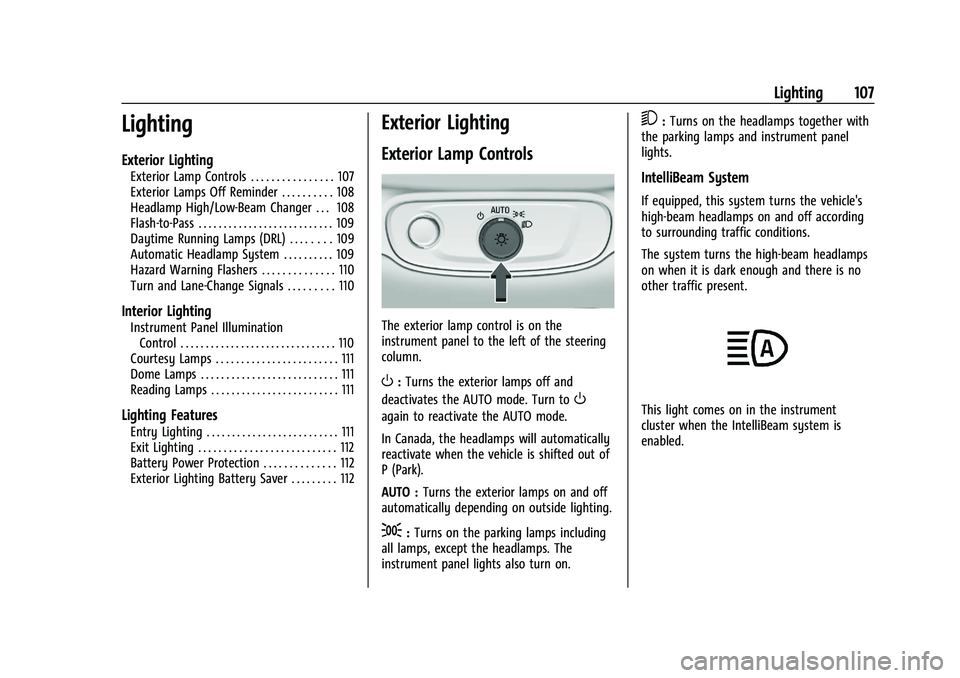
The exterior lamp control is on the
instrument panel to the left of the steering
column.
O: Turns the exterior lamps off and
deactivates the AUTO mode. Turn to
O
again to reactivate the AUTO mode.
In Canada, the headlamps will automatically
reactivate when the vehicle is shifted out of
P (Park).
AUTO : Turns the exterior lamps on and off
automatically depending on outside lighting.
;: Turns on the parking lamps including
all lamps, except the headlamps. The
instrument panel lights also turn on.
5: Turns on the headlamps together with
the parking lamps and instrument panel
lights.
IntelliBeam System
If equipped, this system turns the vehicle's
high-beam headlamps on and off according
to surrounding traffic conditions.
The system turns the high-beam headlamps
on when it is dark enough and there is no
other traffic present.
This light comes on in the instrument
cluster when the IntelliBeam system is
enabled.
Page 113 of 293
Chevrolet Bolt EV Owner Manual (GMNA-Localizing-U.S./Canada-
14637856) - 2021 - CRC - 10/2/20
112 Lighting
This feature can be changed. See“Vehicle
Locator Lights” underVehicle Personalization
0 101.
Exit Lighting
Some exterior lamps and interior lamps
come on at night, or in areas with limited
lighting, when the driver door is opened
after the ignition is turned off. The exterior
lamps and interior lamps remain on for a
set amount of time, then automatically
turn off.
The exterior lamps turn off immediately
by turning the exterior lamp control off.
This feature can be changed. See Vehicle
Personalization 0101.
Battery Power Protection
The battery saver feature is designed to
protect the vehicle's 12-volt battery.
If some interior lamps and/or the headlamps
are left on and the vehicle is turned off, the
battery rundown protection system
automatically turns the lamp off after
some time.
Exterior Lighting Battery Saver
The exterior lamps turn off about 10 minutes
after the ignition is turned off, if the parking
lamps or headlamps have been manually
left on. This protects against draining the
battery. To restart the 10-minute timer, turn
the exterior lamp control to the off position
and then back to the parking lamp or
headlamp position.
To keep the lamps on for more than
10 minutes, the ignition must be on.
Page 147 of 293
Chevrolet Bolt EV Owner Manual (GMNA-Localizing-U.S./Canada-
14637856) - 2021 - CRC - 10/2/20
146 Driving and Operating
Driving and Operating
Driving Information
Driving for Better Energy Efficiency . . . . 147
Distracted Driving . . . . . . . . . . . . . . . . . . . . . 148
Defensive Driving . . . . . . . . . . . . . . . . . . . . . . 148
Impaired Driving . . . . . . . . . . . . . . . . . . . . . . 149
Control of a Vehicle . . . . . . . . . . . . . . . . . . . 149
Braking . . . . . . . . . . . . . . . . . . . . . . . . . . . . . . . . 149
Steering . . . . . . . . . . . . . . . . . . . . . . . . . . . . . . . 149
Off-Road Recovery . . . . . . . . . . . . . . . . . . . . . 150
Loss of Control . . . . . . . . . . . . . . . . . . . . . . . . 150
Driving on Wet Roads . . . . . . . . . . . . . . . . . . 151
Hill and Mountain Roads . . . . . . . . . . . . . . . 151
Winter Driving . . . . . . . . . . . . . . . . . . . . . . . . . 152
If the Vehicle Is Stuck . . . . . . . . . . . . . . . . . . 152
Vehicle Load Limits . . . . . . . . . . . . . . . . . . . . 153
Starting and Operating
New Vehicle Break-In . . . . . . . . . . . . . . . . . . 156
Power Button . . . . . . . . . . . . . . . . . . . . . . . . . . 156
Starting and Stopping the Vehicle . . . . . 157
Retained Accessory Power (RAP) . . . . . . . 158
Shifting Into Park . . . . . . . . . . . . . . . . . . . . . . 158
Shifting out of Park . . . . . . . . . . . . . . . . . . . 159
Extended Parking . . . . . . . . . . . . . . . . . . . . . . 159
Electric Vehicle Operating Modes
Driver Selected Operating Modes . . . . . . 159
Electric Drive Unit
Electric Drive Unit . . . . . . . . . . . . . . . . . . . . . 160
One-Pedal Driving . . . . . . . . . . . . . . . . . . . . . 163
Brakes
Antilock Brake System (ABS) . . . . . . . . . . . 163
Electric Parking Brake . . . . . . . . . . . . . . . . . . 164
Brake Assist . . . . . . . . . . . . . . . . . . . . . . . . . . . 165
Hill Start Assist (HSA) . . . . . . . . . . . . . . . . . . 165
Regenerative Braking . . . . . . . . . . . . . . . . . . 165
Ride Control Systems
Traction Control/Electronic StabilityControl . . . . . . . . . . . . . . . . . . . . . . . . . . . . . . 166
Cruise Control
Cruise Control . . . . . . . . . . . . . . . . . . . . . . . . . 167
Driver Assistance Systems
Driver Assistance Systems . . . . . . . . . . . . . 169
Assistance Systems for Parking orBacking . . . . . . . . . . . . . . . . . . . . . . . . . . . . . . . 171
Assistance Systems for Driving . . . . . . . . . 173
Forward Collision Alert (FCA) System . . . . . . . . . . . . . . . . . . . . . . . . . . . . . . 174
Automatic Emergency Braking (AEB) . . . 175
Front Pedestrian Braking (FPB) System . . . . . . . . . . . . . . . . . . . . . . . . . . . . . . 176
Side Blind Zone Alert (SBZA) . . . . . . . . . . . 178
Lane Change Alert (LCA) . . . . . . . . . . . . . . . 178
Lane Keep Assist (LKA) . . . . . . . . . . . . . . . . . 179
Charging
When to Charge . . . . . . . . . . . . . . . . . . . . . . . 181
Plug-In Charging . . . . . . . . . . . . . . . . . . . . . . . 181
Delayed Charging Override . . . . . . . . . . . . 185
Charging Status Feedback . . . . . . . . . . . . . 186
Charge Cord . . . . . . . . . . . . . . . . . . . . . . . . . . . 189
Utility Interruption of Charging . . . . . . . 194
Electrical Requirements for Battery Charging . . . . . . . . . . . . . . . . . . . . . . . . . . . . . 194
Trailer Towing
General Towing Information . . . . . . . . . . . 194
Conversions and Add-Ons
Add-On Electrical Equipment . . . . . . . . . . . 195