key CHEVROLET BOLT EV 2021 Owner's Guide
[x] Cancel search | Manufacturer: CHEVROLET, Model Year: 2021, Model line: BOLT EV, Model: CHEVROLET BOLT EV 2021Pages: 293, PDF Size: 9.21 MB
Page 26 of 293
Chevrolet Bolt EV Owner Manual (GMNA-Localizing-U.S./Canada-
14637856) - 2021 - CRC - 10/2/20
Keys, Doors, and Windows 25
Press2again to deactivate the window
lockout.
Sun Visors
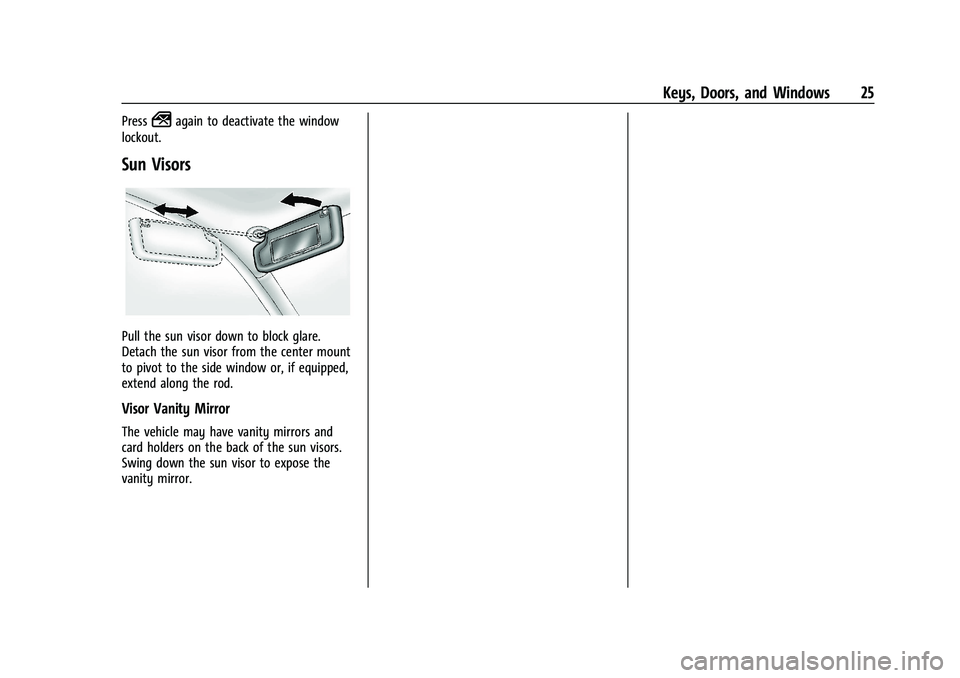
Pull the sun visor down to block glare.
Detach the sun visor from the center mount
to pivot to the side window or, if equipped,
extend along the rod.
Visor Vanity Mirror
The vehicle may have vanity mirrors and
card holders on the back of the sun visors.
Swing down the sun visor to expose the
vanity mirror.
Page 38 of 293

Chevrolet Bolt EV Owner Manual (GMNA-Localizing-U.S./Canada-
14637856) - 2021 - CRC - 10/2/20
Seats and Restraints 37
Seat Belt Pretensioners
This vehicle has seat belt pretensioners for
the front outboard occupants. Although the
seat belt pretensioners cannot be seen, they
are part of the seat belt assembly. They can
help tighten the seat belts during the early
stages of a moderate to severe frontal, near
frontal, or rear crash if the threshold
conditions for pretensioner activation are
met. Seat belt pretensioners can also help
tighten the seat belts in a side crash or a
rollover event.
Pretensioners work only once. If the
pretensioners activate in a crash, the
pretensioners and probably other parts of
the vehicle's seat belt system will need to
be replaced. SeeReplacing Seat Belt System
Parts after a Crash 038.
Do not sit on the outboard seat belt while
entering or exiting the vehicle or at any
time while sitting in the seat. Sitting on the
seat belt can damage the webbing and
hardware.
Rear Seat Belt Comfort Guides
Rear seat belt comfort guides may provide
added seat belt comfort for older children
who have outgrown booster seats and for some adults. When installed on a shoulder
belt, the comfort guide positions the
shoulder belt away from the neck and head.
Comfort guides are available through your
dealer for the rear outboard seating
positions. Instructions are included with the
guides.
Seat Belt Use During Pregnancy
Seat belts work for everyone, including
pregnant women. Like all occupants, they
are more likely to be seriously injured if
they do not wear seat belts.
A pregnant woman should wear a
lap-shoulder belt, and the lap portion should
be worn as low as possible, below the
rounding, throughout the pregnancy.
The best way to protect the fetus is to
protect the mother. When a seat belt is
worn properly, it is more likely that the
fetus will not be hurt in a crash. For
pregnant women, as for anyone, the key to
making seat belts effective is wearing them
properly.
Seat Belt Extender
If the vehicle's seat belt will fasten around
you, you should use it.
But if a seat belt is not long enough, your
dealer will order you an extender. When
you go in to order it, take the heaviest coat
you will wear, so the extender will be long
enough for you. To help avoid personal
injury, do not let someone else use it, and
use it only for the seat it is made to fit. The
extender has been designed for adults.
Never use it for securing child restraints. For
more information on the proper use and fit
of seat belt extenders see the instruction
sheet that comes with the extender.
Page 78 of 293
Chevrolet Bolt EV Owner Manual (GMNA-Localizing-U.S./Canada-
14637856) - 2021 - CRC - 10/2/20
Instruments and Controls 77
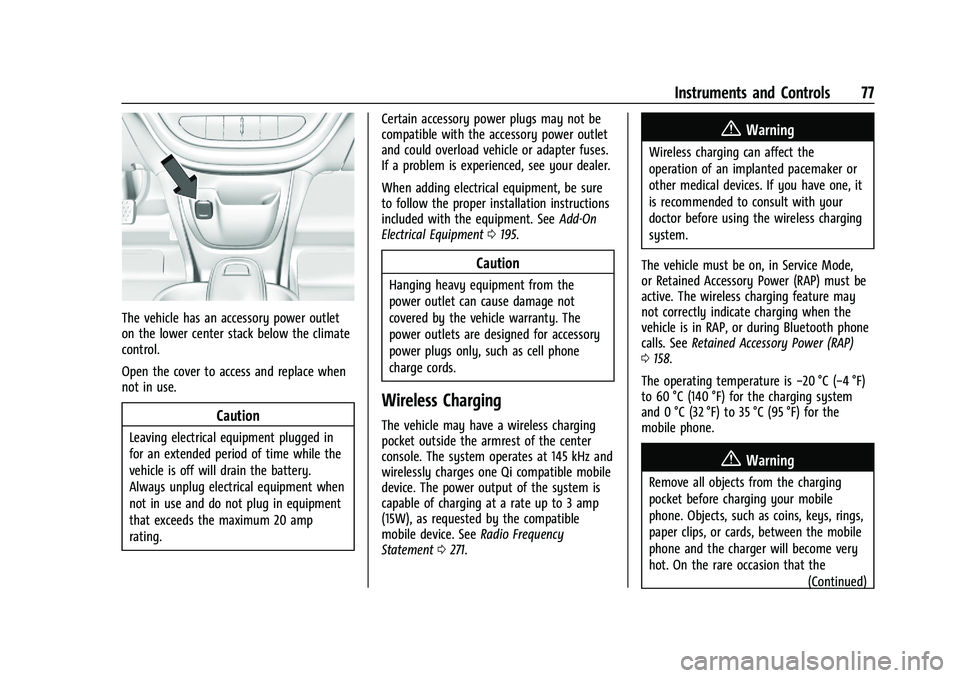
The vehicle has an accessory power outlet
on the lower center stack below the climate
control.
Open the cover to access and replace when
not in use.
Caution
Leaving electrical equipment plugged in
for an extended period of time while the
vehicle is off will drain the battery.
Always unplug electrical equipment when
not in use and do not plug in equipment
that exceeds the maximum 20 amp
rating.Certain accessory power plugs may not be
compatible with the accessory power outlet
and could overload vehicle or adapter fuses.
If a problem is experienced, see your dealer.
When adding electrical equipment, be sure
to follow the proper installation instructions
included with the equipment. See
Add-On
Electrical Equipment 0195.
Caution
Hanging heavy equipment from the
power outlet can cause damage not
covered by the vehicle warranty. The
power outlets are designed for accessory
power plugs only, such as cell phone
charge cords.
Wireless Charging
The vehicle may have a wireless charging
pocket outside the armrest of the center
console. The system operates at 145 kHz and
wirelessly charges one Qi compatible mobile
device. The power output of the system is
capable of charging at a rate up to 3 amp
(15W), as requested by the compatible
mobile device. See Radio Frequency
Statement 0271.
{Warning
Wireless charging can affect the
operation of an implanted pacemaker or
other medical devices. If you have one, it
is recommended to consult with your
doctor before using the wireless charging
system.
The vehicle must be on, in Service Mode,
or Retained Accessory Power (RAP) must be
active. The wireless charging feature may
not correctly indicate charging when the
vehicle is in RAP, or during Bluetooth phone
calls. See Retained Accessory Power (RAP)
0 158.
The operating temperature is −20 °C (−4 °F)
to 60 °C (140 °F) for the charging system
and 0 °C (32 °F) to 35 °C (95 °F) for the
mobile phone.
{Warning
Remove all objects from the charging
pocket before charging your mobile
phone. Objects, such as coins, keys, rings,
paper clips, or cards, between the mobile
phone and the charger will become very
hot. On the rare occasion that the
(Continued)
Page 104 of 293
Chevrolet Bolt EV Owner Manual (GMNA-Localizing-U.S./Canada-
14637856) - 2021 - CRC - 10/2/20
Instruments and Controls 103
Select Off or On.
Rear Cross Traffic Alert
This allows the Rear Cross Traffic Alert
feature to be turned on or off.
Select Off or On. SeeAssistance Systems for
Parking or Backing 0171.
Lane Change Alert
This allows the Lane Change Alert feature to
be turned on or off.
Select Off or On. See Lane Change Alert
(LCA) 0178.
Lighting
Select and the following may display:
.Vehicle Locator Lights
.Exit Lighting
Vehicle Locator Lights
This feature will flash the exterior lamps and
allows some of the exterior lamps and most
of the interior lamps to turn on briefly
when
Kon the Remote Keyless Entry (RKE)
transmitter is pressed to locate the vehicle.
Select Off or On. Exit Lighting
This allows the selection of how long the
exterior lamps stay on when leaving the
vehicle when it is dark outside.
Select Off, 30 Seconds, 60 Seconds, or 120
Seconds.
Power Door Locks
Select and the following may display:
.Unlocked Door Anti Lock Out
.Auto Door Unlock
.Delayed Door Lock
Unlocked Door Anti Lock Out
When on, this feature will keep the driver
door from locking when the door is open.
If Off is selected, the Delayed Door Lock
menu will be available.
Select Off or On.
Auto Door Unlock
This allows selection of which of the doors
will automatically unlock when the vehicle is
shifted into P (Park).
Select Off, All Doors, or Driver Door. Delayed Door Lock
When on, this feature will delay the locking
of the doors. To override the delay, press
the power door lock switch on the door.
Select Off or On.
Remote Lock / Unlock / Start
Select and the following may display:
.Remote Unlock Light Feedback
.Remote Lock Feedback
.Remote Door Unlock
.Remote Start Auto Heat Seats
.Passive Door Unlock
.Passive Door Lock
.Remote Left in Vehicle Alert
Remote Unlock Light Feedback
When on, the exterior lamps will flash when
unlocking the vehicle with the RKE
transmitter.
Select Off or Flash Lights.
Remote Lock Feedback
This allows selection of what type of
feedback is given when locking the vehicle
with the RKE transmitter.
Select Off, Lights and Horn, Lights Only, or
Horn Only.
Page 112 of 293
Chevrolet Bolt EV Owner Manual (GMNA-Localizing-U.S./Canada-
14637856) - 2021 - CRC - 10/2/20
Lighting 111
Courtesy Lamps
The courtesy lamps come on when any door
is opened,
Kon the RKE transmitter is
pressed, or when the ignition is switched
off. See Dome Lamps 0111.
Dome Lamps
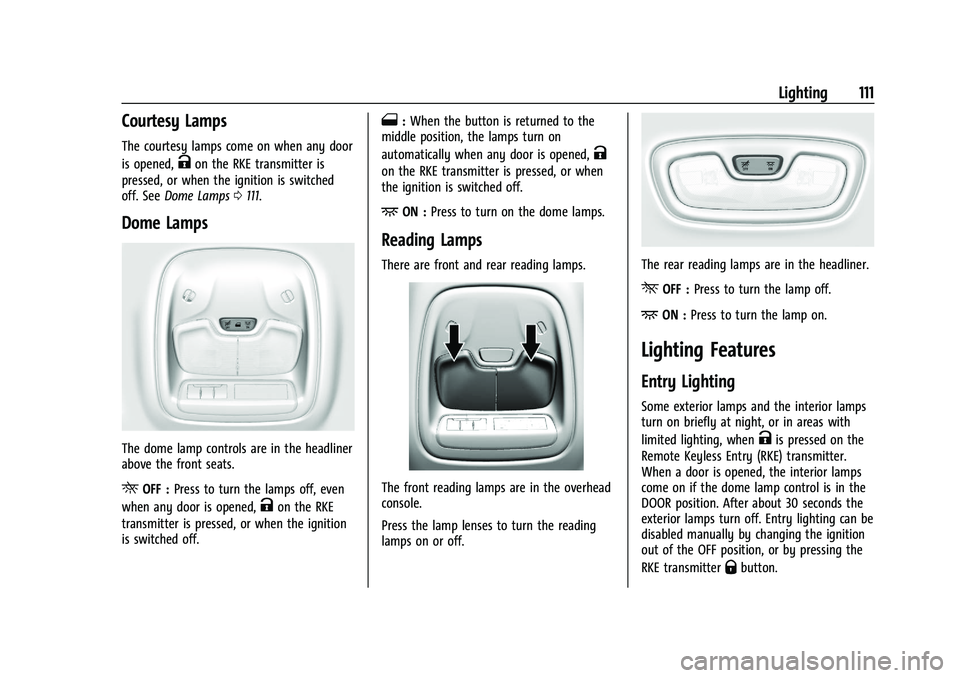
The dome lamp controls are in the headliner
above the front seats.
ROFF : Press to turn the lamps off, even
when any door is opened,
Kon the RKE
transmitter is pressed, or when the ignition
is switched off.
1: When the button is returned to the
middle position, the lamps turn on
automatically when any door is opened,
K
on the RKE transmitter is pressed, or when
the ignition is switched off.
+ON : Press to turn on the dome lamps.
Reading Lamps
There are front and rear reading lamps.
The front reading lamps are in the overhead
console.
Press the lamp lenses to turn the reading
lamps on or off.
The rear reading lamps are in the headliner.
*OFF : Press to turn the lamp off.
+ON :Press to turn the lamp on.
Lighting Features
Entry Lighting
Some exterior lamps and the interior lamps
turn on briefly at night, or in areas with
limited lighting, when
Kis pressed on the
Remote Keyless Entry (RKE) transmitter.
When a door is opened, the interior lamps
come on if the dome lamp control is in the
DOOR position. After about 30 seconds the
exterior lamps turn off. Entry lighting can be
disabled manually by changing the ignition
out of the OFF position, or by pressing the
RKE transmitter
Qbutton.
Page 118 of 293
Chevrolet Bolt EV Owner Manual (GMNA-Localizing-U.S./Canada-
14637856) - 2021 - CRC - 10/2/20
Infotainment System 117
To connect the infotainment system to a
secured mobile device hotspot, home
hotspot, or public hotspot, touch Settings on
the Home Page, followed by Wi-Fi, and then
Manage Wi-Fi Networks. Select the
appropriate Wi-Fi network, and follow the
on-screen prompts. Download speeds
may vary.
On most compatible mobile devices,
activation of the Wi-Fi hotspot is in the
Settings menu under Mobile Network
Sharing, Personal Hotspot, Mobile Hotspot,
or similar.
Availability of Over-the-Air vehicle software
updates varies by vehicle and country. For
more information on this feature, see
www.my.chevrolet.com/learn.
Radio
AM-FM Radio
Listening to AM-FM Radio
1. TouchT.
2. Touch Audio, then Source.
3. Touch FM or AM. The most recently listened to AM or FM radio station is
displayed. RDS (Radio Data System) function is only
available in countries that support this
function.
Searching for Stations Automatically
Pressgordto automatically search for
an available station with good reception.
If RDS is supported, it will tune to the
station and may include additional
information such as time, station
identification, and program information.
Searching for Stations Directly
1. Touch Tune.
2. Using the keypad, enter the desired station number.
Touching the period between digits is not
necessary. The radio will add it
automatically at the correct location.
Favorite Preset Operation
Saving Favorites 1. Select the band.
2. Select the desired station.
3. Touch
qor touch and hold the favorite
in the Favorites list to overwrite. 4. To delete it from the Favorites list, touch
q, or swipe the station from the list on
the right.
Up to 15 radio stations can be saved in the
Favorites list.
Listening to Favorites Directly 1. Touch Favorites to see the list of favorites.
2. Touch the desired station.
The steering wheel controls can also be used
to select favorites. See Steering Wheel
Controls 072.
Using the AM or FM Radio Tab
Current Station Information
1. Touch Browse Audio.
2. Touch Current Station Information to display the station information.
AM or FM Stations 1. Touch Browse Audio.
2. Touch AM Stations or FM Stations. The AM List or FM List is displayed.
FM Categories 1. Touch Browse Audio.
2. Touch FM Categories.
Page 120 of 293
Chevrolet Bolt EV Owner Manual (GMNA-Localizing-U.S./Canada-
14637856) - 2021 - CRC - 10/2/20
Infotainment System 119
Listening to SXM Radio
1. TouchT.
2. Touch Audio, then Source.
3. Touch SXM. The most recently listened to SXM channel is displayed.
Searching for Channels Automatically
Pressgordto automatically search for
available channels.
Searching for Channels Directly
1. Touch Tune.
2. Using the keypad, enter the desired channel.
Searching for Channels Using Favorites
Saving Favorites
1. Select the desired channel.
2. Touch
qor touch and hold the favorite
in the list to overwrite.
3. To delete a channel from Favorites, touch
q, or swipe the channel from the list on
the right.
Up to 15 channels can be saved in the
Favorites list. Listening to Favorites Directly
1. Touch Favorites to see the list of favorites.
2. Touch the desired channel.
Using the SXM Radio Tab
Browse Audio
.Current Channel Information
Touch Current Channel Information. The
channel information is displayed.
.SXM Channels
Touch SXM Channels. The SXM List is
displayed.
.SXM Categories
SXM categories are defined by the
SiriusXM service provider.
Touch SXM Categories, then touch the
desired category and channel.
Audio Settings
.Tone Settings
Set up sound features from the Tone
Settings menu. See “Tone Settings”under
“AM-FM Radio” previously in this section.
.Auto Volume Volume will be automatically controlled.
See
“Auto Volume” under“AM-FM Radio”
previously in this section.
.Explicit Content Filter
Choose this menu item to turn On or Off
the filtering of explicit channels from
SXM. A list item can be set to On or Off.
From the SXM Settings, touch Audio
Settings. Set Explicit Content Filter feature
to On or Off to allow for a filtered list of
channels.
Radio Reception
Unplug electronic devices from the accessory
power outlets if there is interference or
static in the radio.
FM
FM signals only reach about 16 to 65 km (10
to 40 mi). Although the radio has a built-in
electronic circuit that automatically works to
reduce interference, some static can occur,
especially around tall buildings or hills,
causing the sound to fade in and out.
AM
The range for most AM stations is greater
than for FM, especially at night. The longer
range can cause station frequencies to
Page 131 of 293
Chevrolet Bolt EV Owner Manual (GMNA-Localizing-U.S./Canada-
14637856) - 2021 - CRC - 10/2/20
130 Infotainment System
Google Play, and other marks are
trademarks of Google Inc.; Apple CarPlay is a
trademark of Apple Inc.
Hands-Free Phone
Making a Call by Entering the Phone
Number
1. TouchT.
2. Touch Phone.
3. Enter the phone number using the keypad on the Phone screen.
4. Touch
5on the display to call the
phone number.
If the wrong number is entered, touch
zto
delete the entered number one digit at a
time. Or touch and hold
zto delete all
entered numbers.
Switching a Call to the Mobile Phone
(Private Mode)
1. To switch the call to the mobile phone instead of the Bluetooth hands-free,
touch
0.
2. To switch the call back to the Bluetooth hands-free, touch
0again.
Switching the Microphone On/Off
Switch the microphone on/off by
touching
3.
Calling by Re-Dial
Touch5on the display.
Taking Calls
1. When a phone call comes through theBluetooth connected mobile phone, the
playing track will be cut off and the
phone will ring with the relevant
information displayed.
2. To talk on the phone, press
gon the
steering wheel control or touch
5on
the display.
To reject the call, press
con the
steering wheel control or touch
Kon
the display.
Using the Contacts Menu
1. Touch the contacts menu on the Phone screen. 2. Select the contact entry to call.
.To call another phone number in the
same contacts, touch More in the
Contacts screen and touch the desired
phone number.
.In the Contacts screen, touchqto
add the contact to favorites. Touch
qagain to remove the contact from
favorites.
Making a Call from Favorites
1. Touch the favorites menu on the Phone screen.
2. Select the contact to call.
The Favorites list is not synchronized with
the mobile phone and is stored separately.
Making a Call from Call History
1. TouchWRECENT on the Phone screen.
2. Select the contact to call.
.9: Incoming call
.2: Outgoing call
.4: Missed call
Making a Call with Speed Dial Numbers
Touch and hold a speed dial number using
the keypad on the Phone screen.
Page 133 of 293
Chevrolet Bolt EV Owner Manual (GMNA-Localizing-U.S./Canada-
14637856) - 2021 - CRC - 10/2/20
132 Infotainment System
Android Auto
1. TouchT.
2. Touch Settings and find Android Auto.
3. Select On or Off.
Even if Projection is set to Off, connecting
the device and touching Projection on the
Home Page will display a pop-up message:
.For Apple CarPlay function: “While active,
Apple CarPlay will be displayed on this
screen.”
.For Android Auto function: “While active,
Android Auto will be displayed on this
screen.”
When the device is first connected, the
device projection privacy consent pop-up
message will be displayed.
.Touch Continue to activate the projection
feature.
.Touch Disable and the device is
charging only.
If Android Auto is not activated, make sure
the mobile phone’s USB connection mode is
set to MTP.
If the device has not previously been paired,
the consent pop-up will display when
touching continue.
Teen Driver
If equipped, this allows multiple keys to be
registered for beginner drivers, to encourage
safe driving habits. When the vehicle is
started with a Teen Driver key, it will
automatically activate certain safety
systems, allow setting of some features, and
limit the use of others. The Report Card will
record vehicle data about driving behavior
that can be viewed later. When the vehicle
is started with a registered key, the Driver
Information Center (DIC) displays a message
that Teen Driver is active.
To access: 1. Touch Settings on the Home Page, then touch Teen Driver.
2. Create a Personal Identification Number (PIN) by choosing a four-digit PIN.
Re-enter the PIN to confirm. To change
the PIN, select Change PIN.
The PIN is required to:
.Register or unregister keys.
.Change Teen Driver settings.
.Change or clear the Teen Driver PIN.
.Access or delete Report Card data. Register keys to activate:
Any vehicle key can be registered, up to a
maximum of eight keys. Label the key to
tell it apart from the other keys.
1. Start the vehicle.
2. The vehicle must be in P (Park).
3. From the Settings menu, select Teen Driver.
4. Enter the PIN.
5. Place the Remote Keyless Entry (RKE) transmitter key in the transmitter
pocket. See Remote Keyless Entry (RKE)
System Operation 07for the transmitter
pocket location.
6. From the Teen Driver Menu, select Key Registration.
.If the transmitter key is in the
transmitter pocket, it will identify
whether the transmitter key is
registered or unregistered.
.If the transmitter key is not
registered, the option to register
displays. Select Register and a
confirmation message displays.
.If the transmitter key is already
registered, the option to unregister
displays. If Unregister is selected, the
Page 134 of 293
Chevrolet Bolt EV Owner Manual (GMNA-Localizing-U.S./Canada-
14637856) - 2021 - CRC - 10/2/20
Infotainment System 133
transmitter key is no longer
registered and a confirmation
message displays.
If a Teen Driver transmitter key and a
non-Teen Driver transmitter key are both
present at start up, the vehicle will
recognize the non-Teen Driver transmitter
key to start the vehicle. The Teen Driver
settings will not be active.
Manage Settings
Use the PIN to change the following
settings:
Audio Volume Limit : Allows a maximum
radio volume to be set. Turn the audio
volume limit On or Off, and if equipped,
choose the maximum level for the audio
volume.
Teen Driver Speed Warning : Allows for
setting a visual and audible warning when a
certain speed is exceeded. The speed
warning is selectable from 64 km/h
(40 mph) to 120 km/h (75 mph). The speed
warning does not limit the speed of the
vehicle.
Teen Driver Speed Limiter (If Equipped) :
Allows the maximum speed of the vehicle to
be limited to 137 km/h (85 mph). When the
speed limiter is turned On and the vehicle is started with a Teen Driver key, the DIC
displays a message that the top speed is
limited to 137 km/h (85 mph).
When Teen Driver is Active:
.The radio will mute when the driver seat
belt is not fastened, and in some vehicles,
when the right front passenger seat belt
is not fastened. The audio from any
device paired to the vehicle will also be
muted.
.Certain electronic devices placed on the
front passenger seat could cause the
passenger sensing system to falsely sense
an unbuckled front passenger and mute
the radio. See
Passenger Sensing System
0 44.
.Some safety systems, such as Automatic
Emergency Braking, if equipped and
supported, cannot be turned off.
.The gap setting for the Forward Collision
Alert, if equipped, cannot be changed.
Report Card
The vehicle owner must secure the driver’s
consent to record certain vehicle data when
the vehicle is driven with a registered Teen
Driver key. There is one Report Card per
vehicle. Data is not recorded when Teen
Driver is not active. The Report Card data is collected from the
time Teen Driver is activated or the last
time the Report Card was reset. The
following items may be recorded:
.Distance Driven
–the total distance
driven.
.Maximum Speed –the maximum vehicle
speed recorded.
.Overspeed Warnings –the number of
times the speed warning setting was
exceeded.
.Forward Collision Alerts –the number of
times the driver was notified when
approaching a vehicle ahead too quickly
and at potential risk for a crash.
.Forward Collision Avoidance Braking –the
number of times the vehicle detected that
a forward collision was imminent and
applied the brakes. Also referred to as
Automatic Emergency Braking.
.Stability Control –the number of events
which required the use of electronic
stability control.
.ABS Active –the number of Antilock
Brake System activations.
.Tailgating Alerts –the number of times
the driver was alerted for following the
vehicle ahead too closely.