service CHEVROLET BOLT EV 2021 Owner's Guide
[x] Cancel search | Manufacturer: CHEVROLET, Model Year: 2021, Model line: BOLT EV, Model: CHEVROLET BOLT EV 2021Pages: 293, PDF Size: 9.21 MB
Page 87 of 293
Chevrolet Bolt EV Owner Manual (GMNA-Localizing-U.S./Canada-
14637856) - 2021 - CRC - 10/2/20
86 Instruments and Controls
{Warning
The brake system might not be working
properly if the brake system warning
light is on. Driving with the brake system
warning light on can lead to a crash.
If the light is still on after the vehicle has
been pulled off the road and carefully
stopped, have the vehicle towed for
service.
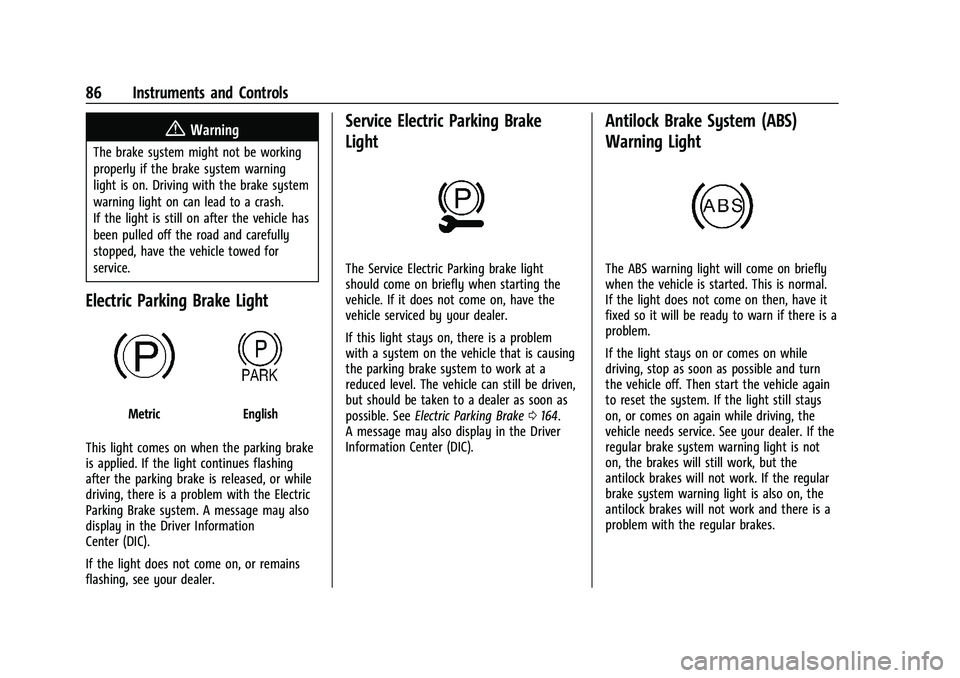
Electric Parking Brake Light
MetricEnglish
This light comes on when the parking brake
is applied. If the light continues flashing
after the parking brake is released, or while
driving, there is a problem with the Electric
Parking Brake system. A message may also
display in the Driver Information
Center (DIC).
If the light does not come on, or remains
flashing, see your dealer.
Service Electric Parking Brake
Light
The Service Electric Parking brake light
should come on briefly when starting the
vehicle. If it does not come on, have the
vehicle serviced by your dealer.
If this light stays on, there is a problem
with a system on the vehicle that is causing
the parking brake system to work at a
reduced level. The vehicle can still be driven,
but should be taken to a dealer as soon as
possible. See Electric Parking Brake 0164.
A message may also display in the Driver
Information Center (DIC).
Antilock Brake System (ABS)
Warning Light
The ABS warning light will come on briefly
when the vehicle is started. This is normal.
If the light does not come on then, have it
fixed so it will be ready to warn if there is a
problem.
If the light stays on or comes on while
driving, stop as soon as possible and turn
the vehicle off. Then start the vehicle again
to reset the system. If the light still stays
on, or comes on again while driving, the
vehicle needs service. See your dealer. If the
regular brake system warning light is not
on, the brakes will still work, but the
antilock brakes will not work. If the regular
brake system warning light is also on, the
antilock brakes will not work and there is a
problem with the regular brakes.
Page 88 of 293
Chevrolet Bolt EV Owner Manual (GMNA-Localizing-U.S./Canada-
14637856) - 2021 - CRC - 10/2/20
Instruments and Controls 87
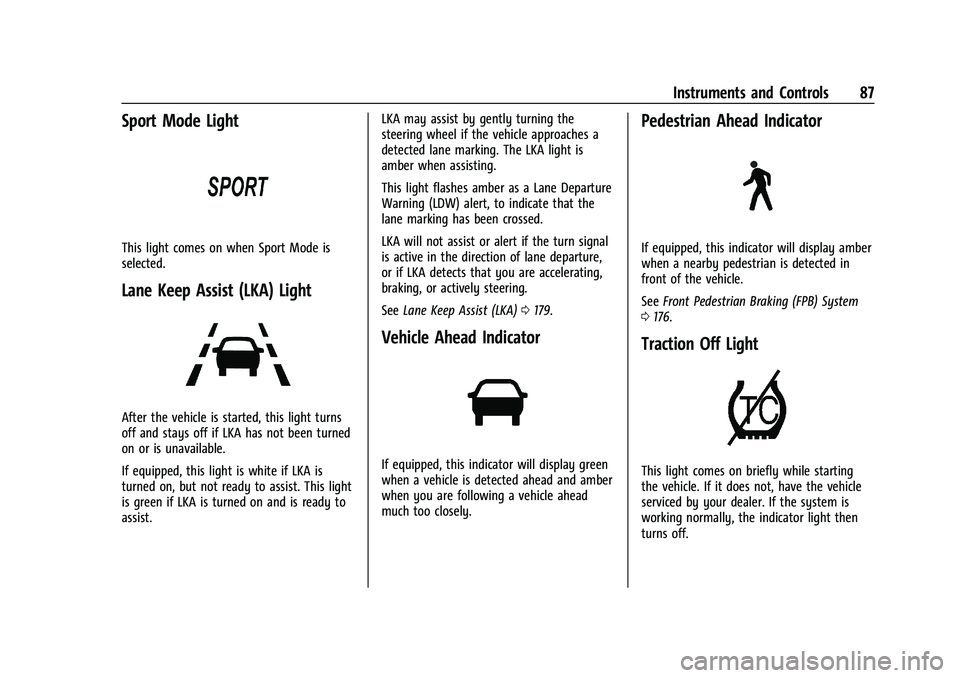
Sport Mode Light
This light comes on when Sport Mode is
selected.
Lane Keep Assist (LKA) Light
After the vehicle is started, this light turns
off and stays off if LKA has not been turned
on or is unavailable.
If equipped, this light is white if LKA is
turned on, but not ready to assist. This light
is green if LKA is turned on and is ready to
assist.LKA may assist by gently turning the
steering wheel if the vehicle approaches a
detected lane marking. The LKA light is
amber when assisting.
This light flashes amber as a Lane Departure
Warning (LDW) alert, to indicate that the
lane marking has been crossed.
LKA will not assist or alert if the turn signal
is active in the direction of lane departure,
or if LKA detects that you are accelerating,
braking, or actively steering.
See
Lane Keep Assist (LKA) 0179.
Vehicle Ahead Indicator
If equipped, this indicator will display green
when a vehicle is detected ahead and amber
when you are following a vehicle ahead
much too closely.
Pedestrian Ahead Indicator
If equipped, this indicator will display amber
when a nearby pedestrian is detected in
front of the vehicle.
See Front Pedestrian Braking (FPB) System
0 176.
Traction Off Light
This light comes on briefly while starting
the vehicle. If it does not, have the vehicle
serviced by your dealer. If the system is
working normally, the indicator light then
turns off.
Page 89 of 293
Chevrolet Bolt EV Owner Manual (GMNA-Localizing-U.S./Canada-
14637856) - 2021 - CRC - 10/2/20
88 Instruments and Controls
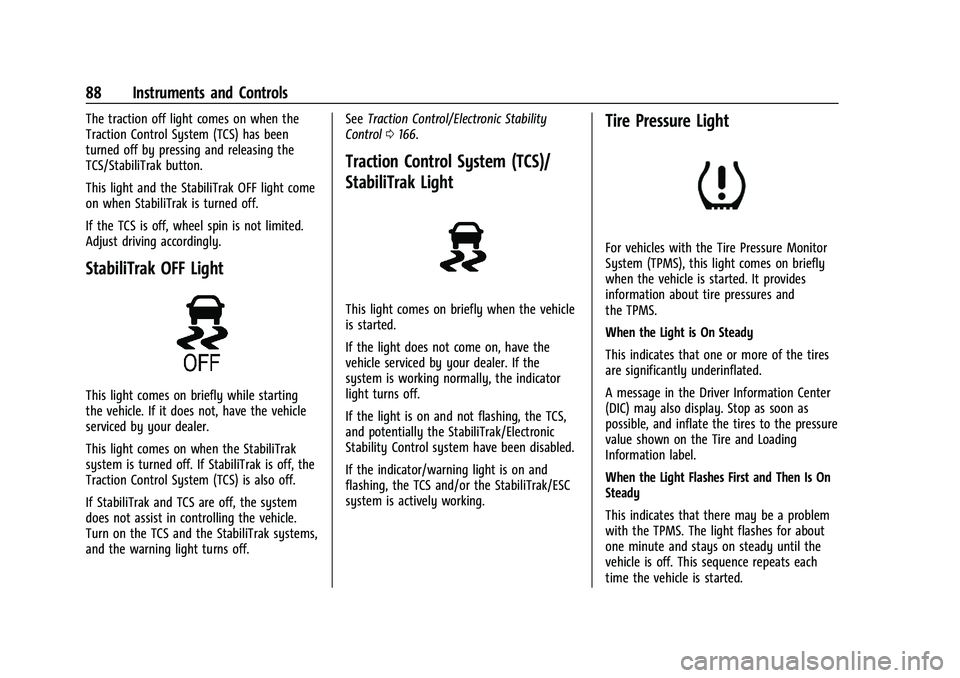
The traction off light comes on when the
Traction Control System (TCS) has been
turned off by pressing and releasing the
TCS/StabiliTrak button.
This light and the StabiliTrak OFF light come
on when StabiliTrak is turned off.
If the TCS is off, wheel spin is not limited.
Adjust driving accordingly.
StabiliTrak OFF Light
This light comes on briefly while starting
the vehicle. If it does not, have the vehicle
serviced by your dealer.
This light comes on when the StabiliTrak
system is turned off. If StabiliTrak is off, the
Traction Control System (TCS) is also off.
If StabiliTrak and TCS are off, the system
does not assist in controlling the vehicle.
Turn on the TCS and the StabiliTrak systems,
and the warning light turns off.See
Traction Control/Electronic Stability
Control 0166.
Traction Control System (TCS)/
StabiliTrak Light
This light comes on briefly when the vehicle
is started.
If the light does not come on, have the
vehicle serviced by your dealer. If the
system is working normally, the indicator
light turns off.
If the light is on and not flashing, the TCS,
and potentially the StabiliTrak/Electronic
Stability Control system have been disabled.
If the indicator/warning light is on and
flashing, the TCS and/or the StabiliTrak/ESC
system is actively working.
Tire Pressure Light
For vehicles with the Tire Pressure Monitor
System (TPMS), this light comes on briefly
when the vehicle is started. It provides
information about tire pressures and
the TPMS.
When the Light is On Steady
This indicates that one or more of the tires
are significantly underinflated.
A message in the Driver Information Center
(DIC) may also display. Stop as soon as
possible, and inflate the tires to the pressure
value shown on the Tire and Loading
Information label.
When the Light Flashes First and Then Is On
Steady
This indicates that there may be a problem
with the TPMS. The light flashes for about
one minute and stays on steady until the
vehicle is off. This sequence repeats each
time the vehicle is started.
Page 90 of 293
Chevrolet Bolt EV Owner Manual (GMNA-Localizing-U.S./Canada-
14637856) - 2021 - CRC - 10/2/20
Instruments and Controls 89
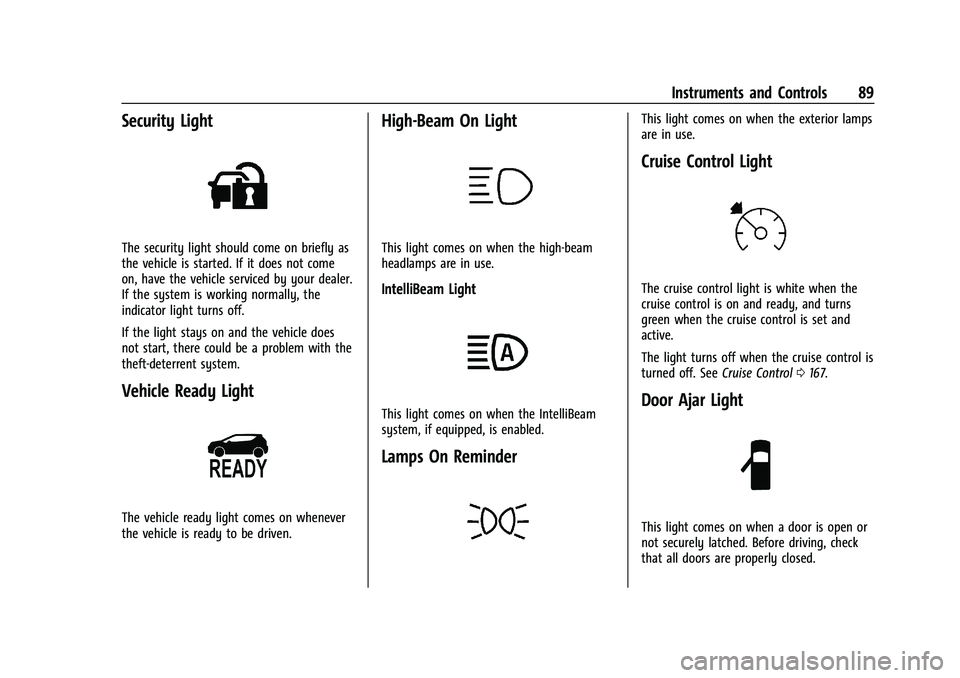
Security Light
The security light should come on briefly as
the vehicle is started. If it does not come
on, have the vehicle serviced by your dealer.
If the system is working normally, the
indicator light turns off.
If the light stays on and the vehicle does
not start, there could be a problem with the
theft-deterrent system.
Vehicle Ready Light
The vehicle ready light comes on whenever
the vehicle is ready to be driven.
High-Beam On Light
This light comes on when the high-beam
headlamps are in use.
IntelliBeam Light
This light comes on when the IntelliBeam
system, if equipped, is enabled.
Lamps On Reminder
This light comes on when the exterior lamps
are in use.
Cruise Control Light
The cruise control light is white when the
cruise control is on and ready, and turns
green when the cruise control is set and
active.
The light turns off when the cruise control is
turned off. SeeCruise Control0167.
Door Ajar Light
This light comes on when a door is open or
not securely latched. Before driving, check
that all doors are properly closed.
Page 91 of 293
Chevrolet Bolt EV Owner Manual (GMNA-Localizing-U.S./Canada-
14637856) - 2021 - CRC - 10/2/20
90 Instruments and Controls
Information Displays
Power Flows
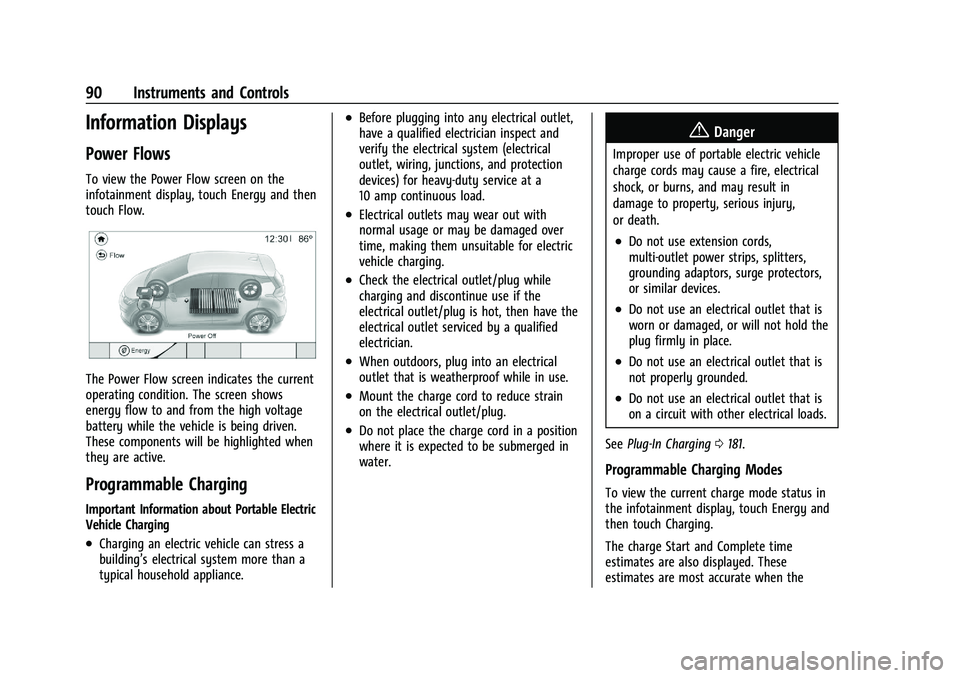
To view the Power Flow screen on the
infotainment display, touch Energy and then
touch Flow.
The Power Flow screen indicates the current
operating condition. The screen shows
energy flow to and from the high voltage
battery while the vehicle is being driven.
These components will be highlighted when
they are active.
Programmable Charging
Important Information about Portable Electric
Vehicle Charging
.Charging an electric vehicle can stress a
building’s electrical system more than a
typical household appliance.
.Before plugging into any electrical outlet,
have a qualified electrician inspect and
verify the electrical system (electrical
outlet, wiring, junctions, and protection
devices) for heavy-duty service at a
10 amp continuous load.
.Electrical outlets may wear out with
normal usage or may be damaged over
time, making them unsuitable for electric
vehicle charging.
.Check the electrical outlet/plug while
charging and discontinue use if the
electrical outlet/plug is hot, then have the
electrical outlet serviced by a qualified
electrician.
.When outdoors, plug into an electrical
outlet that is weatherproof while in use.
.Mount the charge cord to reduce strain
on the electrical outlet/plug.
.Do not place the charge cord in a position
where it is expected to be submerged in
water.
{Danger
Improper use of portable electric vehicle
charge cords may cause a fire, electrical
shock, or burns, and may result in
damage to property, serious injury,
or death.
.Do not use extension cords,
multi-outlet power strips, splitters,
grounding adaptors, surge protectors,
or similar devices.
.Do not use an electrical outlet that is
worn or damaged, or will not hold the
plug firmly in place.
.Do not use an electrical outlet that is
not properly grounded.
.Do not use an electrical outlet that is
on a circuit with other electrical loads.
See Plug-In Charging 0181.
Programmable Charging Modes
To view the current charge mode status in
the infotainment display, touch Energy and
then touch Charging.
The charge Start and Complete time
estimates are also displayed. These
estimates are most accurate when the
Page 101 of 293
Chevrolet Bolt EV Owner Manual (GMNA-Localizing-U.S./Canada-
14637856) - 2021 - CRC - 10/2/20
100 Instruments and Controls
calculated based on the various vehicle
speeds recorded since the last reset of this
value. The average speed can be reset by
pressing and holding
Vwhile this display is
active.
Timer : This display can be used as a timer.
To start the timer, press
Vwhile this
display is active. The display will show the
amount of time that has passed since the
timer was last reset. To stop the timer,
press
Vbriefly while this display is active
and the timer is running. To reset the timer
to zero, press and hold
Vwhile this display
is active.
Follow Distance Indicator : The current
follow time to the vehicle ahead is displayed
as a time value on this page.
Blank Page : The Blank Page display allows
for no information to be displayed in the
cluster info display areas.
Vehicle Messages
Messages displayed on the DIC indicate the
status of the vehicle or some action that
may be needed to correct a condition.
Multiple messages may appear one after
another. The messages that do not require
immediate action can be acknowledged and
cleared by pressing
V. The messages that
require immediate action cannot be cleared
until that action is performed.
All messages should be taken seriously;
clearing the message does not correct the
problem.
If a SERVICE message appears, see your
dealer.
Follow the instructions given in the
messages. The system displays messages
regarding the following topics:
.Service Messages
.Fluid Levels
.Vehicle Security
.Brakes
.Ride Control Systems
.Driver Assistance Systems
.Cruise Control
.Lighting and Bulb Replacement
.Wiper/Washer Systems
.Doors and Windows
.Seat Belts
.Airbag Systems
.Propulsion and Transmission
.Tire Pressure
.Battery
Propulsion Power Messages
PROPULSION POWER IS REDUCED
This message displays when the vehicle's
propulsion power is reduced. A reduction in
propulsion power can affect the vehicle's
ability to accelerate. If this message is on,
but there is no observed reduction in
performance, proceed to your destination.
Under certain conditions the performance
may be reduced the next time the vehicle is
driven. The vehicle may be driven while this
message is on, but maximum acceleration
and speed may be reduced. Anytime this
message stays on, or displays repeatedly,
the vehicle should be taken to your dealer
for service as soon as possible.
This message is commonly displayed when
the high voltage battery charge level is low.
The vehicle is limiting power to maximize
range.
This message can display when the vehicle
is parked during extreme cold conditions
without being plugged in. While driving the
Page 119 of 293
Chevrolet Bolt EV Owner Manual (GMNA-Localizing-U.S./Canada-
14637856) - 2021 - CRC - 10/2/20
118 Infotainment System
3. Touch the desired category and station.The FM category list is only available for
RDS (Radio Data System).
Update AM or FM Stations 1. Touch Browse Audio.
2. Touch Update AM Stations or Update FM Stations.
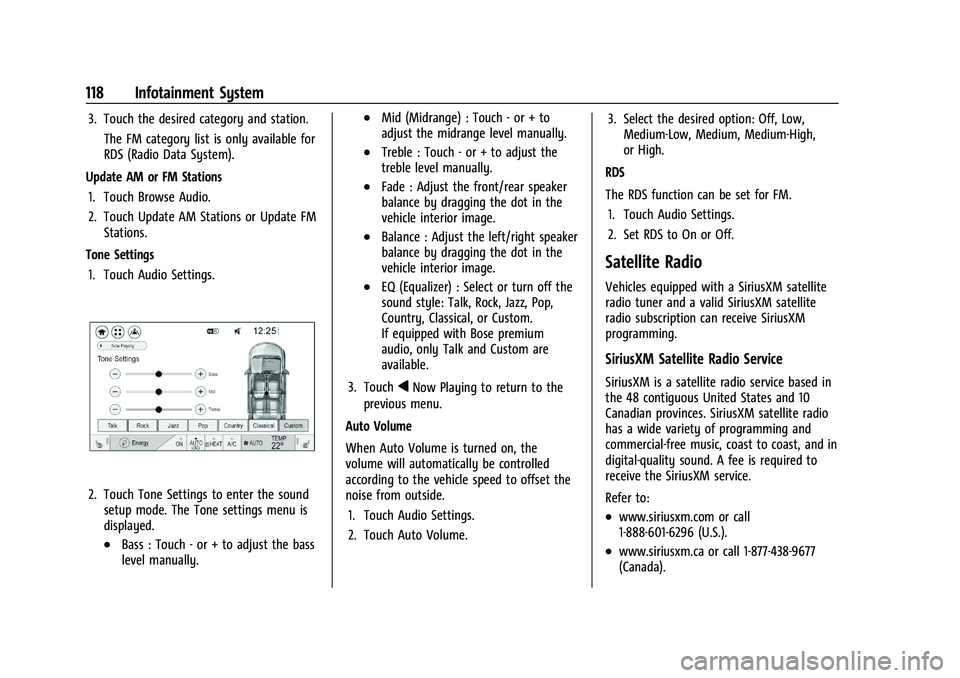
Tone Settings 1. Touch Audio Settings.
2. Touch Tone Settings to enter the sound setup mode. The Tone settings menu is
displayed.
.Bass : Touch - or + to adjust the bass
level manually.
.Mid (Midrange) : Touch - or + to
adjust the midrange level manually.
.Treble : Touch - or + to adjust the
treble level manually.
.Fade : Adjust the front/rear speaker
balance by dragging the dot in the
vehicle interior image.
.Balance : Adjust the left/right speaker
balance by dragging the dot in the
vehicle interior image.
.EQ (Equalizer) : Select or turn off the
sound style: Talk, Rock, Jazz, Pop,
Country, Classical, or Custom.
If equipped with Bose premium
audio, only Talk and Custom are
available.
3. Touch
qNow Playing to return to the
previous menu.
Auto Volume
When Auto Volume is turned on, the
volume will automatically be controlled
according to the vehicle speed to offset the
noise from outside. 1. Touch Audio Settings.
2. Touch Auto Volume. 3. Select the desired option: Off, Low,
Medium-Low, Medium, Medium-High,
or High.
RDS
The RDS function can be set for FM. 1. Touch Audio Settings.
2. Set RDS to On or Off.
Satellite Radio
Vehicles equipped with a SiriusXM satellite
radio tuner and a valid SiriusXM satellite
radio subscription can receive SiriusXM
programming.
SiriusXM Satellite Radio Service
SiriusXM is a satellite radio service based in
the 48 contiguous United States and 10
Canadian provinces. SiriusXM satellite radio
has a wide variety of programming and
commercial-free music, coast to coast, and in
digital-quality sound. A fee is required to
receive the SiriusXM service.
Refer to:
.www.siriusxm.com or call
1-888-601-6296 (U.S.).
.www.siriusxm.ca or call 1-877-438-9677
(Canada).
Page 120 of 293
Chevrolet Bolt EV Owner Manual (GMNA-Localizing-U.S./Canada-
14637856) - 2021 - CRC - 10/2/20
Infotainment System 119
Listening to SXM Radio
1. TouchT.
2. Touch Audio, then Source.
3. Touch SXM. The most recently listened to SXM channel is displayed.
Searching for Channels Automatically
Pressgordto automatically search for
available channels.
Searching for Channels Directly
1. Touch Tune.
2. Using the keypad, enter the desired channel.
Searching for Channels Using Favorites
Saving Favorites
1. Select the desired channel.
2. Touch
qor touch and hold the favorite
in the list to overwrite.
3. To delete a channel from Favorites, touch
q, or swipe the channel from the list on
the right.
Up to 15 channels can be saved in the
Favorites list. Listening to Favorites Directly
1. Touch Favorites to see the list of favorites.
2. Touch the desired channel.
Using the SXM Radio Tab
Browse Audio
.Current Channel Information
Touch Current Channel Information. The
channel information is displayed.
.SXM Channels
Touch SXM Channels. The SXM List is
displayed.
.SXM Categories
SXM categories are defined by the
SiriusXM service provider.
Touch SXM Categories, then touch the
desired category and channel.
Audio Settings
.Tone Settings
Set up sound features from the Tone
Settings menu. See “Tone Settings”under
“AM-FM Radio” previously in this section.
.Auto Volume Volume will be automatically controlled.
See
“Auto Volume” under“AM-FM Radio”
previously in this section.
.Explicit Content Filter
Choose this menu item to turn On or Off
the filtering of explicit channels from
SXM. A list item can be set to On or Off.
From the SXM Settings, touch Audio
Settings. Set Explicit Content Filter feature
to On or Off to allow for a filtered list of
channels.
Radio Reception
Unplug electronic devices from the accessory
power outlets if there is interference or
static in the radio.
FM
FM signals only reach about 16 to 65 km (10
to 40 mi). Although the radio has a built-in
electronic circuit that automatically works to
reduce interference, some static can occur,
especially around tall buildings or hills,
causing the sound to fade in and out.
AM
The range for most AM stations is greater
than for FM, especially at night. The longer
range can cause station frequencies to
Page 121 of 293
Chevrolet Bolt EV Owner Manual (GMNA-Localizing-U.S./Canada-
14637856) - 2021 - CRC - 10/2/20
120 Infotainment System
interfere with each other. Static can also
occur when things like storms and power
lines interfere with radio reception. When
this happens, try reducing the treble on the
radio.
SiriusXM Satellite Radio Service
If equipped, SiriusXM Satellite Radio Service
provides digital radio reception. Tall
buildings or hills can interfere with satellite
radio signals, causing the sound to fade in
and out. In addition, traveling or standing
under heavy foliage, bridges, garages,
or tunnels may cause loss of the SiriusXM
signal for a period of time. Some cellular
services may interfere with SXM reception
causing loss of signal.
Mobile Device Usage
Mobile device usage, such as making or
receiving calls, charging, or just having the
mobile device on may cause static
interference in the radio. Unplug the mobile
device or turn it off if this happens.
Multi-Band Antenna
The roof antenna may be used for radio,
navigation, and OnStar, depending on the
equipped options. Keep clear of obstructionsfor clear reception. If the vehicle has a
sunroof, and it is open, reception can also
be affected.
Audio Players
USB Port
The USB ports are in the center console and
are for data and charging. If equipped, there
are two USB charge ports in the rear of the
center console. The infotainment system can
play the music files contained in the USB
storage device or a device that supports
MTP or iPod/iPhone devices.
Caution
To avoid vehicle damage, unplug all
accessories and disconnect all accessory
cables from the vehicle when not in use.
Accessory cables left plugged into the
vehicle, unconnected to a device, could be
damaged or cause an electrical short if
the unconnected end comes in contact
with liquids or another power source such
as the accessory power outlet.
Before Using the Audio System
Supported Audio File Formats
.MP3 (MPEG-1 Layer 3, MPEG-2 Layer 3)
Constant Bit Rate (CBR) between 8 and
320 kbps
Variable Bit Rate (VBR)
Sampling frequencies of 8, 11.025, 12, 16,
22.05, 24, 32, 44.1, and 48 kHz
.Windows Media Audio
Windows Media Audio 10
CBR between 32 and 768 kbps
VBR (Standard), Professional, Lossless,
or higher according to Microsoft
specifications
Sampling frequencies of 8, 12, 16, 22, 32,
44.1, and 48 kHz
.AAC (MPEG-4 AAC, Low Complexity
Profile) and AAC+
CBR between 8 and 320 kbps
.OGG Vorbis
.Waveform (WAV
–PCM Windows format)
.Audio Interchange File Format (AIFF)
.3GPP (Generally used for mobile devices)
.Audio Books (MP3, AAC, AA)
Page 128 of 293
Chevrolet Bolt EV Owner Manual (GMNA-Localizing-U.S./Canada-
14637856) - 2021 - CRC - 10/2/20
Infotainment System 127
Browse Music
This function may not be supported
depending on the mobile phone.1. Touch Browse Music.
2. Touch the desired item. The number of relevant songs is displayed.
3. Touch the desired music to listen.
Tone Settings
From the Bluetooth music menu, sound
features can be set up. See “Tone Settings”
under “AM-FM Radio” previously in this
section.
Auto Volume
Volume will be automatically controlled. See
“Auto Volume” under“AM-FM Radio”
previously in this section.
Manage Bluetooth Devices
1. Touch Audio Settings.
2. Touch Manage Bluetooth Devices.
3. Select the desired device and then connect/disconnect or delete.
Playing Bluetooth Music
.Do not change the track too quickly when
playing Bluetooth music.
.It takes some time to transmit data from
the mobile phone or Bluetooth device to
the infotainment system. The
infotainment system outputs the audio
from the mobile phone or Bluetooth
device as it is transmitted.
.If the mobile phone or Bluetooth device is
not in the idle screen mode, it may not
automatically play despite being carried
out from the Bluetooth music play mode.
.The infotainment system transmits the
order to play from the mobile phone in
the Bluetooth music play mode. If this is
done in a different mode, then the device
transmits the order to stop. Depending on
the mobile phone’s options, this order to
play/stop may take time to activate.
.If Bluetooth music playback is not
functioning, then check to see if the
mobile phone is in the idle screen mode.
.Sometimes, sounds may be cut off during
Bluetooth music playback.
OnStar System
OnStar with 4G LTE
If equipped with OnStar 4G LTE, up to seven
devices, such as smartphones, tablets, and
laptops, can be connected to high-speed
Internet through the vehicle’s built-in Wi-Fi
hotspot.
Call 1-888-4-ONSTAR (1-888-466-7827) to
connect to an OnStar Advisor for assistance.
See www.onstar.com for a detailed
instruction guide, vehicle availability, details,
and system limitations. Services and apps
vary by make, model, year, carrier,
availability, and conditions. 4G LTE service is
available in select markets. 4G LTE
performance is based on industry averages
and vehicle systems design. Some services
require a data plan.
Phone
Bluetooth
Bluetooth Wireless Technology
Bluetooth wireless technology establishes a
wireless link between two devices supported
with Bluetooth. After the initial pairing, the
two devices can connect automatically when