charging CHEVROLET BOLT EV 2022 User Guide
[x] Cancel search | Manufacturer: CHEVROLET, Model Year: 2022, Model line: BOLT EV, Model: CHEVROLET BOLT EV 2022Pages: 316, PDF Size: 11.45 MB
Page 94 of 316
Chevrolet BOLT EV Owner Manual (GMNA-Localizing-U.S./Canada-
15082216) - 2022 - CRC - 6/25/21
Instruments and Controls 93
If the Target Charge Level is higher than
80%, fast charging on the instrument cluster
will show an 80% point, a shaded line up to
the Target Charge Level, a solid line for
current charge level, and the time to
complete 80%.
If the Target Charge Level is less than 80%,
fast charging on the instrument cluster will
show a shaded line up to the Target Charge
Level and the time to complete.
Target Charge Level defaults to 100% if the
12 volt battery becomes discharged.
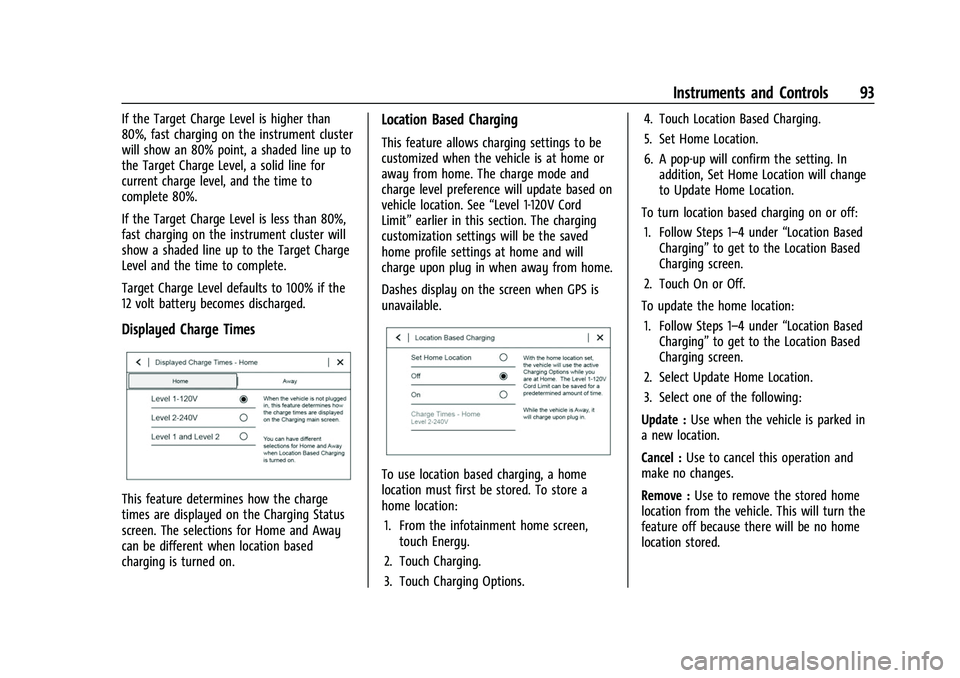
Displayed Charge Times
This feature determines how the charge
times are displayed on the Charging Status
screen. The selections for Home and Away
can be different when location based
charging is turned on.
Location Based Charging
This feature allows charging settings to be
customized when the vehicle is at home or
away from home. The charge mode and
charge level preference will update based on
vehicle location. See“Level 1-120V Cord
Limit” earlier in this section. The charging
customization settings will be the saved
home profile settings at home and will
charge upon plug in when away from home.
Dashes display on the screen when GPS is
unavailable.
To use location based charging, a home
location must first be stored. To store a
home location:
1. From the infotainment home screen, touch Energy.
2. Touch Charging.
3. Touch Charging Options. 4. Touch Location Based Charging.
5. Set Home Location.
6. A pop-up will confirm the setting. In
addition, Set Home Location will change
to Update Home Location.
To turn location based charging on or off: 1. Follow Steps 1–4 under “Location Based
Charging” to get to the Location Based
Charging screen.
2. Touch On or Off.
To update the home location: 1. Follow Steps 1–4 under “Location Based
Charging” to get to the Location Based
Charging screen.
2. Select Update Home Location.
3. Select one of the following:
Update : Use when the vehicle is parked in
a new location.
Cancel : Use to cancel this operation and
make no changes.
Remove : Use to remove the stored home
location from the vehicle. This will turn the
feature off because there will be no home
location stored.
Page 95 of 316
Chevrolet BOLT EV Owner Manual (GMNA-Localizing-U.S./Canada-
15082216) - 2022 - CRC - 6/25/21
94 Instruments and Controls
The charge level preference at the home
location is stored for up to 90 days. After
90 days, a notification will display on the
screen and the charge level preference will
need to be reset for the next 90 days.
To change how the charge times are
displayed, press the Charge Times–Home
button in the Location Based Charging
screen and it will go to the Displayed
Charge Times menu for changes to be made.
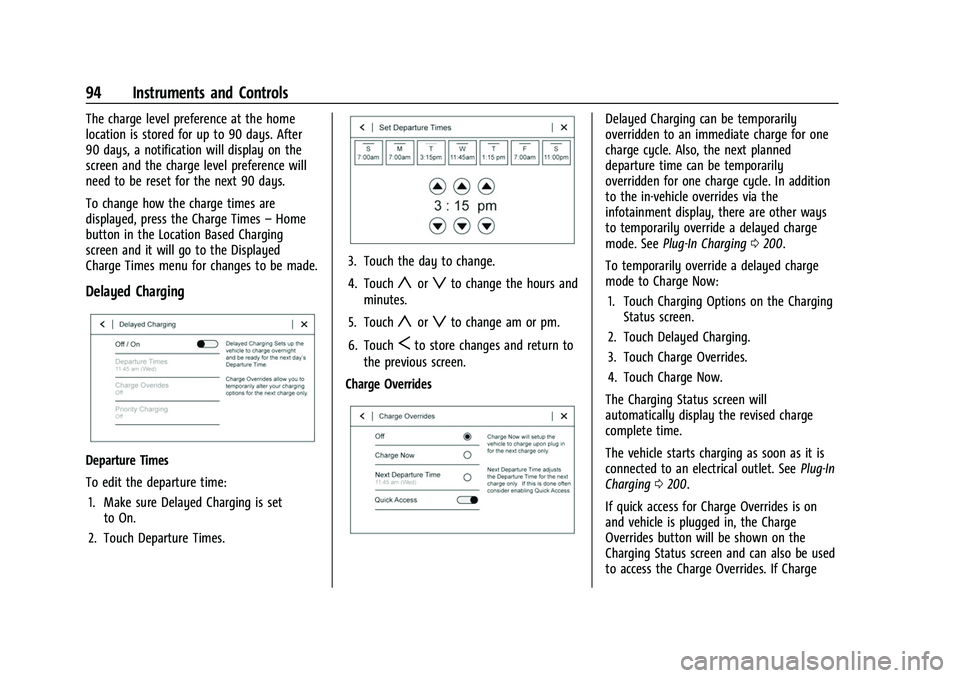
Delayed Charging
Departure Times
To edit the departure time:
1. Make sure Delayed Charging is set to On.
2. Touch Departure Times.
3. Touch the day to change.
4. Touch
yorzto change the hours and
minutes.
5. Touch
yorzto change am or pm.
6. Touch
Sto store changes and return to
the previous screen.
Charge Overrides
Delayed Charging can be temporarily
overridden to an immediate charge for one
charge cycle. Also, the next planned
departure time can be temporarily
overridden for one charge cycle. In addition
to the in-vehicle overrides via the
infotainment display, there are other ways
to temporarily override a delayed charge
mode. See Plug-In Charging 0200.
To temporarily override a delayed charge
mode to Charge Now: 1. Touch Charging Options on the Charging Status screen.
2. Touch Delayed Charging.
3. Touch Charge Overrides.
4. Touch Charge Now.
The Charging Status screen will
automatically display the revised charge
complete time.
The vehicle starts charging as soon as it is
connected to an electrical outlet. See Plug-In
Charging 0200.
If quick access for Charge Overrides is on
and vehicle is plugged in, the Charge
Overrides button will be shown on the
Charging Status screen and can also be used
to access the Charge Overrides. If Charge
Page 96 of 316
Chevrolet BOLT EV Owner Manual (GMNA-Localizing-U.S./Canada-
15082216) - 2022 - CRC - 6/25/21
Instruments and Controls 95
Overrides is off and the vehicle is plugged
in, then Charging Now will be shown on the
Charging Status screen.
To cancel the temporary override, select Off
on the Charge Overrides screen.
To temporarily override the next planned
departure time:1. Touch Charging Options on the main charging screen.
2. Touch Delayed Charging.
3. Touch Charge Overrides.
4. Touch Next Departure Time.
5. Touch
yorzto change the Next
Departure Time.
6. Touch Save to confirm a temporary override of the Next Departure Time.
The main charging screen will automatically
display the revised departure time and
charge complete time.
The temporary departure time override can
only be updated for the day of the Next
Planned Departure Time. The vehicle will not
accept a temporary departure time that is
before the present time of day. To cancel the temporary override of the
Next Departure Time, select Off on the
Charge Overrides screen.
Utility Rate Charging
The vehicle estimates the charging start
time based on the utility rate schedule,
utility rate preference, and programmed
departure time for the current day of the
week. The vehicle will charge during the
least expensive rate periods to achieve a full
battery charge by the departure time. Utility
rate information from the utility company
for the charging location is required for
this mode.
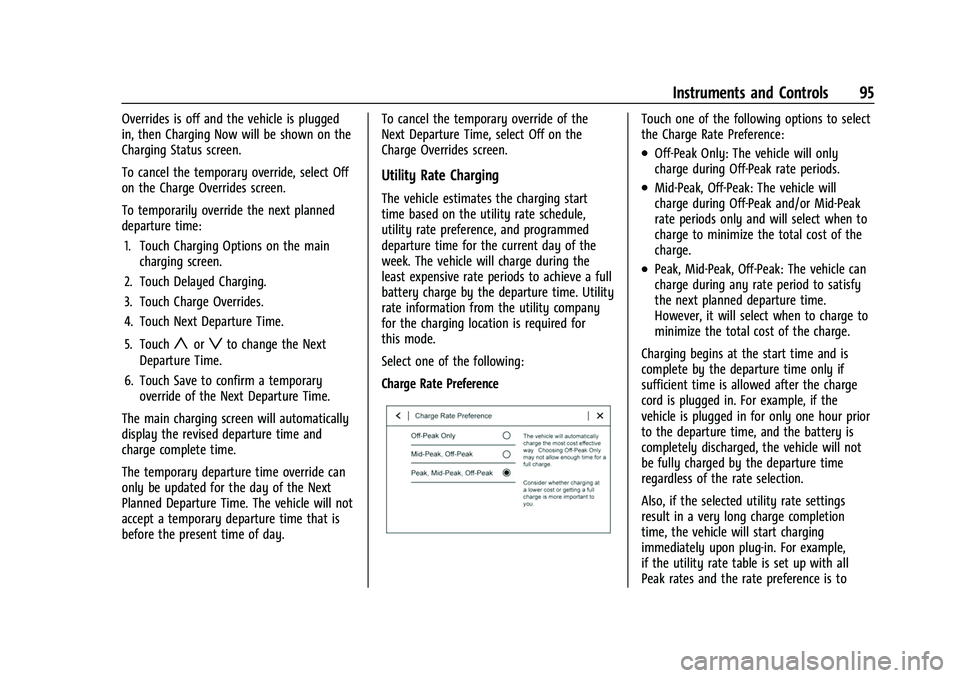
Select one of the following:
Charge Rate Preference
Touch one of the following options to select
the Charge Rate Preference:
.Off-Peak Only: The vehicle will only
charge during Off-Peak rate periods.
.Mid-Peak, Off-Peak: The vehicle will
charge during Off-Peak and/or Mid-Peak
rate periods only and will select when to
charge to minimize the total cost of the
charge.
.Peak, Mid-Peak, Off-Peak: The vehicle can
charge during any rate period to satisfy
the next planned departure time.
However, it will select when to charge to
minimize the total cost of the charge.
Charging begins at the start time and is
complete by the departure time only if
sufficient time is allowed after the charge
cord is plugged in. For example, if the
vehicle is plugged in for only one hour prior
to the departure time, and the battery is
completely discharged, the vehicle will not
be fully charged by the departure time
regardless of the rate selection.
Also, if the selected utility rate settings
result in a very long charge completion
time, the vehicle will start charging
immediately upon plug-in. For example,
if the utility rate table is set up with all
Peak rates and the rate preference is to
Page 97 of 316
Chevrolet BOLT EV Owner Manual (GMNA-Localizing-U.S./Canada-
15082216) - 2022 - CRC - 6/25/21
96 Instruments and Controls
charge during Off-Peak rates only, then the
vehicle will start charging immediately upon
plug-in.
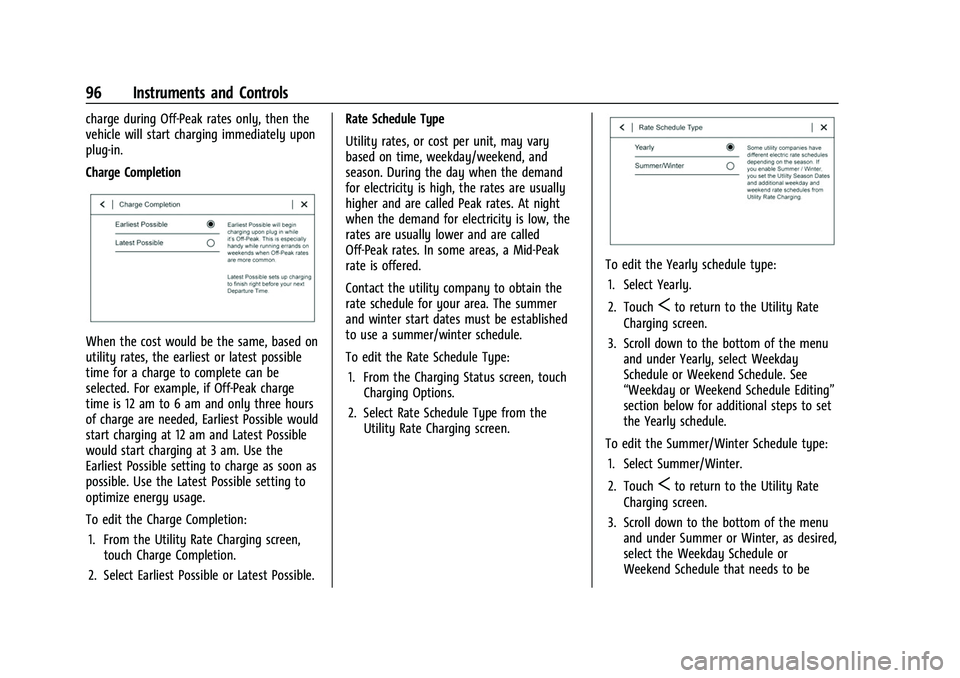
Charge Completion
When the cost would be the same, based on
utility rates, the earliest or latest possible
time for a charge to complete can be
selected. For example, if Off-Peak charge
time is 12 am to 6 am and only three hours
of charge are needed, Earliest Possible would
start charging at 12 am and Latest Possible
would start charging at 3 am. Use the
Earliest Possible setting to charge as soon as
possible. Use the Latest Possible setting to
optimize energy usage.
To edit the Charge Completion:1. From the Utility Rate Charging screen, touch Charge Completion.
2. Select Earliest Possible or Latest Possible. Rate Schedule Type
Utility rates, or cost per unit, may vary
based on time, weekday/weekend, and
season. During the day when the demand
for electricity is high, the rates are usually
higher and are called Peak rates. At night
when the demand for electricity is low, the
rates are usually lower and are called
Off-Peak rates. In some areas, a Mid-Peak
rate is offered.
Contact the utility company to obtain the
rate schedule for your area. The summer
and winter start dates must be established
to use a summer/winter schedule.
To edit the Rate Schedule Type:
1. From the Charging Status screen, touch Charging Options.
2. Select Rate Schedule Type from the Utility Rate Charging screen.
To edit the Yearly schedule type:
1. Select Yearly.
2. Touch
Sto return to the Utility Rate
Charging screen.
3. Scroll down to the bottom of the menu and under Yearly, select Weekday
Schedule or Weekend Schedule. See
“Weekday or Weekend Schedule Editing”
section below for additional steps to set
the Yearly schedule.
To edit the Summer/Winter Schedule type: 1. Select Summer/Winter.
2. Touch
Sto return to the Utility Rate
Charging screen.
3. Scroll down to the bottom of the menu and under Summer or Winter, as desired,
select the Weekday Schedule or
Weekend Schedule that needs to be
Page 98 of 316
Chevrolet BOLT EV Owner Manual (GMNA-Localizing-U.S./Canada-
15082216) - 2022 - CRC - 6/25/21
Instruments and Controls 97
changed. See“Weekday or Weekend
Schedule Editing” section below for
additional steps to set the Summer/
Winter schedule.
Weekday or Weekend Schedule Editing
To edit the weekday or weekend schedule: 1. From the Utility Rate Charging screen, touch Weekday Schedule or Weekend
Schedule.
2. Touch Add A Rate Period or Subtract A Rate Period.
.Weekdays are Monday through
Friday and use the same rate
schedule.
.Weekends are Saturday and Sunday
and use the same rate schedule.
Both weekday and weekend schedules must
be set. The rate schedule only applies for a
24-hour period, starting at 12:00 am and
ending at 12:00 am. There can be five rate
changes for each day; not all must be used.
The finish times must be consecutive. If a
finish time does not follow a start time, this
error message displays: “An invalid entry
was found in the data entered. Please
re-enter data.”
Energy Summary Pop-Up
When this function is turned on, the Energy
Summary Pop-Up will provide a summary of
energy usage when the vehicle is turned off.
Select On or Off.
Charge Status Feedback
When this function is turned on, the vehicle
will provide audible feedback of the charge
status.
1 beep : Immediate charging
2 beeps : Delayed charging
3 beeps : Charge port door is open
4 beeps : Desired time cannot be met
Select On or Off.
Charge Cord Theft Alert
When this function is turned on and the
vehicle is off and locked, the horn will sound
if the charge cord is removed.
Select On or Off.
Charge Power Loss Alert
When this function is turned on and the
vehicle is charging, the horn will sound if
power is lost. Select On or Off.
Charging Interrupted or Overridden
Pop-Up
The Charging Interrupted or Overridden
message will appear if there was an
unintended loss of AC power during the plug
in charge event. For example, there was a
power outage or the charge cord was
unplugged from the wall.
See
Instrument Cluster 079.
Programmable Charging Disabled
When the Programmable Charging system is
disabled, the main charging screen will
display “- -:- -”for the Charge Complete
Time. The Programmable Charging system
will be disabled if the Charge Complete Time
cannot be confidently estimated. If the
Programmable Charging system is
consistently disabled, see your dealer.
A message displays if the vehicle is not able
to charge.
Energy Information
To view Energy Detail, Range Impacts, and
Efficiency History, touch Energy on the
infotainment display, and then the desired
screen button on the left side of the screen.
Page 100 of 316
Chevrolet BOLT EV Owner Manual (GMNA-Localizing-U.S./Canada-
15082216) - 2022 - CRC - 6/25/21
Instruments and Controls 99
Charging Options
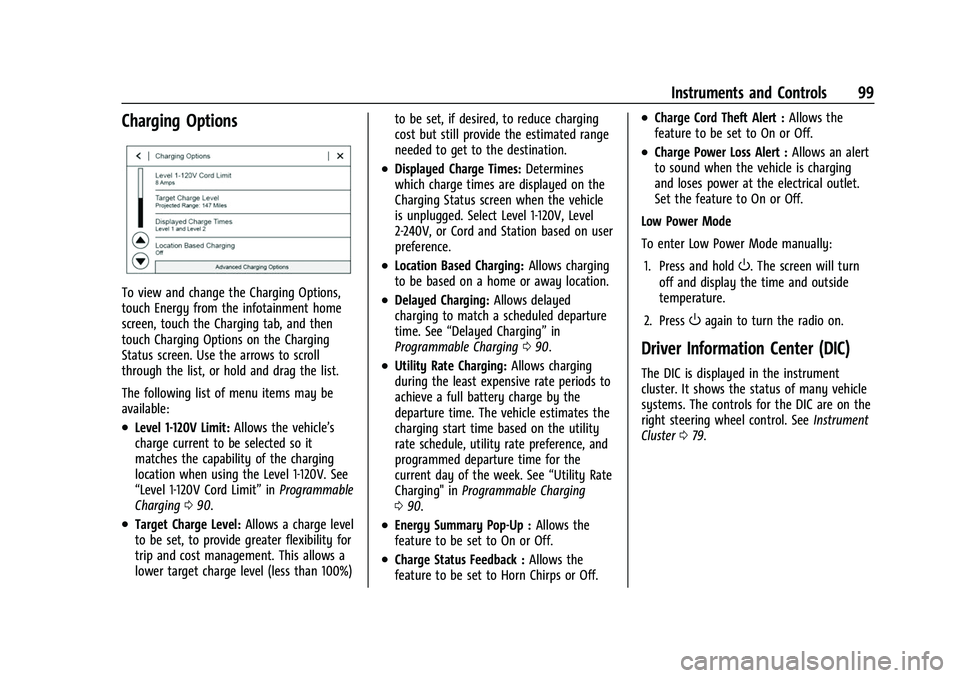
To view and change the Charging Options,
touch Energy from the infotainment home
screen, touch the Charging tab, and then
touch Charging Options on the Charging
Status screen. Use the arrows to scroll
through the list, or hold and drag the list.
The following list of menu items may be
available:
.Level 1-120V Limit:Allows the vehicle’s
charge current to be selected so it
matches the capability of the charging
location when using the Level 1-120V. See
“Level 1-120V Cord Limit” inProgrammable
Charging 090.
.Target Charge Level: Allows a charge level
to be set, to provide greater flexibility for
trip and cost management. This allows a
lower target charge level (less than 100%) to be set, if desired, to reduce charging
cost but still provide the estimated range
needed to get to the destination.
.Displayed Charge Times:
Determines
which charge times are displayed on the
Charging Status screen when the vehicle
is unplugged. Select Level 1-120V, Level
2-240V, or Cord and Station based on user
preference.
.Location Based Charging: Allows charging
to be based on a home or away location.
.Delayed Charging: Allows delayed
charging to match a scheduled departure
time. See “Delayed Charging” in
Programmable Charging 090.
.Utility Rate Charging: Allows charging
during the least expensive rate periods to
achieve a full battery charge by the
departure time. The vehicle estimates the
charging start time based on the utility
rate schedule, utility rate preference, and
programmed departure time for the
current day of the week. See “Utility Rate
Charging" in Programmable Charging
0 90.
.Energy Summary Pop-Up : Allows the
feature to be set to On or Off.
.Charge Status Feedback : Allows the
feature to be set to Horn Chirps or Off.
.Charge Cord Theft Alert : Allows the
feature to be set to On or Off.
.Charge Power Loss Alert : Allows an alert
to sound when the vehicle is charging
and loses power at the electrical outlet.
Set the feature to On or Off.
Low Power Mode
To enter Low Power Mode manually:
1. Press and hold
O. The screen will turn
off and display the time and outside
temperature.
2. Press
Oagain to turn the radio on.
Driver Information Center (DIC)
The DIC is displayed in the instrument
cluster. It shows the status of many vehicle
systems. The controls for the DIC are on the
right steering wheel control. See Instrument
Cluster 079.
Page 112 of 316
Chevrolet BOLT EV Owner Manual (GMNA-Localizing-U.S./Canada-
15082216) - 2022 - CRC - 6/25/21
Lighting 111
This feature can be changed. See“Vehicle
Locator Lights” underVehicle Personalization
0 102.
Exit Lighting
Some exterior lamps and interior lamps turn
on when the vehicle is powered off.
The exterior and interior lamps remain on
for a set amount of time, then automatically
turn off. If equipped with Keyless Access,
the exterior lamps automatically turn on
when the driver door is opened after the
vehicle is powered off.
The interior lights turn on when the vehicle
is powered off.
The exterior lamps turn off immediately by
turning the exterior lamp control off.
This feature can be changed. See Vehicle
Personalization 0102.
Battery Power Protection
This feature helps prevent the battery from
being drained if the interior courtesy lamps
or reading lamps are accidentally left on.
If any of these lamps are left on, they
automatically turn off after 10 minutes if the
ignition is off. The lamps will not come back
on again until one of the following occurs:
.The vehicle is powered on.
.The doors are closed and then re-opened.
Battery Saver
The vehicle is equipped with electrical power
management (EPM). EPM monitors and
controls the charging system. The message
BATTERY SAVER ACTIVE displays on the
Driver Information Center (DIC) when the
EPM detects the battery may be draining
too quickly, the charge state needs to be
reset, or the Auxiliary Power Module failed.
If safe to do so, when BATTERY SAVER
ACTIVE displays, manually shut off
windshield wipers, communications
equipment, climate controls, etc. to slow the
battery from draining. See Automatic
Climate Control System 0148.
If the message still displays, fully charge the
vehicle. Once fully charged, unplug the
vehicle and let the vehicle sit an additional
8.5 hours or greater without being
interrupted to allow the Body Control
Module (BCM) to reset the battery to the
required state of charge.
The following may interrupt the vehicle:
.Charging the vehicle
.Battery Maintenance Mode
.Approach Detection is activated
.The Key Fob is left in the car or left in
close proximity of the vehicle
.Pressing buttons on the Remote Keyless
Entry (RKE) transmitter
.Opening the doors or tailgate
To reduce the occurrence of this alert, GM
recommends letting the vehicle sit
uninterrupted for 8.5 hours or greater on a
weekly basis.
If after completing this process the BATTERY
SAVER ACTIVE message remains, see your
dealer for service.
Exterior Lighting Battery Saver
The exterior lamps turn off about 10 minutes
after the vehicle is turned off, if the parking
lamps or headlamps have been manually
left on. This protects against draining the
battery. To restart the 10-minute timer, turn
the exterior lamp control to the
Oposition
and then back to the
;or2position.
To keep the lamps on for more than
10 minutes, the vehicle must be powered on.
Page 121 of 316
Chevrolet BOLT EV Owner Manual (GMNA-Localizing-U.S./Canada-
15082216) - 2022 - CRC - 6/25/21
120 Infotainment System
under heavy foliage, bridges, garages,
or tunnels may cause loss of the SiriusXM
signal for a period of time. Some cellular
services may interfere with SXM reception
causing loss of signal.
Mobile Device Usage
Mobile device usage, such as making or
receiving calls, charging, or just having the
mobile device on may cause static
interference in the radio. Unplug the mobile
device or turn it off if this happens.
Multi-Band Antenna
The roof antenna is for AM, FM, SiriusXM
Satellite Radio, OnStar, and GPS (Global
Positioning System). Keep clear of
obstructions for clear reception. If the
vehicle has a sunroof, and it is open,
reception can also be affected.
Audio Players
Avoiding Untrusted Media Devices
When using media devices such as SD cards,
USB devices, and mobile devices, consider
the source. Untrusted media devices couldcontain files that affect system operation or
performance. Avoid use if the content or
origin cannot be trusted.
USB Port
Audio stored on a USB device may be
listened to.
The vehicle may be equipped with two USB
ports on the center stack. These ports are
for data and charging. There may also be
two USB ports for charging only at the rear
of the center console.
Caution
To avoid vehicle damage, unplug all
accessories and disconnect all accessory
cables from the vehicle when not in use.
Accessory cables left plugged into the
vehicle, unconnected to a device, could be
damaged or cause an electrical short if
the unconnected end comes in contact
with liquids or another power source such
as the accessory power outlet.
Playing from a USB
A USB mass storage device can be connected
to the USB port.Audio extensions supported by the USB may
include:
.MP3
.AAC
.OGG
.3GP
Gracenote
When plugging in a USB device, Gracenote
service builds voice tags for music. Voice
tags allow artists, albums with hard to
pronounce names, and nicknames to be used
to play music through voice recognition,
if equipped.
While indexing, infotainment features may
be available.
My Media Library
MyMedia is only available when more than
one indexed device is connected. It allows
access to content from all indexed media
sources. MyMedia will show as an available
source in the Source page.
USB MP3 Player and USB Devices
The USB MP3 players and USB devices
connected must comply with the USB Mass
Storage Class specification (USB MSC).
Page 137 of 316
Chevrolet BOLT EV Owner Manual (GMNA-Localizing-U.S./Canada-
15082216) - 2022 - CRC - 6/25/21
136 Infotainment System
Voice
Touch and the following may display:
.Confirm More/Less: This setting specifies
how often the voice recognition system
confirms commands. Touch Confirm More
to have the system check with you more
often before acting on your commands.
.Prompt Length: This setting specifies the
amount of detail the voice recognition
system provides when giving you
feedback. Touch Auto to have the system
automatically adjust to your speech
habits. Touch Informative, Short, or Auto.
.Audio Feedback Speed: Touch Slow,
Medium, or Fast to adjust how quickly
the voice recognition system speaks.
.Allow Prompt Interruptions: This setting
controls whether voice commands can be
spoken before voice prompts finish. Turn
this on to speak commands without
hearing the full prompt. Speaking while
the prompt is still playing will
immediately stop playing the current
prompt and recognize your command.
Background noise may cause accidental
interruptions. Touch Off or On.
.Friendly Prompts: This setting adjusts the
formality of voice prompts. Touch Off for
shorter prompts. Touch On to hearprompts with more personality. Touch
Auto to have the prompt match your
command style.
.Tutorial Mode: Touch Off or On to
provide tutorial feedback on the display.
Favorites
Touch and the following may display:
.Manage Favorites: Touch to display a list
of Audio, Phone, and Navigation favorites.
Favorites can be moved, renamed,
or deleted.
To move, touch and hold the favorite, and
then drag up or down to rearrange the
position.
.Set Number of Audio Favorites: Touch to
select how many favorites pages can be
viewed from the audio application. The
Auto setting will automatically adjust this
number based on the number of favorites
you have saved. Touch Auto, 5, 10, 15, 20,
25, 30, 35, or 40.
Updates
If equipped, the vehicle can download and
install select software updates over a
wireless connection. The system will prompt for certain updates to be downloaded and
installed. There is also an option to check
for updates manually.
To manually check for updates, touch
Settings on the Home Page and select the
System tab. Go to the Vehicle Software
section and touch Updates. Follow the
on-screen prompts. The steps to check for,
download, and install updates may vary by
vehicle.
The vehicle can be used normally or can be
charging during the software download.
Once the download is complete, there may
be a prompt to accept the installation of the
update upon the next ignition cycle or the
next time the vehicle is shifted into P (Park).
For most updates, the vehicle will be
disabled and cannot be driven during the
installation. The system will deliver
messages indicating success or error during
and after the download and installation
processes.
Downloading Over-the-Air vehicle software
updates requires Internet connectivity, which
can be accessed through the vehicle’s
built-in 4G LTE connection, if equipped and
active. If required, data plans are provided
by a third party. Optionally, a secure Wi-Fi
hotspot such as a compatible mobile device
Page 156 of 316
Chevrolet BOLT EV Owner Manual (GMNA-Localizing-U.S./Canada-
15082216) - 2022 - CRC - 6/25/21
Driving and Operating 155
Driving and Operating
Driving Information
Driving for Better Energy Efficiency . . . . 156
Distracted Driving . . . . . . . . . . . . . . . . . . . . . . 157
Defensive Driving . . . . . . . . . . . . . . . . . . . . . . 157
Impaired Driving . . . . . . . . . . . . . . . . . . . . . . . 158
Control of a Vehicle . . . . . . . . . . . . . . . . . . . 158
Braking . . . . . . . . . . . . . . . . . . . . . . . . . . . . . . . . 158
Steering . . . . . . . . . . . . . . . . . . . . . . . . . . . . . . . 158
Off-Road Recovery . . . . . . . . . . . . . . . . . . . . . 159
Loss of Control . . . . . . . . . . . . . . . . . . . . . . . . 159
Driving on Wet Roads . . . . . . . . . . . . . . . . . 160
Hill and Mountain Roads . . . . . . . . . . . . . . 160
Winter Driving . . . . . . . . . . . . . . . . . . . . . . . . . 161
If the Vehicle Is Stuck . . . . . . . . . . . . . . . . . 162
Vehicle Load Limits . . . . . . . . . . . . . . . . . . . . 162
Starting and Operating
New Vehicle Break-In . . . . . . . . . . . . . . . . . . 165
Power Button . . . . . . . . . . . . . . . . . . . . . . . . . . 165
Starting and Stopping the Vehicle . . . . . 166
Retained Accessory Power (RAP) . . . . . . . 167
Shifting Into Park . . . . . . . . . . . . . . . . . . . . . . 167
Shifting out of Park . . . . . . . . . . . . . . . . . . . 168
Extended Parking . . . . . . . . . . . . . . . . . . . . . . 168
Electric Vehicle Operating Modes
Driver Selected Operating Modes . . . . . . 168
Electric Drive Unit
Electric Drive Unit . . . . . . . . . . . . . . . . . . . . . 169
One-Pedal Driving . . . . . . . . . . . . . . . . . . . . . . 171
Brakes
Antilock Brake System (ABS) . . . . . . . . . . . 172
Electric Parking Brake . . . . . . . . . . . . . . . . . . 172
Brake Assist . . . . . . . . . . . . . . . . . . . . . . . . . . . . 173
Hill Start Assist (HSA) . . . . . . . . . . . . . . . . . . 174
Regenerative Braking . . . . . . . . . . . . . . . . . . 174
Ride Control Systems
Traction Control/Electronic StabilityControl . . . . . . . . . . . . . . . . . . . . . . . . . . . . . . . 175
Cruise Control
Cruise Control . . . . . . . . . . . . . . . . . . . . . . . . . 176
Adaptive Cruise Control (Camera) . . . . . . 178
Driver Assistance Systems
Driver Assistance Systems . . . . . . . . . . . . . 187
Assistance Systems for Parking orBacking . . . . . . . . . . . . . . . . . . . . . . . . . . . . . . 188
Rear Vision Camera (RVC) . . . . . . . . . . . . . 188
Surround Vision System . . . . . . . . . . . . . . . 189
Park Assist . . . . . . . . . . . . . . . . . . . . . . . . . . . . . 191
Rear Cross Traffic Alert (RCTA) System . . . . . . . . . . . . . . . . . . . . . . . . . . . . . . 192
Assistance Systems for Driving . . . . . . . . 192
Forward Collision Alert (FCA) System . . . . . . . . . . . . . . . . . . . . . . . . . . . . . . 192 Automatic Emergency Braking (AEB) . . . 194
Front Pedestrian Braking (FPB)
System . . . . . . . . . . . . . . . . . . . . . . . . . . . . . . 195
Side Blind Zone Alert (SBZA) . . . . . . . . . . . 197
Lane Change Alert (LCA) . . . . . . . . . . . . . . . 197
Lane Keep Assist (LKA) . . . . . . . . . . . . . . . . 198
Charging
When to Charge . . . . . . . . . . . . . . . . . . . . . . 200
Plug-In Charging . . . . . . . . . . . . . . . . . . . . . . 200
Delayed Charging Override . . . . . . . . . . . . 204
Charging Status Feedback . . . . . . . . . . . . . 204
Charge Cord . . . . . . . . . . . . . . . . . . . . . . . . . . . 208
Utility Interruption of Charging . . . . . . . . 214
Electrical Requirements for Battery Charging . . . . . . . . . . . . . . . . . . . . . . . . . . . . . 214
Trailer Towing
General Towing Information . . . . . . . . . . . 215
Conversions and Add-Ons
Add-On Electrical Equipment . . . . . . . . . . . 215