USB port CHEVROLET BOLT EV 2022 Owners Manual
[x] Cancel search | Manufacturer: CHEVROLET, Model Year: 2022, Model line: BOLT EV, Model: CHEVROLET BOLT EV 2022Pages: 316, PDF Size: 11.45 MB
Page 113 of 316
Chevrolet BOLT EV Owner Manual (GMNA-Localizing-U.S./Canada-
15082216) - 2022 - CRC - 6/25/21
112 Infotainment System
Infotainment System
Introduction
Introduction . . . . . . . . . . . . . . . . . . . . . . . . . . . . 112
Overview . . . . . . . . . . . . . . . . . . . . . . . . . . . . . . . 113
Steering Wheel Controls . . . . . . . . . . . . . . . 114
Using the System . . . . . . . . . . . . . . . . . . . . . . 114
Software Updates . . . . . . . . . . . . . . . . . . . . . . 117
Radio
AM-FM Radio . . . . . . . . . . . . . . . . . . . . . . . . . . . 117
Radio Data System (RDS) . . . . . . . . . . . . . . 119
Satellite Radio . . . . . . . . . . . . . . . . . . . . . . . . . 119
Radio Reception . . . . . . . . . . . . . . . . . . . . . . . . 119
Multi-Band Antenna . . . . . . . . . . . . . . . . . . . 120
Audio Players
Avoiding Untrusted Media Devices . . . . 120
USB Port . . . . . . . . . . . . . . . . . . . . . . . . . . . . . . 120
Bluetooth Audio . . . . . . . . . . . . . . . . . . . . . . . 123
Voice Recognition
Voice Recognition . . . . . . . . . . . . . . . . . . . . . . 123
Phone
Bluetooth (Overview) . . . . . . . . . . . . . . . . . . 128
Bluetooth (Pairing and Using aPhone) . . . . . . . . . . . . . . . . . . . . . . . . . . . . . . . 128
Apple CarPlay and Android Auto . . . . . . . 132
Settings
Settings . . . . . . . . . . . . . . . . . . . . . . . . . . . . . . . . 133
Teen Driver . . . . . . . . . . . . . . . . . . . . . . . . . . . . 140
Trademarks and License Agreements
Trademarks and License Agreements . . . . . . . . . . . . . . . . . . . . . . . . . . 142
Introduction
Read the following pages to become familiar
with the features.
{Warning
Taking your eyes off the road for too
long or too often while using any
infotainment feature can cause a crash.
You or others could be injured or killed.
Do not give extended attention to
infotainment tasks while driving. Limit
your glances at the vehicle displays and
focus your attention on driving. Use voice
commands whenever possible.
The infotainment system has built-in
features intended to help avoid distraction
by disabling some features when driving.
These features may gray out when they are
unavailable. Many infotainment features are
also available through the instrument cluster
and steering wheel controls.
Before driving:
.Become familiar with the operation,
center stack controls, steering wheel
controls, and infotainment display.
Page 121 of 316
Chevrolet BOLT EV Owner Manual (GMNA-Localizing-U.S./Canada-
15082216) - 2022 - CRC - 6/25/21
120 Infotainment System
under heavy foliage, bridges, garages,
or tunnels may cause loss of the SiriusXM
signal for a period of time. Some cellular
services may interfere with SXM reception
causing loss of signal.
Mobile Device Usage
Mobile device usage, such as making or
receiving calls, charging, or just having the
mobile device on may cause static
interference in the radio. Unplug the mobile
device or turn it off if this happens.
Multi-Band Antenna
The roof antenna is for AM, FM, SiriusXM
Satellite Radio, OnStar, and GPS (Global
Positioning System). Keep clear of
obstructions for clear reception. If the
vehicle has a sunroof, and it is open,
reception can also be affected.
Audio Players
Avoiding Untrusted Media Devices
When using media devices such as SD cards,
USB devices, and mobile devices, consider
the source. Untrusted media devices couldcontain files that affect system operation or
performance. Avoid use if the content or
origin cannot be trusted.
USB Port
Audio stored on a USB device may be
listened to.
The vehicle may be equipped with two USB
ports on the center stack. These ports are
for data and charging. There may also be
two USB ports for charging only at the rear
of the center console.
Caution
To avoid vehicle damage, unplug all
accessories and disconnect all accessory
cables from the vehicle when not in use.
Accessory cables left plugged into the
vehicle, unconnected to a device, could be
damaged or cause an electrical short if
the unconnected end comes in contact
with liquids or another power source such
as the accessory power outlet.
Playing from a USB
A USB mass storage device can be connected
to the USB port.Audio extensions supported by the USB may
include:
.MP3
.AAC
.OGG
.3GP
Gracenote
When plugging in a USB device, Gracenote
service builds voice tags for music. Voice
tags allow artists, albums with hard to
pronounce names, and nicknames to be used
to play music through voice recognition,
if equipped.
While indexing, infotainment features may
be available.
My Media Library
MyMedia is only available when more than
one indexed device is connected. It allows
access to content from all indexed media
sources. MyMedia will show as an available
source in the Source page.
USB MP3 Player and USB Devices
The USB MP3 players and USB devices
connected must comply with the USB Mass
Storage Class specification (USB MSC).
Page 122 of 316
Chevrolet BOLT EV Owner Manual (GMNA-Localizing-U.S./Canada-
15082216) - 2022 - CRC - 6/25/21
Infotainment System 121
To play a USB device:1. Connect the USB.
2. Touch Audio from the Home Page.
3. Touch the More option and then touch the USB device.
Use the following when playing an active
USB source:
p: Touch to play the current media source.
j: Touch to pause playback of the current
media source.
7:
.Touch to seek the beginning of the
current or previous track.
.Touch and hold to reverse quickly
through playback. Release to return to
playing speed. Elapsed time displays.
6:
.Touch to seek the next track.
.Touch and hold to advance quickly
through playback. Release to return to
playing speed. Elapsed time displays.
Shuffle : Touch the shuffle icon to play
music in random order. USB Sound Menu
See
“Infotainment System Sound Menu”
under AM-FM Radio 0117.
USB Browse Menu
When a list of songs, albums, artists,
or other types of media displays, the up and
down arrows and A-Z appear on the left
side. Select A-Z to view a display that will
show all letters of the alphabet and select
the letter to go to.
Touch the up and down arrows to move the
list up and down.
Touch Browse and the following may
display:
Playlists: 1. Touch to view the playlists stored on the USB.
2. Touch a playlist to view the list of all songs in that playlist.
3. Touch a song from the list to begin playback.
Supported playlist extensions are m3u
and pls.
Artists: 1. Touch to view the list of artists stored on the USB. 2. Touch an artist name to view a list of all
albums by the artist.
3. To select a song, touch All Songs or touch an album and then touch a song
from the list.
Songs: 1. Touch to display a list of all songs on the USB.
2. To begin playback, touch a song from the list.
Albums: 1. Touch to view the albums on the USB.
2. Touch the album to view a list of all songs on the album.
3. Touch a song from the list to begin playback.
Genres: 1. Touch to view the genres on the USB.
2. Touch a genre to view a list of artists.
3. Touch an artist to view albums by that artist.
4. Touch an album to view songs on the album.
5. Touch a song to start playback.
Page 123 of 316
Chevrolet BOLT EV Owner Manual (GMNA-Localizing-U.S./Canada-
15082216) - 2022 - CRC - 6/25/21
122 Infotainment System
Composers:1. Touch to view the composers on the USB.
2. Touch a Composer to view a list of albums by that composer.
3. Touch an album or All Songs to view a list of songs.
4. Touch a song from the list to begin playback.
Folders: 1. Touch to view the directories on the USB.
2. Touch a folder to view a list of all files.
3. Touch a file from the list to begin playback.
Podcasts : Touch to view the podcasts on
the connected Apple device and get a list of
podcast episodes.
Audiobooks:
1. Touch to view the audiobooks stored on the Apple device.
2. Touch an audiobook to get a list of chapters.
3. Touch the chapter from the list to begin playback. File System and Naming
File systems supported by the USB may
include:
.FAT32
.NTFS
.HFS+
The songs, artists, albums, and genres are
taken from the file’s song information and
are only displayed if present. The radio
displays the file name as the track name if
the song information is not available.
Supported Apple Devices
To view supported devices, see
my.chevrolet.com/learn.
Storing and Recalling Media Favorites
To store media favorites, touch Browse to
display a list of media types.
Touch one of the following Browse options
to save a favorite:
Playlists : Touch
Hnext to any playlist to
store the playlist as a favorite. Touch a
saved favorite to recall a favorite playlist.
The first song in the playlist begins to play. Artists :
Touch
Hnext to any artist to
store the artist as a favorite. Touch a saved
favorite to recall a favorite artist. The first
song in the artist list begins to play.
Songs : Touch
Hnext to any song to store
the song as a favorite. Touch a saved
favorite to recall a favorite song.
Albums : Touch
Hnext to any album to
store the album as a favorite. Touch a saved
favorite to recall a favorite album. The first
song in the album list begins to play.
Genres : Touch
Hnext to any genre to
store the genre as a favorite. Touch a saved
favorite to recall a favorite genre. The first
song of the genre begins to play.
Podcasts : Touch
Hnext to any podcast to
store the podcast as a favorite. Touch a
saved favorite to recall a favorite podcast.
The podcast begins to play.
Audiobooks : Touch
Hnext to any
audiobook to store the audiobook as a
favorite. Touch a saved favorite to recall a
favorite audiobook. The first chapter in the
audiobook begins to play.
Page 124 of 316
Chevrolet BOLT EV Owner Manual (GMNA-Localizing-U.S./Canada-
15082216) - 2022 - CRC - 6/25/21
Infotainment System 123
Media Playback and Mute
USB playback will be paused if the system is
muted. If the steering wheel mute control is
pressed again, playback will resume.
If the source is changed while in mute,
playback resumes and audio will unmute.
Bluetooth Audio
Music may be played from a paired
Bluetooth device. SeeBluetooth (Pairing and
Using a Phone) 0128 or
Bluetooth (Overview) 0128 for help pairing
a device.
Volume and song selection may be
controlled by using the infotainment
controls or the mobile device. If Bluetooth is
selected and no volume is present, check the
volume setting on the infotainment system.
Music can be launched by touching
Bluetooth from the recent sources list on
the left of the display or by touching the
More option and then touching the
Bluetooth device.
To play music via Bluetooth:
1. Power on the device, and pair to connect the device. 2. Once paired, touch Audio from the Home
Page, then touch Bluetooth from the
recent sources list on the left of the
display.
Bluetooth Sound Menu
See “Infotainment System Sound Menu”
under AM-FM Radio 0117.
Manage Bluetooth Devices
From the Home Page: 1. Touch Audio.
2. Touch More.
3. Touch Bluetooth.
4. Touch Devices to add or delete devices.
When touching Bluetooth, the radio may
not be able to launch the audio player on
the connected device to start playing. When
the vehicle is not moving, use the mobile
device to begin playback.
All devices launch audio differently. When
selecting Bluetooth as a source, the radio
may show as paused on the display. Press
play on the device or touch
pon the
display to begin playback. Browse functionality will be provided where
supported by the Bluetooth device. This
media content will not be part of the
MyMedia source mode.
Some smartphones support sending
Bluetooth music information to display on
the radio. When the radio receives this
information, it will check to see if any is
available and display it. For more
information about supported Bluetooth
features, see my.chevrolet.com/learn.
Voice Recognition
If equipped, voice recognition allows for
hands-free operation within the audio,
phone, and weather applications. This
feature can be started by pressing
gon the
steering wheel or touching
gon the
infotainment display.
However, not all features within these areas
are supported by voice commands.
Generally, only complex tasks that require
multiple manual interactions to complete
are supported by voice commands.
For example, tasks that take more than one
or two touches, such as a song or artist to
play from a media device, would be
supported by voice commands. Other tasks,
Page 133 of 316
Chevrolet BOLT EV Owner Manual (GMNA-Localizing-U.S./Canada-
15082216) - 2022 - CRC - 6/25/21
132 Infotainment System
Switching Between Calls (Call Waiting
Calls Only)
To switch between calls, touch Phone on the
Home Page to display Call View. While in
Call View, touch the call information of the
call on hold to change calls.
Three-Way Calling
Three-way calling must be supported on the
Bluetooth cell phone and enabled by the
wireless service carrier to work.
To start a three-way call while in a
current call:1. In the Call View, touch Add Call to add another call.
2. Initiate the second call by selecting from Recents, Contacts, or Keypad.
3. When the second call is active, touch the merge icon to conference the three-way
call together.
Ending a Call
.Pression the steering wheel controls.
.Touch#on the infotainment display,
next to a call, to end only that call.
Dual Tone Multi-Frequency (DTMF) Tones
The in-vehicle Bluetooth system can send
numbers during a call. This is used when
calling a menu-driven phone system. Use the
Keypad to enter the number.
Apple CarPlay and Android Auto
If equipped, Android Auto and/or Apple
CarPlay capability may be available through
a compatible smartphone. If available, the
Android Auto and Apple CarPlay icons will
change from gray to color on the Home
Page of the infotainment display.
To use Android Auto and/or Apple CarPlay:
For Wired Phone Projection
1. Download the Android Auto app to your smartphone from the Google Play store.
There is no app required for Apple
CarPlay.
2. Connect your Android phone or Apple iPhone by using the factory-provided
phone USB cable and plugging into a
USB data port. For best performance, it is
highly recommended to use the device’s
factory-provided USB cable, which should
be replaced after significant wear to
maintain connection quality. Aftermarket
or third-party cables may not work. 3. When the phone is first connected to
activate Apple CarPlay or Android Auto,
accept the terms and conditions on both
the infotainment system and the phone.
4. Follow the instructions on the phone.
The Android Auto and Apple CarPlay icons
on the Home Page will illuminate depending
on the smartphone. Android Auto and/or
Apple CarPlay may automatically launch
upon USB connection. If not, touch the
Android Auto or Apple CarPlay icon on the
Home Page to launch.
Press
{on the center stack to return to the
Home Page.
For Wireless Phone Projection
Verify your phone is wireless compatible by
visiting the Google Android Auto or Apple
CarPlay support page.
1. Download the Android Auto app to your smartphone from the Google Play store.
There is no app required for Apple
CarPlay.
2. For first time connection, there are two ways to set up wireless projection:
.Connect your Android phone or Apple
iPhone by using the factory-provided
phone USB cable and plugging into a
Page 134 of 316
Chevrolet BOLT EV Owner Manual (GMNA-Localizing-U.S./Canada-
15082216) - 2022 - CRC - 6/25/21
Infotainment System 133
USB data port. For best performance,
it is highly recommended to use the
device’s factory-provided USB cable,
which should be replaced after
significant wear to maintain
connection quality. Aftermarket or
third-party cables may not work.
.Connecting the phone over Bluetooth.
SeeBluetooth (Pairing and Using a
Phone) 0128 or
Bluetooth (Overview) 0128.
3. Make sure wireless is turned on the phone for wireless projection to work.
4. When the phone is first connected to activate Apple CarPlay or Android Auto,
agree to the terms and conditions on
both the infotainment system and the
phone.
5. Follow the instructions on the phone.
The Android Auto and Apple CarPlay icons
on the Home Page will illuminate depending
on the smartphone. Android Auto and/or
Apple CarPlay may automatically launch
upon wireless connection. If not, touch the
Android Auto or Apple CarPlay icon on the
Home Page to launch. Wireless Carplay and/or Wireless Android
Auto may experience occasional service
disruption due to outside Wi-Fi interference.
To disconnect the phones wireless
projection:
1. Select Settings from the Home Page.
2. Select Phones
3. Touch
4next to the phone to be
disconnected.
4. Turn off Apple CarPlay or Android Auto.
Press
{on the center stack to return to the
Home Page.
Features are subject to change. For further
information on how to set up Android Auto
and Apple CarPlay in the vehicle, see
my.chevrolet.com.
Android Auto is provided by Google and is
subject to Google’s terms and privacy policy.
Apple CarPlay is provided by Apple and is
subject to Apple’s terms and privacy policy.
Data plan rates apply. For Android Auto
support and to see if your phone is
compatible, see https://support.google.com/
androidauto. For Apple CarPlay support and
to see if your phone is compatible, see
www.apple.com/ios/carplay/. Apple or
Google may change or suspend availability at any time. Android Auto, Android, Google,
Google Play, and other marks are
trademarks of Google Inc.; Apple CarPlay is a
trademark of Apple Inc.
Press
{on the center stack to exit Android
Auto or Apple CarPlay. To enter back into
Android Auto or Apple CarPlay, press and
hold
{on the center stack.
Apple CarPlay and Android Auto can be
disabled from the infotainment system. To
do this, touch Home, Settings, and then
touch the Apps tab along the top of the
display. Use the On/Off toggled to turn off
Apple CarPlay or Android Auto.
Settings
Certain settings can be managed in the
Owner Center sites when an account is
established, and may be modified if other
users have accessed the vehicle or created
accounts. This may result in changes to the
security or functionality of the infotainment
system. Some settings may also be
transferred to a new vehicle, if equipped. For
instructions, in the U.S. see
my.chevrolet.com or in Canada see
mychevrolet.ca or monchevrolet.ca.
Page 312 of 316
Chevrolet BOLT EV Owner Manual (GMNA-Localizing-U.S./Canada-
15082216) - 2022 - CRC - 6/25/21
Index 311
Parking (cont'd)Extended . . . . . . . . . . . . . . . . . . . . . . . . . . . . . . 168
Parking or Backing Assistance Systems . . . . . . . . . . . . . . . . . . . . 188
Passenger Airbag Status Indicator . . . . . . . . . 84
Passenger Compartment Air Filter . . . . . . . . 153
Passenger Sensing System . . . . . . . . . . . . . . . . 44
Pedestrian Ahead Indicator . . . . . . . . . . . . . . . 87
Pedestrian Safety Signal . . . . . . . . . . . . . . . . . . .73
Perchlorate Materials Requirements, California . . . . . . . . . . . . . . . . . . . . . . . . . . . . . . . 217
Personalization
Vehicle . . . . . . . . . . . . . . . . . . . . . . . . . . . . . . . . 102
Phone Apple CarPlay and Android Auto . . . . . . . 132
Bluetooth . . . . . . . . . . . . . . . . . . . . . . . . . . . . . . 128
Plug-In Charging . . . . . . . . . . . . . . . . . . . . . . . . . 200
Port USB . . . . . . . . . . . . . . . . . . . . . . . . . . . . . . . . . . . . 120
Power Button . . . . . . . . . . . . . . . . . . . . . . . . . . . . . . . . . 165
Door Locks . . . . . . . . . . . . . . . . . . . . . . . . . . . . . . 16
Flows . . . . . . . . . . . . . . . . . . . . . . . . . . . . . . . . . . . 90
Indicator Gauge . . . . . . . . . . . . . . . . . . . . . . . . . 82
Mirrors . . . . . . . . . . . . . . . . . . . . . . . . . . . . . . . . . . 21
Outlets . . . . . . . . . . . . . . . . . . . . . . . . . . . . . . . . . 76
Protection, Battery . . . . . . . . . . . . . . . . . . . . . . 111
Retained Accessory (RAP) . . . . . . . . . . . . . . 167 Power (cont'd)
Seat Adjustment . . . . . . . . . . . . . . . . . . . . . . . . 28
Windows . . . . . . . . . . . . . . . . . . . . . . . . . . . . . . . 22
Pregnancy, Using Seat Belts . . . . . . . . . . . . . . .37
Privacy Vehicle Data Recording . . . . . . . . . . . . . . . . 295
Program
Courtesy Transportation . . . . . . . . . . . . . . . 290
Programmable Charging . . . . . . . . . . . . . . . . . . 90
Proposition 65 Warning, California . . . . . . . . . . . . . . . . . . . . . . . . .224, 260, Back Cover
Propulsion Power Messages . . . . . . . . . . . . . .101
Publication Ordering Information . . . . . . . . 293
R
Radio Data System (RDS) . . . . . . . . . . . . . . . . . 119
Radio Frequency Statement . . . . . . . . . . . . . . 294
Radio Reception . . . . . . . . . . . . . . . . . . . . . . . . . . 119
Radios AM-FM Radio . . . . . . . . . . . . . . . . . . . . . . . . . . . 117
Satellite . . . . . . . . . . . . . . . . . . . . . . . . . . . . . . . . . 119
Reading Lamps . . . . . . . . . . . . . . . . . . . . . . . . . . .110
Ready Indicator . . . . . . . . . . . . . . . . . . . . . . . . . . . 88
Rear Cross Traffic Alert System . . . . . . . . . . 192
Rear Seat Armrest . . . . . . . . . . . . . . . . . . . . . . . . .32
Rear Seats . . . . . . . . . . . . . . . . . . . . . . . . . . . . . . . . . 31
Rear Vision Camera (RVC) . . . . . . . . . . . . . . . . 188 Rear Window Washer/Wiper . . . . . . . . . . . . . .75
Rearview Mirrors . . . . . . . . . . . . . . . . . . . . . . . . . . 21
Automatic Dimming . . . . . . . . . . . . . . . . . . . . . 21
Reclining Seatbacks . . . . . . . . . . . . . . . . . . . . . . . 28
Recognition Voice . . . . . . . . . . . . . . . . . . . . . . . . . . . . . . . . . . 123
Recommended Fluids and Lubricants . . . . . .281
Records
Maintenance . . . . . . . . . . . . . . . . . . . . . . . . . . . 283
Recreational Vehicle Towing . . . . . . . . . . . . . 265
Regenerative Braking . . . . . . . . . . . . . . . . . . . . .174
Reimbursement Program, GM Mobility . . . . . . . . . . . . . . . . . . . . . . . . . . . . . . . 288
Remote Keyless Entry (RKE) System . . . . . . . .7
Remote Start . . . . . . . . . . . . . . . . . . . . . . . . . . . . . . 13
Replacement Parts Airbags . . . . . . . . . . . . . . . . . . . . . . . . . . . . . . . . . 48
Maintenance . . . . . . . . . . . . . . . . . . . . . . . . . . . 281
Replacing Airbag System . . . . . . . . . . . . . . . . . . 48
Replacing LATCH System Parts after a Crash . . . . . . . . . . . . . . . . . . . . . . . . . . . . . . . . . . . 63
Replacing Seat Belt System Parts after a Crash . . . . . . . . . . . . . . . . . . . . . . . . . . . . . . . . . 38
Reporting Safety Defects Canadian Government . . . . . . . . . . . . . . . . . 294
General Motors . . . . . . . . . . . . . . . . . . . . . . . . 295
U.S. Government . . . . . . . . . . . . . . . . . . . . . . . 294
Page 314 of 316
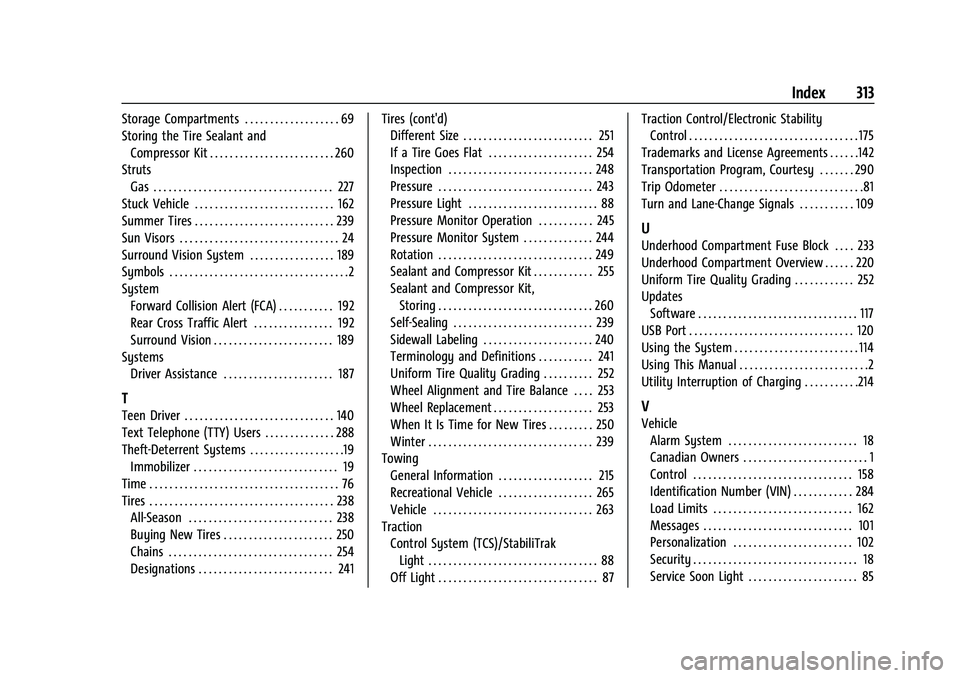
Chevrolet BOLT EV Owner Manual (GMNA-Localizing-U.S./Canada-
15082216) - 2022 - CRC - 6/25/21
Index 313
Storage Compartments . . . . . . . . . . . . . . . . . . . 69
Storing the Tire Sealant andCompressor Kit . . . . . . . . . . . . . . . . . . . . . . . . . 260
Struts Gas . . . . . . . . . . . . . . . . . . . . . . . . . . . . . . . . . . . . 227
Stuck Vehicle . . . . . . . . . . . . . . . . . . . . . . . . . . . . 162
Summer Tires . . . . . . . . . . . . . . . . . . . . . . . . . . . . 239
Sun Visors . . . . . . . . . . . . . . . . . . . . . . . . . . . . . . . . 24
Surround Vision System . . . . . . . . . . . . . . . . . 189
Symbols . . . . . . . . . . . . . . . . . . . . . . . . . . . . . . . . . . . .2
System Forward Collision Alert (FCA) . . . . . . . . . . . 192
Rear Cross Traffic Alert . . . . . . . . . . . . . . . . 192
Surround Vision . . . . . . . . . . . . . . . . . . . . . . . . 189
Systems Driver Assistance . . . . . . . . . . . . . . . . . . . . . . 187
T
Teen Driver . . . . . . . . . . . . . . . . . . . . . . . . . . . . . . 140
Text Telephone (TTY) Users . . . . . . . . . . . . . . 288
Theft-Deterrent Systems . . . . . . . . . . . . . . . . . . .19
Immobilizer . . . . . . . . . . . . . . . . . . . . . . . . . . . . . 19
Time . . . . . . . . . . . . . . . . . . . . . . . . . . . . . . . . . . . . . . 76
Tires . . . . . . . . . . . . . . . . . . . . . . . . . . . . . . . . . . . . . 238 All-Season . . . . . . . . . . . . . . . . . . . . . . . . . . . . . 238
Buying New Tires . . . . . . . . . . . . . . . . . . . . . . 250
Chains . . . . . . . . . . . . . . . . . . . . . . . . . . . . . . . . . 254
Designations . . . . . . . . . . . . . . . . . . . . . . . . . . . 241 Tires (cont'd)
Different Size . . . . . . . . . . . . . . . . . . . . . . . . . . 251
If a Tire Goes Flat . . . . . . . . . . . . . . . . . . . . . 254
Inspection . . . . . . . . . . . . . . . . . . . . . . . . . . . . . 248
Pressure . . . . . . . . . . . . . . . . . . . . . . . . . . . . . . . 243
Pressure Light . . . . . . . . . . . . . . . . . . . . . . . . . . 88
Pressure Monitor Operation . . . . . . . . . . . 245
Pressure Monitor System . . . . . . . . . . . . . . 244
Rotation . . . . . . . . . . . . . . . . . . . . . . . . . . . . . . . 249
Sealant and Compressor Kit . . . . . . . . . . . . 255
Sealant and Compressor Kit,
Storing . . . . . . . . . . . . . . . . . . . . . . . . . . . . . . . 260
Self-Sealing . . . . . . . . . . . . . . . . . . . . . . . . . . . . 239
Sidewall Labeling . . . . . . . . . . . . . . . . . . . . . . 240
Terminology and Definitions . . . . . . . . . . . 241
Uniform Tire Quality Grading . . . . . . . . . . 252
Wheel Alignment and Tire Balance . . . . 253
Wheel Replacement . . . . . . . . . . . . . . . . . . . . 253
When It Is Time for New Tires . . . . . . . . . 250
Winter . . . . . . . . . . . . . . . . . . . . . . . . . . . . . . . . . 239
Towing
General Information . . . . . . . . . . . . . . . . . . . 215
Recreational Vehicle . . . . . . . . . . . . . . . . . . . 265
Vehicle . . . . . . . . . . . . . . . . . . . . . . . . . . . . . . . . 263
Traction Control System (TCS)/StabiliTrak
Light . . . . . . . . . . . . . . . . . . . . . . . . . . . . . . . . . . 88
Off Light . . . . . . . . . . . . . . . . . . . . . . . . . . . . . . . . 87 Traction Control/Electronic Stability
Control . . . . . . . . . . . . . . . . . . . . . . . . . . . . . . . . . . 175
Trademarks and License Agreements . . . . . .142
Transportation Program, Courtesy . . . . . . . 290
Trip Odometer . . . . . . . . . . . . . . . . . . . . . . . . . . . . .81
Turn and Lane-Change Signals . . . . . . . . . . . 109
U
Underhood Compartment Fuse Block . . . . 233
Underhood Compartment Overview . . . . . . 220
Uniform Tire Quality Grading . . . . . . . . . . . . 252
Updates Software . . . . . . . . . . . . . . . . . . . . . . . . . . . . . . . . 117
USB Port . . . . . . . . . . . . . . . . . . . . . . . . . . . . . . . . . 120
Using the System . . . . . . . . . . . . . . . . . . . . . . . . . 114
Using This Manual . . . . . . . . . . . . . . . . . . . . . . . . . .2
Utility Interruption of Charging . . . . . . . . . . .214
V
Vehicle Alarm System . . . . . . . . . . . . . . . . . . . . . . . . . . 18
Canadian Owners . . . . . . . . . . . . . . . . . . . . . . . . . 1
Control . . . . . . . . . . . . . . . . . . . . . . . . . . . . . . . . 158
Identification Number (VIN) . . . . . . . . . . . . 284
Load Limits . . . . . . . . . . . . . . . . . . . . . . . . . . . . 162
Messages . . . . . . . . . . . . . . . . . . . . . . . . . . . . . . 101
Personalization . . . . . . . . . . . . . . . . . . . . . . . . 102
Security . . . . . . . . . . . . . . . . . . . . . . . . . . . . . . . . . 18
Service Soon Light . . . . . . . . . . . . . . . . . . . . . . 85