infotainment CHEVROLET BOLT EV 2023 User Guide
[x] Cancel search | Manufacturer: CHEVROLET, Model Year: 2023, Model line: BOLT EV, Model: CHEVROLET BOLT EV 2023Pages: 308, PDF Size: 5.18 MB
Page 91 of 308
Chevrolet BOLT EV Owner Manual (GMNA-Localizing-U.S./Canada-
16404388) - 2023 - CRC - 3/7/22
90 Instruments and Controls
Door Ajar Light
This light comes on when a door is open or
not securely latched. Before driving, check
that all doors are properly closed.
Information Displays
Power Flows
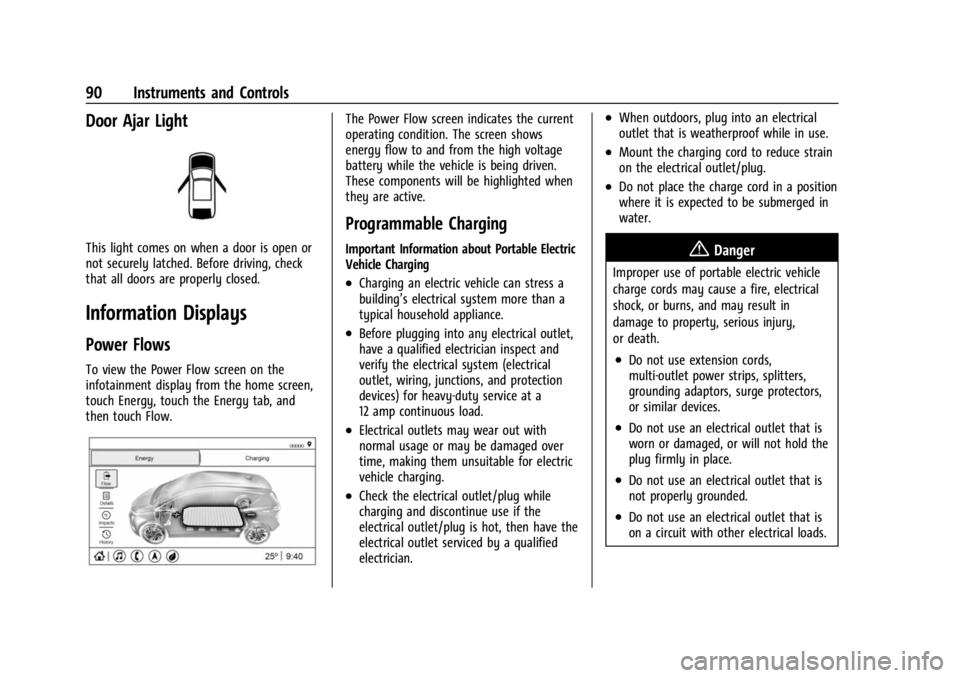
To view the Power Flow screen on the
infotainment display from the home screen,
touch Energy, touch the Energy tab, and
then touch Flow.
The Power Flow screen indicates the current
operating condition. The screen shows
energy flow to and from the high voltage
battery while the vehicle is being driven.
These components will be highlighted when
they are active.
Programmable Charging
Important Information about Portable Electric
Vehicle Charging
.Charging an electric vehicle can stress a
building’s electrical system more than a
typical household appliance.
.Before plugging into any electrical outlet,
have a qualified electrician inspect and
verify the electrical system (electrical
outlet, wiring, junctions, and protection
devices) for heavy-duty service at a
12 amp continuous load.
.Electrical outlets may wear out with
normal usage or may be damaged over
time, making them unsuitable for electric
vehicle charging.
.Check the electrical outlet/plug while
charging and discontinue use if the
electrical outlet/plug is hot, then have the
electrical outlet serviced by a qualified
electrician.
.When outdoors, plug into an electrical
outlet that is weatherproof while in use.
.Mount the charging cord to reduce strain
on the electrical outlet/plug.
.Do not place the charge cord in a position
where it is expected to be submerged in
water.
{Danger
Improper use of portable electric vehicle
charge cords may cause a fire, electrical
shock, or burns, and may result in
damage to property, serious injury,
or death.
.Do not use extension cords,
multi-outlet power strips, splitters,
grounding adaptors, surge protectors,
or similar devices.
.Do not use an electrical outlet that is
worn or damaged, or will not hold the
plug firmly in place.
.Do not use an electrical outlet that is
not properly grounded.
.Do not use an electrical outlet that is
on a circuit with other electrical loads.
Page 92 of 308
Chevrolet BOLT EV Owner Manual (GMNA-Localizing-U.S./Canada-
16404388) - 2023 - CRC - 3/7/22
Instruments and Controls 91
Charging Status
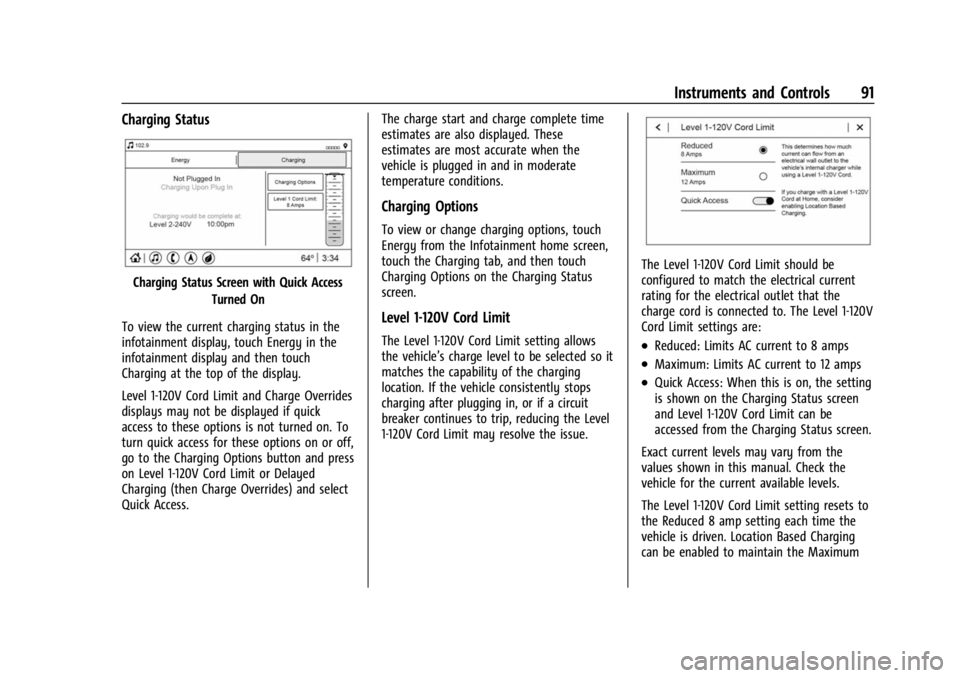
Charging Status Screen with Quick AccessTurned On
To view the current charging status in the
infotainment display, touch Energy in the
infotainment display and then touch
Charging at the top of the display.
Level 1-120V Cord Limit and Charge Overrides
displays may not be displayed if quick
access to these options is not turned on. To
turn quick access for these options on or off,
go to the Charging Options button and press
on Level 1-120V Cord Limit or Delayed
Charging (then Charge Overrides) and select
Quick Access. The charge start and charge complete time
estimates are also displayed. These
estimates are most accurate when the
vehicle is plugged in and in moderate
temperature conditions.
Charging Options
To view or change charging options, touch
Energy from the Infotainment home screen,
touch the Charging tab, and then touch
Charging Options on the Charging Status
screen.
Level 1-120V Cord Limit
The Level 1-120V Cord Limit setting allows
the vehicle’s charge level to be selected so it
matches the capability of the charging
location. If the vehicle consistently stops
charging after plugging in, or if a circuit
breaker continues to trip, reducing the Level
1-120V Cord Limit may resolve the issue.
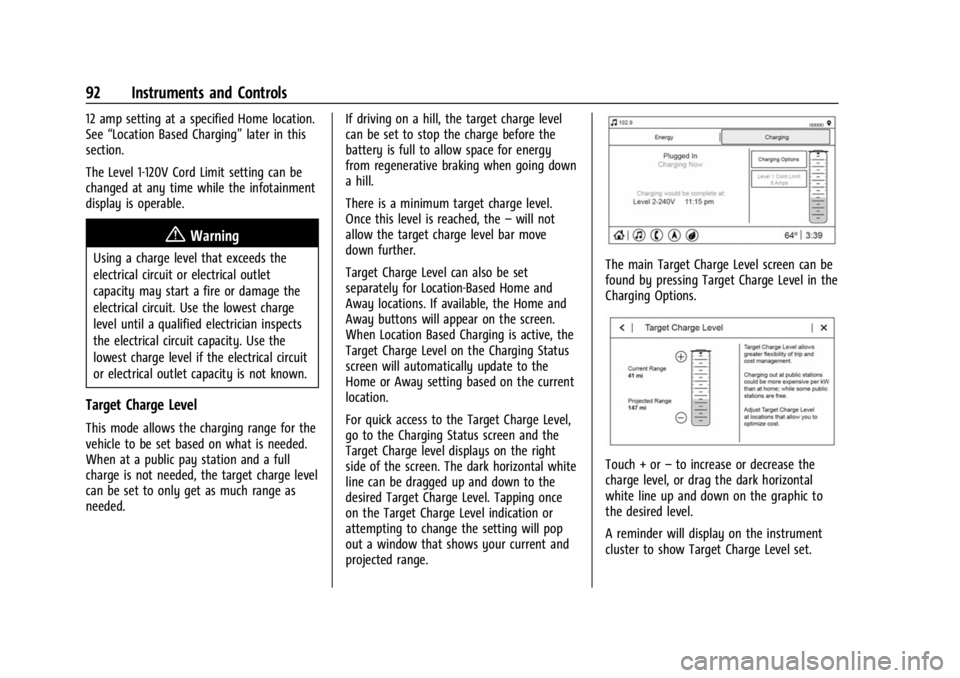
The Level 1-120V Cord Limit should be
configured to match the electrical current
rating for the electrical outlet that the
charge cord is connected to. The Level 1-120V
Cord Limit settings are:
.Reduced: Limits AC current to 8 amps
.Maximum: Limits AC current to 12 amps
.Quick Access: When this is on, the setting
is shown on the Charging Status screen
and Level 1-120V Cord Limit can be
accessed from the Charging Status screen.
Exact current levels may vary from the
values shown in this manual. Check the
vehicle for the current available levels.
The Level 1-120V Cord Limit setting resets to
the Reduced 8 amp setting each time the
vehicle is driven. Location Based Charging
can be enabled to maintain the Maximum
Page 93 of 308
Chevrolet BOLT EV Owner Manual (GMNA-Localizing-U.S./Canada-
16404388) - 2023 - CRC - 3/7/22
92 Instruments and Controls
12 amp setting at a specified Home location.
See“Location Based Charging” later in this
section.
The Level 1-120V Cord Limit setting can be
changed at any time while the infotainment
display is operable.
{Warning
Using a charge level that exceeds the
electrical circuit or electrical outlet
capacity may start a fire or damage the
electrical circuit. Use the lowest charge
level until a qualified electrician inspects
the electrical circuit capacity. Use the
lowest charge level if the electrical circuit
or electrical outlet capacity is not known.
Target Charge Level
This mode allows the charging range for the
vehicle to be set based on what is needed.
When at a public pay station and a full
charge is not needed, the target charge level
can be set to only get as much range as
needed. If driving on a hill, the target charge level
can be set to stop the charge before the
battery is full to allow space for energy
from regenerative braking when going down
a hill.
There is a minimum target charge level.
Once this level is reached, the
–will not
allow the target charge level bar move
down further.
Target Charge Level can also be set
separately for Location-Based Home and
Away locations. If available, the Home and
Away buttons will appear on the screen.
When Location Based Charging is active, the
Target Charge Level on the Charging Status
screen will automatically update to the
Home or Away setting based on the current
location.
For quick access to the Target Charge Level,
go to the Charging Status screen and the
Target Charge level displays on the right
side of the screen. The dark horizontal white
line can be dragged up and down to the
desired Target Charge Level. Tapping once
on the Target Charge Level indication or
attempting to change the setting will pop
out a window that shows your current and
projected range.
The main Target Charge Level screen can be
found by pressing Target Charge Level in the
Charging Options.
Touch + or –to increase or decrease the
charge level, or drag the dark horizontal
white line up and down on the graphic to
the desired level.
A reminder will display on the instrument
cluster to show Target Charge Level set.
Page 94 of 308
Chevrolet BOLT EV Owner Manual (GMNA-Localizing-U.S./Canada-
16404388) - 2023 - CRC - 3/7/22
Instruments and Controls 93
If the Target Charge Level is higher than
80%, fast charging on the instrument cluster
will show an 80% point, a shaded line up to
the Target Charge Level, a solid line for
current charge level, and the time to
complete 80%.
If the Target Charge Level is less than 80%,
fast charging on the instrument cluster will
show a shaded line up to the Target Charge
Level and the time to complete.
Target Charge Level defaults to 100% if the
12 volt battery becomes discharged.
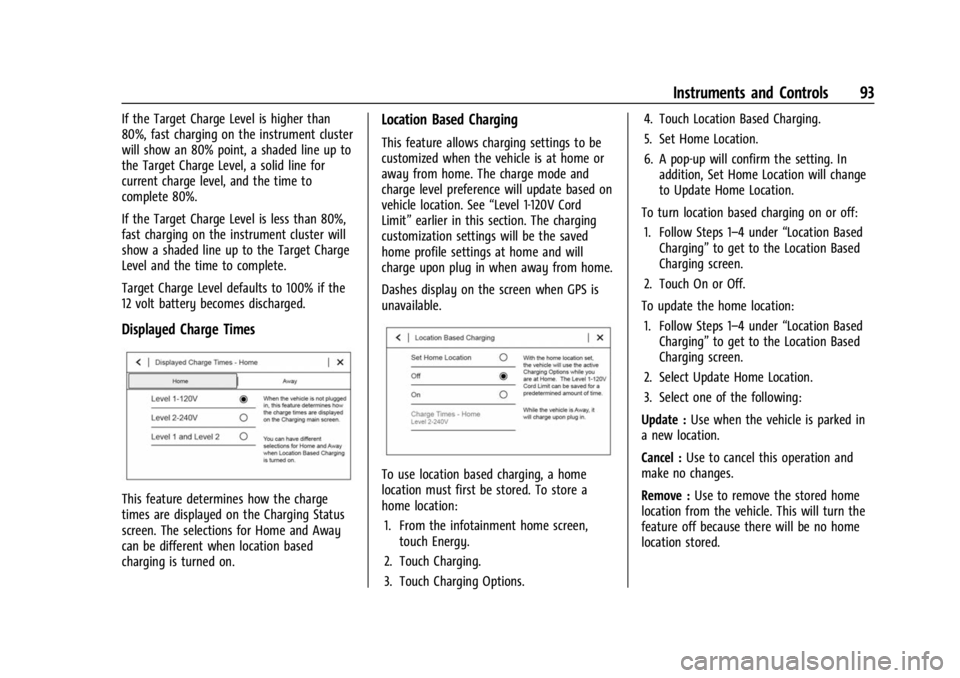
Displayed Charge Times
This feature determines how the charge
times are displayed on the Charging Status
screen. The selections for Home and Away
can be different when location based
charging is turned on.
Location Based Charging
This feature allows charging settings to be
customized when the vehicle is at home or
away from home. The charge mode and
charge level preference will update based on
vehicle location. See“Level 1-120V Cord
Limit” earlier in this section. The charging
customization settings will be the saved
home profile settings at home and will
charge upon plug in when away from home.
Dashes display on the screen when GPS is
unavailable.
To use location based charging, a home
location must first be stored. To store a
home location:
1. From the infotainment home screen, touch Energy.
2. Touch Charging.
3. Touch Charging Options. 4. Touch Location Based Charging.
5. Set Home Location.
6. A pop-up will confirm the setting. In
addition, Set Home Location will change
to Update Home Location.
To turn location based charging on or off: 1. Follow Steps 1–4 under “Location Based
Charging” to get to the Location Based
Charging screen.
2. Touch On or Off.
To update the home location: 1. Follow Steps 1–4 under “Location Based
Charging” to get to the Location Based
Charging screen.
2. Select Update Home Location.
3. Select one of the following:
Update : Use when the vehicle is parked in
a new location.
Cancel : Use to cancel this operation and
make no changes.
Remove : Use to remove the stored home
location from the vehicle. This will turn the
feature off because there will be no home
location stored.
Page 95 of 308
Chevrolet BOLT EV Owner Manual (GMNA-Localizing-U.S./Canada-
16404388) - 2023 - CRC - 3/7/22
94 Instruments and Controls
The charge level preference at the home
location is stored for up to 90 days. After
90 days, a notification will display on the
screen and the charge level preference will
need to be reset for the next 90 days.
To change how the charge times are
displayed, press the Charge Times–Home
button in the Location Based Charging
screen and it will go to the Displayed
Charge Times menu for changes to be made.
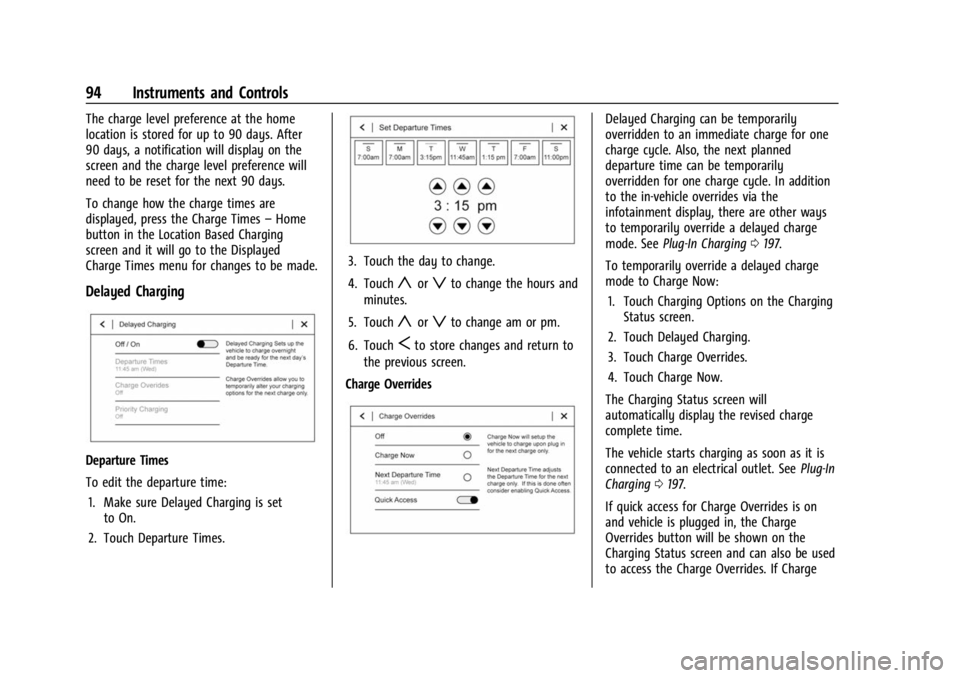
Delayed Charging
Departure Times
To edit the departure time:
1. Make sure Delayed Charging is set to On.
2. Touch Departure Times.
3. Touch the day to change.
4. Touch
yorzto change the hours and
minutes.
5. Touch
yorzto change am or pm.
6. Touch
Sto store changes and return to
the previous screen.
Charge Overrides
Delayed Charging can be temporarily
overridden to an immediate charge for one
charge cycle. Also, the next planned
departure time can be temporarily
overridden for one charge cycle. In addition
to the in-vehicle overrides via the
infotainment display, there are other ways
to temporarily override a delayed charge
mode. See Plug-In Charging 0197.
To temporarily override a delayed charge
mode to Charge Now: 1. Touch Charging Options on the Charging Status screen.
2. Touch Delayed Charging.
3. Touch Charge Overrides.
4. Touch Charge Now.
The Charging Status screen will
automatically display the revised charge
complete time.
The vehicle starts charging as soon as it is
connected to an electrical outlet. See Plug-In
Charging 0197.
If quick access for Charge Overrides is on
and vehicle is plugged in, the Charge
Overrides button will be shown on the
Charging Status screen and can also be used
to access the Charge Overrides. If Charge
Page 98 of 308
Chevrolet BOLT EV Owner Manual (GMNA-Localizing-U.S./Canada-
16404388) - 2023 - CRC - 3/7/22
Instruments and Controls 97
changed. See“Weekday or Weekend
Schedule Editing” section below for
additional steps to set the Summer/
Winter schedule.
Weekday or Weekend Schedule Editing
To edit the weekday or weekend schedule: 1. From the Utility Rate Charging screen, touch Weekday Schedule or Weekend
Schedule.
2. Touch Add A Rate Period or Subtract A Rate Period.
.Weekdays are Monday through
Friday and use the same rate
schedule.
.Weekends are Saturday and Sunday
and use the same rate schedule.
Both weekday and weekend schedules must
be set. The rate schedule only applies for a
24-hour period, starting at 12:00 am and
ending at 12:00 am. There can be five rate
changes for each day; not all must be used.
The finish times must be consecutive. If a
finish time does not follow a start time, this
error message displays: “An invalid entry
was found in the data entered. Please
re-enter data.”
Energy Summary Pop-Up
When this function is turned on, the Energy
Summary Pop-Up will provide a summary of
energy usage when the vehicle is turned off.
Select On or Off.
Charge Status Feedback
When this function is turned on, the vehicle
will provide audible feedback of the charge
status.
1 beep : Immediate charging
2 beeps : Delayed charging
3 beeps : Charge port door is open
4 beeps : Desired time cannot be met
Select On or Off.
Charge Cord Theft Alert
When this function is turned on and the
vehicle is off and locked, the horn will sound
if the charge cord is removed.
Select On or Off.
Charge Power Loss Alert
When this function is turned on and the
vehicle is charging, the horn will sound if
power is lost. Select On or Off.
Charging Interrupted or Overridden
Pop-Up
The Charging Interrupted or Overridden
message will appear if there was an
unintended loss of AC power during the plug
in charge event. For example, there was a
power outage or the charge cord was
unplugged from the wall.
See
Instrument Cluster 079.
Programmable Charging Disabled
When the Programmable Charging system is
disabled, the main charging screen will
display “- -:- -”for the Charge Complete
Time. The Programmable Charging system
will be disabled if the Charge Complete Time
cannot be confidently estimated. If the
Programmable Charging system is
consistently disabled, see your dealer.
A message displays if the vehicle is not able
to charge.
Energy Information
To view Energy Detail, Range Impacts, and
Efficiency History, touch Energy on the
infotainment display, and then the desired
screen button on the left side of the screen.
Page 100 of 308
Chevrolet BOLT EV Owner Manual (GMNA-Localizing-U.S./Canada-
16404388) - 2023 - CRC - 3/7/22
Instruments and Controls 99
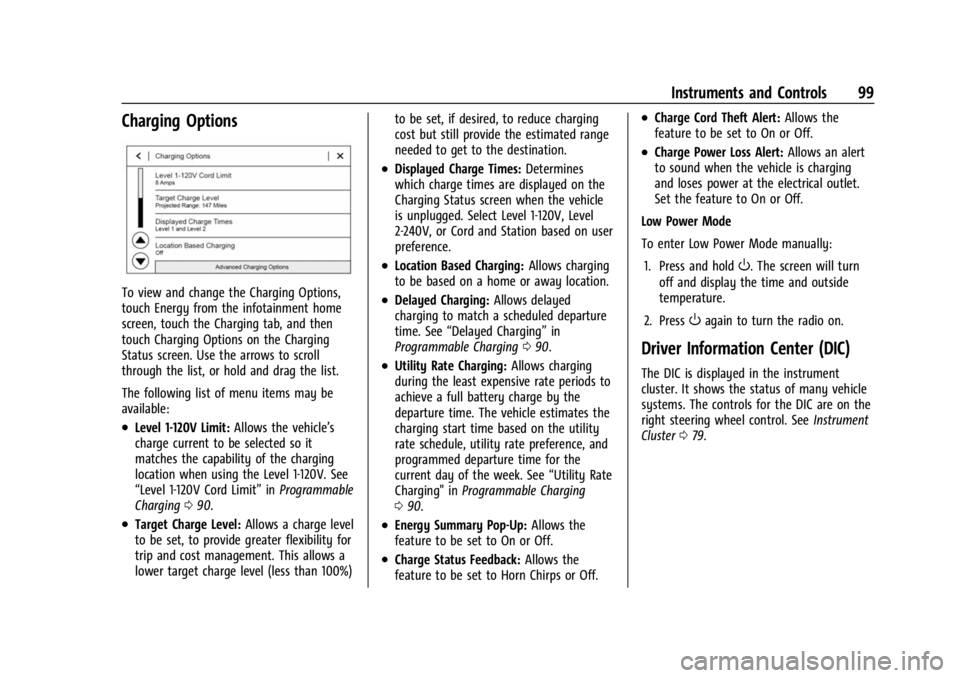
Charging Options
To view and change the Charging Options,
touch Energy from the infotainment home
screen, touch the Charging tab, and then
touch Charging Options on the Charging
Status screen. Use the arrows to scroll
through the list, or hold and drag the list.
The following list of menu items may be
available:
.Level 1-120V Limit:Allows the vehicle’s
charge current to be selected so it
matches the capability of the charging
location when using the Level 1-120V. See
“Level 1-120V Cord Limit” inProgrammable
Charging 090.
.Target Charge Level: Allows a charge level
to be set, to provide greater flexibility for
trip and cost management. This allows a
lower target charge level (less than 100%) to be set, if desired, to reduce charging
cost but still provide the estimated range
needed to get to the destination.
.Displayed Charge Times:
Determines
which charge times are displayed on the
Charging Status screen when the vehicle
is unplugged. Select Level 1-120V, Level
2-240V, or Cord and Station based on user
preference.
.Location Based Charging: Allows charging
to be based on a home or away location.
.Delayed Charging: Allows delayed
charging to match a scheduled departure
time. See “Delayed Charging” in
Programmable Charging 090.
.Utility Rate Charging: Allows charging
during the least expensive rate periods to
achieve a full battery charge by the
departure time. The vehicle estimates the
charging start time based on the utility
rate schedule, utility rate preference, and
programmed departure time for the
current day of the week. See “Utility Rate
Charging" in Programmable Charging
0 90.
.Energy Summary Pop-Up: Allows the
feature to be set to On or Off.
.Charge Status Feedback: Allows the
feature to be set to Horn Chirps or Off.
.Charge Cord Theft Alert: Allows the
feature to be set to On or Off.
.Charge Power Loss Alert: Allows an alert
to sound when the vehicle is charging
and loses power at the electrical outlet.
Set the feature to On or Off.
Low Power Mode
To enter Low Power Mode manually:
1. Press and hold
O. The screen will turn
off and display the time and outside
temperature.
2. Press
Oagain to turn the radio on.
Driver Information Center (DIC)
The DIC is displayed in the instrument
cluster. It shows the status of many vehicle
systems. The controls for the DIC are on the
right steering wheel control. See Instrument
Cluster 079.
Page 109 of 308
Chevrolet BOLT EV Owner Manual (GMNA-Localizing-U.S./Canada-
16404388) - 2023 - CRC - 3/7/22
108 Lighting
Entry lighting can be disabled manually by
closing all doors, pressing
Qon the remote
key, or starting the vehicle.
This feature can be changed. On the
infotainment home screen, select the
Settings icon
TVehicleTVehicle Locator
Lights.
Exit Lighting
Some exterior lamps and interior lamps turn
on when the driver door is opened after the
vehicle is turned off.
The exterior and interior lamps remain on
for a set amount of time, then automatically
turn off.
The interior lights turn on when the vehicle
is turned off.
The exterior lamps turn off immediately by
turning the exterior lamp control off.
This feature can be changed. On the
infotainment home screen, select the
Settings icon
TVehicleTExit Lighting.
Battery Power Protection
This feature helps prevent the battery from
being drained if the interior courtesy lamps
or reading lamps are accidentally left on.
If any of these lamps are left on, they
automatically turn off after 10 minutes when
the vehicle is turned off. The lamps will not
come back on again until one of the
following occurs:
.The vehicle is started.
.The doors are closed and then re-opened.
Battery Saver
The vehicle is equipped with electrical power
management (EPM). EPM monitors and
controls the charging system. The message
BATTERY SAVER ACTIVE displays on the
Driver Information Center (DIC) when the
EPM detects the battery may be draining
too quickly, the charge state needs to be
reset, or the Auxiliary Power Module failed.
If safe to do so, when BATTERY SAVER
ACTIVE displays, manually shut off
windshield wipers, communications
equipment, climate controls, etc. to slow the
battery from draining. See Automatic
Climate Control System 0144. If the message still displays, fully charge the
vehicle. Once fully charged, unplug the
vehicle and let the vehicle sit an additional
8.5 hours or greater without being
interrupted to allow the Body Control
Module (BCM) to reset the battery to the
required state of charge.
The following may interrupt the vehicle:
.Charging the vehicle
.Battery Maintenance Mode
.Approach Detection is activated
.The remote key is left in the car or left in
close proximity of the vehicle
.Pressing buttons on the remote key
.Opening the doors or tailgate
To reduce the occurrence of this alert, GM
recommends letting the vehicle sit
uninterrupted for 8.5 hours or greater on a
weekly basis.
If after completing this process the BATTERY
SAVER ACTIVE message remains, see your
dealer for service.
Page 111 of 308
Chevrolet BOLT EV Owner Manual (GMNA-Localizing-U.S./Canada-
16404388) - 2023 - CRC - 3/7/22
110 Infotainment System
Infotainment System
Introduction
Introduction . . . . . . . . . . . . . . . . . . . . . . . . . . . 110
Overview . . . . . . . . . . . . . . . . . . . . . . . . . . . . . . . 111
Steering Wheel Controls . . . . . . . . . . . . . . . . 111
Using the System . . . . . . . . . . . . . . . . . . . . . . 112
Software Updates . . . . . . . . . . . . . . . . . . . . . . 115
Radio
AM-FM Radio . . . . . . . . . . . . . . . . . . . . . . . . . . 115
Radio Data System (RDS) . . . . . . . . . . . . . . 116
Satellite Radio . . . . . . . . . . . . . . . . . . . . . . . . . . 117
Radio Reception . . . . . . . . . . . . . . . . . . . . . . . . 117
Multi-Band Antenna . . . . . . . . . . . . . . . . . . . . 118
Audio Players
Avoiding Untrusted Media Devices . . . . . 118
USB Port . . . . . . . . . . . . . . . . . . . . . . . . . . . . . . . 118
Bluetooth Audio . . . . . . . . . . . . . . . . . . . . . . . 120
Voice Recognition
Voice Recognition . . . . . . . . . . . . . . . . . . . . . . 121
Phone
Bluetooth (Overview) . . . . . . . . . . . . . . . . . . 126
Bluetooth (Pairing and Using aPhone) . . . . . . . . . . . . . . . . . . . . . . . . . . . . . . . 127
Apple CarPlay and Android Auto . . . . . . . 130
Settings
Settings . . . . . . . . . . . . . . . . . . . . . . . . . . . . . . . . 132
Teen Driver . . . . . . . . . . . . . . . . . . . . . . . . . . . . 135
Trademarks and License Agreements
Trademarks and License Agreements . . . . . . . . . . . . . . . . . . . . . . . . . . 138
Introduction
Read the following pages to become familiar
with the features.
{Warning
Taking your eyes off the road for too
long or too often while using any
infotainment feature can cause a crash.
You or others could be injured or killed.
Do not give extended attention to
infotainment tasks while driving. Limit
your glances at the vehicle displays and
focus your attention on driving. Use voice
commands whenever possible.
The infotainment system has built-in
features intended to help avoid distraction
by disabling some features when driving.
These features may gray out when they are
unavailable. Many infotainment features are
also available through the instrument cluster
and steering wheel controls.
Before driving:
.Become familiar with the operation,
center stack controls, steering wheel
controls, and infotainment display.
Page 112 of 308
Chevrolet BOLT EV Owner Manual (GMNA-Localizing-U.S./Canada-
16404388) - 2023 - CRC - 3/7/22
Infotainment System 111
.Set up the audio by presetting favorite
stations, setting the tone, and adjusting
the speakers.
.Set up phone numbers in advance so they
can be called easily by pressing a single
control or by using a single voice
command.
See Distracted Driving 0153.
Overview
Infotainment System
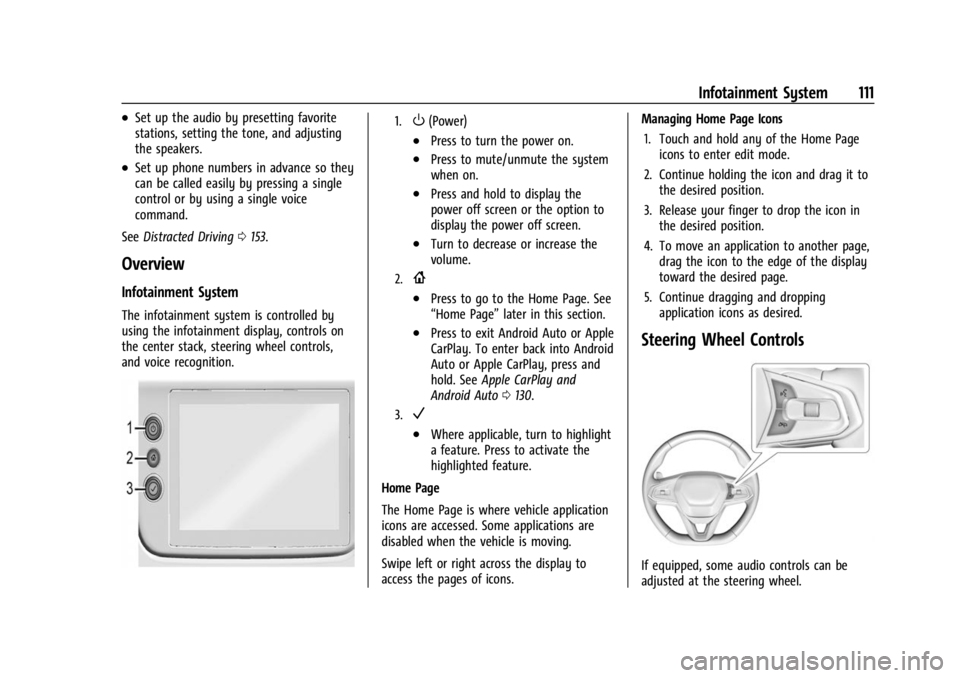
The infotainment system is controlled by
using the infotainment display, controls on
the center stack, steering wheel controls,
and voice recognition.
1.O(Power)
.Press to turn the power on.
.Press to mute/unmute the system
when on.
.Press and hold to display the
power off screen or the option to
display the power off screen.
.Turn to decrease or increase the
volume.
2.{
.Press to go to the Home Page. See
“Home Page” later in this section.
.Press to exit Android Auto or Apple
CarPlay. To enter back into Android
Auto or Apple CarPlay, press and
hold. SeeApple CarPlay and
Android Auto 0130.
3.V
.Where applicable, turn to highlight
a feature. Press to activate the
highlighted feature.
Home Page
The Home Page is where vehicle application
icons are accessed. Some applications are
disabled when the vehicle is moving.
Swipe left or right across the display to
access the pages of icons. Managing Home Page Icons
1. Touch and hold any of the Home Page icons to enter edit mode.
2. Continue holding the icon and drag it to the desired position.
3. Release your finger to drop the icon in the desired position.
4. To move an application to another page, drag the icon to the edge of the display
toward the desired page.
5. Continue dragging and dropping application icons as desired.
Steering Wheel Controls
If equipped, some audio controls can be
adjusted at the steering wheel.