four CHEVROLET BOLT EV 2023 Owners Manual
[x] Cancel search | Manufacturer: CHEVROLET, Model Year: 2023, Model line: BOLT EV, Model: CHEVROLET BOLT EV 2023Pages: 308, PDF Size: 5.18 MB
Page 9 of 308
Chevrolet BOLT EV Owner Manual (GMNA-Localizing-U.S./Canada-
16404388) - 2023 - CRC - 3/7/22
8 Keys, Doors, and Windows
The turn signal indicators may flash and/or
the horn may sound on the second press to
indicate locking. To view available settings
for this feature, touch the Settings icon on
the infotainment home page. Select
“Vehicle”to display the list of available
options and select “Remote Lock, Unlock,
Start”.
If the driver door is open when
Qis
pressed, all doors will lock and the driver
door will immediately unlock, if enabled. To
view available settings for this feature,
touch the Settings icon on the infotainment
home page. Select “Vehicle”to display the
list of available options and select “Power
Door Locks”.
If the passenger door is open when
Qis
pressed, all doors lock.
Pressing
Qmay also arm the alarm system.
See Vehicle Alarm System 019.
K:Press to unlock the driver door. Press
unlock again within five seconds to unlock
all doors. The remote key can be
programmed to unlock all doors on the first
button press. To view available settings for
this feature, touch the Settings icon on the infotainment home page. Select
“Vehicle”to
display the list of available options and
select “Remote Lock, Unlock, Start”.
The turn signal indicators may flash to
indicate unlocking. To view available settings
for this feature, touch the Settings icon on
the infotainment home page. Select
“Vehicle” to display the list of available
options and select “Remote Lock, Unlock,
Start”.
Pressing
Kwill disarm the alarm system.
See Vehicle Alarm System 019.
7:Press and release one time to initiate
vehicle locator. The exterior lamps flash and
the horn chirps three times.
Press and hold
7for at least three seconds
to sound the panic alarm. The horn sounds
and the turn signals flash for about
30 seconds or until
7is pressed again or
the vehicle is started.
/: Press and releaseQand then
immediately press and hold
/for at least
four seconds to start the vehicle's heating or
air conditioning systems and rear window
defogger from outside the vehicle using the
remote key. See Remote Start014.
Keyless Access Operation
The Keyless Access system allows the doors
and liftgate to be locked and unlocked
without pressing the remote key button.
The remote key must be within 1 m (3 ft) of
the liftgate or door being opened. If the
vehicle has this feature, there will be a
button on both outside front door handles.
Keyless Access can be programmed to
unlock all doors on the first unlock/lock
button press from the driver door. To view
available settings for this feature, touch the
Settings icon on the infotainment home
page. Select “Vehicle”to display the list of
available options and select “Remote Lock,
Unlock, Start”.
Keyless Unlocking/Locking from the
Driver Door
When the doors are locked and the remote
key is within 1 m (3 ft) of the driver door
handle, pressing the lock/unlock button on
the driver door handle will unlock the driver
door. If the lock/unlock button is pressed
again within five seconds, all passenger
doors will unlock. Pull the door handle to
unlatch the door.
Page 10 of 308
Chevrolet BOLT EV Owner Manual (GMNA-Localizing-U.S./Canada-
16404388) - 2023 - CRC - 3/7/22
Keys, Doors, and Windows 9
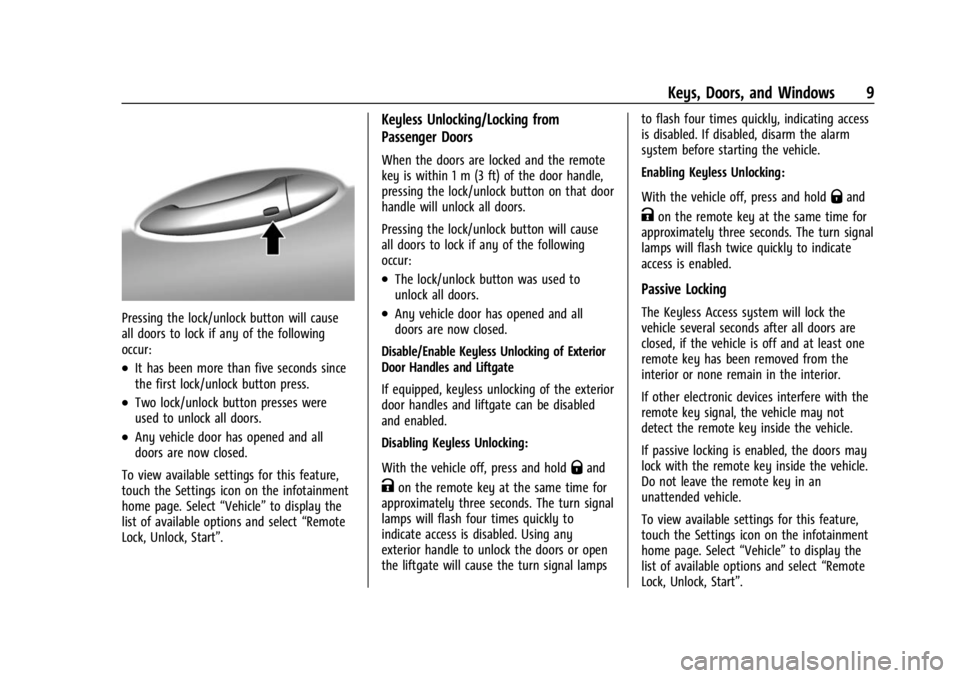
Pressing the lock/unlock button will cause
all doors to lock if any of the following
occur:
.It has been more than five seconds since
the first lock/unlock button press.
.Two lock/unlock button presses were
used to unlock all doors.
.Any vehicle door has opened and all
doors are now closed.
To view available settings for this feature,
touch the Settings icon on the infotainment
home page. Select “Vehicle”to display the
list of available options and select “Remote
Lock, Unlock, Start”.
Keyless Unlocking/Locking from
Passenger Doors
When the doors are locked and the remote
key is within 1 m (3 ft) of the door handle,
pressing the lock/unlock button on that door
handle will unlock all doors.
Pressing the lock/unlock button will cause
all doors to lock if any of the following
occur:
.The lock/unlock button was used to
unlock all doors.
.Any vehicle door has opened and all
doors are now closed.
Disable/Enable Keyless Unlocking of Exterior
Door Handles and Liftgate
If equipped, keyless unlocking of the exterior
door handles and liftgate can be disabled
and enabled.
Disabling Keyless Unlocking:
With the vehicle off, press and hold
Qand
Kon the remote key at the same time for
approximately three seconds. The turn signal
lamps will flash four times quickly to
indicate access is disabled. Using any
exterior handle to unlock the doors or open
the liftgate will cause the turn signal lamps to flash four times quickly, indicating access
is disabled. If disabled, disarm the alarm
system before starting the vehicle.
Enabling Keyless Unlocking:
With the vehicle off, press and hold
Qand
Kon the remote key at the same time for
approximately three seconds. The turn signal
lamps will flash twice quickly to indicate
access is enabled.
Passive Locking
The Keyless Access system will lock the
vehicle several seconds after all doors are
closed, if the vehicle is off and at least one
remote key has been removed from the
interior or none remain in the interior.
If other electronic devices interfere with the
remote key signal, the vehicle may not
detect the remote key inside the vehicle.
If passive locking is enabled, the doors may
lock with the remote key inside the vehicle.
Do not leave the remote key in an
unattended vehicle.
To view available settings for this feature,
touch the Settings icon on the infotainment
home page. Select “Vehicle”to display the
list of available options and select “Remote
Lock, Unlock, Start”.
Page 11 of 308
Chevrolet BOLT EV Owner Manual (GMNA-Localizing-U.S./Canada-
16404388) - 2023 - CRC - 3/7/22
10 Keys, Doors, and Windows
Temporary Disable of Passive Locking
Temporarily disable passive locking by
pressing and holding
Kon the interior door
switch with a door open for at least
four seconds, or until three chimes are
heard. Passive locking will then remain
disabled until
Qon the interior door is
pressed, or until the vehicle is started.
Remote Left In Vehicle Alert
When the vehicle is turned off and an
remote key is left in the vehicle, the horn
will chirp three times after all doors are
closed.
To view available settings for this feature,
touch the Settings icon on the infotainment
home page. Select “Vehicle”to display the
list of available options and select “Remote
Lock, Unlock, Start”.
Remote No Longer In Vehicle Alert
If the vehicle is on with a door open, and
then all doors are closed, the vehicle will
check for remote keys inside. If an remote
key is not detected, the Driver Information
Center (DIC) will display NO REMOTE
DETECTED and the horn will chirp three
times. This occurs only once each time the vehicle
is driven.
To view available settings for this feature,
touch the Settings icon on the infotainment
home page. Select
“Vehicle”to display the
list of available options and select “Remote
Lock, Unlock, Start”.
Keyless Liftgate Opening
Press the touch pad on the underside of the
liftgate glass and lift up to open if the
remote key is within 1 m (3 ft) and the doors
are locked. If the doors are unlocked, the
remote key is not required to open the
liftgate. See Liftgate018.
Key Access
To access a vehicle with a weak remote key
battery, see Door Locks015.
Programming Remote Keys to the
Vehicle
Only remote keys programmed to the
vehicle will work. If a remote key is lost or
stolen, a replacement can be purchased and
programmed through your dealer. The
vehicle can be reprogrammed so that lost or
stolen remote keys no longer work. Any remaining remote keys will need to be
reprogrammed. Each vehicle can have up to
eight remote keys matched to it.
Programming with Two Recognized
Remote Keys
A new remote key can be programmed to
the vehicle when there are two recognized
remote keys. To program, the vehicle must
be off and all of the remote keys, both
currently recognized and new, must be
with you.
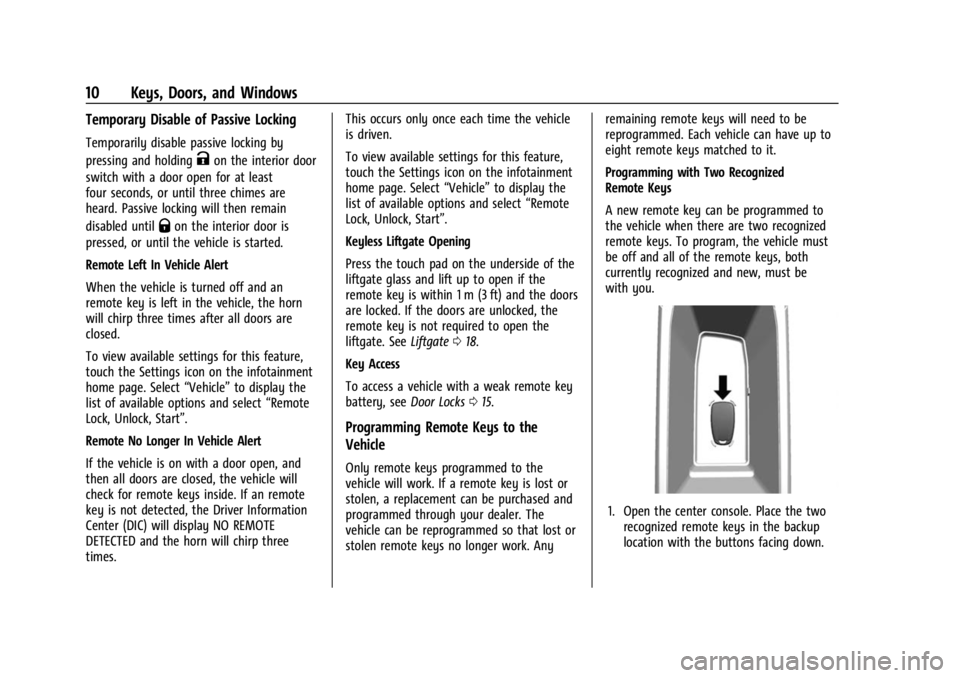
1. Open the center console. Place the two
recognized remote keys in the backup
location with the buttons facing down.
Page 15 of 308
Chevrolet BOLT EV Owner Manual (GMNA-Localizing-U.S./Canada-
16404388) - 2023 - CRC - 3/7/22
14 Keys, Doors, and Windows
7. Reinsert key into the remote key.
Remote Start
This feature starts the heating or air
conditioning systems and the rear window
defogger from outside the vehicle.
Use remote start to heat or cool the interior
when the vehicle is plugged in to maximize
electric range by utilizing electricity from
the electrical outlet. Normal operation of the
system will return after the vehicle has been
turned on.
/:This button is on the remote key.
The climate control system will use the
previous settings during a remote start. The
rear defog may come on during remote
start based on cold ambient conditions. The
rear defog indicator light does not come on
during a remote start.
Laws in some local communities may restrict
the use of remote starters. For example,
some laws require a person using remote
start to have the vehicle in view. Check local
regulations for any requirements.
If the vehicle is low on energy, do not use
the remote start feature. The vehicle may
run out of energy. The remote key range may be less while the
vehicle is running.
Other conditions can affect the performance
of the remote key. See
Remote Key07.
Remote Starting the Vehicle
To remote start the vehicle:
1. Press and release
Qon the remote key.
2. Immediately press and hold
/for at
least four seconds or until the turn
signal lamps flash.
3. After entering the vehicle during a remote start, press POWER
Owith the
brake pedal applied to start the vehicle
and operate as normal.
Remote start will automatically shut off
after 20 minutes unless a time extension
is done.
When the vehicle starts, the parking lamps
will turn on. Remote start run time can be
extended.
Extending Vehicle Run Time
The vehicle run time can also be extended
by another 20 minutes, if after 30 seconds
and during the first 20 minutes Steps 1 and
2 are repeated while the vehicle is running.
This provides a total of 40 minutes.
The remote start can only be extended once.
A maximum of two remote starts, or a
single start with an extension, are allowed
between power cycles using POWER
O.
For additional remote starts, turn the vehicle
on with the remote key in the vehicle.
Canceling Remote Start
To cancel a remote start, do any of the
following:
.Press and hold/until the parking lamps
turn off.
.Turn on the hazard warning flashers.
.Press POWEROwith the brake pedal
applied, then press POWER
Oagain to
turn the vehicle off.
Page 22 of 308
Chevrolet BOLT EV Owner Manual (GMNA-Localizing-U.S./Canada-
16404388) - 2023 - CRC - 3/7/22
Keys, Doors, and Windows 21
Exterior Mirrors
Convex Mirrors
{Warning
A convex mirror can make things, like
other vehicles, look farther away than
they really are. If you cut too sharply
into the right lane, you could hit a
vehicle on the right. Check the inside
mirror or glance over your shoulder
before changing lanes.
The passenger side mirror is convex shaped.
A convex mirror's surface is curved so more
can be seen from the driver seat.
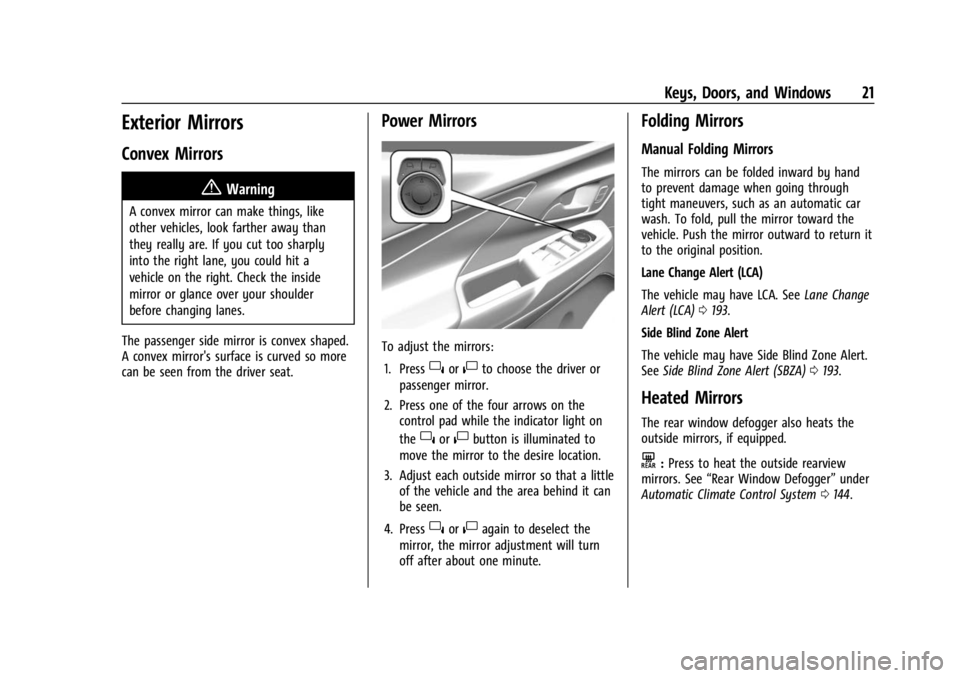
Power Mirrors
To adjust the mirrors: 1. Press
}or|to choose the driver or
passenger mirror.
2. Press one of the four arrows on the control pad while the indicator light on
the
}or|button is illuminated to
move the mirror to the desire location.
3. Adjust each outside mirror so that a little of the vehicle and the area behind it can
be seen.
4. Press
}or|again to deselect the
mirror, the mirror adjustment will turn
off after about one minute.
Folding Mirrors
Manual Folding Mirrors
The mirrors can be folded inward by hand
to prevent damage when going through
tight maneuvers, such as an automatic car
wash. To fold, pull the mirror toward the
vehicle. Push the mirror outward to return it
to the original position.
Lane Change Alert (LCA)
The vehicle may have LCA. See Lane Change
Alert (LCA) 0193.
Side Blind Zone Alert
The vehicle may have Side Blind Zone Alert.
See Side Blind Zone Alert (SBZA) 0193.
Heated Mirrors
The rear window defogger also heats the
outside mirrors, if equipped.
K:Press to heat the outside rearview
mirrors. See “Rear Window Defogger” under
Automatic Climate Control System 0144.
Page 101 of 308
Chevrolet BOLT EV Owner Manual (GMNA-Localizing-U.S./Canada-
16404388) - 2023 - CRC - 3/7/22
100 Instruments and Controls
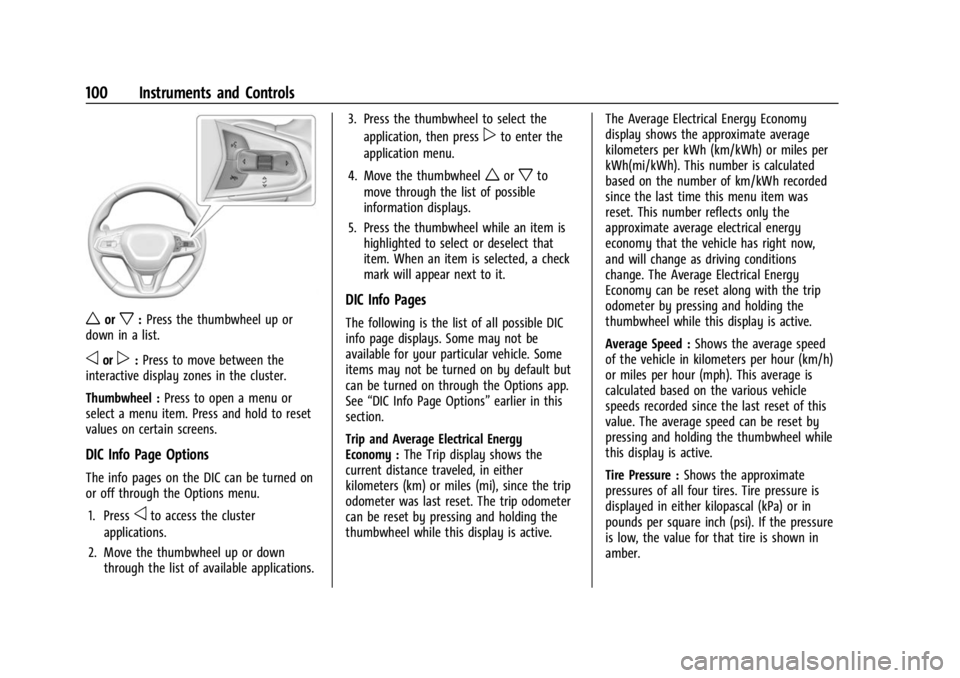
worx:Press the thumbwheel up or
down in a list.
oorp: Press to move between the
interactive display zones in the cluster.
Thumbwheel : Press to open a menu or
select a menu item. Press and hold to reset
values on certain screens.
DIC Info Page Options
The info pages on the DIC can be turned on
or off through the Options menu.
1. Press
oto access the cluster
applications.
2. Move the thumbwheel up or down through the list of available applications. 3. Press the thumbwheel to select the
application, then press
pto enter the
application menu.
4. Move the thumbwheel
worxto
move through the list of possible
information displays.
5. Press the thumbwheel while an item is highlighted to select or deselect that
item. When an item is selected, a check
mark will appear next to it.
DIC Info Pages
The following is the list of all possible DIC
info page displays. Some may not be
available for your particular vehicle. Some
items may not be turned on by default but
can be turned on through the Options app.
See “DIC Info Page Options” earlier in this
section.
Trip and Average Electrical Energy
Economy : The Trip display shows the
current distance traveled, in either
kilometers (km) or miles (mi), since the trip
odometer was last reset. The trip odometer
can be reset by pressing and holding the
thumbwheel while this display is active. The Average Electrical Energy Economy
display shows the approximate average
kilometers per kWh (km/kWh) or miles per
kWh(mi/kWh). This number is calculated
based on the number of km/kWh recorded
since the last time this menu item was
reset. This number reflects only the
approximate average electrical energy
economy that the vehicle has right now,
and will change as driving conditions
change. The Average Electrical Energy
Economy can be reset along with the trip
odometer by pressing and holding the
thumbwheel while this display is active.
Average Speed :
Shows the average speed
of the vehicle in kilometers per hour (km/h)
or miles per hour (mph). This average is
calculated based on the various vehicle
speeds recorded since the last reset of this
value. The average speed can be reset by
pressing and holding the thumbwheel while
this display is active.
Tire Pressure : Shows the approximate
pressures of all four tires. Tire pressure is
displayed in either kilopascal (kPa) or in
pounds per square inch (psi). If the pressure
is low, the value for that tire is shown in
amber.
Page 113 of 308
Chevrolet BOLT EV Owner Manual (GMNA-Localizing-U.S./Canada-
16404388) - 2023 - CRC - 3/7/22
112 Infotainment System
g:Press to answer an incoming call or
start voice recognition. See Bluetooth
(Pairing and Using a Phone) 0127 or
Bluetooth (Overview) 0126.
c:Press to decline an incoming call or
end a current call. Press to mute or unmute
the infotainment system when not on a call.
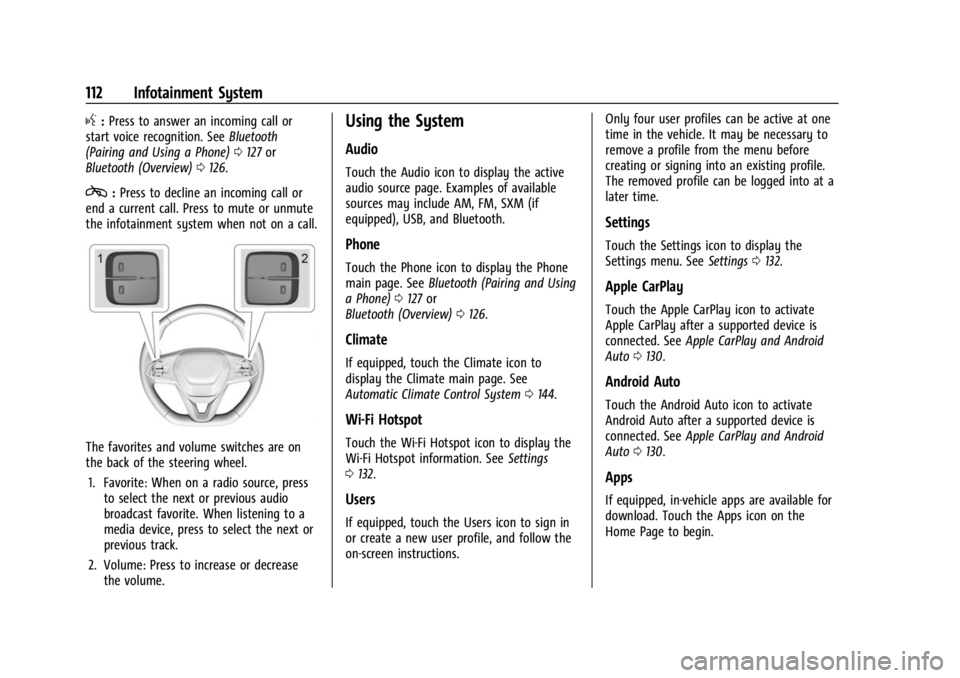
The favorites and volume switches are on
the back of the steering wheel.
1. Favorite: When on a radio source, press to select the next or previous audio
broadcast favorite. When listening to a
media device, press to select the next or
previous track.
2. Volume: Press to increase or decrease the volume.
Using the System
Audio
Touch the Audio icon to display the active
audio source page. Examples of available
sources may include AM, FM, SXM (if
equipped), USB, and Bluetooth.
Phone
Touch the Phone icon to display the Phone
main page. See Bluetooth (Pairing and Using
a Phone) 0127 or
Bluetooth (Overview) 0126.
Climate
If equipped, touch the Climate icon to
display the Climate main page. See
Automatic Climate Control System 0144.
Wi-Fi Hotspot
Touch the Wi-Fi Hotspot icon to display the
Wi-Fi Hotspot information. See Settings
0 132.
Users
If equipped, touch the Users icon to sign in
or create a new user profile, and follow the
on-screen instructions. Only four user profiles can be active at one
time in the vehicle. It may be necessary to
remove a profile from the menu before
creating or signing into an existing profile.
The removed profile can be logged into at a
later time.
Settings
Touch the Settings icon to display the
Settings menu. See
Settings0132.
Apple CarPlay
Touch the Apple CarPlay icon to activate
Apple CarPlay after a supported device is
connected. See Apple CarPlay and Android
Auto 0130.
Android Auto
Touch the Android Auto icon to activate
Android Auto after a supported device is
connected. See Apple CarPlay and Android
Auto 0130.
Apps
If equipped, in-vehicle apps are available for
download. Touch the Apps icon on the
Home Page to begin.
Page 114 of 308
Chevrolet BOLT EV Owner Manual (GMNA-Localizing-U.S./Canada-
16404388) - 2023 - CRC - 3/7/22
Infotainment System 113
Downloading and using in-vehicle apps
requires Internet connectivity which can be
accessed with a data plan through the
vehicle’s built-in 4G LTE Wi-Fi hotspot,
if equipped, or a compatible mobile device
hotspot. On most mobile devices, activation
of the Wi-Fi hotspot is in the device’s
Settings menu under Mobile Network
Sharing, Personal Hotspot, Mobile Hotspot,
or similar.
Availability of apps and connectivity varies
by vehicle, conditions, and location. Data
plan rates apply. Features are subject to
change. For more information, see
www.my.chevrolet.com/learn.
OnStar Services
If equipped, touch the OnStar Services icon
to display the OnStar Services and Account
pages. SeeOnStar Overview 0289.
Camera
If equipped, touch the Camera icon to access
the camera application. See Assistance
Systems for Parking or Backing 0184.
Shortcut Tray
The shortcut tray is near the bottom of the
display. It shows up to four applications.
Infotainment Display Features
Infotainment display features show on the
display when available. When a feature is
unavailable, it may gray out. When a
feature is touched, it may highlight.
Haptic Feedback
If equipped, haptic feedback is a pulse that
occurs when an icon or option is touched on
the display or when controls on the center
stack are pressed.
Infotainment Gestures
Use the following finger gestures to control
the infotainment system.
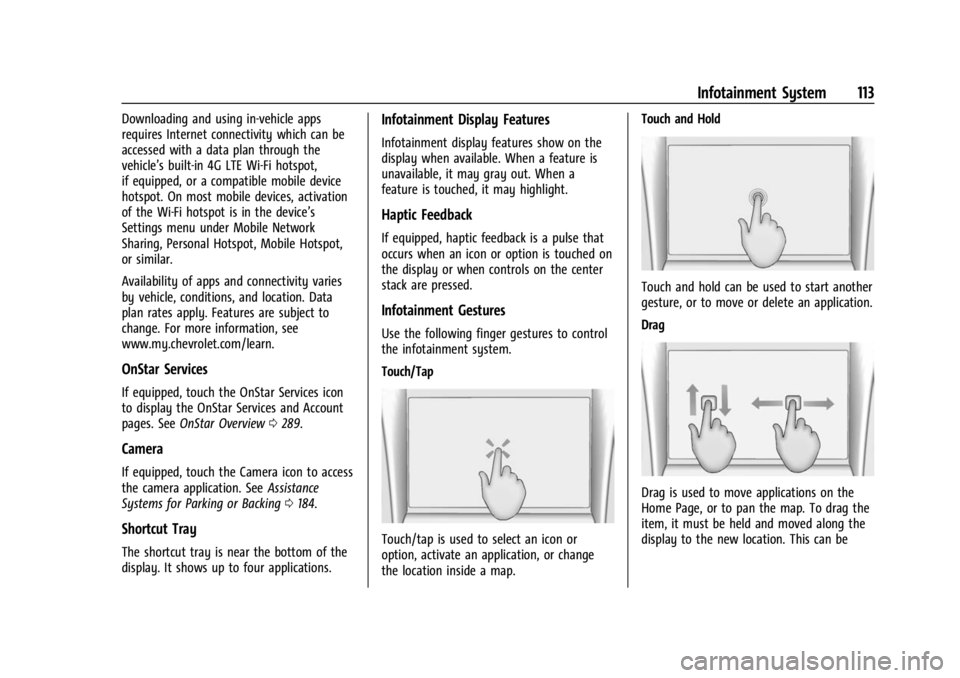
Touch/Tap
Touch/tap is used to select an icon or
option, activate an application, or change
the location inside a map. Touch and Hold
Touch and hold can be used to start another
gesture, or to move or delete an application.
Drag
Drag is used to move applications on the
Home Page, or to pan the map. To drag the
item, it must be held and moved along the
display to the new location. This can be
Page 133 of 308
Chevrolet BOLT EV Owner Manual (GMNA-Localizing-U.S./Canada-
16404388) - 2023 - CRC - 3/7/22
132 Infotainment System
Google may change or suspend availability
at any time. Android Auto, Android, Google,
Google Play, and other marks are
trademarks of Google Inc.; Apple CarPlay is a
trademark of Apple Inc.
Press
{on the center stack to exit Android
Auto or Apple CarPlay. To enter back into
Android Auto or Apple CarPlay, press and
hold
{on the center stack.
Apple CarPlay and Android Auto can be
disabled from the infotainment system. To
do this, touch Home, Settings, and then
touch the Apps tab along the top of the
display. Use the On/Off toggled to turn off
Apple CarPlay or Android Auto.
Settings
Certain settings can be managed in the
Owner Center sites when an account is
established, and may be modified if other
users have accessed the vehicle or created
accounts. This may result in changes to the
security or functionality of the infotainment
system. Some settings may also be
transferred to a new vehicle, if equipped. For
instructions, in the U.S. see
my.chevrolet.com or in Canada see
mychevrolet.ca or monchevrolet.ca. Refer to the User Terms and Privacy
Statement for important details. To view,
touch the Settings icon on the Home Page
of the infotainment display.
The settings menu may be organized into
four categories. Select the desired category
by touching System, Apps, Vehicle,
or Personal.
To access the personalization menus:
1. Touch Settings on the Home Page on the infotainment display.
2. Touch the desired category to display a list of available options.
3. Touch to select the desired feature setting.
4. Touch the options on the infotainment display to disable or enable a feature.
5. Touchzto go to the top level of the
Settings menu.
System
The menu may contain the following:
Time / Date
Allows setting of the clock. Language
Sets the display language used on the
infotainment display. It may also use the
selected language for voice recognition and
audio feedback.
Phones
Allows connecting to a different cell phone
or mobile device source, disconnect a cell
phone or media device, or delete a cell
phone or media device.
Wi-Fi Networks
Shows connected and available Wi-Fi
networks.
If a 4G LTE data package is not active on the
vehicle, the infotainment system can be
connected to an external protected Wi-Fi
network, such as a mobile device or home
hotspot, to utilize connected services.
Wi-Fi Hotspot
Allows adjustment of different Wi-Fi
features.
Privacy
Allows adjustment of the infotainment
privacy settings.
Page 135 of 308
Chevrolet BOLT EV Owner Manual (GMNA-Localizing-U.S./Canada-
16404388) - 2023 - CRC - 3/7/22
134 Infotainment System
Return to Factory Settings
Allows resetting the infotainment system
settings in the vehicle.
Apps
The menu may contain the following:
Android Auto
Allows interacting directly with a mobile
device on the infotainment display. See
Apple CarPlay and Android Auto0130.
Apple CarPlay
This feature allows you to interact directly
with your mobile device on the infotainment
display. See Apple CarPlay and Android Auto
0 130.
Apps
Shows app settings and information.
Audio
Adjusts different audio settings.
Climate
Adjusts different climate settings.
Phone
Adjusts different phone settings. SiriusXM
Adjusts different features.
Vehicle
The menu may contain the following:
Rear Seat Reminder
Allows for a chime and a message when the
rear door has been opened before or during
operation of the vehicle.
Climate and Air Quality
Adjusts different climate settings.
Collision/Detection Systems
Adjusts different driver assistance system
settings.
Comfort and Convenience
Adjusts different comfort and convenience
settings.
Lighting
Adjusts different lighting settings.
Power Door Locks
Adjusts different door lock settings.
Remote Lock, Unlock, and Start
Adjusts different remote lock settings.Teen Driver
See
Teen Driver 0135.
Valet Mode
This will lock the infotainment system and
steering wheel controls. It may also limit
access to vehicle storage locations,
if equipped.
To enable valet mode: 1. Enter a four-digit code on the keypad.
2. Select Enter to go to the confirmation screen.
3. Re-enter the four-digit code.
Touch Lock or Unlock to lock or unlock the
system. Touch Back to go back to the
previous menu.
Personal
If equipped, this menu allows adjustment of
different user profile settings. See “Users”in
Using the System 0112 for information on
setting up user profiles.
The menu may contain the following:
Name
Edit your user name that will be displayed
in the vehicle.