page 22 CHEVROLET BOLT EV 2023 Owners Manual
[x] Cancel search | Manufacturer: CHEVROLET, Model Year: 2023, Model line: BOLT EV, Model: CHEVROLET BOLT EV 2023Pages: 308, PDF Size: 5.18 MB
Page 3 of 308
Chevrolet BOLT EV Owner Manual (GMNA-Localizing-U.S./Canada-
16404388) - 2023 - CRC - 3/7/22
2 Introduction
Introduction
The names, logos, emblems, slogans, vehicle
model names, and vehicle body designs
appearing in this manual including, but not
limited to, GM, the GM logo, CHEVROLET,
the CHEVROLET Emblem, and BOLT are
trademarks and/or service marks of General
Motors LLC, its subsidiaries, affiliates,
or licensors.
For vehicles first sold in Canada, substitute
the name“General Motors of Canada
Company” for Chevrolet Motor Division
wherever it appears in this manual.
This manual describes features that may or
may not be on the vehicle because of
optional equipment that was not purchased
on the vehicle, model variants, country
specifications, features/applications that may
not be available in your region, or changes
subsequent to the printing of this owner’s
manual, including changes in standard or
optional content. Refer to the purchase documentation
relating to your specific vehicle to confirm
the features.
Keep this manual in the vehicle for quick
reference.
Canadian Vehicle Owners
A French language manual can be obtained
from your dealer, at www.helminc.com,
or from:
Propriétaires Canadiens
On peut obtenir un exemplaire de ce guide
en français auprès du concessionnaire ou à
l'adresse suivante:
Helm, Incorporated
Attention: Customer Service
47911 Halyard Drive
Plymouth, MI 48170
USA
Using this Manual
To quickly locate information about the
vehicle, use the Index in the back of the
manual. It is an alphabetical list of what is
in the manual and the page number where
it can be found.
Danger, Warning, and Caution
Warning messages found on vehicle labels
and in this manual describe hazards and
what to do to avoid or reduce them.
{Danger
Danger indicates a hazard with a high
level of risk which will result in serious
injury or death.
{Warning
Warning indicates a hazard that could
result in injury or death.
Caution
Caution indicates a hazard that could
result in property or vehicle damage.
Page 4 of 308
Chevrolet BOLT EV Owner Manual (GMNA-Localizing-U.S./Canada-
16404388) - 2023 - CRC - 3/7/22
Introduction 3
A circle with a slash through it is a safety
symbol which means“Do not,” “Do not do
this,” or“Do not let this happen.”
Symbols
The vehicle has components and labels that
use symbols instead of text. Symbols are
shown along with the text describing the
operation or information relating to a
specific component, control, message, gauge,
or indicator.
M:Shown when the owner’s manual has
additional instructions or information.
*: Shown when the service manual has
additional instructions or information.
0: Shown when there is more information
on another page — “see page.”
Vehicle Symbol Chart
Here are some additional symbols that may
be found on the vehicle and what they
mean. See the features in this manual for
information.
u: Air Conditioning System
G:Air Conditioning Refrigerant Oil
9:Airbag Readiness Light
!:Antilock Brake System (ABS)
$:Brake System Warning Light
9:Dispose of Used Components Properly
P:Do Not Apply High Pressure Water
[: Energy Usage and Charge Mode
Selection
_: Flame/Fire Prohibited
H: Flammable
g:First Responder
[:Forward Collision Alert
R:Fuse Block Cover Lock Location
+:Fuses
_:High Voltage
j:ISOFIX/LATCH System Child Restraints
Q:Keep Fuse Block Covers Properly
Installed
|: Lane Change Alert
@:Lane Departure Warning
A:Lane Keep Assist
X: Park Assist
~:Pedestrian Ahead Indicator
O:Power
7:Rear Cross Traffic Alert
I:Registered Technician
/:Remote Vehicle Start
h:Risk of Electrical Fire
>:Seat Belt Reminders
Z: Service Vehicle Soon
I:Side Blind Zone Alert
7:Tire Pressure Monitor
d:Traction Control/StabiliTrak/Electronic
Stability Control (ESC)
a: Under Pressure
k: Vehicle Ahead Indicator
]:Vehicle Ready
Page 9 of 308
Chevrolet BOLT EV Owner Manual (GMNA-Localizing-U.S./Canada-
16404388) - 2023 - CRC - 3/7/22
8 Keys, Doors, and Windows
The turn signal indicators may flash and/or
the horn may sound on the second press to
indicate locking. To view available settings
for this feature, touch the Settings icon on
the infotainment home page. Select
“Vehicle”to display the list of available
options and select “Remote Lock, Unlock,
Start”.
If the driver door is open when
Qis
pressed, all doors will lock and the driver
door will immediately unlock, if enabled. To
view available settings for this feature,
touch the Settings icon on the infotainment
home page. Select “Vehicle”to display the
list of available options and select “Power
Door Locks”.
If the passenger door is open when
Qis
pressed, all doors lock.
Pressing
Qmay also arm the alarm system.
See Vehicle Alarm System 019.
K:Press to unlock the driver door. Press
unlock again within five seconds to unlock
all doors. The remote key can be
programmed to unlock all doors on the first
button press. To view available settings for
this feature, touch the Settings icon on the infotainment home page. Select
“Vehicle”to
display the list of available options and
select “Remote Lock, Unlock, Start”.
The turn signal indicators may flash to
indicate unlocking. To view available settings
for this feature, touch the Settings icon on
the infotainment home page. Select
“Vehicle” to display the list of available
options and select “Remote Lock, Unlock,
Start”.
Pressing
Kwill disarm the alarm system.
See Vehicle Alarm System 019.
7:Press and release one time to initiate
vehicle locator. The exterior lamps flash and
the horn chirps three times.
Press and hold
7for at least three seconds
to sound the panic alarm. The horn sounds
and the turn signals flash for about
30 seconds or until
7is pressed again or
the vehicle is started.
/: Press and releaseQand then
immediately press and hold
/for at least
four seconds to start the vehicle's heating or
air conditioning systems and rear window
defogger from outside the vehicle using the
remote key. See Remote Start014.
Keyless Access Operation
The Keyless Access system allows the doors
and liftgate to be locked and unlocked
without pressing the remote key button.
The remote key must be within 1 m (3 ft) of
the liftgate or door being opened. If the
vehicle has this feature, there will be a
button on both outside front door handles.
Keyless Access can be programmed to
unlock all doors on the first unlock/lock
button press from the driver door. To view
available settings for this feature, touch the
Settings icon on the infotainment home
page. Select “Vehicle”to display the list of
available options and select “Remote Lock,
Unlock, Start”.
Keyless Unlocking/Locking from the
Driver Door
When the doors are locked and the remote
key is within 1 m (3 ft) of the driver door
handle, pressing the lock/unlock button on
the driver door handle will unlock the driver
door. If the lock/unlock button is pressed
again within five seconds, all passenger
doors will unlock. Pull the door handle to
unlatch the door.
Page 10 of 308
Chevrolet BOLT EV Owner Manual (GMNA-Localizing-U.S./Canada-
16404388) - 2023 - CRC - 3/7/22
Keys, Doors, and Windows 9
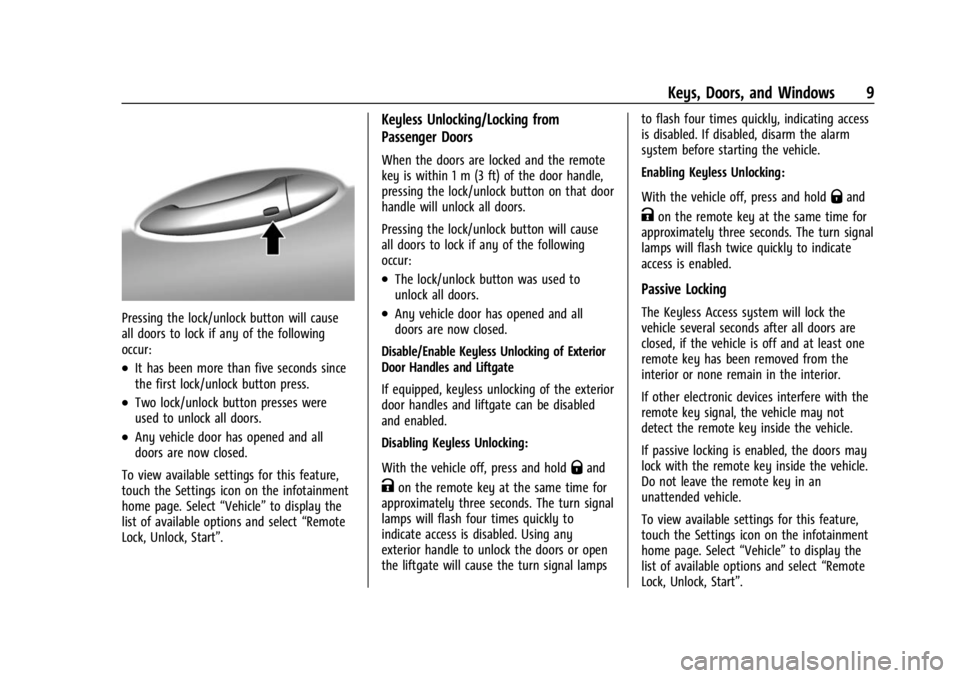
Pressing the lock/unlock button will cause
all doors to lock if any of the following
occur:
.It has been more than five seconds since
the first lock/unlock button press.
.Two lock/unlock button presses were
used to unlock all doors.
.Any vehicle door has opened and all
doors are now closed.
To view available settings for this feature,
touch the Settings icon on the infotainment
home page. Select “Vehicle”to display the
list of available options and select “Remote
Lock, Unlock, Start”.
Keyless Unlocking/Locking from
Passenger Doors
When the doors are locked and the remote
key is within 1 m (3 ft) of the door handle,
pressing the lock/unlock button on that door
handle will unlock all doors.
Pressing the lock/unlock button will cause
all doors to lock if any of the following
occur:
.The lock/unlock button was used to
unlock all doors.
.Any vehicle door has opened and all
doors are now closed.
Disable/Enable Keyless Unlocking of Exterior
Door Handles and Liftgate
If equipped, keyless unlocking of the exterior
door handles and liftgate can be disabled
and enabled.
Disabling Keyless Unlocking:
With the vehicle off, press and hold
Qand
Kon the remote key at the same time for
approximately three seconds. The turn signal
lamps will flash four times quickly to
indicate access is disabled. Using any
exterior handle to unlock the doors or open
the liftgate will cause the turn signal lamps to flash four times quickly, indicating access
is disabled. If disabled, disarm the alarm
system before starting the vehicle.
Enabling Keyless Unlocking:
With the vehicle off, press and hold
Qand
Kon the remote key at the same time for
approximately three seconds. The turn signal
lamps will flash twice quickly to indicate
access is enabled.
Passive Locking
The Keyless Access system will lock the
vehicle several seconds after all doors are
closed, if the vehicle is off and at least one
remote key has been removed from the
interior or none remain in the interior.
If other electronic devices interfere with the
remote key signal, the vehicle may not
detect the remote key inside the vehicle.
If passive locking is enabled, the doors may
lock with the remote key inside the vehicle.
Do not leave the remote key in an
unattended vehicle.
To view available settings for this feature,
touch the Settings icon on the infotainment
home page. Select “Vehicle”to display the
list of available options and select “Remote
Lock, Unlock, Start”.
Page 11 of 308
Chevrolet BOLT EV Owner Manual (GMNA-Localizing-U.S./Canada-
16404388) - 2023 - CRC - 3/7/22
10 Keys, Doors, and Windows
Temporary Disable of Passive Locking
Temporarily disable passive locking by
pressing and holding
Kon the interior door
switch with a door open for at least
four seconds, or until three chimes are
heard. Passive locking will then remain
disabled until
Qon the interior door is
pressed, or until the vehicle is started.
Remote Left In Vehicle Alert
When the vehicle is turned off and an
remote key is left in the vehicle, the horn
will chirp three times after all doors are
closed.
To view available settings for this feature,
touch the Settings icon on the infotainment
home page. Select “Vehicle”to display the
list of available options and select “Remote
Lock, Unlock, Start”.
Remote No Longer In Vehicle Alert
If the vehicle is on with a door open, and
then all doors are closed, the vehicle will
check for remote keys inside. If an remote
key is not detected, the Driver Information
Center (DIC) will display NO REMOTE
DETECTED and the horn will chirp three
times. This occurs only once each time the vehicle
is driven.
To view available settings for this feature,
touch the Settings icon on the infotainment
home page. Select
“Vehicle”to display the
list of available options and select “Remote
Lock, Unlock, Start”.
Keyless Liftgate Opening
Press the touch pad on the underside of the
liftgate glass and lift up to open if the
remote key is within 1 m (3 ft) and the doors
are locked. If the doors are unlocked, the
remote key is not required to open the
liftgate. See Liftgate018.
Key Access
To access a vehicle with a weak remote key
battery, see Door Locks015.
Programming Remote Keys to the
Vehicle
Only remote keys programmed to the
vehicle will work. If a remote key is lost or
stolen, a replacement can be purchased and
programmed through your dealer. The
vehicle can be reprogrammed so that lost or
stolen remote keys no longer work. Any remaining remote keys will need to be
reprogrammed. Each vehicle can have up to
eight remote keys matched to it.
Programming with Two Recognized
Remote Keys
A new remote key can be programmed to
the vehicle when there are two recognized
remote keys. To program, the vehicle must
be off and all of the remote keys, both
currently recognized and new, must be
with you.
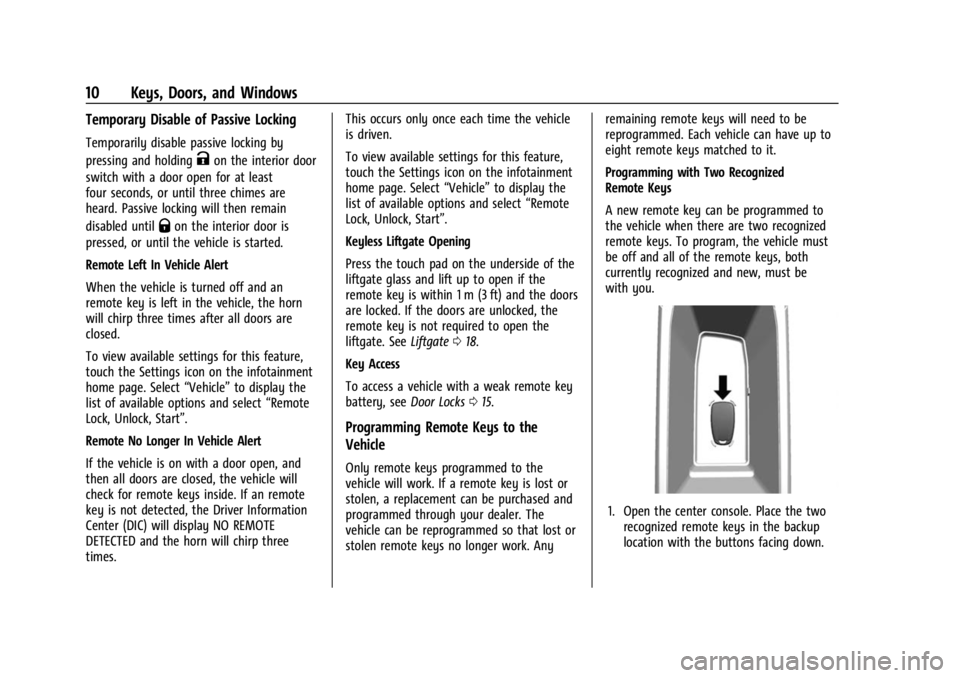
1. Open the center console. Place the two
recognized remote keys in the backup
location with the buttons facing down.
Page 18 of 308
Chevrolet BOLT EV Owner Manual (GMNA-Localizing-U.S./Canada-
16404388) - 2023 - CRC - 3/7/22
Keys, Doors, and Windows 17
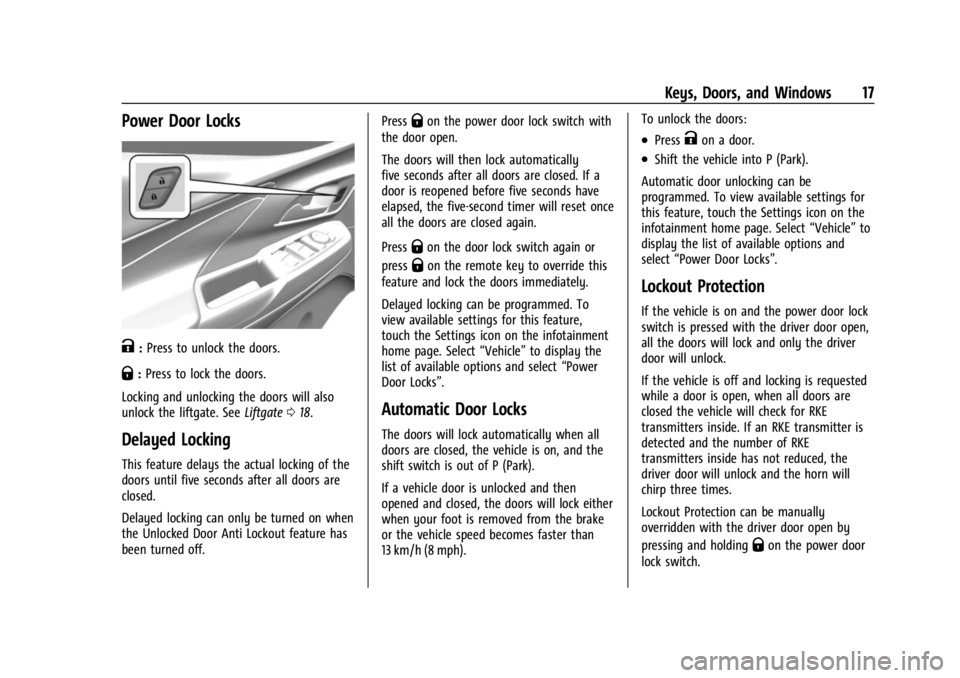
Power Door Locks
K:Press to unlock the doors.
Q:Press to lock the doors.
Locking and unlocking the doors will also
unlock the liftgate. See Liftgate018.
Delayed Locking
This feature delays the actual locking of the
doors until five seconds after all doors are
closed.
Delayed locking can only be turned on when
the Unlocked Door Anti Lockout feature has
been turned off. Press
Qon the power door lock switch with
the door open.
The doors will then lock automatically
five seconds after all doors are closed. If a
door is reopened before five seconds have
elapsed, the five-second timer will reset once
all the doors are closed again.
Press
Qon the door lock switch again or
press
Qon the remote key to override this
feature and lock the doors immediately.
Delayed locking can be programmed. To
view available settings for this feature,
touch the Settings icon on the infotainment
home page. Select “Vehicle”to display the
list of available options and select “Power
Door Locks”.
Automatic Door Locks
The doors will lock automatically when all
doors are closed, the vehicle is on, and the
shift switch is out of P (Park).
If a vehicle door is unlocked and then
opened and closed, the doors will lock either
when your foot is removed from the brake
or the vehicle speed becomes faster than
13 km/h (8 mph). To unlock the doors:
.PressKon a door.
.Shift the vehicle into P (Park).
Automatic door unlocking can be
programmed. To view available settings for
this feature, touch the Settings icon on the
infotainment home page. Select “Vehicle”to
display the list of available options and
select “Power Door Locks”.
Lockout Protection
If the vehicle is on and the power door lock
switch is pressed with the driver door open,
all the doors will lock and only the driver
door will unlock.
If the vehicle is off and locking is requested
while a door is open, when all doors are
closed the vehicle will check for RKE
transmitters inside. If an RKE transmitter is
detected and the number of RKE
transmitters inside has not reduced, the
driver door will unlock and the horn will
chirp three times.
Lockout Protection can be manually
overridden with the driver door open by
pressing and holding
Qon the power door
lock switch.
Page 82 of 308
Chevrolet BOLT EV Owner Manual (GMNA-Localizing-U.S./Canada-
16404388) - 2023 - CRC - 3/7/22
Instruments and Controls 81
pressing thumbwheelwhile the desired item
is highlighted. A checkmark will be displayed
next to the selected item.
Speed Warning :The speed warning display
allows the driver to set a speed that they
do not want to exceed. To set the speed
warning, press the thumbwheel when Speed
Warning is displayed. Move the thumbwheel
up or down to adjust the value. Press the
thumbwheel to set the speed. Once set, this
feature can be turned off by pressing the
thumbwheel while viewing this page. If the
selected speed limit is exceeded, a pop-up
warning is displayed and a chime may
sound.
Tutorial : Press the thumbwheel to view
tutorials for the Modern and Enhanced
layout.
Open Source Software : Press the
thumbwheel while Open Source Software is
highlighted to display open source software
information.
Speedometer
The speedometer shows the vehicle speed in
either kilometers per hour (km/h) or miles
per hour (mph).
Odometer
The odometer shows how far the vehicle has
been driven, in either kilometers or miles.
Trip Odometer
The trip odometer shows how far the
vehicle has been driven since the trip
odometer was last reset.
The trip odometer is accessed and reset
through the Driver Information Center (DIC).
See Driver Information Center (DIC) 099.
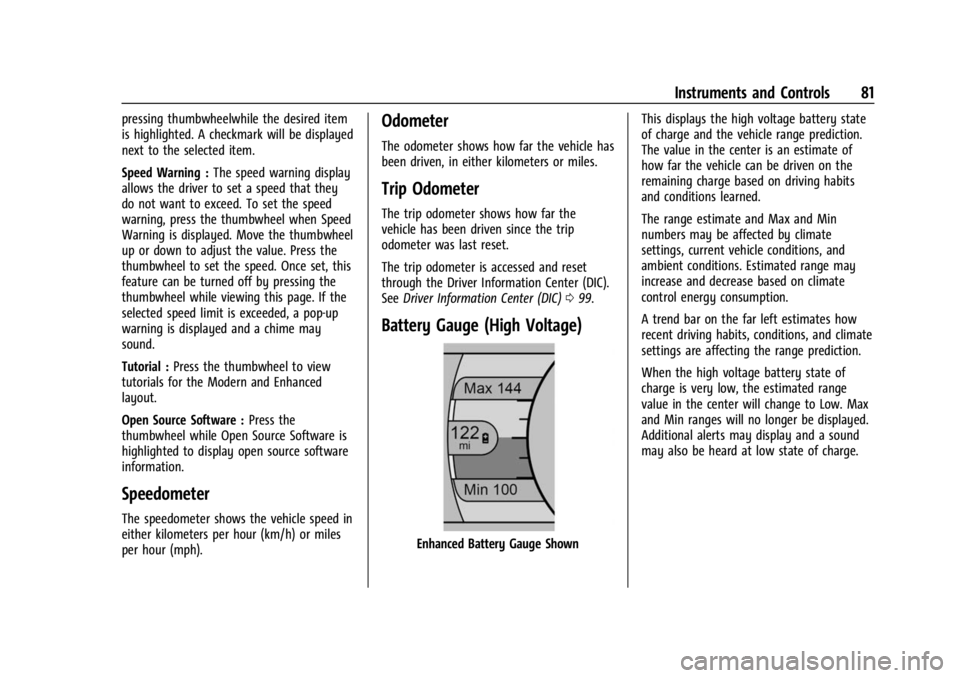
Battery Gauge (High Voltage)
Enhanced Battery Gauge Shown This displays the high voltage battery state
of charge and the vehicle range prediction.
The value in the center is an estimate of
how far the vehicle can be driven on the
remaining charge based on driving habits
and conditions learned.
The range estimate and Max and Min
numbers may be affected by climate
settings, current vehicle conditions, and
ambient conditions. Estimated range may
increase and decrease based on climate
control energy consumption.
A trend bar on the far left estimates how
recent driving habits, conditions, and climate
settings are affecting the range prediction.
When the high voltage battery state of
charge is very low, the estimated range
value in the center will change to Low. Max
and Min ranges will no longer be displayed.
Additional alerts may display and a sound
may also be heard at low state of charge.
Page 101 of 308
Chevrolet BOLT EV Owner Manual (GMNA-Localizing-U.S./Canada-
16404388) - 2023 - CRC - 3/7/22
100 Instruments and Controls
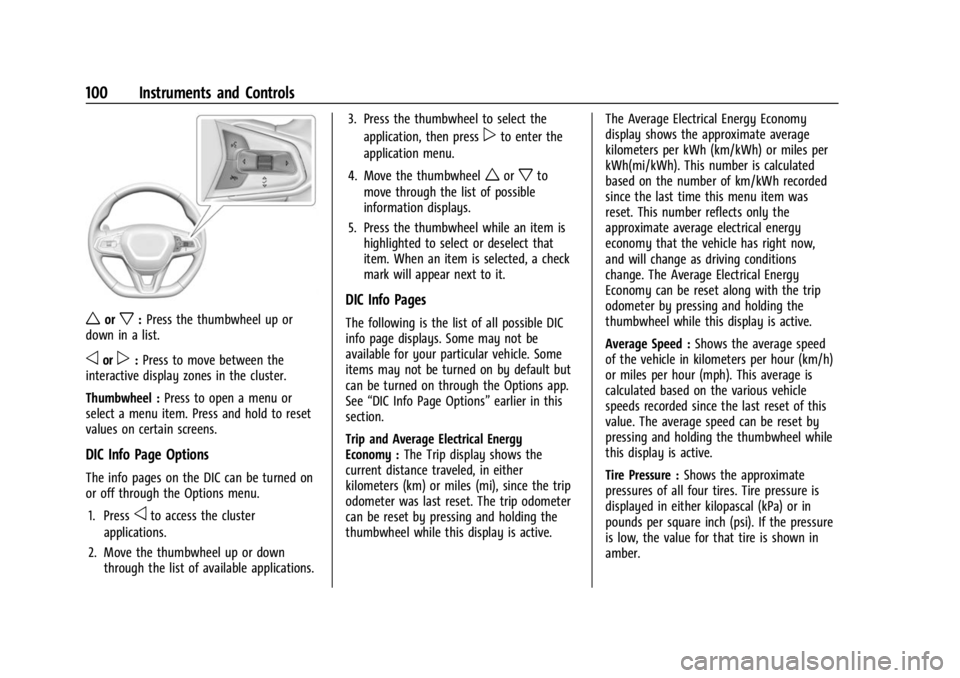
worx:Press the thumbwheel up or
down in a list.
oorp: Press to move between the
interactive display zones in the cluster.
Thumbwheel : Press to open a menu or
select a menu item. Press and hold to reset
values on certain screens.
DIC Info Page Options
The info pages on the DIC can be turned on
or off through the Options menu.
1. Press
oto access the cluster
applications.
2. Move the thumbwheel up or down through the list of available applications. 3. Press the thumbwheel to select the
application, then press
pto enter the
application menu.
4. Move the thumbwheel
worxto
move through the list of possible
information displays.
5. Press the thumbwheel while an item is highlighted to select or deselect that
item. When an item is selected, a check
mark will appear next to it.
DIC Info Pages
The following is the list of all possible DIC
info page displays. Some may not be
available for your particular vehicle. Some
items may not be turned on by default but
can be turned on through the Options app.
See “DIC Info Page Options” earlier in this
section.
Trip and Average Electrical Energy
Economy : The Trip display shows the
current distance traveled, in either
kilometers (km) or miles (mi), since the trip
odometer was last reset. The trip odometer
can be reset by pressing and holding the
thumbwheel while this display is active. The Average Electrical Energy Economy
display shows the approximate average
kilometers per kWh (km/kWh) or miles per
kWh(mi/kWh). This number is calculated
based on the number of km/kWh recorded
since the last time this menu item was
reset. This number reflects only the
approximate average electrical energy
economy that the vehicle has right now,
and will change as driving conditions
change. The Average Electrical Energy
Economy can be reset along with the trip
odometer by pressing and holding the
thumbwheel while this display is active.
Average Speed :
Shows the average speed
of the vehicle in kilometers per hour (km/h)
or miles per hour (mph). This average is
calculated based on the various vehicle
speeds recorded since the last reset of this
value. The average speed can be reset by
pressing and holding the thumbwheel while
this display is active.
Tire Pressure : Shows the approximate
pressures of all four tires. Tire pressure is
displayed in either kilopascal (kPa) or in
pounds per square inch (psi). If the pressure
is low, the value for that tire is shown in
amber.
Page 102 of 308
Chevrolet BOLT EV Owner Manual (GMNA-Localizing-U.S./Canada-
16404388) - 2023 - CRC - 3/7/22
Instruments and Controls 101
Timer :This display can be used as a timer.
To start the timer, press the thumbwheel
while this display is active. The display will
show the amount of time that has passed
since the timer was last reset. To stop the
timer, press the thumbwheel briefly while
this display is active and the timer is
running. To reset the timer to zero, press
and hold the thumbwheel while this display
is active.
Driver Assistance : If equipped, shows
information for ACC, Follow Distance, Lane
Keep Assist (LKA) and Forward Collision
Alert (FCA).
Blank Page : The Blank Page display allows
for no information to be displayed in the
cluster info display areas.
Vehicle Messages
Messages displayed on the DIC indicate the
status of the vehicle or some action that
may be needed to correct a condition.
Multiple messages may appear one after
another.
The messages that do not require
immediate action can be acknowledged and
cleared by pressing the thumbwheel. The messages that require immediate action
cannot be cleared until that action is
performed.
All messages should be taken seriously;
clearing the message does not correct the
problem.
If a SERVICE message appears, see your
dealer.
Follow the instructions given in the
messages. The system displays messages
regarding the following topics:
.Service Messages
.Fluid Levels
.Vehicle Security
.Brakes
.Ride Control Systems
.Driver Assistance Systems
.Cruise Control
.Lighting and Bulb Replacement
.Wiper/Washer Systems
.Doors and Windows
.Seat Belts
.Airbag Systems
.Propulsion and Transmission
.Tire Pressure
.Battery
Propulsion Power Messages
PROPULSION POWER IS REDUCED
This message displays when the vehicle's
propulsion power is reduced. A reduction in
propulsion power can affect the vehicle's
ability to accelerate. If this message is on,
but there is no observed reduction in
performance, proceed to your destination.
Under certain conditions the performance
may be reduced the next time the vehicle is
driven. The vehicle may be driven while this
message is on, but maximum acceleration
and speed may be reduced. Anytime this
message stays on, or displays repeatedly,
the vehicle should be taken to your dealer
for service as soon as possible.
Under certain operating conditions
propulsion will be disabled. Try restarting
after the vehicle has been off for
30 seconds.
PROPULSION POWER REDUCED DUE TO
TEMPERATURE
This message displays when the vehicle is
on, the battery temperature is low, and
when the vehicle’s performance is limited.
The duration of the limited vehicle
performance depends, in part, on the high
Page 111 of 308
Chevrolet BOLT EV Owner Manual (GMNA-Localizing-U.S./Canada-
16404388) - 2023 - CRC - 3/7/22
110 Infotainment System
Infotainment System
Introduction
Introduction . . . . . . . . . . . . . . . . . . . . . . . . . . . 110
Overview . . . . . . . . . . . . . . . . . . . . . . . . . . . . . . . 111
Steering Wheel Controls . . . . . . . . . . . . . . . . 111
Using the System . . . . . . . . . . . . . . . . . . . . . . 112
Software Updates . . . . . . . . . . . . . . . . . . . . . . 115
Radio
AM-FM Radio . . . . . . . . . . . . . . . . . . . . . . . . . . 115
Radio Data System (RDS) . . . . . . . . . . . . . . 116
Satellite Radio . . . . . . . . . . . . . . . . . . . . . . . . . . 117
Radio Reception . . . . . . . . . . . . . . . . . . . . . . . . 117
Multi-Band Antenna . . . . . . . . . . . . . . . . . . . . 118
Audio Players
Avoiding Untrusted Media Devices . . . . . 118
USB Port . . . . . . . . . . . . . . . . . . . . . . . . . . . . . . . 118
Bluetooth Audio . . . . . . . . . . . . . . . . . . . . . . . 120
Voice Recognition
Voice Recognition . . . . . . . . . . . . . . . . . . . . . . 121
Phone
Bluetooth (Overview) . . . . . . . . . . . . . . . . . . 126
Bluetooth (Pairing and Using aPhone) . . . . . . . . . . . . . . . . . . . . . . . . . . . . . . . 127
Apple CarPlay and Android Auto . . . . . . . 130
Settings
Settings . . . . . . . . . . . . . . . . . . . . . . . . . . . . . . . . 132
Teen Driver . . . . . . . . . . . . . . . . . . . . . . . . . . . . 135
Trademarks and License Agreements
Trademarks and License Agreements . . . . . . . . . . . . . . . . . . . . . . . . . . 138
Introduction
Read the following pages to become familiar
with the features.
{Warning
Taking your eyes off the road for too
long or too often while using any
infotainment feature can cause a crash.
You or others could be injured or killed.
Do not give extended attention to
infotainment tasks while driving. Limit
your glances at the vehicle displays and
focus your attention on driving. Use voice
commands whenever possible.
The infotainment system has built-in
features intended to help avoid distraction
by disabling some features when driving.
These features may gray out when they are
unavailable. Many infotainment features are
also available through the instrument cluster
and steering wheel controls.
Before driving:
.Become familiar with the operation,
center stack controls, steering wheel
controls, and infotainment display.