service CHEVROLET CAMARO 2010 5.G Owner's Guide
[x] Cancel search | Manufacturer: CHEVROLET, Model Year: 2010, Model line: CAMARO, Model: CHEVROLET CAMARO 2010 5.GPages: 378, PDF Size: 5.75 MB
Page 148 of 378
Black plate (10,1)Chevrolet Camaro Owner Manual - 2010
6-10 Infotainment System
XM Satellite Radio Service
XM is a satellite radio service
that is based in the 48 contiguous
United States and 10 Canadian
provinces. XM Satellite Radio
has a wide variety of programming
and commercial-free music,
coast-to-coast, and in digital-quality
sound. During your trial or when you
subscribe, you will get unlimited
access to XM Radio Online for
when you are not in the vehicle.
A service fee is required to receive
the XM service. For more
information, contact XM at
www.xmradio.com or call
1-800-929-2100 in the U.S.
and www.xmradio.ca or call
1-877-438-9677 in Canada.
Control Buttons
The buttons used to control the XM
radio are:
RADIO/BAND:Press to turn the
radio on and choose between AM,
FM, and XM™, if equipped.
gSEEK /lSEEK: Press to
search for stations.
FAV: Press to open the
favorites list.
1‐6: Press to select preset stations.
MENU/SELECT: Turn to search for
stations.
Selecting the XM Band
Press the RADIO/BAND button to
choose between the AM, FM, and
XM bands. The last station played in
that band begins to play when that
band is selected.
XM Categories
XM stations are organized in
categories. Removing or Adding Categories
1. Press the CONFIG button.
2. Select XM Categories.
3. Turn the MENU/SELECT knob to
highlight the category.
4. Press the MENU/SELECT knob to remove or add the category.
Selecting an XM Station
XM stations can be selected by
using
gSEEK,lSEEK, the
MENU/SELECT knob, or the menu
system.
To select an XM station using
gSEEK orlSEEK, do one of
the following:
.Press and releasegSEEK or
lSEEK to go to the previous
or next station.
.Press and holdgSEEK or
lSEEK to scroll through the
previous or next stations until
the station is reached.
Page 149 of 378
Black plate (11,1)Chevrolet Camaro Owner Manual - 2010
Infotainment System 6-11
To select an XM station using the
MENU/SELECT knob:
1. Turn the MENU/SELECT knob tohighlight an XM station.
2. Press the MENU/SELECT knob to select the station, or leave the
station highlighted.
To select a station using the menu:
1. Press the MENU/SELECT knob.
2. Select XM Stations List.
3. Select the station.
Selecting a Station by Category
1. Press the MENU/SELECT knob.
2. Select XM Category List. A list of all programing types available
displays.
3. Select the programing type.
4. Select the station.Storing and Retrieving
Favorites
Stations from all bands can be
stored in any order in the favorite
pages.
Up to six stations can be stored in
each favorite page and the number
of available favorite pages can
be set.
Storing a Station as a Favorite
To store the station to a position
in the list, press and hold the
corresponding 1‐6 button until
the station can be heard again.
Retrieving stations
Press the FAV button to open a
favorite page or to switch to another
favorite page. Briefly press one of
the 1‐6 buttons to retrieve the
station.
XM Messages
XL (Explicit Language
Channels): These channels, or any
others, can be blocked by request,
by calling 1-800-852-XMXM (9696).
XM Updating: The encryption code
is being updated, no action is
required.
Loading XM: The audio system is
acquiring and processing audio and
text data, no action is needed.
Channel Off Air: This channel is
not currently in service.
Channel Unauth: This channel is
blocked or cannot be received with
the XM Subscription package.
Channel Unavail: This previously
assigned channel is no longer
assigned.
No Artist Info: No artist
information is available.
No Title Info: No song title
information is available.
Page 150 of 378
Black plate (12,1)Chevrolet Camaro Owner Manual - 2010
6-12 Infotainment System
No CAT Info:No category
information is available.
No Information: No text or
informational messages are
available.
No XM Signal: The vehicle may be
in a location that where the XM
signal is being blocked. When the
vehicle is moved, the signal should
return.
CAT Not Found: There are no
channels available for the selected
category.
XM Theftlocked: The XM receiver
in the vehicle may have been in
another vehicle. XM receivers
cannot be swapped between
vehicles. If this message is received
after having the vehicle serviced,
check with your dealer.
XM Radio ID: If tuned to channel 0,
this message alternates with the XM
Radio 8 digit radio ID label. This
label is needed to activate the
service. Unknown:
If this message is
received when tuned to channel 0,
there could be a receiver fault.
Consult with your dealer.
Check XM Receivr: If this
message does not clear within a
short period of time, the receiver
could have a fault. Consult with your
dealer.
XM Not Available: If this message
does not clear within a short period
of time, the receiver could have a
fault. Consult with your dealer.
Radio Reception
Frequency interference and static
can occur during normal radio
reception if items such as cell phone
chargers, vehicle convenience
accessories, and external electronic
devices are plugged into the
accessory power outlet. If there is
interference or static, unplug the
item from the accessory power
outlet.
FM
FM signals only reach about 16 to
65 km (10 to 40 miles). Although the
radio has a built-in electronic circuit
that automatically works to reduce
interference, some static can occur,
especially around tall buildings or
hills, causing the sound to fade in
and out.
AM
The range for most AM stations is
greater than for FM, especially at
night. The longer range can cause
station frequencies to interfere with
each other. For better radio
reception, most AM radio stations
boost the power levels during the
day, and then reduce these levels
during the night. Static can also
occur when things like storms and
power lines interfere with radio
reception. When this happens, try
reducing the treble on the radio.
Page 151 of 378
Black plate (13,1)Chevrolet Camaro Owner Manual - 2010
Infotainment System 6-13
XM™Satellite Radio Service
XM Satellite Radio Service gives
digital radio reception from
coast-to-coast in the 48 contiguous
United States, and in Canada. Just
as with FM, tall buildings or hills can
interfere with satellite radio signals,
causing the sound to fade in and
out. In addition, traveling or standing
under heavy foliage, bridges,
garages, or tunnels may cause loss
of the XM signal for a period of time.
Cellular Phone Usage
Cellular phone usage may cause
interference with the vehicle's radio.
This interference may occur when
making or receiving phone calls,
charging the phone's battery,
or simply having the phone on.
This interference can cause an
increased level of static while
listening to the radio. If static is
received while listening to the
radio, unplug the cellular phone
and turn it off.
Backglass Antenna
The AM-FM antenna is integrated
with the rear window defogger,
located in the rear window. Make
sure that the inside surface of the
rear window is not scratched and
that the lines on the glass are not
damaged. If the inside surface is
damaged, it could interfere with
radio reception. For proper radio
reception, the antenna connector
needs to be properly attached to
the post on the glass.
If a cellular telephone antenna
needs to be attached to the glass,
make sure that the grid lines for the
AM-FM antenna are not damaged.
There is enough space between
the grid lines to attach a cellular
telephone antenna without
interfering with radio reception. Notice:
Using a razor blade or
sharp object to clear the inside
rear window can damage the rear
window antenna and/or the rear
window defogger. Repairs would
not be covered by the vehicle
warranty. Do not clear the inside
rear window with sharp objects.
Notice: Do not apply aftermarket
glass tinting with metallic film.
The metallic film in some tinting
materials will interfere with or
distort the incoming radio
reception. Any damage caused to
your backglass antenna due to
metallic tinting materials will not
be covered by the vehicle
warranty.
Satellite Radio Antenna
For vehicles with XM™ Satellite
Radio Service, the antenna is
located on the decklid of the
vehicle. Keep the antenna clear
of obstructions for clear radio
reception.
Page 162 of 378
Black plate (24,1)Chevrolet Camaro Owner Manual - 2010
6-24 Infotainment System
Listing All Paired and Connected
Phones
1. Press the CONFIG button.
2. Select Phone Settings.
3. Select the Bluetooth submenu.
4. Select Device List submenu.
Deleting a Paired Phone
1. Press the CONFIG button.
2. Select Phone Settings.
3. Select the Bluetooth submenu.
4. Select Device List submenu.
5. Select the phone to be deletedand then follow the on screen
prompts.
Linking to a Different Phone
1. Press the CONFIG button.
2. Select Phone Settings.
3. Select the Bluetooth submenu.
4. Select Device List submenu.
5. Select the new phone and then follow the on screen prompts.Making a Call
1. Press the PHONE button twice.
2. Select Enter number.
3. Enter the character sequence.
See “Entering a Character
Sequence” in theOperation
on
page 6‑3for more information.
4. Select Call to start dialing the number.
Accepting or Declining an
Incoming Call
When an incoming call is received,
the infotainment system mutes and
a ring tone is heard in the vehicle.
Accepting a Call
Turn the MENU/SELECT knob to
“Answer” and press the MENU/
SELECT knob to accept the
incoming call.
Declining a Call
Turn the MENU/SELECT knob to
“Decline” and press the MENU/
SELECT knob to decline the
incoming call.
Call Waiting
Call waiting must be supported on
the Bluetooth phone and enabled by
the wireless service carrier to work.
Accepting a Call
Turn the MENU/SELECT knob to
“Answer” and press the MENU/
SELECT knob to accept the
incoming call.
Declining a Call
Turn the MENU/SELECT knob to
“Decline” and press the MENU/
SELECT knob to decline the
incoming call.
Switching Between Calls
To switch between calls:
1. Press the MENU/SELECT knob.
2. Select Switch Call from
the menu.
Page 163 of 378
Black plate (25,1)Chevrolet Camaro Owner Manual - 2010
Infotainment System 6-25
Conference Calling
Conference calling must be
supported on the Bluetooth phone
and enabled by the wireless service
carrier to work.
To start a conference while in a
current call:
1. Press the MENU/SELECT knoband select Enter Number.
2. Enter the character sequence then select call. See “Entering a
Character Sequence” in the
Operation
on page 6‑3for
more information.
3. After the call has been placed, press the MENU/SELECT knob
and choose Merge Calls.
4. To add more callers to the conference call, repeat steps 1
through 3. The number of callers
that can be added are limited by
your wireless service carrier.
Ending a Call
Press the MENU/SELECT knob and
select Hang Up.
Muting a Call
To Mute a Call
Press the MENU/SELECT knob and
select Mute Call.
To Cancel Mute
Press the MENU/SELECT knob and
deselect Mute Call.
Dual Tone Multi-Frequency
(DTMF) Tones
The in‐vehicle Bluetooth system can
send numbers during a call. This is
used when calling a menu driven
phone system.
1. Press the MENU/SELECT knob
and select Enter Number.
2. Enter the character sequence. See “Entering a Character
Sequence” in theOperation
on
page 6‑3for more information.
Bluetooth (Voice
Recognition)
Pairing
A Bluetooth cell phone must be
paired to the Bluetooth system and
then connected to the vehicle before
it can be used. See the cell phone
manufacturer user guide for
Bluetooth functions before pairing
the cell phone. If a Bluetooth phone
is not connected, calls will be made
using OnStar
®Hands‐Free Calling,
if available. Refer to the OnStar
owner's guide for more information.
The pairing process can be started
by using the voice recognition
system or the controls on the
infotainment system.
Page 170 of 378
Black plate (32,1)Chevrolet Camaro Owner Manual - 2010
6-32 Infotainment System
Call Waiting
Call waiting must be supported on
the Bluetooth phone and enabled by
the wireless service carrier to work.
.Pressbgto answer an
incoming call when another call
is active. The original call is
placed on hold.
.Pressb gagain to return to the
original call.
.To ignore the incoming call, no
action is required.
.Pressc $to disconnect the
current call and switch to the call
on hold.
Three‐Way Calling
Three‐Way Calling must be
supported on the Bluetooth phone
and enabled by the wireless service
carrier to work.
1. While on a call press
b g.
The system responds “Ready”
followed by a tone.
2. Say “Three‐way call”. The
system responds “Three‐way
call, please say dial or call”.
3. Use the dial or call command to dial the number of the third party
to be called.
4. Once the call is connected, press
bgto link all the callers
together.
Ending a Call
Pressc $to end a call.
Muting a Call
During a call, all sounds from inside
the vehicle can be muted so that the
person on the other end of the call
cannot hear them.
To Mute a call
1. Press
b g. The system
responds “Ready”followed by
a tone.
2. Say “Mute Call”. The system
responds “Call muted”.
To Cancel Mute
1. Press
b g. The system
responds “Ready”followed by
a tone.
2. After the tone, say “Mute Call”.
The system responds
“Resuming call”.
Page 184 of 378
Black plate (8,1)Chevrolet Camaro Owner Manual - 2010
8-8 Driving and Operating
After conversion to the high
performance brake fluid,
follow the brake fluid service
recommendations outlined by the
fluid manufacturer. Do not use
silicone or DOT‐5 brake fluids.
If the vehicle is used for racing,
competitive driving, sustained high
speed , or events that generate
excessive wheel slip, the rear axle
fluid temperatures will be higher
than would occur in normal driving.
We recommend that the rear axle
fluid be drained and refilled with
new fluid after every six hours
of racing or competitive driving.
SeeRecommended Fluids and
Lubricants
on page 10‑8for what
fluid to use.
Regularly inspect the driveshaft/
propshaft couplings and halfshaft
boots for cracking or grease
leakage. It is not recommended that
the vehicle be used for ongoing race
track/competitive driving.
Driving on Wet Roads
Rain and wet roads can reduce
vehicle traction and affect your
ability to stop and accelerate.
Always drive slower in these types
of driving conditions and avoid
driving through large puddles and
deep‐standing or flowing water.
{WARNING
Wet brakes can cause crashes.
They might not work as well in
a quick stop and could cause
pulling to one side. You could
lose control of the vehicle.
After driving through a large
puddle of water or a car/vehicle
wash, lightly apply the brake
pedal until the brakes work
normally.
(Continued)
WARNING (Continued)
Flowing or rushing water creates
strong forces. Driving through
flowing water could cause your
vehicle to be carried away. If this
happens, you and other vehicle
occupants could drown. Do not
ignore police warnings and be
very cautious about trying to drive
through flowing water.
Hydroplaning
Hydroplaning is dangerous. Water
can build up under your vehicle's
tires so they actually ride on the
water. This can happen if the road is
wet enough and you are going fast
enough. When your vehicle is
hydroplaning, it has little or no
contact with the road.
There is no hard and fast rule about
hydroplaning. The best advice is to
slow down when the road is wet.
Page 185 of 378
Black plate (9,1)Chevrolet Camaro Owner Manual - 2010
Driving and Operating 8-9
Other Rainy Weather Tips
Besides slowing down, other wet
weather driving tips include:
.Allow extra following distance.
.Pass with caution.
.Keep windshield wiping
equipment in good shape.
.Keep the windshield washer fluid
reservoir filled.
.Have good tires with proper
tread depth. SeeTireson
page 9‑49.
.Turn off cruise control.
Highway Hypnosis
Always be alert and pay attention
to your surroundings while driving.
If you become tired or sleepy, find
a safe place to park your vehicle
and rest.
Other driving tips include:
.Keep the vehicle well ventilated.
.Keep interior temperature cool.
.Keep your eyes moving —scan
the road ahead and to the sides.
.Check the rearview mirror and
vehicle instruments often.
Hill and Mountain Roads
Driving on steep hills or through
mountains is different than driving
on flat or rolling terrain. Tips for
driving in these conditions include:
.Keep the vehicle serviced and in
good shape.
.Check all fluid levels and brakes,
tires, cooling system, and
transmission.
.Shift to a lower gear when going
down steep or long hills.
{WARNING
If you do not shift down, the
brakes could get so hot that they
would not work well. You would
then have poor braking or even
(Continued)
WARNING (Continued)
none going down a hill. You could
crash. Shift down to let the engine
assist the brakes on a steep
downhill slope.
{WARNING
Coasting downhill in N (Neutral)
or with the ignition off is
dangerous. The brakes will have
to do all the work of slowing down
and they could get so hot that
they would not work well. You
would then have poor braking
or even none going down a hill.
You could crash. Always have the
engine running and the vehicle in
gear when going downhill.
.Stay in your own lane. Do not
swing wide or cut across the
center of the road. Drive at
speeds that let you stay in
your own lane.
Page 194 of 378
Black plate (18,1)Chevrolet Camaro Owner Manual - 2010
8-18 Driving and Operating
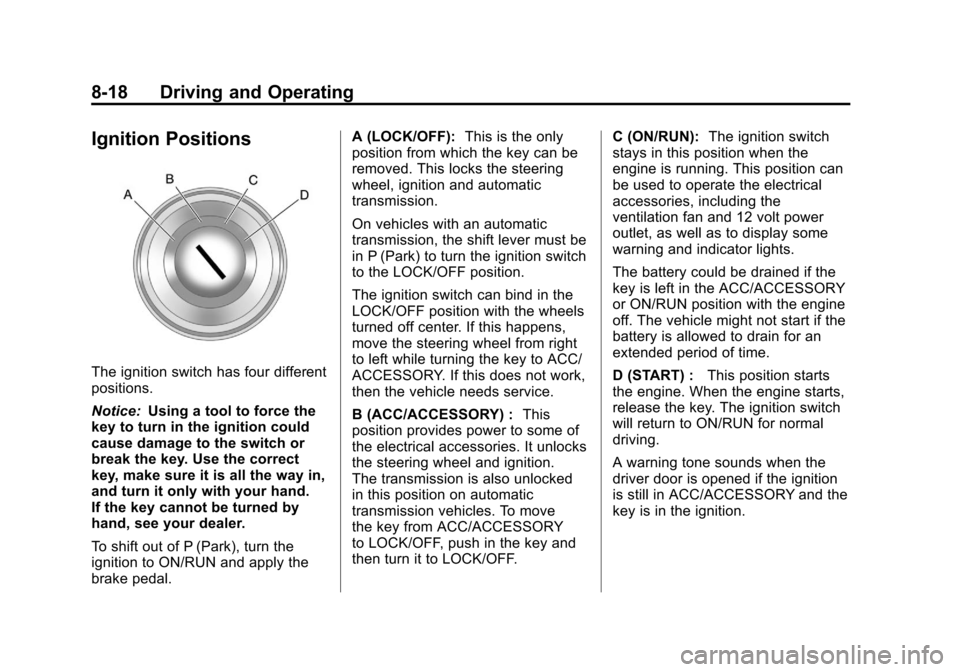
Ignition Positions
The ignition switch has four different
positions.
Notice:Using a tool to force the
key to turn in the ignition could
cause damage to the switch or
break the key. Use the correct
key, make sure it is all the way in,
and turn it only with your hand.
If the key cannot be turned by
hand, see your dealer.
To shift out of P (Park), turn the
ignition to ON/RUN and apply the
brake pedal. A (LOCK/OFF):
This is the only
position from which the key can be
removed. This locks the steering
wheel, ignition and automatic
transmission.
On vehicles with an automatic
transmission, the shift lever must be
in P (Park) to turn the ignition switch
to the LOCK/OFF position.
The ignition switch can bind in the
LOCK/OFF position with the wheels
turned off center. If this happens,
move the steering wheel from right
to left while turning the key to ACC/
ACCESSORY. If this does not work,
then the vehicle needs service.
B (ACC/ACCESSORY) : This
position provides power to some of
the electrical accessories. It unlocks
the steering wheel and ignition.
The transmission is also unlocked
in this position on automatic
transmission vehicles. To move
the key from ACC/ACCESSORY
to LOCK/OFF, push in the key and
then turn it to LOCK/OFF. C (ON/RUN):
The ignition switch
stays in this position when the
engine is running. This position can
be used to operate the electrical
accessories, including the
ventilation fan and 12 volt power
outlet, as well as to display some
warning and indicator lights.
The battery could be drained if the
key is left in the ACC/ACCESSORY
or ON/RUN position with the engine
off. The vehicle might not start if the
battery is allowed to drain for an
extended period of time.
D (START) : This position starts
the engine. When the engine starts,
release the key. The ignition switch
will return to ON/RUN for normal
driving.
A warning tone sounds when the
driver door is opened if the ignition
is still in ACC/ACCESSORY and the
key is in the ignition.