audio CHEVROLET CAMARO 2013 5.G User Guide
[x] Cancel search | Manufacturer: CHEVROLET, Model Year: 2013, Model line: CAMARO, Model: CHEVROLET CAMARO 2013 5.GPages: 404, PDF Size: 5.45 MB
Page 160 of 404
Black plate (2,1)Chevrolet Camaro Owner Manual (Include Mex) - 2012
7-2 Infotainment System
To minimize taking your eyes off the
road while driving, do the following
while the vehicle is parked:
.Become familiar with the
operation and controls of the
audio system.
.Set up the tone, speaker
adjustments, and preset radio
stations.
For more information, see Defensive
Driving on page 9‑3. Notice:
Contact your dealer
before adding any equipment.
Adding audio or communication
equipment could interfere with
the operation of the engine, radio,
or other systems, and could
damage them. Follow federal
rules covering mobile radio and
telephone equipment.
The vehicle has Retained
Accessory Power (RAP). With RAP,
the infotainment system can play
even after the ignition is turned off.
See Retained Accessory Power
(RAP) on page 9‑21 for more
information.
Theft-Deterrent Feature
The theft-deterrent feature works by
learning a portion of the Vehicle
Identification Number (VIN) to the
infotainment system. The
infotainment system does not
operate if it is stolen or moved to a
different vehicle.
Page 161 of 404
Black plate (3,1)Chevrolet Camaro Owner Manual (Include Mex) - 2012
Infotainment System 7-3
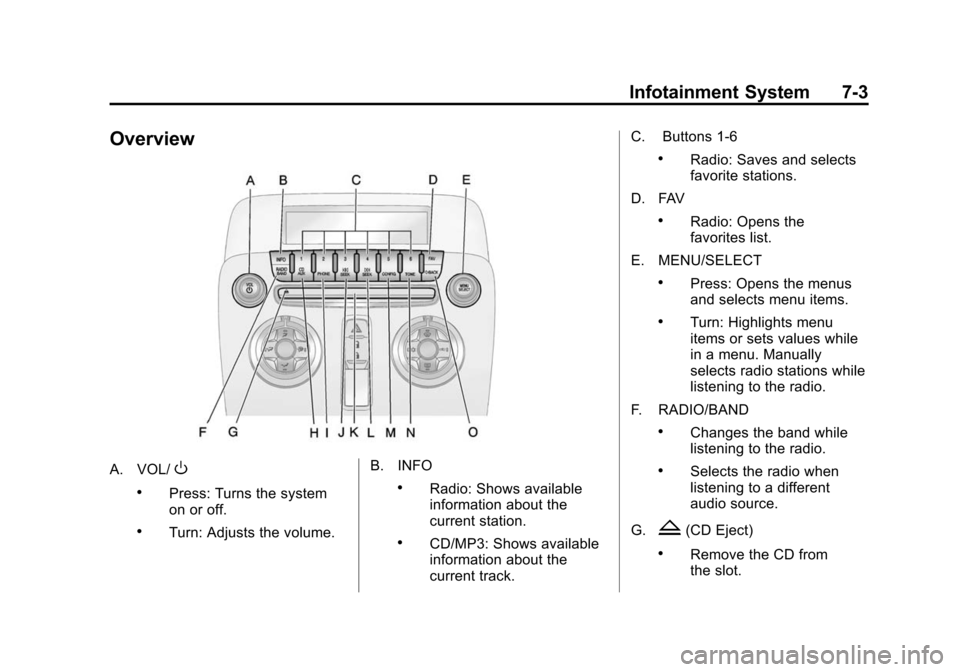
Overview
A. VOL/O
.Press: Turns the system
on or off.
.Turn: Adjusts the volume.B. INFO
.Radio: Shows available
information about the
current station.
.CD/MP3: Shows available
information about the
current track.C. Buttons 1‐6
.Radio: Saves and selects
favorite stations.
D. FAV
.Radio: Opens the
favorites list.
E. MENU/SELECT
.Press: Opens the menus
and selects menu items.
.Turn: Highlights menu
items or sets values while
in a menu. Manually
selects radio stations while
listening to the radio.
F. RADIO/BAND
.Changes the band while
listening to the radio.
.Selects the radio when
listening to a different
audio source.
G.
Z(CD Eject)
.Remove the CD from
the slot.
Page 162 of 404
Black plate (4,1)Chevrolet Camaro Owner Manual (Include Mex) - 2012
7-4 Infotainment System
H. CD/AUX
.Selects between the CD
player or a connected
external audio source.
I. PHONE
.Opens the phone
main menu.
.Mutes the audio system.
J.
7SEEK
.Radio: Seeks the previous
station.
.CD: Selects the previous
track or rewinds within a
track.
K. CD Slot
.Insert a CD.
L.
6SEEK
.Radio: Seeks the next
station.
.CD: Selects the next track
or fast forwards within a
track. M. CONFIG
.Opens the settings menu.
N. TONE
.Opens the tone menu.
O.
/BACK
.Menu: Moves one
level back.
.Character Input: Deletes
the last character.
Operation
Controls
The infotainment system is operated
by using the pushbuttons,
multifunction knobs, and menus that
are shown on the display, and
steering wheel controls, if equipped.
Turning the System On or Off
VOL/O(Volume/Power): Press to
turn the system on and off. Automatic Off
If the infotainment system has
been turned on after the ignition is
turned off, the system turns off
automatically after 10 minutes.
Volume Control
VOL/O(Volume/Power):
Turn to
adjust the volume.
PHONE: For vehicles with
OnStar
®, press and hold PHONE to
mute the infotainment system. Press
and hold PHONE again, or turn VOL
Oto cancel mute.
For vehicles without OnStar, press
PHONE to mute the infotainment
system. Press PHONE again,
or turn VOL
Oto cancel mute.
Menu System
Controls
The MENU/SELECT knob and the
/BACK button are used to
navigate the menu system.
Page 164 of 404
Black plate (6,1)Chevrolet Camaro Owner Manual (Include Mex) - 2012
7-6 Infotainment System
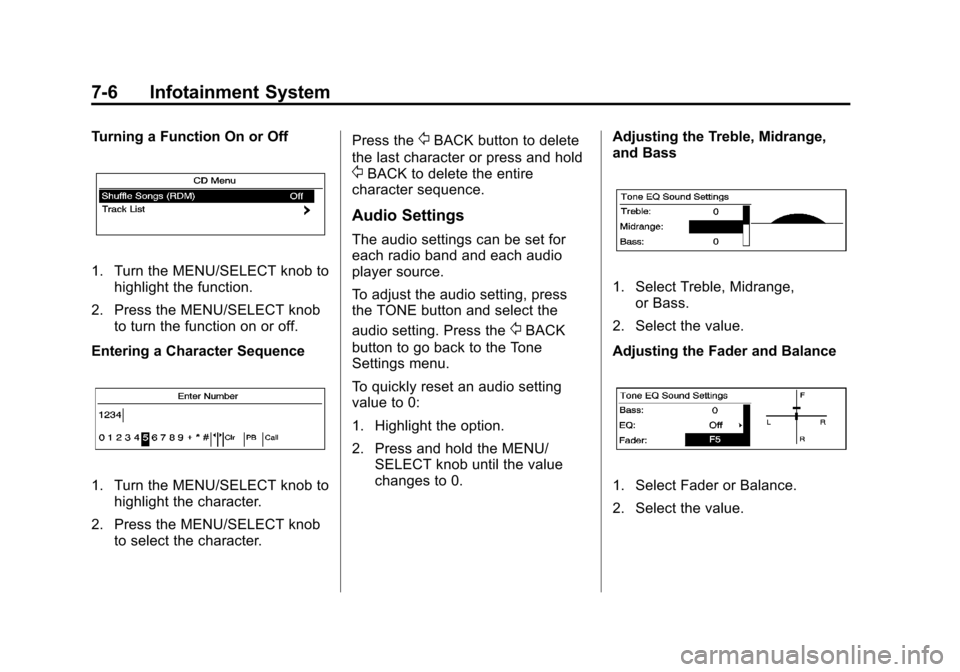
Turning a Function On or Off
1. Turn the MENU/SELECT knob tohighlight the function.
2. Press the MENU/SELECT knob to turn the function on or off.
Entering a Character Sequence
1. Turn the MENU/SELECT knob to highlight the character.
2. Press the MENU/SELECT knob to select the character. Press the
/BACK button to delete
the last character or press and hold
/BACK to delete the entire
character sequence.
Audio Settings
The audio settings can be set for
each radio band and each audio
player source.
To adjust the audio setting, press
the TONE button and select the
audio setting. Press the
/BACK
button to go back to the Tone
Settings menu.
To quickly reset an audio setting
value to 0:
1. Highlight the option.
2. Press and hold the MENU/ SELECT knob until the value
changes to 0. Adjusting the Treble, Midrange,
and Bass
1. Select Treble, Midrange,
or Bass.
2. Select the value.
Adjusting the Fader and Balance
1. Select Fader or Balance.
2. Select the value.
Page 169 of 404
Black plate (11,1)Chevrolet Camaro Owner Manual (Include Mex) - 2012
Infotainment System 7-11
Selecting a Station by Category
1. Press the MENU/SELECT knob.
2. Select XM Category List. A list ofall programming types available
displays.
3. Select the programming type.
4. Select the station.
Storing and Retrieving
Favorites
Stations from all bands can be
stored in any order in the favorite
pages.
Up to six stations can be stored in
each favorite page and the number
of available favorite pages can
be set.
Storing a Station as a Favorite
To store the station to a position in
the list, press and hold the
corresponding 1‐6 button until the
station can be heard again. Retrieving Stations
Press the FAV button to open a
favorite page or to switch to another
favorite page. Briefly press one of
the 1‐6 buttons to retrieve the
station.
XM Messages
XL (Explicit Language
Channels):
These channels, or any
others, can be blocked by request,
by calling 1-800-929-2100 in the
U.S. and 1-877-438-9677 in
Canada.
XM Updating: The encryption code
is being updated; no action is
required.
Loading XM: The audio system is
acquiring and processing audio and
text data; no action is needed.
Channel Off Air: This channel is
not currently in service.
Channel Unauth: This channel is
blocked or cannot be received with
the XM subscription package. Channel Unavail:
This previously
assigned channel is no longer
assigned.
No Artist Info: No artist
information is available.
No Title Info: No song title
information is available.
No CAT Info: No category
information is available.
No Information: No text or
informational messages are
available.
No Subscription Please
Renew: XM subscription needs
to be reactivated. Contact XM at
www.xmradio.com or call
1-800-929-2100 in the U.S. and
www.xmradio.ca or call
1-877-438-9677 in Canada.
No XM Signal: The vehicle may be
in a location that where the XM
signal is being blocked. When the
vehicle is moved, the signal should
return.
Page 172 of 404
Black plate (14,1)Chevrolet Camaro Owner Manual (Include Mex) - 2012
7-14 Infotainment System
Diversity Antenna System
For vehicles with convertible tops,
the AM-FM antenna is a hidden
self‐tuning system and is located
in the rear spoiler. It optimizes the
AM and FM signals relative to the
vehicle's position and radio station
source. No maintenance or
adjustments are needed. Do not
place loads on the spoiler. If the
spoiler is replaced, be sure it is
replaced with the correct GM parts
for the best AM and FM reception.
Satellite Radio Antenna
For vehicles with XM Satellite Radio
Service, the antenna is located on
the decklid of the vehicle. Keep the
antenna clear of obstructions for
clear radio reception.
Audio Players
CD Player
The CD player can play audio CDs
and MP3 CDs.
The CD player will not play 8 cm
(3 in) CDs.
Care of CDs
Sound quality can be reduced due
to disc quality, recording method,
quality of the music recorded, and
how the disc has been handled.
Handle discs carefully and store
them in their original cases or other
protective cases away from direct
sunlight and dust. If the bottom
surface of a disc is damaged, the
disc may not play properly or at all.
Do not touch the bottom surface of
a disc while handling it; this could
damage the surface. Pick up discs
by grasping the outer edges or the
edge of the hole and the outer edge.
If the bottom surface of a disc is
dirty, take a soft lint‐free cloth,
or dampen a clean soft cloth in amild neutral detergent solution
mixed with water, and clean it. Wipe
the disc from the center to the
outer edge.
Care of the CD Player
Do not add a label to a disc, as it
could get caught in the CD player.
If a label is needed, label the top of
the recorded disc with a
marking pen.
Do not use disc lens cleaners
because they could contaminate the
lens of the disc optics and damage
the CD player.
Notice:
If a label is added to a
CD, more than one CD is inserted
into the slot at a time, or an
attempt is made to play scratched
or damaged CDs, the CD player
could be damaged. While using
the CD player, use only CDs in
good condition without any label,
load one CD at a time, and keep
the CD player and the loading slot
free of foreign materials, liquids,
and debris.
Page 174 of 404
Black plate (16,1)Chevrolet Camaro Owner Manual (Include Mex) - 2012
7-16 Infotainment System
Searching for MP3 Tracks
It is normal for the search feature
to take some time to display the
information after reading the disc
due to the amount of information
stored on the disc. The infotainment
system automatically switches to
FM while the disc is being read.
Tracks can be searched by:
.Playlists
.Artists
.Albums
.Song Titles
.Genres
.Folder View
To search for tracks:
1. Press the MENU/SELECT knob.
2. Select Search.
3. Select: Playlists, Artists, Albums, Song Titles, Genres,
or Folder View.
4. Select the track.
Auxiliary Devices
The AUX Input allows portable
devices to connect to the vehicle
using the 3.5 mm (1/8 in) input
jack, the USB port, if equipped,
or Bluetooth
®wireless technology,
if equipped.
Portable devices are controlled by
using the menu system described in
Operation on page 7‑4.
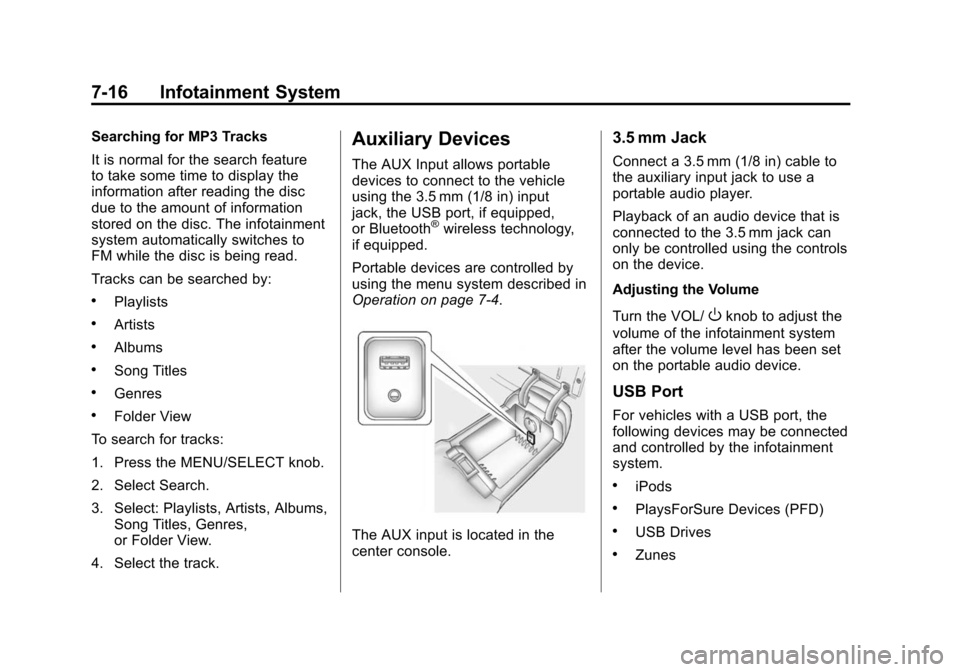
The AUX input is located in the
center console.
3.5 mm Jack
Connect a 3.5 mm (1/8 in) cable to
the auxiliary input jack to use a
portable audio player.
Playback of an audio device that is
connected to the 3.5 mm jack can
only be controlled using the controls
on the device.
Adjusting the Volume
Turn the VOL/
Oknob to adjust the
volume of the infotainment system
after the volume level has been set
on the portable audio device.
USB Port
For vehicles with a USB port, the
following devices may be connected
and controlled by the infotainment
system.
.iPods
.PlaysForSure Devices (PFD)
.USB Drives
.Zunes
Page 175 of 404
Black plate (17,1)Chevrolet Camaro Owner Manual (Include Mex) - 2012
Infotainment System 7-17
Connecting and Controlling
an iPod®
Not all iPods can be controlled by
the infotainment system.
Connecting an iPod
Connect the iPod to the USB port
using the cable that came with the
device.
Searching for a Track
Tracks can be searched for by:
.Playlists
.Artists
.Albums
.Song Titles
.Podcasts
.Genres
.Audiobooks
.Composers
To search for tracks:
1. Press the MENU/SELECT knob.
2. Select Search. 3. Select: Playlists, Artists, Albums,
Song Titles, Podcasts, Genres,
Audiobooks, or Composers.
4. Select the track.
Shuffle
Press the MENU/SELECT knob and
set Shuffle Songs (Random) to On
or Off, then press the
/BACK
button to return to the main screen.
On: Plays tracks in the current
folder in random order.
Off: Plays tracks in the current
folder in sequential order.
Repeat
Press the MENU/SELECT knob and
set Repeat to On or Off, then press
the
/BACK button to return to the
main screen.
On: Repeats the current track.
Off: Starts playback from the
beginning of the current track after
the last track finishes.
Connecting and Controlling a
PlaysForSure Device (PFD)
or Zune™
Connecting a PFD or Zune
Connect the PFD or Zune to the
USB port using the cable that came
with the device.
Searching for a Track
Tracks can be searched for by:
.Playlists
.Artists
.Albums
.Song Titles
.Podcasts
.Genres
To search for tracks:
1. Press the MENU/SELECT knob.
2. Select Search.
3. Select: Playlists, Artists, Albums, Song Titles, Podcasts,
or Genres
4. Select the track.
Page 177 of 404
Black plate (19,1)Chevrolet Camaro Owner Manual (Include Mex) - 2012
Infotainment System 7-19
Repeat On:Repeats the current
track.
Repeat Off: Starts playback from
the beginning of the current track
after the last track finishes.
Connecting a Bluetooth®
Device
Before a Bluetooth device can be
connected to the infotainment
system, it must first be paired to the
system. Not all Bluetooth devices
can be paired to the infotainment
system. Before pairing the Bluetooth
device, become familiar with its user
guide for Bluetooth functions. The
system only connects to Bluetooth
devices that support A2DP
(Advanced Audio Distribution
Profile) version 1.2.
Pairing Information:
.Up to five devices can be paired
to the system.
.The pairing process is disabled
when the vehicle is moving.
.The infotainment system
automatically links with the first
available paired device in the
order the device was paired.
.Only one paired device can be
connected to the infotainment
system at a time.
.Pairing should only need to be
completed once, unless changes
to the pairing information have
been made or the device is
deleted.
Bluetooth Setup Menu
The Bluetooth Setup menu can be
accessed with or without a device
attached to the USB port.
To select the Bluetooth Setup menu
when a device is attached to the
USB port and active:
1. Press the MENU/SELECT knob while in the iPod, Zune, PFD,
or USB device main menu.
2. Select Bluetooth Music Setup. To select the Bluetooth Music Setup
menu when a device is not attached
to the USB port, or when a device is
attached to the USB port but not
active:
1. Press the CD/AUX button until
AUX is the active source.
2. Press the MENU/SELECT knob.
3. Select Bluetooth Music Setup.
To select the Bluetooth Music Setup
menu when a Bluetooth device is
connected and active:
1. Press the MENU/SELECT knob.
2. Select Bluetooth Music Setup.
Pairing a Device
1. Select Connect To New Device from the Bluetooth Music
Setup menu.
2. The system asks a series of Yes/No questions to determine
what type of device is being
paired.
Page 179 of 404
Black plate (21,1)Chevrolet Camaro Owner Manual (Include Mex) - 2012
Infotainment System 7-21
Messages
The following messages may
appear on the infotainment screen.
Poor Bluetooth Signal Quality:
This message displays when the
Bluetooth signal strength is low.
This Feature is Unavailable While
Vehicle is Moving:This message
displays when an action is not
allowed while the vehicle is moving.
Controlling a Bluetooth®
Device
Bluetooth devices that support
AVRCP (Audio/Video Remote
Control Profile) version 1.4 may
be able to be controlled by the
infotainment system. Press and release
7SEEK /6
SEEK to skip tracks. Press and hold7SEEK /6SEEK to fast forward
or fast reverse within a track.
Other Information
The Bluetooth®word mark and
logos are owned by the Bluetooth®
SIG, Inc. and any use of such marks
by General Motors is under license.
Other trademarks and trade names
are those of their respective owners.
See Radio Frequency Statement on
page 13‑20 for Federal
Communications Commission and
Industry Canada information.
Phone
Bluetooth (Overview)
For vehicles equipped with
Bluetooth capability, the system can
interact with many cell phones,
allowing:
.Placement and receipt of calls in
a hands-free mode.
.Sharing of the cell phone’s
address book or contact list with
the vehicle.
To minimize driver distraction,
before driving, and with the vehicle
parked:
.Become familiar with the
features of the cell phone.
Organize the phone book and
contact lists clearly and delete
duplicate or rarely used entries.
If possible, program speed dial
or other shortcuts.
.Review the controls and
operation of the infotainment
system.