buttons CHEVROLET CAMARO 2013 5.G User Guide
[x] Cancel search | Manufacturer: CHEVROLET, Model Year: 2013, Model line: CAMARO, Model: CHEVROLET CAMARO 2013 5.GPages: 404, PDF Size: 5.45 MB
Page 150 of 404
Black plate (46,1)Chevrolet Camaro Owner Manual (Include Mex) - 2012
5-46 Instruments and Controls
Universal Remote System
Operation
Using the Universal Remote
System
Press and hold the appropriate
Universal Remote system button
for at least half of a second. The
indicator light will come on while the
signal is being transmitted.
Erasing Universal Remote
System Buttons
All programmed buttons should be
erased when the vehicle is sold or
the lease ends.
To erase all programmed buttons
on the Universal Remote system
device:
1. Press and hold down the twooutside buttons until the
indicator light begins to flash.
This should take about
10 seconds.
2. Release both buttons.
Reprogramming a Single
Universal Remote System
Button
To reprogram any of the three
Universal Remote system buttons:
1. Press and hold the desired Universal Remote system
button. Do not release the
button.
2. The indicator light will begin to flash after 20 seconds. Without
releasing the button, proceed
with Step 1 of the section
“Programming the Universal
Remote System.” If you have questions or need help
programming the Universal Remote
system, call 1‐800‐355‐3515 or go
to www.homelink.com. You may
also call the customer assistance
phone number under
Customer
Assistance Offices (U.S. and
Canada) on page 13‑4 orCustomer
Assistance Offices (Mexico) on
page 13‑5.
Page 156 of 404
Black plate (6,1)Chevrolet Camaro Owner Manual (Include Mex) - 2012
6-6 Lighting
Dome Lamps
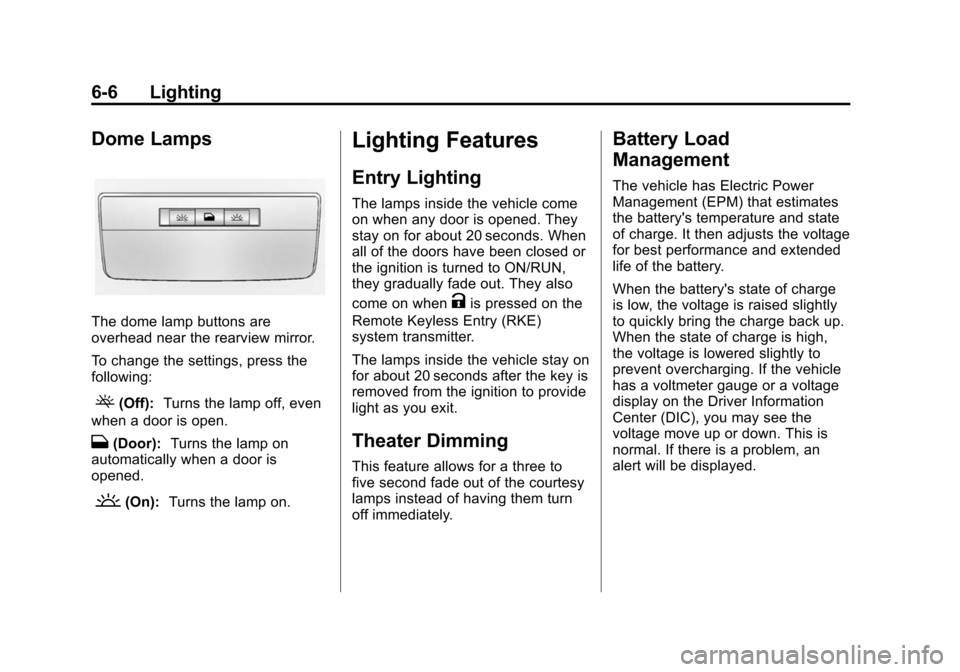
The dome lamp buttons are
overhead near the rearview mirror.
To change the settings, press the
following:
((Off):Turns the lamp off, even
when a door is open.
H(Door): Turns the lamp on
automatically when a door is
opened.
'(On): Turns the lamp on.
Lighting Features
Entry Lighting
The lamps inside the vehicle come
on when any door is opened. They
stay on for about 20 seconds. When
all of the doors have been closed or
the ignition is turned to ON/RUN,
they gradually fade out. They also
come on when
Kis pressed on the
Remote Keyless Entry (RKE)
system transmitter.
The lamps inside the vehicle stay on
for about 20 seconds after the key is
removed from the ignition to provide
light as you exit.
Theater Dimming
This feature allows for a three to
five second fade out of the courtesy
lamps instead of having them turn
off immediately.
Battery Load
Management
The vehicle has Electric Power
Management (EPM) that estimates
the battery's temperature and state
of charge. It then adjusts the voltage
for best performance and extended
life of the battery.
When the battery's state of charge
is low, the voltage is raised slightly
to quickly bring the charge back up.
When the state of charge is high,
the voltage is lowered slightly to
prevent overcharging. If the vehicle
has a voltmeter gauge or a voltage
display on the Driver Information
Center (DIC), you may see the
voltage move up or down. This is
normal. If there is a problem, an
alert will be displayed.
Page 161 of 404
Black plate (3,1)Chevrolet Camaro Owner Manual (Include Mex) - 2012
Infotainment System 7-3
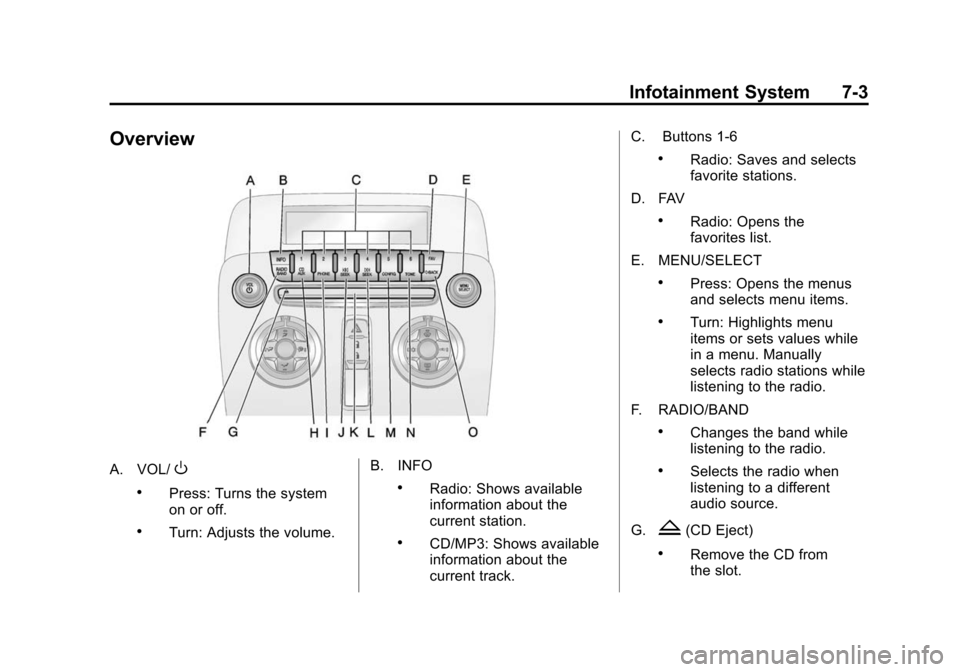
Overview
A. VOL/O
.Press: Turns the system
on or off.
.Turn: Adjusts the volume.B. INFO
.Radio: Shows available
information about the
current station.
.CD/MP3: Shows available
information about the
current track.C. Buttons 1‐6
.Radio: Saves and selects
favorite stations.
D. FAV
.Radio: Opens the
favorites list.
E. MENU/SELECT
.Press: Opens the menus
and selects menu items.
.Turn: Highlights menu
items or sets values while
in a menu. Manually
selects radio stations while
listening to the radio.
F. RADIO/BAND
.Changes the band while
listening to the radio.
.Selects the radio when
listening to a different
audio source.
G.
Z(CD Eject)
.Remove the CD from
the slot.
Page 162 of 404
Black plate (4,1)Chevrolet Camaro Owner Manual (Include Mex) - 2012
7-4 Infotainment System
H. CD/AUX
.Selects between the CD
player or a connected
external audio source.
I. PHONE
.Opens the phone
main menu.
.Mutes the audio system.
J.
7SEEK
.Radio: Seeks the previous
station.
.CD: Selects the previous
track or rewinds within a
track.
K. CD Slot
.Insert a CD.
L.
6SEEK
.Radio: Seeks the next
station.
.CD: Selects the next track
or fast forwards within a
track. M. CONFIG
.Opens the settings menu.
N. TONE
.Opens the tone menu.
O.
/BACK
.Menu: Moves one
level back.
.Character Input: Deletes
the last character.
Operation
Controls
The infotainment system is operated
by using the pushbuttons,
multifunction knobs, and menus that
are shown on the display, and
steering wheel controls, if equipped.
Turning the System On or Off
VOL/O(Volume/Power): Press to
turn the system on and off. Automatic Off
If the infotainment system has
been turned on after the ignition is
turned off, the system turns off
automatically after 10 minutes.
Volume Control
VOL/O(Volume/Power):
Turn to
adjust the volume.
PHONE: For vehicles with
OnStar
®, press and hold PHONE to
mute the infotainment system. Press
and hold PHONE again, or turn VOL
Oto cancel mute.
For vehicles without OnStar, press
PHONE to mute the infotainment
system. Press PHONE again,
or turn VOL
Oto cancel mute.
Menu System
Controls
The MENU/SELECT knob and the
/BACK button are used to
navigate the menu system.
Page 166 of 404
Black plate (8,1)Chevrolet Camaro Owner Manual (Include Mex) - 2012
7-8 Infotainment System
Radio
AM-FM Radio
Control Buttons
The buttons used to control the
radio are:
RADIO/BAND:Press to turn the
radio on and choose between AM,
FM, and XM™, if equipped.
7SEEK/6SEEK: Press to
search for stations.
FAV: Press to open the
favorites list.
1‐6: Press to select preset stations.
MENU/SELECT: Turn to manually
search for stations.
RDS (Radio Data System)
The radio may have RDS. The RDS
feature is available for use only on
FM stations that broadcast RDS
information. This feature only works
when the information from the radio
station is available. In rare cases, a
radio station could broadcast incorrect information that causes the
radio features to work improperly.
If this happens, contact the radio
station.
While the radio is tuned to an
FM-RDS station, the station name
or call letters display.
Radio Menus
Radio menus are available for AM,
FM, and XM, if equipped.
Press the MENU/SELECT knob to
open the main radio menu for that
frequency.
Selecting a Band
Press the RADIO/BAND button to
choose AM, FM, or XM, if equipped.
The last station that was playing
starts playing again.
Selecting a Station
Seek Tuning
Briefly press
7or SEEK6SEEK
to automatically search for the next
available station. If a station is not
found, the radio switches to a more sensitive search level. If a station
still is not found, the frequency that
was last active begins to play.
Press and hold
7SEEK or6
SEEK until the station on the
display is reached, then release
the button.
Manual Tuning
Turn the MENU/SELECT knob to
select the frequency on the display.
Favorites List
1. Press the MENU/SELECT knob.
2. Select Favorites List.
3. Select the station.
Station Lists
1. Press the MENU/SELECT knob.
2. Select AM or FM Station List. All
receivable stations in the current
reception area are displayed.
If no station list has been
created an automatic station
search is done.
3. Select the station.
Page 167 of 404
Black plate (9,1)Chevrolet Camaro Owner Manual (Include Mex) - 2012
Infotainment System 7-9
Updating Station and Category
Lists
If stations stored in the station list
can no longer be received:
1. Press the MENU/SELECT knob.
2. Select Update AM or FM StationList, if the stations stored in the
station list are no longer
received. A station search will be
completed and the first station in
the updated list will play.
To cancel the station search, press
the MENU/SELECT knob.
Category Lists
Most stations that broadcast an
RDS program type (PTY) code
specify the type of programming
transmitted. Some stations change
the PTY code depending on the
content. The system stores the RDS
stations, sorted by program type, in
the FM category list. To search for a programming type
determined by station:
1. Select FM category list. A list of
all programming types available
displays.
2. Select the programming type. A list of stations that transmit
programming of the selected
type displays.
3. Select the station.
The category lists are updated when
the corresponding station lists are
updated.
Storing and Retrieving
Favorites
Stations from all bands can be
stored in the favorite lists in any
order.
Up to six stations can be stored in
each favorite page and the number
of available favorite pages can
be set. Storing a Station as a Favorite
To store the station to a position in
the list, press the corresponding
numeric button 1‐6 until the station
can be heard again.
Retrieving Stations
Press the FAV button to open a
favorite page or to switch to another
favorite page. Briefly press one of
the 1‐6 buttons to retrieve the
station.
Satellite Radio
Vehicles with an XM Satellite Radio
tuner and a valid XM Satellite Radio
subscription can receive XM
programming.
XM Satellite Radio Service
XM is a satellite radio service based
in the 48 contiguous United States
and 10 Canadian provinces. XM
Satellite Radio has a wide variety of
programming and commercial-free
music, coast to coast, and in
digital-quality sound. During your
Page 168 of 404
Black plate (10,1)Chevrolet Camaro Owner Manual (Include Mex) - 2012
7-10 Infotainment System
trial or when you subscribe, you will
get unlimited access to XM Radio
Online for when you are not in the
vehicle. A service fee is required to
receive the XM service. If XM
service needs to be reactivated, the
radio will display "No Subscription
Please Renew" on channel XM1.
For more information, contact XM at
www.xmradio.com or call
1-800-929-2100 in the U.S. and
www.xmradio.ca or call
1-877-438-9677 in Canada.
Control Buttons
The buttons used to control the XM
radio are:
RADIO/BAND:Press to turn the
radio on and choose between AM,
FM, and XM.
7SEEK /6SEEK: Press to
search for stations.
FAV: Press to open the
favorites list.
1‐6: Press to select preset stations. MENU/SELECT:
Turn to search for
stations.
Selecting the XM Band
Press the RADIO/BAND button to
choose between the AM, FM, and
XM bands. The last station played in
that band begins to play when that
band is selected.
XM Categories
XM stations are organized in
categories.
Removing or Adding Categories
1. Press the CONFIG button.
2. Select XM Categories.
3. Turn the MENU/SELECT knob to
highlight the category.
4. Press the MENU/SELECT knob to remove or add the category.
Selecting an XM Station
XM stations can be selected by
using
7SEEK,6SEEK, the
MENU/SELECT knob, or the menu
system. To select an XM station using
7
SEEK or6SEEK, do one of the
following:
.Press and release7SEEK or
6SEEK to go to the previous or
next station.
.Press and hold7SEEK or6
SEEK to scroll through the
previous or next stations until
the station is reached.
To select an XM station using the
MENU/SELECT knob:
1. Turn the MENU/SELECT knob to highlight an XM station.
2. Press the MENU/SELECT knob to select the station, or leave the
station highlighted.
To select a station using the menu:
1. Press the MENU/SELECT knob.
2. Select XM Stations List.
3. Select the station.
Page 169 of 404
Black plate (11,1)Chevrolet Camaro Owner Manual (Include Mex) - 2012
Infotainment System 7-11
Selecting a Station by Category
1. Press the MENU/SELECT knob.
2. Select XM Category List. A list ofall programming types available
displays.
3. Select the programming type.
4. Select the station.
Storing and Retrieving
Favorites
Stations from all bands can be
stored in any order in the favorite
pages.
Up to six stations can be stored in
each favorite page and the number
of available favorite pages can
be set.
Storing a Station as a Favorite
To store the station to a position in
the list, press and hold the
corresponding 1‐6 button until the
station can be heard again. Retrieving Stations
Press the FAV button to open a
favorite page or to switch to another
favorite page. Briefly press one of
the 1‐6 buttons to retrieve the
station.
XM Messages
XL (Explicit Language
Channels):
These channels, or any
others, can be blocked by request,
by calling 1-800-929-2100 in the
U.S. and 1-877-438-9677 in
Canada.
XM Updating: The encryption code
is being updated; no action is
required.
Loading XM: The audio system is
acquiring and processing audio and
text data; no action is needed.
Channel Off Air: This channel is
not currently in service.
Channel Unauth: This channel is
blocked or cannot be received with
the XM subscription package. Channel Unavail:
This previously
assigned channel is no longer
assigned.
No Artist Info: No artist
information is available.
No Title Info: No song title
information is available.
No CAT Info: No category
information is available.
No Information: No text or
informational messages are
available.
No Subscription Please
Renew: XM subscription needs
to be reactivated. Contact XM at
www.xmradio.com or call
1-800-929-2100 in the U.S. and
www.xmradio.ca or call
1-877-438-9677 in Canada.
No XM Signal: The vehicle may be
in a location that where the XM
signal is being blocked. When the
vehicle is moved, the signal should
return.
Page 173 of 404
Black plate (15,1)Chevrolet Camaro Owner Manual (Include Mex) - 2012
Infotainment System 7-15
Control Buttons
The buttons used to control the CD
player are:
CD/AUX:Press to choose between
the CD and AUX player.
7SEEK /6SEEK: Press to
select tracks or to fast forward or
rewind within a track.
MENU/SELECT: Turn to select
tracks.
INFO: Press to display additional
information about the CD that may
be available.
Z(Eject): Press to remove
the CD.
Inserting a CD
With the printed side facing up,
insert a disc into the CD slot until it
is drawn in.
Removing a CD
PressZ.
The disc is pushed out of the
CD slot. If the disc is not removed after it is
ejected, it is pulled back in after a
few seconds.
Playing a CD or MP3 CD
Press the CD/AUX button if there is
a disc in the player; it begins
playing.
Information about the disc and
current track is shown on the
display depending on the data
stored.
Selecting a CD Track
Using the control buttons:
Press
7SEEK or6SEEK to
select the previous or next track.
Turn the MENU/SELECT knob
counterclockwise or clockwise to
select the previous or next track.
Using the CD Menu:
1. Press the MENU/SELECT knob.
2. Select Tracks list.
3. Select the track. Playing Tracks in Random Order
Press the MENU/SELECT knob and
then set Shuffle Songs to On.
Fast Forward and Rewind
Press and hold
7SEEK or6
SEEK to fast forward or rewind
within the current track.
Selecting an MP3 Track
Using the control buttons:
Press
7SEEK or6SEEK to
select the previous or next track.
Turn the MENU/SELECT knob
counterclockwise or clockwise to
select the previous or next track.
Using the CD Menu:
1. Press the MENU/SELECT knob.
2. Select Playlists/Folders.
3. Select the playlist or folder.
4. Select the track.
Page 180 of 404
Black plate (22,1)Chevrolet Camaro Owner Manual (Include Mex) - 2012
7-22 Infotainment System
.Pair cell phone(s) to the vehicle.
The system may not work with
all cell phones. See“Pairing”in
this section for more information.
.If the cell phone has voice
dialing capability, learn to use
that feature to access the
address book or contact list. See
“Voice Pass-Thru” in this section
for more information.
.See “Storing and Deleting Phone
Numbers” in this section for
more information.
{WARNING
When using a cell phone, it can
be distracting to look too long or
too often at the screen of the
phone or the infotainment
(navigation) system. Taking your
eyes off the road too long or too
often could cause a crash
resulting in injury or death. Focus
your attention on driving. Vehicles with a Bluetooth system
can use a Bluetooth‐capable cell
phone with a Hands‐Free Profile to
make and receive phone calls. The
infotainment system and voice
recognition are used to control the
system. The system can be used
while in ON/RUN or ACC/
ACCESSORY. The range of the
Bluetooth system can be up to 9.1 m
(30 ft). Not all phones support all
functions and not all phones work
with the Bluetooth system. See
www.gm.com/bluetooth for more
information about compatible
phones.Bluetooth Controls
Use the buttons located on the
infotainment system and the
steering wheel to operate the
Bluetooth system.
Steering Wheel Controls
b/g(Push To Talk) :
Press to
answer incoming calls, confirm
system information, and start voice
recognition.
$/i(End Call/Mute): Press to
end a call, reject a call, or cancel an
operation.
Infotainment System Controls
If equipped, the infotainment system
allows certain controls to be
selected on the infotainment display.
For information about how to
navigate the menu system using the
infotainment controls, see Operation
on page 7‑4.
PHONE: Press to enter the Phone
main menu.
Voice Recognition
The voice recognition system uses
commands to control the system
and dial phone numbers.
Noise: The system may not
recognize voice commands if there
is too much background noise.
When to Speak: A tone sounds to
indicate that the system is ready for
a voice command. Wait for the tone
and then speak.