infotainment CHEVROLET CAMARO 2015 5.G Service Manual
[x] Cancel search | Manufacturer: CHEVROLET, Model Year: 2015, Model line: CAMARO, Model: CHEVROLET CAMARO 2015 5.GPages: 435, PDF Size: 6.28 MB
Page 192 of 435
Black plate (27,1)Chevrolet Camaro Owner Manual (GMNA-Localizing-U.S./Canada/Mexico-
7695163) - 2015 - crc - 9/4/14
Infotainment System 7-27
Storing and Deleting Phone
Numbers
The system can store up to 30
phone numbers as name tags in the
Hands-Free Directory that is shared
between the Bluetooth and OnStar
systems.
The following commands are used
to delete and store phone numbers.
Store:This command will store a
phone number, or a group of
numbers as a name tag.
Digit Store: This command allows
a phone number to be stored as a
name tag by entering the digits one
at a time.
Delete: This command is used to
delete individual name tags.
Delete All Name Tags: This
command deletes all stored name
tags in the Hands-Free Calling
Directory and the Destinations
Directory. Using the
“Store”Command
1. Pressb/g. The system
responds “Ready,”followed by
a tone.
2. Say “Store.”
3. Say the phone number or group of numbers you want to store all
at once with no pauses, then
follow the directions given by the
system to save a name tag for
this number.
Using the “Digit Store” Command
If an unwanted number is
recognized by the system, say
“Clear” at any time to clear the last
number.
To hear all of the numbers
recognized by the system, say
“Verify” at any time.
1. Press
b/g. The system
responds “Ready,”followed by
a tone.
2. Say “Digit Store.” 3. Say each digit, one at a time,
that you want to store. After
each digit is entered, the system
repeats back the digit it heard
followed by a tone. After the last
digit has been entered, say
“Store,” and then follow the
directions given by the system to
save a name tag for this number.
Using the “Delete”Command
1. Press
b/g. The system
responds “Ready,”followed by
a tone.
2. Say “Delete.”
3. Say the name tag you want to delete.
Using the “Delete All Name Tags”
Command
This command deletes all stored
name tags in the Hands-Free
Calling Directory and the
Destinations Directory.
Page 193 of 435
Black plate (28,1)Chevrolet Camaro Owner Manual (GMNA-Localizing-U.S./Canada/Mexico-
7695163) - 2015 - crc - 9/4/14
7-28 Infotainment System
To delete all name tags:
1. Press
b/g. The system
responds “Ready,”followed by
a tone.
2. Say “Delete all name tags.”
Listing Stored Numbers
The list command will list all the
stored numbers and name tags.
Using the “List”Command
1. Press
b/g. The system
responds “Ready,”followed by
a tone.
2. Say “Directory.”
3. Say “Hands-Free Calling.”
4. Say “List.”
Making a Call
Calls can be made using the
following commands.
Dial or Call: The dial or call
command can be used
interchangeably to dial a phone
number or a stored name tag. Digit Dial:
This command allows a
phone number to be dialed by
entering the digits one at a time.
Redial: This command is used to
dial the last number used on the cell
phone.
Using the “Dial”or“Call”
Command
1. Press
b/g. The system
responds “Ready,”followed by
a tone.
2. Say “Dial”or“Call.”
3. Say the entire number without pausing or say the name tag.
Once connected, the person called
will be heard through the audio
speakers.
Calling 911 Emergency
1. Press
b/g. The system
responds “Ready,”followed by
a tone.
2. Say “Dial”or“Call.”
3. Say “911.” 4. Say "Dial." System responds:
"OK, dialing 911."
Using the “Digit Dial” Command
The digit dial command allows a
phone number to be dialed by
entering the digits one at a time.
After each digit is entered, the
system repeats back the digit it
heard followed by a tone.
If an unwanted number is
recognized by the system, say
“Clear” at any time to clear the last
number.
To hear all of the numbers
recognized by the system, say
“Verify” at any time.
1. Press
b/g. The system
responds “Ready,”followed by
a tone.
2. Say “Digit Dial.”
3. Say each digit, one at a time, that you want to dial. After each
digit is entered, the system
repeats back the digit it heard
Page 194 of 435
Black plate (29,1)Chevrolet Camaro Owner Manual (GMNA-Localizing-U.S./Canada/Mexico-
7695163) - 2015 - crc - 9/4/14
Infotainment System 7-29
followed by a tone. After the last
digit has been entered,
say“Dial.”
Once connected, the person called
will be heard through the audio
speakers.
Using the “Re-dial”Command
1. Press
b/g. The system
responds “Ready,”followed by
a tone.
2. After the tone, say “Redial.”The
system dials the last number
called from the connected cell
phone.
Once connected, the person called
will be heard through the audio
speakers.
Receiving a Call
When an incoming call is received,
the audio system mutes and a ring
tone is heard in the vehicle.
.Pressb/gto answer the call.
.Press$/ito ignore a call.
Call Waiting
Call waiting must be supported on
the cell phone and enabled by the
wireless service carrier.
.Pressb/gto answer an
incoming call when another call
is active. The original call is
placed on hold.
.Pressb/gagain to return to
the original call.
.To ignore the incoming call, no
action is required.
.Press$/ito disconnect the
current call and switch to the call
on hold.
Three-Way Calling
Three-way calling must be
supported on the cell phone and
enabled by the wireless service
carrier.
1. While on a call, press
b/g.
2. Say “Three-way call.” 3. Use the dial or call command to
dial the number of the third party
to be called.
4. Once the call is connected, press
b/gto link all callers
together.
Ending a Call
Press$/ito end a call.
Muting a Call
During a call, all sounds from inside
the vehicle can be muted so that the
person on the other end of the call
cannot hear them.
To mute a call, press
b/g, and
then say “Mute Call.”
To cancel mute, press
b/g, and
then say “Un-mute Call.”
Transferring a Call
Audio can be transferred between
the Bluetooth system and the cell
phone.
Page 195 of 435
Black plate (30,1)Chevrolet Camaro Owner Manual (GMNA-Localizing-U.S./Canada/Mexico-
7695163) - 2015 - crc - 9/4/14
7-30 Infotainment System
The cell phone must be paired and
connected with the Bluetooth
system before a call can be
transferred. The connection process
can take up to two minutes after the
ignition is turned to ON/RUN.
To Transfer Audio from the
Bluetooth System to a Cell Phone
During a call with the audio in the
vehicle:
1. Press
b/g.
2. Say “Transfer Call.”
To Transfer Audio to the Bluetooth
System from a Cell Phone
During a call with the audio on the
cell phone, press
b/g. The audio
transfers to the vehicle. If the audio
does not transfer to the vehicle, use
the audio transfer feature on the cell
phone. See your cell phone
manufacturer's user guide for more
information.
Voice Pass-Thru
Voice pass-thru allows access to the
voice recognition commands on the
cell phone. See your cell phone
manufacturer's user guide to see if
the cell phone supports this feature.
To access contacts stored in the cell
phone:
1. Press
b/g. The system
responds “Ready,”followed by
a tone.
2. Say “Bluetooth.” This command
can be skipped.
3. Say “Voice.” The system
responds “OK, accessing
The cell phone's normal prompt
messages will go through their cycle
according to the phone's operating
instructions.
Dual Tone Multi-Frequency
(DTMF) Tones
The Bluetooth system can send
numbers and the numbers stored as
name tags during a call. You can
use this feature when calling a
menu-driven phone system.
Account numbers can also be
stored for use.
Sending a Number or Name Tag
During a Call
1. Press
b/g. The system
responds “Ready,”followed by
a tone.
2. Say “Dial.”
3. Say the number or name tag to send.
Page 196 of 435
Black plate (31,1)Chevrolet Camaro Owner Manual (GMNA-Localizing-U.S./Canada/Mexico-
7695163) - 2015 - crc - 9/4/14
Infotainment System 7-31
Clearing the System
Unless information is deleted out of
the in-vehicle Bluetooth system, it
will be retained indefinitely. This
includes all saved name tags in the
phone book and phone pairing
information. See the previous
sections on“Deleting a Paired
Phone” and“Deleting Name Tags.”
Page 197 of 435

Black plate (32,1)Chevrolet Camaro Owner Manual (GMNA-Localizing-U.S./Canada/Mexico-
7695163) - 2015 - crc - 9/4/14
7-32 Infotainment System
2NOTES
Page 204 of 435
Black plate (3,1)Chevrolet Camaro Owner Manual (GMNA-Localizing-U.S./Canada/Mexico-
7695163) - 2015 - crc - 9/4/14
Driving and Operating 9-3
{Warning
Taking your eyes off the road too
long or too often could cause a
crash resulting in injury or death.
Focus your attention on driving.
Refer to the infotainment section for
more information on using that
system and the navigation system,
if equipped, including pairing and
using a cell phone.
Defensive Driving
Defensive driving means “always
expect the unexpected.” The first
step in driving defensively is to wear
the safety belt. See Safety Belts on
page 3-8.
.Assume that other road users
(pedestrians, bicyclists, and
other drivers) are going to be
careless and make mistakes.
Anticipate what they might do
and be ready.
.Allow enough following distance
between you and the driver in
front of you.
.Focus on the task of driving.
Drunk Driving
Death and injury associated with
drinking and driving is a global
tragedy.
{Warning
Drinking and then driving is very
dangerous. Your reflexes,
perceptions, attentiveness, and
judgment can be affected by even
a small amount of alcohol. You
can have a serious —or even
fatal —collision if you drive after
drinking.
Do not drink and drive or ride with
a driver who has been drinking.
Ride home in a cab; or if you are
with a group, designate a driver
who will not drink.
Control of a Vehicle
Braking, steering, and accelerating
are important factors in helping to
control a vehicle while driving.
Braking
Braking action involves perception
time and reaction time. Deciding to
push the brake pedal is perception
time. Actually doing it is
reaction time.
Average driver reaction time is
about three-quarters of a second. In
that time, a vehicle moving at
100 km/h (60 mph) travels 20 m
(66 ft), which could be a lot of
distance in an emergency.
Helpful braking tips to keep in mind
include:
.Keep enough distance between
you and the vehicle in front
of you.
.Avoid needless heavy braking.
.Keep pace with traffic.
Page 250 of 435
Black plate (49,1)Chevrolet Camaro Owner Manual (GMNA-Localizing-U.S./Canada/Mexico-
7695163) - 2015 - crc - 9/4/14
Driving and Operating 9-49
Turning the System On and Off
The RPA system can be turned on
and off using the infotainment
system controls. SeeVehicle
Personalization on page 5-43.
When the system is off, PARK
ASSIST OFF displays on the Driver
Information Center (DIC). The
message disappears after a short
period of time.
RPA defaults to the on setting each
time the vehicle is started.
Turn off RPA when towing a trailer.
When the System Does Not
Seem to Work Properly
The following messages may be
displayed on the DIC:
SERVICE PARKING ASSIST: If
this message occurs, check the
following conditions:
.The sensors are not clean. Keep
the vehicle's rear bumper free of
mud, dirt, snow, ice, and slush.
For cleaning instructions, see
Exterior Care on page 10-98.
.The park assist sensors are
covered by frost or ice. Frost or
ice can form around and behind
the sensors and may not always
be seen; this can occur after
washing the vehicle in cold
weather. The message may not
clear until the frost or ice has
melted.
If the above conditions do not exist,
take the vehicle to your dealer to
repair the system.
PARK ASSIST OFF: If the RPA
system does not activate due to a
temporary condition, the message
displays on the DIC. This can occur
under the following conditions:
.The driver has disabled the
system.
.An object was hanging out of the
trunk during the last drive cycle.
Once the object is removed,
RPA will return to normal
operation.
.The bumper is damaged. Take
the vehicle to your dealer to
repair the system.
.Other conditions, such as
vibrations from a jackhammer or
the compression of air brakes on
a very large truck, are affecting
system performance.
Rear Vision
Camera (RVC)
{Warning
The RVC system does not display
children, pedestrians, bicyclists,
crossing traffic, animals, or any
other object located outside the
camera's field of view, below the
bumper, or under the vehicle.
Perceived distances may be
different from actual distances.
Do not back the vehicle using
only the RVC screen. Failure to
use proper care before backing
may result in injury, death,
or vehicle damage. Always check
behind and around the vehicle
before backing.
Page 251 of 435
Black plate (50,1)Chevrolet Camaro Owner Manual (GMNA-Localizing-U.S./Canada/Mexico-
7695163) - 2015 - crc - 9/4/14
9-50 Driving and Operating
If equipped, the RVC system is
designed to help the driver when
backing up by displaying a view of
the area behind the vehicle. When
the key is in ON/RUN and the driver
shifts the vehicle into R (Reverse),
the video image automatically
appears on the infotainment screen.
The infotainment screen goes to the
previous screen after approximately
four seconds once the vehicle is
shifted out of R (Reverse).
To see the previous screen sooner,
do one of the following:
.Press a hard key on the
infotainment system.
.Shift into P (Park).
.Reach a vehicle speed of
8 km/h (5 mph).
Symbols and Guidelines
The RVC system may have a
feature that lets the driver view
symbols on the infotainment screen
while using the RVC. The Rear
Parking Assist (RPA) system must
not be disabled to use the caution symbols. The error message Rear
Parking Assist Symbols Unavailable
may display if RPA has been
disabled and the symbols have
been turned on. See
Parking Assist
on page 9-48.
The symbols appear and may cover
an object when viewing the
infotainment screen when an object
is detected by the RPA system.
The RVC system may also have a
guideline overlay that can help the
driver align the vehicle when
backing into a parking spot.
To turn the symbols or guidelines on
or off:
1. Shift into P (Park).
2. Press the CONFIG button.
3. Select Rear Camera Options.
4. Select Symbols or Guidelines.
The feature is on when a check
mark appears next to it. Rear Vision Camera Error
Messages
SERVICE REAR VISION CAMERA
SYSTEM:
This message can
display on the infotainment screen
when the system is not working
properly.
If any other problem occurs or if a
problem persists, see your dealer.
Rear Vision Camera Location
The camera is above the license
plate.
Page 394 of 435
Black plate (1,1)Chevrolet Camaro Owner Manual (GMNA-Localizing-U.S./Canada/Mexico-
7695163) - 2015 - crc - 9/4/14
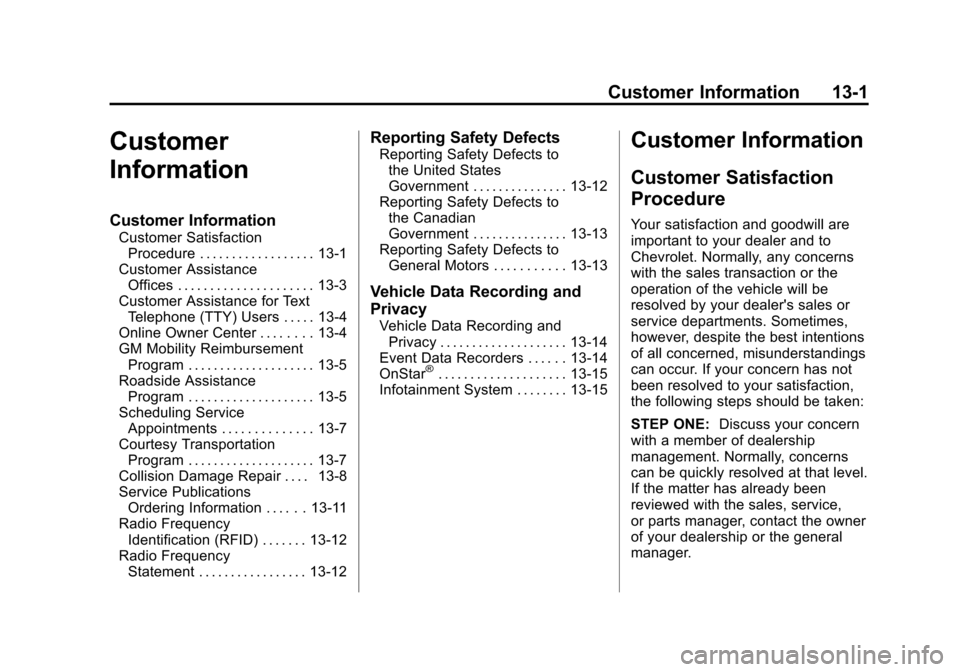
Customer Information 13-1
Customer
Information
Customer Information
Customer SatisfactionProcedure . . . . . . . . . . . . . . . . . . 13-1
Customer Assistance Offices . . . . . . . . . . . . . . . . . . . . . 13-3
Customer Assistance for Text Telephone (TTY) Users . . . . . 13-4
Online Owner Center . . . . . . . . 13-4
GM Mobility Reimbursement Program . . . . . . . . . . . . . . . . . . . . 13-5
Roadside Assistance Program . . . . . . . . . . . . . . . . . . . . 13-5
Scheduling Service Appointments . . . . . . . . . . . . . . 13-7
Courtesy Transportation Program . . . . . . . . . . . . . . . . . . . . 13-7
Collision Damage Repair . . . . 13-8
Service Publications Ordering Information . . . . . . 13-11
Radio Frequency Identification (RFID) . . . . . . . 13-12
Radio Frequency Statement . . . . . . . . . . . . . . . . . 13-12
Reporting Safety Defects
Reporting Safety Defects tothe United States
Government . . . . . . . . . . . . . . . 13-12
Reporting Safety Defects to the Canadian
Government . . . . . . . . . . . . . . . 13-13
Reporting Safety Defects to General Motors . . . . . . . . . . . 13-13
Vehicle Data Recording and
Privacy
Vehicle Data Recording andPrivacy . . . . . . . . . . . . . . . . . . . . 13-14
Event Data Recorders . . . . . . 13-14
OnStar
®. . . . . . . . . . . . . . . . . . . . 13-15
Infotainment System . . . . . . . . 13-15
Customer Information
Customer Satisfaction
Procedure
Your satisfaction and goodwill are
important to your dealer and to
Chevrolet. Normally, any concerns
with the sales transaction or the
operation of the vehicle will be
resolved by your dealer's sales or
service departments. Sometimes,
however, despite the best intentions
of all concerned, misunderstandings
can occur. If your concern has not
been resolved to your satisfaction,
the following steps should be taken:
STEP ONE: Discuss your concern
with a member of dealership
management. Normally, concerns
can be quickly resolved at that level.
If the matter has already been
reviewed with the sales, service,
or parts manager, contact the owner
of your dealership or the general
manager.