AUX CHEVROLET CAMARO 2015 5.G Owners Manual
[x] Cancel search | Manufacturer: CHEVROLET, Model Year: 2015, Model line: CAMARO, Model: CHEVROLET CAMARO 2015 5.GPages: 435, PDF Size: 6.28 MB
Page 21 of 435
Black plate (14,1)Chevrolet Camaro Owner Manual (GMNA-Localizing-U.S./Canada/Mexico-
7695163) - 2015 - crc - 9/4/14
1-14 In Brief
Refer to:
.www.siriusxm.com or call
1-866-635-2349 (U.S.).
.www.xmradio.ca or call
1-877-209-0079 (Canada).
See Satellite Radio on page 7-9.
Portable Audio Devices
This vehicle may have a 3.5 mm
(1/8 in) auxiliary input and a USB
port in the center console bin.
External devices such as iPods
®,
laptop computers, MP3 players, and
USB drives may be connected,
depending on the audio system.
See Auxiliary Devices on page 7-14.
Bluetooth®
The Bluetooth®system allows users
with a Bluetooth-enabled mobile
phone to make and receive
hands-free calls using the vehicle
audio system and controls. The Bluetooth-enabled mobile
phone must be paired with the
in-vehicle Bluetooth system before it
can be used in the vehicle. Not all
phones will support all functions.
See
Bluetooth (Voice Recognition)
on page 7-25 orBluetooth
(Infotainment Controls) on
page 7-21 orBluetooth (Overview)
on page 7-20.
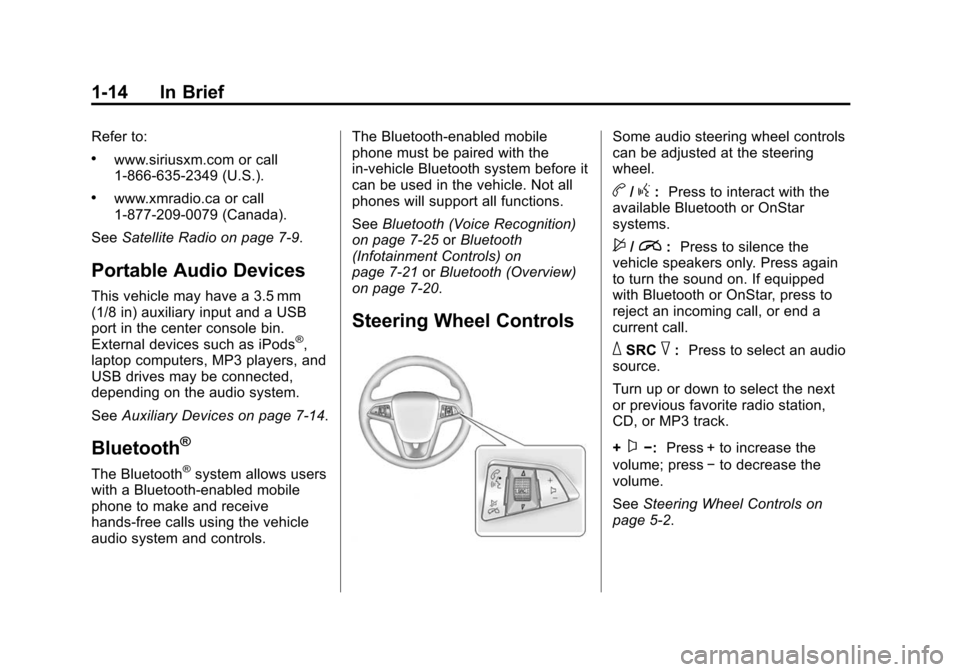
Steering Wheel Controls
Some audio steering wheel controls
can be adjusted at the steering
wheel.
b/g: Press to interact with the
available Bluetooth or OnStar
systems.
$/i: Press to silence the
vehicle speakers only. Press again
to turn the sound on. If equipped
with Bluetooth or OnStar, press to
reject an incoming call, or end a
current call.
_SRC^: Press to select an audio
source.
Turn up or down to select the next
or previous favorite radio station,
CD, or MP3 track.
+
x−: Press + to increase the
volume; press −to decrease the
volume.
See Steering Wheel Controls on
page 5-2.
Page 101 of 435
Black plate (2,1)Chevrolet Camaro Owner Manual (GMNA-Localizing-U.S./Canada/Mexico-
7695163) - 2015 - crc - 9/4/14
4-2 Storage
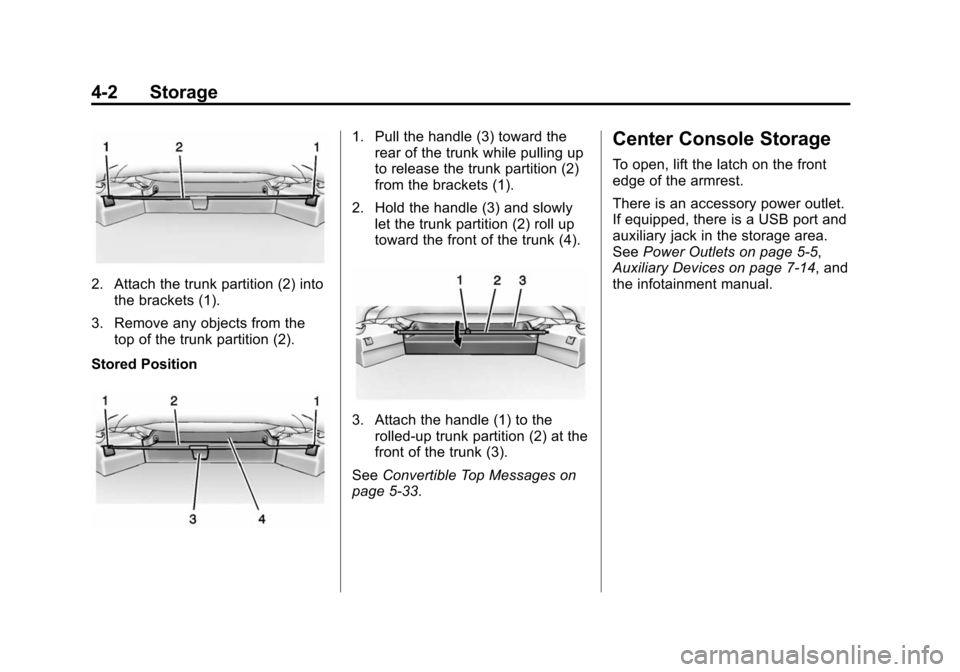
2. Attach the trunk partition (2) intothe brackets (1).
3. Remove any objects from the top of the trunk partition (2).
Stored Position
1. Pull the handle (3) toward the rear of the trunk while pulling up
to release the trunk partition (2)
from the brackets (1).
2. Hold the handle (3) and slowly let the trunk partition (2) roll up
toward the front of the trunk (4).
3. Attach the handle (1) to the
rolled-up trunk partition (2) at the
front of the trunk (3).
See Convertible Top Messages on
page 5-33.
Center Console Storage
To open, lift the latch on the front
edge of the armrest.
There is an accessory power outlet.
If equipped, there is a USB port and
auxiliary jack in the storage area.
See Power Outlets on page 5-5,
Auxiliary Devices on page 7-14, and
the infotainment manual.
Page 149 of 435
Black plate (44,1)Chevrolet Camaro Owner Manual (GMNA-Localizing-U.S./Canada/Mexico-
7695163) - 2015 - crc - 9/4/14
5-44 Instruments and Controls
.Maximum Startup Volume
.Number of Favorites Pages
.Radio Favorites
.RDS Options
.XM Categories
.Software Versions Menu
Auto Volume
This feature adjusts the volume to
minimize the effects of unwanted
background noise that can result
from changing road surfaces, driving
speeds, or open windows. This
feature works best at lower volume
settings where background noise is
typically louder than the sound
system volume.
Select Off, Low, Medium, or High.
Gracenote Options
Select and the following may
display:
.Normalization Normalization
This feature improves voice
recognition and media groupings.
See
“CD Player,” “USB,” “Auxiliary
Devices,” and“Bluetooth Audio” in
the infotainment manual.
Select to enable or disable.
XM Channel Art
This feature turns the XM Audio
page background on the XM
Channel display on and off.
Select to enable or disable.
Max Startup Volume or Maximum
Startup Volume
This feature sets the maximum
startup volume. If the vehicle is
started and the volume is greater
than this level, the volume is
adjusted to this level.
Press + or −to increase or
decrease the volume. Number of Favorites Pages or
Radio Favorites
Press to set the number of favorites
to display.
Select the desired number.
RDS Options
Select and the following may
display:
.RDS
.Text Scroll Freeze
.RDS Text
RDS
Select to turn RDS on or off. See
“RDS (Radio Data System)” in
AM-FM Radio on page 7-7.
Text Scroll Freeze
When on, this allows the RDS Text
will scroll across the radio screen.
Select to enable or disable.
Page 166 of 435
Black plate (1,1)Chevrolet Camaro Owner Manual (GMNA-Localizing-U.S./Canada/Mexico-
7695163) - 2015 - crc - 9/4/14
Infotainment System 7-1
Infotainment
System
Introduction
Infotainment . . . . . . . . . . . . . . . . . . . 7-1
Theft-Deterrent Feature . . . . . . . 7-2
Overview . . . . . . . . . . . . . . . . . . . . . . 7-2
Operation . . . . . . . . . . . . . . . . . . . . . 7-3
Radio
AM-FM Radio . . . . . . . . . . . . . . . . . 7-7
Satellite Radio . . . . . . . . . . . . . . . . 7-9
Radio Reception . . . . . . . . . . . . . 7-10
Backglass Antenna . . . . . . . . . . 7-11
Diversity Antenna System . . . 7-12
Multi-Band Antenna . . . . . . . . . . 7-12
Audio Players
CD Player . . . . . . . . . . . . . . . . . . . 7-12
Auxiliary Devices . . . . . . . . . . . . 7-14
Phone
Bluetooth (Overview) . . . . . . . . 7-20
Bluetooth (InfotainmentControls) . . . . . . . . . . . . . . . . . . . 7-21
Bluetooth (Voice Recognition) . . . . . . . . . . . . . . . 7-25
Introduction
Infotainment
Base radio information is included in
this manual. See the infotainment
manual for information on other
available infotainment systems.
Read the following pages to
become familiar with these features.
{Warning
Taking your eyes off the road for
too long or too often while using
any infotainment feature can
cause a crash. You or others
could be injured or killed. Do not
give extended attention to
infotainment tasks while driving.
Limit your glances at the vehicle
displays and focus your attention
on driving. Use voice commands
whenever possible. The infotainment system has built-in
features intended to help avoid
distraction by disabling some
functions when driving. These
functions may gray out when they
are unavailable. Many infotainment
features are also available through
the instrument cluster and steering
wheel controls.
Before driving:
.Become familiar with the
operation, faceplate buttons, and
screen buttons.
.Set up the audio by presetting
favorite stations, setting the
tone, and adjusting the
speakers.
.Set up phone numbers in
advance so they can be called
easily by pressing a single
button or by using a single voice
command if equipped with
Bluetooth phone capability.
See Defensive Driving on page 9-3.
Page 168 of 435
Black plate (3,1)Chevrolet Camaro Owner Manual (GMNA-Localizing-U.S./Canada/Mexico-
7695163) - 2015 - crc - 9/4/14
Infotainment System 7-3
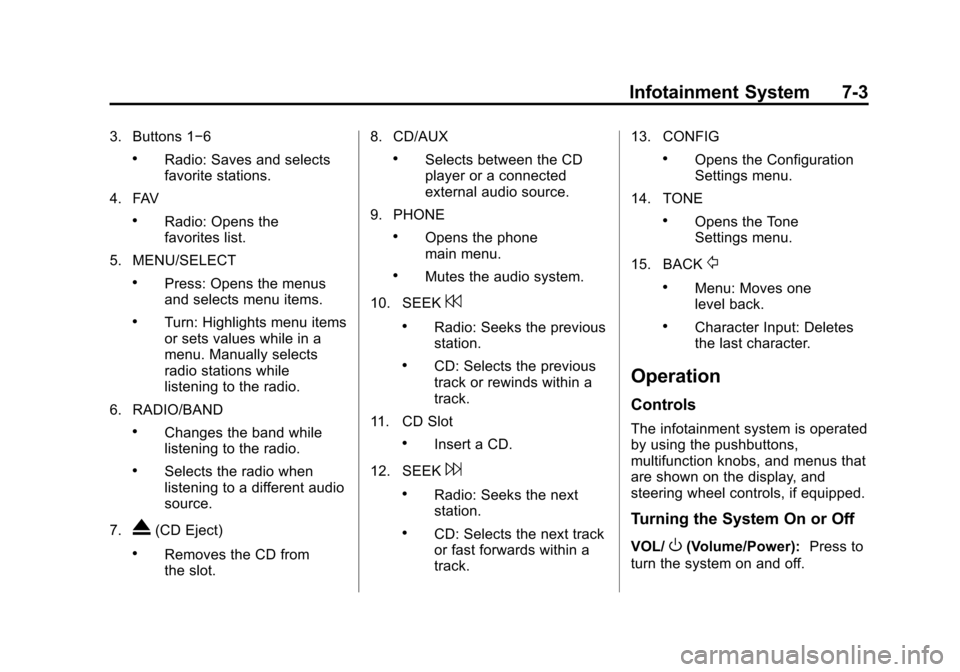
3. Buttons 1−6
.Radio: Saves and selects
favorite stations.
4. FAV
.Radio: Opens the
favorites list.
5. MENU/SELECT
.Press: Opens the menus
and selects menu items.
.Turn: Highlights menu items
or sets values while in a
menu. Manually selects
radio stations while
listening to the radio.
6. RADIO/BAND
.Changes the band while
listening to the radio.
.Selects the radio when
listening to a different audio
source.
7.
X(CD Eject)
.Removes the CD from
the slot. 8. CD/AUX
.Selects between the CD
player or a connected
external audio source.
9. PHONE
.Opens the phone
main menu.
.Mutes the audio system.
10. SEEK
7
.Radio: Seeks the previous
station.
.CD: Selects the previous
track or rewinds within a
track.
11. CD Slot
.Insert a CD.
12. SEEK
6
.Radio: Seeks the next
station.
.CD: Selects the next track
or fast forwards within a
track. 13. CONFIG
.Opens the Configuration
Settings menu.
14. TONE
.Opens the Tone
Settings menu.
15. BACK
/
.Menu: Moves one
level back.
.Character Input: Deletes
the last character.
Operation
Controls
The infotainment system is operated
by using the pushbuttons,
multifunction knobs, and menus that
are shown on the display, and
steering wheel controls, if equipped.
Turning the System On or Off
VOL/O(Volume/Power): Press to
turn the system on and off.
Page 178 of 435
Black plate (13,1)Chevrolet Camaro Owner Manual (GMNA-Localizing-U.S./Canada/Mexico-
7695163) - 2015 - crc - 9/4/14
Infotainment System 7-13
mild neutral detergent solution
mixed with water, and clean it. Wipe
the disc from the center to the
outer edge.
Care of the CD Player
Do not add a label to a disc, as it
could get caught in the CD player.
If a label is needed, label the top of
the recorded disc with a
marking pen.
Do not use disc lens cleaners
because they could contaminate the
lens of the disc optics and damage
the CD player.
{Caution
If a label is added to a CD, more
than one CD is inserted into the
slot at a time, or an attempt is
made to play scratched or
damaged CDs, the CD player
could be damaged. While using
the CD player, use only CDs in
good condition without any label,(Continued)
Caution (Continued)
load one CD at a time, and keep
the CD player and the loading slot
free of foreign materials, liquids,
and debris.
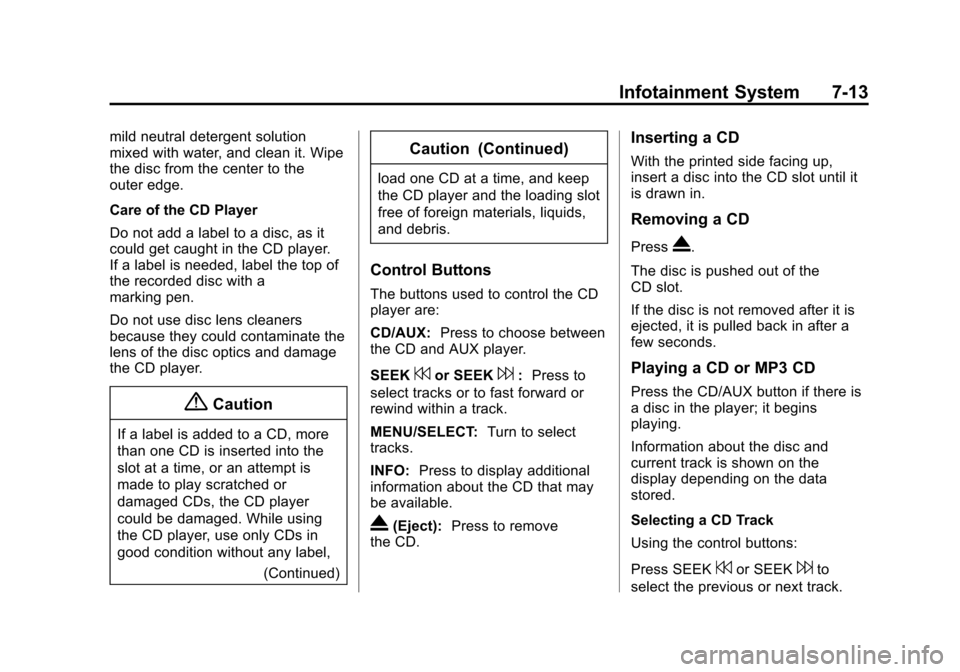
Control Buttons
The buttons used to control the CD
player are:
CD/AUX:Press to choose between
the CD and AUX player.
SEEK
7or SEEK6: Press to
select tracks or to fast forward or
rewind within a track.
MENU/SELECT: Turn to select
tracks.
INFO: Press to display additional
information about the CD that may
be available.
X(Eject): Press to remove
the CD.
Inserting a CD
With the printed side facing up,
insert a disc into the CD slot until it
is drawn in.
Removing a CD
PressX.
The disc is pushed out of the
CD slot.
If the disc is not removed after it is
ejected, it is pulled back in after a
few seconds.
Playing a CD or MP3 CD
Press the CD/AUX button if there is
a disc in the player; it begins
playing.
Information about the disc and
current track is shown on the
display depending on the data
stored.
Selecting a CD Track
Using the control buttons:
Press SEEK
7or SEEK6to
select the previous or next track.
Page 179 of 435
Black plate (14,1)Chevrolet Camaro Owner Manual (GMNA-Localizing-U.S./Canada/Mexico-
7695163) - 2015 - crc - 9/4/14
7-14 Infotainment System
Turn the MENU/SELECT knob
counterclockwise or clockwise to
select the previous or next track.
Using the CD Menu:
1. Press the MENU/SELECT knob.
2. Select Tracks list.
3. Select the track.
Playing Tracks in Random Order
Press the MENU/SELECT knob and
then set Shuffle Songs to On.
Fast Forward and Rewind
Press and hold SEEK
7or SEEK
6to fast forward or rewind within
the current track.
Selecting an MP3 Track
Using the control buttons:
Press SEEK
7or SEEK6to
select the previous or next track.
Turn the MENU/SELECT knob
counterclockwise or clockwise to
select the previous or next track. Using the CD Menu:
1. Press the MENU/SELECT knob.
2. Select Playlists/Folders.
3. Select the playlist or folder.
4. Select the track.
Searching for MP3 Tracks
It is normal for the search feature to
take some time to display the
information after reading the disc
due to the amount of information
stored on the disc. The infotainment
system automatically switches to
FM while the disc is being read.
Tracks can be searched by:
.Playlists
.Artists
.Albums
.Song Titles
.Genres
.Folder View
To search for tracks:
1. Press the MENU/SELECT knob. 2. Select Search.
3. Select: Playlists, Artists, Albums,
Song Titles, Genres,
or Folder View.
4. Select the track.
Auxiliary Devices
If equipped, the AUX input allows
portable devices to connect to the
vehicle using the 3.5 mm (1/8 in)
input jack, the USB port,
if equipped, or Bluetooth
®wireless
technology, if equipped.
Portable devices are controlled by
using the menu system described in
Operation on page 7-3.
Page 180 of 435
Black plate (15,1)Chevrolet Camaro Owner Manual (GMNA-Localizing-U.S./Canada/Mexico-
7695163) - 2015 - crc - 9/4/14
Infotainment System 7-15
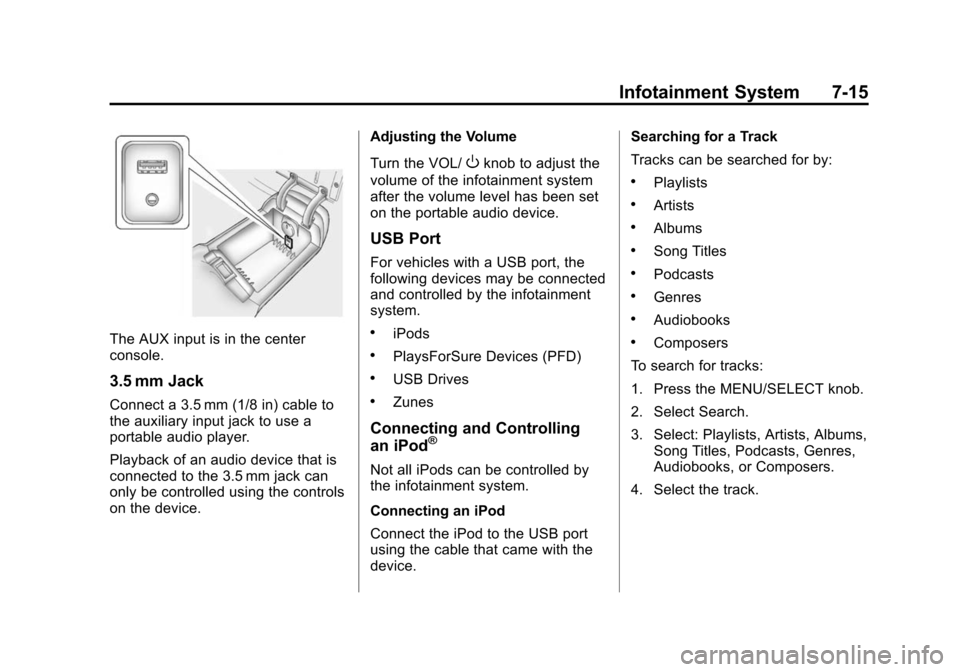
The AUX input is in the center
console.
3.5 mm Jack
Connect a 3.5 mm (1/8 in) cable to
the auxiliary input jack to use a
portable audio player.
Playback of an audio device that is
connected to the 3.5 mm jack can
only be controlled using the controls
on the device.Adjusting the Volume
Turn the VOL/
Oknob to adjust the
volume of the infotainment system
after the volume level has been set
on the portable audio device.
USB Port
For vehicles with a USB port, the
following devices may be connected
and controlled by the infotainment
system.
.iPods
.PlaysForSure Devices (PFD)
.USB Drives
.Zunes
Connecting and Controlling
an iPod®
Not all iPods can be controlled by
the infotainment system.
Connecting an iPod
Connect the iPod to the USB port
using the cable that came with the
device. Searching for a Track
Tracks can be searched for by:
.Playlists
.Artists
.Albums
.Song Titles
.Podcasts
.Genres
.Audiobooks
.Composers
To search for tracks:
1. Press the MENU/SELECT knob.
2. Select Search.
3. Select: Playlists, Artists, Albums, Song Titles, Podcasts, Genres,
Audiobooks, or Composers.
4. Select the track.
Page 183 of 435
Black plate (18,1)Chevrolet Camaro Owner Manual (GMNA-Localizing-U.S./Canada/Mexico-
7695163) - 2015 - crc - 9/4/14
7-18 Infotainment System
.Only one paired device can be
connected to the infotainment
system at a time.
.Pairing should only need to be
completed once, unless changes
to the pairing information have
been made or the device is
deleted.
Bluetooth Setup Menu
The Bluetooth Setup menu can be
accessed with or without a device
attached to the USB port.
To select the Bluetooth Setup menu
when a device is attached to the
USB port and active:
1. Press the MENU/SELECT knob while in the iPod, Zune, PFD,
or USB device main menu.
2. Select Bluetooth Music Setup. To select the Bluetooth Music Setup
menu when a device is not attached
to the USB port, or when a device is
attached to the USB port but not
active:
1. Press the CD/AUX button until
AUX is the active source.
2. Press the MENU/SELECT knob.
3. Select Bluetooth Music Setup.
To select the Bluetooth Music Setup
menu when a Bluetooth device is
connected and active:
1. Press the MENU/SELECT knob.
2. Select Bluetooth Music Setup.
Pairing a Device
1. Select Connect To New Device from the Bluetooth Music
Setup menu.
2. The system asks a series of Yes/No questions to determine
what type of device is being
paired. 3. After the system determines
what type of Bluetooth device is
being paired, the Bluetooth
device will need to be put into
discovery mode.
4. Some devices may require a personal identification number
(PIN) in order to complete the
pairing process. Locate the
device named “GMusicConnect”
in the list on the Bluetooth
device and follow the
instructions on the device to
enter the four-digit PIN provided
by the infotainment system.
Connecting to a Device
Once a device is paired to the
infotainment system, it can be
connected to the infotainment
system.
To connect a paired device when no
other device is connected to the
infotainment system:
1. Select the Select Device option from the Bluetooth Music
Setup menu.
Page 422 of 435

Black plate (1,1)Chevrolet Camaro Owner Manual (GMNA-Localizing-U.S./Canada/Mexico-
7695163) - 2015 - crc - 9/4/14
INDEX i-1
A
Accessories andModifications . . . . . . . . . . . . . . . . . 10-3
Accessory Power . . . . . . . . . . . . . . 9-23
Active Fuel Management
®. . . . . 9-26
Add-On Electrical Equipment . . . . . . . . . . . . . . . . . . . 9-61
Additional Information OnStar
®. . . . . . . . . . . . . . . . . . . . . . 14-6
Additional Maintenance and Care . . . . . . . . . . . . . . . . . . . . . 11-9
Air Cleaner/Filter, Engine . . . . . . . . . . . 10-21, 10-23, 10-24
Air Filter, Passenger
Compartment . . . . . . . . . . . . . . . . . 8-4
Air Vents . . . . . . . . . . . . . . . . . . . . . . . 8-3
Airbag System Check . . . . . . . . . . . . . . . . . . . . . . . . 3-28
How Does an AirbagRestrain? . . . . . . . . . . . . . . . . . . . 3-20
Passenger Sensing
System . . . . . . . . . . . . . . . . . . . . . . 3-22
What Makes an Airbag Inflate? . . . . . . . . . . . . . . . . . . . . . . 3-20 Airbag System (cont'd)
What Will You See after an
Airbag Inflates? . . . . . . . . . . . . . 3-21
When Should an Airbag
Inflate? . . . . . . . . . . . . . . . . . . . . . . 3-19
Where Are the Airbags? . . . . . . 3-17
Airbags Adding Equipment to theVehicle . . . . . . . . . . . . . . . . . . . . . . 3-27
Passenger Status Indicator . . . 5-15
Readiness Light . . . . . . . . . . . . . . 5-15
Servicing Airbag-Equipped Vehicles . . . . . . . . . . . . . . . . . . . . . 3-27
System Check . . . . . . . . . . . . . . . . 3-16
Alarm Vehicle Security . . . . . . . . . . . . . . 2-12
All-Season Tires . . . . . . . . . . . . . . 10-56
AM-FM Radio . . . . . . . . . . . . . . . . . . . 7-7
Antenna Multi-band . . . . . . . . . . . . . . . . . . . . 7-12
Antilock Brake System (ABS) . . . . . . . . . . . . . . . . 9-36
Warning Light . . . . . . . . . . . . . . . . . 5-20
Appearance Care Exterior . . . . . . . . . . . . . . . . . . . . . 10-98
Interior . . . . . . . . . . . . . . . . . . . . . 10-104 Assistance Program,
Roadside . . . . . . . . . . . . . . . . . . . . . 13-5
Audio Players . . . . . . . . . . . . . . . . . 7-12 CD . . . . . . . . . . . . . . . . . . . . . . . . . . . 7-12
Audio System Backglass Antenna . . . . . . . . . . . 7-11
Diversity Antenna System . . . . 7-12
Radio Reception . . . . . . . . . . . . . . 7-10
Theft-Deterrent Feature . . . . . . . . 7-2
Automatic Dimming Mirrors . . . . . . . . . . . . . . 2-15
Door Locks . . . . . . . . . . . . . . . . . . . . 2-9
Headlamp System . . . . . . . . . . . . . 6-3
Transmission . . . . . . . . . . . . . . . . . 9-28
Transmission Fluid . . . . . . . . . 10-20
Automatic Transmission
Manual Mode . . . . . . . . . . . . . . . . . 9-31
Shift Lock ControlFunction Check . . . . . . . . . . . 10-42
Auxiliary Devices . . . . . . . . . . . . . . . . . . . . . . . 7-14
Axle, Rear . . . . . . . . . . . . . . . . . . . . 10-41