display CHEVROLET CAMARO 2016 6.G Workshop Manual
[x] Cancel search | Manufacturer: CHEVROLET, Model Year: 2016, Model line: CAMARO, Model: CHEVROLET CAMARO 2016 6.GPages: 383, PDF Size: 6.46 MB
Page 146 of 383
Chevrolet Camaro Owner Manual-Convertible (GMNA-Localizing-U.S./Cana-
da/Mexico-9702260) - 2016 - CRC - 10/28/15
Instruments and Controls 145
Select All Doors or Driver Door.
Remote Start Auto Cool Seats
If equipped and turned on, this
feature will turn the ventilated seats
on when using remote start on
warm days.
Select Off or On.
Remote Start Auto Heat Seats
If equipped and turned on, this
feature will turn the heated seats on
when using remote start on
cold days.
Select Off or On.
Remote Window Operation
This allows the windows to be
opened when pressing
Kon the
RKE transmitter. See Remote
Keyless Entry (RKE) System
Operation 027.
Select Off or On.
Passive Door Unlock
This allows the selection of what
doors will unlock when using the
button on the driver door to unlock
the vehicle. Select All Doors or Driver Door.
Passive Door Lock
This allows passive locking to be
turned on or off, or feedback can be
selected. See
Remote Keyless
Entry (RKE) System Operation 027.
Select Off, On with Horn
Chirp, or On.
Remote Left in Vehicle Alert
This feature sounds an alert when
the RKE transmitter is left in the
vehicle.
Select Off or On.
Bluetooth
Select and the following may
display:
. Pair New Device
. Discoverable
. Device Management
. Ringtones
. Voice Mail Numbers
. Text Message Alerts Pair New Device
Select to pair a new device. See
“Pairing”
in“Infotainment Controls”
under Bluetooth (Overview) 0169 or
Bluetooth (Infotainment Controls)
0 171 or“Pairing” in“Infotainment
Controls” under“Bluetooth” in the
infotainment manual.
Discoverable
This allows the system to find a
device.
Select Off or On.
Device Management
Select to connect to a different
phone source, disconnect a phone,
or delete a phone.
Ringtones
Press to change the ring tone for
the specific phone. The phone does
not need to be connected to change
the ring tones.
Voice Mail Numbers
This feature displays the voice mail
number for all connected phones.
To change the voice mail number,
select EDIT or press the EDIT
Page 147 of 383
Chevrolet Camaro Owner Manual-Convertible (GMNA-Localizing-U.S./Cana-
da/Mexico-9702260) - 2016 - CRC - 10/28/15
146 Instruments and Controls
button. Type a new number, then
select SAVE or press the SAVE
button.
Text Message Alerts
This allows the feature to be turned
on or off.
Select Off or On.
Apple CarPlay™
Select and the following may
display:
.Apple CarPlay
. Manage Apple CarPlay Devices
Apple CarPlay
This feature allows Apple devices to
be connected to the infotainment
system through a USB port.
Select Off or On.
Manage Apple CarPlay Devices
Select to manage Apple devices.
Apple CarPlay must be on for this
feature to be accessed.
Android Auto
Select and the following may
display: .
Android Auto
. Manage Android Auto Devices
Android Auto
This feature allows Android devices
to be connected to the infotainment
system through a USB port.
Select Off or On.
Manage Android Auto Devices
Select to manage Android devices.
Android Auto must be on for this
feature to be accessed.
USB Auto Launch
This allows Android and Apple
CarPlay devices to automatically
connect when plugged into the
USB port.
Select Off or On.
Voice
Select and the following may
display:
. Confidence Threshold
. Prompt Length
. Audio Feedback Speed .
Display “What Can I Say?” Tips
Confidence Threshold
This feature allows the adjustment
of the sensitivity of the speech
recognition system.
Select Confirm More or
Confirm Less.
Prompt Length
This feature adjusts the voice
prompt length.
Select Short or Long.
Audio Feedback Speed
This feature adjusts the audio
feedback speed.
Select Slow, Medium, or Fast.
Display “What Can I Say?” Tips
This feature gives tips on what to
say when using voice recognition.
Select Off or On.
Display
Select and the following may
display:
. Calibrate Touchscreen
Page 148 of 383
Chevrolet Camaro Owner Manual-Convertible (GMNA-Localizing-U.S./Cana-
da/Mexico-9702260) - 2016 - CRC - 10/28/15
Instruments and Controls 147
.Turn Display Off
Calibrate Touchscreen
Select to calibrate the touchscreen,
then follow the prompts.
Turn Display Off
Select to turn the display off. Press
anywhere on the display area or any
faceplate button to turn the
display on.
Rear Camera
Select and the following may
display:
. Guidance Lines
. Rear Park Assist Symbols
Guidance Lines
Select Off or On. See Assistance
Systems for Parking or
Backing 0238.
Rear Park Assist Symbols
Select Off or On. See Assistance
Systems for Parking or
Backing 0238.
Return to Factory Settings
Select and the following may
display:
.
Restore Vehicle Settings
. Clear All Private Data
. Restore Radio Settings
Restore Vehicle Settings
This allows selection of restoring
vehicle settings.
Select Restore or Cancel.
Clear All Private Data
This allows selection to clear all
private information from the vehicle.
Select Delete or Cancel.
Restore Radio Settings
This allows selection to restore
radio settings.
Select Restore or Cancel.
Software Information
Select to view the infotainment
system current software information.
Universal Remote
System
See Radio Frequency
Statement 0357.
Universal Remote System
Programming
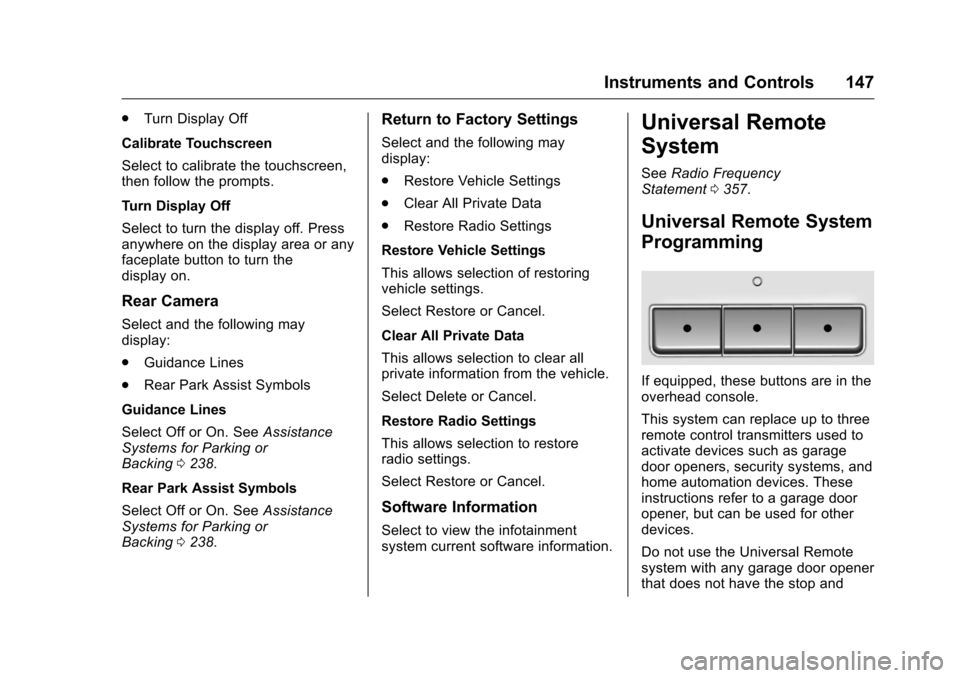
If equipped, these buttons are in the
overhead console.
This system can replace up to three
remote control transmitters used to
activate devices such as garage
door openers, security systems, and
home automation devices. These
instructions refer to a garage door
opener, but can be used for other
devices.
Do not use the Universal Remote
system with any garage door opener
that does not have the stop and
Page 157 of 383
Chevrolet Camaro Owner Manual-Convertible (GMNA-Localizing-U.S./Cana-
da/Mexico-9702260) - 2016 - CRC - 10/28/15
156 Lighting
Move the lever all the way up or
down to signal a turn.
An arrow on the instrument cluster
flashes in the direction of the turn or
lane change.
Raise or lower the lever until the
arrow starts to flash to signal a lane
change. Hold it there until the lane
change is completed. If the lever is
briefly pressed and released, the
turn signal flashes three times.
The turn and lane-change signal
can be turned off manually by
moving the lever back to its original
position.
If after signaling a turn or lane
change, the arrow flashes rapidly or
does not come on, a signal bulb
may be burned out.
Replace any burned out bulbs. If a
bulb is not burned out, check the
fuse. SeeFuses and Circuit
Breakers 0279.Interior Lighting
Instrument Panel
Illumination Control
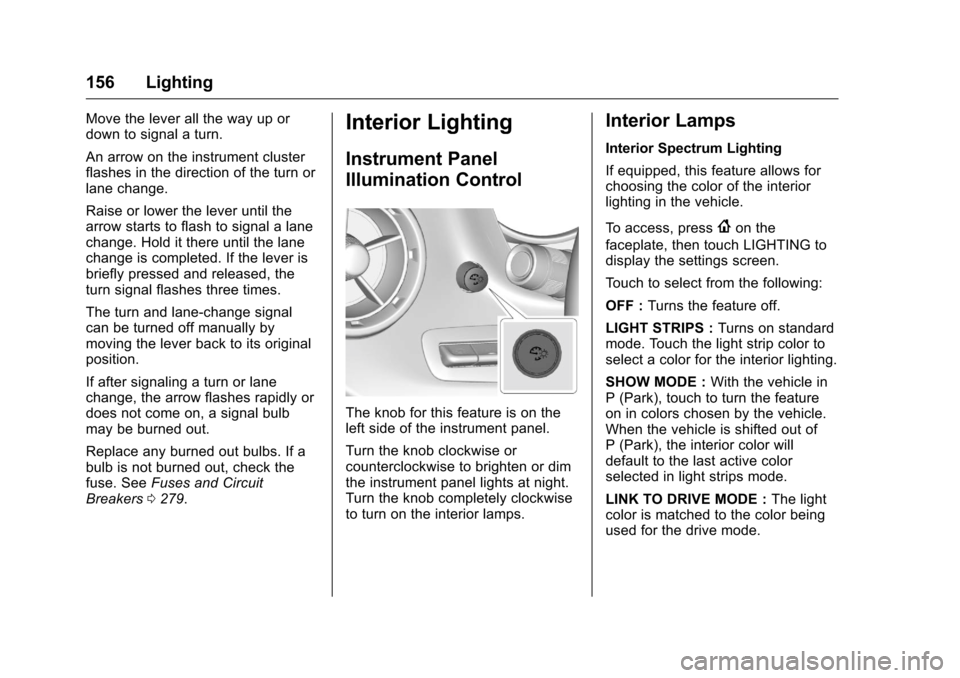
The knob for this feature is on the
left side of the instrument panel.
Turn the knob clockwise or
counterclockwise to brighten or dim
the instrument panel lights at night.
Turn the knob completely clockwise
to turn on the interior lamps.
Interior Lamps
Interior Spectrum Lighting
If equipped, this feature allows for
choosing the color of the interior
lighting in the vehicle.
To access, press
{on the
faceplate, then touch LIGHTING to
display the settings screen.
Touch to select from the following:
OFF : Turns the feature off.
LIGHT STRIPS : Turns on standard
mode. Touch the light strip color to
select a color for the interior lighting.
SHOW MODE : With the vehicle in
P (Park), touch to turn the feature
on in colors chosen by the vehicle.
When the vehicle is shifted out of
P (Park), the interior color will
default to the last active color
selected in light strips mode.
LINK TO DRIVE MODE : The light
color is matched to the color being
used for the drive mode.
Page 159 of 383
Chevrolet Camaro Owner Manual-Convertible (GMNA-Localizing-U.S./Cana-
da/Mexico-9702260) - 2016 - CRC - 10/28/15
158 Lighting
prevent overcharging. If the vehicle
has a voltmeter gauge or a voltage
display on the Driver Information
Center (DIC), you may see the
voltage move up or down. This is
normal. If there is a problem, an
alert will be displayed.
The battery can be discharged at
idle if the electrical loads are very
high. This is true for all vehicles.
This is because the generator
(alternator) may not be spinning fast
enough at idle to produce all of the
power needed for very high
electrical loads.
A high electrical load occurs when
several of the following are on, such
as: headlamps, high beams, fog
lamps, rear window defogger,
climate control fan at high speed,
heated seats, engine cooling fans,
trailer loads, and loads plugged into
accessory power outlets.EPM works to prevent excessive
discharge of the battery. It does this
by balancing the generator's output
and the vehicle's electrical needs.
It can increase engine idle speed to
generate more power whenever
needed. It can temporarily reduce
the power demands of some
accessories.
Normally, these actions occur in
steps or levels, without being
noticeable. In rare cases at the
highest levels of corrective action,
this action may be noticeable to the
driver. If so, a DIC message might
be displayed, and it is
recommended that the driver reduce
the electrical loads as much as
possible. See
Battery Voltage and
Charging Messages 0131.Battery Power Protection
This feature shuts off the reading
lamps if they are left on for more
than 10 minutes when the ignition is
in OFF. This helps to prevent the
battery from running down.
Exterior Lighting Battery
Saver
The exterior lamps turn off about
10 minutes after the ignition is
turned off, if the parking lamps or
headlamps have been manually left
on. This protects against draining
the battery. To restart the 10-minute
timer, turn the exterior lamp control
to the off position and then back to
the parking lamp or headlamp
position.
To keep the lamps on for more than
10 minutes, the ignition must be in
the ACC/ACCESSORY or ON/RUN
position.
Page 160 of 383
Chevrolet Camaro Owner Manual-Convertible (GMNA-Localizing-U.S./Cana-
da/Mexico-9702260) - 2016 - CRC - 10/28/15
Infotainment System 159
Infotainment
System
Introduction
Infotainment . . . . . . . . . . . . . . . . . . 159
Theft-Deterrent Feature . . . . . . 160
Overview . . . . . . . . . . . . . . . . . . . . . 161
Home Page . . . . . . . . . . . . . . . . . . 162
Operation . . . . . . . . . . . . . . . . . . . . . 162
Radio
AM-FM Radio . . . . . . . . . . . . . . . . 163
Satellite Radio . . . . . . . . . . . . . . . . 164
Radio Reception . . . . . . . . . . . . . . 166
Antenna . . . . . . . . . . . . . . . . . . . . . . 166
Backglass Antenna . . . . . . . . . . . 166
Multi-Band Antenna . . . . . . . . . . 167
Audio Players
Avoiding Untrusted MediaDevices . . . . . . . . . . . . . . . . . . . . . 167
USB Port . . . . . . . . . . . . . . . . . . . . . 167
Auxiliary Devices . . . . . . . . . . . . . 169
Phone
Bluetooth (Overview) . . . . . . . . . 169
Bluetooth (Infotainment
Controls) . . . . . . . . . . . . . . . . . . . . 171
Apple CarPlay and Android Auto . . . . . . . . . . . . . . . . 175
Hands-Free Phone . . . . . . . . . . . 175
Bluetooth Phone/Devices
Pictures and Movies (Audio System) . . . . . . . . . . . . . . . . . . . . . 178
Pictures and Movies (Picture System) . . . . . . . . . . . . . . . . . . . . . 182
Pictures and Movies (Movie System) . . . . . . . . . . . . . . . . . . . . . 183
Trademarks and License
Agreements
Trademarks and LicenseAgreements . . . . . . . . . . . . . . . . . 184
Introduction
Infotainment
Base radio information is included in
this manual. See the infotainment
manual for information on other
available infotainment systems.
Read the following pages to
become familiar with these features.
{Warning
Taking your eyes off the road for
too long or too often while using
any infotainment feature can
cause a crash. You or others
could be injured or killed. Do not
give extended attention to
infotainment tasks while driving.
Limit your glances at the vehicle
displays and focus your attention
on driving. Use voice commands
whenever possible.
Page 163 of 383
Chevrolet Camaro Owner Manual-Convertible (GMNA-Localizing-U.S./Cana-
da/Mexico-9702260) - 2016 - CRC - 10/28/15
162 Infotainment System
4.d
.Radio: Press and release to
fast seek the next strongest
station or channel.
. USB/Bluetooth Music/
Pictures: Press to go to the
next content. Press and
hold to fast forward.
5.
5
. Press and release to
access the phone screen,
answer an incoming call,
or access the device home
screen.
Home Page
Touchscreen Buttons
Touchscreen buttons show on the
screen when available. When a
function is unavailable, the button
may gray out. When a function is
selected, the button may highlight.
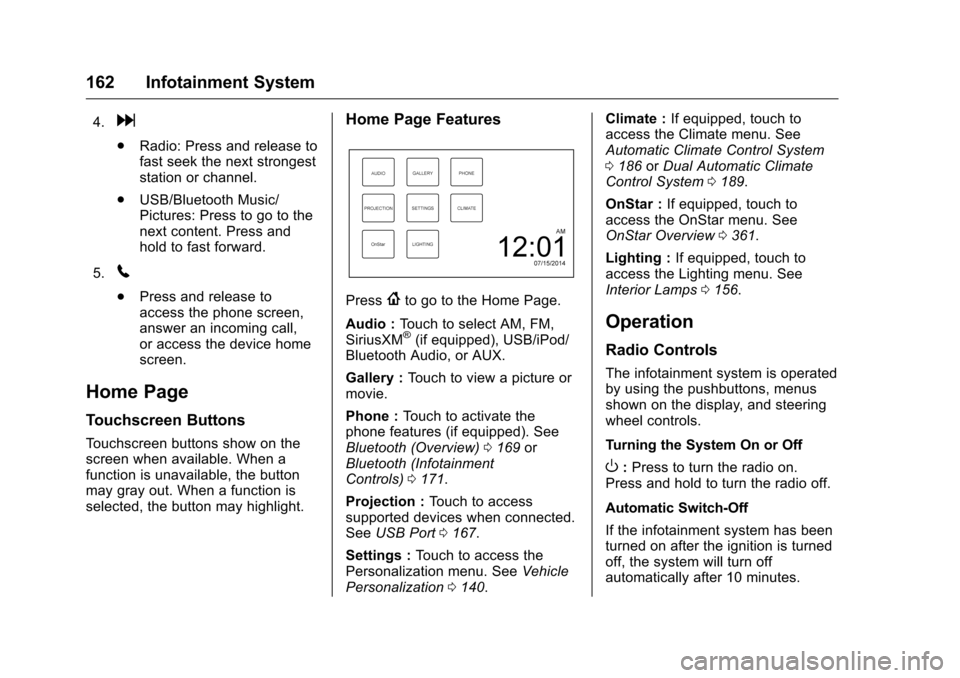
Home Page Features
Press{to go to the Home Page.
Audio : Touch to select AM, FM,
SiriusXM
®(if equipped), USB/iPod/
Bluetooth Audio, or AUX.
Gallery : Touch to view a picture or
movie.
Phone : Touch to activate the
phone features (if equipped). See
Bluetooth (Overview) 0169 or
Bluetooth (Infotainment
Controls) 0171.
Projection : Touch to access
supported devices when connected.
See USB Port 0167.
Settings : Touch to access the
Personalization menu. See Vehicle
Personalization 0140. Climate :
If equipped, touch to
access the Climate menu. See
Automatic Climate Control System
0 186 orDual Automatic Climate
Control System 0189.
OnStar : If equipped, touch to
access the OnStar menu. See
OnStar Overview 0361.
Lighting : If equipped, touch to
access the Lighting menu. See
Interior Lamps 0156.
Operation
Radio Controls
The infotainment system is operated
by using the pushbuttons, menus
shown on the display, and steering
wheel controls.
Turning the System On or Off
O:Press to turn the radio on.
Press and hold to turn the radio off.
Automatic Switch-Off
If the infotainment system has been
turned on after the ignition is turned
off, the system will turn off
automatically after 10 minutes.
Page 165 of 383
Chevrolet Camaro Owner Manual-Convertible (GMNA-Localizing-U.S./Cana-
da/Mexico-9702260) - 2016 - CRC - 10/28/15
164 Infotainment System
Direct Tune
From the AM or FM menu:1. Touch Tune.
2. Enter the station number.
3. Touch Go.
Favorites
1. Touch
SorTto scroll through
the favorite pages.
2. Touch the station to select it.
Update Station List
. From the AM or FM menu, touch
Menu, then touch Update Station
List. The broadcasting list
updating will begin.
. During the AM or FM
broadcasting list update, touch
Cancel to stop the updates.
Station List 1. From the AM or FM menu, touch Menu.
2. Select Station List.
3. Touch
QorRto scroll through
the list. Touch the station to
select it.
Menu
Touch to choose between available
menus for the current source.
Storing a Station as a Favorite
Stations from all bands can be
stored in any order in the favorite
pages.
Up to 25 stations can be stored.
Storing Stations
To store the station to a position in
the list, touch the corresponding
button 1−5 until a beep is heard.
1. Select the desired station.
2. Touch
SorTto select the
desired page of saved
favorites.
3. Touch and hold any of the preset buttons to save the
current radio station to that
button of the selected
favorites page.
To change a preset button, tune to
the new desired radio station and
touch and hold the preset button.
Satellite Radio
If equipped, vehicles with an SXM
Satellite Radio tuner and a valid
SiriusXM
®Satellite Radio
subscription can receive SiriusXM
programming.
SiriusXM Satellite Radio
Service
SiriusXM is a satellite radio service
based in the 48 contiguous United
States and 10 Canadian provinces.
SiriusXM Satellite Radio has a wide
variety of programming and
commercial-free music, coast to
coast, and in digital-quality sound.
During your trial or when you
subscribe, you will get unlimited
access to SiriusXM Radio Online for
when you are not in the vehicle.
A service fee is required to receive
the SiriusXM service. If SiriusXM
service needs to be reactivated, the
radio will display "No Subscription
Please Renew" on channel XM1.
For more information, contact
SiriusXM at www.siriusxm.com or
1-866-635-2349 (U.S.), and
www.xmradio.ca or
1-877-209-0079 (Canada).
Page 166 of 383
Chevrolet Camaro Owner Manual-Convertible (GMNA-Localizing-U.S./Cana-
da/Mexico-9702260) - 2016 - CRC - 10/28/15
Infotainment System 165
Listening to SiriusXM Radio
1. Press{.
2. Touch AUDIO.
3. Touch Source.
4. Touch SXM and the most recent listened to SiriusXM
channel will display.
Selecting a Category
From Menu, touch Categories, then
touch the desired category or from
Categories, touch
QorRto find the
desired channel. Touch the channel
to select it.
Selecting a Channel
Pressgordto seek the previous
or next channel.
Using the Preset Buttons
Up to five favorites pages can be
saved, and each page can store up
to five channels.
To change a preset button, tune to
the new desired channel and hold
the button. Listening to Preset Channels
1. Touch
SorTrepeatedly to
select the desired
favorites page.
2. Touch the preset button to listen to the channel.
Using the SiriusXM Menu
Operation
1. Touch MENU on the SXM radio screen.
2. Touch the menu to select the desired item or to display the
detail menu item.
3. Touch
0to return to the
previous menu.
Channel List 1. Touch Channel List from the SXM menu. The channel list is
displayed.
2. Touch
QorRto find the
desired channel. Touch the
channel to select it. Tone Settings
1. Touch Tone Settings. See “Tone Settings” under
Operation 0162.
2. Touch
0.
Auto Volume 1. Touch Auto Volume. See “Auto
Volume” under
Operation 0162.
2. Touch
0.
Categories 1. Touch Categories.
2. Touch
QorRto find the
desired category. Touch the
category to select it.
Explicit Content Filter
When on, only a filtered list of
channels will be received. When off,
all regular SXM programming
subscribed to will be received. 1. Touch SXM Explicit Filter.
2. Select to enable or disable.
Page 171 of 383
Chevrolet Camaro Owner Manual-Convertible (GMNA-Localizing-U.S./Cana-
da/Mexico-9702260) - 2016 - CRC - 10/28/15
170 Infotainment System
.Review the controls and
operation of the infotainment
system.
. Pair cell phone(s) to the vehicle.
The system may not work with
all cell phones. See “Pairing”
under Bluetooth (Infotainment
Controls).
{Warning
When using a cell phone, it can
be distracting to look too long or
too often at the screen of the
phone or the infotainment system.
Taking your eyes off the road too
long or too often could cause a
crash resulting in injury or death.
Focus your attention on driving.
Vehicles with a Bluetooth system
can use a Bluetooth-capable cell
phone with a Hands-Free Profile to
make and receive phone calls. The
infotainment system is used to
control the system. The system can
be used while in ACC/ACCESSORY
or ON/RUN. See Ignition Positions
0 208. Not all phones support all functions and not all phones work
with the Bluetooth system. In the
U.S. and Canada, see
www.gm.com/bluetooth for more
information about compatible
phones.
The Bluetooth system range can be
up to 9.1 m (30 ft).
There may be restrictions on using
Bluetooth wireless technology in
some locations.
Due to the variety of Bluetooth
devices and their firmware versions,
the device may respond differently
when performing over Bluetooth.
On a current phone call, an image
of the current contact from the
phone's contact list may be
displayed. Not all phones are
compatible with this feature.
Refer to the cell phone
manufacturer
’s user guide for
questions about the phone's
Bluetooth functionality.
Bluetooth Controls
If equipped with Bluetooth capability,
use the buttons on the infotainment
system and the steering wheel to
operate the system.
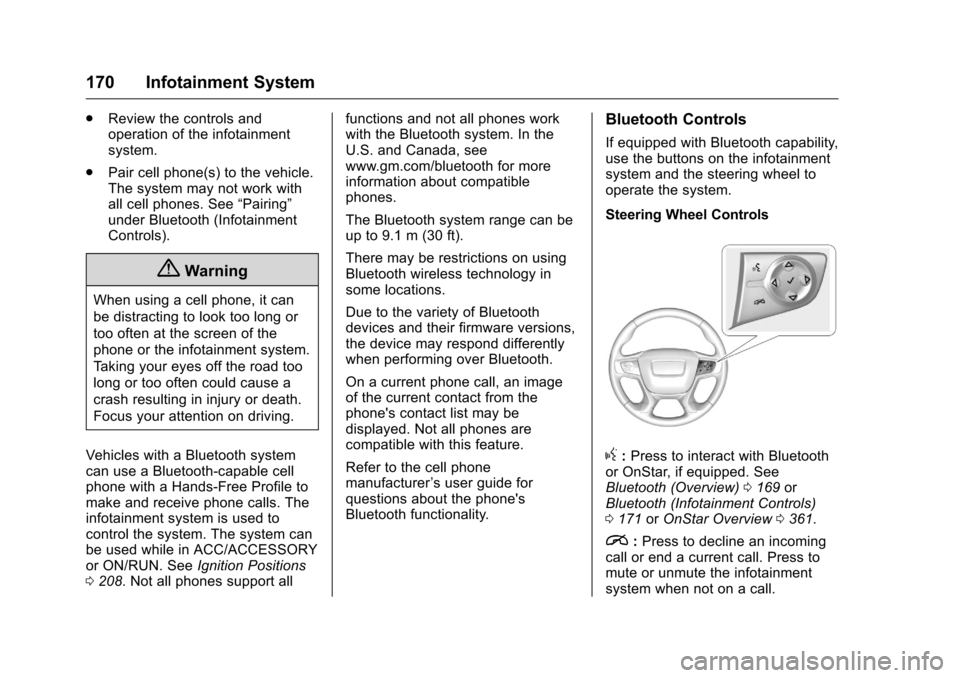
Steering Wheel Controls
g: Press to interact with Bluetooth
or OnStar, if equipped. See
Bluetooth (Overview) 0169 or
Bluetooth (Infotainment Controls)
0 171 orOnStar Overview 0361.
i:Press to decline an incoming
call or end a current call. Press to
mute or unmute the infotainment
system when not on a call.