audio CHEVROLET CAMARO 2017 6.G User Guide
[x] Cancel search | Manufacturer: CHEVROLET, Model Year: 2017, Model line: CAMARO, Model: CHEVROLET CAMARO 2017 6.GPages: 391, PDF Size: 6.65 MB
Page 134 of 391
Chevrolet Camaro Owner Manual (GMNA-Localizing-U.S./Canada/Mexico-
9804281) - 2017 - crc - 4/25/16
Instruments and Controls 133
Metric
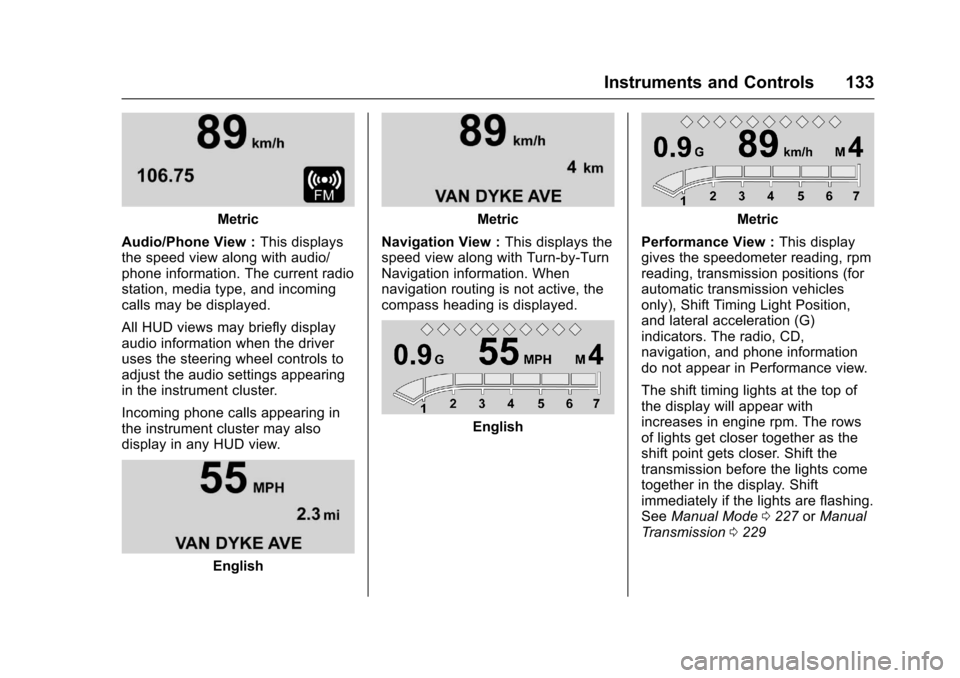
Audio/Phone View : This displays
the speed view along with audio/
phone information. The current radio
station, media type, and incoming
calls may be displayed.
All HUD views may briefly display
audio information when the driver
uses the steering wheel controls to
adjust the audio settings appearing
in the instrument cluster.
Incoming phone calls appearing in
the instrument cluster may also
display in any HUD view.
English
Metric
Navigation View : This displays the
speed view along with Turn-by-Turn
Navigation information. When
navigation routing is not active, the
compass heading is displayed.
English
Metric
Performance View : This display
gives the speedometer reading, rpm
reading, transmission positions (for
automatic transmission vehicles
only), Shift Timing Light Position,
and lateral acceleration (G)
indicators. The radio, CD,
navigation, and phone information
do not appear in Performance view.
The shift timing lights at the top of
the display will appear with
increases in engine rpm. The rows
of lights get closer together as the
shift point gets closer. Shift the
transmission before the lights come
together in the display. Shift
immediately if the lights are flashing.
See Manual Mode 0227 orManual
Transmission 0229
Page 145 of 391
Chevrolet Camaro Owner Manual (GMNA-Localizing-U.S./Canada/Mexico-
9804281) - 2017 - crc - 4/25/16
144 Instruments and Controls
Window Messages
OPEN, THEN CLOSE DRIVER/
PASSENGER WINDOW
This message is displayed when the
window needs to be reprogrammed.
If the vehicle's battery has been
recharged or disconnected, you will
need to program each front window
for the express-up feature to work.
SeePower Windows 047.
Vehicle
Personalization
Use the audio system controls to
access the personalization menus
for customizing vehicle features.
The following are all possible
personalization features. Depending
on the vehicle, some may not be
available.
Base Radio Audio System
Controls
{:Press to access the Home
Page Menu.
QorR: Touch to scroll through the
menus or setup items.
0: Touch to exit or return to the
previous screen or menu.
Uplevel Radio Audio System
Controls
1. Touch the desired feature to display a list of available
options.
2. Select the desired feature setting. 3. Press
SBACK on the
faceplate or touch
0to return
to the previous menu or exit.
Turn the vehicle to ON/RUN to
access the Settings menu, then
select SETTINGS from the Home
page on the infotainment system
display.
Personalization Menus
The following list of menu items may
be available:
. Time and Date
. Driving Mode
. Language (Language)
. Valet Mode
. Teen Driver
. Radio
. Vehicle
. Bluetooth
. Apple CarPlay
. Android Auto
. USB Auto Launch
. Voice
Page 146 of 391
Chevrolet Camaro Owner Manual (GMNA-Localizing-U.S./Canada/Mexico-
9804281) - 2017 - crc - 4/25/16
Instruments and Controls 145
.Display
. Rear Camera
. Return to Factory Settings
. Software Information
Detailed information for each menu
follows.
Time and Date
Manually set the time and date. See
Clock 0105.
Driving Mode
Select and the following may
display:
.
Engine Sound Management
. Steering
Engine Sound Management
Select Engine Sound Management,
then choose from the available
options. See Driver Mode
Control 0236.
Steering
Select Steering, then choose from
the available options. See Driver
Mode Control 0236.
Language (Language)
Select Language, then select from
the available language(s).
The selected language will display
on the system, and voice
recognition will reflect the selected
language.
Valet Mode
This will lock the infotainment
system and steering wheel controls.
It may also limit access to vehicle
storage locations (if equipped).
To enable valet mode:
1. Enter a four-digit code on the keypad.
2. Touch Enter to go to the confirmation screen.
3. Re-enter the four-digit code.
Touch LOCK or UNLOCK to lock or
unlock the system. Touch Back to
go back to the previous menu.
Teen Driver
See “Teen Driver” under“Settings”
in the infotainment manual.
Radio
Press and the following may
display:
. Manage Favorites
. Number of Favorites Shown
. Audible Touch Feedback
. Text Scroll
. Tone Settings
. Auto Volume
. Maximum Startup Volume
. Audio Cue Volume
Manage Favorites
This allows favorites to be edited.
See “Storing a Station as a
Favorite” inAM-FM Radio 0166 or
“Manage Favorites” in“Settings”
under “Radio” in the infotainment
manual.
Number of Favorites Shown
Press to set the number of favorites
to display.
Page 147 of 391
Chevrolet Camaro Owner Manual (GMNA-Localizing-U.S./Canada/Mexico-
9804281) - 2017 - crc - 4/25/16
146 Instruments and Controls
Select the desired number or select
Auto and the infotainment system
will automatically adjust the number
of favorites shown.
Audible Touch Feedback
This allows Audible Touch
Feedback to be turned on or off.
Select Off or On.
Text Scroll
Select to see text scroll on the
screen.
Select Off or On.
Tone Settings
Select to adjust the radio tone. See
Operation0165 or“Tone Settings”
under “AM-FM Radio” in the
infotainment manual.
Auto Volume
This feature adjusts the volume
based on vehicle speed and
ambient noise.
Select Off, Low, Medium-Low,
Medium, Medium-High, or High. Maximum Startup Volume
This feature sets the maximum
startup volume. If the vehicle is
started and the volume is greater
than this level, the volume is
adjusted to this level. To set the
maximum startup volume, turn the
MENU knob or press + or
−to
increase or decrease.
Audio Cue Volume
This feature sets the volume of
audio files played at system startup
and shutdown.
Select On, then press + or −to
increase or decrease the volume.
Vehicle
Select and the following may
display:
. Climate and Air Quality
. Collision/Detection Systems
. Comfort and Convenience
. Lighting
. Power Door Locks
. Remote Lock, Unlock, Start Climate and Air Quality
Select and the following may
display:
.
Auto Fan Speed
. Remote Start Auto Heat Seats
. Auto Rear Defog
Auto Fan Speed
This feature will set the maximum
auto fan speed.
Select Low, Medium, or High.
Remote Start Auto Heat Seats
When on, this feature will turn the
heated seats on when using remote
start on cold days.
Select On or Off.
Auto Rear Defog
This allows the rear window
defogger to turn on automatically
when the interior temperature is cold
and the outside temperature is
about 7 °C (44 °F) and below. See
“Rear Window Defogger” in
Automatic Climate Control System
0 193 orDual Automatic Climate
Control System 0196.
Page 151 of 391
Chevrolet Camaro Owner Manual (GMNA-Localizing-U.S./Canada/Mexico-
9804281) - 2017 - crc - 4/25/16
150 Instruments and Controls
Voice Mail Numbers
This feature displays the voice mail
number for all connected phones.
To change the voice mail number,
select EDIT or press the EDIT
button. Type a new number, then
select SAVE or press the SAVE
button.
Text Message Alerts
This allows the feature to be turned
on or off.
Select Off or On.
Apple CarPlay™
Select and the following may
display:
.Apple CarPlay
. Manage Apple CarPlay Devices
Apple CarPlay
This feature allows Apple devices to
be connected to the infotainment
system through a USB port.
Select Off or On. Manage Apple CarPlay Devices
Select to manage Apple devices.
Apple CarPlay must be on for this
feature to be accessed.
Android Auto
Select and the following may
display:
.
Android Auto
. Manage Android Auto Devices
Android Auto
This feature allows Android devices
to be connected to the infotainment
system through a USB port.
Select Off or On.
Manage Android Auto Devices
Select to manage Android devices.
Android Auto must be on for this
feature to be accessed.
USB Auto Launch
This allows Android and Apple
CarPlay devices to automatically
connect when plugged into the
USB port.
Select Off or On.
Voice
Select and the following may
display:
. Confidence Threshold
. Prompt Length
. Audio Feedback Speed
. Display “What Can I Say?” Tips
Confidence Threshold
This feature allows the adjustment
of the sensitivity of the speech
recognition system.
Select Confirm More or
Confirm Less.
Prompt Length
This feature adjusts the voice
prompt length.
Select Short or Long.
Audio Feedback Speed
This feature adjusts the audio
feedback speed.
Select Slow, Medium, or Fast.
Page 163 of 391
Chevrolet Camaro Owner Manual (GMNA-Localizing-U.S./Canada/Mexico-
9804281) - 2017 - crc - 4/25/16
162 Infotainment System
Infotainment
System
Introduction
Infotainment . . . . . . . . . . . . . . . . . . 162
Theft-Deterrent Feature . . . . . . 163
Overview . . . . . . . . . . . . . . . . . . . . . 164
Home Page . . . . . . . . . . . . . . . . . . 165
Operation . . . . . . . . . . . . . . . . . . . . . 165
Radio
AM-FM Radio . . . . . . . . . . . . . . . . 166
Satellite Radio . . . . . . . . . . . . . . . . 167
Radio Reception . . . . . . . . . . . . . . 169
Antenna (Convertible Only) . . . 169
Backglass Antenna(Coupe Only) . . . . . . . . . . . . . . . 169
Multi-Band Antenna . . . . . . . . . . 170
Audio Players
Avoiding Untrusted Media Devices . . . . . . . . . . . . . . . . . . . . . 170
USB Port . . . . . . . . . . . . . . . . . . . . . 170
Auxiliary Devices . . . . . . . . . . . . . 176
Performance Data
Recorder (PDR)
Performance Data Recorder (PDR) . . . . . . . . . . . . . 177
Phone
Bluetooth (Overview) . . . . . . . . . 182
Bluetooth (InfotainmentControls) . . . . . . . . . . . . . . . . . . . . 184
Apple CarPlay and Android Auto . . . . . . . . . . . . . . . . 188
Hands-Free Phone . . . . . . . . . . . 188
Trademarks and License
Agreements
Trademarks and License Agreements . . . . . . . . . . . . . . . . . 191
Introduction
Infotainment
Base radio information is included in
this manual. See the infotainment
manual for information on other
available infotainment systems.
Read the following pages to
become familiar with these features.
{Warning
Taking your eyes off the road for
too long or too often while using
any infotainment feature can
cause a crash. You or others
could be injured or killed. Do not
give extended attention to
infotainment tasks while driving.
Limit your glances at the vehicle
displays and focus your attention
on driving. Use voice commands
whenever possible.
The infotainment system has built-in
features intended to help avoid
distraction by disabling some
functions when driving. These
Page 164 of 391
Chevrolet Camaro Owner Manual (GMNA-Localizing-U.S./Canada/Mexico-
9804281) - 2017 - crc - 4/25/16
Infotainment System 163
functions may gray out when they
are unavailable. Many infotainment
features are also available through
the instrument cluster and steering
wheel controls.
Before driving:
.Become familiar with the
operation, faceplate buttons, and
screen buttons.
. Set up the audio by presetting
favorite stations, setting the
tone, and adjusting the
speakers.
. Set up phone numbers in
advance so they can be called
easily by pressing a single
button or by using a single voice
command if equipped with
Bluetooth phone capability.
See Defensive Driving 0201.
To play the infotainment system with
the ignition off, see Retained
Accessory Power (RAP) 0221.Theft-Deterrent Feature
The infotainment system has an
electronic security system installed
to prevent theft.
The infotainment system only works
in the vehicle in which it was first
installed, and cannot be used in
another vehicle.
Page 166 of 391
Chevrolet Camaro Owner Manual (GMNA-Localizing-U.S./Canada/Mexico-
9804281) - 2017 - crc - 4/25/16
Infotainment System 165
.USB/Music/Pictures: Press
to go to the next content.
Press and hold to fast
forward.
5.
5
. Press and release to
access the phone screen,
answer an incoming call,
or access the device home
screen.
Home Page
Touchscreen Buttons
Touchscreen buttons show on the
screen when available. When a
function is unavailable, the button
may gray out. When a function is
selected, the button may highlight.
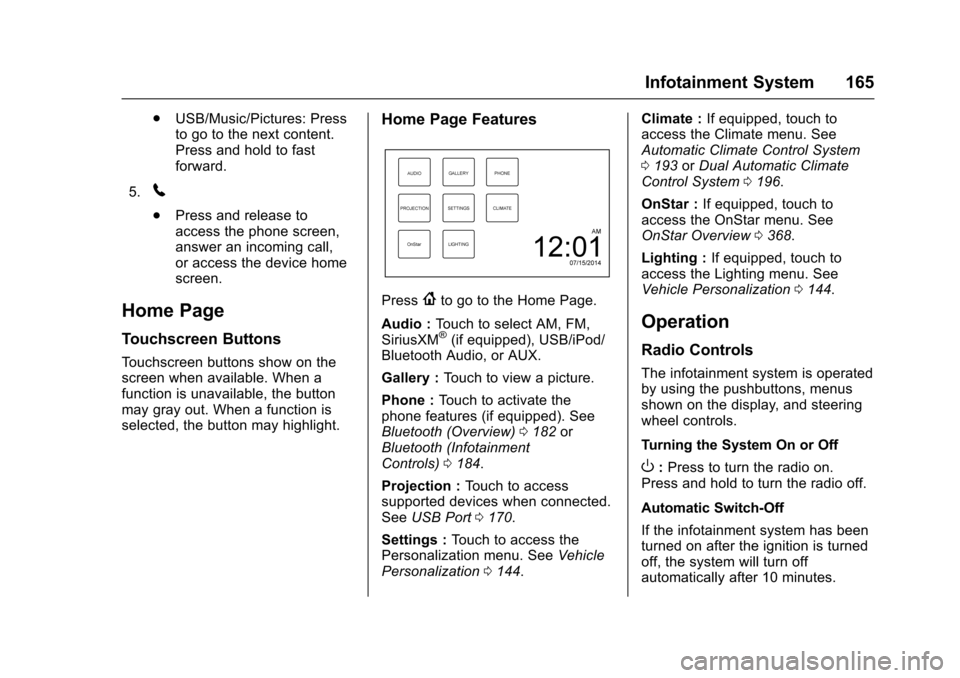
Home Page Features
Press{to go to the Home Page.
Audio : Touch to select AM, FM,
SiriusXM
®(if equipped), USB/iPod/
Bluetooth Audio, or AUX.
Gallery : Touch to view a picture.
Phone : Touch to activate the
phone features (if equipped). See
Bluetooth (Overview) 0182 or
Bluetooth (Infotainment
Controls) 0184.
Projection : Touch to access
supported devices when connected.
See USB Port 0170.
Settings : Touch to access the
Personalization menu. See Vehicle
Personalization 0144. Climate :
If equipped, touch to
access the Climate menu. See
Automatic Climate Control System
0 193 orDual Automatic Climate
Control System 0196.
OnStar : If equipped, touch to
access the OnStar menu. See
OnStar Overview 0368.
Lighting : If equipped, touch to
access the Lighting menu. See
Vehicle Personalization 0144.
Operation
Radio Controls
The infotainment system is operated
by using the pushbuttons, menus
shown on the display, and steering
wheel controls.
Turning the System On or Off
O:Press to turn the radio on.
Press and hold to turn the radio off.
Automatic Switch-Off
If the infotainment system has been
turned on after the ignition is turned
off, the system will turn off
automatically after 10 minutes.
Page 167 of 391
Chevrolet Camaro Owner Manual (GMNA-Localizing-U.S./Canada/Mexico-
9804281) - 2017 - crc - 4/25/16
166 Infotainment System
Volume Control
O:Turn to increase or decrease.
Press when the system is on to
mute and unmute the system.
System Settings
Auto Volume
This feature automatically adjusts
the radio volume to compensate for
road and wind noise.
The level of volume compensation
can be selected, or the feature can
be turned off.
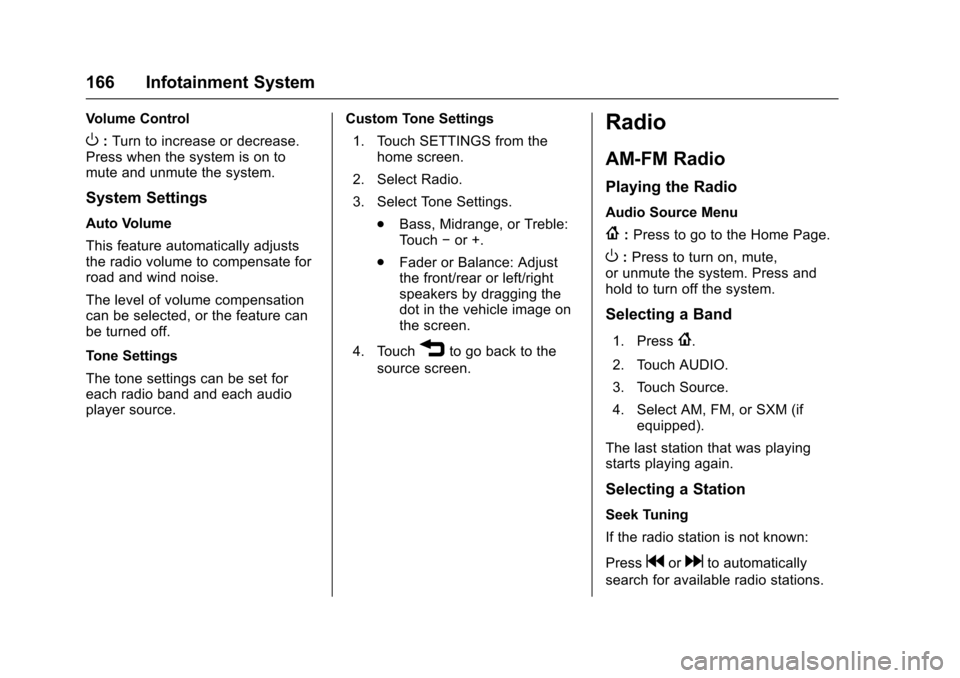
Tone Settings
The tone settings can be set for
each radio band and each audio
player source. Custom Tone Settings
1. Touch SETTINGS from the home screen.
2. Select Radio.
3. Select Tone Settings. .Bass, Midrange, or Treble:
Touch −or +.
. Fader or Balance: Adjust
the front/rear or left/right
speakers by dragging the
dot in the vehicle image on
the screen.
4. Touch
3to go back to the
source screen.
Radio
AM-FM Radio
Playing the Radio
Audio Source Menu
{: Press to go to the Home Page.
O:Press to turn on, mute,
or unmute the system. Press and
hold to turn off the system.
Selecting a Band
1. Press{.
2. Touch AUDIO.
3. Touch Source.
4. Select AM, FM, or SXM (if equipped).
The last station that was playing
starts playing again.
Selecting a Station
Seek Tuning
If the radio station is not known:
Press
gordto automatically
search for available radio stations.
Page 169 of 391
Chevrolet Camaro Owner Manual (GMNA-Localizing-U.S./Canada/Mexico-
9804281) - 2017 - crc - 4/25/16
168 Infotainment System
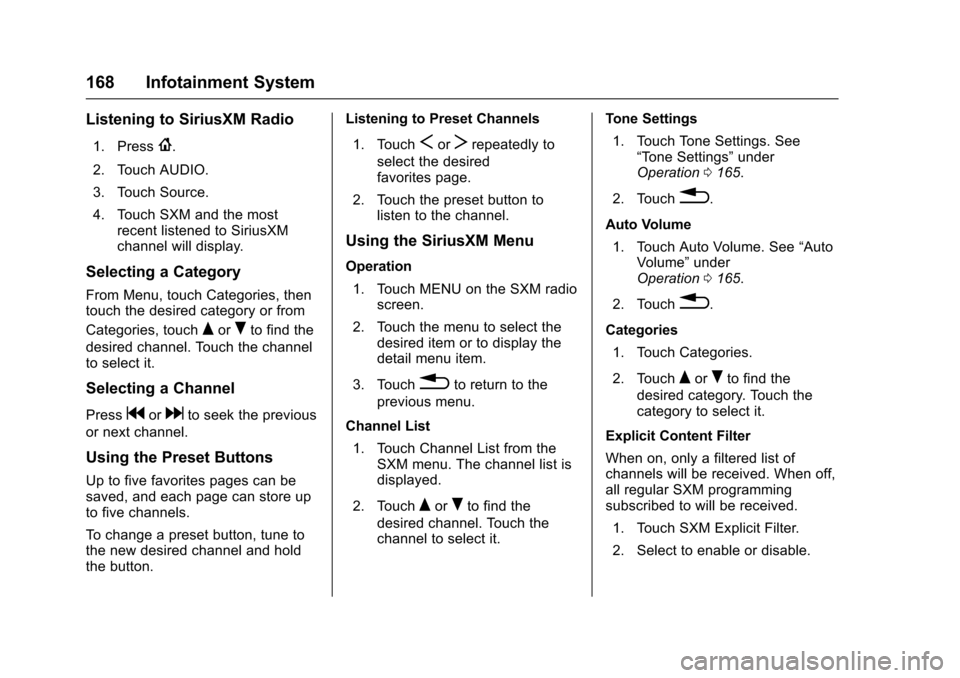
Listening to SiriusXM Radio
1. Press{.
2. Touch AUDIO.
3. Touch Source.
4. Touch SXM and the most recent listened to SiriusXM
channel will display.
Selecting a Category
From Menu, touch Categories, then
touch the desired category or from
Categories, touch
QorRto find the
desired channel. Touch the channel
to select it.
Selecting a Channel
Pressgordto seek the previous
or next channel.
Using the Preset Buttons
Up to five favorites pages can be
saved, and each page can store up
to five channels.
To change a preset button, tune to
the new desired channel and hold
the button. Listening to Preset Channels
1. Touch
SorTrepeatedly to
select the desired
favorites page.
2. Touch the preset button to listen to the channel.
Using the SiriusXM Menu
Operation
1. Touch MENU on the SXM radio screen.
2. Touch the menu to select the desired item or to display the
detail menu item.
3. Touch
0to return to the
previous menu.
Channel List 1. Touch Channel List from the SXM menu. The channel list is
displayed.
2. Touch
QorRto find the
desired channel. Touch the
channel to select it. Tone Settings
1. Touch Tone Settings. See “Tone Settings” under
Operation 0165.
2. Touch
0.
Auto Volume 1. Touch Auto Volume. See “Auto
Volume” under
Operation 0165.
2. Touch
0.
Categories 1. Touch Categories.
2. Touch
QorRto find the
desired category. Touch the
category to select it.
Explicit Content Filter
When on, only a filtered list of
channels will be received. When off,
all regular SXM programming
subscribed to will be received. 1. Touch SXM Explicit Filter.
2. Select to enable or disable.