change time CHEVROLET CAMARO 2017 6.G Owner's Manual
[x] Cancel search | Manufacturer: CHEVROLET, Model Year: 2017, Model line: CAMARO, Model: CHEVROLET CAMARO 2017 6.GPages: 391, PDF Size: 6.65 MB
Page 179 of 391
Chevrolet Camaro Owner Manual (GMNA-Localizing-U.S./Canada/Mexico-
9804281) - 2017 - crc - 4/25/16
178 Infotainment System
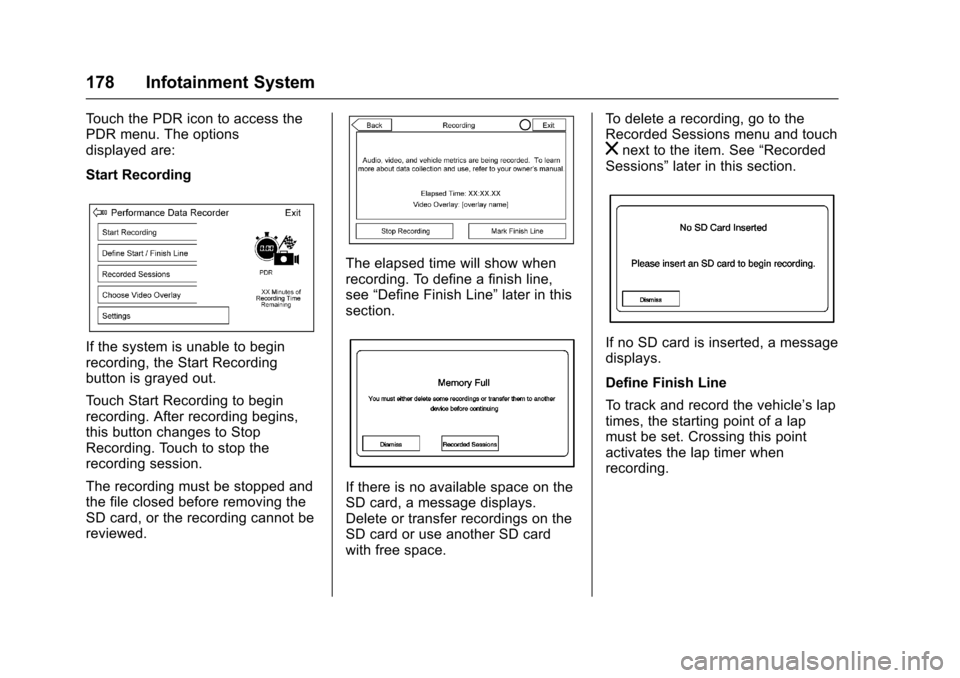
Touch the PDR icon to access the
PDR menu. The options
displayed are:
Start Recording
If the system is unable to begin
recording, the Start Recording
button is grayed out.
Touch Start Recording to begin
recording. After recording begins,
this button changes to Stop
Recording. Touch to stop the
recording session.
The recording must be stopped and
the file closed before removing the
SD card, or the recording cannot be
reviewed.
The elapsed time will show when
recording. To define a finish line,
see“Define Finish Line” later in this
section.
If there is no available space on the
SD card, a message displays.
Delete or transfer recordings on the
SD card or use another SD card
with free space. To delete a recording, go to the
Recorded Sessions menu and touch
znext to the item. See
“Recorded
Sessions” later in this section.
If no SD card is inserted, a message
displays.
Define Finish Line
To track and record the vehicle’s lap
times, the starting point of a lap
must be set. Crossing this point
activates the lap timer when
recording.
Page 180 of 391
Chevrolet Camaro Owner Manual (GMNA-Localizing-U.S./Canada/Mexico-
9804281) - 2017 - crc - 4/25/16
Infotainment System 179
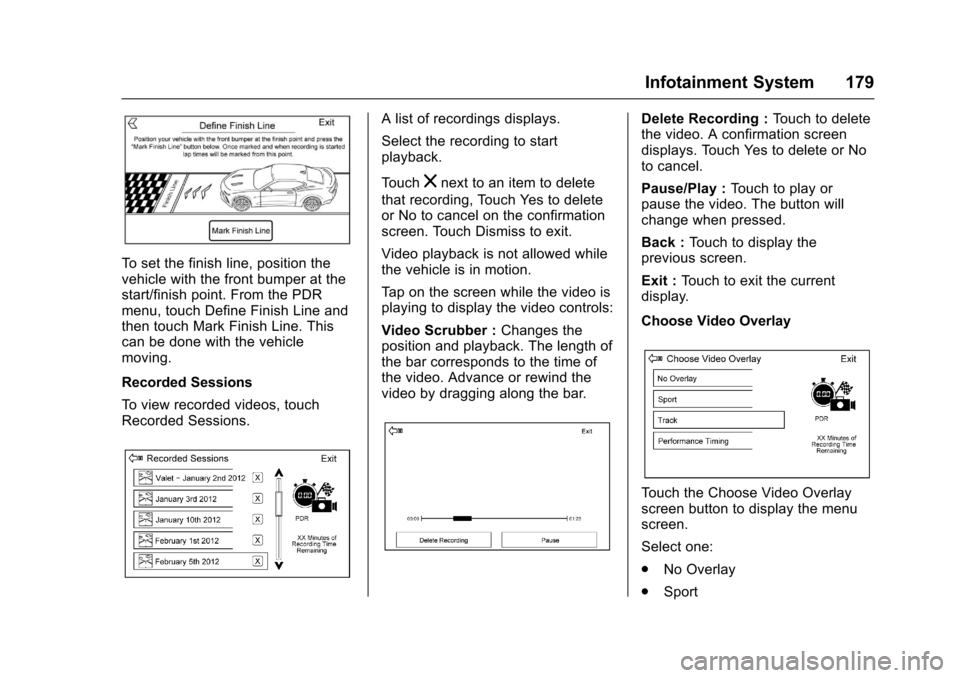
To set the finish line, position the
vehicle with the front bumper at the
start/finish point. From the PDR
menu, touch Define Finish Line and
then touch Mark Finish Line. This
can be done with the vehicle
moving.
Recorded Sessions
To view recorded videos, touch
Recorded Sessions.
A list of recordings displays.
Select the recording to start
playback.
Touch
znext to an item to delete
that recording, Touch Yes to delete
or No to cancel on the confirmation
screen. Touch Dismiss to exit.
Video playback is not allowed while
the vehicle is in motion.
Tap on the screen while the video is
playing to display the video controls:
Video Scrubber : Changes the
position and playback. The length of
the bar corresponds to the time of
the video. Advance or rewind the
video by dragging along the bar.
Delete Recording : Touch to delete
the video. A confirmation screen
displays. Touch Yes to delete or No
to cancel.
Pause/Play : Touch to play or
pause the video. The button will
change when pressed.
Back : Touch to display the
previous screen.
Exit : Touch to exit the current
display.
Choose Video Overlay
Touch the Choose Video Overlay
screen button to display the menu
screen.
Select one:
. No Overlay
. Sport
Page 185 of 391
Chevrolet Camaro Owner Manual (GMNA-Localizing-U.S./Canada/Mexico-
9804281) - 2017 - crc - 4/25/16
184 Infotainment System
Bluetooth (Infotainment
Controls)
To use infotainment controls to
access the menu system, see
Overview0164.
Pairing
A Bluetooth-enabled cell phone
must be paired to the Bluetooth
system and then connected to the
vehicle before it can be used. See
your cell phone manufacturer's user
guide for Bluetooth functions before
pairing the cell phone. If a Bluetooth
phone is not connected, calls will be
made using OnStar Hands-Free
Calling, if available. See OnStar
Overview 0368.
Pairing Information
. A Bluetooth phone with MP3
capability cannot be paired to
the vehicle as a phone and an
MP3 player at the same time.
. Up to 10 cell phones can be
paired to the Bluetooth system.
. The pairing process is disabled
when the vehicle is moving. .
Pairing only needs to be
completed once, unless the
pairing information on the cell
phone changes or the cell phone
is deleted from the system.
. Only one paired cell phone can
be connected to the Bluetooth
system at a time.
. If multiple paired cell phones are
within range of the system, the
system connects to the first
available paired cell phone in the
order that they were first paired.
When the Bluetooth device and
infotainment system are
successfully paired, the phone book
is downloaded automatically. This is
dependent on the type of phone
paired. If the automatic download
does not occur, proceed with the
phone book download on the
phone.
Pairing a Phone –SSP and No
Paired Device
When there is no paired device on
the infotainment system and Simple
Secure Pairing (SSP) is supported:
1. Press
{. 2. Touch PHONE, press
5on the
faceplate, or press
gon the
steering wheel without OnStar.
3. Touch Search Device.
4. Touch the desired device to pair on the searched list
screen.
5. Touch Yes on the pop-up screen of the Bluetooth device
and infotainment system.
6. When the Bluetooth device and infotainment system are
successfully paired, the phone
screen is displayed on the
infotainment system.
Pairing a Phone –SSP and Paired
Device
When a paired device is on the
infotainment system and SSP is
supported:
1. Press
{.
2. Touch SETTINGS.
3. Touch Bluetooth, then Device Management.
Page 188 of 391
Chevrolet Camaro Owner Manual (GMNA-Localizing-U.S./Canada/Mexico-
9804281) - 2017 - crc - 4/25/16
Infotainment System 187
.Bluetooth music can be played
only when a Bluetooth device
has been connected. To play
Bluetooth music, connect the
Bluetooth phone to the
infotainment system.
. If the Bluetooth device is
disconnected while playing
phone music, the music is
discontinued. The audio
streaming function may not be
supported in some Bluetooth
phones. Only one function can
be used at a time between the
Bluetooth hands-free or Phone
music function. For example,
if you convert to Bluetooth
hands-free while playing Phone
music, the music is
discontinued. Playing music from
the car is not possible when
there are no music files stored in
the cell phone.
Playing Bluetooth Music
1. Press
{.
2. Touch AUDIO.
3. Touch Source.
4. Touch Bluetooth. Pause
Touch
jto pause.
Touch
rto resume.
Playing the Next Song
Touch
l.
Playing the Previous Song
Touch
gwithin two seconds of
playback time to play the
previous song.
Returning to the Beginning of the
Current Song
Touch
gafter two seconds of
playback time.
Search
Touch and hold
gorlto rewind
or fast forward.
Playing Music Randomly
Touch
Zduring playback. Touch
again to return to normal play.
This function may not be supported
depending on the Bluetooth device. Do not change the track too quickly
when playing Bluetooth music.
Conditions that may occur when
playing Bluetooth music:
.
It takes time to transmit data
from the Bluetooth device to the
infotainment system.
. If the cell phone or Bluetooth
device is not in the waiting
screen mode, it may not
automatically play.
. The infotainment system
transmits the order to play from
the Bluetooth device in the
Bluetooth music play mode.
If this is done in a different
mode, then the device transmits
the order to stop. Depending on
the Bluetooth device options,
this order to play/stop may take
time to activate.
. If the Bluetooth music playback
is not functioning, then check to
see if the Bluetooth device is in
the waiting screen mode.
. Sounds may be cut off during
the Bluetooth music playback.
Page 189 of 391
Chevrolet Camaro Owner Manual (GMNA-Localizing-U.S./Canada/Mexico-
9804281) - 2017 - crc - 4/25/16
188 Infotainment System
.The infotainment system outputs
the audio from the cell phone or
Bluetooth device as it is
transmitted.
Apple CarPlay and
Android Auto
If equipped, Android Auto™ and/or
Apple CarPlay™ capability may be
available through a compatible
smartphone. If available, a
PROJECTION icon will appear as
Android Auto or Car Play on the
Home Page of the infotainment
display.
To use Android Auto and/or Apple
CarPlay:
1. Download the Android Auto app to your phone from the
Google™ Play store. There is
no app required for Apple
CarPlay. Use the latest
available operation system.
2. Connect your Android phone or Apple iPhone by using the
compatible phone USB cable
and plugging into a USB data
port. For best performance, use the device’
s factory-provided
USB cable. Aftermarket or
third-party cables may
not work.
The PROJECTION icon on the
Home Page will change to Android
Auto or Apple CarPlay depending
on the phone. Android Auto and/or
Apple CarPlay may automatically
launch upon USB connection. If not,
press the ANDROID AUTO and/or
APPLE CARPLAY icon on the
Home Page to launch.
For further information on how to set
up Android Auto and Apple CarPlay
in the vehicle, see
www.my.chevrolet.com for U.S. and
Canada only or Customer
Assistance Offices 0356.
Android Auto is provided by Google
and is subject to Google’s terms
and privacy policy. CarPlay is
provided by Apple and is subject to
Apple’ s terms and privacy policy.
For Android Auto support see
https://support.google.com/
androidauto or Apple CarPlay
support at https://www.apple.com/
ios/carplay/. Apple or Google may change or suspend availability at
any time. Android Auto is a
trademark of Google Inc.; Apple
CarPlay is a trademark of Apple Inc.
Hands-Free Phone
General Information
Vehicles with a Hands-Free Phone
system can use a Bluetooth-capable
cell phone with a hands-free profile
to make and receive phone calls.
The infotainment system and voice
control are used to operate the
system. Not all phones support all
functions and not all phones work
with the Hands-Free Phone system.
Hands-Free Phone Controls
Use the buttons on the infotainment
system and the steering wheel to
operate the Hands-Free Phone
system.
Steering Wheel Controls
Steering wheel controls can be
used to:
.
Answer incoming calls.
. Confirm system information.
Page 192 of 391
Chevrolet Camaro Owner Manual (GMNA-Localizing-U.S./Canada/Mexico-
9804281) - 2017 - crc - 4/25/16
Infotainment System 191
Trademarks and
License Agreements
FCC Information
SeeRadio Frequency
Statement 0364.
Bluetooth
®
The Bluetooth word mark and logos
are owned by the Bluetooth®SIG,
Inc. and any use of such marks by
General Motors is under license.
Other trademarks and trade names
are those of their respective owners.
DivX Certified®to play DivX®video,
including premium content.
Covered by one or more of the
following U.S. patents: 7,295,673;
7,460,668; 7,515,710; 7,519,274. DivX
®, DivX Certified®and
associated logos are trademarks of
Rovi Corporation or its subsidiaries
and are used under license.
“Made for iPod” and“Made for
iPhone” mean that an electronic
accessory has been designed to
connect specifically to iPod or
iPhone and has been certified by
the developer to meet Apple
performance standards.
iPod and iPhone are trademarks of
Apple Computer, Inc., registered in
the U.S. and other countries.
Fees and Taxes: Subscription fee,
taxes, one time activation fee, and
other fees may apply. Subscription
fee is consumer only. All fees and
programming subject to change.
Subscriptions subject to Customer
Agreement available at
www.siriusxm.com or
www.siriusxm.ca. SiriusXM
®service
only available in the 48 contiguous
United States and Canada.
In Canada: Some deterioration of
service may occur in extreme
northern latitudes. This is beyond
the control of SiriusXM
®Satellite
Radio.
It is prohibited to copy, decompile,
disassemble, reverse engineer,
hack, manipulate, or otherwise
make available any technology or
software incorporated in receivers
compatible with the SiriusXM
Satellite Radio System or that
support the SiriusXM website, the
Online Service or any of its content.
Furthermore, the AMBER voice
compression software included in
this product is protected by
intellectual property rights including
Page 195 of 391
Chevrolet Camaro Owner Manual (GMNA-Localizing-U.S./Canada/Mexico-
9804281) - 2017 - crc - 4/25/16
194 Climate Controls
Automatic Operation
The system automatically controls
the fan speed, air delivery, air
conditioning, and recirculation in
order to heat or cool the vehicle to
the desired temperature:
When AUTO is lit, all four functions
operate automatically. Each function
can also be manually set and the
setting is displayed. Functions not
manually set will continue to be
automatically controlled, even if the
AUTO indicator is not lit.
For automatic operation:1. Press AUTO.
2. Set the temperature. Allow the system time to stabilize. Adjust
the temperature as needed for
best comfort.
O:Press to turn the fan off or on.
Temperature Control : Turn the
outer ring of the air vent clockwise
or counterclockwise to increase or
decrease the temperature setting. Fan Control :
Turn the outer ring of
the air vent clockwise or
counterclockwise to increase or
decrease the fan speed.
Air Delivery Mode Controls :
Press
X,Y, or[to change the
direction of the airflow. Any
combination of the three buttons
can be selected. The indicator light
in the button will turn on. The
current mode appears in the display
screen. Pressing any of the three
buttons cancels automatic air
delivery control and the direction of
the airflow is controlled manually.
Press AUTO to return to automatic
operation.
To change the current mode, select
one or more of the following:
X: Clears the windows of fog or
moisture. Air is directed to the
windshield and side window outlets.
Y: Air is directed to the instrument
panel outlets.
[: Air is directed to the floor
outlets.
0: Clears the windshield of fog or
frost more quickly. Air is only
directed to the windshield and side
window outlets. The air conditioning
may turn on automatically to
remove fog.
For best results, clear all snow and
ice from the windshield before
defrosting.
Do not drive the vehicle until all
windows are clear.
Air Conditioning
A/C : Press to turn the air
conditioning on or off. An indicator
light turns on. If the fan is turned off
or the outside temperature falls
below freezing, the air conditioning
will not run, but the indicator light
will be lit.
The air conditioning might
automatically come on when
0is
selected.
@: Press to turn on recirculation.
An indicator light comes on. Air is
recirculated inside the vehicle.
Page 206 of 391
Chevrolet Camaro Owner Manual (GMNA-Localizing-U.S./Canada/Mexico-
9804281) - 2017 - crc - 4/25/16
Driving and Operating 205
should be changed after 30 hours of
track usage. Any transmission level
set or change should be performed
at your dealer.
Rear Axle Fluid
Axles must have 2 400 km
(1,500 mi) before being used in
track driving.
The rear axle fluid temperatures
may be higher than when driving in
severe conditions. Drain and refill
with new fluid after the first racing or
competitive driving event, and then
after every 24 hours of racing or
competitive driving. See
Recommended Fluids and
Lubricants0346.
Caution
During a first time track or racing
event, high rear axle
temperatures can occur. Damage
could be caused to the rear axle
and would not be covered by the
vehicle warranty. Do not drive as
(Continued)
Caution (Continued)
long or as fast the first time the
vehicle is driven on the track or
raced.
Brake Fluid
For track events or competitive
driving, it is recommended that the
brake fluid be replaced with a high
performance brake fluid that has a
dry boiling point greater than 279 °C
(534 °F). After conversion to the
high performance brake fluid, follow
the brake fluid service
recommendations outlined by the
fluid manufacturer. Do not use
silicone or DOT-5 brake fluids.
Brake Burnishing
To prepare the Camaro brake
systems for track events and racing,
complete the appropriate high
performance brake burnishing
procedure described below.
New brake pads must be burnished
before racing or competitive driving.
Caution
These procedures are specific to
the Camaro SS, or LT with Y4Q
Heavy Duty Cooling System that
is equipped with J55 brakes. This
procedure should not be run on
other Camaro models as damage
may result.
Caution
The new vehicle break-in period
should be completed before
performing the brake burnishing
procedure or damage may occur
to the powertrain/engine. See
New Vehicle Break-In0215.
When performed as instructed, this
procedure will not damage the
brakes. During the burnishing
procedure, the brake pads will
smoke and produce an odor. The
braking force and pedal travel may
Page 219 of 391
Chevrolet Camaro Owner Manual (GMNA-Localizing-U.S./Canada/Mexico-
9804281) - 2017 - crc - 4/25/16
218 Driving and Operating
With the ignition off, pressing the
button one time without the brake
pedal applied will place the ignition
system in ACC/ACCESSORY.
The ignition will switch from ACC/
ACCESSORY to OFF after
five minutes to prevent battery
rundown.
ON/RUN/START (Green Indicator
Light) :This mode is for driving and
starting. With the ignition off, and
the brake pedal applied, pressing
the button once will place the
ignition system in ON/RUN/START.
Once engine cranking begins,
release the button. Engine cranking
will continue until the engine starts.
See Starting the Engine 0218. The
ignition will then remain in ON/RUN.
Service Only Mode
This power mode is available for
service and diagnostics, and to
verify the proper operation of the
malfunction indicator lamp as may
be required for emission inspection
purposes. With the vehicle off, and
the brake pedal not applied,
pressing and holding the button for
more than five seconds will place the vehicle in Service Only Mode.
The instruments and audio systems
will operate as they do in ON/RUN,
but the vehicle will not be able to be
driven. The engine will not start in
Service Only Mode. Press the
button again to turn the vehicle off.
Starting the Engine
Place the transmission in the
proper gear.
Caution
If you add electrical parts or
accessories, you could change
the way the engine operates. Any
resulting damage would not be
covered by the vehicle warranty.
See
Add-On Electrical
Equipment 0254.
For an automatic transmission,
move the shift lever to P (Park) or
N (Neutral). To restart the vehicle
when it is already moving, use
N (Neutral) only.
Caution
Do not try to shift to P (Park) if the
vehicle is moving. If you do, you
could damage the transmission.
Shift to P (Park) only when the
vehicle is stopped.
For a manual transmission, place
the shift lever in Neutral with the
parking brake engaged. Hold the
clutch pedal down to the floor and
start the engine.
The RKE transmitter must be inside
the vehicle for the ignition to work.
Cell phone chargers can interfere
with the operation of the Keyless
Access system. Battery chargers
should not be plugged in when
starting or turning off the engine.
To start the vehicle: 1. For vehicles with an automatic transmission, press the brake
pedal, then press ENGINE
START/STOP on the
instrument panel. For vehicles
with a manual transmission,
Page 233 of 391
Chevrolet Camaro Owner Manual (GMNA-Localizing-U.S./Canada/Mexico-
9804281) - 2017 - crc - 4/25/16
232 Driving and Operating
Brakes
Antilock Brake
System (ABS)
This vehicle has an Antilock Brake
System (ABS), an advanced
electronic braking system that helps
prevent a braking skid.
When the vehicle begins to drive
away, ABS checks itself.
A momentary motor or clicking noise
may be heard while this test is going
on, and it may even be noticed that
the brake pedal moves a little. This
is normal.
If there is a problem with ABS, this
warning light stays on. SeeAntilock
Brake System (ABS) Warning
Light 0124. If driving safely on a wet road and it
becomes necessary to slam on the
brakes and continue braking to
avoid a sudden obstacle, a
computer senses the wheels are
slowing down. If one of the wheels
is about to stop rolling, the computer
will separately work the brakes at
each wheel.
ABS can change the brake pressure
to each wheel, as required, faster
than any driver could. This can help
you steer around the obstacle while
braking hard.
As the brakes are applied, the
computer keeps receiving updates
on wheel speed and controls
braking pressure accordingly.
Remember: ABS does not change
the time needed to get a foot up to
the brake pedal or always decrease
stopping distance. If you get too
close to the vehicle in front of you,
there will not be enough time to
apply the brakes if that vehicle
suddenly slows or stops. Always
leave enough room up ahead to
stop, even with ABS.
Using ABS
Do not pump the brakes. Just hold
the brake pedal down firmly and let
ABS work. You may hear the ABS
pump or motor operating and feel
the brake pedal pulsate. This is
normal.
Braking in Emergencies
ABS allows you to steer and brake
at the same time. In many
emergencies, steering can help
more than even the very best
braking.
Electric Parking Brake