steering CHEVROLET CAMARO 2017 6.G Owner's Manual
[x] Cancel search | Manufacturer: CHEVROLET, Model Year: 2017, Model line: CAMARO, Model: CHEVROLET CAMARO 2017 6.GPages: 391, PDF Size: 6.65 MB
Page 113 of 391
Chevrolet Camaro Owner Manual (GMNA-Localizing-U.S./Canada/Mexico-
9804281) - 2017 - crc - 4/25/16
112 Instruments and Controls
See the High Performance
supplement for more information.
Reconfigurable Instrument
Cluster
To change the theme for the uplevel
cluster:1. Find the Options page in one of the interactive display zones on
the cluster.
2. Press SEL to enter the Options menu.
3. Scroll down to highlight Display Option, then press
pto enter
the Display Option menu.
4. Press SEL to select the desired cluster configuration.
5. Exit the Display Option menu by pressing
o.
Cluster Menu
There is an interactive display area
in the center of the instrument
cluster.
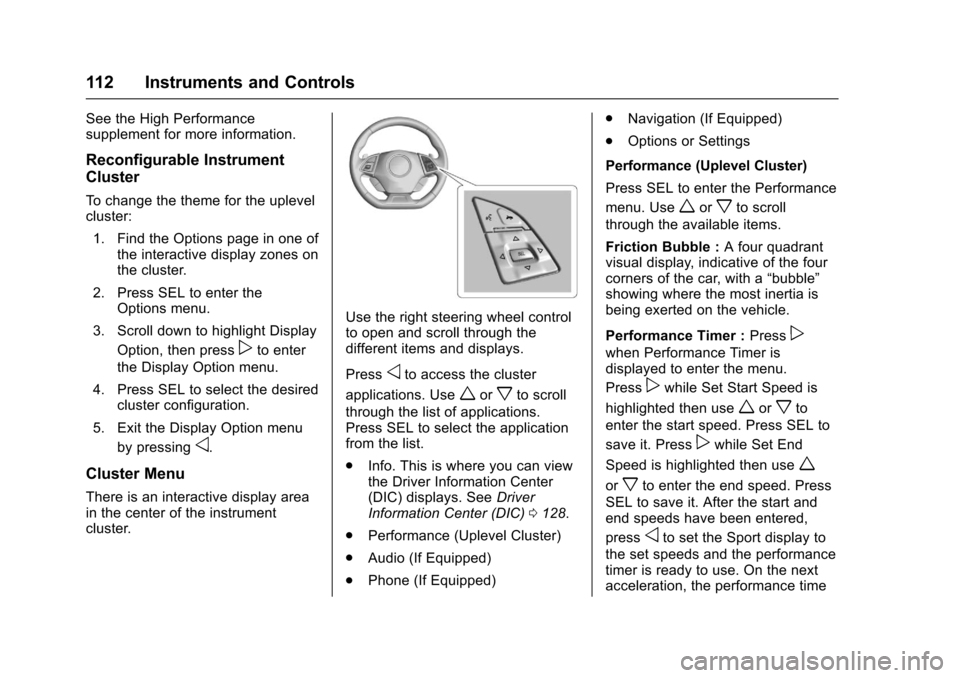
Use the right steering wheel control
to open and scroll through the
different items and displays.
Press
oto access the cluster
applications. Use
worxto scroll
through the list of applications.
Press SEL to select the application
from the list.
. Info. This is where you can view
the Driver Information Center
(DIC) displays. See Driver
Information Center (DIC) 0128.
. Performance (Uplevel Cluster)
. Audio (If Equipped)
. Phone (If Equipped) .
Navigation (If Equipped)
. Options or Settings
Performance (Uplevel Cluster)
Press SEL to enter the Performance
menu. Use
worxto scroll
through the available items.
Friction Bubble : A four quadrant
visual display, indicative of the four
corners of the car, with a “bubble”
showing where the most inertia is
being exerted on the vehicle.
Performance Timer : Press
p
when Performance Timer is
displayed to enter the menu.
Press
pwhile Set Start Speed is
highlighted then use
worxto
enter the start speed. Press SEL to
save it. Press
pwhile Set End
Speed is highlighted then use
w
orxto enter the end speed. Press
SEL to save it. After the start and
end speeds have been entered,
press
oto set the Sport display to
the set speeds and the performance
timer is ready to use. On the next
acceleration, the performance time
Page 123 of 391
Chevrolet Camaro Owner Manual (GMNA-Localizing-U.S./Canada/Mexico-
9804281) - 2017 - crc - 4/25/16
122 Instruments and Controls
If the light is flashing :A
malfunction has been detected that
could damage the emission control
system and increase vehicle
emissions. Diagnosis and service
may be required.
To help prevent damage, reduce
vehicle speed and avoid hard
accelerations and uphill grades.
If the light continues to flash, find a
safe place to park. Turn the vehicle
off and wait at least 10 seconds
before restarting the engine. If the
light is still flashing, follow the
previous guidelines and see your
dealer for service as soon as
possible.
If the light is on steady : A
malfunction has been detected.
Diagnosis and service may be
required.
Check the following:
. If fuel has been added to the
vehicle using the capless funnel
adapter, make sure that it has
been removed. See “Filling the
Tank with a Portable Gas Can”
under Filling the Tank 0252. The diagnostic system can
detect if the adapter has been
left installed in the vehicle,
allowing fuel to evaporate into
the atmosphere. A few driving
trips with the adapter removed
may turn off the light.
. Poor fuel quality can cause
inefficient engine operation and
poor driveability, which may go
away once the engine is warmed
up. If this occurs, change the
fuel brand. It may require at
least one full tank of the proper
fuel to turn the light off. See
Fuel 0250.
If the light remains on, see your
dealer.
Emissions Inspection and
Maintenance Programs
If the vehicle requires an Emissions
Inspection/Maintenance test, the
test equipment will likely connect to
the vehicle's Data Link
Connector (DLC).
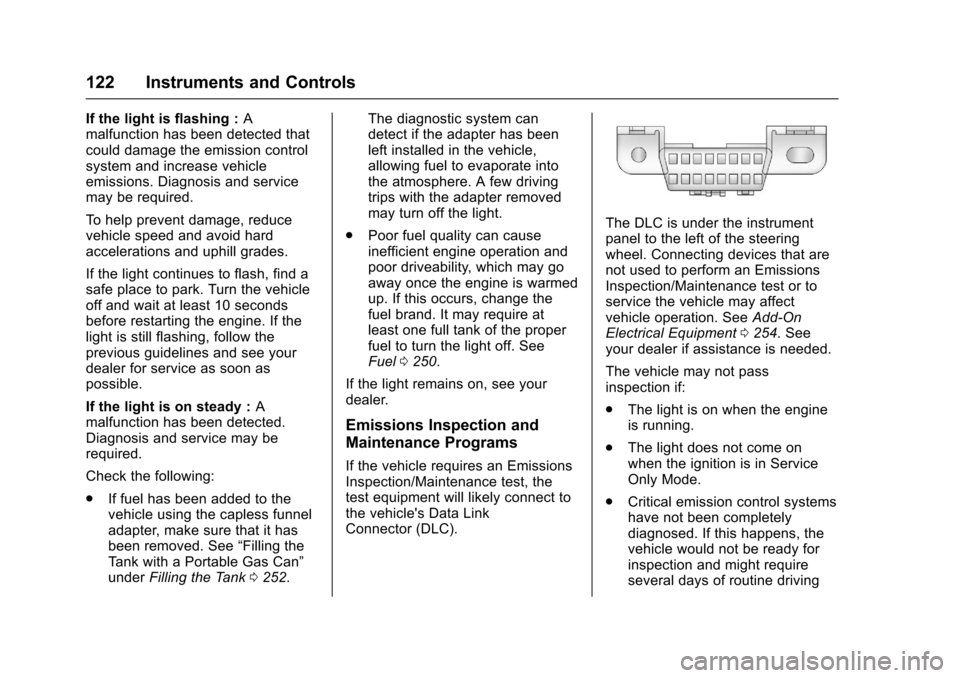
The DLC is under the instrument
panel to the left of the steering
wheel. Connecting devices that are
not used to perform an Emissions
Inspection/Maintenance test or to
service the vehicle may affect
vehicle operation. See Add-On
Electrical Equipment 0254. See
your dealer if assistance is needed.
The vehicle may not pass
inspection if:
. The light is on when the engine
is running.
. The light does not come on
when the ignition is in Service
Only Mode.
. Critical emission control systems
have not been completely
diagnosed. If this happens, the
vehicle would not be ready for
inspection and might require
several days of routine driving
Page 129 of 391
Chevrolet Camaro Owner Manual (GMNA-Localizing-U.S./Canada/Mexico-
9804281) - 2017 - crc - 4/25/16
128 Instruments and Controls
Information Displays
Driver Information
Center (DIC)
The DIC displays are shown in the
center of the instrument cluster in
the Info application. SeeInstrument
Cluster 0110. The Info application
is only available when the vehicle is
in ON/RUN. The displays show the
status of many vehicle systems. The
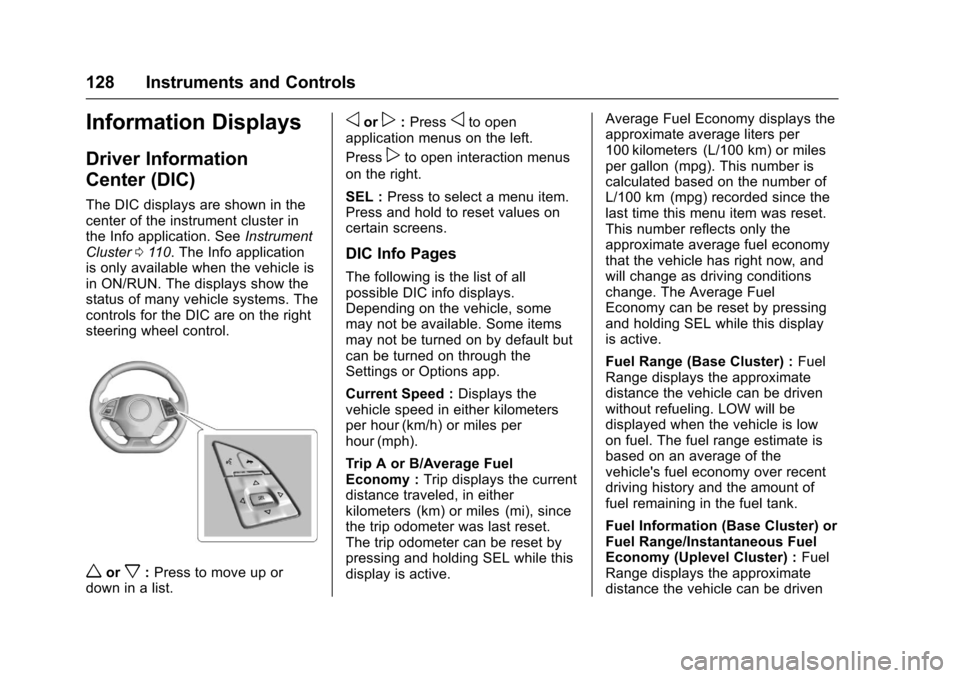
controls for the DIC are on the right
steering wheel control.
worx: Press to move up or
down in a list.
oorp: Pressoto open
application menus on the left.
Press
pto open interaction menus
on the right.
SEL : Press to select a menu item.
Press and hold to reset values on
certain screens.
DIC Info Pages
The following is the list of all
possible DIC info displays.
Depending on the vehicle, some
may not be available. Some items
may not be turned on by default but
can be turned on through the
Settings or Options app.
Current Speed : Displays the
vehicle speed in either kilometers
per hour (km/h) or miles per
hour (mph).
Trip A or B/Average Fuel
Economy : Trip displays the current
distance traveled, in either
kilometers (km) or miles (mi), since
the trip odometer was last reset.
The trip odometer can be reset by
pressing and holding SEL while this
display is active. Average Fuel Economy displays the
approximate average liters per
100 kilometers (L/100 km) or miles
per gallon (mpg). This number is
calculated based on the number of
L/100 km (mpg) recorded since the
last time this menu item was reset.
This number reflects only the
approximate average fuel economy
that the vehicle has right now, and
will change as driving conditions
change. The Average Fuel
Economy can be reset by pressing
and holding SEL while this display
is active.
Fuel Range (Base Cluster) :
Fuel
Range displays the approximate
distance the vehicle can be driven
without refueling. LOW will be
displayed when the vehicle is low
on fuel. The fuel range estimate is
based on an average of the
vehicle's fuel economy over recent
driving history and the amount of
fuel remaining in the fuel tank.
Fuel Information (Base Cluster) or
Fuel Range/Instantaneous Fuel
Economy (Uplevel Cluster) : Fuel
Range displays the approximate
distance the vehicle can be driven
Page 133 of 391
Chevrolet Camaro Owner Manual (GMNA-Localizing-U.S./Canada/Mexico-
9804281) - 2017 - crc - 4/25/16
132 Instruments and Controls
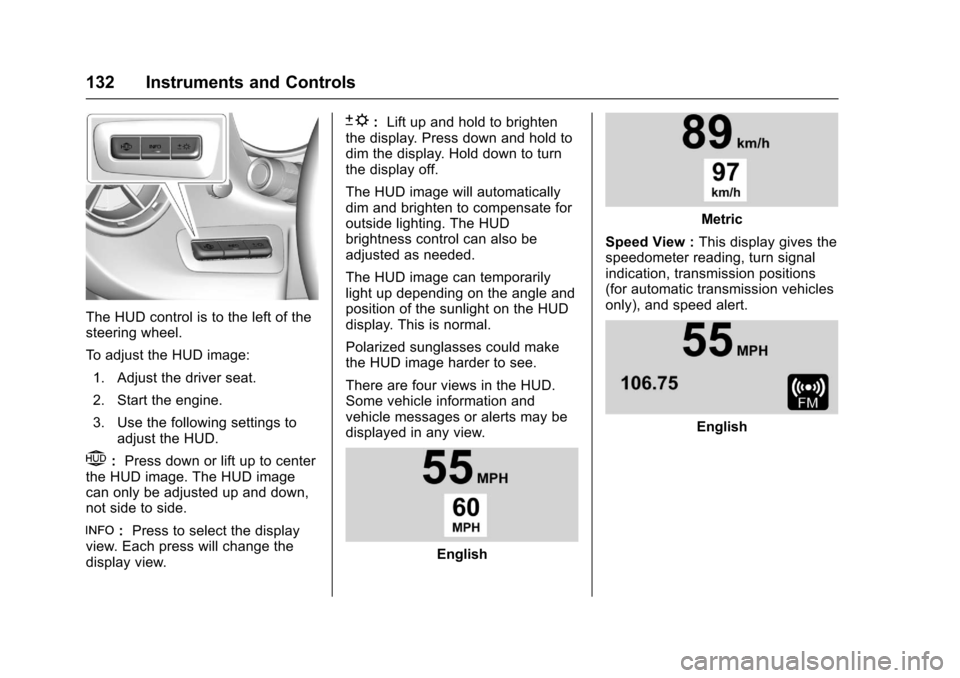
The HUD control is to the left of the
steering wheel.
To adjust the HUD image:1. Adjust the driver seat.
2. Start the engine.
3. Use the following settings to adjust the HUD.
$:Press down or lift up to center
the HUD image. The HUD image
can only be adjusted up and down,
not side to side.
!: Press to select the display
view. Each press will change the
display view.
D: Lift up and hold to brighten
the display. Press down and hold to
dim the display. Hold down to turn
the display off.
The HUD image will automatically
dim and brighten to compensate for
outside lighting. The HUD
brightness control can also be
adjusted as needed.
The HUD image can temporarily
light up depending on the angle and
position of the sunlight on the HUD
display. This is normal.
Polarized sunglasses could make
the HUD image harder to see.
There are four views in the HUD.
Some vehicle information and
vehicle messages or alerts may be
displayed in any view.
English
Metric
Speed View : This display gives the
speedometer reading, turn signal
indication, transmission positions
(for automatic transmission vehicles
only), and speed alert.
English
Page 134 of 391
Chevrolet Camaro Owner Manual (GMNA-Localizing-U.S./Canada/Mexico-
9804281) - 2017 - crc - 4/25/16
Instruments and Controls 133
Metric
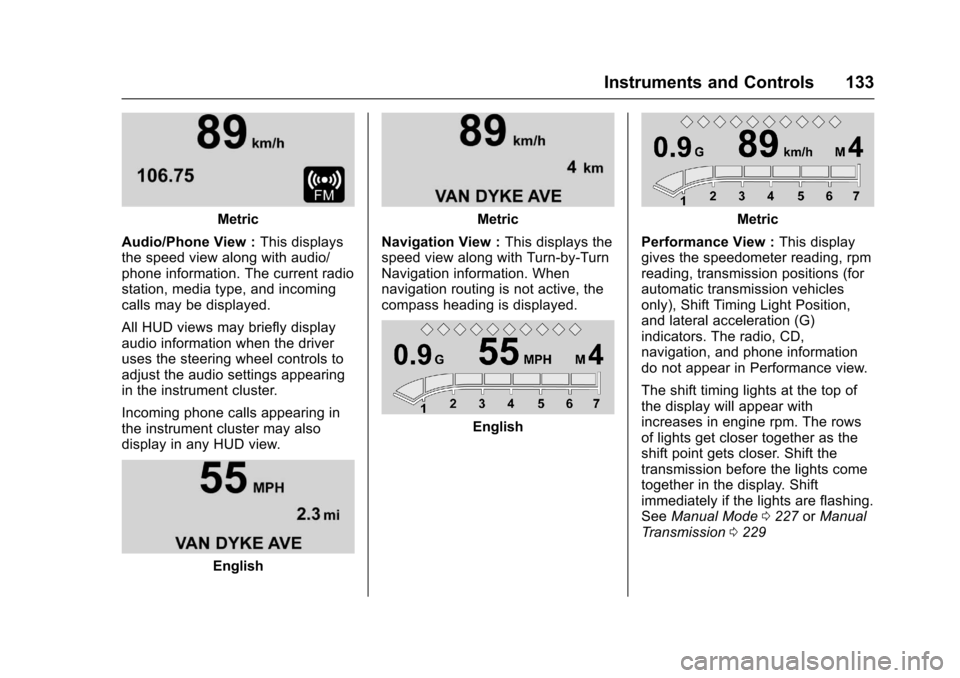
Audio/Phone View : This displays
the speed view along with audio/
phone information. The current radio
station, media type, and incoming
calls may be displayed.
All HUD views may briefly display
audio information when the driver
uses the steering wheel controls to
adjust the audio settings appearing
in the instrument cluster.
Incoming phone calls appearing in
the instrument cluster may also
display in any HUD view.
English
Metric
Navigation View : This displays the
speed view along with Turn-by-Turn
Navigation information. When
navigation routing is not active, the
compass heading is displayed.
English
Metric
Performance View : This display
gives the speedometer reading, rpm
reading, transmission positions (for
automatic transmission vehicles
only), Shift Timing Light Position,
and lateral acceleration (G)
indicators. The radio, CD,
navigation, and phone information
do not appear in Performance view.
The shift timing lights at the top of
the display will appear with
increases in engine rpm. The rows
of lights get closer together as the
shift point gets closer. Shift the
transmission before the lights come
together in the display. Shift
immediately if the lights are flashing.
See Manual Mode 0227 orManual
Transmission 0229
Page 142 of 391
Chevrolet Camaro Owner Manual (GMNA-Localizing-U.S./Canada/Mexico-
9804281) - 2017 - crc - 4/25/16
Instruments and Controls 141
SERVICE SUSPENSION
This message displays when a
malfunction is present in the
Magnetic Ride Control system,
if equipped, which is causing the
shocks to be in their full soft mode.
This is a warning to the driver that
the vehicle handling may be
affected. Have the vehicle serviced
by your dealer as soon as possible.
To acknowledge the message, press
SEL. The message reappears every
10 minutes until this condition
changes.
Airbag System Messages
SERVICE AIRBAG
This message displays if there is a
problem with the airbag system. See
your dealer for service.
Security Messages
THEFT ATTEMPTED
This message displays if the vehicle
detects a tamper condition.
Service Vehicle Messages
PROGRAM CLUSTER
This message is displayed if there is
a problem with the instrument
cluster. Take the vehicle to your
dealer for service.
SERVICE POWER STEERING
This message displays and a chime
may sound when there may be a
problem with the power steering
system. If this message displays
and a reduction in steering
performance or loss of power
steering assistance is noticed, see
your dealer.
SERVICE VEHICLE SOON
This message is displayed if there is
a problem with the vehicle. Take the
vehicle to your dealer for service.
Starting the Vehicle
Messages
PRESS BRAKE TO START
This message is displayed when
attempting to start an automatic
transmission equipped vehicle
without first pressing the brake
pedal.
PRESS CLUTCH TO START
This message is displayed when
attempting to start a manual
transmission equipped vehicle
without first pressing the clutch
pedal.
SERVICE KEYLESS START
SYSTEM
This message is displayed if there is
a problem with the pushbutton start
system. Take the vehicle to your
dealer for service.
Page 146 of 391
Chevrolet Camaro Owner Manual (GMNA-Localizing-U.S./Canada/Mexico-
9804281) - 2017 - crc - 4/25/16
Instruments and Controls 145
.Display
. Rear Camera
. Return to Factory Settings
. Software Information
Detailed information for each menu
follows.
Time and Date
Manually set the time and date. See
Clock 0105.
Driving Mode
Select and the following may
display:
.
Engine Sound Management
. Steering
Engine Sound Management
Select Engine Sound Management,
then choose from the available
options. See Driver Mode
Control 0236.
Steering
Select Steering, then choose from
the available options. See Driver
Mode Control 0236.
Language (Language)
Select Language, then select from
the available language(s).
The selected language will display
on the system, and voice
recognition will reflect the selected
language.
Valet Mode
This will lock the infotainment
system and steering wheel controls.
It may also limit access to vehicle
storage locations (if equipped).
To enable valet mode:
1. Enter a four-digit code on the keypad.
2. Touch Enter to go to the confirmation screen.
3. Re-enter the four-digit code.
Touch LOCK or UNLOCK to lock or
unlock the system. Touch Back to
go back to the previous menu.
Teen Driver
See “Teen Driver” under“Settings”
in the infotainment manual.
Radio
Press and the following may
display:
. Manage Favorites
. Number of Favorites Shown
. Audible Touch Feedback
. Text Scroll
. Tone Settings
. Auto Volume
. Maximum Startup Volume
. Audio Cue Volume
Manage Favorites
This allows favorites to be edited.
See “Storing a Station as a
Favorite” inAM-FM Radio 0166 or
“Manage Favorites” in“Settings”
under “Radio” in the infotainment
manual.
Number of Favorites Shown
Press to set the number of favorites
to display.
Page 156 of 391
Chevrolet Camaro Owner Manual (GMNA-Localizing-U.S./Canada/Mexico-
9804281) - 2017 - crc - 4/25/16
Lighting 155
Lighting
Exterior Lighting
Exterior Lamp Controls . . . . . . . 155
Headlamp High/Low-BeamChanger . . . . . . . . . . . . . . . . . . . . 155
Flash-to-Pass . . . . . . . . . . . . . . . . 156
Daytime Running Lamps (DRL) . . . . . . . . . . . . . . . 156
Automatic Headlamp System . . . . . . . . . . . . . . . . . . . . . . 156
Hazard Warning Flashers . . . . . 157
Turn and Lane-Change Signals . . . . . . . . . . . . . . . . . . . . . . 158
Interior Lighting
Instrument Panel IlluminationControl . . . . . . . . . . . . . . . . . . . . . . 158
Interior Lamps . . . . . . . . . . . . . . . . 159
Reading Lamps . . . . . . . . . . . . . . 159
Lighting Features
Entry Lighting . . . . . . . . . . . . . . . . 159
Exit Lighting . . . . . . . . . . . . . . . . . . 159
Theater Dimming . . . . . . . . . . . . . 160
Battery Load Management . . . 160
Battery Power Protection . . . . . 160
Exterior Lighting Battery Saver . . . . . . . . . . . . . . . . . . . . . . . 160
Exterior Lighting
Exterior Lamp Controls
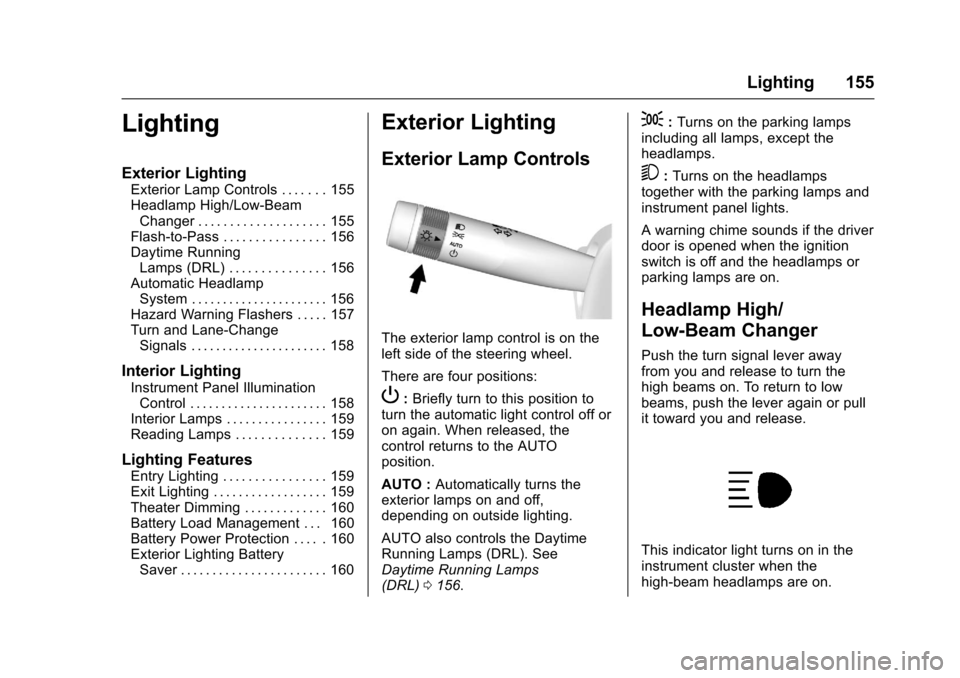
The exterior lamp control is on the
left side of the steering wheel.
There are four positions:
P: Briefly turn to this position to
turn the automatic light control off or
on again. When released, the
control returns to the AUTO
position.
AUTO : Automatically turns the
exterior lamps on and off,
depending on outside lighting.
AUTO also controls the Daytime
Running Lamps (DRL). See
Daytime Running Lamps
(DRL) 0156.
;:Turns on the parking lamps
including all lamps, except the
headlamps.
5: Turns on the headlamps
together with the parking lamps and
instrument panel lights.
A warning chime sounds if the driver
door is opened when the ignition
switch is off and the headlamps or
parking lamps are on.
Headlamp High/
Low-Beam Changer
Push the turn signal lever away
from you and release to turn the
high beams on. To return to low
beams, push the lever again or pull
it toward you and release.
This indicator light turns on in the
instrument cluster when the
high-beam headlamps are on.
Page 164 of 391
Chevrolet Camaro Owner Manual (GMNA-Localizing-U.S./Canada/Mexico-
9804281) - 2017 - crc - 4/25/16
Infotainment System 163
functions may gray out when they
are unavailable. Many infotainment
features are also available through
the instrument cluster and steering
wheel controls.
Before driving:
.Become familiar with the
operation, faceplate buttons, and
screen buttons.
. Set up the audio by presetting
favorite stations, setting the
tone, and adjusting the
speakers.
. Set up phone numbers in
advance so they can be called
easily by pressing a single
button or by using a single voice
command if equipped with
Bluetooth phone capability.
See Defensive Driving 0201.
To play the infotainment system with
the ignition off, see Retained
Accessory Power (RAP) 0221.Theft-Deterrent Feature
The infotainment system has an
electronic security system installed
to prevent theft.
The infotainment system only works
in the vehicle in which it was first
installed, and cannot be used in
another vehicle.
Page 166 of 391
Chevrolet Camaro Owner Manual (GMNA-Localizing-U.S./Canada/Mexico-
9804281) - 2017 - crc - 4/25/16
Infotainment System 165
.USB/Music/Pictures: Press
to go to the next content.
Press and hold to fast
forward.
5.
5
. Press and release to
access the phone screen,
answer an incoming call,
or access the device home
screen.
Home Page
Touchscreen Buttons
Touchscreen buttons show on the
screen when available. When a
function is unavailable, the button
may gray out. When a function is
selected, the button may highlight.
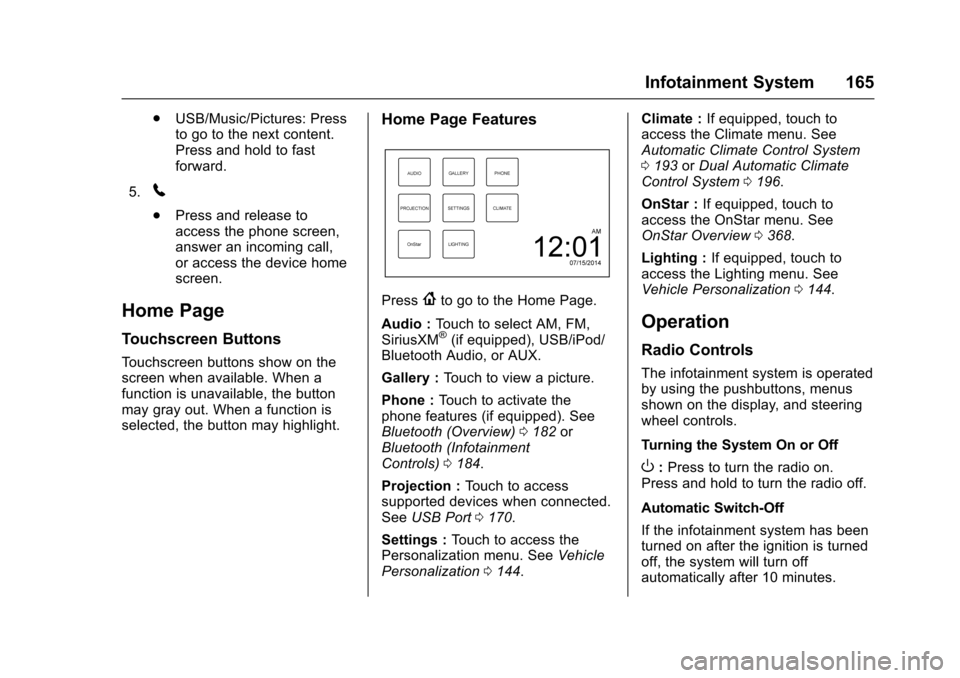
Home Page Features
Press{to go to the Home Page.
Audio : Touch to select AM, FM,
SiriusXM
®(if equipped), USB/iPod/
Bluetooth Audio, or AUX.
Gallery : Touch to view a picture.
Phone : Touch to activate the
phone features (if equipped). See
Bluetooth (Overview) 0182 or
Bluetooth (Infotainment
Controls) 0184.
Projection : Touch to access
supported devices when connected.
See USB Port 0170.
Settings : Touch to access the
Personalization menu. See Vehicle
Personalization 0144. Climate :
If equipped, touch to
access the Climate menu. See
Automatic Climate Control System
0 193 orDual Automatic Climate
Control System 0196.
OnStar : If equipped, touch to
access the OnStar menu. See
OnStar Overview 0368.
Lighting : If equipped, touch to
access the Lighting menu. See
Vehicle Personalization 0144.
Operation
Radio Controls
The infotainment system is operated
by using the pushbuttons, menus
shown on the display, and steering
wheel controls.
Turning the System On or Off
O:Press to turn the radio on.
Press and hold to turn the radio off.
Automatic Switch-Off
If the infotainment system has been
turned on after the ignition is turned
off, the system will turn off
automatically after 10 minutes.