ECO mode CHEVROLET CAMARO 2018 User Guide
[x] Cancel search | Manufacturer: CHEVROLET, Model Year: 2018, Model line: CAMARO, Model: CHEVROLET CAMARO 2018Pages: 393, PDF Size: 5.77 MB
Page 93 of 393
Chevrolet Camaro Owner Manual (GMNA-Localizing-U.S./Canada/Mexico-
11348325) - 2018 - CRC - 10/23/17
92 Seats and Restraints
vehicle. The LATCH system is
designed to make installation of a
child restraint easier.
In order to use the LATCH system in
your vehicle, you need a child
restraint that has LATCH
attachments. LATCH-compatible
rear-facing and forward-facing child
seats can be properly installed
using either the LATCH anchors or
the vehicle’s seat belts. Do not use
both the seat belts and the LATCH
anchorage system to secure a
rear-facing or forward-facing
child seat.
Booster seats use the vehicle’s seat
belts to secure the child and the
booster seat. If the manufacturer
recommends that the booster seat
be secured with the LATCH system,
this can be done as long as the
booster seat can be positioned
properly and there is no interference
with the proper positioning of the
lap-shoulder belt on the child.
Make sure to follow the instructions
that came with the child restraint,
and also the instructions in this
manual. When installing a child restraint with
a top tether, you must also use
either the lower anchors or the seat
belts to properly secure the child
restraint. A child restraint must
never be installed using only the top
tether and anchor.
The LATCH anchorage system can
be used until the combined weight
of the child plus the child restraint is
29.5 kg (65 lbs). Use the seat belt
alone instead of the LATCH
anchorage system once the
combined weight is more than
29.5 kg (65 lbs).
See
Securing Child Restraints (With
the Seat Belt in the Rear Seat) 097
or Securing Child Restraints (With
the Seat Belt in the Front Seat)
0 99.
Child restraints built after March
2014 will be labeled with the
specific child weight up to which the
LATCH system can be used to
install the restraint.
The following explains how to attach
a child restraint with these
attachments in the vehicle. Not all vehicle seating positions
have lower anchors. In this case,
the seat belt must be used (with top
tether where available) to secure
the child restraint. See
Securing
Child Restraints (With the Seat Belt
in the Rear Seat) 097 orSecuring
Child Restraints (With the Seat Belt
in the Front Seat) 099.
In Canada, the law requires that
forward-facing child restraints have
a top tether, and that the tether be
attached. Convertible models do not
have top tether anchors to secure a
child restraint. If a national or local
law requires that the top tether be
anchored, do not use a child
restraint in this vehicle because a
top tether cannot be properly
anchored.
Page 125 of 393
Chevrolet Camaro Owner Manual (GMNA-Localizing-U.S./Canada/Mexico-
11348325) - 2018 - CRC - 10/23/17
124 Instruments and Controls
Warning (Continued)
have the vehicle serviced right
away. SeeAirbag Readiness
Light 0122 for more information,
including important safety
information.
Charging System Light
The charging system light comes on
briefly when the ignition is turned
on, but the engine is not running, as
a check to show the light is working.
The light turns off when the engine
is started. If it does not, have the
vehicle serviced by your dealer.
If the light stays on, or comes on
while driving, there may be a
problem with the electrical charging system. Have it checked by your
dealer. Driving while this light is on
could drain the battery.
When this light comes on, the Driver
Information Center (DIC) also
displays a message.
If a short distance must be driven
with the light on, be sure to turn off
all accessories, such as the radio
and air conditioner.
Malfunction
Indicator Lamp
This light is part of the vehicle’s
emission control on-board
diagnostic system. If this light is on
while the engine is running, a
malfunction has been detected and
the vehicle may require service. The
light should come on to show that it
is working when the ignition is in
Service Mode. See
Ignition
Positions 0213.
Malfunctions are often indicated by
the system before any problem is
noticeable. Being aware of the light
and seeking service promptly when
it comes on may prevent damage.
Caution
If the vehicle is driven continually
with this light on, the emission
control system may not work as
well, the fuel economy may be
lower, and the vehicle may not
run smoothly. This could lead to
costly repairs that might not be
covered by the vehicle warranty.
Page 140 of 393
Chevrolet Camaro Owner Manual (GMNA-Localizing-U.S./Canada/Mexico-
11348325) - 2018 - CRC - 10/23/17
Instruments and Controls 139
3. PressSBACK on the center
stack or touch the Back icon to
return to the previous menu
or exit.
Turn the ignition on to access the
Settings menu, then select
SETTINGS from the Home page on
the infotainment display.
Personalization Menus
The following list of menu items may
be available:
. Time and Date
. Driving Mode
. Language
. Valet Mode
. Teen Driver
. Radio
. Vehicle
. Bluetooth
. Apple CarPlay
. Android Auto
. USB Auto Launch
. Voice .
Display
. Rear Camera
. Return to Factory Settings
. Software Information
. Wi-Fi
Detailed information for each menu
follows.
Time and Date
Manually set the time and date. See
Clock 0108.
Driving Mode
Select and the following may
display:
.
Engine Sound Management
. Steering
. Suspension
Engine Sound Management
Select Engine Sound Management,
then choose from the available
options. See Driver Mode Control
0 234. Steering
Select Steering, then choose from
the available options. See
Driver
Mode Control 0234.
Suspension
Select Suspension, then choose
from the available options. See
Driver Mode Control 0234.
Language
Select Language, then select from
the available language(s).
The selected language will display
on the system, and voice
recognition will reflect the selected
language.
Valet Mode
This will lock the infotainment
system and steering wheel controls.
It may also limit access to vehicle
storage locations, if equipped.
To enable valet mode:
1. Enter a four-digit code on the keypad.
2. Touch Enter to go to the confirmation screen.
Page 155 of 393
Chevrolet Camaro Owner Manual (GMNA-Localizing-U.S./Canada/Mexico-
11348325) - 2018 - CRC - 10/23/17
154 Lighting
Interior Lamps
Interior Spectrum Lighting
If equipped, this feature allows the
color of the interior lighting in the
vehicle to be chosen.
To access, press
{on the
infotainment controls, then touch
LIGHTING to display the settings
screen.
Touch to select from the following:
OFF : Turns the feature off.
LIGHT STRIPS : Turns on standard
mode. Touch the light strip color to
select a color for the interior lighting.
SHOW MODE : When the shift lever
is in P (Park) (automatic
transmission) or the park brake is
applied (manual transmission),
touch to turn the feature on in colors
chosen by the vehicle. When the
shift lever is not in P (Park) or the
park brake is not applied, the
interior color will default to the last
active color selected in light
strips mode. LINK TO DRIVE MODE :
The light
color is matched to the color being
used for the drive mode.
Reading Lamps
The reading lamps are in the
overhead console. The lamps go on
when a door is opened. When the
doors are closed, press
mornto
turn on each lamp.
Lighting Features
Entry Lighting
Some exterior lamps and interior
lamps turn on briefly at night, or in
areas with limited lighting, when
K
is pressed on the Remote Keyless
Entry (RKE) transmitter. When a
door is opened, the interior lamps
come on. They stay on for about
20 seconds. When all of the doors
have been closed or the ignition is
turned on, they gradually fade out.
This feature can be changed. See
“Vehicle Locator Lights” under
Vehicle Personalization 0138.
Exit Lighting
Some exterior lamps and interior
lights come on at night, or in areas
with limited lighting, when the driver
door is opened after the ignition is
turned off. The interior lamps come
on after the ignition is turned off.
The exterior lamps and interior
lamps remain on for a set amount of
time, then automatically turn off.
Page 172 of 393
Chevrolet Camaro Owner Manual (GMNA-Localizing-U.S./Canada/Mexico-
11348325) - 2018 - CRC - 10/23/17
Infotainment System 171
.Touchrto resume.
Changing to the Next/
Previous Song
. Touch
lto change to the
next song.
. Touch
gwithin two seconds of
the playback time to play the
previous file.
Returning to the Beginning of the
Current File
Touch
gafter two seconds of the
playback time.
Scanning Forward or Backward
Touch and hold
gorlduring
playback to rewind or fast forward.
Release to resume playback at
normal speed.
Playing Files Randomly
Touch
Zduring playback.
. ON: Plays all files randomly.
. OFF: Returns to normal
playback. Using the iPod Menu
.
Touch Menu during playback.
. Touch the appropriate
play mode.
Browse Music 1. Touch Browse Music.
2. Touch the desired music.
Tone Settings
Touch Tone Settings. The Tone
Settings menu is displayed. See
“Tone Settings” under“Radio
Controls” inOperation 0160.
Auto Volume
Touch Auto Volume. The Auto
Volume menu is displayed. See
“Auto Volume” under“Radio
Controls” inOperation 0160.
Picture System Information
The infotainment system can view
picture files stored on a USB
storage device and devices that
support Media Transfer
Protocol (MTP).
.
Supported file extensions: .jpg,
.bmp, .png, .gif. .
Animated GIF files are not
supported.
. Some files may not operate due
to a different recording format or
the condition of the file.
Viewing Pictures 1. Connect the USB device to the USB port.
2. Touch the screen to open to full screen. Touch the screen again
to return to the previous
screen.
If the USB device is already
connected:
1. Press
{.
2. Touch GALLERY.
Some features are disabled while
the vehicle is in motion.
Viewing a Slide Show
1. Touch
zfrom the picture
screen.
2. Touch the screen to cancel the slide show during the slide
show playback.
Page 177 of 393
Chevrolet Camaro Owner Manual (GMNA-Localizing-U.S./Canada/Mexico-
11348325) - 2018 - CRC - 10/23/17
176 Infotainment System
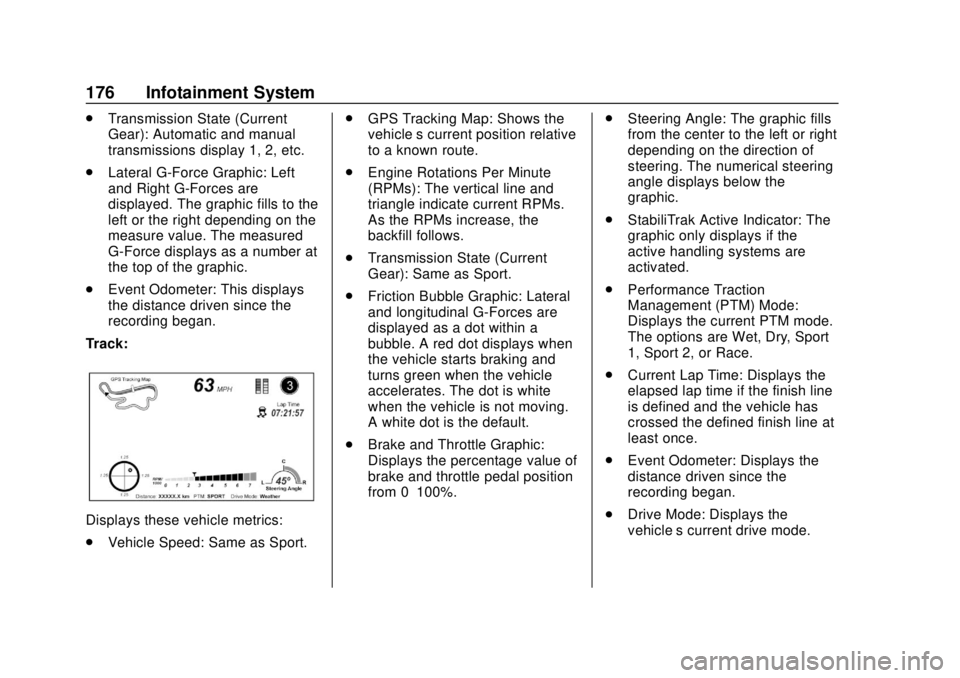
.Transmission State (Current
Gear): Automatic and manual
transmissions display 1, 2, etc.
. Lateral G-Force Graphic: Left
and Right G-Forces are
displayed. The graphic fills to the
left or the right depending on the
measure value. The measured
G-Force displays as a number at
the top of the graphic.
. Event Odometer: This displays
the distance driven since the
recording began.
Track:
Displays these vehicle metrics:
. Vehicle Speed: Same as Sport. .
GPS Tracking Map: Shows the
vehicle’s current position relative
to a known route.
. Engine Rotations Per Minute
(RPMs): The vertical line and
triangle indicate current RPMs.
As the RPMs increase, the
backfill follows.
. Transmission State (Current
Gear): Same as Sport.
. Friction Bubble Graphic: Lateral
and longitudinal G-Forces are
displayed as a dot within a
bubble. A red dot displays when
the vehicle starts braking and
turns green when the vehicle
accelerates. The dot is white
when the vehicle is not moving.
A white dot is the default.
. Brake and Throttle Graphic:
Displays the percentage value of
brake and throttle pedal position
from 0–100%. .
Steering Angle: The graphic fills
from the center to the left or right
depending on the direction of
steering. The numerical steering
angle displays below the
graphic.
. StabiliTrak Active Indicator: The
graphic only displays if the
active handling systems are
activated.
. Performance Traction
Management (PTM) Mode:
Displays the current PTM mode.
The options are Wet, Dry, Sport
1, Sport 2, or Race.
. Current Lap Time: Displays the
elapsed lap time if the finish line
is defined and the vehicle has
crossed the defined finish line at
least once.
. Event Odometer: Displays the
distance driven since the
recording began.
. Drive Mode: Displays the
vehicle’s current drive mode.
Page 178 of 393
Chevrolet Camaro Owner Manual (GMNA-Localizing-U.S./Canada/Mexico-
11348325) - 2018 - CRC - 10/23/17
Infotainment System 177
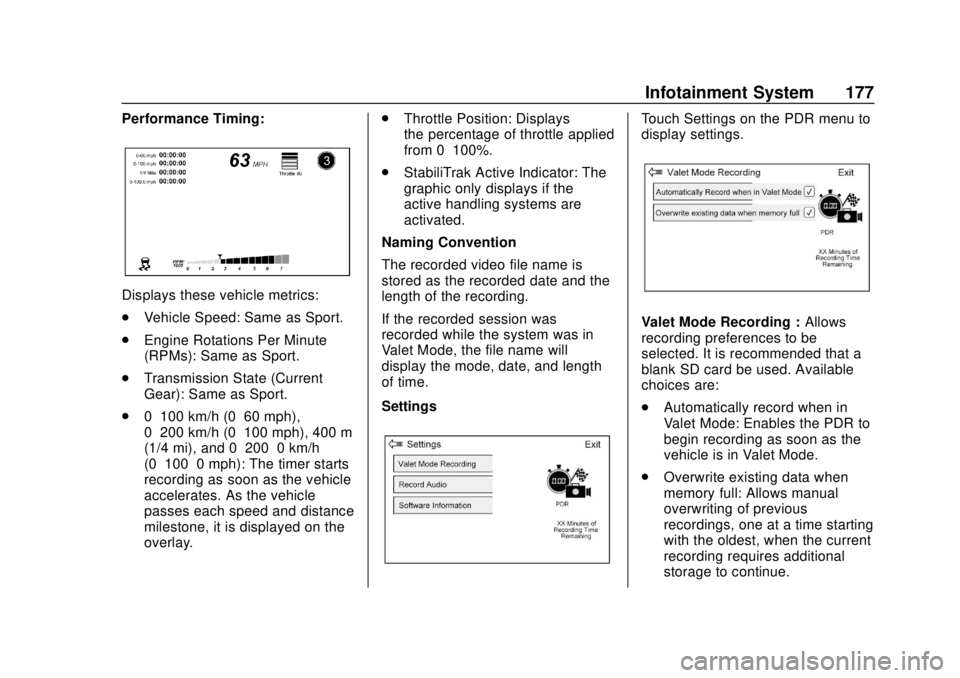
Performance Timing:
Displays these vehicle metrics:
.Vehicle Speed: Same as Sport.
. Engine Rotations Per Minute
(RPMs): Same as Sport.
. Transmission State (Current
Gear): Same as Sport.
. 0–100 km/h (0–60 mph),
0–200 km/h (0–100 mph), 400 m
(1/4 mi), and 0–200–0 km/h
(0–100–0 mph): The timer starts
recording as soon as the vehicle
accelerates. As the vehicle
passes each speed and distance
milestone, it is displayed on the
overlay. .
Throttle Position: Displays
the percentage of throttle applied
from 0–100%.
. StabiliTrak Active Indicator: The
graphic only displays if the
active handling systems are
activated.
Naming Convention
The recorded video file name is
stored as the recorded date and the
length of the recording.
If the recorded session was
recorded while the system was in
Valet Mode, the file name will
display the mode, date, and length
of time.
Settings
Touch Settings on the PDR menu to
display settings.
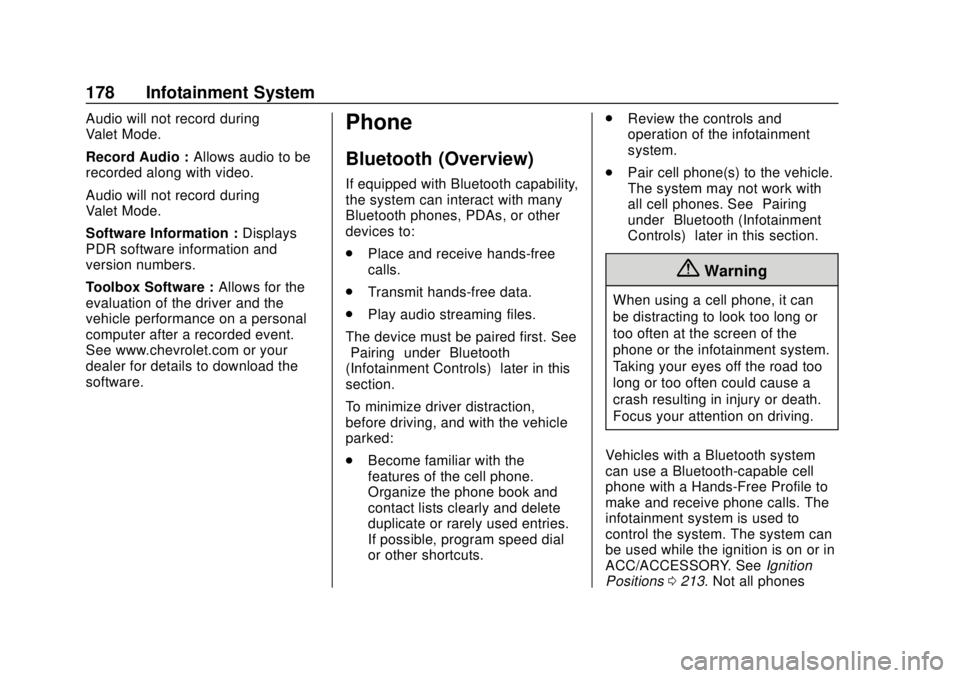
Valet Mode Recording : Allows
recording preferences to be
selected. It is recommended that a
blank SD card be used. Available
choices are:
. Automatically record when in
Valet Mode: Enables the PDR to
begin recording as soon as the
vehicle is in Valet Mode.
. Overwrite existing data when
memory full: Allows manual
overwriting of previous
recordings, one at a time starting
with the oldest, when the current
recording requires additional
storage to continue.
Page 179 of 393
Chevrolet Camaro Owner Manual (GMNA-Localizing-U.S./Canada/Mexico-
11348325) - 2018 - CRC - 10/23/17
178 Infotainment System
Audio will not record during
Valet Mode.
Record Audio :Allows audio to be
recorded along with video.
Audio will not record during
Valet Mode.
Software Information : Displays
PDR software information and
version numbers.
Toolbox Software : Allows for the
evaluation of the driver and the
vehicle performance on a personal
computer after a recorded event.
See www.chevrolet.com or your
dealer for details to download the
software.Phone
Bluetooth (Overview)
If equipped with Bluetooth capability,
the system can interact with many
Bluetooth phones, PDAs, or other
devices to:
. Place and receive hands-free
calls.
. Transmit hands-free data.
. Play audio streaming files.
The device must be paired first. See
“Pairing” under“Bluetooth
(Infotainment Controls)” later in this
section.
To minimize driver distraction,
before driving, and with the vehicle
parked:
. Become familiar with the
features of the cell phone.
Organize the phone book and
contact lists clearly and delete
duplicate or rarely used entries.
If possible, program speed dial
or other shortcuts. .
Review the controls and
operation of the infotainment
system.
. Pair cell phone(s) to the vehicle.
The system may not work with
all cell phones. See “Pairing”
under “Bluetooth (Infotainment
Controls)” later in this section.
{Warning
When using a cell phone, it can
be distracting to look too long or
too often at the screen of the
phone or the infotainment system.
Taking your eyes off the road too
long or too often could cause a
crash resulting in injury or death.
Focus your attention on driving.
Vehicles with a Bluetooth system
can use a Bluetooth-capable cell
phone with a Hands-Free Profile to
make and receive phone calls. The
infotainment system is used to
control the system. The system can
be used while the ignition is on or in
ACC/ACCESSORY. See Ignition
Positions 0213. Not all phones
Page 184 of 393
Chevrolet Camaro Owner Manual (GMNA-Localizing-U.S./Canada/Mexico-
11348325) - 2018 - CRC - 10/23/17
Infotainment System 183
Returning to the Beginning of the
Current Song
Touch
gafter two seconds of
playback time.
Search
Touch and hold
gorlto rewind
or fast forward.
Playing Music Randomly
Touch
Zduring playback. Touch
again to return to normal play.
This function may not be supported
depending on the Bluetooth device.
Do not change the track too quickly
when playing Bluetooth music.
Conditions that may occur when
playing Bluetooth music:
. It takes time to transmit data
from the Bluetooth device to the
infotainment system.
. If the cell phone or Bluetooth
device is not in the waiting
screen mode, it may not
automatically play. .
The infotainment system
transmits the order to play from
the Bluetooth device in the
Bluetooth music play mode.
If this is done in a different
mode, then the device transmits
the order to stop. Depending on
the Bluetooth device options,
this order to play/stop may take
time to activate.
. If the Bluetooth music playback
is not functioning, then check to
see if the Bluetooth device is in
the waiting screen mode.
. Sounds may be cut off during
the Bluetooth music playback.
. The infotainment system outputs
the audio from the cell phone or
Bluetooth device as it is
transmitted.
Apple CarPlay and
Android Auto
If equipped, Android Auto and/or
Apple CarPlay capability may be
available through a compatible
smartphone. If available, PROJECTION will appear on the
Home Page of the infotainment
display.
To use Android Auto or Apple
CarPlay:
1. Download the Android Auto app to your phone from the
Google Play store. No app is
required for Apple CarPlay.
2. Connect an Android phone or iPhone by using the compatible
phone USB cable and plugging
into a USB data port. For best
performance, use the device’ s
factory-provided USB cable.
Aftermarket or third-party
cables may not work.
3. When the phone is first connected to activate Apple
CarPlay or Android Auto, the
message “Device Projection
Privacy Consent” will appear.
. Select Continue to launch
Apple CarPlay or
Android Auto.
Page 195 of 393
Chevrolet Camaro Owner Manual (GMNA-Localizing-U.S./Canada/Mexico-
11348325) - 2018 - CRC - 10/23/17
194 Climate Controls
Air Vents
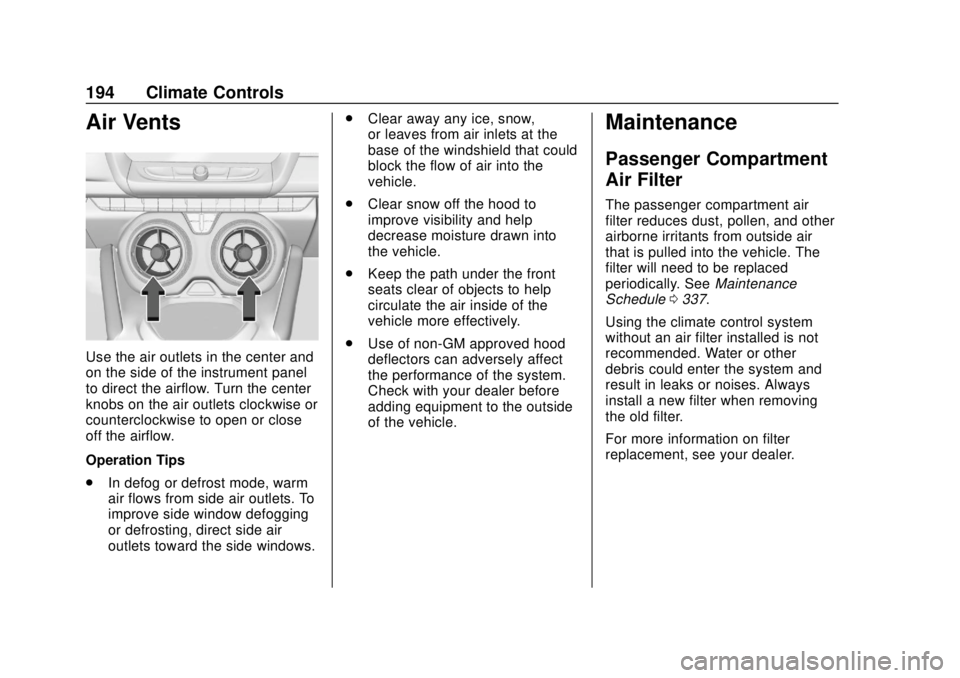
Use the air outlets in the center and
on the side of the instrument panel
to direct the airflow. Turn the center
knobs on the air outlets clockwise or
counterclockwise to open or close
off the airflow.
Operation Tips
.In defog or defrost mode, warm
air flows from side air outlets. To
improve side window defogging
or defrosting, direct side air
outlets toward the side windows. .
Clear away any ice, snow,
or leaves from air inlets at the
base of the windshield that could
block the flow of air into the
vehicle.
. Clear snow off the hood to
improve visibility and help
decrease moisture drawn into
the vehicle.
. Keep the path under the front
seats clear of objects to help
circulate the air inside of the
vehicle more effectively.
. Use of non-GM approved hood
deflectors can adversely affect
the performance of the system.
Check with your dealer before
adding equipment to the outside
of the vehicle.
Maintenance
Passenger Compartment
Air Filter
The passenger compartment air
filter reduces dust, pollen, and other
airborne irritants from outside air
that is pulled into the vehicle. The
filter will need to be replaced
periodically. See Maintenance
Schedule 0337.
Using the climate control system
without an air filter installed is not
recommended. Water or other
debris could enter the system and
result in leaks or noises. Always
install a new filter when removing
the old filter.
For more information on filter
replacement, see your dealer.