change time CHEVROLET CAMARO 2021 User Guide
[x] Cancel search | Manufacturer: CHEVROLET, Model Year: 2021, Model line: CAMARO, Model: CHEVROLET CAMARO 2021Pages: 354, PDF Size: 8.86 MB
Page 109 of 354
Chevrolet Camaro Owner Manual (GMNA-Localizing-U.S./Canada/Mexico-
14583589) - 2021 - CRC - 10/1/20
108 Lighting
Lighting
Exterior Lighting
Exterior Lamp Controls . . . . . . . . . . . . . . . . 108
Headlamp High/Low-Beam Changer . . . 108
Flash-to-Pass . . . . . . . . . . . . . . . . . . . . . . . . . . . 109
Daytime Running Lamps (DRL) . . . . . . . . 109
Automatic Headlamp System . . . . . . . . . . 109
Hazard Warning Flashers . . . . . . . . . . . . . . 110
Turn and Lane-Change Signals . . . . . . . . . 110
Interior Lighting
Instrument Panel IlluminationControl . . . . . . . . . . . . . . . . . . . . . . . . . . . . . . . 111
Interior Lamps . . . . . . . . . . . . . . . . . . . . . . . . . . 111
Reading Lamps . . . . . . . . . . . . . . . . . . . . . . . . . 111
Lighting Features
Entry Lighting . . . . . . . . . . . . . . . . . . . . . . . . . . 112
Exit Lighting . . . . . . . . . . . . . . . . . . . . . . . . . . . 112
Theater Dimming . . . . . . . . . . . . . . . . . . . . . . 112
Battery Load Management . . . . . . . . . . . . . 112
Battery Power Protection . . . . . . . . . . . . . . 113
Exterior Lighting Battery Saver . . . . . . . . . 113
Exterior Lighting
Exterior Lamp Controls
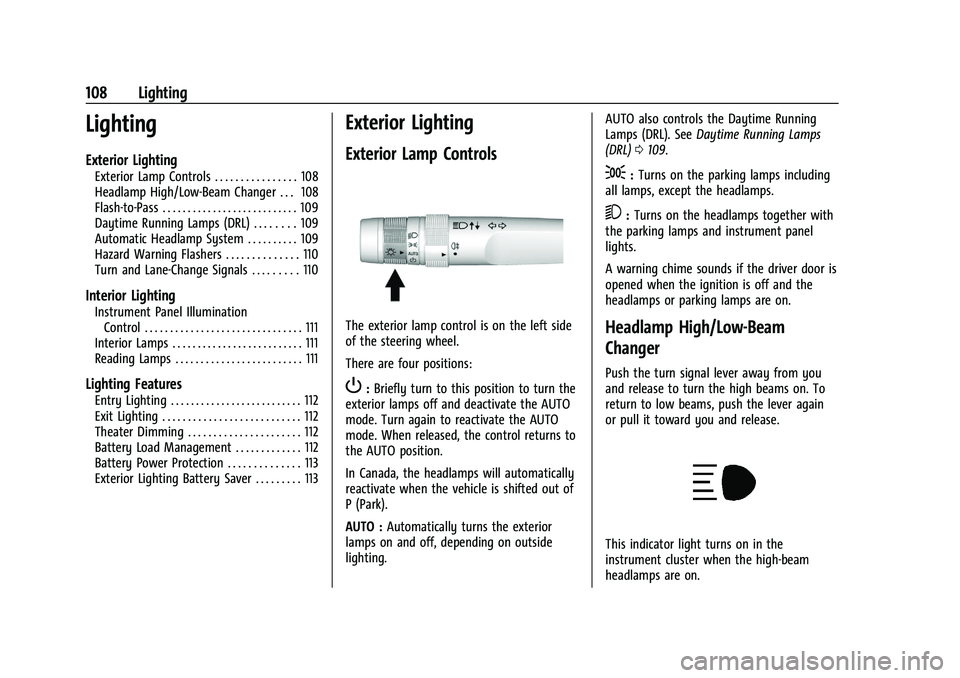
The exterior lamp control is on the left side
of the steering wheel.
There are four positions:
P: Briefly turn to this position to turn the
exterior lamps off and deactivate the AUTO
mode. Turn again to reactivate the AUTO
mode. When released, the control returns to
the AUTO position.
In Canada, the headlamps will automatically
reactivate when the vehicle is shifted out of
P (Park).
AUTO : Automatically turns the exterior
lamps on and off, depending on outside
lighting. AUTO also controls the Daytime Running
Lamps (DRL). See
Daytime Running Lamps
(DRL) 0109.
;:Turns on the parking lamps including
all lamps, except the headlamps.
5: Turns on the headlamps together with
the parking lamps and instrument panel
lights.
A warning chime sounds if the driver door is
opened when the ignition is off and the
headlamps or parking lamps are on.
Headlamp High/Low-Beam
Changer
Push the turn signal lever away from you
and release to turn the high beams on. To
return to low beams, push the lever again
or pull it toward you and release.
This indicator light turns on in the
instrument cluster when the high-beam
headlamps are on.
Page 110 of 354

Chevrolet Camaro Owner Manual (GMNA-Localizing-U.S./Canada/Mexico-
14583589) - 2021 - CRC - 10/1/20
Lighting 109
Flash-to-Pass
The flash-to-pass feature works with the low
beams or Daytime Running Lamps (DRL) on
or off.
To flash the high beams, pull the turn signal
lever all the way toward you, then
release it.
Daytime Running Lamps (DRL)
DRL can make it easier for others to see the
front of your vehicle during the day. DRL are
required on all vehicles first sold in Canada.
A light sensor on top of the instrument
panel makes the DRL work, so be sure it is
not covered.
The dedicated DRL will come on when all of
the following conditions are met:
.The ignition is on.
.The exterior lamps control is in AUTO,
or has been briefly turned to
Pto turn
the automatic light control on again.
.The light sensor determines it is daytime.
.The transmission is not in P (Park).
When the DRL are on, the headlamps,
taillamps, sidemarker lamps, instrument
panel lights, and other lamps will not be on. The headlamps automatically change from
DRL to the regular headlamps depending on
the darkness of the surroundings. The other
lamps that come on with the headlamps will
also come on.
When it is bright enough outside, the
headlamps will go off and the DRL will
come on.
To turn the DRL off or on again, turn the
exterior lamps control to
Pand then
release. For vehicles first sold in Canada, the
DRL can only be turned off when the vehicle
is parked.
The regular headlamp system should be
turned on when needed.
Automatic Headlamp System
When it is dark enough outside and the
headlamp switch is in AUTO, the automatic
headlamp system will turn on the
headlamps at the normal brightness along
with other lamps such as the taillamps,
sidemarker lamps, parking lamps, license
plate lamps, and the instrument panel
lights. The radio lights will also be dim.
To turn off the automatic headlamp system,
turn the exterior lamps switch to the
P
position and then release. For vehicles first sold in Canada, the transmission must be in
P (Park), before the automatic headlamp
system can be turned off.
The vehicle has a light sensor on the top of
the instrument panel. Do not cover this
sensor, otherwise the system will come on
whenever the ignition is on.
The system may also turn on the headlamps
when driving through a parking garage,
heavy overcast weather, or a tunnel. This is
normal.
There is a delay in the transition between
the daytime and nighttime operation of the
Daytime Running Lamps (DRL) and the
automatic headlamp system so that driving
under bridges or bright overhead street
lights does not affect the system. The DRL
and automatic headlamp system will only
Page 111 of 354

Chevrolet Camaro Owner Manual (GMNA-Localizing-U.S./Canada/Mexico-
14583589) - 2021 - CRC - 10/1/20
110 Lighting
be affected when the light sensor sees a
change in lighting lasting longer than the
delay.
If the vehicle is started in a dark garage, the
automatic headlamp system comes on
immediately. If it is light outside when the
vehicle leaves the garage, there will be a
slight delay before the automatic headlamp
system changes to the DRL. During that
delay, the instrument cluster may not be as
bright as usual. Make sure the instrument
panel brightness control is in the full bright
position. SeeInstrument Panel Illumination
Control 0111.
Lights On with Wipers
If the windshield wipers are activated in
daylight with the engine on, and the
exterior lamp control is in AUTO, the
headlamps, parking lamps, and other
exterior lamps come on. The transition time
for the lamps coming on varies based on
wiper speed. When the wipers are not
operating, these lamps turn off. Move the
exterior lamp control to
Por;to
disable this feature.
Hazard Warning Flashers
|: Press to make the front and rear turn
signal lamps flash on and off. This warns
others that you are having trouble. Press
again to turn the flashers off.
The hazard warning flashers turn on
automatically if the airbags deploy.
Turn and Lane-Change Signals
Move the lever all the way up or down to
signal a turn.
An arrow on the instrument cluster flashes
in the direction of the turn or lane change.
Raise or lower the lever until the arrow
starts to flash to signal a lane change. Hold
it there until the lane change is completed.
If the lever is briefly pressed and released,
the turn signal flashes three times.
The lever returns to its starting position
whenever it is released.
If after signaling a turn or lane change the
arrow flashes rapidly or does not come on, a
signal bulb may be burned out.
Have any burned out bulbs replaced. If a
bulb is not burned out, check the fuse. See
Electrical System Overload 0260.
Page 113 of 354

Chevrolet Camaro Owner Manual (GMNA-Localizing-U.S./Canada/Mexico-
14583589) - 2021 - CRC - 10/1/20
112 Lighting
Lighting Features
Entry Lighting
Some exterior lamps and interior lamps turn
on briefly at night, or in areas with limited
lighting, when
Kis pressed on the Remote
Keyless Entry (RKE) transmitter. After about
30 seconds the exterior lamps turn off.
Entry lighting can be disabled manually by
turning the ignition on or to ACC/
ACCESSORY, or by pressing
Qon the RKE
transmitter. When any door is opened or
remote unlock pressed, all interior lights
turn on and then interior lamps dim to off
after 20 seconds.
The entry lighting feature for exterior
lighting can be changed. See “Vehicle
Locator Lights” underVehicle Personalization
0 104.
Exit Lighting
Some exterior lamps come on at night or in
areas with limited lighting when the driver
door is opened after the ignition is
turned off.
The interior lamps come on after the
ignition is turned off or any door is opened. The exterior and interior lamps remain on
after the door is closed for a set amount of
time then automatically turn off.
Exit lighting for exterior lights can be
changed. See
Vehicle Personalization 0104.
Theater Dimming
This feature allows for a three to five
second fade out of the interior lamps
instead of having them turn off
immediately.
Battery Load Management
The vehicle has Electric Power Management
(EPM) that estimates the battery's
temperature and state of charge. It then
adjusts the voltage for best performance
and extended life of the battery.
When the battery's state of charge is low,
the voltage is raised slightly to quickly bring
the charge back up. When the state of
charge is high, the voltage is lowered
slightly to prevent overcharging. If the
vehicle has a voltmeter gauge or a voltage
display on the Driver Information Center
(DIC), you may see the voltage move up or
down. This is normal. If there is a problem,
an alert will be displayed. The battery can be discharged at idle if the
electrical loads are very high. This is true for
all vehicles. This is because the generator
(alternator) may not be spinning fast
enough at idle to produce all of the power
needed for very high electrical loads.
A high electrical load occurs when several of
the following are on, such as: headlamps,
high beams, rear window defogger, climate
control fan at high speed, heated seats,
engine cooling fans, trailer loads, and loads
plugged into accessory power outlets.
EPM works to prevent excessive discharge of
the battery. It does this by balancing the
generator's output and the vehicle's
electrical needs. It can increase engine idle
speed to generate more power whenever
needed. It can temporarily reduce the power
demands of some accessories.
Normally, these actions occur in steps or
levels, without being noticeable. In rare
cases at the highest levels of corrective
action, this action may be noticeable to the
driver. If so, a DIC message might be
displayed and it is recommended that the
driver reduce the electrical loads as much as
possible.
Page 119 of 354
Chevrolet Camaro Owner Manual (GMNA-Localizing-U.S./Canada/Mexico-
14583589) - 2021 - CRC - 10/1/20
118 Infotainment System
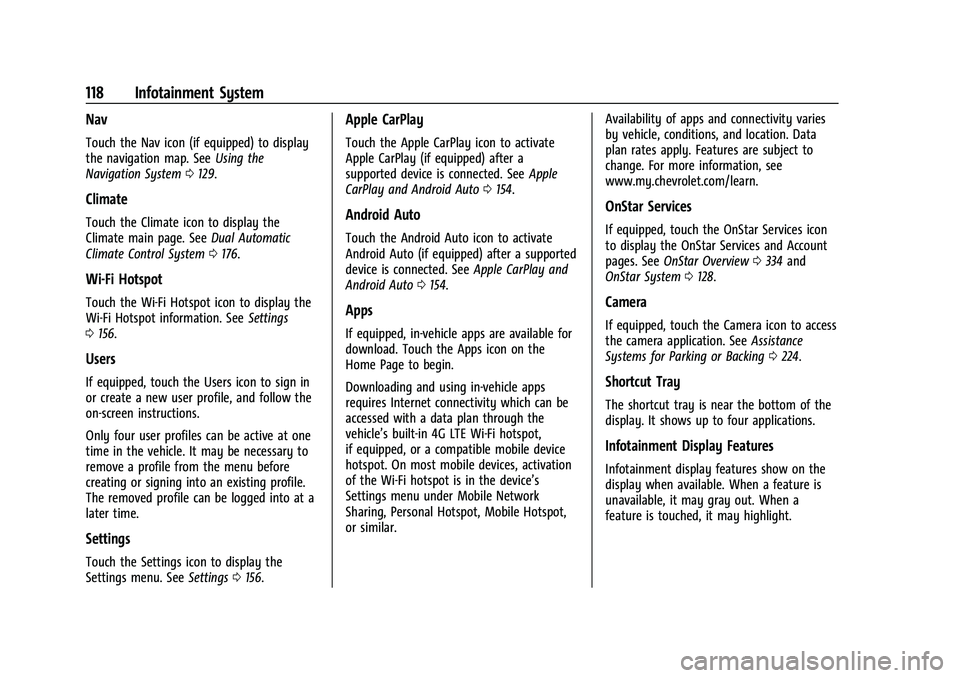
Nav
Touch the Nav icon (if equipped) to display
the navigation map. SeeUsing the
Navigation System 0129.
Climate
Touch the Climate icon to display the
Climate main page. See Dual Automatic
Climate Control System 0176.
Wi-Fi Hotspot
Touch the Wi-Fi Hotspot icon to display the
Wi-Fi Hotspot information. See Settings
0 156.
Users
If equipped, touch the Users icon to sign in
or create a new user profile, and follow the
on-screen instructions.
Only four user profiles can be active at one
time in the vehicle. It may be necessary to
remove a profile from the menu before
creating or signing into an existing profile.
The removed profile can be logged into at a
later time.
Settings
Touch the Settings icon to display the
Settings menu. See Settings0156.
Apple CarPlay
Touch the Apple CarPlay icon to activate
Apple CarPlay (if equipped) after a
supported device is connected. See Apple
CarPlay and Android Auto 0154.
Android Auto
Touch the Android Auto icon to activate
Android Auto (if equipped) after a supported
device is connected. See Apple CarPlay and
Android Auto 0154.
Apps
If equipped, in-vehicle apps are available for
download. Touch the Apps icon on the
Home Page to begin.
Downloading and using in-vehicle apps
requires Internet connectivity which can be
accessed with a data plan through the
vehicle’s built-in 4G LTE Wi-Fi hotspot,
if equipped, or a compatible mobile device
hotspot. On most mobile devices, activation
of the Wi-Fi hotspot is in the device’s
Settings menu under Mobile Network
Sharing, Personal Hotspot, Mobile Hotspot,
or similar. Availability of apps and connectivity varies
by vehicle, conditions, and location. Data
plan rates apply. Features are subject to
change. For more information, see
www.my.chevrolet.com/learn.
OnStar Services
If equipped, touch the OnStar Services icon
to display the OnStar Services and Account
pages. See
OnStar Overview 0334 and
OnStar System 0128.
Camera
If equipped, touch the Camera icon to access
the camera application. See Assistance
Systems for Parking or Backing 0224.
Shortcut Tray
The shortcut tray is near the bottom of the
display. It shows up to four applications.
Infotainment Display Features
Infotainment display features show on the
display when available. When a feature is
unavailable, it may gray out. When a
feature is touched, it may highlight.
Page 131 of 354
Chevrolet Camaro Owner Manual (GMNA-Localizing-U.S./Canada/Mexico-
14583589) - 2021 - CRC - 10/1/20
130 Infotainment System
.3D Heading Up, 2D Heading Up, 2D North
.Show on Map
.Traffic Events (available with OnStar
Connected Navigation)
.Settings
.Edit Destination (if a route has been set)
.Avoid on Route (if a route has been set)
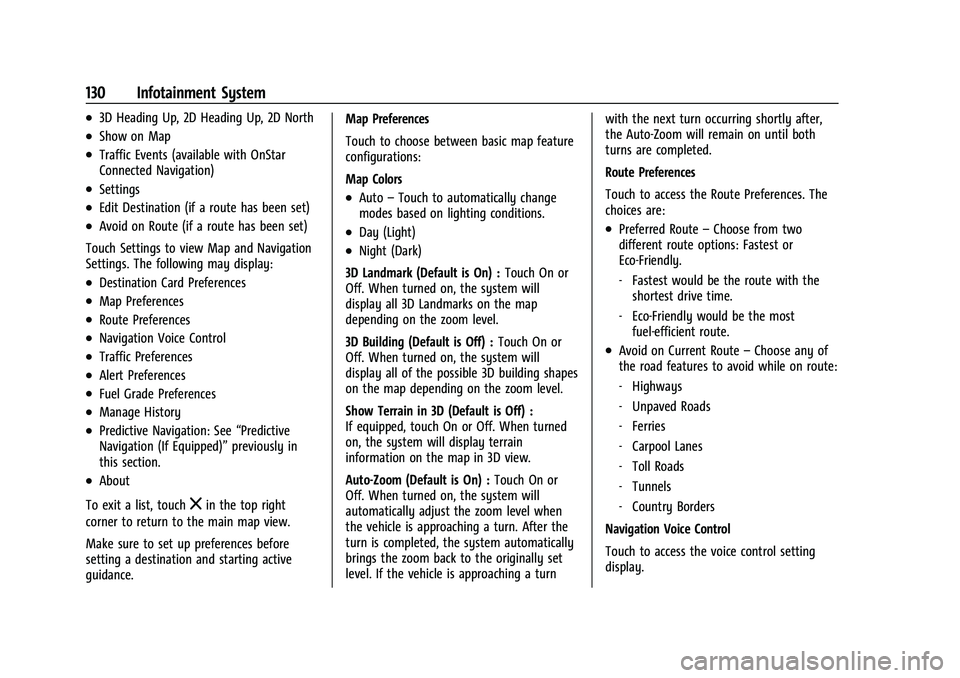
Touch Settings to view Map and Navigation
Settings. The following may display:
.Destination Card Preferences
.Map Preferences
.Route Preferences
.Navigation Voice Control
.Traffic Preferences
.Alert Preferences
.Fuel Grade Preferences
.Manage History
.Predictive Navigation: See “Predictive
Navigation (If Equipped)” previously in
this section.
.About
To exit a list, touch
zin the top right
corner to return to the main map view.
Make sure to set up preferences before
setting a destination and starting active
guidance. Map Preferences
Touch to choose between basic map feature
configurations:
Map Colors
.Auto
–Touch to automatically change
modes based on lighting conditions.
.Day (Light)
.Night (Dark)
3D Landmark (Default is On) : Touch On or
Off. When turned on, the system will
display all 3D Landmarks on the map
depending on the zoom level.
3D Building (Default is Off) : Touch On or
Off. When turned on, the system will
display all of the possible 3D building shapes
on the map depending on the zoom level.
Show Terrain in 3D (Default is Off) :
If equipped, touch On or Off. When turned
on, the system will display terrain
information on the map in 3D view.
Auto-Zoom (Default is On) : Touch On or
Off. When turned on, the system will
automatically adjust the zoom level when
the vehicle is approaching a turn. After the
turn is completed, the system automatically
brings the zoom back to the originally set
level. If the vehicle is approaching a turn with the next turn occurring shortly after,
the Auto-Zoom will remain on until both
turns are completed.
Route Preferences
Touch to access the Route Preferences. The
choices are:
.Preferred Route
–Choose from two
different route options: Fastest or
Eco-Friendly.
‐ Fastest would be the route with the
shortest drive time.
‐ Eco-Friendly would be the most
fuel-efficient route.
.Avoid on Current Route –Choose any of
the road features to avoid while on route:
‐ Highways
‐ Unpaved Roads
‐ Ferries
‐ Carpool Lanes
‐ Toll Roads
‐ Tunnels
‐ Country Borders
Navigation Voice Control
Touch to access the voice control setting
display.
Page 134 of 354
Chevrolet Camaro Owner Manual (GMNA-Localizing-U.S./Canada/Mexico-
14583589) - 2021 - CRC - 10/1/20
Infotainment System 133
Current Location
When the vehicle is parked and not in a
Navigation session, the user icon is centered
on the map view, highlighting the current
location.
Destination
Receiving Destination Directions from
Different Sources
Destinations can be received or transferred
from different sources to the Nav application
for route guidance. If equipped, some of
these sources may include:
.Navigation from search results.
.OnStar Advisor destination download.
.An address from the Contacts list.
.An application on the smartphone that
can send destinations to the vehicle.
.An application downloaded to the vehicle
such as OnStar Services that can send
destinations to the navigation system.
Waypoints
Add up to five waypoints, which are
additional destinations, along the route. To
add an additional stop or waypoint:1. From active guidance, touch
}. 2. Search for the destination using One-Box,
Voice search, or the Quick Category
icons.
3. Choose search results Along Route, Nearby, or Near Destination.
4. Choose the desired waypoint and touch Add to Trip or replace the current
destination by touching New Destination.
Route options are not available for
waypoints.
Arriving at a Waypoint
When approaching a waypoint, the system
will display a Destination Arrival view. To
continue on to the next destination touch
the Drive to message on the infotainment
display.
If the vehicle passes the waypoint or gets
out of the current route, the system will
automatically reroute back to this waypoint.
At the same time, it will show a Drive to
icon along with the next waypoint address
so the current waypoint can be skipped and
guidance can resume to the next waypoint
or destination. Editing a Waypoint
When waypoints are added during active
guidance, the system allows a stop to be
deleted or the order to be changed. To edit
a waypoint:
1. Touch
A.
2. Touch Edit Destinations.
.Modify destination order by touching
and holding the arrow until it is
highlighted. Drag to move the
waypoint up or down the list.
.Delete a waypoint by touchingY.
A pop-up will appear to confirm
waypoint removal. Once the request
is confirmed, the system will remove
the address from the destinations list.
Touch
zon the top right corner so
the system can recalculate the route.
If there is only one address in the
destinations list, the system will
disable the move and delete
functions. The system will not allow
the final destination to be deleted.
Map Information
Road network attributes are contained in the
map database for map information.
Attributes include information such as street
Page 140 of 354

Chevrolet Camaro Owner Manual (GMNA-Localizing-U.S./Canada/Mexico-
14583589) - 2021 - CRC - 10/1/20
Infotainment System 139
When available, the system will show the
best lane(s) to be in for the next maneuver.
Cancel a Route
If a route is in progress using either the
vehicle navigation system or the
Turn-by-Turn route, and a new route is
requested, the current route in progress will
be canceled.
Global Positioning System (GPS)
If equipped, the position of the vehicle is
determined by using satellite signals, various
vehicle signals, and map data.
At times, other interference such as the
satellite condition, road configuration,
condition of the vehicle, and/or other
circumstances can affect the navigation
system's ability to determine the accurate
position of the vehicle.
The GPS shows the current position of the
vehicle using signals sent by GPS satellites.
When the vehicle is not receiving signals
from the satellites, a symbol appears in the
status bar.
This system might not be available or
interference can occur if any of the
following are true:
.Signals are obstructed by tall buildings,
trees, large trucks, or a tunnel.
.Satellites are being repaired or improved.
For more information if the GPS is not
functioning properly, see Problems with
Route Guidance 0139 and
If the System Needs Service 0140.
Vehicle Positioning
At times, the position of the vehicle on the
map could be inaccurate due to one or more
of the following reasons:
.The road system has changed.
.The vehicle is driving on slippery road
surfaces such as sand, gravel, or snow.
.The vehicle is traveling on winding roads
or long, straight roads.
.The vehicle is approaching a tall building
or a large vehicle.
.The surface streets run parallel to a
freeway.
.The vehicle has been transferred by a
vehicle carrier or a ferry.
.The current position calibration is set
incorrectly.
.The vehicle is traveling at high speed.
.The vehicle changes directions more than
once, or the vehicle is turning on a turn
table in a parking lot.
.The vehicle is entering and/or exiting a
parking lot, garage, or a lot with a roof.
.The GPS signal is not received.
.A roof carrier is installed on the vehicle.
.Tire chains are installed on the vehicle.
.The tires are replaced or worn.
.The tire pressure for the tires is incorrect.
.This is the first navigation use after the
map data is updated.
.The 12-volt battery has been disconnected
for several days.
.The vehicle is driving in heavy traffic
where driving is at low speeds, and the
vehicle is stopped and started repeatedly.
Problems with Route Guidance
Inappropriate route guidance can occur
under one or more of the following
conditions:
.The turn was not made on the road
indicated.
.Route guidance might not be available
when using automatic rerouting for the
next right or left turn.
Page 141 of 354
Chevrolet Camaro Owner Manual (GMNA-Localizing-U.S./Canada/Mexico-
14583589) - 2021 - CRC - 10/1/20
140 Infotainment System
.The route might not be changed when
using automatic rerouting.
.There is no route guidance when turning
at an intersection.
.Plural names of places might be
announced occasionally.
.It could take a long time to operate
automatic rerouting during high-speed
driving.
.Automatic rerouting might display a route
returning to the set waypoint if heading
for a destination without passing through
a set waypoint.
.The route prohibits the entry of a vehicle
due to a regulation by time or season or
any other regulation which may be given.
.Some routes might not be searched.
.The route to the destination might not be
shown if there are new roads, if roads
have recently changed, or if certain roads
are not listed in the map data. SeeMaps
0 131.
To recalibrate the vehicle's position on the
map, park with the vehicle running for two
to five minutes, until the vehicle position
updates. Make sure the vehicle is parked in a location that is safe and has a clear view
of the sky and away from large
obstructions.
If the System Needs Service
If the navigation system needs service, see
your dealer.
Map Data Updates
The map data in the vehicle is the most
up-to-date information available when the
vehicle was produced. The map data is
updated periodically, provided that the map
information has changed and the vehicle has
a relevant service plan.
See www.gmnavdisc.com for details on
ordering, purchasing, and installing a new or
replacement SD card. Features are subject to
change. For more information on this
feature, see my.chevrolet.com/learn.
If the vehicle is equipped with Connected
Navigation, which is a subscription service
that enables certain features of the
navigation system, such as Traffic, Smart
Search/Routing, and Predictive Navigation,
then the system will download the latest
map data from the cloud.
Database Coverage Explanations
Coverage areas vary with respect to the
level of map detail available for any given
area. Some areas feature greater levels of
detail than others. If this happens, it does
not mean there is a problem with the
system. As the map data is updated, more
detail can become available for areas that
previously had limited detail. See
Map Data
Updates 0140.
Voice Recognition
If equipped, voice recognition allows for
hands-free operation within the navigation,
audio, phone, and weather applications. This
feature can be started by pressing
gon the
steering wheel or touching
gon the
infotainment display.
However, not all features within these areas
are supported by voice commands.
Generally, only complex tasks that require
multiple manual interactions to complete
are supported by voice commands.
For example, tasks that take more than one
or two touches, such as a song or artist to
play from a media device, would be
supported by voice commands. Other tasks,
Page 147 of 354

Chevrolet Camaro Owner Manual (GMNA-Localizing-U.S./Canada/Mexico-
14583589) - 2021 - CRC - 10/1/20
146 Infotainment System
Performance Data
Recorder (PDR)
If equipped, the PDR icon displays on the
Home Page.
Important Information
Use of the PDR may be prohibited or legally
restricted in certain countries and situations.
Ensure compliance with applicable laws and
regulations, including, but not limited to:
privacy laws, laws related to camera
surveillance and recordings, road traffic and
security laws, and laws on the protection of
publicity and personality rights.
.Do not use the PDR if it causes
distraction.
.Do not rely on camera footage to steer
the vehicle.
.Comply with any notice and consent
requirements before capturing and/or
recording the voices or images of other
persons or before collecting other
personal data.
.Notify other drivers of your vehicle of the
above rules and require them to comply.
.General Motors does not accept any
responsibility or liability in connection
with use that is not permitted.
.Law enforcement authorities may have
the right to seize video recordings and
use them as evidence of criminal/driving
offenses against you or third parties.
The PDR records video, audio, and vehicle
data. This data is stored on a removable SD
card. The SD card reader is below the
instrument panel to the left of the steering
wheel and just above the hood release.
The recorded data is not stored anywhere
else and is only accessible from the SD card.
To begin, insert a FAT32 formatted SD card,
Class 10 required, 8, 16, or 32 GB
recommended, into the SD card reader.
Touch the PDR icon to access the PDR menu.
The options displayed are:
Start RecordingIf the system is unable to begin recording,
the Start Recording button is grayed out.
Touch Start Recording to begin recording.
After recording begins, this button changes
to Stop Recording. Touch to stop the
recording session.
The recording must be stopped and the file
closed before removing the SD card, or the
recording cannot be reviewed.
The elapsed time will show when recording.
To define a finish line, see “Define Finish
Line” later in this section.