ignition CHEVROLET CAMARO 2023 Owner's Manual
[x] Cancel search | Manufacturer: CHEVROLET, Model Year: 2023, Model line: CAMARO, Model: CHEVROLET CAMARO 2023Pages: 345, PDF Size: 16.19 MB
Page 105 of 345
Chevrolet Camaro Owner Manual (GMNA-Localizing-U.S./Canada/Mexico-
16408685) - 2023 - CRC - 3/28/22
104 Instruments and Controls
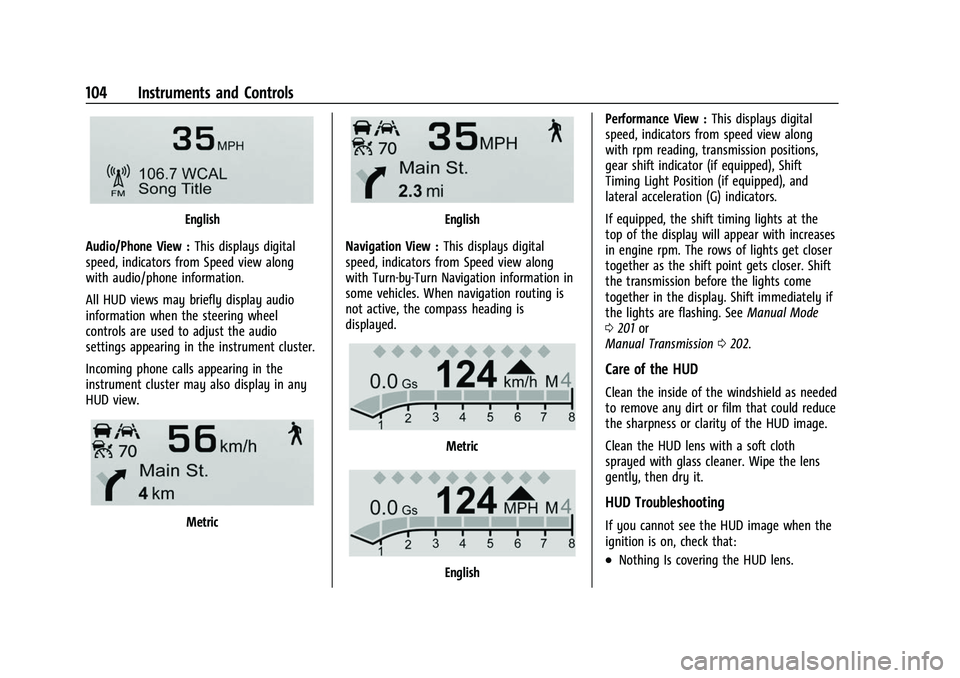
English
Audio/Phone View : This displays digital
speed, indicators from Speed view along
with audio/phone information.
All HUD views may briefly display audio
information when the steering wheel
controls are used to adjust the audio
settings appearing in the instrument cluster.
Incoming phone calls appearing in the
instrument cluster may also display in any
HUD view.
Metric
English
Navigation View : This displays digital
speed, indicators from Speed view along
with Turn-by-Turn Navigation information in
some vehicles. When navigation routing is
not active, the compass heading is
displayed.
Metric
English Performance View :
This displays digital
speed, indicators from speed view along
with rpm reading, transmission positions,
gear shift indicator (if equipped), Shift
Timing Light Position (if equipped), and
lateral acceleration (G) indicators.
If equipped, the shift timing lights at the
top of the display will appear with increases
in engine rpm. The rows of lights get closer
together as the shift point gets closer. Shift
the transmission before the lights come
together in the display. Shift immediately if
the lights are flashing. See Manual Mode
0 201 or
Manual Transmission 0202.
Care of the HUD
Clean the inside of the windshield as needed
to remove any dirt or film that could reduce
the sharpness or clarity of the HUD image.
Clean the HUD lens with a soft cloth
sprayed with glass cleaner. Wipe the lens
gently, then dry it.
HUD Troubleshooting
If you cannot see the HUD image when the
ignition is on, check that:
.Nothing Is covering the HUD lens.
Page 106 of 345
Chevrolet Camaro Owner Manual (GMNA-Localizing-U.S./Canada/Mexico-
16408685) - 2023 - CRC - 3/28/22
Instruments and Controls 105
.The HUD brightness is not too dim or too
bright.
.The HUD is adjusted to the proper height.
.Polarized sunglasses are not worn.
.Windshield and HUD lens are clean.
If the HUD image is not correct, contact
your dealer.
The windshield is part of the HUD system.
See Windshield Replacement 0251.
Vehicle Messages
Messages displayed on the DIC indicate the
status of the vehicle or some action that
may be needed to correct a condition.
Multiple messages may appear one after
another.
The messages that do not require
immediate action can be acknowledged and
cleared by pressing SEL. The messages that
require immediate action cannot be cleared
until that action is performed.
All messages should be taken seriously;
clearing the message does not correct the
problem.
If a SERVICE message appears, see your
dealer. Follow the instructions given in the
messages. The system displays messages
regarding the following topics:
.Service Messages
.Fluid Levels
.Vehicle Security
.Brakes
.Steering
.Ride Control Systems
.Driver Assistance Systems
.Cruise Control
.Lighting and Bulb Replacement
.Wiper/Washer Systems
.Doors and Windows
.Seat Belts
.Airbag Systems
.Engine and Transmission
.Tire Pressure
.Engine Air Filter Life
.Battery
Engine Power Messages
ENGINE POWER IS REDUCED
This message displays when the vehicle's
propulsion power is reduced. A reduction in
propulsion power can affect the vehicle'sability to accelerate. If this message is on,
but there is no observed reduction in
performance, proceed to your destination.
Under certain conditions the performance
may be reduced the next time the vehicle is
driven. The vehicle may be driven while this
message is on, but maximum acceleration
and speed may be reduced. Anytime this
message stays on, or displays repeatedly,
the vehicle should be taken to your dealer
for service as soon as possible.
Under certain operating conditions,
propulsion will be disabled. Try restarting
after the ignition has been off for
30 seconds.
Vehicle Speed Messages
SPEED LIMITED TO XXX KM/H (MPH)
This message shows that the vehicle speed
has been limited to the speed displayed. The
limited speed is a protection for various
propulsion and vehicle systems, such as
lubrication, thermal, brakes, suspension,
Teen Driver if equipped, or tires.
Page 108 of 345
Chevrolet Camaro Owner Manual (GMNA-Localizing-U.S./Canada/Mexico-
16408685) - 2023 - CRC - 3/28/22
Lighting 107
Flash-to-Pass
The flash-to-pass feature works with the low
beams or Daytime Running Lamps (DRL) on
or off.
To flash the high beams, pull the turn signal
lever all the way toward you, then
release it.
Daytime Running Lamps (DRL)
DRL can make it easier for others to see the
front of your vehicle during the day. DRL are
required on all vehicles first sold in Canada.
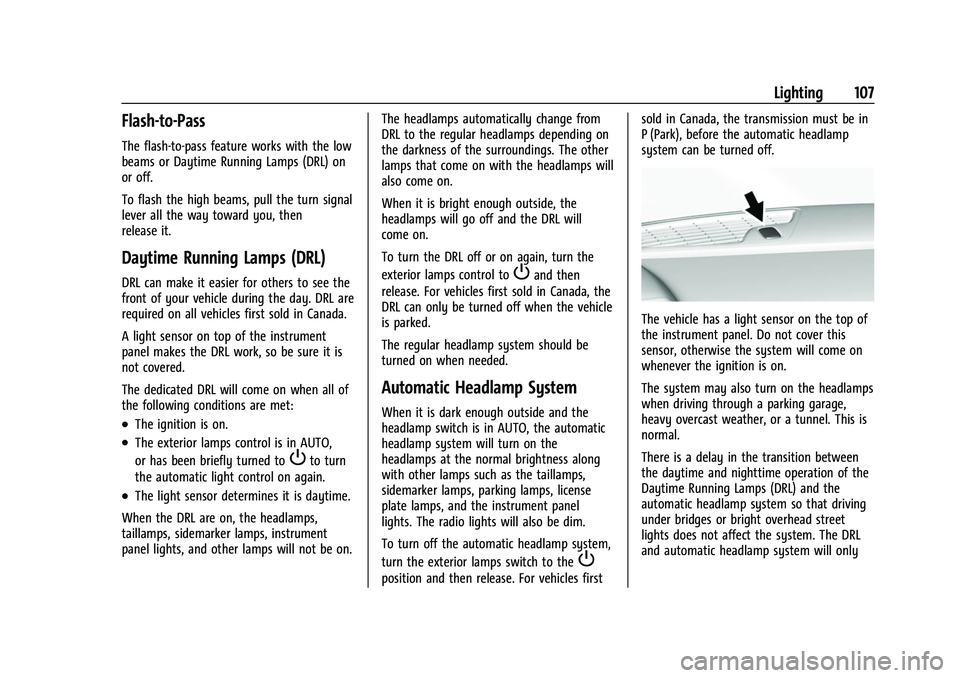
A light sensor on top of the instrument
panel makes the DRL work, so be sure it is
not covered.
The dedicated DRL will come on when all of
the following conditions are met:
.The ignition is on.
.The exterior lamps control is in AUTO,
or has been briefly turned to
Pto turn
the automatic light control on again.
.The light sensor determines it is daytime.
When the DRL are on, the headlamps,
taillamps, sidemarker lamps, instrument
panel lights, and other lamps will not be on. The headlamps automatically change from
DRL to the regular headlamps depending on
the darkness of the surroundings. The other
lamps that come on with the headlamps will
also come on.
When it is bright enough outside, the
headlamps will go off and the DRL will
come on.
To turn the DRL off or on again, turn the
exterior lamps control to
Pand then
release. For vehicles first sold in Canada, the
DRL can only be turned off when the vehicle
is parked.
The regular headlamp system should be
turned on when needed.
Automatic Headlamp System
When it is dark enough outside and the
headlamp switch is in AUTO, the automatic
headlamp system will turn on the
headlamps at the normal brightness along
with other lamps such as the taillamps,
sidemarker lamps, parking lamps, license
plate lamps, and the instrument panel
lights. The radio lights will also be dim.
To turn off the automatic headlamp system,
turn the exterior lamps switch to the
P
position and then release. For vehicles first sold in Canada, the transmission must be in
P (Park), before the automatic headlamp
system can be turned off.
The vehicle has a light sensor on the top of
the instrument panel. Do not cover this
sensor, otherwise the system will come on
whenever the ignition is on.
The system may also turn on the headlamps
when driving through a parking garage,
heavy overcast weather, or a tunnel. This is
normal.
There is a delay in the transition between
the daytime and nighttime operation of the
Daytime Running Lamps (DRL) and the
automatic headlamp system so that driving
under bridges or bright overhead street
lights does not affect the system. The DRL
and automatic headlamp system will only
Page 112 of 345
Chevrolet Camaro Owner Manual (GMNA-Localizing-U.S./Canada/Mexico-
16408685) - 2023 - CRC - 3/28/22
Lighting 111
if the ignition is off. The lamps will not
come back on again until one of the
following occurs:
.The ignition is turned on.
.The doors are closed and then re-opened.
Exterior Lighting Battery Saver
The exterior lamps turn off about 10 minutes
after the vehicle is turned off, if the parking
lamps or headlamps have been manually
left on. This protects against draining the
battery. To restart the 10-minute timer, turn
the exterior lamp control to the
Oposition
and then back to the
;or2position.
To keep the lamps on for more than
10 minutes, the vehicle must be on or in
accessory mode.
Page 138 of 345
Chevrolet Camaro Owner Manual (GMNA-Localizing-U.S./Canada/Mexico-
16408685) - 2023 - CRC - 3/28/22
Infotainment System 137
detail can become available for areas that
previously had limited detail. SeeMap Data
Updates 0136.
Voice Recognition
If equipped, voice recognition allows for
hands-free operation within the navigation,
audio, phone, and weather applications. This
feature can be started by pressing
gon the
steering wheel or touching
gon the
infotainment display.
However, not all features within these areas
are supported by voice commands.
Generally, only complex tasks that require
multiple manual interactions to complete
are supported by voice commands.
For example, tasks that take more than one
or two touches, such as a song or artist to
play from a media device, would be
supported by voice commands. Other tasks,
like adjusting the volume or seeking up or
down, are audio features that are easily
performed by touching one or two options,
and are not supported by voice commands.
In general there are flexible ways to speak
commands for completing the tasks. If your language supports it, try stating a
one-shot command, such as
“Directions to
address
while stating the address during the
command. Another example of a one-shot
Destination Entry command is, “Directions to
Place of Interest at
commands do not work, try saying, “Take
me to Place of Interest” or“Find address”
and the system will walk you through by
asking additional questions.
Hybrid Speech Recognition
If equipped, this feature helps distinguish
words by using Internet-based information
along with the system’s voice recognition
database. This allows you to speak more
naturally when using voice recognition.
Using Voice Recognition
Voice recognition becomes available once
the system has been initialized. This begins
when the ignition is turned on. Initialization
may take a few moments.
1. Press
gon the steering wheel controls
to activate voice recognition.
2. The audio system mutes and the system plays a prompt. 3. Clearly speak one of the commands
described in this section.
A voice recognition system prompt can
be interrupted while it is playing by
pressing
gagain.
Once voice recognition is started, both the
infotainment display and instrument cluster
show the selections and visual dialog
content. These displays can be turned on or
off in the Tutorial Mode under Settings
0 152.
There are three voice prompt modes
supported:
.Informative verbal prompts: This type of
prompt will provide more information
regarding the supported actions.
.Short prompts: This type of prompt will
provide simple instructions about what
can be stated.
.Auto informative prompts: This type of
prompt plays during the first few speech
sessions, then automatically switches to
the short prompt after some experience
has been gained through using the
system.
If a command is not spoken, the voice
recognition system says a help prompt.
Page 148 of 345
Chevrolet Camaro Owner Manual (GMNA-Localizing-U.S./Canada/Mexico-
16408685) - 2023 - CRC - 3/28/22
Infotainment System 147
.Pair mobile device(s) to the vehicle. The
system may not work with all mobile
devices. See“Pairing”later in this section.
Vehicles with a Bluetooth system can use a
Bluetooth-capable mobile device with a
Hands-Free Profile to make and receive
phone calls. The infotainment system and
voice recognition are used to control the
system. The system can be used while the
ignition is on or in accessory mode. The
range of the Bluetooth system can be up to
9.1 m (30 ft). Not all mobile devices support
all functions and not all mobile devices work
with the Bluetooth system. Visit your brand
website for more information about
compatible mobile devices. See Online
Account 0316.
Controls
Use the controls on the center stack and the
steering wheel to operate the Bluetooth
system.
Steering Wheel Controls
g:Press to answer incoming calls and start
voice recognition on your connected
Bluetooth mobile device.
i: Press to end a call, decline a call,
or cancel an operation. Press to mute or
unmute the infotainment system when not
on a call.
Infotainment System Controls
For information about how to navigate the
menu system using the infotainment
controls, see Overview0113.
Audio System
When using the Bluetooth mobile device
system, sound comes through the vehicle's
front audio system speakers and overrides
the audio system. The volume level while on
a mobile device call can be adjusted by
pressing the steering wheel controls or the
volume control on the center stack. The
adjusted volume level remains in memory
for later calls. The volume cannot be
lowered beyond a certain level.
Bluetooth (Pairing and Using a
Phone)
Pairing
A Bluetooth-enabled mobile device must be
paired to the Bluetooth system and then
connected to the vehicle before it can be used. See the mobile device manufacturer's
user guide for Bluetooth functions before
pairing the device.
Pairing Information
.If no mobile device has been connected,
the Phone main page on the infotainment
display will show the Connect Phone
option. Touch this option to connect.
Another way to connect is to touch the
Phones tab at the top right of the display
and then touch Add Phone.
.A Bluetooth smartphone with music
capability can be paired to the vehicle as
a smartphone and a music player at the
same time.
.Up to 10 devices can be paired to the
Bluetooth system.
.The pairing process is disabled when the
vehicle is moving.
.Pairing only needs to be completed once,
unless the pairing information on the cell
phone changes or the cell phone is
deleted from the system.
.If multiple paired cell phones are within
range of the system, the system connects
to the paired cell phone that is set to
First to Connect. If there is no cell phone
set to First to Connect, it will link to the
Page 154 of 345
Chevrolet Camaro Owner Manual (GMNA-Localizing-U.S./Canada/Mexico-
16408685) - 2023 - CRC - 3/28/22
Infotainment System 153
Language
Sets the display language used on the
infotainment display. It may also use the
selected language for voice recognition and
audio feedback.
Phones
Allows connecting to a different cell phone
or mobile device source, disconnect a cell
phone or media device, or delete a cell
phone or media device.
Wi-Fi Networks
Shows connected and available Wi-Fi
networks.
If a 4G LTE data package is not active on the
vehicle, the infotainment system can be
connected to an external protected Wi-Fi
network, such as a mobile device or home
hotspot, to utilize connected services.
Wi-Fi Hotspot
Allows adjustment of different Wi-Fi
features.
Privacy
Allows adjustment of the infotainment
privacy settings.Display
Allows adjustment of the infotainment
display.
Sounds
Allows adjustment of the infotainment
system sounds.
Voice
Allows adjustment of the infotainment voice
recognition features.
Favorites
Allows adjustment of the infotainment
favorite settings.
Updates
If equipped, the vehicle can download and
install select software updates over a
wireless connection. The system will prompt
for certain updates to be downloaded and
installed. There is also an option to check
for updates manually.
To manually check for updates, touch
Settings on the Home Page and select the
System tab. Go to the Vehicle Software
section and touch Updates. Follow the
on-screen prompts. The steps to check for,
download, and install updates may vary by
vehicle.The vehicle can be used normally during the
software download. Once the download is
complete, there may be a prompt to accept
the installation of the update upon the next
ignition cycle or the next time the vehicle is
shifted into P (Park). For most updates, the
vehicle will be disabled and cannot be driven
during the installation. The system will
deliver messages indicating success or error
during and after the download and
installation processes.
Downloading Over-the-Air vehicle software
updates requires Internet connectivity, which
can be accessed through the vehicle’s
built-in 4G LTE connection, if equipped and
active. If required, data plans are provided
by a third party. Optionally, a secure Wi-Fi
hotspot such as a compatible mobile device
hotspot, home hotspot, or public hotspot
can be used. Applicable data rates may
apply.
To connect the infotainment system to a
secured mobile device hotspot, home
hotspot, or public hotspot, touch Settings on
the Home Page, select the System tab,
followed by Wi-Fi Networks. Select the
appropriate Wi-Fi network, and follow the
on-screen prompts. Download speeds
may vary.
Page 157 of 345
Chevrolet Camaro Owner Manual (GMNA-Localizing-U.S./Canada/Mexico-
16408685) - 2023 - CRC - 3/28/22
156 Infotainment System
.Access or delete Report Card data.
Set up/Add keys to activate Teen Driver and
assign restrictions to the key:
Any vehicle key can be registered, up to a
maximum of eight keys. Label the key to
tell it apart from the other keys.
For a pushbutton start system: 1. Start the vehicle.
2. For automatic transmissions, the vehicle must be in P (Park). For manual
transmissions, the vehicle must be
stopped with the parking brake set.
3. From the Settings menu, touch Vehicle and then Teen Driver.
4. Enter the PIN.
5. Place the remote key you wish to register in the transmitter pocket. The
key does not need to be the one that
started the vehicle. See Remote Key
Operation 07for transmitter pocket
location.
6. From the Teen Driver menu, touch Setup Keys or Add/Remove Teen Driver Keys.
.If the remote key has not previously
been registered, the option to add
the key displays. Touch Add and a
confirmation message displays. Teen Driver restrictions will be applied
whenever this remote key is used to
operate the vehicle.
.If the remote key has already been
registered, the option to remove the
key displays. If Remove is touched,
the remote key is no longer
registered. A confirmation message
displays, and Teen Driver restrictions
will not be applied if this remote key
is used to operate the vehicle.
In vehicles with a pushbutton start system,
if a Teen Driver and a non-Teen Driver key
are both present at start up, the vehicle will
recognize the non-Teen Driver key to start
the vehicle. The Teen Driver settings will not
be active.
For a keyed ignition system: 1. Start the vehicle.
2. For automatic transmissions, the vehicle must be in P (Park). For manual
transmissions, the vehicle must be
stopped with the parking brake set.
3. From the Settings menu, touch Vehicle and then Teen Driver.
4. Enter the PIN. 5. Touch Setup Keys or Add/Remove Teen
Driver Keys. The system displays
instructions for registering or
unregistering a key. A confirmation
message displays.
Manage Settings or Teen Driver Settings
Depending on the options of your vehicle,
the following menu items may be displayed:
Buckle to Drive : When turned ON, Buckle to
Drive prevents the driver from shifting out
of P (Park) for a period of time after the
brake pedal is pressed if the driver, or on
some vehicles the detected passenger, has
not buckled their seat belt. On some
vehicles, Buckle to Drive is always ON when
Teen Driver is active and is not configurable.
Audio Volume Limit : Allows a maximum
audio volume to be set. Turn the audio
volume limit on or off. Use the arrows to
choose the maximum allowable level for the
audio volume. On some infotainment
systems, touch Set Audio Volume Limit to
choose the maximum allowable audio
volume level.
Set Audio Volume Limit : Use the arrows to
choose the maximum allowable level for the
audio volume.
Page 171 of 345
Chevrolet Camaro Owner Manual (GMNA-Localizing-U.S./Canada/Mexico-
16408685) - 2023 - CRC - 3/28/22
170 Climate Controls
SYNC :Press to link the passenger climate
temperature settings to the driver setting.
The SYNC indicator light will turn on. When
the passenger settings are adjusted, the
SYNC indicator light turns off.
Manual Operation
O: Press to turn the fan off or on.
hori:Press to increase or decrease the
fan speed.
Air Delivery Mode Controls : Press
X,Y,
or
[to change the direction of the
airflow. Any combination of the three
buttons can be selected. The indicator light
in the button will turn on. The current mode
appears in the display screen. Pressing any
of the three buttons cancels automatic air
delivery control and the direction of the
airflow is controlled manually. Press AUTO
to return to automatic operation.
To change the current mode, select one or
more of the following:
X: Clears the windows of fog or moisture.
Air is directed to the windshield and side
window outlets.
Y: Air is directed to the instrument panel
outlets.
[: Air is directed to the floor outlets.
0:Clears the windshield of fog or frost
more quickly. Air is only directed to the
windshield and side window outlets. The air
conditioning may turn on automatically to
remove fog.
For best results, clear all snow and ice from
the windshield before defrosting.
Do not drive the vehicle until all windows
are clear.
Air Conditioning
A/C : Press to turn the air conditioning on
or off. An indicator light turns on. If the fan
is turned off or the outside temperature
falls below freezing, the air conditioning will
not run, but the indicator light will be lit.
The air conditioning might automatically
come on when
0is selected.
@: Press to turn on recirculation. An
indicator light comes on. Air is recirculated
inside the vehicle. It helps to quickly cool
the air inside the vehicle or reduce the
outside air and odors that may enter.
Operation in the recirculation mode while
the air conditioner is off increases humidity
and may cause the windows to fog. Recirculation is not available in the defrost
or defog modes.
To improve fuel efficiency and to cool the
vehicle faster, recirculation may be
automatically selected in warm weather. The
recirculation light will not come on. Press
@to select recirculation; press it again to
select outside air.
Rear Window Defogger
1: Press to turn the rear window
defogger on or off. An indicator light on the
button comes on to show that the rear
window defogger is on. The defogger turns
off if the ignition is turned off or to
accessory mode.
To turn Auto Defog off or on, select Settings
> Climate and Air Quality > Auto Rear Defog
> Select ON or OFF. When Auto Rear Defog
is selected, the rear window defogger turns
on automatically when the interior
temperature is cold and the outside
temperature is about 7 °C (44 °F) and below.
The heated outside mirrors turn on when
the rear window defogger button is on and
help to clear fog or frost from the surface of
the mirrors.
Page 174 of 345
Chevrolet Camaro Owner Manual (GMNA-Localizing-U.S./Canada/Mexico-
16408685) - 2023 - CRC - 3/28/22
Driving and Operating 173
Driving and Operating
Driving Information
Driving for Better Fuel Economy . . . . . . . 174
Distracted Driving . . . . . . . . . . . . . . . . . . . . . 174
Defensive Driving . . . . . . . . . . . . . . . . . . . . . . 175
Impaired Driving . . . . . . . . . . . . . . . . . . . . . . . 175
Control of a Vehicle . . . . . . . . . . . . . . . . . . . . 175
Braking . . . . . . . . . . . . . . . . . . . . . . . . . . . . . . . . 175
Steering . . . . . . . . . . . . . . . . . . . . . . . . . . . . . . . 176
Off-Road Recovery . . . . . . . . . . . . . . . . . . . . . 176
Loss of Control . . . . . . . . . . . . . . . . . . . . . . . . . 177
Track Events and CompetitiveDriving . . . . . . . . . . . . . . . . . . . . . . . . . . . . . . . 177
Driving on Wet Roads . . . . . . . . . . . . . . . . . 186
Hill and Mountain Roads . . . . . . . . . . . . . . 186
Winter Driving . . . . . . . . . . . . . . . . . . . . . . . . . 187
If the Vehicle Is Stuck . . . . . . . . . . . . . . . . . 188
Vehicle Load Limits . . . . . . . . . . . . . . . . . . . . 188
Starting and Operating
New Vehicle Break-In . . . . . . . . . . . . . . . . . . 191
Ignition Positions . . . . . . . . . . . . . . . . . . . . . . 192
Starting the Engine . . . . . . . . . . . . . . . . . . . . 193
Engine Heater . . . . . . . . . . . . . . . . . . . . . . . . . 195
Retained Accessory Power (RAP) . . . . . . . 196
Shifting Into Park . . . . . . . . . . . . . . . . . . . . . 196
Shifting out of Park . . . . . . . . . . . . . . . . . . . 197 Parking (Manual Transmission) . . . . . . . . 198
Parking over Things That Burn . . . . . . . . 198
Active Fuel Management . . . . . . . . . . . . . . 198
Extended Parking . . . . . . . . . . . . . . . . . . . . . . 198
Engine Exhaust
Engine Exhaust . . . . . . . . . . . . . . . . . . . . . . . . 198
Running the Vehicle While Parked . . . . . 199
Automatic Transmission
Automatic Transmission . . . . . . . . . . . . . . . 199
Manual Mode . . . . . . . . . . . . . . . . . . . . . . . . . 201
Manual Transmission
Manual Transmission . . . . . . . . . . . . . . . . . . 202
Active Rev Match . . . . . . . . . . . . . . . . . . . . . 204
Brakes
Antilock Brake System (ABS) . . . . . . . . . . 205
Electric Parking Brake . . . . . . . . . . . . . . . . . 206
Brake Assist . . . . . . . . . . . . . . . . . . . . . . . . . . . 207
Hill Start Assist (HSA) . . . . . . . . . . . . . . . . . 207
Ride Control Systems
Traction Control/Electronic Stability
Control . . . . . . . . . . . . . . . . . . . . . . . . . . . . . . 207
Driver Mode Control . . . . . . . . . . . . . . . . . . 209
Competitive Driving Mode (SS, ZL1 and 1LE Models Only) . . . . . . . . . . . . . . . . . . . . . 212
Limited-Slip Rear Axle . . . . . . . . . . . . . . . . . . 213
Cruise Control
Cruise Control . . . . . . . . . . . . . . . . . . . . . . . . . . 213
Driver Assistance Systems
Driver Assistance Systems . . . . . . . . . . . . . 216
Assistance Systems for Parking or Backing . . . . . . . . . . . . . . . . . . . . . . . . . . . . . . 217
Rear Vision Camera (RVC) . . . . . . . . . . . . . . 217
Park Assist . . . . . . . . . . . . . . . . . . . . . . . . . . . . . 218
Rear Cross Traffic Alert (RCTA) System . . . . . . . . . . . . . . . . . . . . . . . . . . . . . . 219
Forward Collision Alert (FCA) System . . . . . . . . . . . . . . . . . . . . . . . . . . . . . . 219
Side Blind Zone Alert (SBZA) . . . . . . . . . . 220
Lane Change Alert (LCA) . . . . . . . . . . . . . . . 221
Fuel
Top Tier Fuel . . . . . . . . . . . . . . . . . . . . . . . . . . 222
Recommended Fuel (3.6L V6 Engine) . . . . . . . . . . . . . . . . . . . . . . . . . . . 223
Recommended Fuel (2.0L L4 Turbo Engine and 6.2L V8 Engine) . . . . . . . . . . 223
Recommended Fuel (6.2L V8 Supercharged Engine) . . . . . . . . . . . . . . . . 223
Prohibited Fuels . . . . . . . . . . . . . . . . . . . . . . . 224
Fuels in Foreign Countries . . . . . . . . . . . . . 224
Fuel Additives . . . . . . . . . . . . . . . . . . . . . . . . . 224
Filling the Tank . . . . . . . . . . . . . . . . . . . . . . . . 224
Filling a Portable Fuel Container . . . . . . . 226