bluetooth CHEVROLET CAMARO 2023 Owners Manual
[x] Cancel search | Manufacturer: CHEVROLET, Model Year: 2023, Model line: CAMARO, Model: CHEVROLET CAMARO 2023Pages: 345, PDF Size: 16.19 MB
Page 82 of 345
Chevrolet Camaro Owner Manual (GMNA-Localizing-U.S./Canada/Mexico-
16408685) - 2023 - CRC - 3/28/22
Instruments and Controls 81
Caution
Hanging heavy equipment from the
power outlet can cause damage not
covered by the vehicle warranty. The
power outlets are designed for accessory
power plugs only, such as cell phone
charge cords.
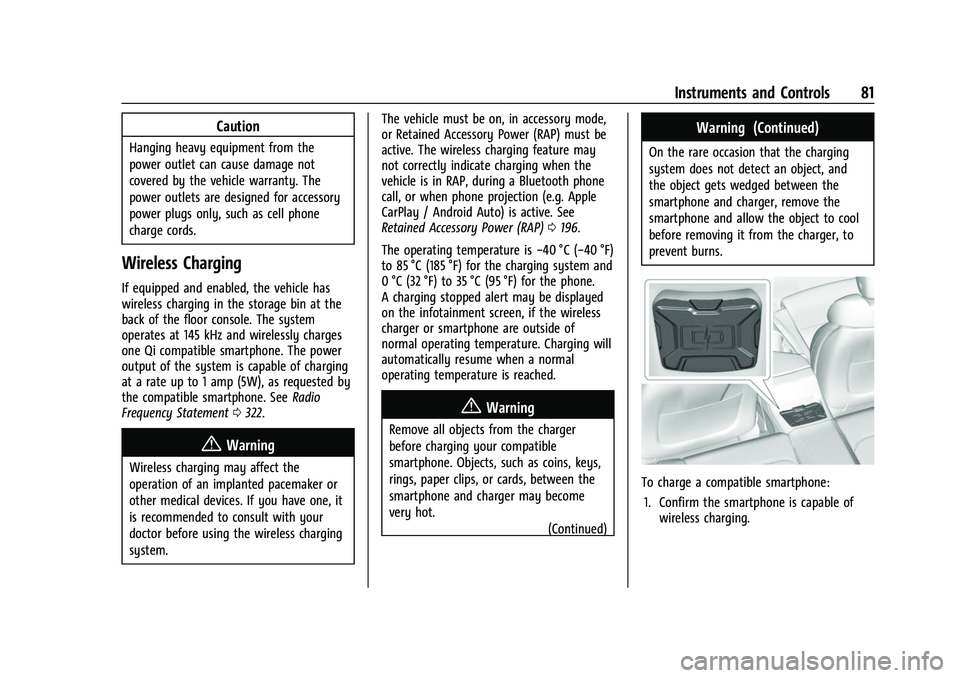
Wireless Charging
If equipped and enabled, the vehicle has
wireless charging in the storage bin at the
back of the floor console. The system
operates at 145 kHz and wirelessly charges
one Qi compatible smartphone. The power
output of the system is capable of charging
at a rate up to 1 amp (5W), as requested by
the compatible smartphone. SeeRadio
Frequency Statement 0322.
{Warning
Wireless charging may affect the
operation of an implanted pacemaker or
other medical devices. If you have one, it
is recommended to consult with your
doctor before using the wireless charging
system. The vehicle must be on, in accessory mode,
or Retained Accessory Power (RAP) must be
active. The wireless charging feature may
not correctly indicate charging when the
vehicle is in RAP, during a Bluetooth phone
call, or when phone projection (e.g. Apple
CarPlay / Android Auto) is active. See
Retained Accessory Power (RAP)
0196.
The operating temperature is −40 °C (−40 °F)
to 85 °C (185 °F) for the charging system and
0 °C (32 °F) to 35 °C (95 °F) for the phone.
A charging stopped alert may be displayed
on the infotainment screen, if the wireless
charger or smartphone are outside of
normal operating temperature. Charging will
automatically resume when a normal
operating temperature is reached.
{Warning
Remove all objects from the charger
before charging your compatible
smartphone. Objects, such as coins, keys,
rings, paper clips, or cards, between the
smartphone and charger may become
very hot.
(Continued)
Warning (Continued)
On the rare occasion that the charging
system does not detect an object, and
the object gets wedged between the
smartphone and charger, remove the
smartphone and allow the object to cool
before removing it from the charger, to
prevent burns.
To charge a compatible smartphone:
1. Confirm the smartphone is capable of wireless charging.
Page 113 of 345
Chevrolet Camaro Owner Manual (GMNA-Localizing-U.S./Canada/Mexico-
16408685) - 2023 - CRC - 3/28/22
112 Infotainment System
Infotainment System
Introduction
Introduction . . . . . . . . . . . . . . . . . . . . . . . . . . . . 112
Overview . . . . . . . . . . . . . . . . . . . . . . . . . . . . . . . 113
Steering Wheel Controls . . . . . . . . . . . . . . . 115
Using the System . . . . . . . . . . . . . . . . . . . . . . 115
Software Updates . . . . . . . . . . . . . . . . . . . . . . 118
Radio
AM-FM Radio . . . . . . . . . . . . . . . . . . . . . . . . . . 118
HD Radio Technology . . . . . . . . . . . . . . . . . . 120
Radio Data System (RDS) . . . . . . . . . . . . . . . 121
Satellite Radio . . . . . . . . . . . . . . . . . . . . . . . . . . 121
Radio Reception . . . . . . . . . . . . . . . . . . . . . . . . 121
Antenna . . . . . . . . . . . . . . . . . . . . . . . . . . . . . . . 122
Audio Players
Avoiding Untrusted Media Devices . . . . . 122
USB Port . . . . . . . . . . . . . . . . . . . . . . . . . . . . . . . 122
Auxiliary Jack . . . . . . . . . . . . . . . . . . . . . . . . . . 125
Bluetooth Audio . . . . . . . . . . . . . . . . . . . . . . . 125
Navigation
Using the Navigation System . . . . . . . . . . 126
Maps . . . . . . . . . . . . . . . . . . . . . . . . . . . . . . . . . . 128
Navigation Symbols . . . . . . . . . . . . . . . . . . . 129
Destination . . . . . . . . . . . . . . . . . . . . . . . . . . . . 130
Global Positioning System (GPS) . . . . . . . 135
Vehicle Positioning . . . . . . . . . . . . . . . . . . . . . 135
Problems with Route Guidance . . . . . . . . 136If the System Needs Service . . . . . . . . . . . 136
Map Data Updates . . . . . . . . . . . . . . . . . . . . 136
Database Coverage Explanations . . . . . . . 136
Voice Recognition
Voice Recognition . . . . . . . . . . . . . . . . . . . . . . 137
Performance Data Recorder (PDR)
Performance Data Recorder (PDR) . . . . . . 142
Phone
Bluetooth (Overview) . . . . . . . . . . . . . . . . . . 146
Bluetooth (Pairing and Using a
Phone) . . . . . . . . . . . . . . . . . . . . . . . . . . . . . . . 147
Apple CarPlay and Android Auto . . . . . . . 151
Settings
Settings . . . . . . . . . . . . . . . . . . . . . . . . . . . . . . . . 152
Teen Driver . . . . . . . . . . . . . . . . . . . . . . . . . . . . 155
Trademarks and License Agreements
Trademarks and License Agreements . . . . . . . . . . . . . . . . . . . . . . . . . . 158
Introduction
Read the following pages to become familiar
with the features.
{Warning
Taking your eyes off the road for too
long or too often while using any
infotainment feature can cause a crash.
You or others could be injured or killed.
Do not give extended attention to
infotainment tasks while driving. Limit
your glances at the vehicle displays and
focus your attention on driving. Use voice
commands whenever possible.
The infotainment system has built-in
features intended to help avoid distraction
by disabling some features when driving.
These features may gray out when they are
unavailable. Many infotainment features are
also available through the instrument cluster
and steering wheel controls.
Before driving:
.Become familiar with the operation,
center stack controls, steering wheel
controls, and infotainment display.
Page 114 of 345
Chevrolet Camaro Owner Manual (GMNA-Localizing-U.S./Canada/Mexico-
16408685) - 2023 - CRC - 3/28/22
Infotainment System 113
.Set up the audio by presetting favorite
stations, setting the tone, and adjusting
the speakers.
.Set up phone numbers in advance so they
can be called easily by pressing a single
control or by using a single voice
command.
See Distracted Driving 0174.
Active Noise Cancellation (ANC)
If equipped, ANC reduces engine noise in the
vehicle’s interior. ANC requires the
factory-installed audio system, radio,
speakers, amplifier (if equipped), induction
system, and exhaust system to work
properly. Deactivation is required by your
dealer if related aftermarket equipment is
installed.
Overview
Infotainment System
The infotainment system is controlled by
using the infotainment display, controls on
the center stack, steering wheel controls,
and voice recognition.
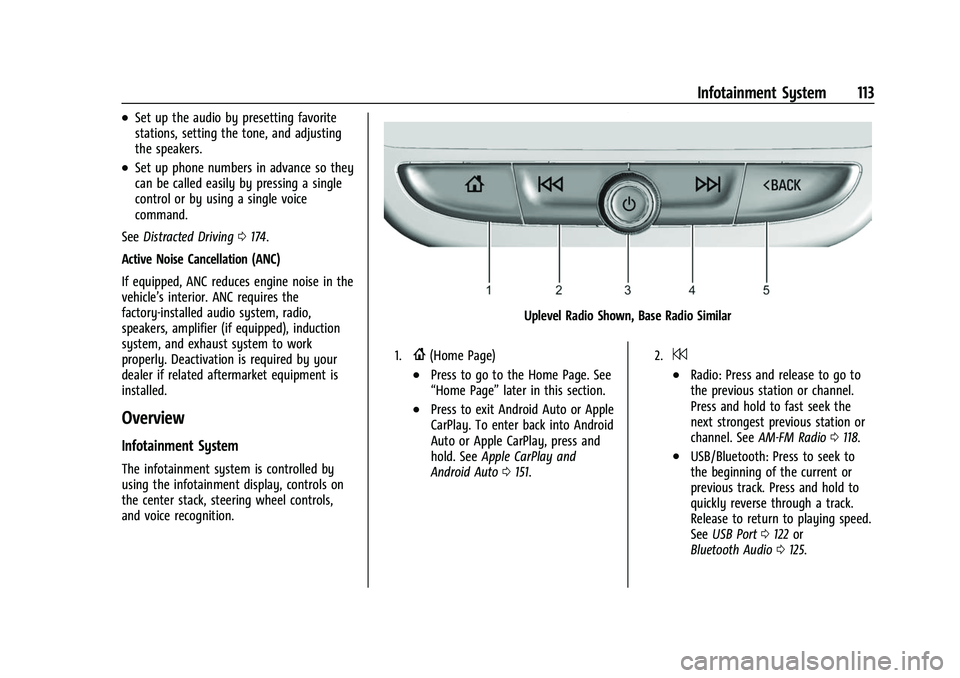
Uplevel Radio Shown, Base Radio Similar
1.{(Home Page)
.Press to go to the Home Page. See
“Home Page” later in this section.
.Press to exit Android Auto or Apple
CarPlay. To enter back into Android
Auto or Apple CarPlay, press and
hold. SeeApple CarPlay and
Android Auto 0151.
2.7
.Radio: Press and release to go to
the previous station or channel.
Press and hold to fast seek the
next strongest previous station or
channel. See AM-FM Radio 0118.
.USB/Bluetooth: Press to seek to
the beginning of the current or
previous track. Press and hold to
quickly reverse through a track.
Release to return to playing speed.
See USB Port 0122 or
Bluetooth Audio 0125.
Page 115 of 345
Chevrolet Camaro Owner Manual (GMNA-Localizing-U.S./Canada/Mexico-
16408685) - 2023 - CRC - 3/28/22
114 Infotainment System
3.O(Power)
.Press to turn the power on.
.Press to mute/unmute the system
when on.
.Press and hold to display the
power off screen or the option to
display the power off screen.
.Turn to decrease or increase the
volume.
4.6
.Radio: Press and release to go to
the next station or channel. Press
and hold to fast seek the next
strongest station or channel.
.USB/Bluetooth: Press to seek the
next track. Press and hold to fast
forward through a track. Release to
return to playing speed. SeeUSB
Port 0122 or
Bluetooth Audio 0125.
5.SBACK or5
.PressSBACK to return to the
previous display in a menu.
.Press and release5to access the
phone display or answer an
incoming call.
Home Page
The Home Page is where vehicle application
icons are accessed. Some applications are
disabled when the vehicle is moving.
Swipe left or right across the display to
access the pages of icons.
Managing Home Page Icons 1. Touch and hold any of the Home Page icons to enter edit mode.
2. Continue holding the icon and drag it to the desired position. 3. Release your finger to drop the icon in
the desired position.
4. To move an application to another page, drag the icon to the edge of the display
toward the desired page.
5. Continue dragging and dropping application icons as desired.
Page 116 of 345
Chevrolet Camaro Owner Manual (GMNA-Localizing-U.S./Canada/Mexico-
16408685) - 2023 - CRC - 3/28/22
Infotainment System 115
Steering Wheel Controls
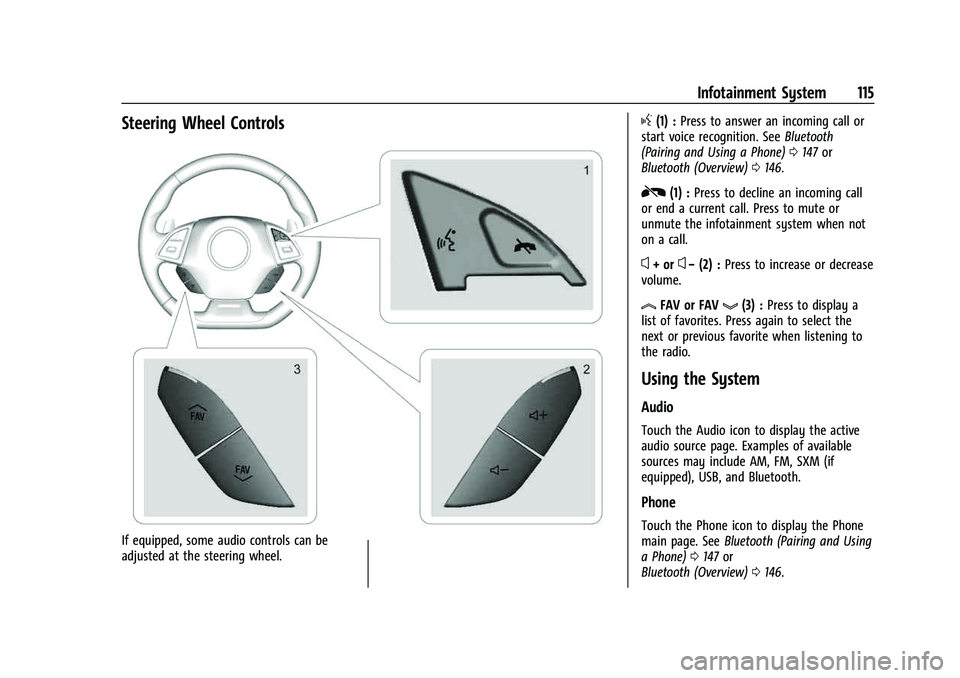
If equipped, some audio controls can be
adjusted at the steering wheel.
g(1) :Press to answer an incoming call or
start voice recognition. See Bluetooth
(Pairing and Using a Phone) 0147 or
Bluetooth (Overview) 0146.
R(1) : Press to decline an incoming call
or end a current call. Press to mute or
unmute the infotainment system when not
on a call.
x+ orx− (2) : Press to increase or decrease
volume.
lFAV or FAVg(3) : Press to display a
list of favorites. Press again to select the
next or previous favorite when listening to
the radio.
Using the System
Audio
Touch the Audio icon to display the active
audio source page. Examples of available
sources may include AM, FM, SXM (if
equipped), USB, and Bluetooth.
Phone
Touch the Phone icon to display the Phone
main page. See Bluetooth (Pairing and Using
a Phone) 0147 or
Bluetooth (Overview) 0146.
Page 119 of 345
Chevrolet Camaro Owner Manual (GMNA-Localizing-U.S./Canada/Mexico-
16408685) - 2023 - CRC - 3/28/22
118 Infotainment System
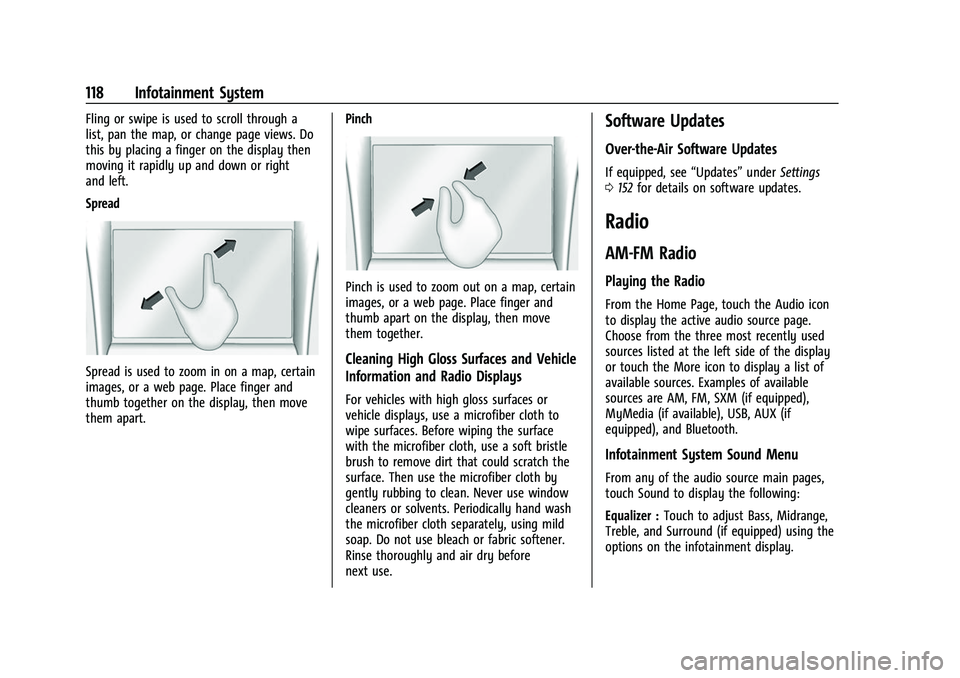
Fling or swipe is used to scroll through a
list, pan the map, or change page views. Do
this by placing a finger on the display then
moving it rapidly up and down or right
and left.
Spread
Spread is used to zoom in on a map, certain
images, or a web page. Place finger and
thumb together on the display, then move
them apart.Pinch
Pinch is used to zoom out on a map, certain
images, or a web page. Place finger and
thumb apart on the display, then move
them together.
Cleaning High Gloss Surfaces and Vehicle
Information and Radio Displays
For vehicles with high gloss surfaces or
vehicle displays, use a microfiber cloth to
wipe surfaces. Before wiping the surface
with the microfiber cloth, use a soft bristle
brush to remove dirt that could scratch the
surface. Then use the microfiber cloth by
gently rubbing to clean. Never use window
cleaners or solvents. Periodically hand wash
the microfiber cloth separately, using mild
soap. Do not use bleach or fabric softener.
Rinse thoroughly and air dry before
next use.
Software Updates
Over-the-Air Software Updates
If equipped, see
“Updates”underSettings
0 152 for details on software updates.
Radio
AM-FM Radio
Playing the Radio
From the Home Page, touch the Audio icon
to display the active audio source page.
Choose from the three most recently used
sources listed at the left side of the display
or touch the More icon to display a list of
available sources. Examples of available
sources are AM, FM, SXM (if equipped),
MyMedia (if available), USB, AUX (if
equipped), and Bluetooth.
Infotainment System Sound Menu
From any of the audio source main pages,
touch Sound to display the following:
Equalizer : Touch to adjust Bass, Midrange,
Treble, and Surround (if equipped) using the
options on the infotainment display.
Page 126 of 345
Chevrolet Camaro Owner Manual (GMNA-Localizing-U.S./Canada/Mexico-
16408685) - 2023 - CRC - 3/28/22
Infotainment System 125
Auxiliary Jack
This vehicle may have an auxiliary input
jack. Possible auxiliary audio sources include:
.Laptop computer
.Audio music player
This jack is not an audio output. Do not
plug headphones into the auxiliary input
jack. Set up an auxiliary device while the
vehicle is in P (Park).
Connect a 3.5 mm (1/8 in) cable from the
auxiliary device to the auxiliary input jack.
When a device is connected, the system can
play audio from the device over the vehicle
speakers.
If an auxiliary device has already been
connected, but a different source is currently
active, touch More and then touch AUX to
make the source active.
Shuffle and Browse are not available in the
AUX source menu.
Bluetooth Audio
Music may be played from a paired
Bluetooth device. See Bluetooth (Pairing and
Using a Phone) 0147 or
Bluetooth (Overview) 0146 for help pairing
a device. Volume and song selection may be
controlled by using the infotainment
controls or the mobile device. If Bluetooth is
selected and no volume is present, check the
volume setting on the infotainment system.
Music can be launched by touching
Bluetooth from the recent sources list on
the left of the display or by touching the
More option and then touching the
Bluetooth device.
To play music via Bluetooth:
1. Power on the device, and pair to connect the device.
2. Once paired, touch Audio from the Home Page, then touch Bluetooth from the
recent sources list on the left of the
display.
Bluetooth Sound Menu
See “Infotainment System Sound Menu”
under AM-FM Radio 0118.
Manage Bluetooth Devices
From the Home Page: 1. Touch Audio.
2. Touch Devices to add or delete devices. When touching Bluetooth, the radio may
not be able to launch the audio player on
the connected device to start playing. When
the vehicle is not moving, use the mobile
device to begin playback.
All devices launch audio differently. When
selecting Bluetooth as a source, the radio
may show as paused on the display. Press
play on the device or touch
pon the
vehicle display to begin playback.
Browse functionality will be provided where
supported by the Bluetooth device. This
media content will not be part of the
MyMedia source mode.
Some smartphones support sending
Bluetooth music information to display on
the radio. When the radio receives this
information, it will check to see if any is
available and display it. For more
information about supported Bluetooth
features, visit your brand website. See
Online Account 0316 for details.
See Radio Frequency Statement 0322.
Page 142 of 345
Chevrolet Camaro Owner Manual (GMNA-Localizing-U.S./Canada/Mexico-
16408685) - 2023 - CRC - 3/28/22
Infotainment System 141
Similar limits exist for album content.
If there are more than 12,000 albums, but
fewer than 24,000, the content cannot be
accessed directly with one command like,
“Play
Album” must first be spoken; the system
will then ask for the album name. The reply
would be to say the name of the album
to play.
Once the number of files has exceeded
approximately 24,000, there is no support
for accessing the songs directly through
voice commands. There will still be access to
the media content by using commands for
playlists, artists, and genres.
The access commands for playlists, artists,
and genres are prohibited after the number
of this type of media exceeds 12,000.
The system will provide feedback the first
time voice recognition is initiated if it has
become apparent that any of these limits
are reached during a device initializing
process.
Voice recognition performance will degrade
to some extent based on many factors when
adding large amounts of data to recognize.
If this is the case, perhaps accessing songs
through playlists or artist name would work
better.Voice Recognition for Navigation (If
Equipped)
“Navigation” :Begin a dialog to enter
specific destination information.
“Navigation Commands” :Begin a dialog to
enter specific destination information.
“Address” :Begin a dialog to enter a
specific destination address, which includes
the entire address consisting of the house
number, street name, city, state/province,
and country. Do not include the ZIP code.
“Place of Interest” :Begin a dialog to enter
a destination Place of Interest category or
major brand name.
The name must be precisely spoken.
Nicknames or short names for the
businesses will not likely be found. Lesser
known businesses might have to be located
by category, such as fast food, hotels,
or banks.
“Navigate to Contact” :Begin a dialog to
enter a specific destination contact name.
“Cancel Route” :End route guidance.
“Take Me Home” :Create a route to a
stored home location.
Voice Recognition for the Phone
“Call
stored contact. The command may include
location if the contact has location numbers
stored.
“Call
Mobile,” or“On Other” :Initiate a call to a
stored contact and location at home, at
work, on mobile device, or on another
phone.
“Call
to a cell phone number of seven digits, 10
digits, or three digit emergency numbers.
“Pair Phone” :Begin the Bluetooth pairing
process. Follow the instructions on the
infotainment display.
“Redial” :Initiate a call to the last dialed
number.
“Switch Phone” :Select a different
connected cell phone for outgoing calls.
“Voice Keypad” :Begin a dialog to enter
special numbers like international numbers.
The numbers can be entered in groups of
digits with each group of digits being
repeated back by the system. If the group
of digits is not correct, the command
“Delete” will remove the last group of digits
Page 143 of 345
Chevrolet Camaro Owner Manual (GMNA-Localizing-U.S./Canada/Mexico-
16408685) - 2023 - CRC - 3/28/22
142 Infotainment System
and allow them to be re-entered. Once the
entire number has been entered, the
command“Call”will start dialing the
number.
Phone Assistant Voice Recognition
Press and holdgon the steering wheel
controls to pass through and launch Google
phone assistant or Siri.
For the low radio, whether connected by
Bluetooth or phone projection, the only
available voice recognition is either Siri
(iPhone) or the Google Assistant (Android).
Performance Data
Recorder (PDR)
If equipped, the PDR icon displays on the
Home Page.
Important Information
Use of the PDR may be prohibited or legally
restricted in certain countries and situations.
Ensure compliance with applicable laws and
regulations, including, but not limited to:
privacy laws, laws related to camera
surveillance and recordings, road traffic and
security laws, and laws on the protection of
publicity and personality rights.
.Do not use the PDR if it causes
distraction.
.Do not rely on camera footage to steer
the vehicle.
.Comply with any notice and consent
requirements before capturing and/or
recording the voices or images of other
persons or before collecting other
personal data.
.Notify other drivers of your vehicle of the
above rules and require them to comply.
.General Motors does not accept any
responsibility or liability in connection
with use that is not permitted.
.Law enforcement authorities may have
the right to seize video recordings and
use them as evidence of criminal/driving
offenses against you or third parties.
The PDR records video, audio, and vehicle
data. This data is stored on a removable SD
card. The SD card reader is below the
instrument panel to the left of the steering
wheel and just above the hood release.
The recorded data is not stored anywhere
else and is only accessible from the SD card.
To begin, insert a FAT32 formatted SD card,
Class 10 required, 8, 16, or 32 GB
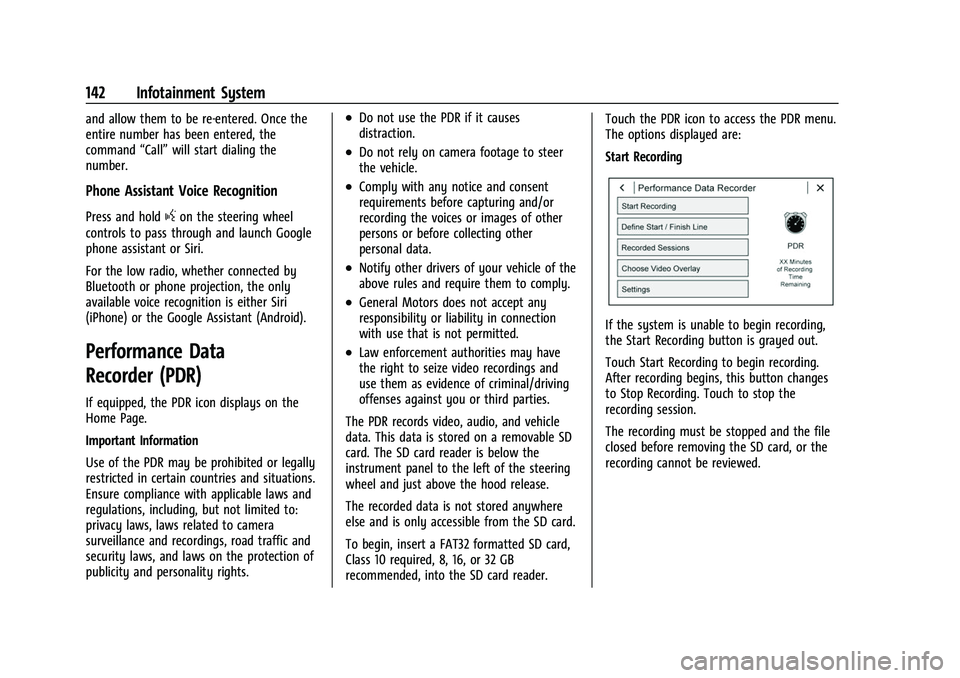
recommended, into the SD card reader. Touch the PDR icon to access the PDR menu.
The options displayed are:
Start Recording
If the system is unable to begin recording,
the Start Recording button is grayed out.
Touch Start Recording to begin recording.
After recording begins, this button changes
to Stop Recording. Touch to stop the
recording session.
The recording must be stopped and the file
closed before removing the SD card, or the
recording cannot be reviewed.
Page 147 of 345
Chevrolet Camaro Owner Manual (GMNA-Localizing-U.S./Canada/Mexico-
16408685) - 2023 - CRC - 3/28/22
146 Infotainment System
Naming Convention
The recorded video file name is stored as
the recorded date and the length of the
recording.
If the recorded session was recorded while
the system was in Valet Mode, the file
name will display the mode, date, and
length of time.
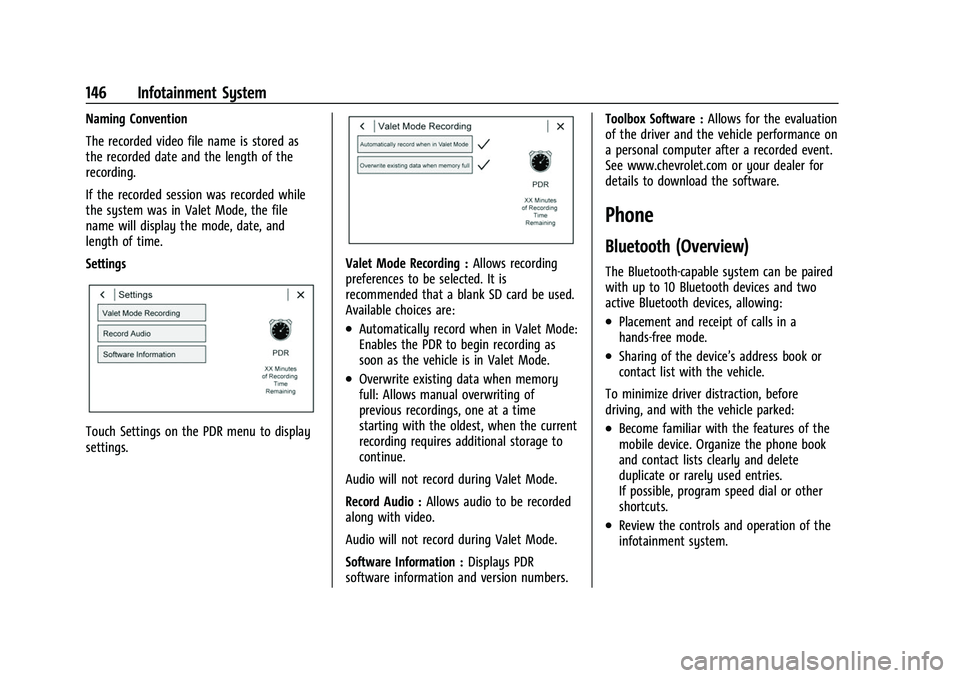
Settings
Touch Settings on the PDR menu to display
settings.
Valet Mode Recording :Allows recording
preferences to be selected. It is
recommended that a blank SD card be used.
Available choices are:
.Automatically record when in Valet Mode:
Enables the PDR to begin recording as
soon as the vehicle is in Valet Mode.
.Overwrite existing data when memory
full: Allows manual overwriting of
previous recordings, one at a time
starting with the oldest, when the current
recording requires additional storage to
continue.
Audio will not record during Valet Mode.
Record Audio : Allows audio to be recorded
along with video.
Audio will not record during Valet Mode.
Software Information : Displays PDR
software information and version numbers. Toolbox Software :
Allows for the evaluation
of the driver and the vehicle performance on
a personal computer after a recorded event.
See www.chevrolet.com or your dealer for
details to download the software.
Phone
Bluetooth (Overview)
The Bluetooth-capable system can be paired
with up to 10 Bluetooth devices and two
active Bluetooth devices, allowing:
.Placement and receipt of calls in a
hands-free mode.
.Sharing of the device’s address book or
contact list with the vehicle.
To minimize driver distraction, before
driving, and with the vehicle parked:
.Become familiar with the features of the
mobile device. Organize the phone book
and contact lists clearly and delete
duplicate or rarely used entries.
If possible, program speed dial or other
shortcuts.
.Review the controls and operation of the
infotainment system.